

Add Call Steps
- Click the
New Stepbutton to begin adding steps that the assistant will follow during the call.
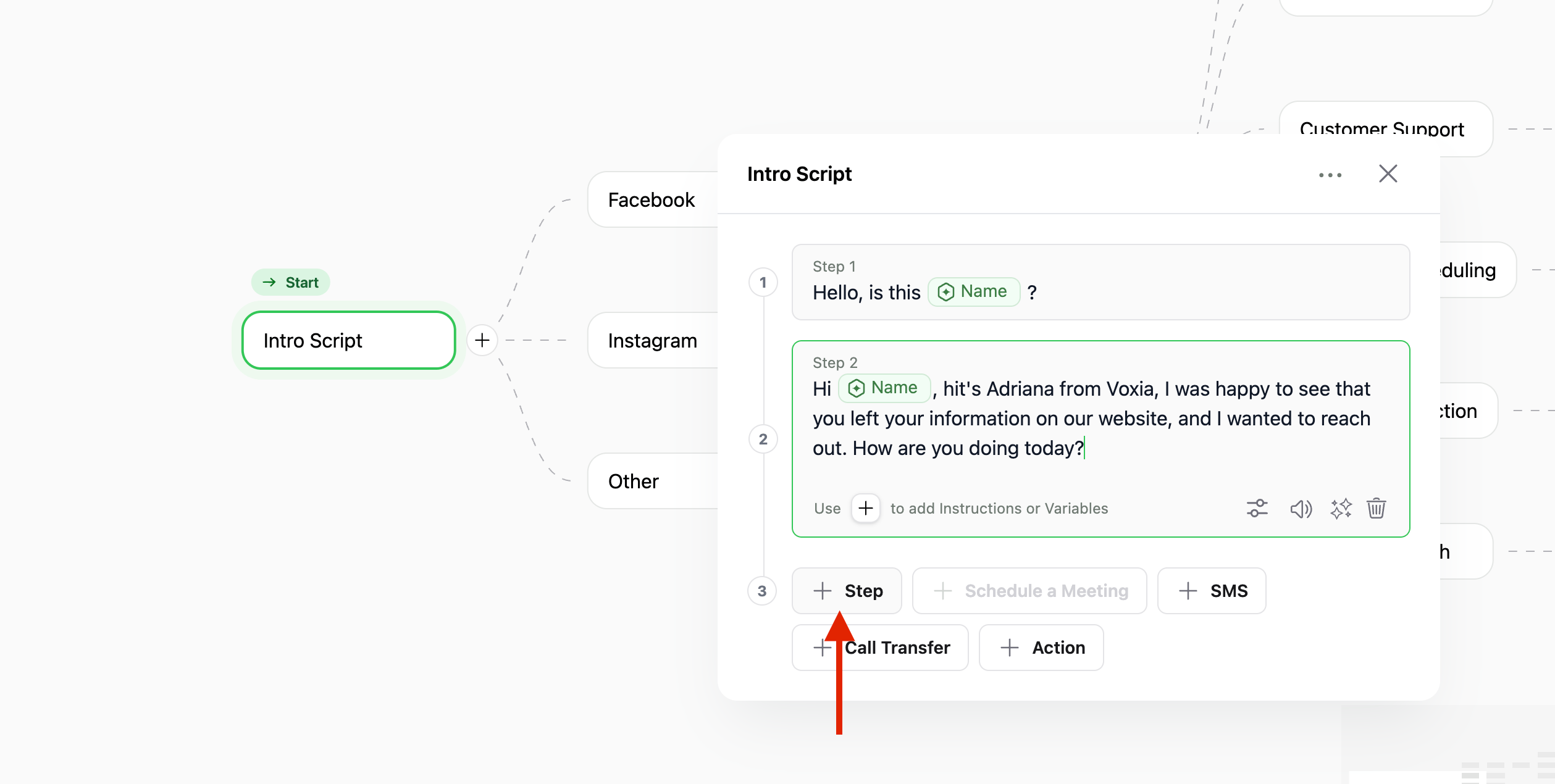
Adding a call step
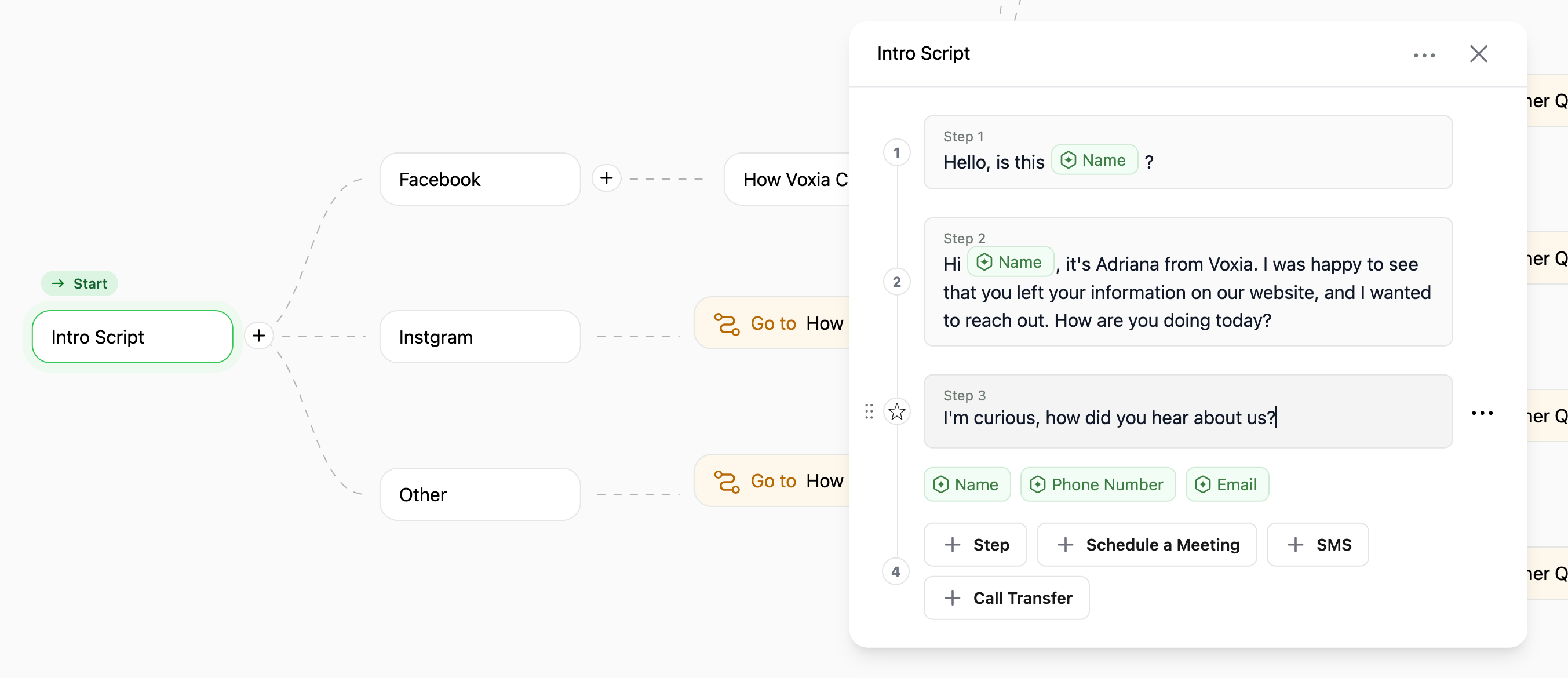
Call step added.
Schedule Meetings
- Press the
Schedule a Meetingbutton. - For scheduling, connect to Cal.com through the integrations tab.
- Before offering time slots from your account, decide on the content for the assistant to say.
- Choose the relevant event from the dropdown.
- Define how many days in advance clients can schedule meetings by setting the Schedule days ahead field. We recommend not to use more than 14 days in advance.
- For scenarios when no time slots are available, configure how the assistant should react:
- Avoid Calling: Select this option to prevent the assistant from making calls when no slots are available.
- Use Fallback Phrase: Choose this option to have the assistant use a fallback phrase. Upon selection, a text field will open where you can insert the specific sentence the assistant should say.
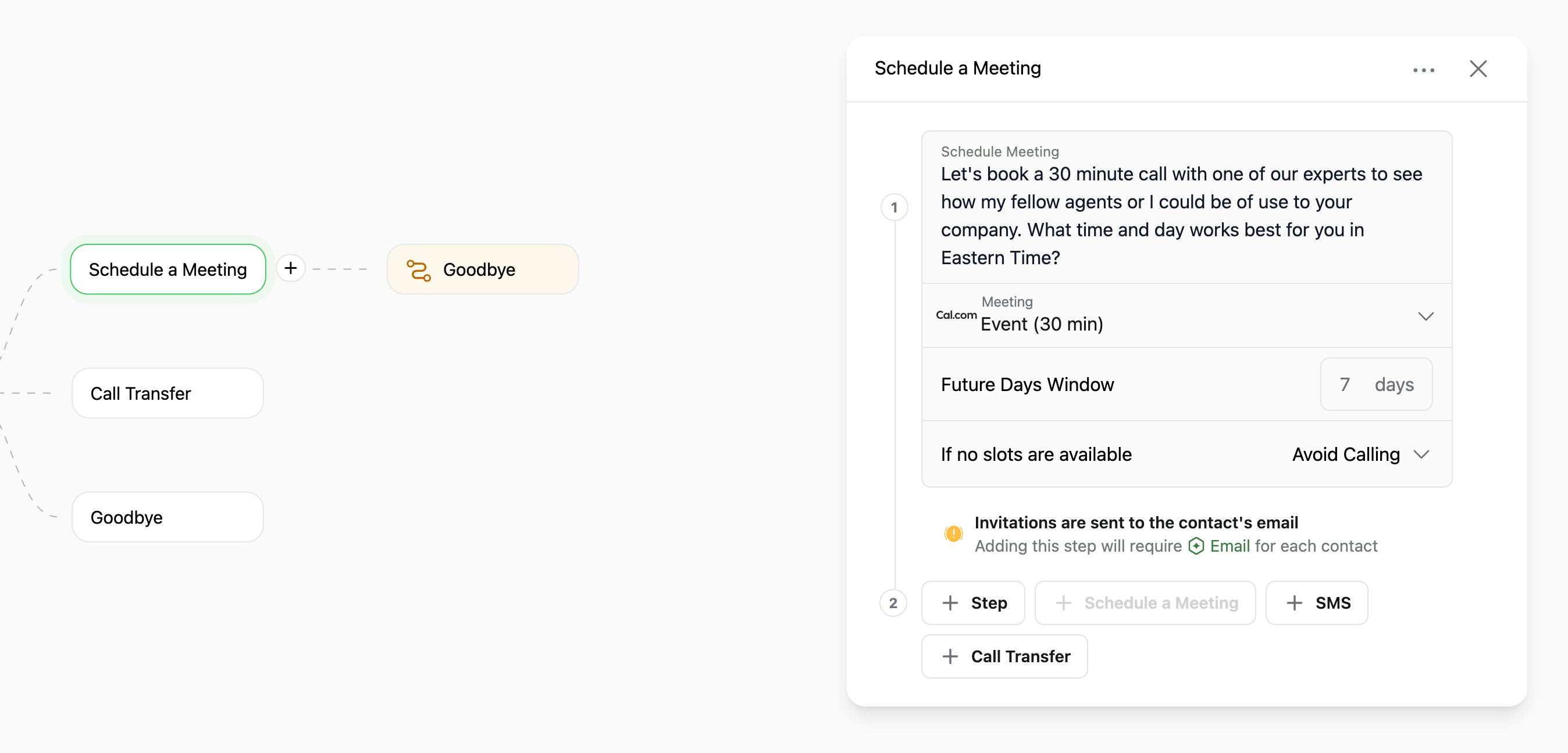
Scheduling a meeting from a step
Note: that to add this step, you need to have an
Email for each contact.Call Forwarding
- Press the
Call Transferbutton. - Enter a Call Transfer Phrase in the provided text field. This phrase will be spoken by the assistant before the call is transferred.
- Specify the phone number to which the call will be transferred. Ensure to include the country code.
- Choose whether the Caller ID for the forwarded call will be the agent’s number or the contact’s number.
Warm Transfer
- Use this option to play a summary message before transferring a call to another agent. This helps the next agent be prepared for the conversation (warm transfer).
-
API Endpoint:
POST /call/{sessionId}/warm-transfer-summary -
Required:
Authorizationheader with your API key.sessionIdof the call to play the summary for.
-
Optional:
x-sub-organization-id: If using sub-organization accounts.agentOnly(boolean): If set totrue, only the agent will hear the summary.
The Warm Transfer Summary is designed to improve customer experience by giving the receiving agent context before connecting them with the caller.
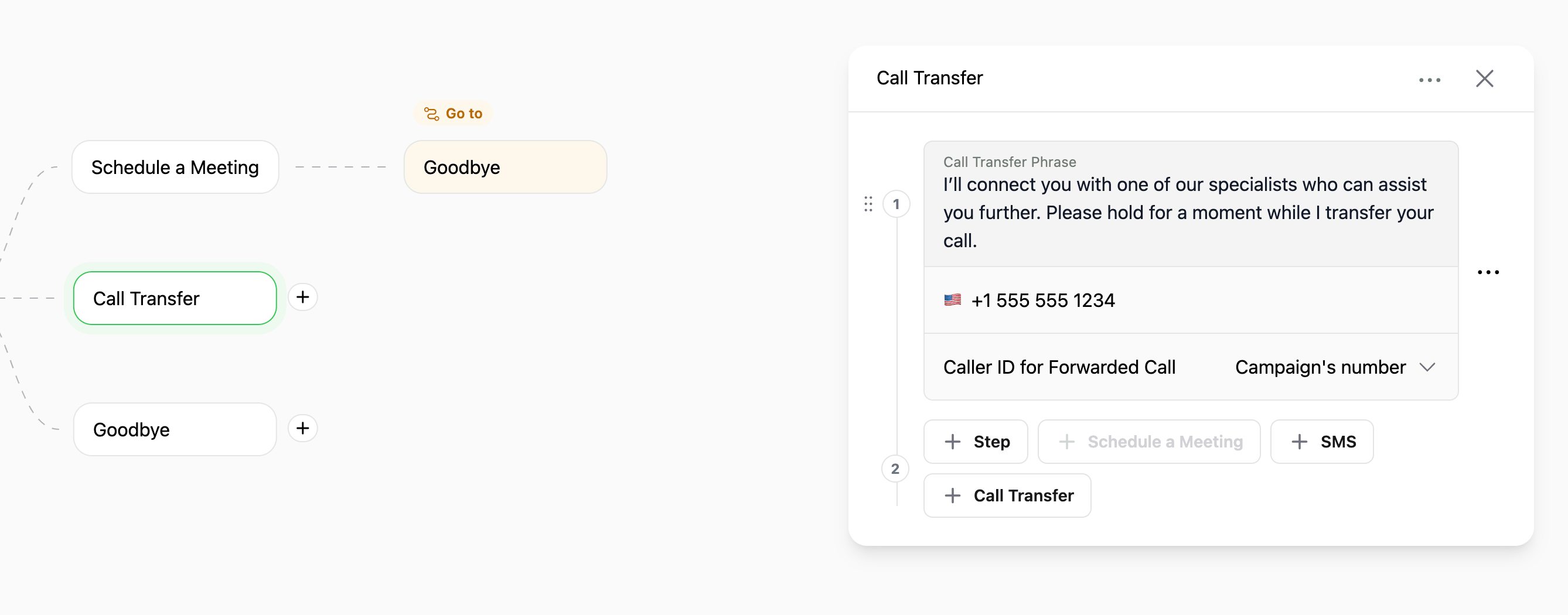
Forwarding a call with a step
Setup SMS
- Press the
SMSbutton. - Add a phrase for the assistant to say before sending an SMS and set the content of the SMS in the SMS Template.
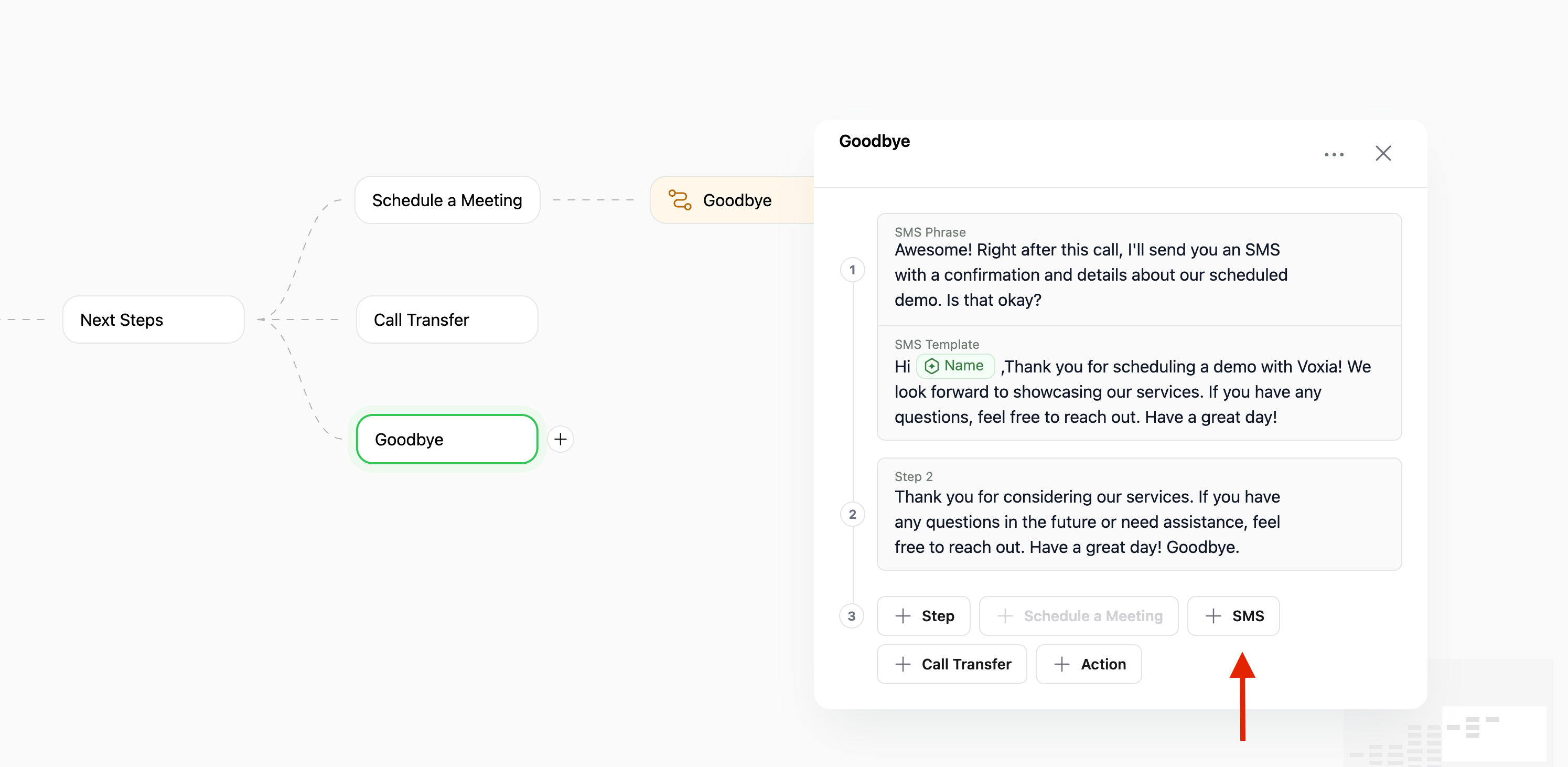
Setting up an SMS within a step
End Call
- Press the
End Сallbutton. - Add a phrase for the assistant to say before ending the call.
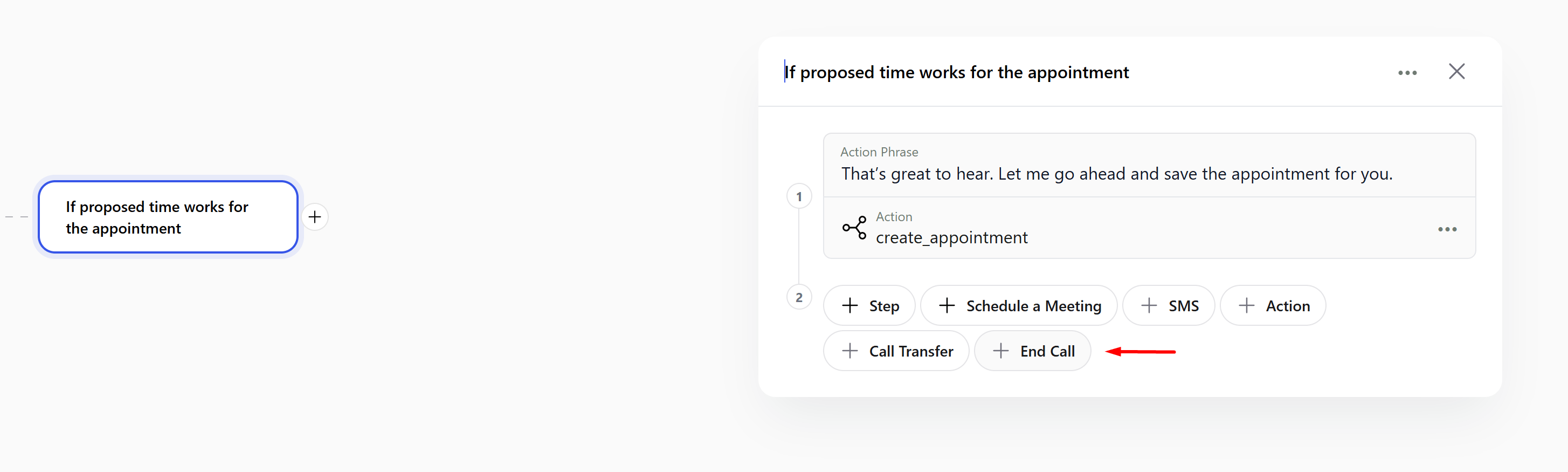
Ending the call
Editing Steps
- Reorder Steps: Long press and drag a step number to change the order.
- Step Options: To manage the content of a step, click the buttons on the right. You can:
- Play: Hear how the sentence will be said.
- Rephrase: Generate a new version of the sentence.
- Delete Step: Remove the step from the script.
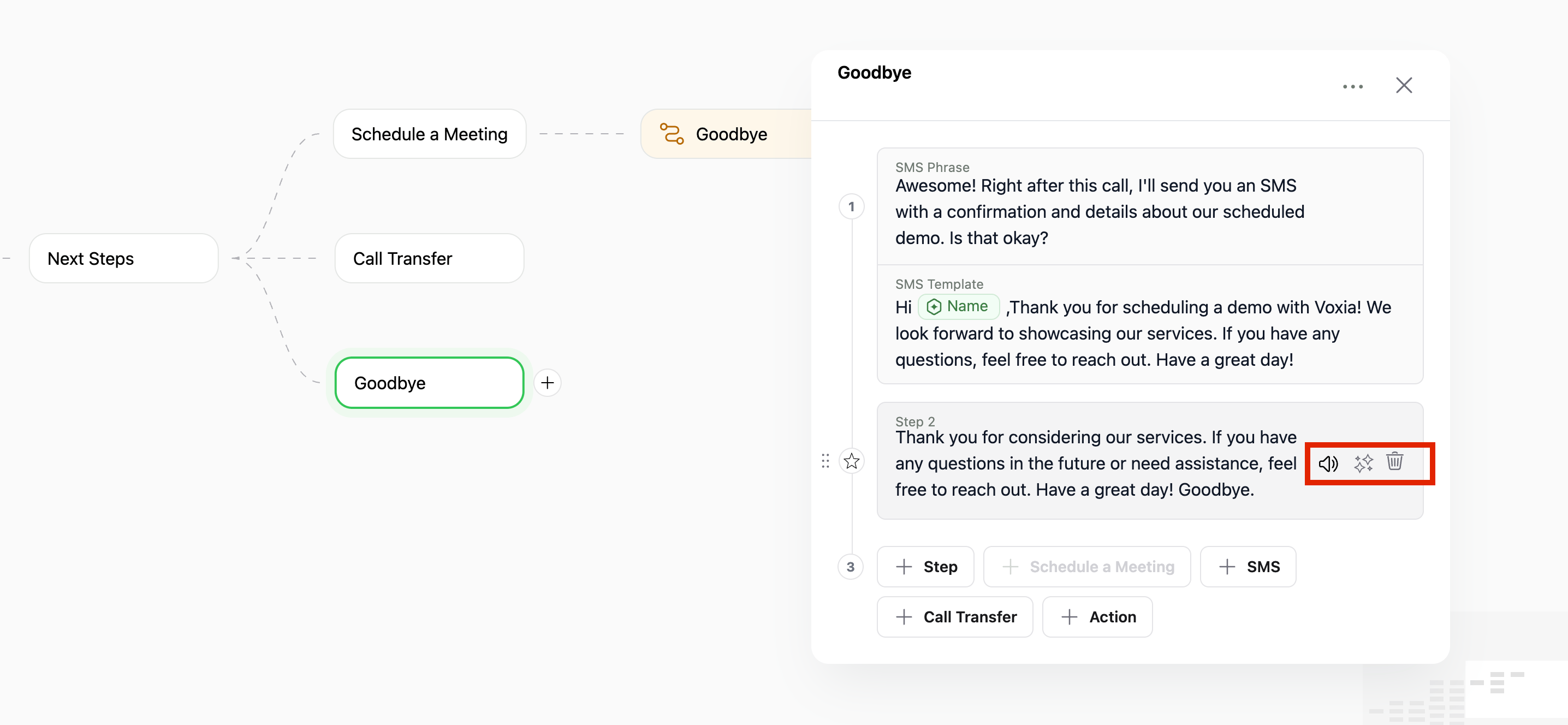
You can play, rephrase and Delete each step
Variables can be added to the script for dynamic customization. See Agent Variables page for more details.