Variables are placeholders for details that change from contact to contact, such as their name or company. Write a step once, for example Hi name, this is agentName from companyName, and during each call the agent says that contact’s own values. The values come from your contact list. Every agent starts with two built-in variables, name and phoneNumber. You can’t rename or delete them.

Adding Variables to a Step

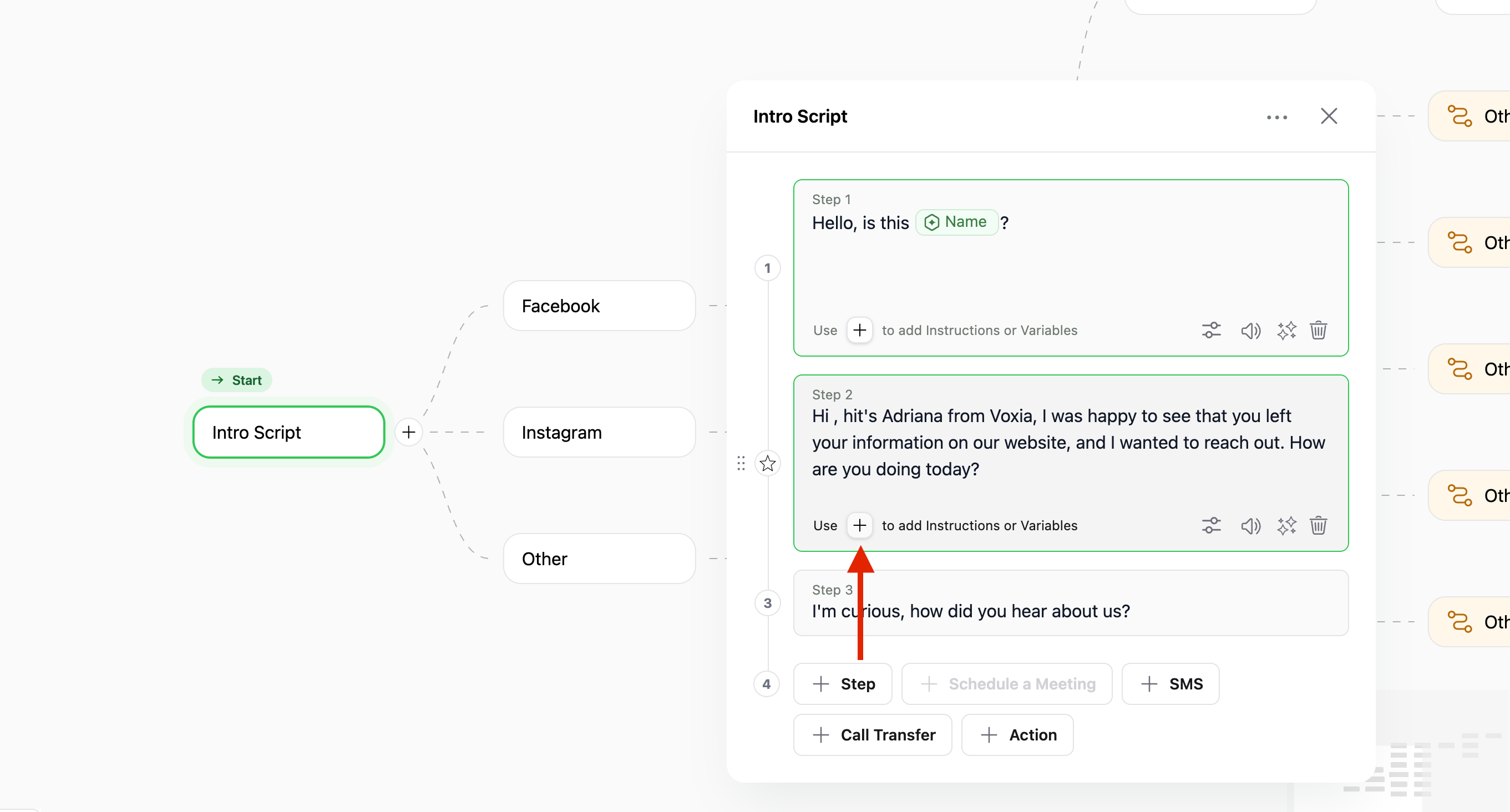
  • Click a step to edit it, then click Variable in the bar under it. You can also type + while writing the step.
  • A picker opens with all of the agent’s variables. Click one to insert it.
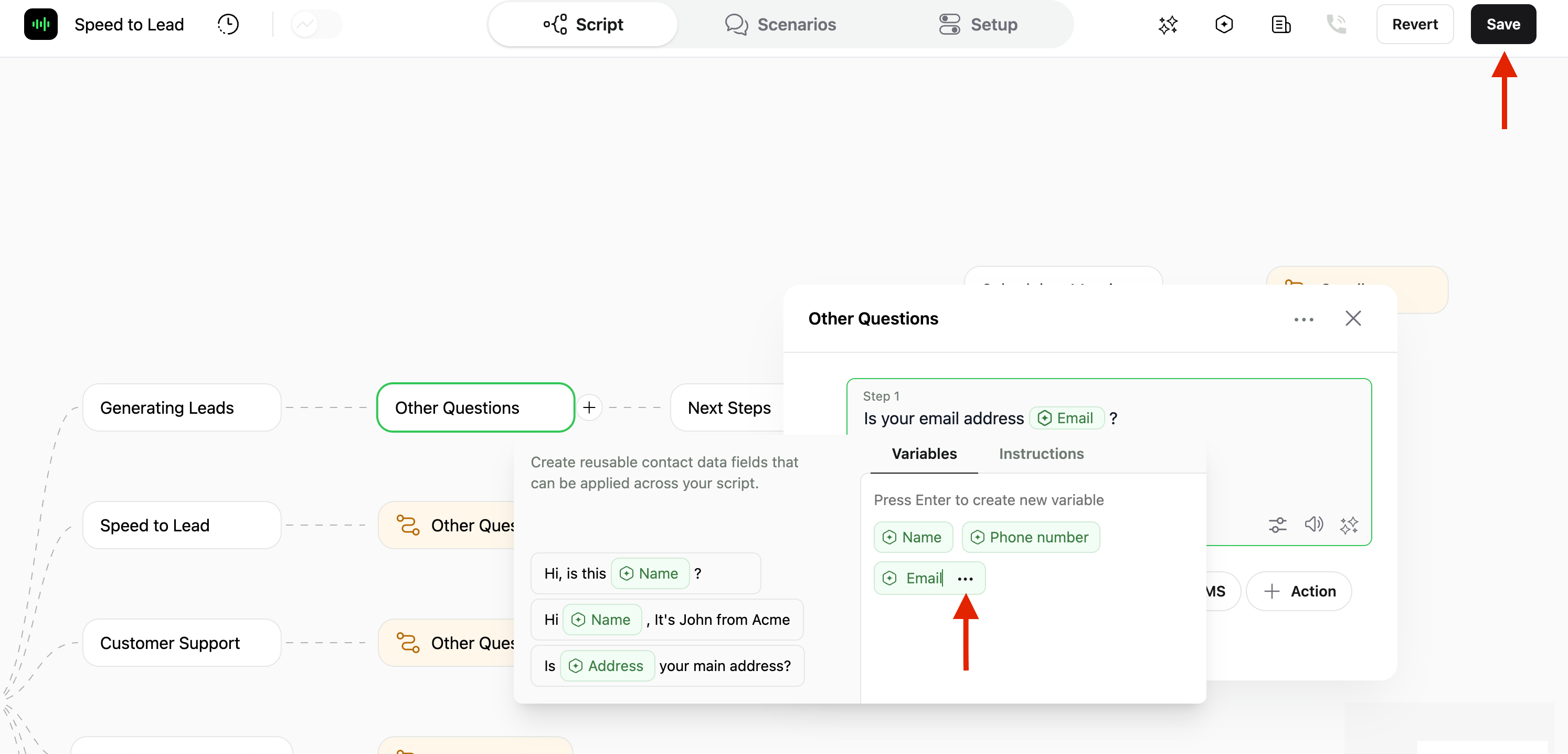
  • To create a new variable, type its name and press Enter. It is added to the step and to the agent’s variable list.
Variable names can use letters, digits, $ and _, must start with a letter, $ or _, and can be up to 30 characters long. Spaces aren’t allowed, so join words the way the built-in variables do: companyName, propertyAddress.
A step with a new empty variable and the picker listing the agent's variables

Inserting a variable into a step

Editing and Deleting Variables

Click a variable inside a step to open the picker again, or open the Variables panel. Then click the ··· button next to a variable:
  • Edit: Rename the variable. The new name replaces the old one everywhere it’s used: in steps, scenarios and Actions.
  • Delete from Variables: Remove the variable from the agent, together with every place it’s used in steps, scenarios and Actions.
The built-in name and phoneNumber variables have no ··· button.
The options menu of a variable with Edit and Delete from Variables

Editing a variable from a step

The Variables Panel

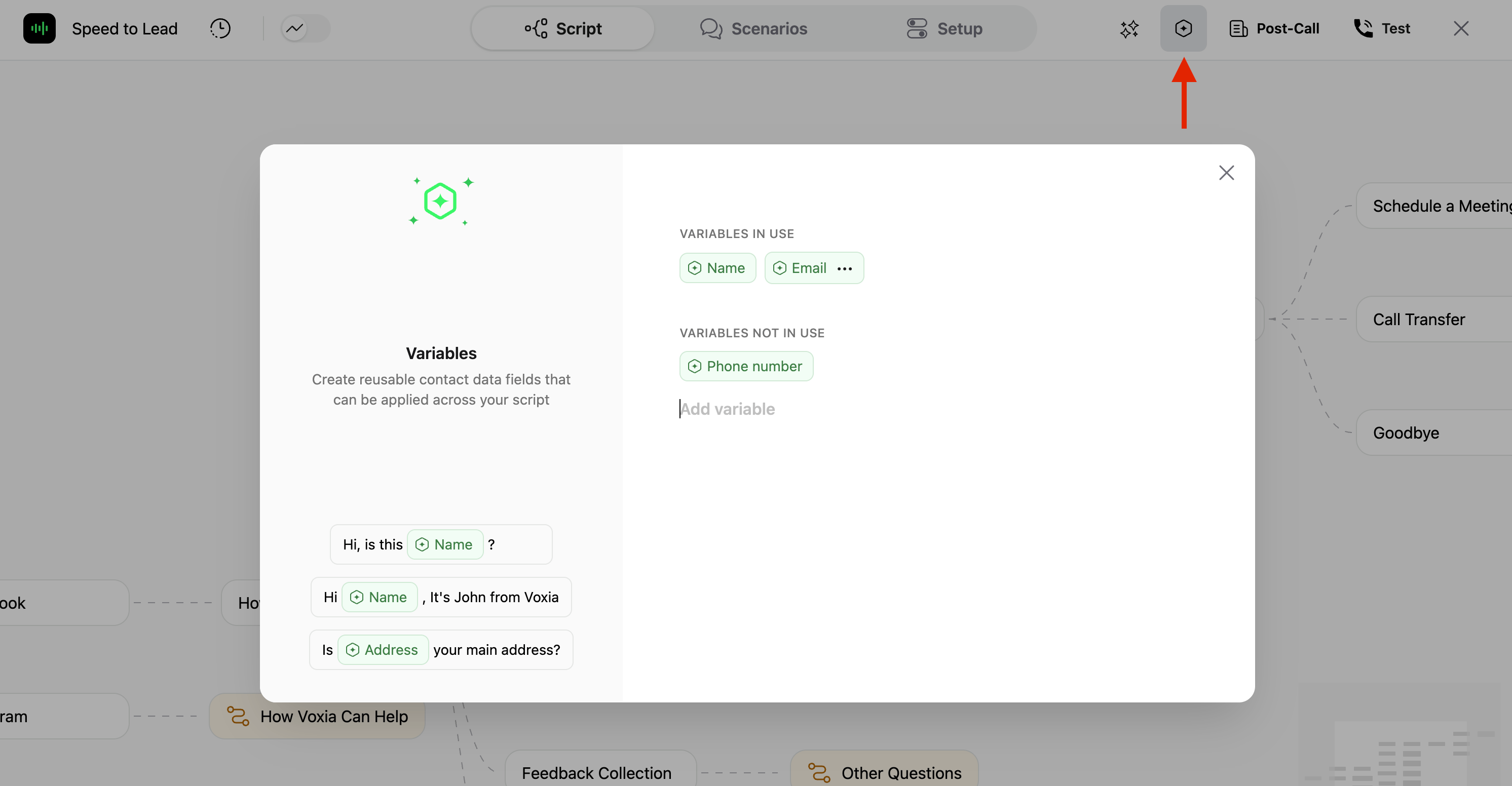
To see all of the agent’s variables in one place, click the hexagon icon in the top-left part of the agent editor header. Its tooltip reads Variables.
The agent editor header with the hexagon Variables button highlighted

The Variables button in the agent editor header

The panel shows:
  • Variables In Use: Variables used somewhere in the agent, such as in a step, a scenario or an Action.
  • Variables Not In Use: Variables that exist in the agent but aren’t used anywhere yet.
  • Add variable: Type a name and press Enter to create a variable without adding it to a step.
  • The agent’s Actions, if it has any. Click one to see the response variables it returns.
The ··· button next to each variable works the same way as in a step.
The Variables panel listing variables in use and not in use

Variables panel

Every variable in the agent must have a value when you upload contacts, including the ones under Variables Not In Use. The exception is optional variables, such as the email variable a meeting step adds. Delete the variables you don’t need, so your contact files don’t need columns for them.

Filling in Variable Values

Variable values come from your contacts. See Uploading Contacts for the full upload steps.
  • CSV file: Add one column per variable, and name each column exactly like the variable. For example, if your script uses companyName, add a companyName column. Upper or lower case doesn’t matter.
    • The upload window lists the columns your file must include, and Download Sample CSV gives you a file to start from. Besides your own variables, you always need name and phoneNumber; Email agents need name and email instead.
    • If a required column is missing, the file isn’t accepted and you see which columns are missing.
    • A contact with an empty value for one of your variables is skipped; the rest of the file is still imported.
    • Extra columns that don’t match any variable are saved with the contact.
  • API: Put the variable values in the data object of each contact. Keys follow the same naming rules as variable names.
When you add a single contact that is missing a value, the request is rejected and the error lists the missing fields. In a bulk request, contacts with missing values are skipped. See the API Reference for the endpoints.
Outbound agents also check values right before dialing. A contact without a value for a variable used in the script isn’t called: they are skipped, and you get a notification listing the missing variables. This can happen with contacts added before you added the variable to the script.

Variables in Actions

In a custom Action (Action → Create Custom Action), the URL, Headers and Query params fields accept variables. Click a field, then click the + button on its right to open the picker. In Actions it has more tabs:
  • Contact: The agent’s variables. Type a name and press Enter to create a new one.
  • Transcript: Values the agent picks up from the conversation. See Transcript Variables.
  • CallData: Details of the call, such as duration, phoneFrom and phoneTo.
  • Metadata: IDs such as contactId, callId and campaignId.
  • Actions: Values returned by the agent’s other Actions, if it has any. See Action Response Variables.
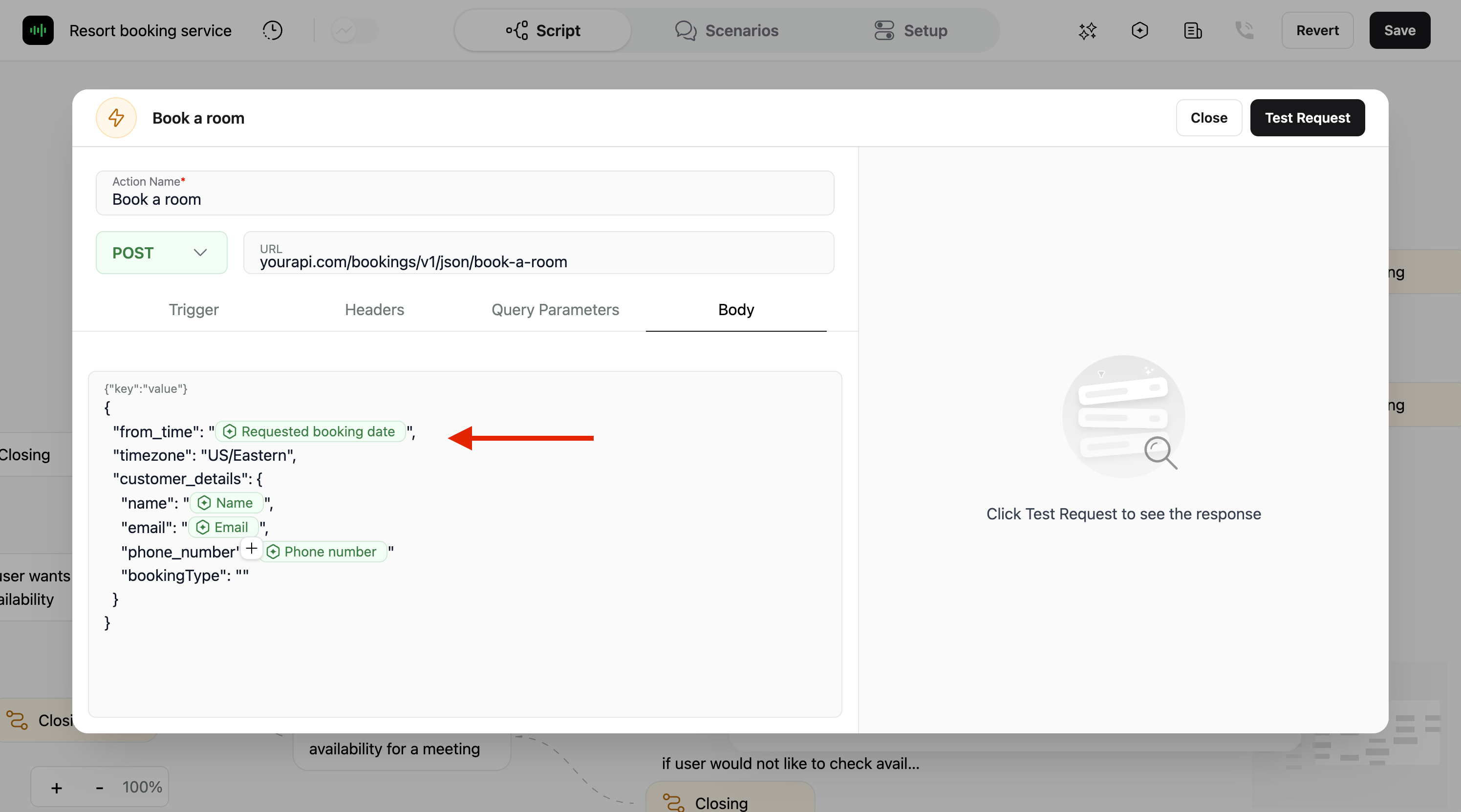
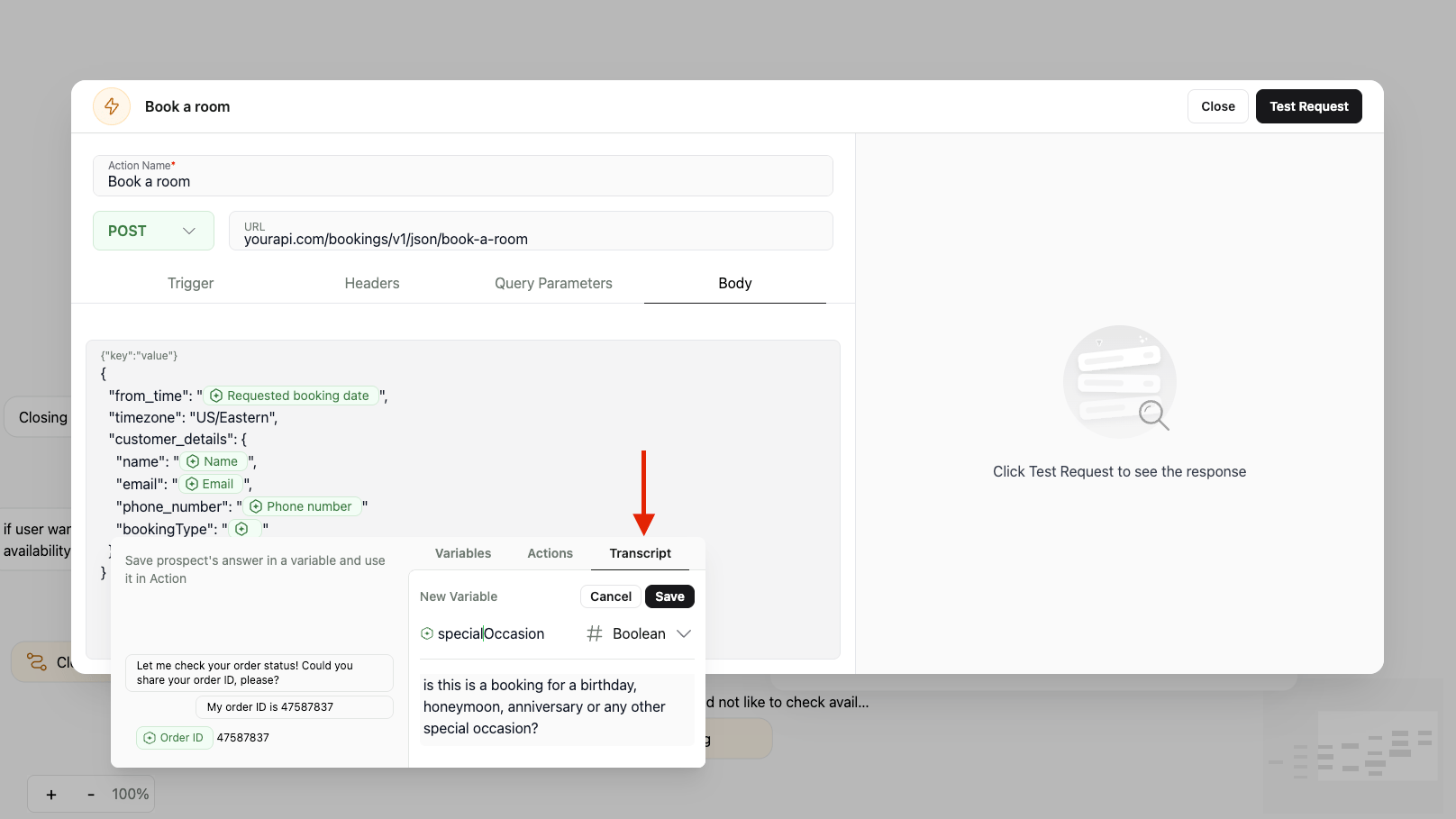
To send variables in the request body, set Body Type to JSON and open JSON Body. The same variables are listed under the editor.
A custom Action URL field with the plus button and the variable picker showing the Contact, Transcript, CallData and Metadata tabs

Inserting a variable into an Action's URL

Transcript Variables

A transcript variable stores something the contact says during the call, such as an order number or a preferred date, so an Action can send it on.
  • In the Action, open Variables Extracted with Prompt and click Add New Variable.
  • Enter a Variable Name.
  • Choose its Type:
    • Text: Free-form answers. This is the default.
    • Number: Numeric answers.
    • Boolean: Yes/no answers.
    • Array: A list of values. Click Define schema to describe what each item contains.
  • In Description, explain what to capture, for example Is this booking for a birthday, honeymoon, anniversary or another special occasion?
  • Use the back arrow to return to the Action. The new variable is now on the Transcript tab of the picker, ready to insert into the URL, headers or body.
Transcript variables also show up on the Transcript tab of the picker in steps.
Variables Extracted with Prompt with a Boolean variable and its description

Adding a transcript variable to an Action

Action Response Variables

When you click Send Test Request in an Action and the request succeeds, the fields in its response become variables. Use them in later steps from the Actions tab of the picker, for example to read out an order status. You can also pass them to other Actions. To see an Action’s response variables, open the Variables panel and click the Action. If it shows No Data Received, test the Action again and make sure the request succeeds.
The Variables panel showing the status and data response fields of an Action

Response variables of an Action in the Variables panel

For more on setting up Actions, see the Agent Actions guide.