

Open team settings
Click your name in the sidebar, choose Settings, then open the Team section. The Team section is visible to Admins only. The members table shows each member’s Email, Role, Access (Full or Limited), and Status: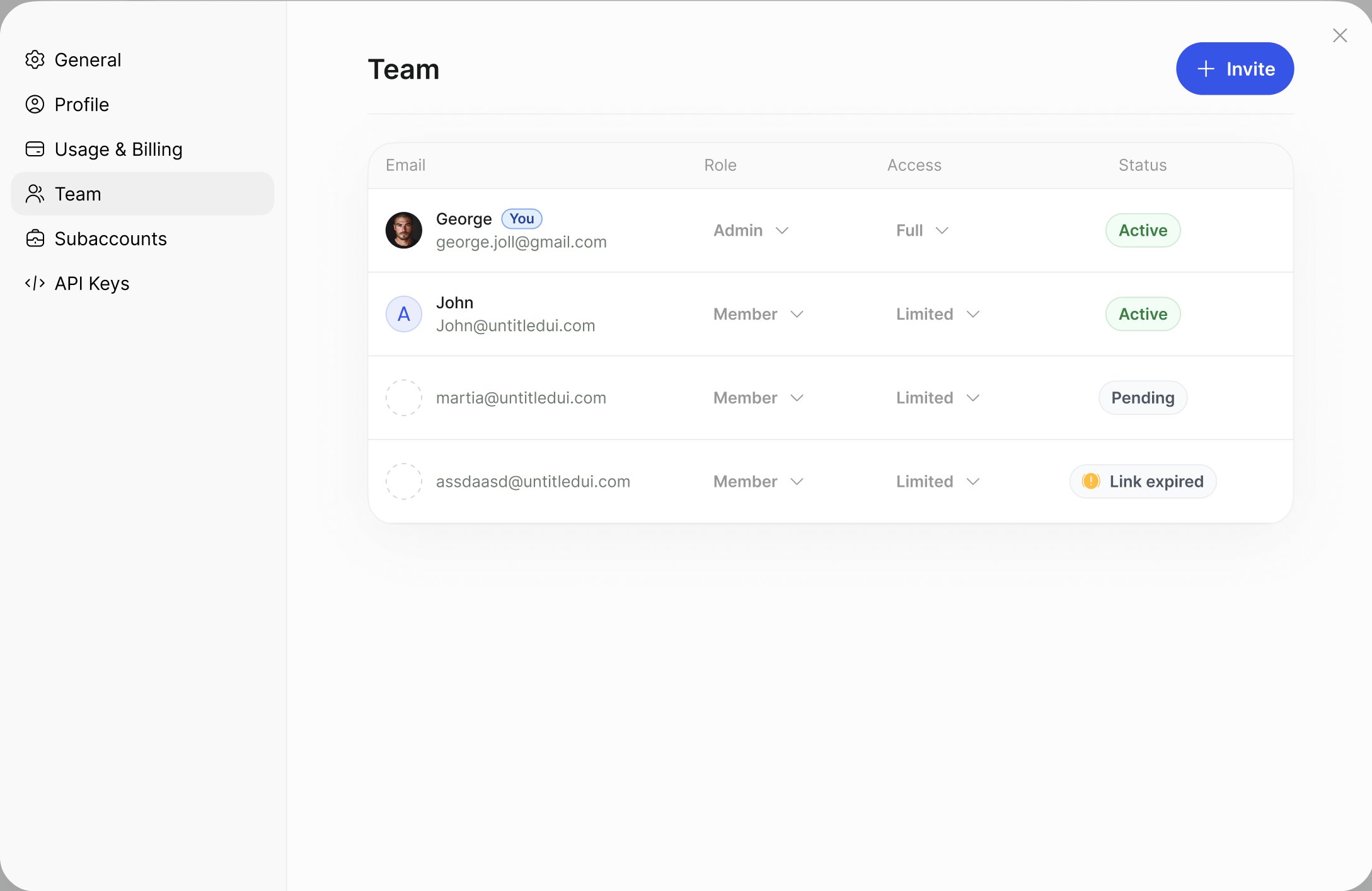
Settings → Team: each member's role, access, and status, with the Invite button.
Invite a member
1
Open the invite dialog
In Settings → Team, click Invite.
2
Enter the email address
Type the teammate’s work email in the Email field.
3
Choose a role and access
Pick a role from the role menu (Admin or Read Only). Open the Full / Limited menu next to it to adjust access toggles before you send the invite. See Member access.
4
Send the invitation
Click Invite. On app.callers.ai, Callers emails the invitation. If you use a custom domain, Callers shows an invitation link instead. Click Copy and send the link to your teammate yourself.
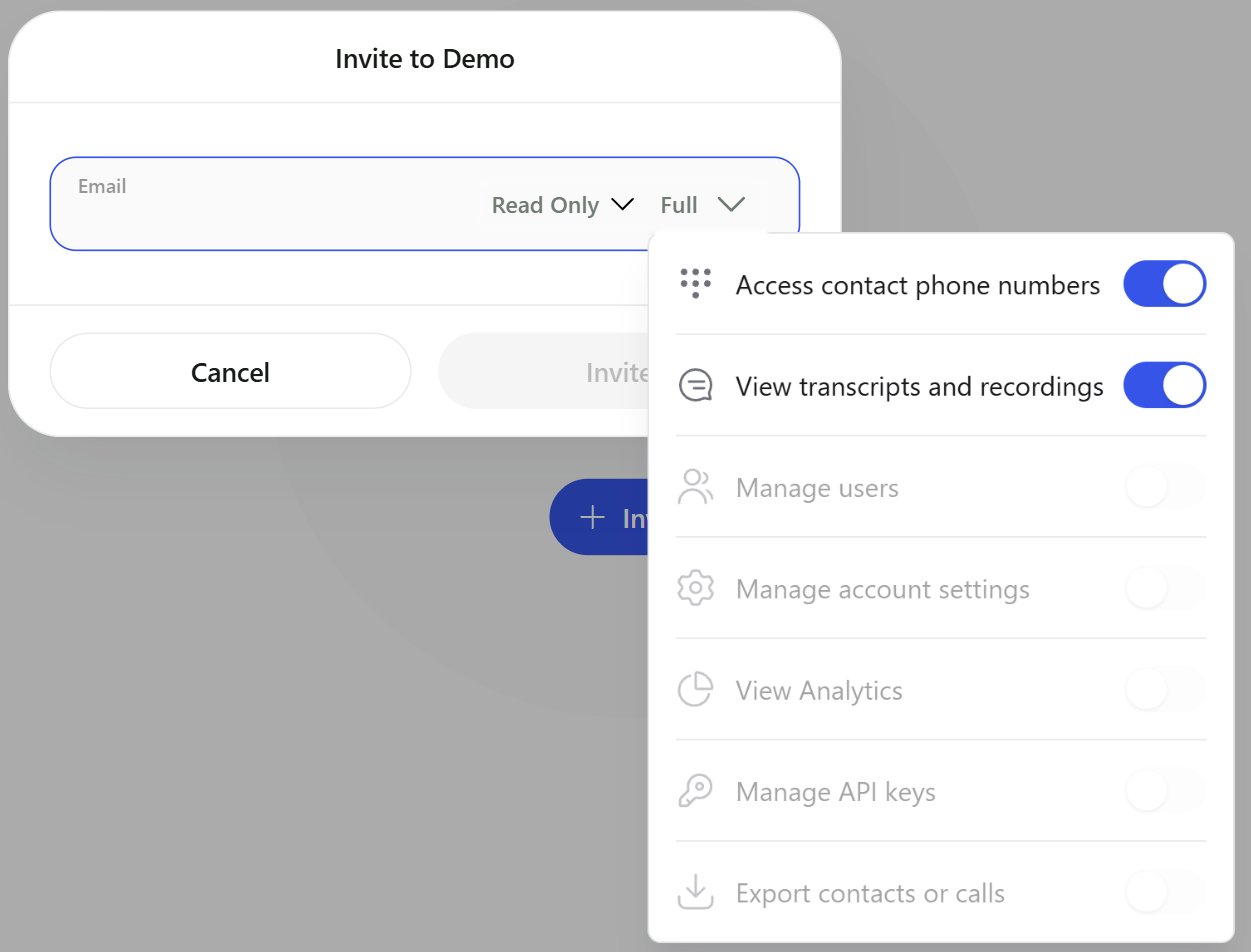
The invite dialog with the role menu and the access menu open.
Invitation links expire after 24 hours. If a teammate misses the window, open the member’s menu and choose Reset Password to create a new link.
Roles
To change a member’s role, click the role in their row and pick a new one. You can’t change your own role.
Member access
Access toggles limit what a member can see or do, on top of their role. New members get full access by default. When at least one toggle is off, the Access column shows Limited. To change access, click Full or Limited in the member’s row and turn toggles on or off. Changes save immediately.Toggles marked “Admin only” stay off and can’t be changed for Read Only members, because the Read Only role doesn’t include those permissions.
Remove a member
Hover over the member’s row, open the ⋯ menu, and choose Delete. Confirm with Yes, Delete. This can’t be undone. To give the person access again, invite them again.Reset a member’s password
Members who signed up on app.callers.ai can reset their own password with Forgot password? on the login page. Callers emails them a reset link. On a custom domain, members can’t reset their own password. The login page asks them to contact their Admin. To reset a password as an Admin:1
Open the member menu
In Settings → Team, hover over the member and open the ⋯ menu.
2
Generate the link
Choose Reset Password, then click Generate Reset Password link.
3
Share the link
On app.callers.ai, Callers emails the link to the member. On a custom domain, click Copy and send the link yourself. The link expires after 24 hours.
Multi-factor authentication (MFA)
Require every member of your organization to confirm their identity with a 6-digit code from an authenticator app (TOTP), such as Google Authenticator, each time they log in.Turn on MFA
1
Open General settings
Click your name, choose Settings, and open General.
2
Enable the toggle
Turn on Multi-Factor Authentication (MFA).
3
Members enroll at their next login
At their next login, each member sees Set up two-factor authentication. They scan the QR code with an authenticator app, or enter the Manual entry key, then type the 6-digit code and click Verify & continue. After that, each login asks for a code.
If you don’t see the MFA setting, it isn’t available on your account yet. Contact support@callers.ai. Members who can’t Manage account settings see the toggle but can’t change it.
Reset a member’s MFA
If a member loses their phone or authenticator app, open their ⋯ menu in Settings → Team and choose Reset MFA. They set up MFA again the next time they log in. Reset MFA appears only when MFA is turned on for the organization.Accounts that use SSO
If your organization signs in with single sign-on, your identity provider manages members. In Settings → Team you can still change roles and access, but you can’t invite members, reset passwords, reset MFA, or delete members from Callers.Troubleshooting
I don't see the Team section
I don't see the Team section
Only Admins see Team. Ask an Admin to change your role.
A teammate says their invitation link doesn't work
A teammate says their invitation link doesn't work
Invitation links expire after 24 hours, and the member’s status shows Invitation link expired. Open their ⋯ menu, choose Reset Password, and send them the new link.
Related
Single sign-on (SSO)
Let members log in with your identity provider.
Security and privacy
Data retention, sensitive data, and support access.
Managing subaccounts
Members and permissions across client accounts.
API keys
Create keys for the Callers API.