

When to use it
- Your policies don’t allow you to send customer phone numbers to a third party in advance.
- Your own system is the source of truth for phone numbers, and you want every call to use the latest number on file.
- You want call outcomes in Callers linked to an ID you can match in your system, without the phone number attached.
How it works
You upload contacts with reference IDs
phoneNumber holds a unique reference ID written in phone number format, such as +1 212 200 0001.Callers asks your system for the number
Your system returns the real number
The agent dials the real number
Results are stored under the reference ID
What your endpoint needs
Before you set up the agent, make sure you have a lookup endpoint that:- Accepts the reference ID, in the URL path or as a query parameter. Callers stores phone numbers as digits only, so a reference ID uploaded as
+1 212 200 0001arrives as12122000001. - Returns the contact’s phone number in a JSON response, for example
{ "phoneNumber": "+14155552671" }. - Returns the number in international format with the country code (
+14155552671). A number in national format ((415) 555-2671) also works when it’s in the same country as the reference ID. - Returns a 4xx or 5xx status when it can’t find a number, so the call can be stopped cleanly.
- Responds within 5 seconds, the timeout for pre-conversation actions.
- Is reachable over HTTPS from the Callers IP addresses. To confirm that requests come from Callers, validate the signature on each request.
Set it up
1. Upload contacts with reference IDs
Upload contacts as described in Add contacts, with a reference ID in thephoneNumber column:
- Unique per contact. Contacts with the same phone number are merged, so two contacts that share a reference ID would become one.
- In a valid phone number format. The import checks the format of every number. An easy way to get valid, unique IDs is to count up within one area code:
+1 212 200 0000,+1 212 200 0001, and so on. - In the right country and time zone. Callers works out each contact’s country and time zone from the number in
phoneNumber. The country is used to read national-format numbers your endpoint returns, and the time zone sets calling hours when the agent uses Use Contact’s Time Zone. Pick reference IDs from an area code in your contacts’ time zone, or see the options below.
timezone column in a CSV file isn’t used for scheduling. If your contacts are spread over several time zones, add them through the API and send the timezone field with an IANA name such as America/New_York, or turn off Use Contact’s Time Zone and set one time zone for the agent. See Time zones.Reference IDs that aren't valid phone numbers
Reference IDs that aren't valid phone numbers
ignorePhoneNumberValidation=true. See Manage contacts. The ID must still be 7 to 20 characters of digits, +, (, ), and -. Callers can’t work out a country or time zone from such an ID, so send timezone with each contact, and have your endpoint return numbers in international format with the country code.2. Create the lookup action
Open the agent's workflow
Add a pre-conversation action
Configure the request
{{contact.phoneNumber}} variable, for example:Authorization.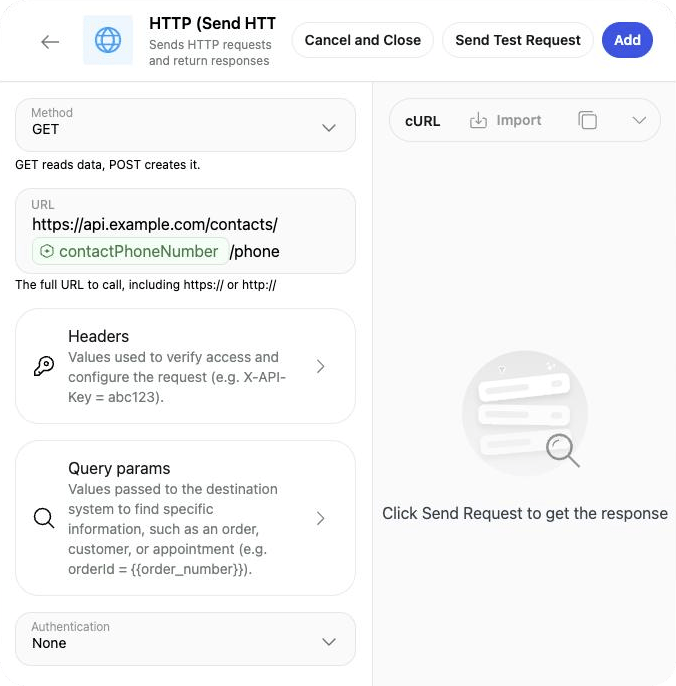
Lookup request with the reference ID in the URL
Test the request
Map the number to phoneNumber
3. Turn on dial-only mode
On the Workflow tab, click the Pre-Conversation Actions box to open its settings, and set the action as follows: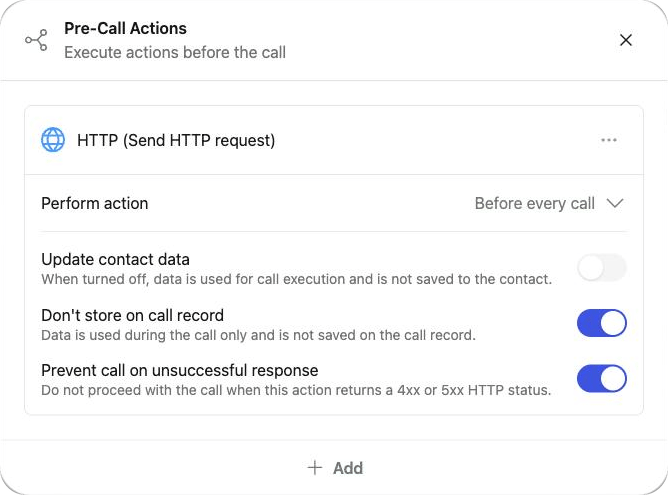
Pre-Conversation Actions settings for dial-only mode
4. Send results back to your system (optional)
To receive each outcome under the reference ID, add a post-conversation webhook:- On the Workflow tab, click + on Post-Conversation Actions and click Create Custom Webhook.
-
Set the method to POST, enter your endpoint URL, and build a body with the reference ID and the outcome, for example:
- Choose the events that send the webhook and save.
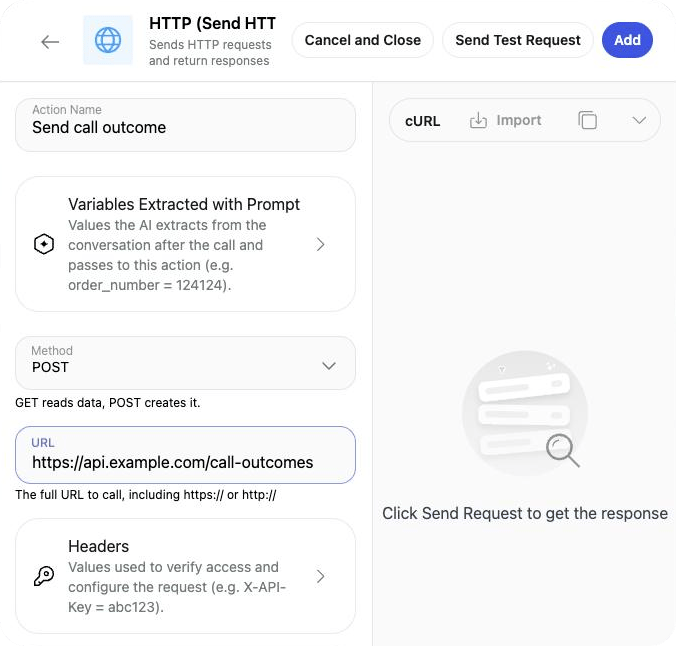
Custom webhook that sends the outcome to your system
Behavior and edge cases
- Number format. Callers converts the returned number to international (E.164) format, using the country of the contact’s reference ID for national-format numbers. A value that isn’t a valid phone number is dropped.
- No valid number. If the lookup fails or returns no valid number, the call isn’t placed and the contact is skipped. The reason shows as Call was not placed because it did not pass pre-call checks. The reference ID is never dialed.
- Retries. Every call attempt runs the lookup again, so a retry always uses the number your system returns at that moment.
- Other pre-conversation actions. You can add more pre-conversation actions to the same agent. If another action on the same agent also maps phoneNumber without the dial-only settings above, so that the number could be stored, dial-only mode doesn’t apply.
- Duplicates. Re-importing a contact with the same reference ID updates the existing contact instead of creating a new one.
What is stored
Related settings
These settings aren’t required for dial-only mode, but they help keep the data you store to a minimum.- Sensitive data detection. Under the agent’s General Settings → Technical Settings, open the Sensitive Data section and turn on Sensitive data detection. Under What counts as sensitive, select Personal identifiers and Health information along with Payment and credentials. Under When sensitive data is detected, choose Mask sensitive messages, or Delete transcripts with sensitive data and Delete recordings with sensitive data. With a mask or delete option on, personal identifiers and health information are then also kept out of contact memories. See Sensitive data.
- Record Calls. If you don’t need recordings, turn off Record Calls in Technical Settings. See Call recording.
- Retention period. Choose how long recordings and transcripts are kept: click your name at the bottom left, then Settings → General → Retention period. See Data retention.
- Do Not Call checks. Keep Enable Account Do Not Call (DNC) List on. When a contact asks not to be called, their reference ID is added to the list, and both the reference ID and the real number are checked before each call. The US Federal and State registry checks are done through an external provider, which receives the real number before each call. For dial-only agents you may choose to turn them off. If you do, you’re responsible for making sure that every person you call may be contacted. See Do Not Call.
Troubleshooting
A contact was skipped with "Call was not placed because it did not pass pre-call checks"
A contact was skipped with "Call was not placed because it did not pass pre-call checks"
The call dialed the right number, but I see a different number in Callers
The call dialed the right number, but I see a different number in Callers
Does a retry use the same number?
Does a retry use the same number?
The real number was saved to the contact
The real number was saved to the contact
Some rows failed with an invalid phone number
Some rows failed with an invalid phone number
ignorePhoneNumberValidation=true.Calls happen at the wrong local time
Calls happen at the wrong local time
timezone through the API, or set one time zone for the agent. See Scheduling and retries.