Create an outbound voice agent, generate its script with AI, test it on your own phone, add contacts, and start calling.
This guide takes you from an empty account to a live outbound voice agent. You create the agent, let the AI draft its script, place a test call to your own phone, upload contacts, and start the agent.Before you start, make sure you have:
An admin user on your Callers account at app.callers.ai.
At least one phone number in Phone numbers: a number managed by Callers, or one synced from Twilio, Telnyx, or a SIP connection. See Phone numbers and caller ID.
A short CSV of test contacts (a name and a phone number in international format, for example +14155550123).
Go to Agents and click New Agent. The agent editor opens on the Script tab.
The Agents page, with the New Agent button in the top-right corner.
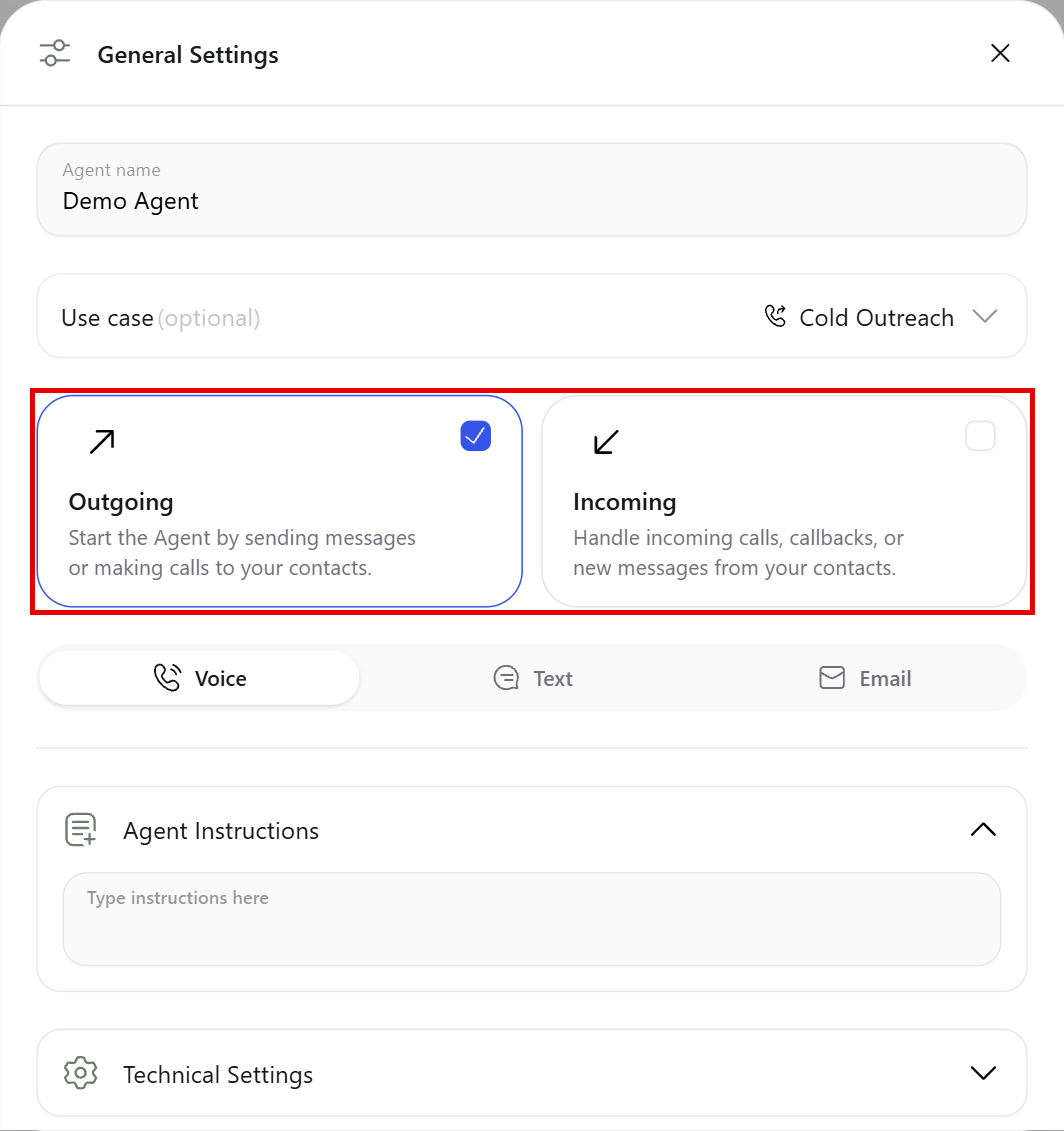
Open General Settings from the toolbar and set:
Agent name: an internal name, for example “Demo booking – Q4”.
Agent type Voice, direction Outgoing.
General Settings: the agent name, use case, direction cards, and channel type.
2
Pick a use case and let AI draft the script
In General Settings, choose a Use case (optional) such as Cold Outreach, Lead Revival, or Event Confirmation. Choose Other to describe your own.Then open the AI Assistant panel in the editor, choose Create or edit scenario, and describe the call in a few sentences: who you are, who you are calling, the goal of the call, and the details the agent must collect. For example:
We’re Acme Solar. Call homeowners who requested a quote on our website, confirm they own the home, ask about their average monthly electricity bill, and book a 20-minute consultation.
The assistant drafts the script and shows you the proposed changes, which you can keep or revert. See Studio Chat.
Put company facts, product details, and answers to common questions in a knowledge base instead of the script. The script handles the flow; the knowledge base handles the facts.
3
Review the script, voice, and language
On the Script tab, read each block and step. Edit the wording so it sounds like your team, and use variables such as {{name}} for details that come from each contact. See Script editor and Variables.Open Agent from the toolbar to choose the Language and Voice. Click play to preview the voice with the sample text.
4
Set the phone number
Open Channels and, on Voice Channels, select the number (or numbers) the agent calls from. An agent can’t start until at least one phone number is selected.
5
Review the success criteria
Open the Workflow tab and select Success Criteria. This defines when a conversation counts as a success (“goal reached”), for example “The contact booked a consultation”. Click Generate to draft criteria from your script, then review and save them.Callers asks you to review and save success criteria, with at least one goal-reached criterion, before the agent can start. See Success criteria.
6
Run a test call
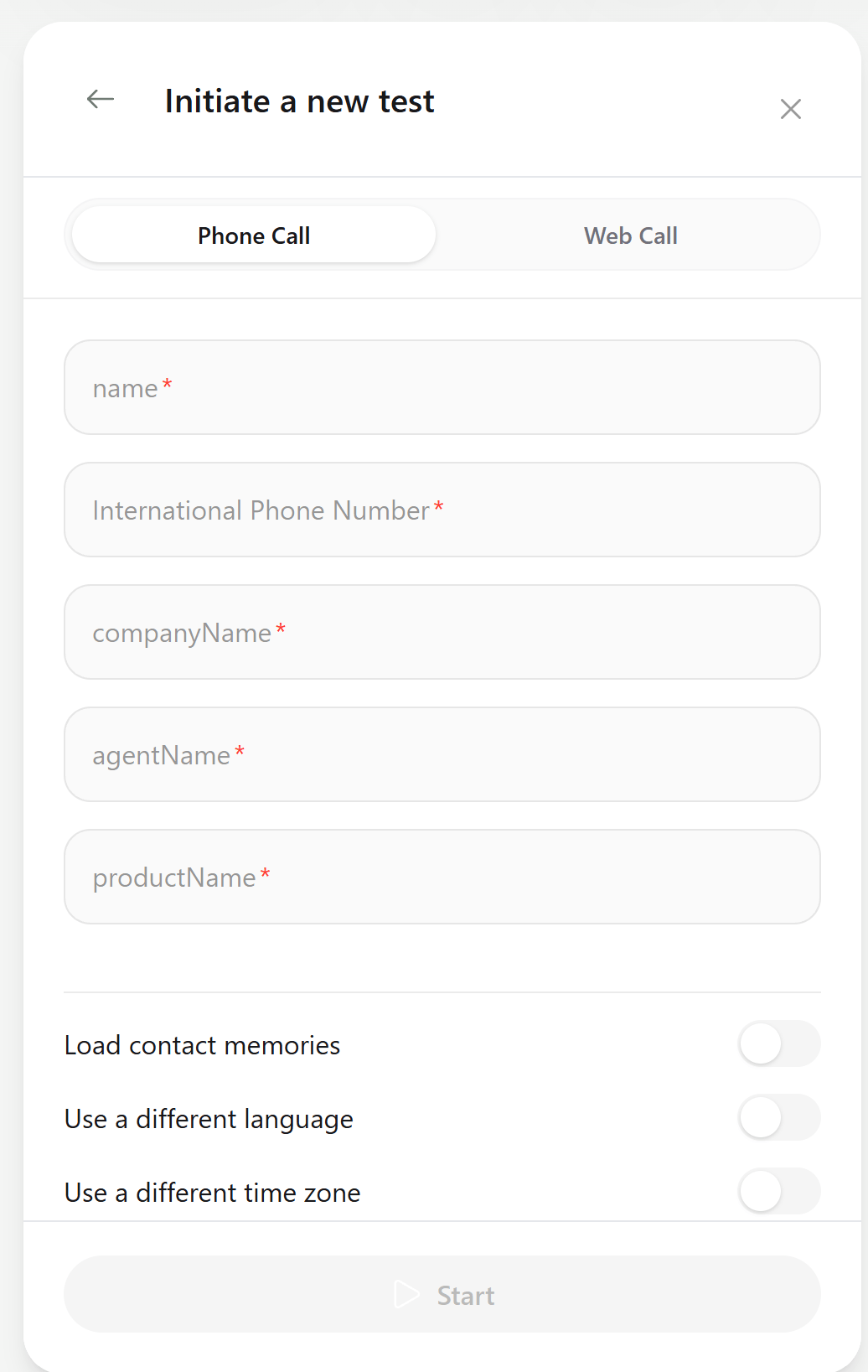
Click Test Call in the toolbar. On the Phone Call tab, enter your own name and phone number, fill in any variables the script uses, and click Start. Your phone rings and you talk to the agent.Prefer not to use a phone? Use the Web Call tab to talk to the agent in your browser.
The Initiate a new test form asks for your number and a value for each script variable.
After the call, open it to check the recording, transcript, and outcome. Adjust the script and test again until the conversation sounds right. See Testing your agent.
Test calls are excluded from the US Federal DNC registry check, so you can test with your own number even if it is registered.
7
Save and publish
Click Save. If your agent shows a Draft / Published label, click Publish to make the saved version live. Only published versions take real calls. See Versions and split traffic.
8
Add contacts from a CSV
Close the editor to go to the agent page and click Add Contact. On Import File, upload your CSV, map its columns (name, phone number, and any variables your script uses), review the preview, and import. The import runs in the background; you can follow it in Import History.Columns you map to variables fill {{variable}} placeholders in the script for each contact. See Uploading contacts.
9
Set availability
Open Availability in the editor and set when the agent may call:
The time zone, or Use Contact’s Time Zone to call each contact in their local time.
Weekly calling hours.
Retry rules such as Total Dial Attempts (default 5) and the minimum wait between attempts (default 90 minutes).
On the agent page, click Start. Callers dials eligible contacts within your calling hours and updates each contact’s status as calls complete. The agent stops on its own when no contacts are left to call.Watch results on the agent page: statuses, recordings, transcripts, and post-call analysis. See Agent results and insights.
The agent page while running: the contact status bar, Connect Rate, and Success Rate.
Your agent is live. Each finished call produces a contact status, a success-criteria result, and a summary you can send to your systems with a webhook.
Once the agent exists in the dashboard, you can add contacts and start it from your own systems. Find the agent ID in the agent’s URL, and create an API key in Settings → API Keys (see API keys).
Add a contact
Start the agent
POST /agents/{agentId}/contacts adds one contact. name and data are required; data holds your script variables as string values.
To add many contacts in one request, use POST /agents/{agentId}/contacts/bulk. Add ?fixUSPhoneNumber=true to prepend 1 to US numbers that are missing it.
POST /agents/{agentId}/start activates the agent. It then calls eligible contacts within its availability.
curl -X POST "https://api.callers.ai/agents/$AGENT_ID/start" \
  -H "Authorization: $CALLERS_API_KEY"
The API key goes in the Authorization header as-is, without a Bearer prefix. The API also accepts the legacy /campaigns/... paths, which you may see in older integrations.
For a complete API walkthrough, including webhooks, see the API quickstart.
Add scenarios for pricing questions, “I’m busy”, and other off-script moments.
Connect your systems
Look up data during the call, book meetings, and update your CRM after it.
Collect structured answers
Define key questions and get the answers in every call summary.
Send results to your systems
Receive call outcomes, transcripts, and recordings as webhooks.
Create an agent
Every option when creating voice, text, and email agents.
Path to production
The go-live checklist for your first real launch.
{"docsConfig":{"theme":"aspen","$schema":"https://mintlify.com/docs.json","name":"Callers","description":"Build AI agents that call, text, email, and talk to customers on your website. Guides, Web SDK, and API reference for the Callers platform.","colors":{"primary":"#3655E8","light":"#8EA0FF","dark":"#2A44C4"},"logo":{"light":"https://mintcdn.com/voxiaai/UdPum2goP7yfaYcC/logo/light.svg?fit=max\u0026auto=format\u0026n=UdPum2goP7yfaYcC\u0026q=85\u0026s=b1de758075c8bd929495ea22505d14b8","dark":"https://mintcdn.com/voxiaai/UdPum2goP7yfaYcC/logo/dark.svg?fit=max\u0026auto=format\u0026n=UdPum2goP7yfaYcC\u0026q=85\u0026s=cdb6dcbc265e95b7f15e77b15797cce6","href":"https://docs.callers.ai"},"favicon":"https://mintcdn.com/voxiaai/UdPum2goP7yfaYcC/logo/favicon.svg?fit=max\u0026auto=format\u0026n=UdPum2goP7yfaYcC\u0026q=85\u0026s=4a33273363fdf14d219145aa644b0ff7","appearance":{"default":"light","strict":false},"background":{"color":{"light":"#FFFFFF","dark":"#0A0D18"}},"navbar":{"links":[{"href":"https://www.callers.ai/book-a-meeting","label":"Book a demo"},{"href":"mailto:support@callers.ai","label":"Support"}],"primary":{"type":"button","label":"Open dashboard","href":"https://app.callers.ai"}},"footer":{"socials":{"linkedin":"https://www.linkedin.com/company/callersai","website":"https://www.callers.ai"},"links":[{"header":"Product","items":[{"label":"Website","href":"https://www.callers.ai"},{"label":"Dashboard","href":"https://app.callers.ai"},{"label":"Book a demo","href":"https://www.callers.ai/book-a-meeting"}]},{"header":"Developers","items":[{"label":"API Reference","href":"/api-reference/introduction"},{"label":"Web SDK","href":"/sdk/overview"},{"label":"SDK Playground","href":"https://sdk-playground.callers.dev"}]},{"header":"Company","items":[{"label":"Status","href":"https://status.callers.ai"},{"label":"Trust Center","href":"https://trust.callers.ai"},{"label":"Contact support","href":"mailto:support@callers.ai"}]}]},"search":{"prompt":"Search docs or ask a question…"},"seo":{"metatags":{"og:site_name":"Callers Docs"},"indexing":"navigable"},"fonts":{"family":"Inter"},"icons":{"library":"fontawesome"},"styling":{"codeblocks":"dark","latex":false},"errors":{"404":{"redirect":false}},"contextual":{"options":["copy","view","chatgpt","claude","perplexity","mcp","cursor","vscode"],"display":"header"},"navigation":{"global":{"anchors":[{"anchor":"Dashboard","icon":"browser","href":"https://app.callers.ai"},{"anchor":"Status","icon":"signal","href":"https://status.callers.ai"}]},"pages":[]}},"deployment":{"deploymentMetadataValue":{"subdomain":"voxiaai","hasAudioNarration":false,"actualSubdomain":"voxiaai","customDomains":["docs.callers.ai"],"gitSource":{"type":"github","owner":"amy-io","repo":"docs","deployBranch":"master","contentDirectory":"","isPrivate":true,"mountPath":"","label":""},"chroma":{"liveDeploymentHistoryId":"6adfa9943e86de84f663e8c9","collectionId":"41dd06f6-9239-41ff-8948-77c45e15c50c","schemaVersion":"v3","latestBuiltDeploymentHistoryId":"6adfa9943e86de84f663e8c9"},"entitlements":{},"buildId":"6adfa9943e86de84f663e8c9","clientVersion":"0.0.3971","searchFilterCounts":[{"language":"default","tag":"Guides","count":77},{"language":"default","tag":"API Reference","count":72},{"language":"default","tag":"Endpoints","count":59},{"language":"default","tag":"Integrations","count":19},{"language":"default","tag":"Web SDK","count":14},{"language":"default","tag":"Get started","count":11},{"language":"default","tag":"Build your agent","count":11},{"language":"default","tag":"Channels","count":11},{"language":"default","tag":"Agents","count":10},{"language":"default","tag":"Contacts","count":10}]},"assistantConfig":{},"basePath":"","hasChatPermissions":false,"hasWebMcpPermissions":false,"toggles":[{"name":"kill-isr","enabled":true,"variant":{"name":"disabled","enabled":false,"feature_enabled":true},"impressionData":false},{"name":"agent-mintlify-slack","enabled":true,"variant":{"name":"disabled","enabled":false,"feature_enabled":true},"impressionData":false},{"name":"editor-v7-file-tree","enabled":true,"variant":{"name":"disabled","enabled":false,"feature_enabled":true},"impressionData":false},{"name":"agent-integrations-settings","enabled":true,"variant":{"name":"disabled","enabled":false,"feature_enabled":true},"impressionData":false},{"name":"automations-pr-grouping","enabled":true,"variant":{"name":"disabled","enabled":false,"feature_enabled":true},"impressionData":false},{"name":"custom-prefix","enabled":true,"variant":{"name":"disabled","enabled":false,"feature_enabled":true},"impressionData":false},{"name":"analytics-v7","enabled":true,"variant":{"name":"disabled","enabled":false,"feature_enabled":true},"impressionData":false},{"name":"user-flows-analytics","enabled":true,"variant":{"name":"disabled","enabled":false,"feature_enabled":true},"impressionData":false},{"name":"no-publish-flow","enabled":true,"variant":{"name":"disabled","enabled":false,"feature_enabled":true},"impressionData":false},{"name":"workos-onboarding","enabled":true,"variant":{"name":"disabled","enabled":false,"feature_enabled":true},"impressionData":false},{"name":"llms-txt-v2","enabled":true,"variant":{"name":"disabled","enabled":false,"feature_enabled":true},"impressionData":false},{"name":"pause-universal-search-reconcile","enabled":true,"variant":{"name":"disabled","enabled":false,"feature_enabled":true},"impressionData":false},{"name":"snapshot-serving-live","enabled":true,"variant":{"name":"disabled","enabled":false,"feature_enabled":true},"impressionData":false},{"name":"stripTemperatureMiddleware","enabled":true,"variant":{"name":"disabled","enabled":false,"feature_enabled":true},"impressionData":false},{"name":"per-site-search-delta","enabled":true,"variant":{"name":"disabled","enabled":false,"feature_enabled":true},"impressionData":false},{"name":"support-platform-pylon-zendesk","enabled":true,"variant":{"name":"disabled","enabled":false,"feature_enabled":true},"impressionData":false},{"name":"snapshot-serving","enabled":true,"variant":{"name":"disabled","enabled":false,"feature_enabled":true},"impressionData":false},{"name":"instant-rollback","enabled":true,"variant":{"name":"disabled","enabled":false,"feature_enabled":true},"impressionData":false},{"name":"granular-notifications-server","enabled":true,"variant":{"name":"disabled","enabled":false,"feature_enabled":true},"impressionData":false},{"name":"granular-notifications","enabled":true,"variant":{"name":"disabled","enabled":false,"feature_enabled":true},"impressionData":false},{"name":"editor-private-page-search","enabled":true,"variant":{"name":"disabled","enabled":false,"feature_enabled":true},"impressionData":false},{"name":"automations-fable","enabled":true,"variant":{"name":"disabled","enabled":false,"feature_enabled":true},"impressionData":false},{"name":"fixed-ai-action-pricing","enabled":true,"variant":{"name":"disabled","enabled":false,"feature_enabled":true},"impressionData":false},{"name":"automation-resolve-merge-conflict","enabled":true,"variant":{"name":"disabled","enabled":false,"feature_enabled":true},"impressionData":false},{"name":"scoped-publishing","enabled":true,"variant":{"name":"disabled","enabled":false,"feature_enabled":true},"impressionData":false},{"name":"mintql","enabled":true,"variant":{"name":"disabled","enabled":false,"feature_enabled":true},"impressionData":false},{"name":"page-level-analytics","enabled":true,"variant":{"name":"disabled","enabled":false,"feature_enabled":true},"impressionData":false},{"name":"editor-version-history-v2","enabled":true,"variant":{"name":"disabled","enabled":false,"feature_enabled":true},"impressionData":false},{"name":"editor-nav-generations","enabled":true,"variant":{"name":"disabled","enabled":false,"feature_enabled":true},"impressionData":false},{"name":"billing-page-v2","enabled":true,"variant":{"name":"disabled","enabled":false,"feature_enabled":true},"impressionData":false},{"name":"workspace-projects","enabled":true,"variant":{"name":"disabled","enabled":false,"feature_enabled":true},"impressionData":false},{"name":"assistant-v5","enabled":true,"variant":{"name":"disabled","enabled":false,"feature_enabled":true},"impressionData":false},{"name":"byok-sep-25","enabled":true,"variant":{"name":"disabled","enabled":false,"feature_enabled":true},"impressionData":false},{"name":"fork-pr-previews","enabled":true,"variant":{"name":"disabled","enabled":false,"feature_enabled":true},"impressionData":false},{"name":"revalidation-jwt","enabled":true,"variant":{"name":"disabled","enabled":false,"feature_enabled":true},"impressionData":false},{"name":"vite-origin","enabled":true,"variant":{"name":"disabled","enabled":false,"feature_enabled":true},"impressionData":false},{"name":"editor-agent-model-picker","enabled":true,"variant":{"name":"disabled","enabled":false,"feature_enabled":true},"impressionData":false},{"name":"billing-updated-9-15","enabled":true,"variant":{"name":"disabled","enabled":false,"feature_enabled":true},"impressionData":false},{"name":"workos-sso-scim","enabled":true,"variant":{"name":"disabled","enabled":false,"feature_enabled":true},"impressionData":false},{"name":"hobby-abuse-scan","enabled":true,"variant":{"name":"disabled","enabled":false,"feature_enabled":true},"impressionData":false},{"name":"dashboard-inbox","enabled":true,"variant":{"name":"disabled","enabled":false,"feature_enabled":true},"impressionData":false},{"name":"workos-signup","enabled":true,"variant":{"name":"disabled","enabled":false,"feature_enabled":true},"impressionData":false},{"name":"workos-enabled","enabled":true,"variant":{"name":"disabled","enabled":false,"feature_enabled":true},"impressionData":false}],"isAtlas":false,"googleFontsInlined":false},"customCss":[{"filePath":"styles.css","href":"/_mintlify/custom/voxiaai/21a11cfc72d9362f/styles.css"}],"page":{"pagePath":"documentation/get-started/quickstart","slug":"/documentation/get-started/quickstart","pageMetadata":{"title":"Build your first agent in 10 minutes","sidebarTitle":"Quickstart","description":"Create an outbound voice agent, generate its script with AI, test it on your own phone, add contacts, and start calling.","icon":"rocket","href":"/documentation/get-started/quickstart"},"description":{"compiledSource":"\"use strict\";\nconst {jsx: _jsx} = arguments[0];\nconst {useMDXComponents: _provideComponents} = arguments[0];\nfunction _createMdxContent(props) {\n const _components = {\n p: \"p\",\n ..._provideComponents(),\n ...props.components\n };\n return _jsx(_components.p, {\n children: \"Create an outbound voice agent, generate its script with AI, test it on your own phone, add contacts, and start calling.\"\n });\n}\nfunction MDXContent(props = {}) {\n const {wrapper: MDXLayout} = {\n ..._provideComponents(),\n ...props.components\n };\n return MDXLayout ? _jsx(MDXLayout, {\n ...props,\n children: _jsx(_createMdxContent, {\n ...props\n })\n }) : _createMdxContent(props);\n}\nreturn {\n default: MDXContent\n};\n","frontmatter":{},"scope":{}},"pageType":"default","mdx":{"mdxSource":{"compiledSource":"\"use strict\";const{Fragment:_Fragment,jsx:_jsx,jsxs:_jsxs}=arguments[0];const{useMDXComponents:_provideComponents}=arguments[0];function _createMdxContent(props){const _components={a:`a`,blockquote:`blockquote`,code:`code`,li:`li`,p:`p`,pre:`pre`,span:`span`,strong:`strong`,ul:`ul`,..._provideComponents(),...props.components},{Card,CardGroup,Check,CodeBlock,CodeGroup,Frame,Heading,Note,OptimizedImage,Step,Steps,Tab,Tabs,Tip}=_components;if(!Card)_missingMdxReference(`Card`,true);if(!CardGroup)_missingMdxReference(`CardGroup`,true);if(!Check)_missingMdxReference(`Check`,true);if(!CodeBlock)_missingMdxReference(`CodeBlock`,true);if(!CodeGroup)_missingMdxReference(`CodeGroup`,true);if(!Frame)_missingMdxReference(`Frame`,true);if(!Heading)_missingMdxReference(`Heading`,true);if(!Note)_missingMdxReference(`Note`,true);if(!OptimizedImage)_missingMdxReference(`OptimizedImage`,true);if(!Step)_missingMdxReference(`Step`,true);if(!Steps)_missingMdxReference(`Steps`,true);if(!Tab)_missingMdxReference(`Tab`,true);if(!Tabs)_missingMdxReference(`Tabs`,true);if(!Tip)_missingMdxReference(`Tip`,true);return _jsxs(_Fragment,{children:[_jsx(_components.p,{children:`This guide takes you from an empty account to a live outbound voice agent. You create the agent, let the AI draft its script, place a test call to your own phone, upload contacts, and start the agent.`}),`\n`,_jsxs(_components.p,{children:[_jsx(_components.strong,{children:`Before you start`}),`, make sure you have:`]}),`\n`,_jsxs(_components.ul,{children:[`\n`,_jsxs(_components.li,{children:[`An admin user on your Callers account at `,_jsx(_components.a,{href:`https://app.callers.ai`,children:`app.callers.ai`}),`.`]}),`\n`,_jsxs(_components.li,{children:[`At least one phone number in `,_jsx(_components.strong,{children:`Phone numbers`}),`: a number managed by Callers, or one synced from Twilio, Telnyx, or a SIP connection. See `,_jsx(_components.a,{href:`/documentation/contacts/phone-numbers-and-caller-id`,children:`Phone numbers and caller ID`}),`.`]}),`\n`,_jsxs(_components.li,{children:[`A short CSV of test contacts (a name and a phone number in international format, for example `,_jsx(_components.code,{children:`+14155550123`}),`).`]}),`\n`]}),`\n`,_jsx(Heading,{level:`2`,id:`build-the-agent-in-the-dashboard`,children:`Build the agent in the dashboard`}),`\n`,_jsxs(Steps,{children:[_jsxs(Step,{title:`Create an outbound voice agent`,children:[_jsxs(_components.p,{children:[`Go to `,_jsx(_components.strong,{children:`Agents`}),` and click `,_jsx(_components.strong,{children:`New Agent`}),`. The agent editor opens on the `,_jsx(_components.strong,{children:`Script`}),` tab.`]}),_jsx(Frame,{caption:`The Agents page, with the New Agent button in the top-right corner.`,children:_jsx(OptimizedImage,{src:`https://mintcdn.com/voxiaai/_YXKfF6QWkI2BTUf/images/documentation/build-your-agent/agents-list.png?fit=max\u0026auto=format\u0026n=_YXKfF6QWkI2BTUf\u0026q=85\u0026s=cc7a5374141e0f892d8a34e29c9686e6`,alt:`Agents page listing one agent named Demo Agent with its contact, interaction, connect rate, and success rate columns, a search field, and a New Agent button`,\"data-og-width\":`1567`,width:`1567`,\"data-og-height\":`238`,height:`238`,\"data-path\":`images/documentation/build-your-agent/agents-list.png`,\"data-optimize\":`true`,\"data-opv\":`3`,srcset:`https://mintcdn.com/voxiaai/_YXKfF6QWkI2BTUf/images/documentation/build-your-agent/agents-list.png?w=280\u0026fit=max\u0026auto=format\u0026n=_YXKfF6QWkI2BTUf\u0026q=85\u0026s=ff5bb2704e7d29c73f25bf4d8d9c9bee 280w, https://mintcdn.com/voxiaai/_YXKfF6QWkI2BTUf/images/documentation/build-your-agent/agents-list.png?w=560\u0026fit=max\u0026auto=format\u0026n=_YXKfF6QWkI2BTUf\u0026q=85\u0026s=7f2f237ac7294f2b2012efa128a836c8 560w, https://mintcdn.com/voxiaai/_YXKfF6QWkI2BTUf/images/documentation/build-your-agent/agents-list.png?w=840\u0026fit=max\u0026auto=format\u0026n=_YXKfF6QWkI2BTUf\u0026q=85\u0026s=9177668641159b15237afad391f30c13 840w, https://mintcdn.com/voxiaai/_YXKfF6QWkI2BTUf/images/documentation/build-your-agent/agents-list.png?w=1100\u0026fit=max\u0026auto=format\u0026n=_YXKfF6QWkI2BTUf\u0026q=85\u0026s=66bab77c571a88d098c2f68c4f802c56 1100w, https://mintcdn.com/voxiaai/_YXKfF6QWkI2BTUf/images/documentation/build-your-agent/agents-list.png?w=1650\u0026fit=max\u0026auto=format\u0026n=_YXKfF6QWkI2BTUf\u0026q=85\u0026s=bf9822cabc9b803c5ddce7883309d29f 1650w, https://mintcdn.com/voxiaai/_YXKfF6QWkI2BTUf/images/documentation/build-your-agent/agents-list.png?w=2500\u0026fit=max\u0026auto=format\u0026n=_YXKfF6QWkI2BTUf\u0026q=85\u0026s=17c66e87e434204fde26072933640b24 2500w`})}),_jsxs(_components.p,{children:[`Open `,_jsx(_components.strong,{children:`General Settings`}),` from the toolbar and set:`]}),_jsxs(_components.ul,{children:[`\n`,_jsxs(_components.li,{children:[_jsx(_components.strong,{children:`Agent name`}),`: an internal name, for example “Demo booking – Q4”.`]}),`\n`,_jsxs(_components.li,{children:[`Agent type `,_jsx(_components.strong,{children:`Voice`}),`, direction `,_jsx(_components.strong,{children:`Outgoing`}),`.`]}),`\n`]}),_jsx(Frame,{caption:`General Settings: the agent name, use case, direction cards, and channel type.`,children:_jsx(OptimizedImage,{src:`https://mintcdn.com/voxiaai/_YXKfF6QWkI2BTUf/images/documentation/build-your-agent/general-settings.png?fit=max\u0026auto=format\u0026n=_YXKfF6QWkI2BTUf\u0026q=85\u0026s=a67909170067446bfbb177bc6ba4d735`,alt:`General Settings panel with Agent name set to Demo Agent, Use case set to Cold Outreach, the Outgoing direction card selected, Voice chosen as the channel, and collapsed Agent Instructions and Technical Settings sections`,\"data-og-width\":`1064`,width:`1064`,\"data-og-height\":`1131`,height:`1131`,\"data-path\":`images/documentation/build-your-agent/general-settings.png`,\"data-optimize\":`true`,\"data-opv\":`3`,srcset:`https://mintcdn.com/voxiaai/_YXKfF6QWkI2BTUf/images/documentation/build-your-agent/general-settings.png?w=280\u0026fit=max\u0026auto=format\u0026n=_YXKfF6QWkI2BTUf\u0026q=85\u0026s=a56f8739b549b31215744642f8ee7d32 280w, https://mintcdn.com/voxiaai/_YXKfF6QWkI2BTUf/images/documentation/build-your-agent/general-settings.png?w=560\u0026fit=max\u0026auto=format\u0026n=_YXKfF6QWkI2BTUf\u0026q=85\u0026s=36f15257d52d3fa8afb7b85c31d45de6 560w, https://mintcdn.com/voxiaai/_YXKfF6QWkI2BTUf/images/documentation/build-your-agent/general-settings.png?w=840\u0026fit=max\u0026auto=format\u0026n=_YXKfF6QWkI2BTUf\u0026q=85\u0026s=ba9e7381d5b77c11035262c4b018a41b 840w, https://mintcdn.com/voxiaai/_YXKfF6QWkI2BTUf/images/documentation/build-your-agent/general-settings.png?w=1100\u0026fit=max\u0026auto=format\u0026n=_YXKfF6QWkI2BTUf\u0026q=85\u0026s=49c202b6dfbf184ba2e3d5c5b0f56f99 1100w, https://mintcdn.com/voxiaai/_YXKfF6QWkI2BTUf/images/documentation/build-your-agent/general-settings.png?w=1650\u0026fit=max\u0026auto=format\u0026n=_YXKfF6QWkI2BTUf\u0026q=85\u0026s=7d87d8693438bcfdb11dc302a9117c11 1650w, https://mintcdn.com/voxiaai/_YXKfF6QWkI2BTUf/images/documentation/build-your-agent/general-settings.png?w=2500\u0026fit=max\u0026auto=format\u0026n=_YXKfF6QWkI2BTUf\u0026q=85\u0026s=69ffbcb1a561be3c6e069b02dc67cd4a 2500w`})})]}),_jsxs(Step,{title:`Pick a use case and let AI draft the script`,children:[_jsxs(_components.p,{children:[`In `,_jsx(_components.strong,{children:`General Settings`}),`, choose a `,_jsx(_components.strong,{children:`Use case (optional)`}),` such as `,_jsx(_components.strong,{children:`Cold Outreach`}),`, `,_jsx(_components.strong,{children:`Lead Revival`}),`, or `,_jsx(_components.strong,{children:`Event Confirmation`}),`. Choose `,_jsx(_components.strong,{children:`Other`}),` to describe your own.`]}),_jsxs(_components.p,{children:[`Then open the `,_jsx(_components.strong,{children:`AI Assistant`}),` panel in the editor, choose `,_jsx(_components.strong,{children:`Create or edit scenario`}),`, and describe the call in a few sentences: who you are, who you are calling, the goal of the call, and the details the agent must collect. For example:`]}),_jsxs(_components.blockquote,{children:[`\n`,_jsx(_components.p,{children:`We’re Acme Solar. Call homeowners who requested a quote on our website, confirm they own the home, ask about their average monthly electricity bill, and book a 20-minute consultation.`}),`\n`]}),_jsxs(_components.p,{children:[`The assistant drafts the script and shows you the proposed changes, which you can keep or revert. See `,_jsx(_components.a,{href:`/documentation/build-your-agent/studio-chat`,children:`Studio Chat`}),`.`]}),_jsx(Tip,{children:_jsxs(_components.p,{children:[`Put company facts, product details, and answers to common questions in a `,_jsx(_components.a,{href:`/documentation/using-callers/knowledge-base`,children:`knowledge base`}),` instead of the script. The script handles the flow; the knowledge base handles the facts.`]})})]}),_jsxs(Step,{title:`Review the script, voice, and language`,children:[_jsxs(_components.p,{children:[`On the `,_jsx(_components.strong,{children:`Script`}),` tab, read each block and step. Edit the wording so it sounds like your team, and use variables such as `,_jsx(_components.code,{children:`{{name}}`}),` for details that come from each contact. See `,_jsx(_components.a,{href:`/documentation/build-your-agent/agent-script`,children:`Script editor`}),` and `,_jsx(_components.a,{href:`/documentation/build-your-agent/agent-variables`,children:`Variables`}),`.`]}),_jsxs(_components.p,{children:[`Open `,_jsx(_components.strong,{children:`Agent`}),` from the toolbar to choose the `,_jsx(_components.strong,{children:`Language`}),` and `,_jsx(_components.strong,{children:`Voice`}),`. Click play to preview the voice with the sample text.`]})]}),_jsx(Step,{title:`Set the phone number`,children:_jsxs(_components.p,{children:[`Open `,_jsx(_components.strong,{children:`Channels`}),` and, on `,_jsx(_components.strong,{children:`Voice Channels`}),`, select the number (or numbers) the agent calls from. An agent can’t start until at least one phone number is selected.`]})}),_jsxs(Step,{title:`Review the success criteria`,children:[_jsxs(_components.p,{children:[`Open the `,_jsx(_components.strong,{children:`Workflow`}),` tab and select `,_jsx(_components.strong,{children:`Success Criteria`}),`. This defines when a conversation counts as a success (“goal reached”), for example “The contact booked a consultation”. Click `,_jsx(_components.strong,{children:`Generate`}),` to draft criteria from your script, then review and save them.`]}),_jsxs(_components.p,{children:[`Callers asks you to review and save success criteria, with at least one goal-reached criterion, before the agent can start. See `,_jsx(_components.a,{href:`/documentation/results/success-criteria`,children:`Success criteria`}),`.`]})]}),_jsxs(Step,{title:`Run a test call`,children:[_jsxs(_components.p,{children:[`Click `,_jsx(_components.strong,{children:`Test Call`}),` in the toolbar. On the `,_jsx(_components.strong,{children:`Phone Call`}),` tab, enter your own name and phone number, fill in any variables the script uses, and click `,_jsx(_components.strong,{children:`Start`}),`. Your phone rings and you talk to the agent.`]}),_jsxs(_components.p,{children:[`Prefer not to use a phone? Use the `,_jsx(_components.strong,{children:`Web Call`}),` tab to talk to the agent in your browser.`]}),_jsx(Frame,{caption:`The Initiate a new test form asks for your number and a value for each script variable.`,children:_jsx(OptimizedImage,{src:`https://mintcdn.com/voxiaai/DUXJUr2YtBjwx26G/images/documentation/build-your-agent/initiate-new-test.png?fit=max\u0026auto=format\u0026n=DUXJUr2YtBjwx26G\u0026q=85\u0026s=a1e0dba56b3ed2f94e974bebcd62bd3d`,alt:`Initiate a new test form with Phone Call and Web Call tabs, required fields for name, International Phone Number, companyName, agentName, and productName, toggles for Load contact memories, Use a different language, and Use a different time zone, and a Start button`,style:{width:`60%`,margin:`0 auto`,display:`block`},\"data-og-width\":`1036`,width:`1036`,\"data-og-height\":`1637`,height:`1637`,\"data-path\":`images/documentation/build-your-agent/initiate-new-test.png`,\"data-optimize\":`true`,\"data-opv\":`3`,srcset:`https://mintcdn.com/voxiaai/DUXJUr2YtBjwx26G/images/documentation/build-your-agent/initiate-new-test.png?w=280\u0026fit=max\u0026auto=format\u0026n=DUXJUr2YtBjwx26G\u0026q=85\u0026s=5323ce7030c37097832e1a412edd45ed 280w, https://mintcdn.com/voxiaai/DUXJUr2YtBjwx26G/images/documentation/build-your-agent/initiate-new-test.png?w=560\u0026fit=max\u0026auto=format\u0026n=DUXJUr2YtBjwx26G\u0026q=85\u0026s=24b95158376fcc0003feb45094925e6a 560w, https://mintcdn.com/voxiaai/DUXJUr2YtBjwx26G/images/documentation/build-your-agent/initiate-new-test.png?w=840\u0026fit=max\u0026auto=format\u0026n=DUXJUr2YtBjwx26G\u0026q=85\u0026s=2a963e763c1da281490a111894ed7c34 840w, https://mintcdn.com/voxiaai/DUXJUr2YtBjwx26G/images/documentation/build-your-agent/initiate-new-test.png?w=1100\u0026fit=max\u0026auto=format\u0026n=DUXJUr2YtBjwx26G\u0026q=85\u0026s=0790b6d68cc6e7d725ab4b21267adaa9 1100w, https://mintcdn.com/voxiaai/DUXJUr2YtBjwx26G/images/documentation/build-your-agent/initiate-new-test.png?w=1650\u0026fit=max\u0026auto=format\u0026n=DUXJUr2YtBjwx26G\u0026q=85\u0026s=ba24284ed348fe4aaf3cfdfce9a85fe7 1650w, https://mintcdn.com/voxiaai/DUXJUr2YtBjwx26G/images/documentation/build-your-agent/initiate-new-test.png?w=2500\u0026fit=max\u0026auto=format\u0026n=DUXJUr2YtBjwx26G\u0026q=85\u0026s=2161dcad3637ec22180363dc8729750a 2500w`})}),_jsxs(_components.p,{children:[`After the call, open it to check the recording, transcript, and outcome. Adjust the script and test again until the conversation sounds right. See `,_jsx(_components.a,{href:`/documentation/build-your-agent/testing-your-agent`,children:`Testing your agent`}),`.`]}),_jsx(Note,{children:_jsx(_components.p,{children:`Test calls are excluded from the US Federal DNC registry check, so you can test with your own number even if it is registered.`})})]}),_jsx(Step,{title:`Save and publish`,children:_jsxs(_components.p,{children:[`Click `,_jsx(_components.strong,{children:`Save`}),`. If your agent shows a `,_jsx(_components.strong,{children:`Draft`}),` / `,_jsx(_components.strong,{children:`Published`}),` label, click `,_jsx(_components.strong,{children:`Publish`}),` to make the saved version live. Only published versions take real calls. See `,_jsx(_components.a,{href:`/documentation/build-your-agent/versions-and-split-traffic`,children:`Versions and split traffic`}),`.`]})}),_jsxs(Step,{title:`Add contacts from a CSV`,children:[_jsxs(_components.p,{children:[`Close the editor to go to the agent page and click `,_jsx(_components.strong,{children:`Add Contact`}),`. On `,_jsx(_components.strong,{children:`Import File`}),`, upload your CSV, map its columns (name, phone number, and any variables your script uses), review the preview, and import. The import runs in the background; you can follow it in `,_jsx(_components.strong,{children:`Import History`}),`.`]}),_jsxs(_components.p,{children:[`Columns you map to variables fill `,_jsx(_components.code,{children:`{{variable}}`}),` placeholders in the script for each contact. See `,_jsx(_components.a,{href:`/documentation/using-callers/uploading-contacts`,children:`Uploading contacts`}),`.`]})]}),_jsxs(Step,{title:`Set availability`,children:[_jsxs(_components.p,{children:[`Open `,_jsx(_components.strong,{children:`Availability`}),` in the editor and set when the agent may call:`]}),_jsxs(_components.ul,{children:[`\n`,_jsxs(_components.li,{children:[`The time zone, or `,_jsx(_components.strong,{children:`Use Contact’s Time Zone`}),` to call each contact in their local time.`]}),`\n`,_jsx(_components.li,{children:`Weekly calling hours.`}),`\n`,_jsxs(_components.li,{children:[`Retry rules such as `,_jsx(_components.strong,{children:`Total Dial Attempts`}),` (default 5) and the minimum wait between attempts (default 90 minutes).`]}),`\n`,_jsxs(_components.li,{children:[_jsx(_components.strong,{children:`Max Outgoing Calls in Parallel`}),` (default 10).`]}),`\n`]}),_jsxs(_components.p,{children:[`See `,_jsx(_components.a,{href:`/documentation/contacts/scheduling-and-retries`,children:`Scheduling and retries`}),`.`]})]}),_jsxs(Step,{title:`Start the agent`,children:[_jsxs(_components.p,{children:[`On the agent page, click `,_jsx(_components.strong,{children:`Start`}),`. Callers dials eligible contacts within your calling hours and updates each contact’s status as calls complete. The agent stops on its own when no contacts are left to call.`]}),_jsxs(_components.p,{children:[`Watch results on the agent page: statuses, recordings, transcripts, and post-call analysis. See `,_jsx(_components.a,{href:`/documentation/using-callers/agent-insights`,children:`Agent results and insights`}),`.`]}),_jsx(Frame,{caption:`The agent page while running: the contact status bar, Connect Rate, and Success Rate.`,children:_jsx(OptimizedImage,{src:`https://mintcdn.com/voxiaai/wqnSuR-gwKpmU86L/images/documentation/using-callers/agent-results-status-bar.png?fit=max\u0026auto=format\u0026n=wqnSuR-gwKpmU86L\u0026q=85\u0026s=0e1f97100e50a9e6ed89310d3c961c5b`,alt:`Top of a running agent's page showing a Running badge, Edit, Test, and Add Contact buttons, a Total contacts bar of 213 contacts broken down by status, and a panel with 382 total interactions, 100% connect rate, and 38.97% success rate`,\"data-og-width\":`1511`,width:`1511`,\"data-og-height\":`372`,height:`372`,\"data-path\":`images/documentation/using-callers/agent-results-status-bar.png`,\"data-optimize\":`true`,\"data-opv\":`3`,srcset:`https://mintcdn.com/voxiaai/wqnSuR-gwKpmU86L/images/documentation/using-callers/agent-results-status-bar.png?w=280\u0026fit=max\u0026auto=format\u0026n=wqnSuR-gwKpmU86L\u0026q=85\u0026s=af7919371693dcbed8a1bc439b570737 280w, https://mintcdn.com/voxiaai/wqnSuR-gwKpmU86L/images/documentation/using-callers/agent-results-status-bar.png?w=560\u0026fit=max\u0026auto=format\u0026n=wqnSuR-gwKpmU86L\u0026q=85\u0026s=95edcc335d0484169a507ca472e3189e 560w, https://mintcdn.com/voxiaai/wqnSuR-gwKpmU86L/images/documentation/using-callers/agent-results-status-bar.png?w=840\u0026fit=max\u0026auto=format\u0026n=wqnSuR-gwKpmU86L\u0026q=85\u0026s=da66ef82ce1cf59f1d38b015101a3acc 840w, https://mintcdn.com/voxiaai/wqnSuR-gwKpmU86L/images/documentation/using-callers/agent-results-status-bar.png?w=1100\u0026fit=max\u0026auto=format\u0026n=wqnSuR-gwKpmU86L\u0026q=85\u0026s=73c6746e58544724c1a19f0f393d5e8a 1100w, https://mintcdn.com/voxiaai/wqnSuR-gwKpmU86L/images/documentation/using-callers/agent-results-status-bar.png?w=1650\u0026fit=max\u0026auto=format\u0026n=wqnSuR-gwKpmU86L\u0026q=85\u0026s=1a7eb6eb6ce26b19a0a0e0d9b2fff86a 1650w, https://mintcdn.com/voxiaai/wqnSuR-gwKpmU86L/images/documentation/using-callers/agent-results-status-bar.png?w=2500\u0026fit=max\u0026auto=format\u0026n=wqnSuR-gwKpmU86L\u0026q=85\u0026s=fa354452388ef7a5d63b0dc256112a74 2500w`})})]})]}),`\n`,_jsx(Check,{children:_jsxs(_components.p,{children:[`Your agent is live. Each finished call produces a contact status, a success-criteria result, and a summary you can send to your systems with a `,_jsx(_components.a,{href:`/documentation/webhook/webhook-overview`,children:`webhook`}),`.`]})}),`\n`,_jsx(Heading,{level:`2`,id:`or-do-it-via-api`,children:`Or do it via API`}),`\n`,_jsxs(_components.p,{children:[`Once the agent exists in the dashboard, you can add contacts and start it from your own systems. Find the agent ID in the agent’s URL, and create an API key in `,_jsx(_components.strong,{children:`Settings`}),` → `,_jsx(_components.strong,{children:`API Keys`}),` (see `,_jsx(_components.a,{href:`/documentation/using-callers/generate-api-key`,children:`API keys`}),`).`]}),`\n`,_jsxs(Tabs,{children:[_jsxs(Tab,{title:`Add a contact`,id:`add-a-contact`,children:[_jsxs(_components.p,{children:[_jsx(_components.code,{children:`POST /agents/{agentId}/contacts`}),` adds one contact. `,_jsx(_components.code,{children:`name`}),` and `,_jsx(_components.code,{children:`data`}),` are required; `,_jsx(_components.code,{children:`data`}),` holds your script variables as string values.`]}),_jsxs(CodeGroup,{children:[_jsx(CodeBlock,{filename:`cURL`,numberOfLines:`11`,language:`shellscript`,children:_jsx(_components.pre,{className:`shiki shiki-themes dark-plus dark-plus`,style:{backgroundColor:`#0B0C0E`,\"--shiki-dark-bg\":`#0B0C0E`,color:`#D4D4D4`,\"--shiki-dark\":`#D4D4D4`},language:`shellscript`,children:_jsxs(_components.code,{language:`shellscript`,numberOfLines:`11`,children:[_jsxs(_components.span,{className:`line`,children:[_jsx(_components.span,{style:{color:`#DCDCAA`,\"--shiki-dark\":`#DCDCAA`},children:`curl`}),_jsx(_components.span,{style:{color:`#569CD6`,\"--shiki-dark\":`#569CD6`},children:` -X`}),_jsx(_components.span,{style:{color:`#CE9178`,\"--shiki-dark\":`#CE9178`},children:` POST`}),_jsx(_components.span,{style:{color:`#CE9178`,\"--shiki-dark\":`#CE9178`},children:` \"https://api.callers.ai/agents/`}),_jsx(_components.span,{style:{color:`#9CDCFE`,\"--shiki-dark\":`#9CDCFE`},children:`$AGENT_ID`}),_jsx(_components.span,{style:{color:`#CE9178`,\"--shiki-dark\":`#CE9178`},children:`/contacts\"`}),_jsx(_components.span,{style:{color:`#D7BA7D`,\"--shiki-dark\":`#D7BA7D`},children:` \\\\`})]}),`\n`,_jsxs(_components.span,{className:`line`,children:[_jsx(_components.span,{style:{color:`#569CD6`,\"--shiki-dark\":`#569CD6`},children:` -H`}),_jsx(_components.span,{style:{color:`#CE9178`,\"--shiki-dark\":`#CE9178`},children:` \"Authorization: `}),_jsx(_components.span,{style:{color:`#9CDCFE`,\"--shiki-dark\":`#9CDCFE`},children:`$CALLERS_API_KEY`}),_jsx(_components.span,{style:{color:`#CE9178`,\"--shiki-dark\":`#CE9178`},children:`\"`}),_jsx(_components.span,{style:{color:`#D7BA7D`,\"--shiki-dark\":`#D7BA7D`},children:` \\\\`})]}),`\n`,_jsxs(_components.span,{className:`line`,children:[_jsx(_components.span,{style:{color:`#569CD6`,\"--shiki-dark\":`#569CD6`},children:` -H`}),_jsx(_components.span,{style:{color:`#CE9178`,\"--shiki-dark\":`#CE9178`},children:` \"Content-Type: application/json\"`}),_jsx(_components.span,{style:{color:`#D7BA7D`,\"--shiki-dark\":`#D7BA7D`},children:` \\\\`})]}),`\n`,_jsxs(_components.span,{className:`line`,children:[_jsx(_components.span,{style:{color:`#569CD6`,\"--shiki-dark\":`#569CD6`},children:` -d`}),_jsx(_components.span,{style:{color:`#CE9178`,\"--shiki-dark\":`#CE9178`},children:` '{`})]}),`\n`,_jsx(_components.span,{className:`line`,children:_jsx(_components.span,{style:{color:`#CE9178`,\"--shiki-dark\":`#CE9178`},children:` \"name\": \"Dana Levi\",`})}),`\n`,_jsx(_components.span,{className:`line`,children:_jsx(_components.span,{style:{color:`#CE9178`,\"--shiki-dark\":`#CE9178`},children:` \"phoneNumber\": \"+14155550123\",`})}),`\n`,_jsx(_components.span,{className:`line`,children:_jsx(_components.span,{style:{color:`#CE9178`,\"--shiki-dark\":`#CE9178`},children:` \"data\": {`})}),`\n`,_jsx(_components.span,{className:`line`,children:_jsx(_components.span,{style:{color:`#CE9178`,\"--shiki-dark\":`#CE9178`},children:` \"company\": \"Acme Solar\",`})}),`\n`,_jsx(_components.span,{className:`line`,children:_jsx(_components.span,{style:{color:`#CE9178`,\"--shiki-dark\":`#CE9178`},children:` \"plan\": \"Premium\"`})}),`\n`,_jsx(_components.span,{className:`line`,children:_jsx(_components.span,{style:{color:`#CE9178`,\"--shiki-dark\":`#CE9178`},children:` }`})}),`\n`,_jsx(_components.span,{className:`line`,children:_jsx(_components.span,{style:{color:`#CE9178`,\"--shiki-dark\":`#CE9178`},children:` }'`})}),`\n`]})})}),_jsx(CodeBlock,{filename:`Node.js`,numberOfLines:`16`,language:`javascript`,children:_jsx(_components.pre,{className:`shiki shiki-themes dark-plus dark-plus`,style:{backgroundColor:`#0B0C0E`,\"--shiki-dark-bg\":`#0B0C0E`,color:`#D4D4D4`,\"--shiki-dark\":`#D4D4D4`},language:`javascript`,children:_jsxs(_components.code,{language:`javascript`,numberOfLines:`16`,children:[_jsxs(_components.span,{className:`line`,children:[_jsx(_components.span,{style:{color:`#569CD6`,\"--shiki-dark\":`#569CD6`},children:`const`}),_jsx(_components.span,{style:{color:`#4FC1FF`,\"--shiki-dark\":`#4FC1FF`},children:` res`}),_jsx(_components.span,{style:{color:`#D4D4D4`,\"--shiki-dark\":`#D4D4D4`},children:` = `}),_jsx(_components.span,{style:{color:`#C586C0`,\"--shiki-dark\":`#C586C0`},children:`await`}),_jsx(_components.span,{style:{color:`#DCDCAA`,\"--shiki-dark\":`#DCDCAA`},children:` fetch`}),_jsx(_components.span,{style:{color:`#D4D4D4`,\"--shiki-dark\":`#D4D4D4`},children:`(`})]}),`\n`,_jsxs(_components.span,{className:`line`,children:[_jsx(_components.span,{style:{color:`#CE9178`,\"--shiki-dark\":`#CE9178`},children:\" `https://api.callers.ai/agents/\"}),_jsx(_components.span,{style:{color:`#569CD6`,\"--shiki-dark\":`#569CD6`},children:\"${\"}),_jsx(_components.span,{style:{color:`#9CDCFE`,\"--shiki-dark\":`#9CDCFE`},children:`process`}),_jsx(_components.span,{style:{color:`#D4D4D4`,\"--shiki-dark\":`#D4D4D4`},children:`.`}),_jsx(_components.span,{style:{color:`#9CDCFE`,\"--shiki-dark\":`#9CDCFE`},children:`env`}),_jsx(_components.span,{style:{color:`#D4D4D4`,\"--shiki-dark\":`#D4D4D4`},children:`.`}),_jsx(_components.span,{style:{color:`#4FC1FF`,\"--shiki-dark\":`#4FC1FF`},children:`AGENT_ID`}),_jsx(_components.span,{style:{color:`#569CD6`,\"--shiki-dark\":`#569CD6`},children:`}`}),_jsx(_components.span,{style:{color:`#CE9178`,\"--shiki-dark\":`#CE9178`},children:\"/contacts`\"}),_jsx(_components.span,{style:{color:`#D4D4D4`,\"--shiki-dark\":`#D4D4D4`},children:`,`})]}),`\n`,_jsx(_components.span,{className:`line`,children:_jsx(_components.span,{style:{color:`#D4D4D4`,\"--shiki-dark\":`#D4D4D4`},children:` {`})}),`\n`,_jsxs(_components.span,{className:`line`,children:[_jsx(_components.span,{style:{color:`#9CDCFE`,\"--shiki-dark\":`#9CDCFE`},children:` method:`}),_jsx(_components.span,{style:{color:`#CE9178`,\"--shiki-dark\":`#CE9178`},children:` \"POST\"`}),_jsx(_components.span,{style:{color:`#D4D4D4`,\"--shiki-dark\":`#D4D4D4`},children:`,`})]}),`\n`,_jsxs(_components.span,{className:`line`,children:[_jsx(_components.span,{style:{color:`#9CDCFE`,\"--shiki-dark\":`#9CDCFE`},children:` headers:`}),_jsx(_components.span,{style:{color:`#D4D4D4`,\"--shiki-dark\":`#D4D4D4`},children:` {`})]}),`\n`,_jsxs(_components.span,{className:`line`,children:[_jsx(_components.span,{style:{color:`#9CDCFE`,\"--shiki-dark\":`#9CDCFE`},children:` Authorization:`}),_jsx(_components.span,{style:{color:`#9CDCFE`,\"--shiki-dark\":`#9CDCFE`},children:` process`}),_jsx(_components.span,{style:{color:`#D4D4D4`,\"--shiki-dark\":`#D4D4D4`},children:`.`}),_jsx(_components.span,{style:{color:`#9CDCFE`,\"--shiki-dark\":`#9CDCFE`},children:`env`}),_jsx(_components.span,{style:{color:`#D4D4D4`,\"--shiki-dark\":`#D4D4D4`},children:`.`}),_jsx(_components.span,{style:{color:`#4FC1FF`,\"--shiki-dark\":`#4FC1FF`},children:`CALLERS_API_KEY`}),_jsx(_components.span,{style:{color:`#D4D4D4`,\"--shiki-dark\":`#D4D4D4`},children:`,`})]}),`\n`,_jsxs(_components.span,{className:`line`,children:[_jsx(_components.span,{style:{color:`#CE9178`,\"--shiki-dark\":`#CE9178`},children:` \"Content-Type\"`}),_jsx(_components.span,{style:{color:`#9CDCFE`,\"--shiki-dark\":`#9CDCFE`},children:`:`}),_jsx(_components.span,{style:{color:`#CE9178`,\"--shiki-dark\":`#CE9178`},children:` \"application/json\"`}),_jsx(_components.span,{style:{color:`#D4D4D4`,\"--shiki-dark\":`#D4D4D4`},children:`,`})]}),`\n`,_jsx(_components.span,{className:`line`,children:_jsx(_components.span,{style:{color:`#D4D4D4`,\"--shiki-dark\":`#D4D4D4`},children:` },`})}),`\n`,_jsxs(_components.span,{className:`line`,children:[_jsx(_components.span,{style:{color:`#9CDCFE`,\"--shiki-dark\":`#9CDCFE`},children:` body:`}),_jsx(_components.span,{style:{color:`#4FC1FF`,\"--shiki-dark\":`#4FC1FF`},children:` JSON`}),_jsx(_components.span,{style:{color:`#D4D4D4`,\"--shiki-dark\":`#D4D4D4`},children:`.`}),_jsx(_components.span,{style:{color:`#DCDCAA`,\"--shiki-dark\":`#DCDCAA`},children:`stringify`}),_jsx(_components.span,{style:{color:`#D4D4D4`,\"--shiki-dark\":`#D4D4D4`},children:`({`})]}),`\n`,_jsxs(_components.span,{className:`line`,children:[_jsx(_components.span,{style:{color:`#9CDCFE`,\"--shiki-dark\":`#9CDCFE`},children:` name:`}),_jsx(_components.span,{style:{color:`#CE9178`,\"--shiki-dark\":`#CE9178`},children:` \"Dana Levi\"`}),_jsx(_components.span,{style:{color:`#D4D4D4`,\"--shiki-dark\":`#D4D4D4`},children:`,`})]}),`\n`,_jsxs(_components.span,{className:`line`,children:[_jsx(_components.span,{style:{color:`#9CDCFE`,\"--shiki-dark\":`#9CDCFE`},children:` phoneNumber:`}),_jsx(_components.span,{style:{color:`#CE9178`,\"--shiki-dark\":`#CE9178`},children:` \"+14155550123\"`}),_jsx(_components.span,{style:{color:`#D4D4D4`,\"--shiki-dark\":`#D4D4D4`},children:`,`})]}),`\n`,_jsxs(_components.span,{className:`line`,children:[_jsx(_components.span,{style:{color:`#9CDCFE`,\"--shiki-dark\":`#9CDCFE`},children:` data:`}),_jsx(_components.span,{style:{color:`#D4D4D4`,\"--shiki-dark\":`#D4D4D4`},children:` { `}),_jsx(_components.span,{style:{color:`#9CDCFE`,\"--shiki-dark\":`#9CDCFE`},children:`company:`}),_jsx(_components.span,{style:{color:`#CE9178`,\"--shiki-dark\":`#CE9178`},children:` \"Acme Solar\"`}),_jsx(_components.span,{style:{color:`#D4D4D4`,\"--shiki-dark\":`#D4D4D4`},children:`, `}),_jsx(_components.span,{style:{color:`#9CDCFE`,\"--shiki-dark\":`#9CDCFE`},children:`plan:`}),_jsx(_components.span,{style:{color:`#CE9178`,\"--shiki-dark\":`#CE9178`},children:` \"Premium\"`}),_jsx(_components.span,{style:{color:`#D4D4D4`,\"--shiki-dark\":`#D4D4D4`},children:` },`})]}),`\n`,_jsx(_components.span,{className:`line`,children:_jsx(_components.span,{style:{color:`#D4D4D4`,\"--shiki-dark\":`#D4D4D4`},children:` }),`})}),`\n`,_jsx(_components.span,{className:`line`,children:_jsx(_components.span,{style:{color:`#D4D4D4`,\"--shiki-dark\":`#D4D4D4`},children:` }`})}),`\n`,_jsx(_components.span,{className:`line`,children:_jsx(_components.span,{style:{color:`#D4D4D4`,\"--shiki-dark\":`#D4D4D4`},children:`);`})}),`\n`,_jsxs(_components.span,{className:`line`,children:[_jsx(_components.span,{style:{color:`#9CDCFE`,\"--shiki-dark\":`#9CDCFE`},children:`console`}),_jsx(_components.span,{style:{color:`#D4D4D4`,\"--shiki-dark\":`#D4D4D4`},children:`.`}),_jsx(_components.span,{style:{color:`#DCDCAA`,\"--shiki-dark\":`#DCDCAA`},children:`log`}),_jsx(_components.span,{style:{color:`#D4D4D4`,\"--shiki-dark\":`#D4D4D4`},children:`(`}),_jsx(_components.span,{style:{color:`#C586C0`,\"--shiki-dark\":`#C586C0`},children:`await`}),_jsx(_components.span,{style:{color:`#9CDCFE`,\"--shiki-dark\":`#9CDCFE`},children:` res`}),_jsx(_components.span,{style:{color:`#D4D4D4`,\"--shiki-dark\":`#D4D4D4`},children:`.`}),_jsx(_components.span,{style:{color:`#DCDCAA`,\"--shiki-dark\":`#DCDCAA`},children:`json`}),_jsx(_components.span,{style:{color:`#D4D4D4`,\"--shiki-dark\":`#D4D4D4`},children:`());`})]}),`\n`]})})}),_jsx(CodeBlock,{filename:`Python`,numberOfLines:`13`,language:`python`,children:_jsx(_components.pre,{className:`shiki shiki-themes dark-plus dark-plus`,style:{backgroundColor:`#0B0C0E`,\"--shiki-dark-bg\":`#0B0C0E`,color:`#D4D4D4`,\"--shiki-dark\":`#D4D4D4`},language:`python`,children:_jsxs(_components.code,{language:`python`,numberOfLines:`13`,children:[_jsxs(_components.span,{className:`line`,children:[_jsx(_components.span,{style:{color:`#C586C0`,\"--shiki-dark\":`#C586C0`},children:`import`}),_jsx(_components.span,{style:{color:`#D4D4D4`,\"--shiki-dark\":`#D4D4D4`},children:` os`})]}),`\n`,_jsxs(_components.span,{className:`line`,children:[_jsx(_components.span,{style:{color:`#C586C0`,\"--shiki-dark\":`#C586C0`},children:`import`}),_jsx(_components.span,{style:{color:`#D4D4D4`,\"--shiki-dark\":`#D4D4D4`},children:` requests`})]}),`\n`,_jsx(_components.span,{className:`line`}),`\n`,_jsx(_components.span,{className:`line`,children:_jsx(_components.span,{style:{color:`#D4D4D4`,\"--shiki-dark\":`#D4D4D4`},children:`res = requests.post(`})}),`\n`,_jsxs(_components.span,{className:`line`,children:[_jsx(_components.span,{style:{color:`#569CD6`,\"--shiki-dark\":`#569CD6`},children:` f`}),_jsx(_components.span,{style:{color:`#CE9178`,\"--shiki-dark\":`#CE9178`},children:`\"https://api.callers.ai/agents/`}),_jsx(_components.span,{style:{color:`#569CD6`,\"--shiki-dark\":`#569CD6`},children:`{`}),_jsx(_components.span,{style:{color:`#D4D4D4`,\"--shiki-dark\":`#D4D4D4`},children:`os.environ[`}),_jsx(_components.span,{style:{color:`#CE9178`,\"--shiki-dark\":`#CE9178`},children:`'AGENT_ID'`}),_jsx(_components.span,{style:{color:`#D4D4D4`,\"--shiki-dark\":`#D4D4D4`},children:`]`}),_jsx(_components.span,{style:{color:`#569CD6`,\"--shiki-dark\":`#569CD6`},children:`}`}),_jsx(_components.span,{style:{color:`#CE9178`,\"--shiki-dark\":`#CE9178`},children:`/contacts\"`}),_jsx(_components.span,{style:{color:`#D4D4D4`,\"--shiki-dark\":`#D4D4D4`},children:`,`})]}),`\n`,_jsxs(_components.span,{className:`line`,children:[_jsx(_components.span,{style:{color:`#9CDCFE`,\"--shiki-dark\":`#9CDCFE`},children:` headers`}),_jsx(_components.span,{style:{color:`#D4D4D4`,\"--shiki-dark\":`#D4D4D4`},children:`={`}),_jsx(_components.span,{style:{color:`#CE9178`,\"--shiki-dark\":`#CE9178`},children:`\"Authorization\"`}),_jsx(_components.span,{style:{color:`#D4D4D4`,\"--shiki-dark\":`#D4D4D4`},children:`: os.environ[`}),_jsx(_components.span,{style:{color:`#CE9178`,\"--shiki-dark\":`#CE9178`},children:`\"CALLERS_API_KEY\"`}),_jsx(_components.span,{style:{color:`#D4D4D4`,\"--shiki-dark\":`#D4D4D4`},children:`]},`})]}),`\n`,_jsxs(_components.span,{className:`line`,children:[_jsx(_components.span,{style:{color:`#9CDCFE`,\"--shiki-dark\":`#9CDCFE`},children:` json`}),_jsx(_components.span,{style:{color:`#D4D4D4`,\"--shiki-dark\":`#D4D4D4`},children:`={`})]}),`\n`,_jsxs(_components.span,{className:`line`,children:[_jsx(_components.span,{style:{color:`#CE9178`,\"--shiki-dark\":`#CE9178`},children:` \"name\"`}),_jsx(_components.span,{style:{color:`#D4D4D4`,\"--shiki-dark\":`#D4D4D4`},children:`: `}),_jsx(_components.span,{style:{color:`#CE9178`,\"--shiki-dark\":`#CE9178`},children:`\"Dana Levi\"`}),_jsx(_components.span,{style:{color:`#D4D4D4`,\"--shiki-dark\":`#D4D4D4`},children:`,`})]}),`\n`,_jsxs(_components.span,{className:`line`,children:[_jsx(_components.span,{style:{color:`#CE9178`,\"--shiki-dark\":`#CE9178`},children:` \"phoneNumber\"`}),_jsx(_components.span,{style:{color:`#D4D4D4`,\"--shiki-dark\":`#D4D4D4`},children:`: `}),_jsx(_components.span,{style:{color:`#CE9178`,\"--shiki-dark\":`#CE9178`},children:`\"+14155550123\"`}),_jsx(_components.span,{style:{color:`#D4D4D4`,\"--shiki-dark\":`#D4D4D4`},children:`,`})]}),`\n`,_jsxs(_components.span,{className:`line`,children:[_jsx(_components.span,{style:{color:`#CE9178`,\"--shiki-dark\":`#CE9178`},children:` \"data\"`}),_jsx(_components.span,{style:{color:`#D4D4D4`,\"--shiki-dark\":`#D4D4D4`},children:`: {`}),_jsx(_components.span,{style:{color:`#CE9178`,\"--shiki-dark\":`#CE9178`},children:`\"company\"`}),_jsx(_components.span,{style:{color:`#D4D4D4`,\"--shiki-dark\":`#D4D4D4`},children:`: `}),_jsx(_components.span,{style:{color:`#CE9178`,\"--shiki-dark\":`#CE9178`},children:`\"Acme Solar\"`}),_jsx(_components.span,{style:{color:`#D4D4D4`,\"--shiki-dark\":`#D4D4D4`},children:`, `}),_jsx(_components.span,{style:{color:`#CE9178`,\"--shiki-dark\":`#CE9178`},children:`\"plan\"`}),_jsx(_components.span,{style:{color:`#D4D4D4`,\"--shiki-dark\":`#D4D4D4`},children:`: `}),_jsx(_components.span,{style:{color:`#CE9178`,\"--shiki-dark\":`#CE9178`},children:`\"Premium\"`}),_jsx(_components.span,{style:{color:`#D4D4D4`,\"--shiki-dark\":`#D4D4D4`},children:`},`})]}),`\n`,_jsx(_components.span,{className:`line`,children:_jsx(_components.span,{style:{color:`#D4D4D4`,\"--shiki-dark\":`#D4D4D4`},children:` },`})}),`\n`,_jsx(_components.span,{className:`line`,children:_jsx(_components.span,{style:{color:`#D4D4D4`,\"--shiki-dark\":`#D4D4D4`},children:`)`})}),`\n`,_jsxs(_components.span,{className:`line`,children:[_jsx(_components.span,{style:{color:`#DCDCAA`,\"--shiki-dark\":`#DCDCAA`},children:`print`}),_jsx(_components.span,{style:{color:`#D4D4D4`,\"--shiki-dark\":`#D4D4D4`},children:`(res.json())`})]}),`\n`]})})})]}),_jsx(_components.p,{children:`A successful response returns the contact ID and whether the contact was created or updated:`}),_jsx(CodeBlock,{filename:``,numberOfLines:`4`,language:`json`,children:_jsx(_components.pre,{className:`shiki shiki-themes dark-plus dark-plus`,style:{backgroundColor:`#0B0C0E`,\"--shiki-dark-bg\":`#0B0C0E`,color:`#D4D4D4`,\"--shiki-dark\":`#D4D4D4`},language:`json`,children:_jsxs(_components.code,{language:`json`,numberOfLines:`4`,children:[_jsx(_components.span,{className:`line`,children:_jsx(_components.span,{style:{color:`#D4D4D4`,\"--shiki-dark\":`#D4D4D4`},children:`{`})}),`\n`,_jsxs(_components.span,{className:`line`,children:[_jsx(_components.span,{style:{color:`#9CDCFE`,\"--shiki-dark\":`#9CDCFE`},children:` \"status\"`}),_jsx(_components.span,{style:{color:`#D4D4D4`,\"--shiki-dark\":`#D4D4D4`},children:`: `}),_jsx(_components.span,{style:{color:`#CE9178`,\"--shiki-dark\":`#CE9178`},children:`\"success\"`}),_jsx(_components.span,{style:{color:`#D4D4D4`,\"--shiki-dark\":`#D4D4D4`},children:`,`})]}),`\n`,_jsxs(_components.span,{className:`line`,children:[_jsx(_components.span,{style:{color:`#9CDCFE`,\"--shiki-dark\":`#9CDCFE`},children:` \"data\"`}),_jsx(_components.span,{style:{color:`#D4D4D4`,\"--shiki-dark\":`#D4D4D4`},children:`: { `}),_jsx(_components.span,{style:{color:`#9CDCFE`,\"--shiki-dark\":`#9CDCFE`},children:`\"contactId\"`}),_jsx(_components.span,{style:{color:`#D4D4D4`,\"--shiki-dark\":`#D4D4D4`},children:`: `}),_jsx(_components.span,{style:{color:`#CE9178`,\"--shiki-dark\":`#CE9178`},children:`\"665f1c2e8b3f4a0012ab34cd\"`}),_jsx(_components.span,{style:{color:`#D4D4D4`,\"--shiki-dark\":`#D4D4D4`},children:`, `}),_jsx(_components.span,{style:{color:`#9CDCFE`,\"--shiki-dark\":`#9CDCFE`},children:`\"created\"`}),_jsx(_components.span,{style:{color:`#D4D4D4`,\"--shiki-dark\":`#D4D4D4`},children:`: `}),_jsx(_components.span,{style:{color:`#569CD6`,\"--shiki-dark\":`#569CD6`},children:`true`}),_jsx(_components.span,{style:{color:`#D4D4D4`,\"--shiki-dark\":`#D4D4D4`},children:`, `}),_jsx(_components.span,{style:{color:`#9CDCFE`,\"--shiki-dark\":`#9CDCFE`},children:`\"modified\"`}),_jsx(_components.span,{style:{color:`#D4D4D4`,\"--shiki-dark\":`#D4D4D4`},children:`: `}),_jsx(_components.span,{style:{color:`#569CD6`,\"--shiki-dark\":`#569CD6`},children:`false`}),_jsx(_components.span,{style:{color:`#D4D4D4`,\"--shiki-dark\":`#D4D4D4`},children:` }`})]}),`\n`,_jsx(_components.span,{className:`line`,children:_jsx(_components.span,{style:{color:`#D4D4D4`,\"--shiki-dark\":`#D4D4D4`},children:`}`})}),`\n`]})})}),_jsxs(_components.p,{children:[`To add many contacts in one request, use `,_jsx(_components.code,{children:`POST /agents/{agentId}/contacts/bulk`}),`. Add `,_jsx(_components.code,{children:`?fixUSPhoneNumber=true`}),` to prepend `,_jsx(_components.code,{children:`1`}),` to US numbers that are missing it.`]})]}),_jsxs(Tab,{title:`Start the agent`,id:`start-the-agent`,children:[_jsxs(_components.p,{children:[_jsx(_components.code,{children:`POST /agents/{agentId}/start`}),` activates the agent. It then calls eligible contacts within its availability.`]}),_jsxs(CodeGroup,{children:[_jsx(CodeBlock,{filename:`cURL`,numberOfLines:`2`,language:`shellscript`,children:_jsx(_components.pre,{className:`shiki shiki-themes dark-plus dark-plus`,style:{backgroundColor:`#0B0C0E`,\"--shiki-dark-bg\":`#0B0C0E`,color:`#D4D4D4`,\"--shiki-dark\":`#D4D4D4`},language:`shellscript`,children:_jsxs(_components.code,{language:`shellscript`,numberOfLines:`2`,children:[_jsxs(_components.span,{className:`line`,children:[_jsx(_components.span,{style:{color:`#DCDCAA`,\"--shiki-dark\":`#DCDCAA`},children:`curl`}),_jsx(_components.span,{style:{color:`#569CD6`,\"--shiki-dark\":`#569CD6`},children:` -X`}),_jsx(_components.span,{style:{color:`#CE9178`,\"--shiki-dark\":`#CE9178`},children:` POST`}),_jsx(_components.span,{style:{color:`#CE9178`,\"--shiki-dark\":`#CE9178`},children:` \"https://api.callers.ai/agents/`}),_jsx(_components.span,{style:{color:`#9CDCFE`,\"--shiki-dark\":`#9CDCFE`},children:`$AGENT_ID`}),_jsx(_components.span,{style:{color:`#CE9178`,\"--shiki-dark\":`#CE9178`},children:`/start\"`}),_jsx(_components.span,{style:{color:`#D7BA7D`,\"--shiki-dark\":`#D7BA7D`},children:` \\\\`})]}),`\n`,_jsxs(_components.span,{className:`line`,children:[_jsx(_components.span,{style:{color:`#569CD6`,\"--shiki-dark\":`#569CD6`},children:` -H`}),_jsx(_components.span,{style:{color:`#CE9178`,\"--shiki-dark\":`#CE9178`},children:` \"Authorization: `}),_jsx(_components.span,{style:{color:`#9CDCFE`,\"--shiki-dark\":`#9CDCFE`},children:`$CALLERS_API_KEY`}),_jsx(_components.span,{style:{color:`#CE9178`,\"--shiki-dark\":`#CE9178`},children:`\"`})]}),`\n`]})})}),_jsx(CodeBlock,{filename:`Node.js`,numberOfLines:`5`,language:`javascript`,children:_jsx(_components.pre,{className:`shiki shiki-themes dark-plus dark-plus`,style:{backgroundColor:`#0B0C0E`,\"--shiki-dark-bg\":`#0B0C0E`,color:`#D4D4D4`,\"--shiki-dark\":`#D4D4D4`},language:`javascript`,children:_jsxs(_components.code,{language:`javascript`,numberOfLines:`5`,children:[_jsxs(_components.span,{className:`line`,children:[_jsx(_components.span,{style:{color:`#569CD6`,\"--shiki-dark\":`#569CD6`},children:`const`}),_jsx(_components.span,{style:{color:`#4FC1FF`,\"--shiki-dark\":`#4FC1FF`},children:` res`}),_jsx(_components.span,{style:{color:`#D4D4D4`,\"--shiki-dark\":`#D4D4D4`},children:` = `}),_jsx(_components.span,{style:{color:`#C586C0`,\"--shiki-dark\":`#C586C0`},children:`await`}),_jsx(_components.span,{style:{color:`#DCDCAA`,\"--shiki-dark\":`#DCDCAA`},children:` fetch`}),_jsx(_components.span,{style:{color:`#D4D4D4`,\"--shiki-dark\":`#D4D4D4`},children:`(`})]}),`\n`,_jsxs(_components.span,{className:`line`,children:[_jsx(_components.span,{style:{color:`#CE9178`,\"--shiki-dark\":`#CE9178`},children:\" `https://api.callers.ai/agents/\"}),_jsx(_components.span,{style:{color:`#569CD6`,\"--shiki-dark\":`#569CD6`},children:\"${\"}),_jsx(_components.span,{style:{color:`#9CDCFE`,\"--shiki-dark\":`#9CDCFE`},children:`process`}),_jsx(_components.span,{style:{color:`#D4D4D4`,\"--shiki-dark\":`#D4D4D4`},children:`.`}),_jsx(_components.span,{style:{color:`#9CDCFE`,\"--shiki-dark\":`#9CDCFE`},children:`env`}),_jsx(_components.span,{style:{color:`#D4D4D4`,\"--shiki-dark\":`#D4D4D4`},children:`.`}),_jsx(_components.span,{style:{color:`#4FC1FF`,\"--shiki-dark\":`#4FC1FF`},children:`AGENT_ID`}),_jsx(_components.span,{style:{color:`#569CD6`,\"--shiki-dark\":`#569CD6`},children:`}`}),_jsx(_components.span,{style:{color:`#CE9178`,\"--shiki-dark\":`#CE9178`},children:\"/start`\"}),_jsx(_components.span,{style:{color:`#D4D4D4`,\"--shiki-dark\":`#D4D4D4`},children:`,`})]}),`\n`,_jsxs(_components.span,{className:`line`,children:[_jsx(_components.span,{style:{color:`#D4D4D4`,\"--shiki-dark\":`#D4D4D4`},children:` { `}),_jsx(_components.span,{style:{color:`#9CDCFE`,\"--shiki-dark\":`#9CDCFE`},children:`method:`}),_jsx(_components.span,{style:{color:`#CE9178`,\"--shiki-dark\":`#CE9178`},children:` \"POST\"`}),_jsx(_components.span,{style:{color:`#D4D4D4`,\"--shiki-dark\":`#D4D4D4`},children:`, `}),_jsx(_components.span,{style:{color:`#9CDCFE`,\"--shiki-dark\":`#9CDCFE`},children:`headers:`}),_jsx(_components.span,{style:{color:`#D4D4D4`,\"--shiki-dark\":`#D4D4D4`},children:` { `}),_jsx(_components.span,{style:{color:`#9CDCFE`,\"--shiki-dark\":`#9CDCFE`},children:`Authorization:`}),_jsx(_components.span,{style:{color:`#9CDCFE`,\"--shiki-dark\":`#9CDCFE`},children:` process`}),_jsx(_components.span,{style:{color:`#D4D4D4`,\"--shiki-dark\":`#D4D4D4`},children:`.`}),_jsx(_components.span,{style:{color:`#9CDCFE`,\"--shiki-dark\":`#9CDCFE`},children:`env`}),_jsx(_components.span,{style:{color:`#D4D4D4`,\"--shiki-dark\":`#D4D4D4`},children:`.`}),_jsx(_components.span,{style:{color:`#4FC1FF`,\"--shiki-dark\":`#4FC1FF`},children:`CALLERS_API_KEY`}),_jsx(_components.span,{style:{color:`#D4D4D4`,\"--shiki-dark\":`#D4D4D4`},children:` } }`})]}),`\n`,_jsx(_components.span,{className:`line`,children:_jsx(_components.span,{style:{color:`#D4D4D4`,\"--shiki-dark\":`#D4D4D4`},children:`);`})}),`\n`,_jsxs(_components.span,{className:`line`,children:[_jsx(_components.span,{style:{color:`#9CDCFE`,\"--shiki-dark\":`#9CDCFE`},children:`console`}),_jsx(_components.span,{style:{color:`#D4D4D4`,\"--shiki-dark\":`#D4D4D4`},children:`.`}),_jsx(_components.span,{style:{color:`#DCDCAA`,\"--shiki-dark\":`#DCDCAA`},children:`log`}),_jsx(_components.span,{style:{color:`#D4D4D4`,\"--shiki-dark\":`#D4D4D4`},children:`(`}),_jsx(_components.span,{style:{color:`#C586C0`,\"--shiki-dark\":`#C586C0`},children:`await`}),_jsx(_components.span,{style:{color:`#9CDCFE`,\"--shiki-dark\":`#9CDCFE`},children:` res`}),_jsx(_components.span,{style:{color:`#D4D4D4`,\"--shiki-dark\":`#D4D4D4`},children:`.`}),_jsx(_components.span,{style:{color:`#DCDCAA`,\"--shiki-dark\":`#DCDCAA`},children:`json`}),_jsx(_components.span,{style:{color:`#D4D4D4`,\"--shiki-dark\":`#D4D4D4`},children:`());`})]}),`\n`]})})}),_jsx(CodeBlock,{filename:`Python`,numberOfLines:`8`,language:`python`,children:_jsx(_components.pre,{className:`shiki shiki-themes dark-plus dark-plus`,style:{backgroundColor:`#0B0C0E`,\"--shiki-dark-bg\":`#0B0C0E`,color:`#D4D4D4`,\"--shiki-dark\":`#D4D4D4`},language:`python`,children:_jsxs(_components.code,{language:`python`,numberOfLines:`8`,children:[_jsxs(_components.span,{className:`line`,children:[_jsx(_components.span,{style:{color:`#C586C0`,\"--shiki-dark\":`#C586C0`},children:`import`}),_jsx(_components.span,{style:{color:`#D4D4D4`,\"--shiki-dark\":`#D4D4D4`},children:` os`})]}),`\n`,_jsxs(_components.span,{className:`line`,children:[_jsx(_components.span,{style:{color:`#C586C0`,\"--shiki-dark\":`#C586C0`},children:`import`}),_jsx(_components.span,{style:{color:`#D4D4D4`,\"--shiki-dark\":`#D4D4D4`},children:` requests`})]}),`\n`,_jsx(_components.span,{className:`line`}),`\n`,_jsx(_components.span,{className:`line`,children:_jsx(_components.span,{style:{color:`#D4D4D4`,\"--shiki-dark\":`#D4D4D4`},children:`res = requests.post(`})}),`\n`,_jsxs(_components.span,{className:`line`,children:[_jsx(_components.span,{style:{color:`#569CD6`,\"--shiki-dark\":`#569CD6`},children:` f`}),_jsx(_components.span,{style:{color:`#CE9178`,\"--shiki-dark\":`#CE9178`},children:`\"https://api.callers.ai/agents/`}),_jsx(_components.span,{style:{color:`#569CD6`,\"--shiki-dark\":`#569CD6`},children:`{`}),_jsx(_components.span,{style:{color:`#D4D4D4`,\"--shiki-dark\":`#D4D4D4`},children:`os.environ[`}),_jsx(_components.span,{style:{color:`#CE9178`,\"--shiki-dark\":`#CE9178`},children:`'AGENT_ID'`}),_jsx(_components.span,{style:{color:`#D4D4D4`,\"--shiki-dark\":`#D4D4D4`},children:`]`}),_jsx(_components.span,{style:{color:`#569CD6`,\"--shiki-dark\":`#569CD6`},children:`}`}),_jsx(_components.span,{style:{color:`#CE9178`,\"--shiki-dark\":`#CE9178`},children:`/start\"`}),_jsx(_components.span,{style:{color:`#D4D4D4`,\"--shiki-dark\":`#D4D4D4`},children:`,`})]}),`\n`,_jsxs(_components.span,{className:`line`,children:[_jsx(_components.span,{style:{color:`#9CDCFE`,\"--shiki-dark\":`#9CDCFE`},children:` headers`}),_jsx(_components.span,{style:{color:`#D4D4D4`,\"--shiki-dark\":`#D4D4D4`},children:`={`}),_jsx(_components.span,{style:{color:`#CE9178`,\"--shiki-dark\":`#CE9178`},children:`\"Authorization\"`}),_jsx(_components.span,{style:{color:`#D4D4D4`,\"--shiki-dark\":`#D4D4D4`},children:`: os.environ[`}),_jsx(_components.span,{style:{color:`#CE9178`,\"--shiki-dark\":`#CE9178`},children:`\"CALLERS_API_KEY\"`}),_jsx(_components.span,{style:{color:`#D4D4D4`,\"--shiki-dark\":`#D4D4D4`},children:`]},`})]}),`\n`,_jsx(_components.span,{className:`line`,children:_jsx(_components.span,{style:{color:`#D4D4D4`,\"--shiki-dark\":`#D4D4D4`},children:`)`})}),`\n`,_jsxs(_components.span,{className:`line`,children:[_jsx(_components.span,{style:{color:`#DCDCAA`,\"--shiki-dark\":`#DCDCAA`},children:`print`}),_jsx(_components.span,{style:{color:`#D4D4D4`,\"--shiki-dark\":`#D4D4D4`},children:`(res.json())`})]}),`\n`]})})})]}),_jsxs(_components.p,{children:[`Use `,_jsx(_components.code,{children:`POST /agents/{agentId}/stop`}),` to stop it.`]})]})]}),`\n`,_jsx(Note,{children:_jsxs(_components.p,{children:[`The API key goes in the `,_jsx(_components.code,{children:`Authorization`}),` header as-is, without a `,_jsx(_components.code,{children:`Bearer`}),` prefix. The API also accepts the legacy `,_jsx(_components.code,{children:`/campaigns/...`}),` paths, which you may see in older integrations.`]})}),`\n`,_jsxs(_components.p,{children:[`For a complete API walkthrough, including webhooks, see the `,_jsx(_components.a,{href:`/api-reference/quickstart`,children:`API quickstart`}),`.`]}),`\n`,_jsx(Heading,{level:`2`,id:`next-steps`,children:`Next steps`}),`\n`,_jsxs(CardGroup,{cols:2,children:[_jsx(Card,{title:`Handle questions and objections`,icon:`comments`,href:`/documentation/build-your-agent/agent-scenarios`,children:_jsx(_components.p,{children:`Add scenarios for pricing questions, “I’m busy”, and other off-script moments.`})}),_jsx(Card,{title:`Connect your systems`,icon:`bolt`,href:`/documentation/build-your-agent/agent-actions`,children:_jsx(_components.p,{children:`Look up data during the call, book meetings, and update your CRM after it.`})}),_jsx(Card,{title:`Collect structured answers`,icon:`list-check`,href:`/documentation/using-callers/key-questions`,children:_jsx(_components.p,{children:`Define key questions and get the answers in every call summary.`})}),_jsx(Card,{title:`Send results to your systems`,icon:`share-nodes`,href:`/documentation/webhook/webhook-overview`,children:_jsx(_components.p,{children:`Receive call outcomes, transcripts, and recordings as webhooks.`})}),_jsx(Card,{title:`Create an agent`,icon:`robot`,href:`/documentation/build-your-agent/starting-a-new-agent`,children:_jsx(_components.p,{children:`Every option when creating voice, text, and email agents.`})}),_jsx(Card,{title:`Path to production`,icon:`rocket`,href:`/documentation/best-practices/path-to-production`,children:_jsx(_components.p,{children:`The go-live checklist for your first real launch.`})})]})]})}function MDXContent(props={}){const{wrapper:MDXLayout}={..._provideComponents(),...props.components};return MDXLayout?_jsx(MDXLayout,{...props,children:_jsx(_createMdxContent,{...props})}):_createMdxContent(props)}return{default:MDXContent};function _missingMdxReference(id,component){throw new Error(`Expected `+(component?`component`:`object`)+\" `\"+id+\"` to be defined: you likely forgot to import, pass, or provide it.\")}","frontmatter":{},"scope":{"codeStyling":"dark","config":{},"pageMetadata":{"title":"Build your first agent in 10 minutes","sidebarTitle":"Quickstart","description":"Create an outbound voice agent, generate its script with AI, test it on your own phone, add contacts, and start calling.","icon":"rocket","href":"/documentation/get-started/quickstart"}}},"mdxSourceWithNoJs":null},"mdxExtracts":{"tableOfContents":[{"title":"Build the agent in the dashboard","slug":"build-the-agent-in-the-dashboard","depth":2,"children":[]},{"title":"Or do it via API","slug":"or-do-it-via-api","depth":2,"children":[]},{"title":"Next steps","slug":"next-steps","depth":2,"children":[]}],"codeExamples":{}},"jsLinks":[],"subdomain":"voxiaai","siteName":"Callers","title":"Build your first agent in 10 minutes - Callers","navMaps":{"firstHrefInVersion":{},"firstHrefInLanguage":{}},"lastModified":"2026-10-26T17:06:38.412Z","originalFileLocation":"documentation/get-started/quickstart.mdx"},"headHtml":"\u003cscript data-mint-head>(function(){var d=document.documentElement,p=null;if(!p){try{p=localStorage.getItem(\"isDarkMode\")}catch(e){}if(p==='true')p='dark';else if(p==='false')p='light';if(p!=='light'\u0026\u0026p!=='dark'\u0026\u0026p!=='system')p=\"light\"}var r=p==='system'?(matchMedia(\"(prefers-color-scheme: dark)\").matches?'dark':'light'):p;d.classList.remove(r==='dark'?'light':'dark');d.classList.add(r);d.setAttribute(\"data-theme-preference\",p)})();\u003c/script>\u003cmeta data-mint-head name=\"description\" content=\"Create an outbound voice agent, generate its script with AI, test it on your own phone, add contacts, and start calling.\">\u003cmeta data-mint-head name=\"application-name\" content=\"Callers\">\u003cmeta data-mint-head name=\"generator\" content=\"Mintlify\">\u003clink data-mint-head rel=\"icon\" type=\"image/png\" sizes=\"192x192\" href=\"/mintlify-assets/_mintlify/favicons/voxiaai/QQLjIdxYdrMgCmrs/_generated/favicon/android-chrome-192x192.png\" media=\"(prefers-color-scheme: light)\">\u003clink data-mint-head rel=\"apple-touch-icon\" type=\"image/png\" sizes=\"180x180\" href=\"/mintlify-assets/_mintlify/favicons/voxiaai/QQLjIdxYdrMgCmrs/_generated/favicon/apple-touch-icon.png\">\u003clink data-mint-head rel=\"icon\" type=\"image/png\" sizes=\"16x16\" href=\"/mintlify-assets/_mintlify/favicons/voxiaai/QQLjIdxYdrMgCmrs/_generated/favicon/favicon-16x16.png\" media=\"(prefers-color-scheme: light)\">\u003clink data-mint-head rel=\"icon\" type=\"image/png\" sizes=\"32x32\" href=\"/mintlify-assets/_mintlify/favicons/voxiaai/QQLjIdxYdrMgCmrs/_generated/favicon/favicon-32x32.png\" media=\"(prefers-color-scheme: light)\">\u003clink data-mint-head rel=\"shortcut icon\" type=\"image/x-icon\" href=\"/mintlify-assets/_mintlify/favicons/voxiaai/QQLjIdxYdrMgCmrs/_generated/favicon/favicon.ico\" media=\"(prefers-color-scheme: light)\">\u003clink data-mint-head rel=\"icon\" type=\"image/png\" sizes=\"192x192\" href=\"/mintlify-assets/_mintlify/favicons/voxiaai/QQLjIdxYdrMgCmrs/_generated/favicon-dark/android-chrome-192x192.png\" media=\"(prefers-color-scheme: dark)\">\u003clink data-mint-head rel=\"icon\" type=\"image/png\" sizes=\"16x16\" href=\"/mintlify-assets/_mintlify/favicons/voxiaai/QQLjIdxYdrMgCmrs/_generated/favicon-dark/favicon-16x16.png\" media=\"(prefers-color-scheme: dark)\">\u003clink data-mint-head rel=\"icon\" type=\"image/png\" sizes=\"32x32\" href=\"/mintlify-assets/_mintlify/favicons/voxiaai/QQLjIdxYdrMgCmrs/_generated/favicon-dark/favicon-32x32.png\" media=\"(prefers-color-scheme: dark)\">\u003clink data-mint-head rel=\"shortcut icon\" type=\"image/x-icon\" href=\"/mintlify-assets/_mintlify/favicons/voxiaai/QQLjIdxYdrMgCmrs/_generated/favicon-dark/favicon.ico\" media=\"(prefers-color-scheme: dark)\">\u003cmeta data-mint-head property=\"og:title\" content=\"Build your first agent in 10 minutes - Callers\">\u003cmeta data-mint-head property=\"og:description\" content=\"Create an outbound voice agent, generate its script with AI, test it on your own phone, add contacts, and start calling.\">\u003cmeta data-mint-head property=\"og:site_name\" content=\"Callers Docs\">\u003cmeta data-mint-head property=\"og:url\" content=\"https://docs.callers.ai/documentation/get-started/quickstart\">\u003cmeta data-mint-head property=\"og:type\" content=\"website\">\u003cmeta data-mint-head property=\"og:image\" content=\"https://voxiaai.mintlify.app/_mintlify/api/og/v2?division=Get+started\u0026amp;title=Build+your+first+agent+in+10+minutes\u0026amp;description=Create+an+outbound+voice+agent%2C+generate+its+script+with+AI%2C+test+it+on+your+own+phone%2C+add+contacts%2C+and+start+calling.\u0026amp;theme=e7b044c42271a380df08b2cb\u0026amp;signature=857bb27c9850d10ff454e2cdd3b22bf99e230559be4e189acb0790bcb36fbf45\">\u003cmeta data-mint-head property=\"og:image:width\" content=\"1200\">\u003cmeta data-mint-head property=\"og:image:height\" content=\"630\">\u003cmeta data-mint-head name=\"twitter:card\" content=\"summary_large_image\">\u003cmeta data-mint-head name=\"twitter:title\" content=\"Build your first agent in 10 minutes - Callers\">\u003cmeta data-mint-head name=\"twitter:description\" content=\"Create an outbound voice agent, generate its script with AI, test it on your own phone, add contacts, and start calling.\">\u003cmeta data-mint-head name=\"twitter:image\" content=\"https://voxiaai.mintlify.app/_mintlify/api/og/v2?division=Get+started\u0026amp;title=Build+your+first+agent+in+10+minutes\u0026amp;description=Create+an+outbound+voice+agent%2C+generate+its+script+with+AI%2C+test+it+on+your+own+phone%2C+add+contacts%2C+and+start+calling.\u0026amp;theme=e7b044c42271a380df08b2cb\u0026amp;signature=857bb27c9850d10ff454e2cdd3b22bf99e230559be4e189acb0790bcb36fbf45\">\u003cmeta data-mint-head name=\"twitter:image:width\" content=\"1200\">\u003cmeta data-mint-head name=\"twitter:image:height\" content=\"630\">\u003cmeta data-mint-head name=\"msapplication-config\" content=\"/mintlify-assets/_mintlify/favicons/voxiaai/QQLjIdxYdrMgCmrs/_generated/favicon/browserconfig.xml\">\u003cmeta data-mint-head name=\"apple-mobile-web-app-title\" content=\"Callers\">\u003cmeta data-mint-head name=\"msapplication-TileColor\" content=\"#3655E8\">\u003clink data-mint-head rel=\"canonical\" href=\"https://docs.callers.ai/documentation/get-started/quickstart\">\u003clink data-mint-head rel=\"alternate\" type=\"application/xml\" href=\"/sitemap.xml\">\u003clink data-mint-head rel=\"alternate\" type=\"text/markdown\" href=\"/documentation/get-started/quickstart.md\">\u003cscript data-mint-head type=\"application/ld+json\">{\"@context\":\"https://schema.org\",\"@graph\":[{\"@type\":\"Organization\",\"@id\":\"https://docs.callers.ai/#organization\",\"name\":\"Callers\",\"url\":\"https://docs.callers.ai\",\"logo\":{\"@type\":\"ImageObject\",\"url\":\"https://mintcdn.com/voxiaai/UdPum2goP7yfaYcC/logo/light.svg?fit=max\u0026auto=format\u0026n=UdPum2goP7yfaYcC\u0026q=85\u0026s=b1de758075c8bd929495ea22505d14b8\"}},{\"@type\":\"WebSite\",\"@id\":\"https://docs.callers.ai#website\",\"name\":\"Callers\",\"url\":\"https://docs.callers.ai\",\"publisher\":{\"@id\":\"https://docs.callers.ai/#organization\"}},{\"@type\":\"WebPage\",\"@id\":\"https://docs.callers.ai/documentation/get-started/quickstart#webpage\",\"url\":\"https://docs.callers.ai/documentation/get-started/quickstart\",\"name\":\"Build your first agent in 10 minutes\",\"description\":\"Create an outbound voice agent, generate its script with AI, test it on your own phone, add contacts, and start calling.\",\"dateModified\":\"2026-10-26T17:06:38.412Z\",\"isPartOf\":{\"@id\":\"https://docs.callers.ai#website\"},\"breadcrumb\":{\"@id\":\"https://docs.callers.ai/documentation/get-started/quickstart#breadcrumb\"}},{\"@type\":\"BreadcrumbList\",\"@id\":\"https://docs.callers.ai/documentation/get-started/quickstart#breadcrumb\",\"itemListElement\":[{\"@type\":\"ListItem\",\"position\":1,\"name\":\"Get started\",\"item\":\"https://docs.callers.ai/documentation/get-started/getting-started-with-callers\"},{\"@type\":\"ListItem\",\"position\":2,\"name\":\"Build your first agent in 10 minutes\",\"item\":\"https://docs.callers.ai/documentation/get-started/quickstart\"}]},{\"@type\":[\"Article\",\"TechArticle\"],\"@id\":\"https://docs.callers.ai/documentation/get-started/quickstart#article\",\"headline\":\"Build your first agent in 10 minutes\",\"name\":\"Build your first agent in 10 minutes\",\"description\":\"Create an outbound voice agent, generate its script with AI, test it on your own phone, add contacts, and start calling.\",\"url\":\"https://docs.callers.ai/documentation/get-started/quickstart\",\"mainEntityOfPage\":{\"@id\":\"https://docs.callers.ai/documentation/get-started/quickstart#webpage\"},\"dateModified\":\"2026-10-26T17:06:38.412Z\",\"publisher\":{\"@id\":\"https://docs.callers.ai/#organization\"},\"isPartOf\":{\"@id\":\"https://docs.callers.ai#website\"}}]}\u003c/script>\u003cscript data-mint-head type=\"application/ld+json\">{\"@context\":\"https://schema.org\",\"@type\":\"WebSite\",\"name\":\"Callers\",\"creator\":{\"@type\":\"Organization\",\"name\":\"Mintlify\",\"url\":\"https://mintlify.com\"}}\u003c/script>","siteName":"Callers","nav":{"global":{"anchors":[{"anchor":"Dashboard","icon":"browser","href":"https://app.callers.ai"},{"anchor":"Status","icon":"signal","href":"https://status.callers.ai"}]},"tabs":[{"tab":"Guides","icon":"book-open","groups":[{"group":"Get started","pages":[{"title":"Introduction","sidebarTitle":"Introduction","description":"Callers runs AI agents that call, text, email, and talk with visitors on your website. Build them in the dashboard or integrate with the API and SDK.","icon":"house","mode":"wide","href":"/documentation/get-started/getting-started-with-callers"},{"title":"Build your first agent in 10 minutes","sidebarTitle":"Quickstart","icon":"rocket","href":"/documentation/get-started/quickstart"},{"title":"Core concepts","description":"The building blocks of Callers: agents, channels, scripts, variables, knowledge, actions, contacts, outcomes, webhooks, versions, and accounts.","icon":"diagram-project","href":"/documentation/get-started/core-concepts"},{"title":"One agent, every channel","sidebarTitle":"Multichannel agents","icon":"layer-group","href":"/documentation/get-started/multichannel"},{"title":"Use cases","icon":"lightbulb","href":"/documentation/get-started/use-cases"}]},{"group":"Build your agent","pages":[{"title":"Create an Agent","sidebarTitle":"Create an agent","icon":"rocket","href":"/documentation/build-your-agent/starting-a-new-agent"},{"title":"Script editor","sidebarTitle":"Script editor","icon":"diagram-project","href":"/documentation/build-your-agent/agent-script"},{"title":"Steps","icon":"shoe-prints","href":"/documentation/build-your-agent/customizing-steps"},{"title":"Variables","icon":"brackets-curly","href":"/documentation/build-your-agent/agent-variables"},{"title":"Scenarios","icon":"comments","href":"/documentation/build-your-agent/agent-scenarios"},{"title":"Actions","icon":"bolt","href":"/documentation/build-your-agent/agent-actions"},{"title":"Instructions and guardrails","sidebarTitle":"Instructions \u0026 guardrails","icon":"shield-check","href":"/documentation/build-your-agent/instructions-and-guardrails"},{"title":"Knowledge base","sidebarTitle":"Knowledge base","icon":"book","href":"/documentation/using-callers/knowledge-base"},{"title":"Agent settings","sidebarTitle":"Agent settings","icon":"sliders","href":"/documentation/build-your-agent/agent-setup"},{"title":"Pre-Call Chat","sidebarTitle":"Pre-call chat","icon":"message-question","href":"/documentation/build-your-agent/pre-call-chat"},{"title":"Studio Chat","icon":"sparkles","href":"/documentation/build-your-agent/studio-chat"}]},{"group":"Test and deploy","pages":[{"title":"Test Your Agent","sidebarTitle":"Test your agent","icon":"flask","href":"/documentation/build-your-agent/testing-your-agent"},{"title":"Versions and Split Traffic","sidebarTitle":"Versions \u0026 split traffic","icon":"code-branch","href":"/documentation/build-your-agent/versions-and-split-traffic"},{"title":"Path to production","sidebarTitle":"Go-live checklist","icon":"rocket","href":"/documentation/best-practices/path-to-production"}]},{"group":"Voice","pages":[{"title":"Voices and sounds","sidebarTitle":"Voices \u0026 sounds","icon":"waveform-lines","href":"/documentation/voice/voices-and-sounds"},{"title":"Conversation dynamics","sidebarTitle":"Conversation dynamics","icon":"comments","href":"/documentation/voice/conversation-dynamics"},{"title":"Supported languages","sidebarTitle":"Supported languages","icon":"language","href":"/documentation/using-callers/supported-languages"},{"title":"Pronunciation dictionary","sidebarTitle":"Pronunciation dictionary","icon":"spell-check","href":"/documentation/voice/pronunciation-dictionary"},{"title":"Speech recognition vocabulary","sidebarTitle":"Recognition vocabulary","icon":"ear-listen","href":"/documentation/voice/speech-recognition-vocabulary"},{"title":"Call transfers","sidebarTitle":"Call transfers","icon":"phone-arrow-up-right","href":"/documentation/voice/call-transfers"},{"title":"Voicemail and call screening","sidebarTitle":"Voicemail \u0026 screening","icon":"voicemail","href":"/documentation/voice/voicemail-and-screening"},{"title":"Keypad input (DTMF)","sidebarTitle":"Keypad input","icon":"table-cells","href":"/documentation/voice/keypad-input"},{"title":"Call recording and limits","sidebarTitle":"Recording \u0026 limits","icon":"stopwatch","href":"/documentation/voice/call-recording-and-limits"}]},{"group":"Channels","pages":[{"group":"Text","icon":"comment-dots","pages":[{"title":"Text agents","sidebarTitle":"Overview","icon":"messages","href":"/documentation/text-agents/overview"},{"title":"Text agent settings","sidebarTitle":"Setup","icon":"sliders","href":"/documentation/text-agents/text-agent-setup"},{"title":"Twilio SMS","icon":"comment-sms","href":"/documentation/text-agents/twilio-sms"},{"title":"Telnyx SMS","icon":"comment-sms","href":"/documentation/text-agents/telnyx-sms"},{"title":"WhatsApp","icon":"whatsapp","href":"/documentation/text-agents/whatsapp"}]},{"group":"Email","icon":"envelope","pages":[{"title":"Email agents","sidebarTitle":"Overview","icon":"envelope","href":"/documentation/email-agents/overview"},{"title":"Email setup","sidebarTitle":"Setup","icon":"sliders","href":"/documentation/email-agents/email-setup"},{"title":"Email approval","sidebarTitle":"Human approval","icon":"user-check","href":"/documentation/email-agents/email-approval"}]},{"group":"Website widget","icon":"window-restore","pages":[{"title":"Installing the widget","icon":"code","href":"/documentation/widget-agents/installing-the-widget"},{"title":"Styling the widget","icon":"palette","href":"/documentation/widget-agents/styling-the-widget"},{"title":"In-call forms","icon":"list-check","href":"/documentation/widget-agents/in-call-forms"}]}]},{"group":"Contacts and outreach","pages":[{"title":"Add and manage contacts","sidebarTitle":"Add contacts","icon":"address-book","href":"/documentation/using-callers/uploading-contacts"},{"title":"Scheduling and retries","sidebarTitle":"Scheduling and retries","icon":"calendar-clock","href":"/documentation/contacts/scheduling-and-retries"},{"title":"Phone numbers and caller ID","sidebarTitle":"Phone numbers","icon":"phone","href":"/documentation/contacts/phone-numbers-and-caller-id"},{"title":"Do Not Call list","sidebarTitle":"Do Not Call list","icon":"phone-slash","href":"/documentation/contacts/do-not-call"},{"title":"Contact memory","sidebarTitle":"Contact memory","icon":"brain","href":"/documentation/contacts/contact-memory"},{"title":"Global Search","icon":"magnifying-glass","iconType":"regular","href":"/documentation/using-callers/global-search"}]},{"group":"Results and analytics","pages":[{"title":"Statuses and outcomes","sidebarTitle":"Statuses and outcomes","icon":"signal","href":"/documentation/using-callers/call-statuses"},{"title":"Success criteria","sidebarTitle":"Success criteria","icon":"bullseye","href":"/documentation/results/success-criteria"},{"title":"Post-call analysis","sidebarTitle":"Post-call analysis","icon":"clipboard-list","href":"/documentation/using-callers/key-questions"},{"title":"Agent results and insights","sidebarTitle":"Results and insights","icon":"chart-line","href":"/documentation/using-callers/agent-insights"},{"title":"Analytics","icon":"chart-mixed","href":"/documentation/using-callers/analytics"},{"title":"Reporting call issues","sidebarTitle":"Report a call issue","icon":"flag","href":"/documentation/using-callers/reporting-call-issues"}]},{"group":"Human operators","pages":[{"title":"Human Operators","sidebarTitle":"Human operators","icon":"headset","href":"/documentation/human-operators/overview"}]},{"group":"Best practices","pages":[{"title":"Prompting voice agents","sidebarTitle":"Prompting for voice","icon":"pen-nib","href":"/documentation/best-practices/prompting-voice-agents"},{"title":"Latency and conversation quality","sidebarTitle":"Latency and quality","icon":"gauge-high","href":"/documentation/best-practices/latency-and-conversation-quality"},{"title":"Improve answer rates","sidebarTitle":"Improve answer rates","icon":"phone-volume","href":"/documentation/best-practices/improve-answer-rates"},{"title":"Calling and messaging compliance","sidebarTitle":"Compliance","icon":"scale-balanced","href":"/documentation/best-practices/compliance"}]},{"group":"Account and administration","pages":[{"title":"Team and permissions","sidebarTitle":"Team \u0026 permissions","icon":"users","href":"/documentation/account/team-and-permissions"},{"title":"API Keys","sidebarTitle":"API keys","icon":"key","href":"/documentation/using-callers/generate-api-key"},{"title":"Security and Privacy","sidebarTitle":"Security \u0026 privacy","icon":"shield-check","href":"/documentation/account/security-and-privacy"},{"title":"Notifications","icon":"bell","href":"/documentation/account/notifications"},{"title":"Single sign-on (SSO)","sidebarTitle":"Single sign-on (SSO)","icon":"right-to-bracket","href":"/documentation/using-callers/sso-login"},{"title":"Managing subaccounts","sidebarTitle":"Subaccounts","icon":"sitemap","href":"/documentation/agencies/managing-subaccounts"},{"title":"White label","sidebarTitle":"White label","icon":"paintbrush","href":"/documentation/agencies/white-label"}]},{"group":"Enterprise","pages":[{"title":"Callers for Enterprise","sidebarTitle":"Overview","icon":"building","href":"/documentation/enterprise/overview"},{"title":"Bring Your Own LLM","sidebarTitle":"Bring your own LLM","icon":"microchip","href":"/documentation/enterprise/bring-your-own-llm"}]},{"group":"Resources","pages":[{"title":"Frequently asked questions","sidebarTitle":"FAQ","icon":"circle-question","href":"/documentation/resources/faq"},{"title":"Troubleshooting","icon":"screwdriver-wrench","href":"/documentation/resources/troubleshooting"},{"title":"Glossary","icon":"book","href":"/documentation/resources/glossary"},{"group":"Legal","icon":"scale-balanced","pages":[{"title":"Terms of Service","icon":"file-contract","url":"https://www.callers.ai/terms-of-use/","href":"/documentation/legal/terms-of-service"},{"title":"Privacy Policy","icon":"user-shield","mode":"wide","href":"/documentation/legal/privacy-policy"},{"title":"Open Source Attribution","icon":"code-branch","mode":"wide","href":"/documentation/legal/open-source-attribution"}]}]}]},{"tab":"Integrations","icon":"grid-2","pages":[{"title":"Integrations","href":"/documentation/integrations/catalog"}]},{"tab":"Web SDK","icon":"code","pages":[{"title":"Web SDK","href":"/sdk/overview"}]},{"tab":"API Reference","icon":"brackets-curly","pages":[{"title":"API Reference","href":"/api-reference/introduction"}]},{"tab":"Changelog","icon":"sparkles","pages":[{"title":"Changelog","href":"/documentation/resources/changelog"}]}]},"title":"Build your first agent in 10 minutes - Callers","buildId":"dpl_DFJrtvUi8HS5F9nkooKuDJsuD5BM","deploymentId":"dpl_DFJrtvUi8HS5F9nkooKuDJsuD5BM","dynamics":["07c022d89b","a74be98ba7"],"chunks":["Frame-COGkNuA6.js","DynamicMarkdown-85clUA0i.js","zoom-image-lightbox-BZxD9MAj.js","lightbox-handle-r17bVUz3.js"]}