Agent settings open from the icons on the right side of the agent editor header: Channels, Availability, Agent and General Settings. Clicking the agent name on the left opens General Settings too.
The Channels, Availability, Agent and General Settings icons next to the Test button

Settings buttons in the agent editor header

This page covers voice agents. For text agents, see Text Agent Setup.

General Settings

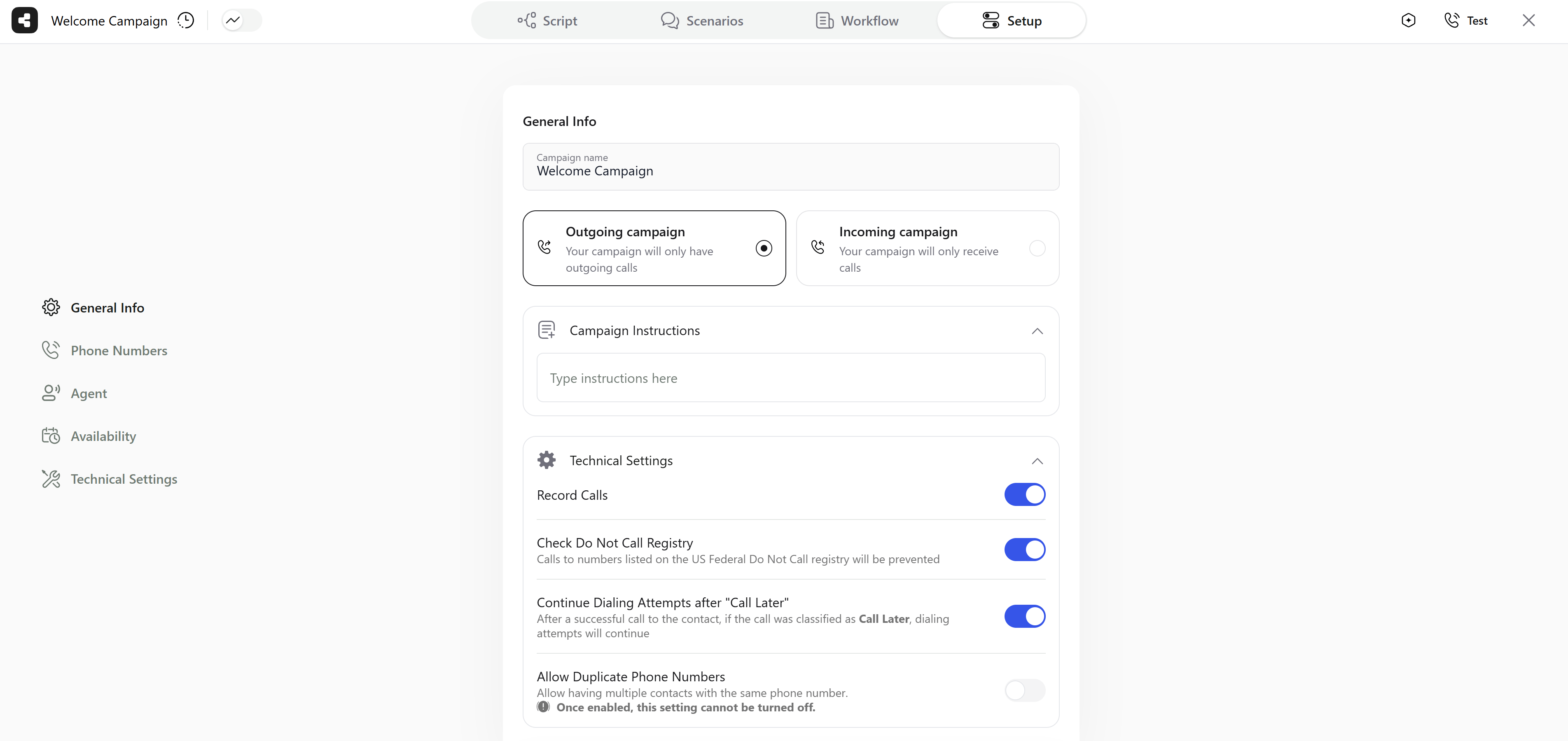
  • Agent name: The name you see in the agent list.
  • Use case (optional): A label such as Cold Outreach, Lead Revival or Support & Troubleshooting. Choose Other to describe your own. The use case helps you group and filter agents; it doesn’t change how the agent behaves.
  • Outgoing and Incoming: The agent’s direction. A new agent is Outgoing. Check Incoming as well to have one agent both make and answer calls - see Outgoing and Incoming Together - or uncheck Outgoing to make it inbound only. At least one direction stays selected.
  • Voice, Text or Email: The agent’s channel. Text and Email are available if your account has them.
  • Agent Instructions (optional): General instructions the agent follows on every call.
General Settings with the agent name, use case, Outgoing and Incoming cards, channel tabs and Agent Instructions

General Settings

Outgoing and Incoming Together

With both Outgoing and Incoming checked, one agent calls your contacts and also answers calls to its phone numbers - for example, when a contact calls back. Such an agent combines the settings of both directions:
  • Technical Settings show the full outgoing list.
  • Channels lists your numbers set up for outgoing calls. A number that already answers calls for another agent can’t be selected.
  • Availability shows the calling hours and dial attempts, and both Max Outgoing Calls in Parallel and Max incoming calls in parallel.

Technical Settings

Expand Technical Settings for call handling options:
  • Record Calls: Record every call. When recording is on, Stop Recording When Call Is Transferred stops it as soon as the call is handed over to another number.
  • Check US Federal Do Not Call (DNC) Registry: Don’t call numbers on the US Federal DNC registry. Test calls are excluded from this check. Once it’s on, you can also include state DNC lists.
  • Enable Account Do Not Call (DNC) List: Don’t call numbers on your account’s own Do Not Call list, if your account has it. Once it’s on, Update Account Do Not Call (DNC) List Automatically adds the number of every contact who asks not to be called again.
  • Continue Dialing Attempts after “Call Later”: Keep dialing a contact whose call was classified as Call Later.
  • Contact Memory: Agents remember details about contacts from earlier calls and share them across your organization. You can turn memories off for this agent, stop it from adding new memories, make it use only memories from its own calls, or give it a custom prompt (up to 2,000 characters) about which details to remember.
  • Sensitive data detection: Detect credit card numbers, CVVs and PINs in call transcripts. Once it’s on, choose what happens to them: Mask sensitive messages, Delete transcripts with sensitive data or Delete recordings with sensitive data.
  • Send SIP Headers: Pass contact variables as custom SIP headers on outbound calls and transfers.
  • Allow Duplicate Phone Numbers: Let several contacts share the same phone number. Once enabled, this setting can’t be turned off.
  • Local Dialing: Dial contacts in local number format, so contacts can be added without a country code. Available if your account has it.
  • Limit the duration of the call: Calls longer than this are hung up automatically - from 1 to 60 minutes, 30 by default. Transferred calls get an extra 150 minutes.
Technical Settings with Record Calls, Stop Recording When Call Is Transferred, the DNC options and Continue Dialing Attempts after Call Later

Technical Settings

Inbound-only agents have a shorter list: recording (including a message that tells callers the call is recorded), Contact Memory, sensitive data detection and the call duration limit.

Phone Numbers

Click Channels and open the Voice Channels tab to choose the numbers the agent uses. Numbers come from the telephony providers connected to your account - SIP, Twilio or Telnyx - or are managed by Callers. See Telephony Integrations to connect one.
  • The providers are listed on the left; click one to jump to its numbers.
  • Check the numbers the agent should use. Click Refresh to load numbers you’ve just added in Twilio or Telnyx.
  • Outgoing agents see numbers set up for outgoing calls. With two or more numbers selected, choose a Dialing Strategy:
    • Rotate Numbers (default): Spread calls across your numbers, using the least recently used one first. This helps avoid spam flags.
    • Prefer Local Numbers: Call from a number that matches the contact’s area code, rotating between local numbers if you have several.
    • Auto Optimize: Learn which numbers get better pickup rates for each area code and time of day, and use them first.
  • Incoming agents see numbers set up for incoming calls. A number that already takes calls for another agent can’t be selected, and you need to stop the agent before you unselect one of its numbers.
The Voice Channels tab with connected providers on the left, phone numbers with checkboxes on the right and the Dialing Strategy setting

Choosing phone numbers

If you don’t see the Channels button, phone numbers aren’t enabled for your account. Contact support to turn them on.

Voice and Conversation

Click Agent to set how the agent sounds and listens:
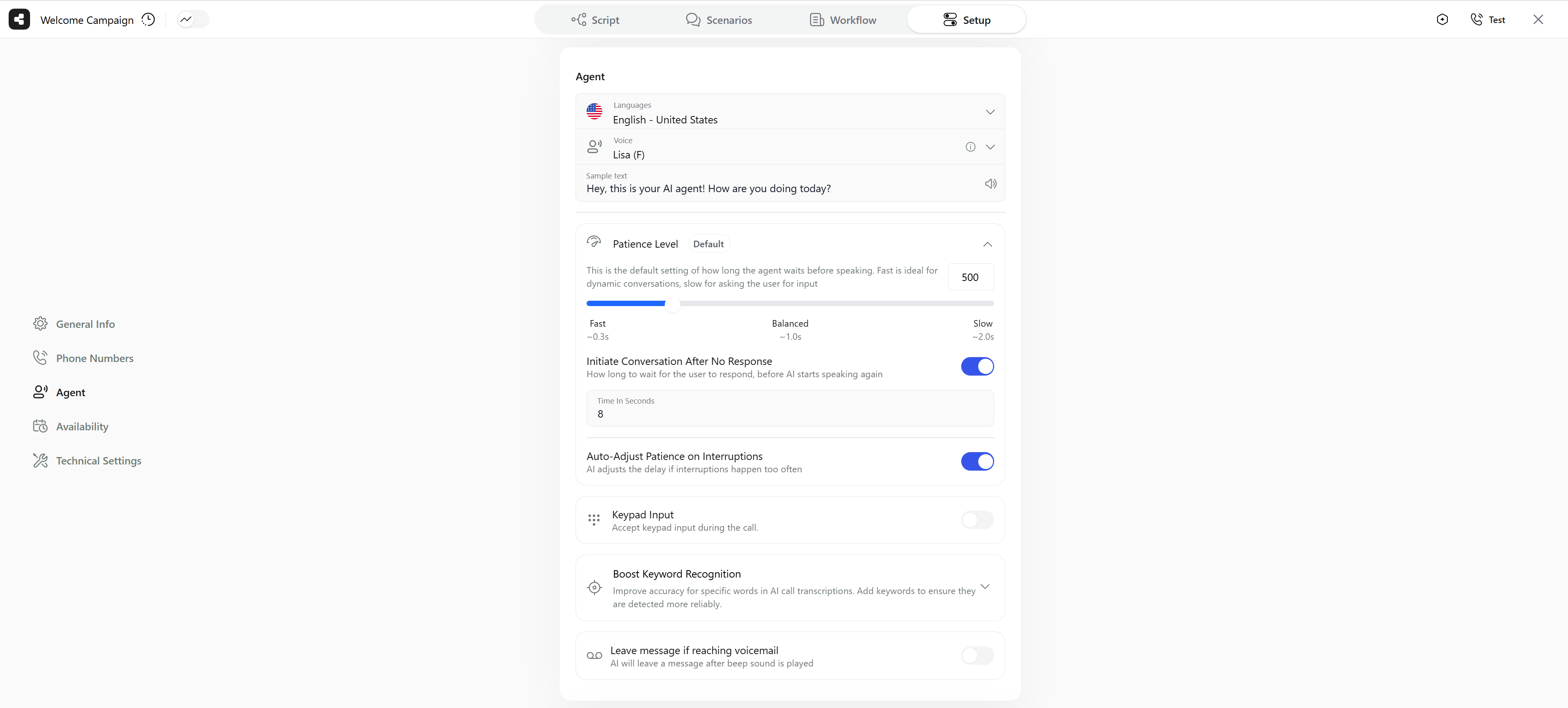
  • Language: The language of the conversation. For languages with several dialects, pick one from the submenu, for example English - United States.
  • Voice: Voices available for the selected language, grouped into female and male voices. Type a sentence in Sample text and click the speaker icon to hear it. Voices you clone on the Audio page appear here too.
  • Background Soundscape: Ambient sound behind the agent’s voice - a built-in one or one you uploaded - with its Background volume level. Available only for calls made through a SIP integration.
  • Patience Level: How long the agent waits after the contact stops speaking before it answers - from about 0.1 to 2 seconds, 1 second by default. Fast suits lively conversations, slow suits moments when the contact needs time to think. Individual steps can override it; see Agent Steps.
    • Initiate Conversation After No Response: How long the agent waits for a reply before it speaks again. On by default, 8 seconds.
    • Auto-Adjust Patience on Interruptions: The agent adjusts its delay when it’s interrupted too often. On by default.
  • Keypad Input (DTMF): Accept keypad presses during the call. With Submit Input with #, pressing # submits what the contact typed right away.
  • Manual input only: Turn off speech recognition, so the contact answers only with the keypad.
  • Voice Emotions: Let the agent speak with emotions, if your account has it. It’s switched on automatically for voices that support emotions.
  • Boost Keyword Recognition: Words the agent should recognize more reliably, such as product names. Give each a weight from -100 to 100, or leave it blank for the default.
  • Guardrails: Limits on what the agent can say. Choose when responses are checked (Streaming or Before speaking) and what happens when a guardrail is triggered (End conversation, Retry or Transfer to human). You can add custom guardrails for this agent and, if your account has organization-wide guardrails, apply those too.
  • Pronunciation Dictionaries: Set how the agent pronounces specific words, written in IPA.
  • Speech Recognition Vocabulary: Important terms with alternate spellings or how they sound, to improve transcription. Available if your account has it.
  • Leave message if reaching voicemail: Leave a voicemail message, which can include variables. Under When to leave a voicemail, choose Whenever voicemail is detected, First detected voicemail only or On the final scheduled call (if voicemail is detected).
The Agent window with language, voice, sample text, Background Soundscape, Patience Level and keypad settings

Agent voice settings

Availability

Click Availability to set when the agent calls.

Outgoing Agents

  • Use Contact’s Time Zone: Estimate each contact’s local time zone from their phone number’s country and area code, if your account has it. You then set a fallback time zone for numbers it can’t place.
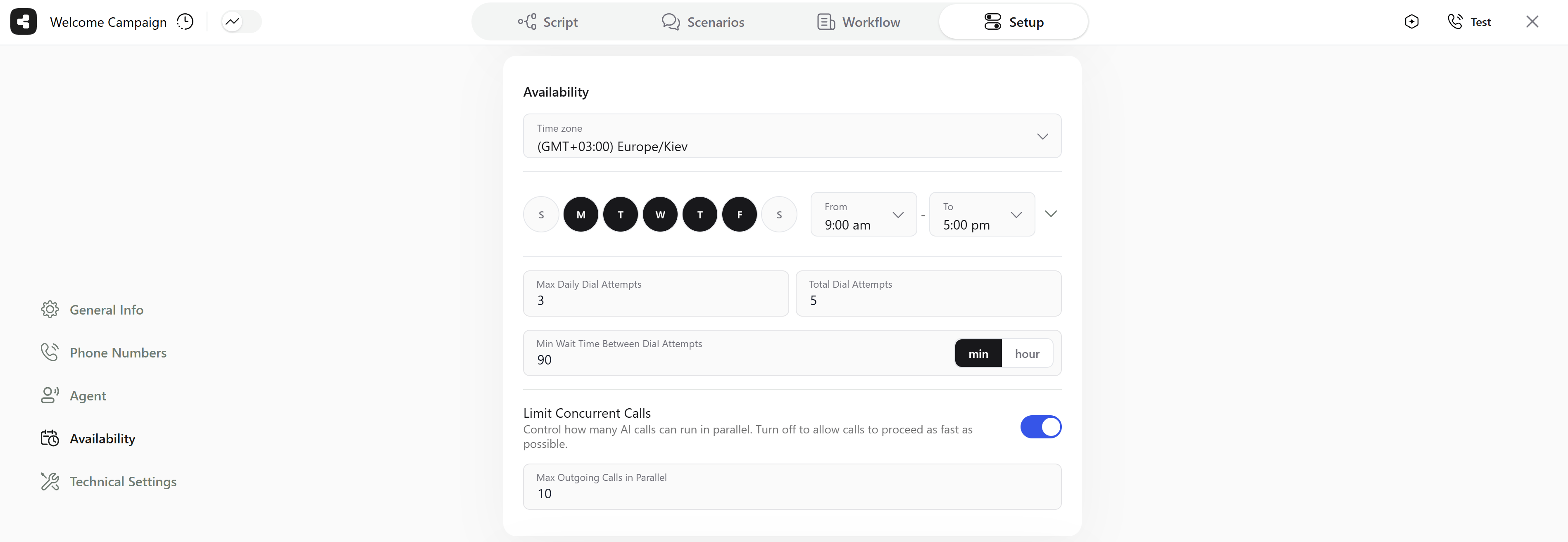
  • Time zone: The time zone for your calling hours.
  • Days and hours: Monday to Friday, 9:00 am to 5:00 pm by default. Click the arrow next to the hours to set different hours per day, add several time slots to a day, or copy one day’s slots to all days.
  • Attempts:
    • Total Dial Attempts: How many times a contact is called in total - 5 by default, up to 10 unless your plan allows more.
    • Max Daily Dial Attempts: How many times a contact can be called per day - 3 by default, from 1 to 50.
    • Min Wait Time Between Dial Attempts: The shortest gap between two calls to the same contact, in minutes or hours - 90 minutes by default, from 5 minutes to 145 hours.
  • Split Attempts per Day: Set a different number of attempts for each day: Day 1, Day 2, and Day 3 - All Following Days. Click Add Day to plan up to 7 days separately.
  • Limit Concurrent Calls: Cap how many calls run at the same time with Max Outgoing Calls in Parallel (10 by default). Turn it off to let calls go out as fast as possible.
Availability with the time zone, calling days and hours, dial attempts, Split Attempts per Day and Limit Concurrent Calls

Availability settings

Incoming Agents

Incoming agents answer at any time, so they only need a Time zone - used, for example, when scheduling meetings - and Max incoming calls in parallel: from 1 to 20, 2 by default. This limit applies to calls received through Twilio. Agents that handle both directions show all of the settings above.

Saving and Publishing

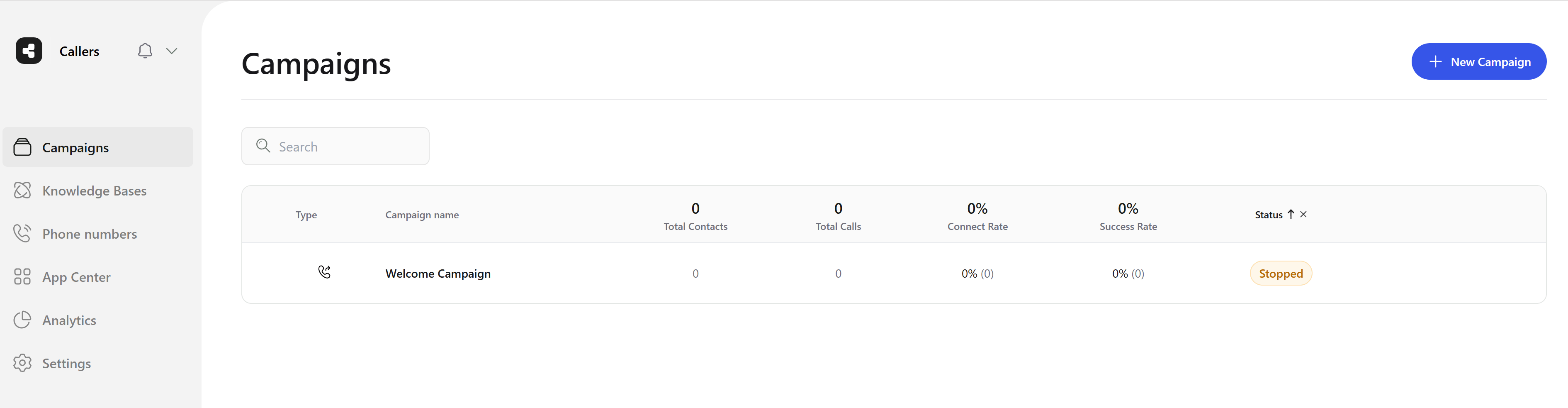
As soon as you change a setting, the header shows Cancel and Save. Click Save to keep your changes. If your account uses agent versions, click Publish afterwards to make them live. If your agent has several versions and you changed General Settings, Availability or Channels, you’re asked to confirm that these changes apply to all versions. Your agents are listed on the Agents page, with their contacts, interactions, connect rate, success rate and status.
The Agents page with the agent's type, name, total contacts, total interactions, connect rate, success rate and status

Agent list

Once your agent is set up, you’re ready to launch. For outgoing agents, upload your contacts in the app or through the API.