Place test calls, web calls, chats, and emails with sample contact data, then review transcripts, recordings, and action logs before going live.
Test every agent before you start it with real contacts. The Test button in the agent editor lets you call your own phone, talk in the browser, chat, or receive an email as if you were a contact, using sample values for each variable. Test conversations are kept in a history so you can compare versions of your script.
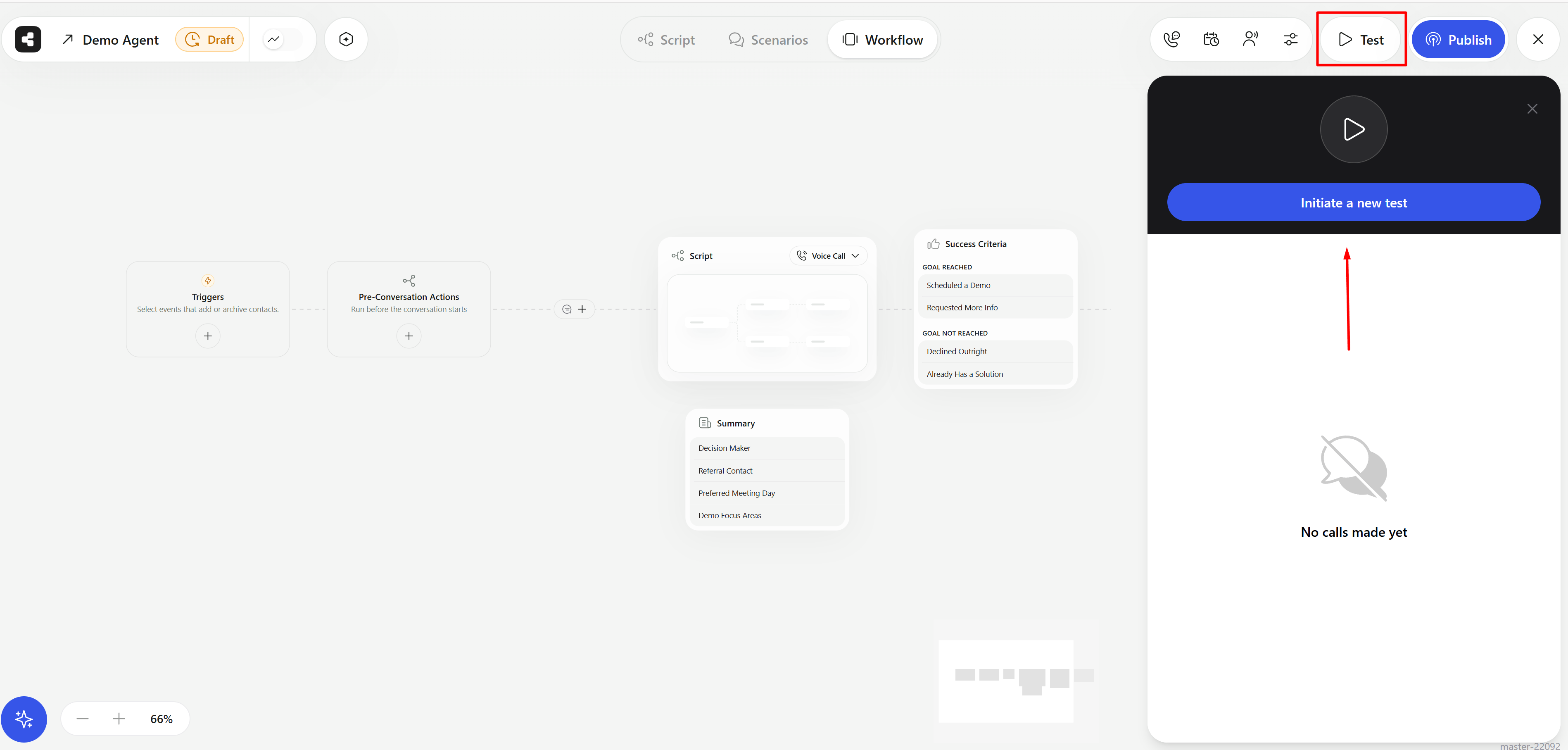
Click Test in the editor header. The panel shows Tests history. Click Initiate a new test.
The Test button opens the test panel with Initiate a new test and the tests history.
2
Choose phone or web
Pick Phone Call to have the agent call you, or Web Call to talk in the browser through your microphone. Agents set up for the web widget default to Web Call.
3
Enter your details
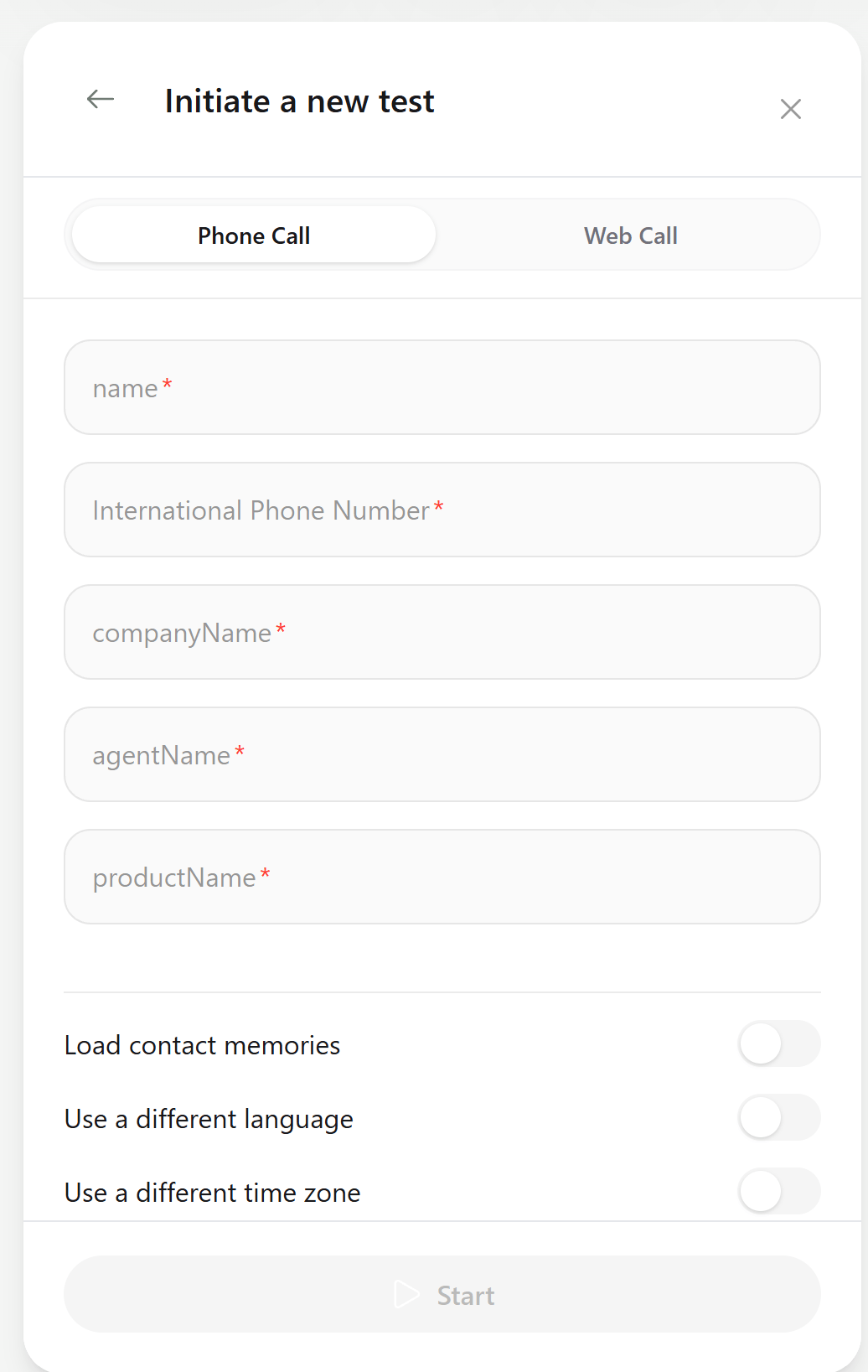
Enter your number in International Phone Number (with the country code, for example +14155550123). Then fill in a value for each variable. Required variables are listed first.
Initiate a new test: Phone Call or Web Call, your details, one field per variable, and the test options.
4
Set options and start
Adjust the options below and click Start. Your phone rings (or the web call connects) within a few seconds. Web calls also show any in-call forms in your script; phone tests don’t.
Which version to test (Draft or Published), if your account uses versions.
First published version
Enable Voice Mail Detection
Runs voicemail detection, so you can test your voicemail message by letting the call go to voicemail. Shown when the agent has voicemail on.
—
Load contact memories
Uses memories from earlier conversations with this number.
Off
Use a different language
Tests the agent in another language. Outgoing agents.
Off
Use a different time zone
Simulates a contact in another time zone. Outgoing agents.
Off
Run Pre-Conversation Actions
”When disabled, tests skip all configured pre-conversation actions, including any checks or data lookups.”
On
If a pre-conversation action blocks the call, you’ll see “Call was not placed because it did not pass pre-call checks”.
In-call actions run for real during tests. An action that creates a CRM record or sends a message will do so. Point actions at a sandbox, or use a test contact in your systems.
For an incoming agent, call the agent’s phone number from your phone, or use Web Call in the test panel. Incoming calls you place yourself are regular calls on the agent.
Click Test, then Initiate a new test chat. Enter your phone number (international format with country code) and the variable values, then click Start Chatting. For incoming chat agents, also enter the Initial message the contact sends first. Reply from your phone to continue the conversation. See Test before you launch for channel-specific checks.
Click Test, enter the address to receive the email, fill in the variables, and click Send Test Email. Reply to the email to test how the agent handles responses. See Send a test email.
Save your changes, turn off Insights Mode, and wait for any running test to finish. Only admins can test.
My phone didn't ring
Check the number format (country code included), that the agent has a phone number selected under Channels, and that your number isn’t on the account’s Do Not Call list. Open the test in Tests history to see the failure reason.
The agent says the wrong name or a placeholder
A variable value was empty or misspelled. Variable names are case-sensitive; check them in the Variables panel.
The web call has no audio
Allow microphone access in your browser and check that the right input device is selected.
Try the web widget with your own settings and theme.
Path to production
The go-live checklist: test, start small, monitor.
{"docsConfig":{"theme":"aspen","$schema":"https://mintlify.com/docs.json","name":"Callers","description":"Build AI agents that call, text, email, and talk to customers on your website. Guides, Web SDK, and API reference for the Callers platform.","colors":{"primary":"#3655E8","light":"#8EA0FF","dark":"#2A44C4"},"logo":{"light":"https://mintcdn.com/voxiaai/UdPum2goP7yfaYcC/logo/light.svg?fit=max\u0026auto=format\u0026n=UdPum2goP7yfaYcC\u0026q=85\u0026s=b1de758075c8bd929495ea22505d14b8","dark":"https://mintcdn.com/voxiaai/UdPum2goP7yfaYcC/logo/dark.svg?fit=max\u0026auto=format\u0026n=UdPum2goP7yfaYcC\u0026q=85\u0026s=cdb6dcbc265e95b7f15e77b15797cce6","href":"https://docs.callers.ai"},"favicon":"https://mintcdn.com/voxiaai/UdPum2goP7yfaYcC/logo/favicon.svg?fit=max\u0026auto=format\u0026n=UdPum2goP7yfaYcC\u0026q=85\u0026s=4a33273363fdf14d219145aa644b0ff7","appearance":{"default":"light","strict":false},"background":{"color":{"light":"#FFFFFF","dark":"#0A0D18"}},"navbar":{"links":[{"href":"https://www.callers.ai/book-a-meeting","label":"Book a demo"},{"href":"mailto:support@callers.ai","label":"Support"}],"primary":{"type":"button","label":"Open dashboard","href":"https://app.callers.ai"}},"footer":{"socials":{"linkedin":"https://www.linkedin.com/company/callersai","website":"https://www.callers.ai"},"links":[{"header":"Product","items":[{"label":"Website","href":"https://www.callers.ai"},{"label":"Dashboard","href":"https://app.callers.ai"},{"label":"Book a demo","href":"https://www.callers.ai/book-a-meeting"}]},{"header":"Developers","items":[{"label":"API Reference","href":"/api-reference/introduction"},{"label":"Web SDK","href":"/sdk/overview"},{"label":"SDK Playground","href":"https://sdk-playground.callers.dev"}]},{"header":"Company","items":[{"label":"Status","href":"https://status.callers.ai"},{"label":"Trust Center","href":"https://trust.callers.ai"},{"label":"Contact support","href":"mailto:support@callers.ai"}]}]},"search":{"prompt":"Search docs or ask a question…"},"seo":{"metatags":{"og:site_name":"Callers Docs"},"indexing":"navigable"},"fonts":{"family":"Inter"},"icons":{"library":"fontawesome"},"styling":{"codeblocks":"dark","latex":false},"errors":{"404":{"redirect":false}},"contextual":{"options":["copy","view","chatgpt","claude","perplexity","mcp","cursor","vscode"],"display":"header"},"navigation":{"global":{"anchors":[{"anchor":"Dashboard","icon":"browser","href":"https://app.callers.ai"},{"anchor":"Status","icon":"signal","href":"https://status.callers.ai"}]},"pages":[]}},"deployment":{"deploymentMetadataValue":{"subdomain":"voxiaai","hasAudioNarration":false,"actualSubdomain":"voxiaai","customDomains":["docs.callers.ai"],"gitSource":{"type":"github","owner":"amy-io","repo":"docs","deployBranch":"master","contentDirectory":"","isPrivate":true,"mountPath":"","label":""},"chroma":{"liveDeploymentHistoryId":"6adfa9943e86de84f663e8c9","collectionId":"41dd06f6-9239-41ff-8948-77c45e15c50c","schemaVersion":"v3","latestBuiltDeploymentHistoryId":"6adfa9943e86de84f663e8c9"},"entitlements":{},"buildId":"6adfa9943e86de84f663e8c9","clientVersion":"0.0.3971","searchFilterCounts":[{"language":"default","tag":"Guides","count":77},{"language":"default","tag":"API Reference","count":72},{"language":"default","tag":"Endpoints","count":59},{"language":"default","tag":"Integrations","count":19},{"language":"default","tag":"Web SDK","count":14},{"language":"default","tag":"Get started","count":11},{"language":"default","tag":"Build your agent","count":11},{"language":"default","tag":"Channels","count":11},{"language":"default","tag":"Agents","count":10},{"language":"default","tag":"Contacts","count":10}]},"assistantConfig":{},"basePath":"","hasChatPermissions":false,"hasWebMcpPermissions":false,"toggles":[{"name":"kill-isr","enabled":true,"variant":{"name":"disabled","enabled":false,"feature_enabled":true},"impressionData":false},{"name":"agent-mintlify-slack","enabled":true,"variant":{"name":"disabled","enabled":false,"feature_enabled":true},"impressionData":false},{"name":"editor-v7-file-tree","enabled":true,"variant":{"name":"disabled","enabled":false,"feature_enabled":true},"impressionData":false},{"name":"agent-integrations-settings","enabled":true,"variant":{"name":"disabled","enabled":false,"feature_enabled":true},"impressionData":false},{"name":"automations-pr-grouping","enabled":true,"variant":{"name":"disabled","enabled":false,"feature_enabled":true},"impressionData":false},{"name":"custom-prefix","enabled":true,"variant":{"name":"disabled","enabled":false,"feature_enabled":true},"impressionData":false},{"name":"analytics-v7","enabled":true,"variant":{"name":"disabled","enabled":false,"feature_enabled":true},"impressionData":false},{"name":"user-flows-analytics","enabled":true,"variant":{"name":"disabled","enabled":false,"feature_enabled":true},"impressionData":false},{"name":"no-publish-flow","enabled":true,"variant":{"name":"disabled","enabled":false,"feature_enabled":true},"impressionData":false},{"name":"workos-onboarding","enabled":true,"variant":{"name":"disabled","enabled":false,"feature_enabled":true},"impressionData":false},{"name":"llms-txt-v2","enabled":true,"variant":{"name":"disabled","enabled":false,"feature_enabled":true},"impressionData":false},{"name":"pause-universal-search-reconcile","enabled":true,"variant":{"name":"disabled","enabled":false,"feature_enabled":true},"impressionData":false},{"name":"snapshot-serving-live","enabled":true,"variant":{"name":"disabled","enabled":false,"feature_enabled":true},"impressionData":false},{"name":"stripTemperatureMiddleware","enabled":true,"variant":{"name":"disabled","enabled":false,"feature_enabled":true},"impressionData":false},{"name":"per-site-search-delta","enabled":true,"variant":{"name":"disabled","enabled":false,"feature_enabled":true},"impressionData":false},{"name":"support-platform-pylon-zendesk","enabled":true,"variant":{"name":"disabled","enabled":false,"feature_enabled":true},"impressionData":false},{"name":"snapshot-serving","enabled":true,"variant":{"name":"disabled","enabled":false,"feature_enabled":true},"impressionData":false},{"name":"instant-rollback","enabled":true,"variant":{"name":"disabled","enabled":false,"feature_enabled":true},"impressionData":false},{"name":"granular-notifications-server","enabled":true,"variant":{"name":"disabled","enabled":false,"feature_enabled":true},"impressionData":false},{"name":"granular-notifications","enabled":true,"variant":{"name":"disabled","enabled":false,"feature_enabled":true},"impressionData":false},{"name":"editor-private-page-search","enabled":true,"variant":{"name":"disabled","enabled":false,"feature_enabled":true},"impressionData":false},{"name":"automations-fable","enabled":true,"variant":{"name":"disabled","enabled":false,"feature_enabled":true},"impressionData":false},{"name":"fixed-ai-action-pricing","enabled":true,"variant":{"name":"disabled","enabled":false,"feature_enabled":true},"impressionData":false},{"name":"automation-resolve-merge-conflict","enabled":true,"variant":{"name":"disabled","enabled":false,"feature_enabled":true},"impressionData":false},{"name":"scoped-publishing","enabled":true,"variant":{"name":"disabled","enabled":false,"feature_enabled":true},"impressionData":false},{"name":"mintql","enabled":true,"variant":{"name":"disabled","enabled":false,"feature_enabled":true},"impressionData":false},{"name":"page-level-analytics","enabled":true,"variant":{"name":"disabled","enabled":false,"feature_enabled":true},"impressionData":false},{"name":"editor-version-history-v2","enabled":true,"variant":{"name":"disabled","enabled":false,"feature_enabled":true},"impressionData":false},{"name":"editor-nav-generations","enabled":true,"variant":{"name":"disabled","enabled":false,"feature_enabled":true},"impressionData":false},{"name":"billing-page-v2","enabled":true,"variant":{"name":"disabled","enabled":false,"feature_enabled":true},"impressionData":false},{"name":"workspace-projects","enabled":true,"variant":{"name":"disabled","enabled":false,"feature_enabled":true},"impressionData":false},{"name":"assistant-v5","enabled":true,"variant":{"name":"disabled","enabled":false,"feature_enabled":true},"impressionData":false},{"name":"byok-sep-25","enabled":true,"variant":{"name":"disabled","enabled":false,"feature_enabled":true},"impressionData":false},{"name":"fork-pr-previews","enabled":true,"variant":{"name":"disabled","enabled":false,"feature_enabled":true},"impressionData":false},{"name":"revalidation-jwt","enabled":true,"variant":{"name":"disabled","enabled":false,"feature_enabled":true},"impressionData":false},{"name":"vite-origin","enabled":true,"variant":{"name":"disabled","enabled":false,"feature_enabled":true},"impressionData":false},{"name":"editor-agent-model-picker","enabled":true,"variant":{"name":"disabled","enabled":false,"feature_enabled":true},"impressionData":false},{"name":"billing-updated-9-15","enabled":true,"variant":{"name":"disabled","enabled":false,"feature_enabled":true},"impressionData":false},{"name":"workos-sso-scim","enabled":true,"variant":{"name":"disabled","enabled":false,"feature_enabled":true},"impressionData":false},{"name":"hobby-abuse-scan","enabled":true,"variant":{"name":"disabled","enabled":false,"feature_enabled":true},"impressionData":false},{"name":"dashboard-inbox","enabled":true,"variant":{"name":"disabled","enabled":false,"feature_enabled":true},"impressionData":false},{"name":"workos-signup","enabled":true,"variant":{"name":"disabled","enabled":false,"feature_enabled":true},"impressionData":false},{"name":"workos-enabled","enabled":true,"variant":{"name":"disabled","enabled":false,"feature_enabled":true},"impressionData":false}],"isAtlas":false,"googleFontsInlined":false},"customCss":[{"filePath":"styles.css","href":"/_mintlify/custom/voxiaai/21a11cfc72d9362f/styles.css"}],"page":{"pagePath":"documentation/build-your-agent/testing-your-agent","slug":"/documentation/build-your-agent/testing-your-agent","pageMetadata":{"title":"Test Your Agent","sidebarTitle":"Test your agent","description":"Place test calls, web calls, chats, and emails with sample contact data, then review transcripts, recordings, and action logs before going live.","icon":"flask","href":"/documentation/build-your-agent/testing-your-agent"},"description":{"compiledSource":"\"use strict\";\nconst {jsx: _jsx} = arguments[0];\nconst {useMDXComponents: _provideComponents} = arguments[0];\nfunction _createMdxContent(props) {\n const _components = {\n p: \"p\",\n ..._provideComponents(),\n ...props.components\n };\n return _jsx(_components.p, {\n children: \"Place test calls, web calls, chats, and emails with sample contact data, then review transcripts, recordings, and action logs before going live.\"\n });\n}\nfunction MDXContent(props = {}) {\n const {wrapper: MDXLayout} = {\n ..._provideComponents(),\n ...props.components\n };\n return MDXLayout ? _jsx(MDXLayout, {\n ...props,\n children: _jsx(_createMdxContent, {\n ...props\n })\n }) : _createMdxContent(props);\n}\nreturn {\n default: MDXContent\n};\n","frontmatter":{},"scope":{}},"pageType":"default","mdx":{"mdxSource":{"compiledSource":"\"use strict\";const{Fragment:_Fragment,jsx:_jsx,jsxs:_jsxs}=arguments[0];const{useMDXComponents:_provideComponents}=arguments[0];function _createMdxContent(props){const _components={a:`a`,code:`code`,li:`li`,p:`p`,strong:`strong`,tbody:`tbody`,td:`td`,th:`th`,thead:`thead`,tr:`tr`,ul:`ul`,..._provideComponents(),...props.components},{Accordion,AccordionGroup,Card,CardGroup,Frame,Heading,OptimizedImage,Step,Steps,Table,Warning}=_components;if(!Accordion)_missingMdxReference(`Accordion`,true);if(!AccordionGroup)_missingMdxReference(`AccordionGroup`,true);if(!Card)_missingMdxReference(`Card`,true);if(!CardGroup)_missingMdxReference(`CardGroup`,true);if(!Frame)_missingMdxReference(`Frame`,true);if(!Heading)_missingMdxReference(`Heading`,true);if(!OptimizedImage)_missingMdxReference(`OptimizedImage`,true);if(!Step)_missingMdxReference(`Step`,true);if(!Steps)_missingMdxReference(`Steps`,true);if(!Table)_missingMdxReference(`Table`,true);if(!Warning)_missingMdxReference(`Warning`,true);return _jsxs(_Fragment,{children:[_jsxs(_components.p,{children:[`Test every agent before you start it with real contacts. The `,_jsx(_components.strong,{children:`Test`}),` button in the agent editor lets you call your own phone, talk in the browser, chat, or receive an email as if you were a contact, using sample values for each variable. Test conversations are kept in a history so you can compare versions of your script.`]}),`\n`,_jsx(Heading,{level:`2`,id:`before-you-test`,children:`Before you test`}),`\n`,_jsxs(_components.ul,{children:[`\n`,_jsxs(_components.li,{children:[_jsx(_components.strong,{children:`Save the agent.`}),` The `,_jsx(_components.strong,{children:`Test`}),` button appears only when there are no unsaved changes. It’s hidden while `,_jsx(_components.strong,{children:`Insights Mode`}),` is on.`]}),`\n`,_jsxs(_components.li,{children:[_jsx(_components.strong,{children:`Use an admin account.`}),` Only admins can run tests.`]}),`\n`,_jsxs(_components.li,{children:[_jsx(_components.strong,{children:`Have a channel ready.`}),` Phone tests need a phone number on the agent; chat tests need a messaging number; email tests need a mailbox.`]}),`\n`]}),`\n`,_jsx(Heading,{level:`2`,id:`test-a-voice-agent`,children:`Test a voice agent`}),`\n`,_jsxs(Steps,{children:[_jsxs(Step,{title:`Open the test panel`,children:[_jsxs(_components.p,{children:[`Click `,_jsx(_components.strong,{children:`Test`}),` in the editor header. The panel shows `,_jsx(_components.strong,{children:`Tests history`}),`. Click `,_jsx(_components.strong,{children:`Initiate a new test`}),`.`]}),_jsx(Frame,{caption:`The Test button opens the test panel with Initiate a new test and the tests history.`,children:_jsx(OptimizedImage,{src:`https://mintcdn.com/voxiaai/ELyrb3NxuHh0ILKS/images/documentation/build-your-agent/test-panel.png?fit=max\u0026auto=format\u0026n=ELyrb3NxuHh0ILKS\u0026q=85\u0026s=2c1d1f71641d963a71aee319b7856f24`,alt:`Agent editor on the Workflow tab with the Test button highlighted in the header and the test panel open on the right, showing an Initiate a new test button and the message No calls made yet`,\"data-og-width\":`3796`,width:`3796`,\"data-og-height\":`1815`,height:`1815`,\"data-path\":`images/documentation/build-your-agent/test-panel.png`,\"data-optimize\":`true`,\"data-opv\":`3`,srcset:`https://mintcdn.com/voxiaai/ELyrb3NxuHh0ILKS/images/documentation/build-your-agent/test-panel.png?w=280\u0026fit=max\u0026auto=format\u0026n=ELyrb3NxuHh0ILKS\u0026q=85\u0026s=b8522ce2f0205c97638ce29ef21a3c7e 280w, https://mintcdn.com/voxiaai/ELyrb3NxuHh0ILKS/images/documentation/build-your-agent/test-panel.png?w=560\u0026fit=max\u0026auto=format\u0026n=ELyrb3NxuHh0ILKS\u0026q=85\u0026s=a9d1c3a95c1fd8092eed1a962c76ed2b 560w, https://mintcdn.com/voxiaai/ELyrb3NxuHh0ILKS/images/documentation/build-your-agent/test-panel.png?w=840\u0026fit=max\u0026auto=format\u0026n=ELyrb3NxuHh0ILKS\u0026q=85\u0026s=07cefd355377278c24a1ea69d816a017 840w, https://mintcdn.com/voxiaai/ELyrb3NxuHh0ILKS/images/documentation/build-your-agent/test-panel.png?w=1100\u0026fit=max\u0026auto=format\u0026n=ELyrb3NxuHh0ILKS\u0026q=85\u0026s=b0f783bad7ee0e30cc6a2854121750d1 1100w, https://mintcdn.com/voxiaai/ELyrb3NxuHh0ILKS/images/documentation/build-your-agent/test-panel.png?w=1650\u0026fit=max\u0026auto=format\u0026n=ELyrb3NxuHh0ILKS\u0026q=85\u0026s=700a8de850e92862e692f199c155f8b5 1650w, https://mintcdn.com/voxiaai/ELyrb3NxuHh0ILKS/images/documentation/build-your-agent/test-panel.png?w=2500\u0026fit=max\u0026auto=format\u0026n=ELyrb3NxuHh0ILKS\u0026q=85\u0026s=738cc73495e1832c67652cc7f0be8cc8 2500w`})})]}),_jsx(Step,{title:`Choose phone or web`,children:_jsxs(_components.p,{children:[`Pick `,_jsx(_components.strong,{children:`Phone Call`}),` to have the agent call you, or `,_jsx(_components.strong,{children:`Web Call`}),` to talk in the browser through your microphone. Agents set up for the web widget default to `,_jsx(_components.strong,{children:`Web Call`}),`.`]})}),_jsxs(Step,{title:`Enter your details`,children:[_jsxs(_components.p,{children:[`Enter your number in `,_jsx(_components.strong,{children:`International Phone Number`}),` (with the country code, for example `,_jsx(_components.code,{children:`+14155550123`}),`). Then fill in a value for each variable. Required variables are listed first.`]}),_jsx(Frame,{caption:`Initiate a new test: Phone Call or Web Call, your details, one field per variable, and the test options.`,children:_jsx(OptimizedImage,{src:`https://mintcdn.com/voxiaai/DUXJUr2YtBjwx26G/images/documentation/build-your-agent/initiate-new-test.png?fit=max\u0026auto=format\u0026n=DUXJUr2YtBjwx26G\u0026q=85\u0026s=a1e0dba56b3ed2f94e974bebcd62bd3d`,alt:`Initiate a new test form on the Phone Call tab with required fields for name, International Phone Number, companyName, agentName, and productName, toggles for Load contact memories, Use a different language, and Use a different time zone, and a Start button`,style:{width:`60%`,margin:`0 auto`,display:`block`},\"data-og-width\":`1036`,width:`1036`,\"data-og-height\":`1637`,height:`1637`,\"data-path\":`images/documentation/build-your-agent/initiate-new-test.png`,\"data-optimize\":`true`,\"data-opv\":`3`,srcset:`https://mintcdn.com/voxiaai/DUXJUr2YtBjwx26G/images/documentation/build-your-agent/initiate-new-test.png?w=280\u0026fit=max\u0026auto=format\u0026n=DUXJUr2YtBjwx26G\u0026q=85\u0026s=5323ce7030c37097832e1a412edd45ed 280w, https://mintcdn.com/voxiaai/DUXJUr2YtBjwx26G/images/documentation/build-your-agent/initiate-new-test.png?w=560\u0026fit=max\u0026auto=format\u0026n=DUXJUr2YtBjwx26G\u0026q=85\u0026s=24b95158376fcc0003feb45094925e6a 560w, https://mintcdn.com/voxiaai/DUXJUr2YtBjwx26G/images/documentation/build-your-agent/initiate-new-test.png?w=840\u0026fit=max\u0026auto=format\u0026n=DUXJUr2YtBjwx26G\u0026q=85\u0026s=2a963e763c1da281490a111894ed7c34 840w, https://mintcdn.com/voxiaai/DUXJUr2YtBjwx26G/images/documentation/build-your-agent/initiate-new-test.png?w=1100\u0026fit=max\u0026auto=format\u0026n=DUXJUr2YtBjwx26G\u0026q=85\u0026s=0790b6d68cc6e7d725ab4b21267adaa9 1100w, https://mintcdn.com/voxiaai/DUXJUr2YtBjwx26G/images/documentation/build-your-agent/initiate-new-test.png?w=1650\u0026fit=max\u0026auto=format\u0026n=DUXJUr2YtBjwx26G\u0026q=85\u0026s=ba24284ed348fe4aaf3cfdfce9a85fe7 1650w, https://mintcdn.com/voxiaai/DUXJUr2YtBjwx26G/images/documentation/build-your-agent/initiate-new-test.png?w=2500\u0026fit=max\u0026auto=format\u0026n=DUXJUr2YtBjwx26G\u0026q=85\u0026s=2161dcad3637ec22180363dc8729750a 2500w`})})]}),_jsx(Step,{title:`Set options and start`,children:_jsxs(_components.p,{children:[`Adjust the options below and click `,_jsx(_components.strong,{children:`Start`}),`. Your phone rings (or the web call connects) within a few seconds. Web calls also show any `,_jsx(_components.a,{href:`/documentation/widget-agents/in-call-forms#test-it`,children:`in-call forms`}),` in your script; phone tests don’t.`]})})]}),`\n`,_jsx(Heading,{level:`3`,id:`test-options`,children:`Test options`}),`\n`,_jsxs(Table,{children:[_jsx(_components.thead,{children:_jsxs(_components.tr,{children:[_jsx(_components.th,{children:`Option`}),_jsx(_components.th,{children:`What it does`}),_jsx(_components.th,{children:`Default`})]})}),_jsxs(_components.tbody,{children:[_jsxs(_components.tr,{children:[_jsx(_components.td,{children:`Version`}),_jsxs(_components.td,{children:[`Which version to test (`,_jsx(_components.strong,{children:`Draft`}),` or `,_jsx(_components.strong,{children:`Published`}),`), if your account uses versions.`]}),_jsx(_components.td,{children:`First published version`})]}),_jsxs(_components.tr,{children:[_jsx(_components.td,{children:_jsx(_components.strong,{children:`Enable Voice Mail Detection`})}),_jsx(_components.td,{children:`Runs voicemail detection, so you can test your voicemail message by letting the call go to voicemail. Shown when the agent has voicemail on.`}),_jsx(_components.td,{children:`—`})]}),_jsxs(_components.tr,{children:[_jsx(_components.td,{children:_jsx(_components.strong,{children:`Load contact memories`})}),_jsx(_components.td,{children:`Uses memories from earlier conversations with this number.`}),_jsx(_components.td,{children:`Off`})]}),_jsxs(_components.tr,{children:[_jsx(_components.td,{children:_jsx(_components.strong,{children:`Use a different language`})}),_jsx(_components.td,{children:`Tests the agent in another language. Outgoing agents.`}),_jsx(_components.td,{children:`Off`})]}),_jsxs(_components.tr,{children:[_jsx(_components.td,{children:_jsx(_components.strong,{children:`Use a different time zone`})}),_jsx(_components.td,{children:`Simulates a contact in another time zone. Outgoing agents.`}),_jsx(_components.td,{children:`Off`})]}),_jsxs(_components.tr,{children:[_jsx(_components.td,{children:_jsx(_components.strong,{children:`Run Pre-Conversation Actions`})}),_jsx(_components.td,{children:`”When disabled, tests skip all configured pre-conversation actions, including any checks or data lookups.”`}),_jsx(_components.td,{children:`On`})]})]})]}),`\n`,_jsx(_components.p,{children:`If a pre-conversation action blocks the call, you’ll see “Call was not placed because it did not pass pre-call checks”.`}),`\n`,_jsx(Warning,{children:_jsx(_components.p,{children:`In-call actions run for real during tests. An action that creates a CRM record or sends a message will do so. Point actions at a sandbox, or use a test contact in your systems.`})}),`\n`,_jsx(Heading,{level:`3`,id:`test-incoming-calls`,children:`Test incoming calls`}),`\n`,_jsxs(_components.p,{children:[`For an incoming agent, call the agent’s phone number from your phone, or use `,_jsx(_components.strong,{children:`Web Call`}),` in the test panel. Incoming calls you place yourself are regular calls on the agent.`]}),`\n`,_jsx(Heading,{level:`2`,id:`test-a-text-agent`,children:`Test a Text agent`}),`\n`,_jsxs(_components.p,{children:[`Click `,_jsx(_components.strong,{children:`Test`}),`, then `,_jsx(_components.strong,{children:`Initiate a new test chat`}),`. Enter your phone number (international format with country code) and the variable values, then click `,_jsx(_components.strong,{children:`Start Chatting`}),`. For incoming chat agents, also enter the `,_jsx(_components.strong,{children:`Initial message`}),` the contact sends first. Reply from your phone to continue the conversation. See `,_jsx(_components.a,{href:`/documentation/text-agents/overview#test-before-you-launch`,children:`Test before you launch`}),` for channel-specific checks.`]}),`\n`,_jsx(Heading,{level:`2`,id:`test-an-email-agent`,children:`Test an Email agent`}),`\n`,_jsxs(_components.p,{children:[`Click `,_jsx(_components.strong,{children:`Test`}),`, enter the address to receive the email, fill in the variables, and click `,_jsx(_components.strong,{children:`Send Test Email`}),`. Reply to the email to test how the agent handles responses. See `,_jsx(_components.a,{href:`/documentation/email-agents/email-setup#send-a-test-email`,children:`Send a test email`}),`.`]}),`\n`,_jsx(Heading,{level:`2`,id:`review-a-test`,children:`Review a test`}),`\n`,_jsxs(_components.p,{children:[`Each test appears in `,_jsx(_components.strong,{children:`Tests history`}),` with its status. Open a test to see:`]}),`\n`,_jsxs(_components.ul,{children:[`\n`,_jsxs(_components.li,{children:[_jsx(_components.strong,{children:`Transcript`}),`: every turn, plus any actions the agent ran. Click an action to see its request and response.`]}),`\n`,_jsxs(_components.li,{children:[_jsx(_components.strong,{children:`Summary`}),`: the post-call analysis, when the call reached a goal.`]}),`\n`,_jsxs(_components.li,{children:[_jsx(_components.strong,{children:`Recording`}),`: play it back to judge pacing, interruptions, and pronunciation.`]}),`\n`,_jsxs(_components.li,{children:[_jsx(_components.strong,{children:`Failed`}),` tests show the reason.`]}),`\n`]}),`\n`,_jsxs(_components.p,{children:[`Answers that came from the knowledge base are marked `,_jsx(_components.strong,{children:`Knowledge Base Results`}),`, with the passages the agent used.`]}),`\n`,_jsx(Heading,{level:`2`,id:`how-tests-differ-from-live-calls`,children:`How tests differ from live calls`}),`\n`,_jsxs(_components.ul,{children:[`\n`,_jsxs(_components.li,{children:[`Test calls are marked as tests. Webhook payloads include `,_jsx(_components.code,{children:`isTestCall`}),`, so your systems can tell them apart.`]}),`\n`,_jsxs(_components.li,{children:[`They’re excluded from the `,_jsx(_components.strong,{children:`US Federal DNC Registry`}),` check.`]}),`\n`,_jsx(_components.li,{children:`They don’t count toward insights, per-step statistics, or dashboards.`}),`\n`]}),`\n`,_jsx(Heading,{level:`2`,id:`a-testing-checklist`,children:`A testing checklist`}),`\n`,_jsxs(AccordionGroup,{children:[_jsx(Accordion,{title:`Happy path`,id:`happy-path`,children:_jsx(_components.p,{children:`Go through the script as the ideal contact. Check that variables are spoken correctly and the call ends cleanly.`})}),_jsx(Accordion,{title:`Every branch`,id:`every-branch`,children:_jsx(_components.p,{children:`Answer differently each time to reach each subflow. Make sure each one ends, transfers, or loops back.`})}),_jsx(Accordion,{title:`Objections and questions`,id:`objections-and-questions`,children:_jsx(_components.p,{children:`Ask the questions your scenarios and knowledge base should cover. Ask something off-topic to see how the agent recovers.`})}),_jsx(Accordion,{title:`Interruptions and silence`,id:`interruptions-and-silence`,children:_jsx(_components.p,{children:`Talk over the agent, pause for a long time, and say “hold on”. Adjust patience and no-interruption settings if needed.`})}),_jsx(Accordion,{title:`Actions and transfers`,id:`actions-and-transfers`,children:_jsx(_components.p,{children:`Trigger every action and transfer. Check the request and response in the transcript.`})}),_jsx(Accordion,{title:`Voicemail`,id:`voicemail`,children:_jsxs(_components.p,{children:[`Let a test call go to voicemail with `,_jsx(_components.strong,{children:`Enable Voice Mail Detection`}),` on, and listen to the message left.`]})}),_jsx(Accordion,{title:`Outcomes and webhooks`,id:`outcomes-and-webhooks`,children:_jsx(_components.p,{children:`Confirm that the success criterion and summary answers match what happened. If you rely on webhooks, check that your endpoint received the payload.`})})]}),`\n`,_jsx(Heading,{level:`2`,id:`troubleshooting`,children:`Troubleshooting`}),`\n`,_jsxs(AccordionGroup,{children:[_jsx(Accordion,{title:`The Test button is missing`,id:`the-test-button-is-missing`,children:_jsxs(_components.p,{children:[`Save your changes, turn off `,_jsx(_components.strong,{children:`Insights Mode`}),`, and wait for any running test to finish. Only admins can test.`]})}),_jsx(Accordion,{title:`My phone didn't ring`,id:`my-phone-didnt-ring`,children:_jsxs(_components.p,{children:[`Check the number format (country code included), that the agent has a phone number selected under `,_jsx(_components.strong,{children:`Channels`}),`, and that your number isn’t on the account’s Do Not Call list. Open the test in `,_jsx(_components.strong,{children:`Tests history`}),` to see the failure reason.`]})}),_jsx(Accordion,{title:`The agent says the wrong name or a placeholder`,id:`the-agent-says-the-wrong-name-or-a-placeholder`,children:_jsx(_components.p,{children:`A variable value was empty or misspelled. Variable names are case-sensitive; check them in the Variables panel.`})}),_jsx(Accordion,{title:`The web call has no audio`,id:`the-web-call-has-no-audio`,children:_jsx(_components.p,{children:`Allow microphone access in your browser and check that the right input device is selected.`})})]}),`\n`,_jsx(Heading,{level:`2`,id:`related`,children:`Related`}),`\n`,_jsxs(CardGroup,{cols:2,children:[_jsx(Card,{title:`Versions and split traffic`,icon:`code-branch`,href:`/documentation/build-your-agent/versions-and-split-traffic`,children:_jsx(_components.p,{children:`Test drafts before publishing.`})}),_jsx(Card,{title:`Variables`,icon:`brackets-curly`,href:`/documentation/build-your-agent/agent-variables`,children:_jsx(_components.p,{children:`Values you fill in for tests.`})}),_jsx(Card,{title:`Agent results and insights`,icon:`chart-line`,href:`/documentation/using-callers/agent-insights`,children:_jsx(_components.p,{children:`Analyze live conversations.`})}),_jsx(Card,{title:`Report a call issue`,icon:`flag`,href:`/documentation/using-callers/reporting-call-issues`,children:_jsx(_components.p,{children:`Tell us when a call goes wrong.`})}),_jsx(Card,{title:`SDK playground`,icon:`flask`,href:`/sdk/playground`,children:_jsx(_components.p,{children:`Try the web widget with your own settings and theme.`})}),_jsx(Card,{title:`Path to production`,icon:`rocket`,href:`/documentation/best-practices/path-to-production`,children:_jsx(_components.p,{children:`The go-live checklist: test, start small, monitor.`})})]})]})}function MDXContent(props={}){const{wrapper:MDXLayout}={..._provideComponents(),...props.components};return MDXLayout?_jsx(MDXLayout,{...props,children:_jsx(_createMdxContent,{...props})}):_createMdxContent(props)}return{default:MDXContent};function _missingMdxReference(id,component){throw new Error(`Expected `+(component?`component`:`object`)+\" `\"+id+\"` to be defined: you likely forgot to import, pass, or provide it.\")}","frontmatter":{},"scope":{"codeStyling":"dark","config":{},"pageMetadata":{"title":"Test Your Agent","sidebarTitle":"Test your agent","description":"Place test calls, web calls, chats, and emails with sample contact data, then review transcripts, recordings, and action logs before going live.","icon":"flask","href":"/documentation/build-your-agent/testing-your-agent"}}},"mdxSourceWithNoJs":null},"mdxExtracts":{"tableOfContents":[{"title":"Before you test","slug":"before-you-test","depth":2,"children":[]},{"title":"Test a voice agent","slug":"test-a-voice-agent","depth":2,"children":[{"title":"Test options","slug":"test-options","depth":3,"children":[]},{"title":"Test incoming calls","slug":"test-incoming-calls","depth":3,"children":[]}]},{"title":"Test a Text agent","slug":"test-a-text-agent","depth":2,"children":[]},{"title":"Test an Email agent","slug":"test-an-email-agent","depth":2,"children":[]},{"title":"Review a test","slug":"review-a-test","depth":2,"children":[]},{"title":"How tests differ from live calls","slug":"how-tests-differ-from-live-calls","depth":2,"children":[]},{"title":"A testing checklist","slug":"a-testing-checklist","depth":2,"children":[]},{"title":"Troubleshooting","slug":"troubleshooting","depth":2,"children":[]},{"title":"Related","slug":"related","depth":2,"children":[]}],"codeExamples":{}},"jsLinks":[],"subdomain":"voxiaai","siteName":"Callers","title":"Test Your Agent - Callers","navMaps":{"firstHrefInVersion":{},"firstHrefInLanguage":{}},"lastModified":"2026-10-26T16:29:14.823Z","originalFileLocation":"documentation/build-your-agent/testing-your-agent.mdx"},"headHtml":"\u003cscript data-mint-head>(function(){var d=document.documentElement,p=null;if(!p){try{p=localStorage.getItem(\"isDarkMode\")}catch(e){}if(p==='true')p='dark';else if(p==='false')p='light';if(p!=='light'\u0026\u0026p!=='dark'\u0026\u0026p!=='system')p=\"light\"}var r=p==='system'?(matchMedia(\"(prefers-color-scheme: dark)\").matches?'dark':'light'):p;d.classList.remove(r==='dark'?'light':'dark');d.classList.add(r);d.setAttribute(\"data-theme-preference\",p)})();\u003c/script>\u003cmeta data-mint-head name=\"description\" content=\"Place test calls, web calls, chats, and emails with sample contact data, then review transcripts, recordings, and action logs before going live.\">\u003cmeta data-mint-head name=\"application-name\" content=\"Callers\">\u003cmeta data-mint-head name=\"generator\" content=\"Mintlify\">\u003clink data-mint-head rel=\"icon\" type=\"image/png\" sizes=\"192x192\" href=\"/mintlify-assets/_mintlify/favicons/voxiaai/QQLjIdxYdrMgCmrs/_generated/favicon/android-chrome-192x192.png\" media=\"(prefers-color-scheme: light)\">\u003clink data-mint-head rel=\"apple-touch-icon\" type=\"image/png\" sizes=\"180x180\" href=\"/mintlify-assets/_mintlify/favicons/voxiaai/QQLjIdxYdrMgCmrs/_generated/favicon/apple-touch-icon.png\">\u003clink data-mint-head rel=\"icon\" type=\"image/png\" sizes=\"16x16\" href=\"/mintlify-assets/_mintlify/favicons/voxiaai/QQLjIdxYdrMgCmrs/_generated/favicon/favicon-16x16.png\" media=\"(prefers-color-scheme: light)\">\u003clink data-mint-head rel=\"icon\" type=\"image/png\" sizes=\"32x32\" href=\"/mintlify-assets/_mintlify/favicons/voxiaai/QQLjIdxYdrMgCmrs/_generated/favicon/favicon-32x32.png\" media=\"(prefers-color-scheme: light)\">\u003clink data-mint-head rel=\"shortcut icon\" type=\"image/x-icon\" href=\"/mintlify-assets/_mintlify/favicons/voxiaai/QQLjIdxYdrMgCmrs/_generated/favicon/favicon.ico\" media=\"(prefers-color-scheme: light)\">\u003clink data-mint-head rel=\"icon\" type=\"image/png\" sizes=\"192x192\" href=\"/mintlify-assets/_mintlify/favicons/voxiaai/QQLjIdxYdrMgCmrs/_generated/favicon-dark/android-chrome-192x192.png\" media=\"(prefers-color-scheme: dark)\">\u003clink data-mint-head rel=\"icon\" type=\"image/png\" sizes=\"16x16\" href=\"/mintlify-assets/_mintlify/favicons/voxiaai/QQLjIdxYdrMgCmrs/_generated/favicon-dark/favicon-16x16.png\" media=\"(prefers-color-scheme: dark)\">\u003clink data-mint-head rel=\"icon\" type=\"image/png\" sizes=\"32x32\" href=\"/mintlify-assets/_mintlify/favicons/voxiaai/QQLjIdxYdrMgCmrs/_generated/favicon-dark/favicon-32x32.png\" media=\"(prefers-color-scheme: dark)\">\u003clink data-mint-head rel=\"shortcut icon\" type=\"image/x-icon\" href=\"/mintlify-assets/_mintlify/favicons/voxiaai/QQLjIdxYdrMgCmrs/_generated/favicon-dark/favicon.ico\" media=\"(prefers-color-scheme: dark)\">\u003cmeta data-mint-head property=\"og:title\" content=\"Test Your Agent - Callers\">\u003cmeta data-mint-head property=\"og:description\" content=\"Place test calls, web calls, chats, and emails with sample contact data, then review transcripts, recordings, and action logs before going live.\">\u003cmeta data-mint-head property=\"og:site_name\" content=\"Callers Docs\">\u003cmeta data-mint-head property=\"og:url\" content=\"https://docs.callers.ai/documentation/build-your-agent/testing-your-agent\">\u003cmeta data-mint-head property=\"og:type\" content=\"website\">\u003cmeta data-mint-head property=\"og:image\" content=\"https://voxiaai.mintlify.app/_mintlify/api/og/v2?division=Test+and+deploy\u0026amp;title=Test+Your+Agent\u0026amp;description=Place+test+calls%2C+web+calls%2C+chats%2C+and+emails+with+sample+contact+data%2C+then+review+transcripts%2C+recordings%2C+and+action+logs+before+going+live.\u0026amp;theme=e7b044c42271a380df08b2cb\u0026amp;signature=5f2a6b0e54fa7d4c09afde7271283f3c631480c329b76b0ab2af583ee6e85ad1\">\u003cmeta data-mint-head property=\"og:image:width\" content=\"1200\">\u003cmeta data-mint-head property=\"og:image:height\" content=\"630\">\u003cmeta data-mint-head name=\"twitter:card\" content=\"summary_large_image\">\u003cmeta data-mint-head name=\"twitter:title\" content=\"Test Your Agent - Callers\">\u003cmeta data-mint-head name=\"twitter:description\" content=\"Place test calls, web calls, chats, and emails with sample contact data, then review transcripts, recordings, and action logs before going live.\">\u003cmeta data-mint-head name=\"twitter:image\" content=\"https://voxiaai.mintlify.app/_mintlify/api/og/v2?division=Test+and+deploy\u0026amp;title=Test+Your+Agent\u0026amp;description=Place+test+calls%2C+web+calls%2C+chats%2C+and+emails+with+sample+contact+data%2C+then+review+transcripts%2C+recordings%2C+and+action+logs+before+going+live.\u0026amp;theme=e7b044c42271a380df08b2cb\u0026amp;signature=5f2a6b0e54fa7d4c09afde7271283f3c631480c329b76b0ab2af583ee6e85ad1\">\u003cmeta data-mint-head name=\"twitter:image:width\" content=\"1200\">\u003cmeta data-mint-head name=\"twitter:image:height\" content=\"630\">\u003cmeta data-mint-head name=\"msapplication-config\" content=\"/mintlify-assets/_mintlify/favicons/voxiaai/QQLjIdxYdrMgCmrs/_generated/favicon/browserconfig.xml\">\u003cmeta data-mint-head name=\"apple-mobile-web-app-title\" content=\"Callers\">\u003cmeta data-mint-head name=\"msapplication-TileColor\" content=\"#3655E8\">\u003clink data-mint-head rel=\"canonical\" href=\"https://docs.callers.ai/documentation/build-your-agent/testing-your-agent\">\u003clink data-mint-head rel=\"alternate\" type=\"application/xml\" href=\"/sitemap.xml\">\u003clink data-mint-head rel=\"alternate\" type=\"text/markdown\" href=\"/documentation/build-your-agent/testing-your-agent.md\">\u003cscript data-mint-head type=\"application/ld+json\">{\"@context\":\"https://schema.org\",\"@graph\":[{\"@type\":\"Organization\",\"@id\":\"https://docs.callers.ai/#organization\",\"name\":\"Callers\",\"url\":\"https://docs.callers.ai\",\"logo\":{\"@type\":\"ImageObject\",\"url\":\"https://mintcdn.com/voxiaai/UdPum2goP7yfaYcC/logo/light.svg?fit=max\u0026auto=format\u0026n=UdPum2goP7yfaYcC\u0026q=85\u0026s=b1de758075c8bd929495ea22505d14b8\"}},{\"@type\":\"WebSite\",\"@id\":\"https://docs.callers.ai#website\",\"name\":\"Callers\",\"url\":\"https://docs.callers.ai\",\"publisher\":{\"@id\":\"https://docs.callers.ai/#organization\"}},{\"@type\":\"WebPage\",\"@id\":\"https://docs.callers.ai/documentation/build-your-agent/testing-your-agent#webpage\",\"url\":\"https://docs.callers.ai/documentation/build-your-agent/testing-your-agent\",\"name\":\"Test Your Agent\",\"description\":\"Place test calls, web calls, chats, and emails with sample contact data, then review transcripts, recordings, and action logs before going live.\",\"dateModified\":\"2026-10-26T16:29:14.823Z\",\"isPartOf\":{\"@id\":\"https://docs.callers.ai#website\"},\"breadcrumb\":{\"@id\":\"https://docs.callers.ai/documentation/build-your-agent/testing-your-agent#breadcrumb\"}},{\"@type\":\"BreadcrumbList\",\"@id\":\"https://docs.callers.ai/documentation/build-your-agent/testing-your-agent#breadcrumb\",\"itemListElement\":[{\"@type\":\"ListItem\",\"position\":1,\"name\":\"Callers\",\"item\":\"https://docs.callers.ai\"},{\"@type\":\"ListItem\",\"position\":2,\"name\":\"Test Your Agent\",\"item\":\"https://docs.callers.ai/documentation/build-your-agent/testing-your-agent\"}]},{\"@type\":[\"Article\",\"TechArticle\"],\"@id\":\"https://docs.callers.ai/documentation/build-your-agent/testing-your-agent#article\",\"headline\":\"Test Your Agent\",\"name\":\"Test Your Agent\",\"description\":\"Place test calls, web calls, chats, and emails with sample contact data, then review transcripts, recordings, and action logs before going live.\",\"url\":\"https://docs.callers.ai/documentation/build-your-agent/testing-your-agent\",\"mainEntityOfPage\":{\"@id\":\"https://docs.callers.ai/documentation/build-your-agent/testing-your-agent#webpage\"},\"dateModified\":\"2026-10-26T16:29:14.823Z\",\"publisher\":{\"@id\":\"https://docs.callers.ai/#organization\"},\"isPartOf\":{\"@id\":\"https://docs.callers.ai#website\"}}]}\u003c/script>\u003cscript data-mint-head type=\"application/ld+json\">{\"@context\":\"https://schema.org\",\"@type\":\"WebSite\",\"name\":\"Callers\",\"creator\":{\"@type\":\"Organization\",\"name\":\"Mintlify\",\"url\":\"https://mintlify.com\"}}\u003c/script>","siteName":"Callers","nav":{"global":{"anchors":[{"anchor":"Dashboard","icon":"browser","href":"https://app.callers.ai"},{"anchor":"Status","icon":"signal","href":"https://status.callers.ai"}]},"tabs":[{"tab":"Guides","icon":"book-open","groups":[{"group":"Get started","pages":[{"title":"Introduction","sidebarTitle":"Introduction","icon":"house","mode":"wide","href":"/documentation/get-started/getting-started-with-callers"},{"title":"Build your first agent in 10 minutes","sidebarTitle":"Quickstart","icon":"rocket","href":"/documentation/get-started/quickstart"},{"title":"Core concepts","icon":"diagram-project","href":"/documentation/get-started/core-concepts"},{"title":"One agent, every channel","sidebarTitle":"Multichannel agents","icon":"layer-group","href":"/documentation/get-started/multichannel"},{"title":"Use cases","icon":"lightbulb","href":"/documentation/get-started/use-cases"}]},{"group":"Build your agent","pages":[{"title":"Create an Agent","sidebarTitle":"Create an agent","icon":"rocket","href":"/documentation/build-your-agent/starting-a-new-agent"},{"title":"Script editor","sidebarTitle":"Script editor","icon":"diagram-project","href":"/documentation/build-your-agent/agent-script"},{"title":"Steps","icon":"shoe-prints","href":"/documentation/build-your-agent/customizing-steps"},{"title":"Variables","icon":"brackets-curly","href":"/documentation/build-your-agent/agent-variables"},{"title":"Scenarios","icon":"comments","href":"/documentation/build-your-agent/agent-scenarios"},{"title":"Actions","icon":"bolt","href":"/documentation/build-your-agent/agent-actions"},{"title":"Instructions and guardrails","sidebarTitle":"Instructions \u0026 guardrails","icon":"shield-check","href":"/documentation/build-your-agent/instructions-and-guardrails"},{"title":"Knowledge base","sidebarTitle":"Knowledge base","icon":"book","href":"/documentation/using-callers/knowledge-base"},{"title":"Agent settings","sidebarTitle":"Agent settings","icon":"sliders","href":"/documentation/build-your-agent/agent-setup"},{"title":"Pre-Call Chat","sidebarTitle":"Pre-call chat","icon":"message-question","href":"/documentation/build-your-agent/pre-call-chat"},{"title":"Studio Chat","description":"Use Callers' AI assistant to build and edit agents in plain language, analyze calls and contacts, and get ideas for new agents.","icon":"sparkles","href":"/documentation/build-your-agent/studio-chat"}]},{"group":"Test and deploy","pages":[{"title":"Test Your Agent","sidebarTitle":"Test your agent","icon":"flask","href":"/documentation/build-your-agent/testing-your-agent"},{"title":"Versions and Split Traffic","sidebarTitle":"Versions \u0026 split traffic","description":"Edit agents safely with draft and published versions, restore earlier versions, and A/B test two versions by splitting traffic between them.","icon":"code-branch","href":"/documentation/build-your-agent/versions-and-split-traffic"},{"title":"Path to production","sidebarTitle":"Go-live checklist","icon":"rocket","href":"/documentation/best-practices/path-to-production"}]},{"group":"Voice","pages":[{"title":"Voices and sounds","sidebarTitle":"Voices \u0026 sounds","icon":"waveform-lines","href":"/documentation/voice/voices-and-sounds"},{"title":"Conversation dynamics","sidebarTitle":"Conversation dynamics","icon":"comments","href":"/documentation/voice/conversation-dynamics"},{"title":"Supported languages","sidebarTitle":"Supported languages","icon":"language","href":"/documentation/using-callers/supported-languages"},{"title":"Pronunciation dictionary","sidebarTitle":"Pronunciation dictionary","icon":"spell-check","href":"/documentation/voice/pronunciation-dictionary"},{"title":"Speech recognition vocabulary","sidebarTitle":"Recognition vocabulary","icon":"ear-listen","href":"/documentation/voice/speech-recognition-vocabulary"},{"title":"Call transfers","sidebarTitle":"Call transfers","icon":"phone-arrow-up-right","href":"/documentation/voice/call-transfers"},{"title":"Voicemail and call screening","sidebarTitle":"Voicemail \u0026 screening","icon":"voicemail","href":"/documentation/voice/voicemail-and-screening"},{"title":"Keypad input (DTMF)","sidebarTitle":"Keypad input","icon":"table-cells","href":"/documentation/voice/keypad-input"},{"title":"Call recording and limits","sidebarTitle":"Recording \u0026 limits","icon":"stopwatch","href":"/documentation/voice/call-recording-and-limits"}]},{"group":"Channels","pages":[{"group":"Text","icon":"comment-dots","pages":[{"title":"Text agents","sidebarTitle":"Overview","icon":"messages","href":"/documentation/text-agents/overview"},{"title":"Text agent settings","sidebarTitle":"Setup","icon":"sliders","href":"/documentation/text-agents/text-agent-setup"},{"title":"Twilio SMS","icon":"comment-sms","href":"/documentation/text-agents/twilio-sms"},{"title":"Telnyx SMS","icon":"comment-sms","href":"/documentation/text-agents/telnyx-sms"},{"title":"WhatsApp","icon":"whatsapp","href":"/documentation/text-agents/whatsapp"}]},{"group":"Email","icon":"envelope","pages":[{"title":"Email agents","sidebarTitle":"Overview","icon":"envelope","href":"/documentation/email-agents/overview"},{"title":"Email setup","sidebarTitle":"Setup","icon":"sliders","href":"/documentation/email-agents/email-setup"},{"title":"Email approval","sidebarTitle":"Human approval","icon":"user-check","href":"/documentation/email-agents/email-approval"}]},{"group":"Website widget","icon":"window-restore","pages":[{"title":"Installing the widget","icon":"code","href":"/documentation/widget-agents/installing-the-widget"},{"title":"Styling the widget","icon":"palette","href":"/documentation/widget-agents/styling-the-widget"},{"title":"In-call forms","icon":"list-check","href":"/documentation/widget-agents/in-call-forms"}]}]},{"group":"Contacts and outreach","pages":[{"title":"Add and manage contacts","sidebarTitle":"Add contacts","icon":"address-book","href":"/documentation/using-callers/uploading-contacts"},{"title":"Scheduling and retries","sidebarTitle":"Scheduling and retries","icon":"calendar-clock","href":"/documentation/contacts/scheduling-and-retries"},{"title":"Phone numbers and caller ID","sidebarTitle":"Phone numbers","icon":"phone","href":"/documentation/contacts/phone-numbers-and-caller-id"},{"title":"Do Not Call list","sidebarTitle":"Do Not Call list","icon":"phone-slash","href":"/documentation/contacts/do-not-call"},{"title":"Contact memory","sidebarTitle":"Contact memory","icon":"brain","href":"/documentation/contacts/contact-memory"},{"title":"Global Search","icon":"magnifying-glass","iconType":"regular","href":"/documentation/using-callers/global-search"}]},{"group":"Results and analytics","pages":[{"title":"Statuses and outcomes","sidebarTitle":"Statuses and outcomes","icon":"signal","href":"/documentation/using-callers/call-statuses"},{"title":"Success criteria","sidebarTitle":"Success criteria","icon":"bullseye","href":"/documentation/results/success-criteria"},{"title":"Post-call analysis","sidebarTitle":"Post-call analysis","icon":"clipboard-list","href":"/documentation/using-callers/key-questions"},{"title":"Agent results and insights","sidebarTitle":"Results and insights","icon":"chart-line","href":"/documentation/using-callers/agent-insights"},{"title":"Analytics","icon":"chart-mixed","href":"/documentation/using-callers/analytics"},{"title":"Reporting call issues","sidebarTitle":"Report a call issue","icon":"flag","href":"/documentation/using-callers/reporting-call-issues"}]},{"group":"Human operators","pages":[{"title":"Human Operators","sidebarTitle":"Human operators","icon":"headset","href":"/documentation/human-operators/overview"}]},{"group":"Best practices","pages":[{"title":"Prompting voice agents","sidebarTitle":"Prompting for voice","icon":"pen-nib","href":"/documentation/best-practices/prompting-voice-agents"},{"title":"Latency and conversation quality","sidebarTitle":"Latency and quality","icon":"gauge-high","href":"/documentation/best-practices/latency-and-conversation-quality"},{"title":"Improve answer rates","sidebarTitle":"Improve answer rates","icon":"phone-volume","href":"/documentation/best-practices/improve-answer-rates"},{"title":"Calling and messaging compliance","sidebarTitle":"Compliance","icon":"scale-balanced","href":"/documentation/best-practices/compliance"}]},{"group":"Account and administration","pages":[{"title":"Team and permissions","sidebarTitle":"Team \u0026 permissions","icon":"users","href":"/documentation/account/team-and-permissions"},{"title":"API Keys","sidebarTitle":"API keys","icon":"key","href":"/documentation/using-callers/generate-api-key"},{"title":"Security and Privacy","sidebarTitle":"Security \u0026 privacy","icon":"shield-check","href":"/documentation/account/security-and-privacy"},{"title":"Notifications","icon":"bell","href":"/documentation/account/notifications"},{"title":"Single sign-on (SSO)","sidebarTitle":"Single sign-on (SSO)","icon":"right-to-bracket","href":"/documentation/using-callers/sso-login"},{"title":"Managing subaccounts","sidebarTitle":"Subaccounts","icon":"sitemap","href":"/documentation/agencies/managing-subaccounts"},{"title":"White label","sidebarTitle":"White label","icon":"paintbrush","href":"/documentation/agencies/white-label"}]},{"group":"Enterprise","pages":[{"title":"Callers for Enterprise","sidebarTitle":"Overview","icon":"building","href":"/documentation/enterprise/overview"},{"title":"Bring Your Own LLM","sidebarTitle":"Bring your own LLM","icon":"microchip","href":"/documentation/enterprise/bring-your-own-llm"}]},{"group":"Resources","pages":[{"title":"Frequently asked questions","sidebarTitle":"FAQ","icon":"circle-question","href":"/documentation/resources/faq"},{"title":"Troubleshooting","icon":"screwdriver-wrench","href":"/documentation/resources/troubleshooting"},{"title":"Glossary","icon":"book","href":"/documentation/resources/glossary"},{"group":"Legal","icon":"scale-balanced","pages":[{"title":"Terms of Service","icon":"file-contract","url":"https://www.callers.ai/terms-of-use/","href":"/documentation/legal/terms-of-service"},{"title":"Privacy Policy","icon":"user-shield","mode":"wide","href":"/documentation/legal/privacy-policy"},{"title":"Open Source Attribution","icon":"code-branch","mode":"wide","href":"/documentation/legal/open-source-attribution"}]}]}]},{"tab":"Integrations","icon":"grid-2","pages":[{"title":"Integrations","href":"/documentation/integrations/catalog"}]},{"tab":"Web SDK","icon":"code","pages":[{"title":"Web SDK","href":"/sdk/overview"}]},{"tab":"API Reference","icon":"brackets-curly","pages":[{"title":"API Reference","href":"/api-reference/introduction"}]},{"tab":"Changelog","icon":"sparkles","pages":[{"title":"Changelog","href":"/documentation/resources/changelog"}]}]},"title":"Test Your Agent - Callers","buildId":"dpl_DFJrtvUi8HS5F9nkooKuDJsuD5BM","deploymentId":"dpl_DFJrtvUi8HS5F9nkooKuDJsuD5BM","dynamics":["07c022d89b","a74be98ba7"],"chunks":["Frame-COGkNuA6.js","DynamicMarkdown-85clUA0i.js","zoom-image-lightbox-BZxD9MAj.js","lightbox-handle-r17bVUz3.js"]}