

Connect mailboxes
Click Mailboxes in the agent header. The window lists every mailbox connected to your account, grouped by provider. Tick the mailboxes this agent should send from.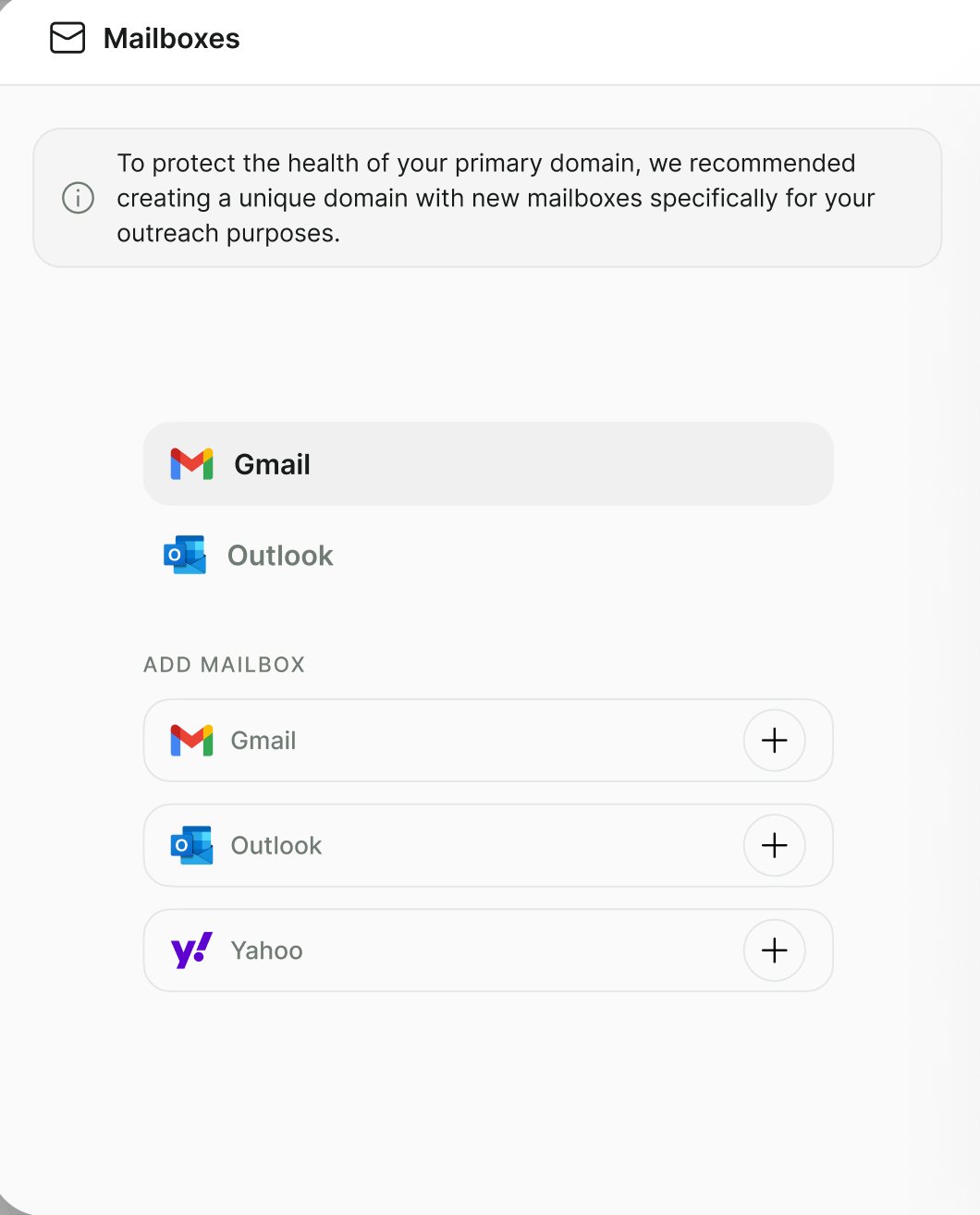
The Mailboxes window: connected providers at the top, Add mailbox buttons below.
Add a mailbox
1
Start a connection
In Mailboxes, click Gmail, Outlook, or Yahoo to add a mailbox from that provider. Use any of them for other domains too. The provider only sets the icon and grouping.
2
Enter the sender
Fill in From Email, the address emails are sent from.
3
Choose how mail is sent
Pick an Outbound Provider: SMTP, SendGrid, or Mailjet. Then select a connection under Connection (Outbound), or create one. Creating a connection opens a form for that provider’s credentials, such as SMTP host, port, username, and password, or a SendGrid or Mailjet API key.
4
Choose how replies are read (optional)
Under IMAP Connection (Inbound), select or create an IMAP connection for the same mailbox. Leave it as None (outbound only) if the agent only sends. The agent can only read and answer replies when an IMAP connection is set.
5
Set the daily limit
Set Send Limit (per day) (default 70) and the Quota Reset Time Zone. The daily count resets at midnight in that time zone. Click Connect.
For Gmail and Microsoft 365 over SMTP or IMAP, you usually need an app password, or SMTP/IMAP access turned on by your workspace admin. Your provider’s help pages explain how.
70 emails/day). Use the edit icon to change the connection or limit, and the delete icon to remove it.
Sending strategy
When an agent has more than one sending mailbox, Sending Strategy decides which one sends each email.Send limits
A mailbox stops sending once it reaches its daily limit. With Rotate Mailboxes or Random, the agent moves on to mailboxes that still have quota. When every mailbox is capped, or the Fixed mailbox is capped, emails wait until the quota resets and then go out. A draft you approve manually is always sent, even if the mailbox is at its limit.Write the emails
Each email the agent sends comes from an email step in the script. Open a step to edit it.Subject
Set the Subject on the first email step. Later steps and subflows inherit it, so the whole conversation stays in one thread. If you override the subject, Callers asks you to confirm Override email subject? The new subject applies across the whole agent, and future emails start a new thread in the recipient’s inbox.Content: Template or Prompt
Switch between two modes at the top of the step:
In Template mode, Write My Email drafts the template for you. Describe the email, choose a Tone, and click Generate. The subject and body are filled in for you to edit.
Tone options: Default, Direct, Formal, Casual, Creative, and Based on Contact (mirrors the formality and phrasing of the contact’s own messages, and falls back to friendly and professional when there’s nothing to go on).
Attachments, photos, signature, and actions
Use the + menu in the email body:Save the agent before you attach files or add photos.
Preview
Use the preview toggle in the step header and Choose Contact to see the email with a real contact’s variables filled in.Agent instructions
General Settings → Agent Instructions applies to every email. Use it for rules that span the conversation, for example: “Never quote prices. Keep emails under 120 words. Sign off with the sender’s first name.”Follow-ups
Follow-ups re-engage contacts who haven’t replied. Configure them in Availability.
When the contact replies, the agent answers the reply. With Only follow up if never replied turned off, follow-ups can also go to contacts who replied earlier and then went quiet.
Sending hours
Availability also sets the time zone and the days and hours when emails go out (default Monday–Friday, 9:00–17:00). Emails due outside these hours wait for the next window.Human approval
To review some drafts before they’re sent, click Human Approval and list the conditions that need a person, such as “Pricing discussions” or “Customer complaints”. See Email approval.Send a test email
1
Open the test panel
Save the agent and click Test in the header. The panel opens on Send a test email.
2
Enter the recipient and variables
Enter your Email Address and values for the agent’s variables.
3
Send
Click Send Test Email. The email is sent from the agent’s mailbox. Past tests and their messages appear under Tests history.
4
Reply to it
If the agent has an IMAP mailbox, reply from your inbox to see how the agent answers.
Troubleshooting
Emails aren't being sent
Emails aren't being sent
- Check that at least one sending mailbox is ticked in Mailboxes.
- Check whether the mailboxes have reached their Send Limit (per day). Emails resume after the quota resets.
- Check that the current time is within the agent’s Availability hours.
- Look for contacts in Requires Approval. Those drafts wait for review.
The agent doesn't answer replies
The agent doesn't answer replies
The mailbox needs an IMAP Connection (Inbound). Edit the mailbox and select or create one.
Emails land in spam
Emails land in spam
Set up SPF, DKIM, and DMARC on your sending domain, lower daily limits on new mailboxes, use Rotate Mailboxes across several addresses, and avoid link- or image-heavy first emails.
The connection fails when I click Connect
The connection fails when I click Connect
Check the SMTP or IMAP host, port, and credentials. Many providers require an app password and block plain account passwords.
Follow-ups never go out
Follow-ups never go out
Check that Send Follow-up when no reply is on. With Only follow up if never replied on, contacts who replied once won’t get follow-ups.
Related
Email agents overview
How Email agents work.
Email approval
Approval conditions and the review flow.
Variables
Personalize subjects and bodies.
Knowledge base
Give Prompt-mode emails accurate facts.
Troubleshooting
Mailbox connection errors, bounces, and emails that don’t send.