

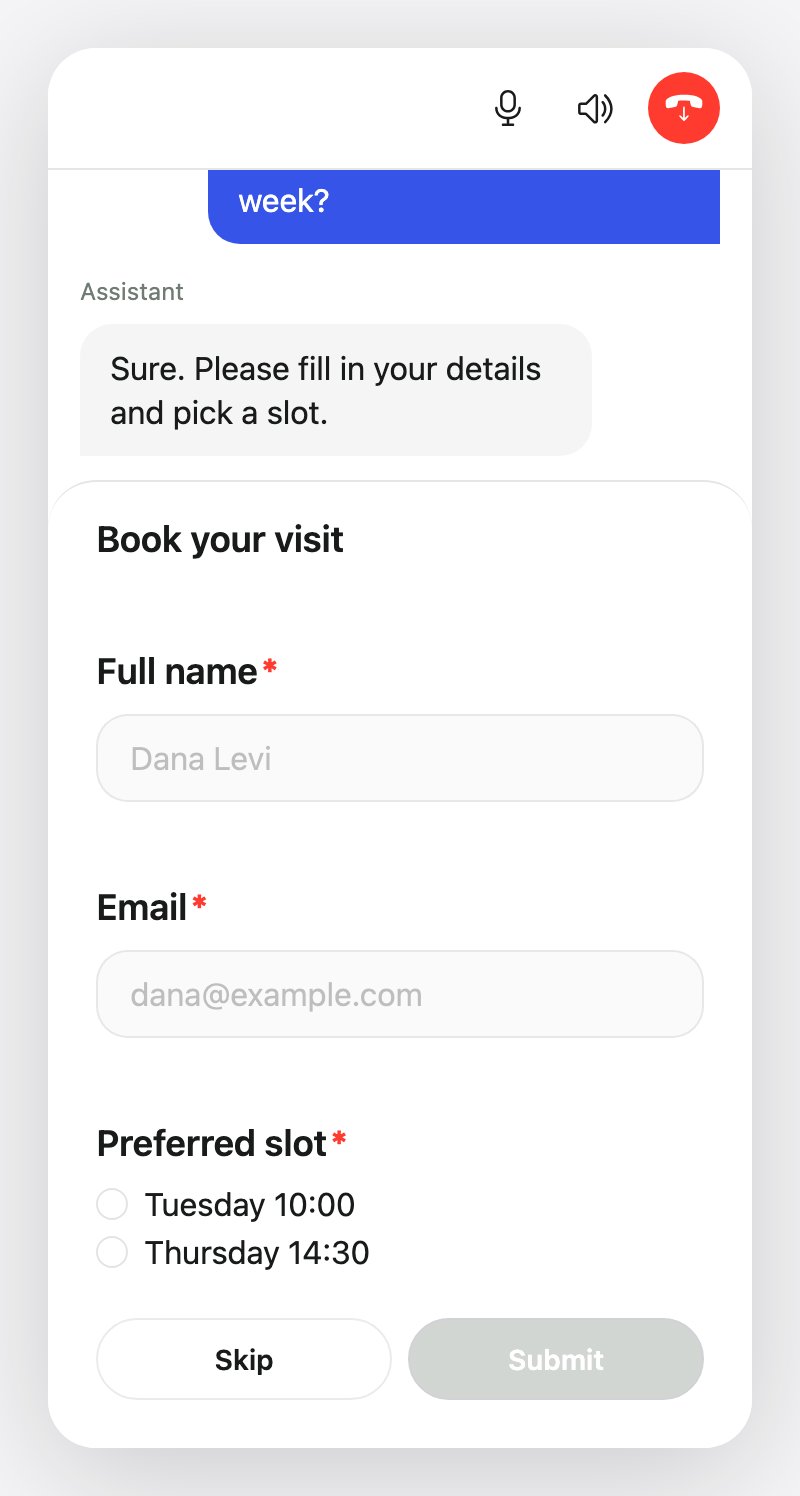
A form during a voice call: title, required fields, a single-choice question, and Skip / Submit. Submit stays disabled until the required fields are filled.
Forms work on web calls only. Add a widget step to a Voice agent with the widget enabled (see Installing the widget). The Widget button appears in the script footer once the widget is on.
Add a widget step
1
Insert the step
In the script editor, click Widget in the footer where you want the form. If your organization has saved templates, a picker opens first; choose one or click Create New.
2
Write the phrase
Fill in Widget Phrase, what the agent says when the form appears, for example “I’ve put a short form on your screen. Fill it in when you’re ready.”
3
Design the form
The widget editor opens. Give it a name (used in the script and the library), choose a mode, and add elements (below).
4
Choose how it appears
Pick a placement and whether the form can be submitted (see Presentation).
5
Add it
Click Add (or Save for an existing step), then save the agent.
Form modes
The A2UI and Widget Generation tabs are enabled per account. Contact support@callers.ai to turn them on.
Elements
Click Add Element in the Design tab. Elements come in two groups.Inputs
Every input has a question (the label the visitor sees), an optional description, a placeholder, and a Name. The name is the key in the submitted answer. It is lowercased automatically and may only contain letters, digits, and underscores. Names must be unique within the form.
For choice elements, click Add choice and give each option a label and a value. The label is what the visitor sees; the value is what the agent receives.
Display
Display elements have no answer settings. Use the sidebar menu to Duplicate or Delete an element, and the arrows to reorder.
Required fields and validation
- A required field shows a red
*. In Form mode, Submit stays disabled until every required field has a value. In Stepped mode, Next stays disabled until the current field is answered. - On submit, text length, regex pattern, and number range are checked. The visitor sees messages such as “This field is required”, “Invalid format”, “Must be at most 120 characters”, or “Must be at least 1”.
- Skip ignores all validation and sends an empty answer, which shows as “Skipped” in the transcript. Write the next step so it copes with a skipped form.
Presentation
The Widget behavior section in the editor header sets where the form appears and whether it can be answered.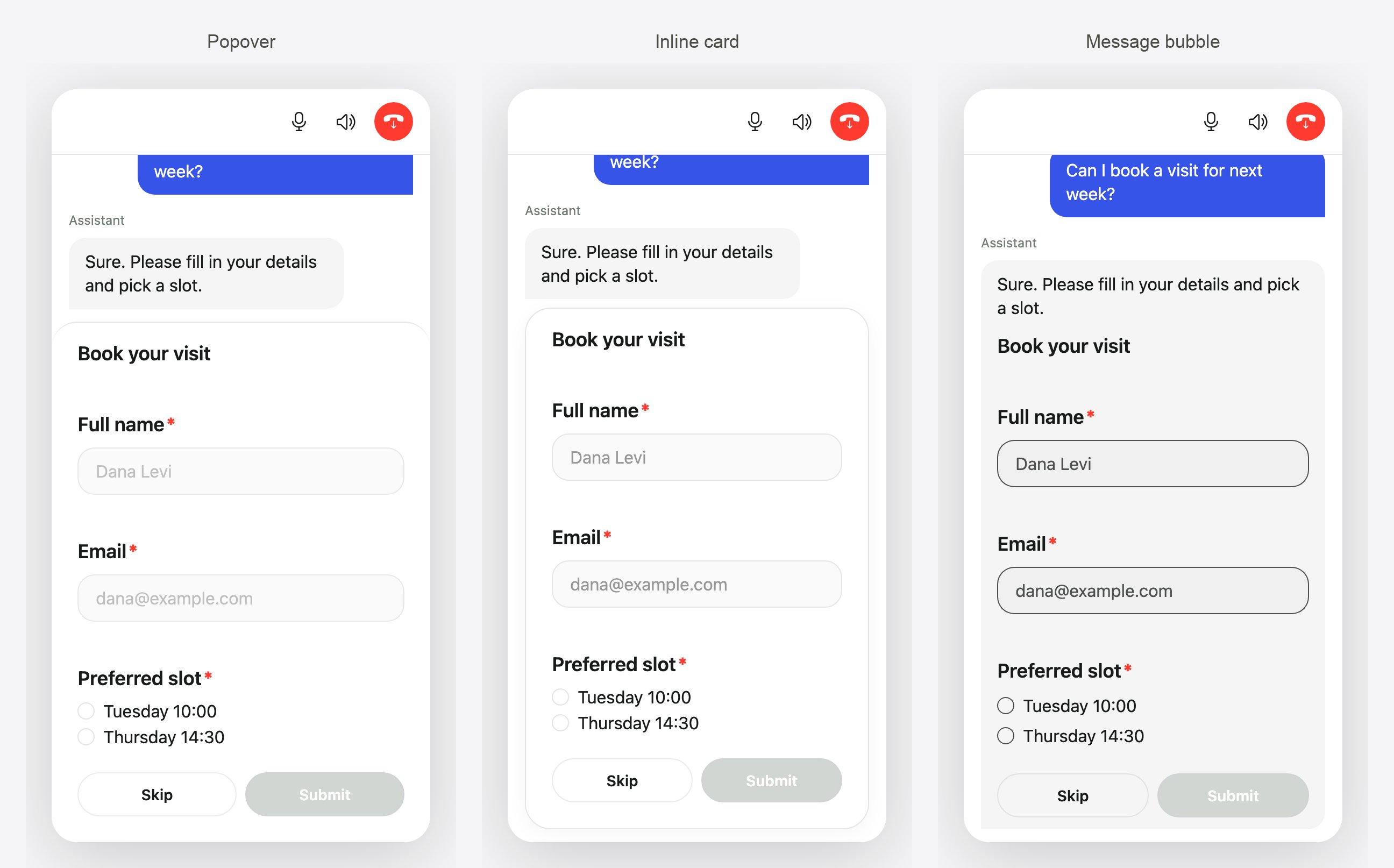
The same form in the three placements. Popover takes over the widget footer; Inline card and Message bubble keep the form in the transcript.
- Stepped and JSON widgets always use Popover. Switching to Stepped resets presentation to Popover, and Stepped can’t be View only.
- An interactive popover takes over the widget’s footer until the visitor answers or skips.
- After the call ends, every widget becomes read-only in the call history.
Widget behavior is enabled per account. Without it, forms appear as interactive popovers. Contact support@callers.ai to turn it on.
Close the form when the conversation moves on
In the agent’s General Settings → Technical Settings, Close widget form on new message hides an open form as soon as any new message appears in the conversation, including another widget. The agent keeps waiting for an answer, and the visitor can still reply out loud. The setting appears only when the widget is enabled.How answers reach the agent
While an interactive form is open, the agent waits for the visitor to submit or skip. On submit, the answers (field names and values) are added to the transcript as a structured message, and the agent continues the script with them in context. A form with a Short Text namedemail, a Dropdown named preferred_date, and a Multiple Choice named topics produces an answer like this, keyed by each element’s Name. Choice elements send the option values, not the labels; Multiple Choice sends the selected values as one comma-separated string:
content of onWidgetInputSent (as a JSON string), sent together with the id of the form message as widgetMessageId. A skipped form sends {}.
- Answers are not stored as agent variables. A later step can’t reference them with
{{field}}. - To pass an answer to an action, add an action to the widget step with Add Action (Optional) or give a later action a transcript variable whose description names the answer field.
- Widget steps support post-call key questions; click the step number to add them.
- Developers can read form answers in the SDK transcript events. See Events and transcript. Forms also work in headless and React Native integrations that render the widget’s messages themselves; see Headless and React Native.
Test it
Run a Web Call test from the agent header (Test → Web Call) and go through every widget step. Check that each form appears in the right placement, submit each field type once, skip one form, and look at the transcript to confirm the agent received the values you expect. A phone test call doesn’t show widgets.Troubleshooting
The agent keeps waiting after a view-only widget
The agent keeps waiting after a view-only widget
A view-only widget has nothing to submit, but the step still expects the conversation to continue. Keep the Widget Phrase short and make sure the next step asks the visitor something, so the conversation moves on.
Save fails with 'Fix required fields'
Save fails with 'Fix required fields'
Every input needs a unique Name, every choice element needs at least one option with both a label and a value, and display elements need content.
A later action doesn't get the form value
A later action doesn't get the form value
Answers aren’t variables. Attach the action to the widget step itself, or describe the field in the action’s transcript variable so the agent fills it from the conversation.
Related
Installing the widget
Enable web calls and embed the widget.
Styling the widget
Themes and the Widgets library.
Steps
Every step type in the script editor.
Actions
Send form answers to your systems.