

How it works
1
The conversation ends
During post-call analysis, Callers reviews the transcript together with the contact’s existing memories.
2
Memories are added, updated, or removed
New facts are saved, outdated facts are replaced, and facts that are no longer true are removed. Each memory is a short note, by default up to 200 characters.
3
The next conversation starts with context
When the contact is called or messaged again, the agent receives their memories as part of its instructions: up to 30 memories plus up to 10 boundaries (things the contact asked you to avoid). Memories from the same agent come first, then profile facts, then the newest of the rest.
What gets remembered
Memories are grouped by type so the agent can use them appropriately:- Boundaries: things the contact asked you not to do, such as “don’t call my work number”. These are always given priority.
- Notes: preferences, objections, scheduling details, profile facts, and contact details.
Memories shared between agents
Each memory records the agent it came from. By default, every agent both reads and adds to a shared, account-wide pool of memories for each phone number. You can change that per agent with the settings below.Agent settings
Open the agent, click Edit, open Technical Settings, and find Contact Memory. These settings are available on voice agents (inbound and outbound). All are off by default, which means memory is fully on.
The maximum length of each memory (default 200 characters, range 50–1,000) can be set through the API with
contactMemoryTextLimit.
The same settings are available on the agent through the API: turnOffContactMemories, turnOffContactMemoryContribution, turnOffGlobalContactMemories, useCustomContactMemoryPrompt, and contactMemoryPrompt.
View and edit memories in the app
Open a contact from an agent’s list and go to the Summary tab. The AI Context section (“Let AI save and use info from conversations”) lists what Callers remembers about the contact.- Add: click +, type the memory, and click Save.
- Edit: change the text and click Save.
- Delete: click delete and confirm with Yes, Delete.
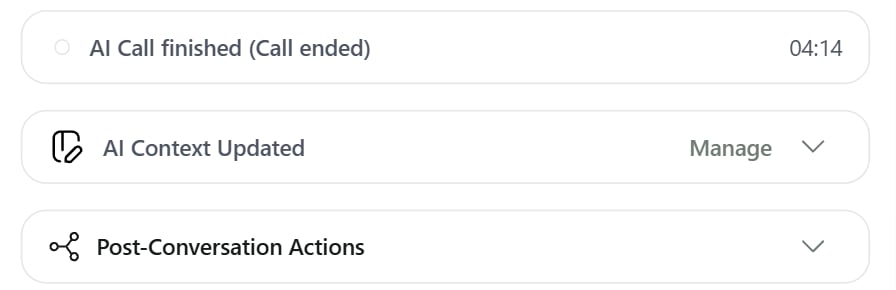
The AI Context Updated block under a call transcript, with the Manage link.
If you don’t see AI Context on the Summary tab, contact support@callers.ai to turn it on for your account.
Manage memories with the API
The Contact memory API guide has the full endpoint reference with examples. Use the API to load what you already know about a contact from your CRM before the first call, or to read memories back into your systems.
The
/campaigns/{campaignId}/… paths still work as aliases of the /agents/{agentId}/… paths.
Add a memory
string
required
Short label for the memory, 1–200 characters.
string
required
The memory itself, 1–5,000 characters.
+ (5–15 digits). A badly formatted number returns 400.
Response (201)
List memories
GET /contacts/{contactId}/memories returns all of a contact’s memories. Add ?status=ACTUAL to get only current ones.
Update or delete a memory
PATCH /memories/{memoryId} with a new text creates a new version of the memory. The old version becomes OUTDATED, and its ID is kept in the new memory’s previousMemoryId. Only ACTUAL memories can be updated.
DELETE /memories/{memoryId} marks a memory as DELETED and returns it. DELETE /contacts/{contactId}/memories deletes all of the contact’s memories and returns the count deleted.
FAQ
Do memories carry over between agents?
Do memories carry over between agents?
Yes, by default. Memories are shared across your account by phone number. Use Turn Off Global Contact Memories to keep an agent to its own memories only.
Can a contact ask to be forgotten?
Can a contact ask to be forgotten?
Delete their memories from the AI Context section or with
DELETE /contacts/{contactId}/memories.Why did a memory disappear?
Why did a memory disappear?
Memories about a moment in time expire after at most 90 days, and later conversations can update or remove memories that are no longer true. Fetch all statuses through the API to see the history.
Related
Post-call analysis
What else Callers extracts after each conversation.
Variables
Pass structured contact data into the script.
API reference
Authentication and response format.
Agent settings
Other technical settings.