

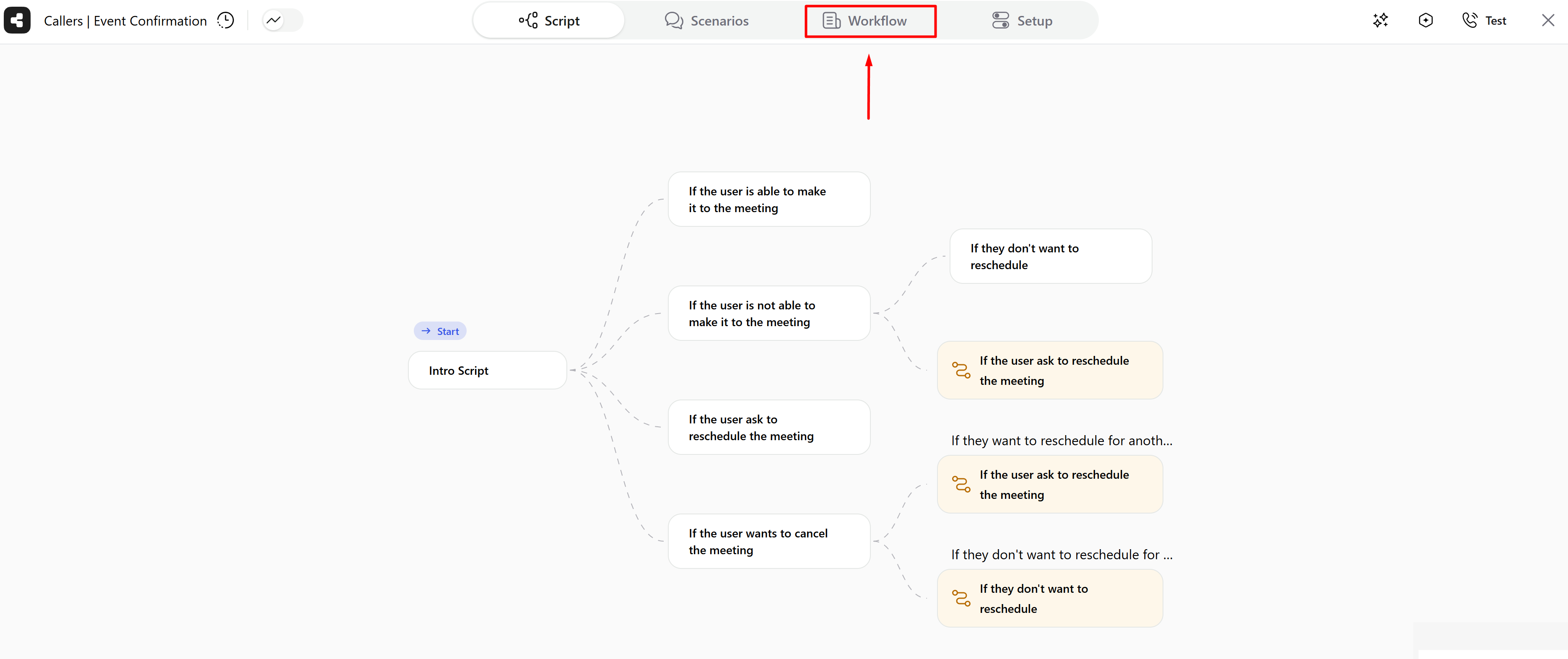
Key questions will be listed in the Workflow window
Summary and Post-Processing
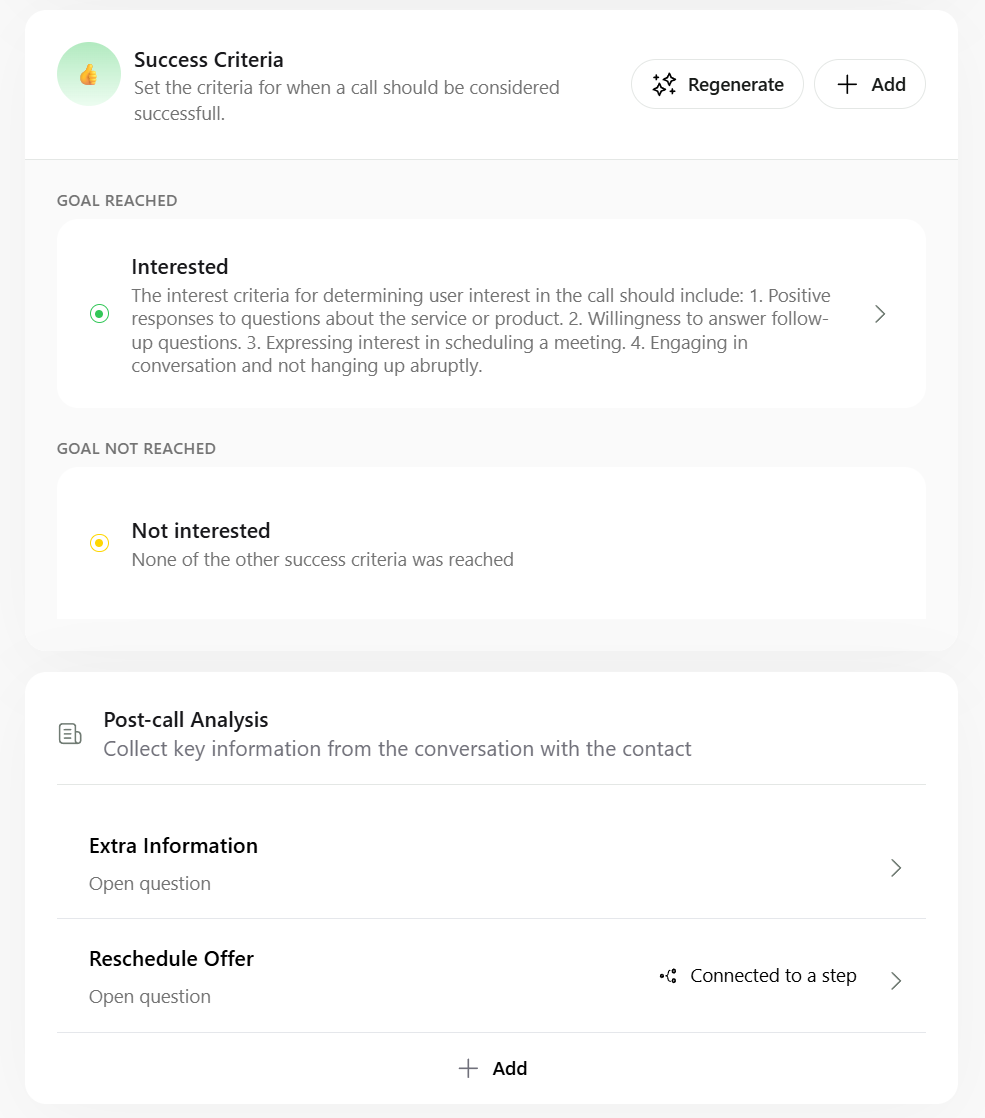
In the Workflow window, you can configure:- Webhooks, which are triggered after a call is processed.
- Interest Criteria, which define the conditions under which a call is marked as Interested.
- Key Questions, which are used to capture important and relevant information from the conversation.
- Step keys: the analysis will be made related to a specific step or question.
- Global keys: the analysis will be made along the whole conversation.
Adding Key Questions
Step Key Questions
- Navigate to the script where you want to add the Key Questions.
- Find the step number located on the left side of the step you want to summarize.
- Click on the step number. This action will open a window to set the Key for the step.
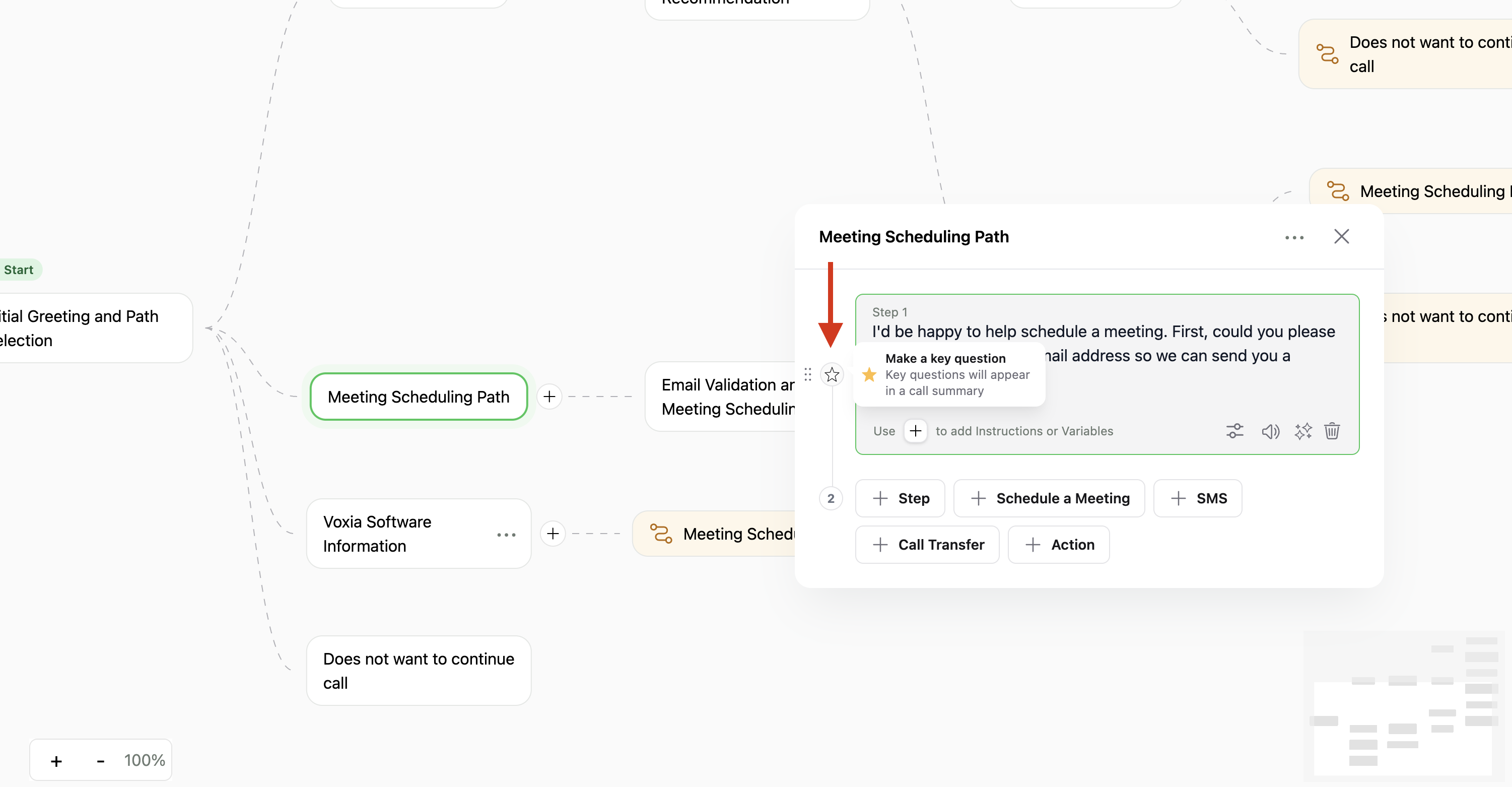
Press the star icon left to the step to create your Key Question
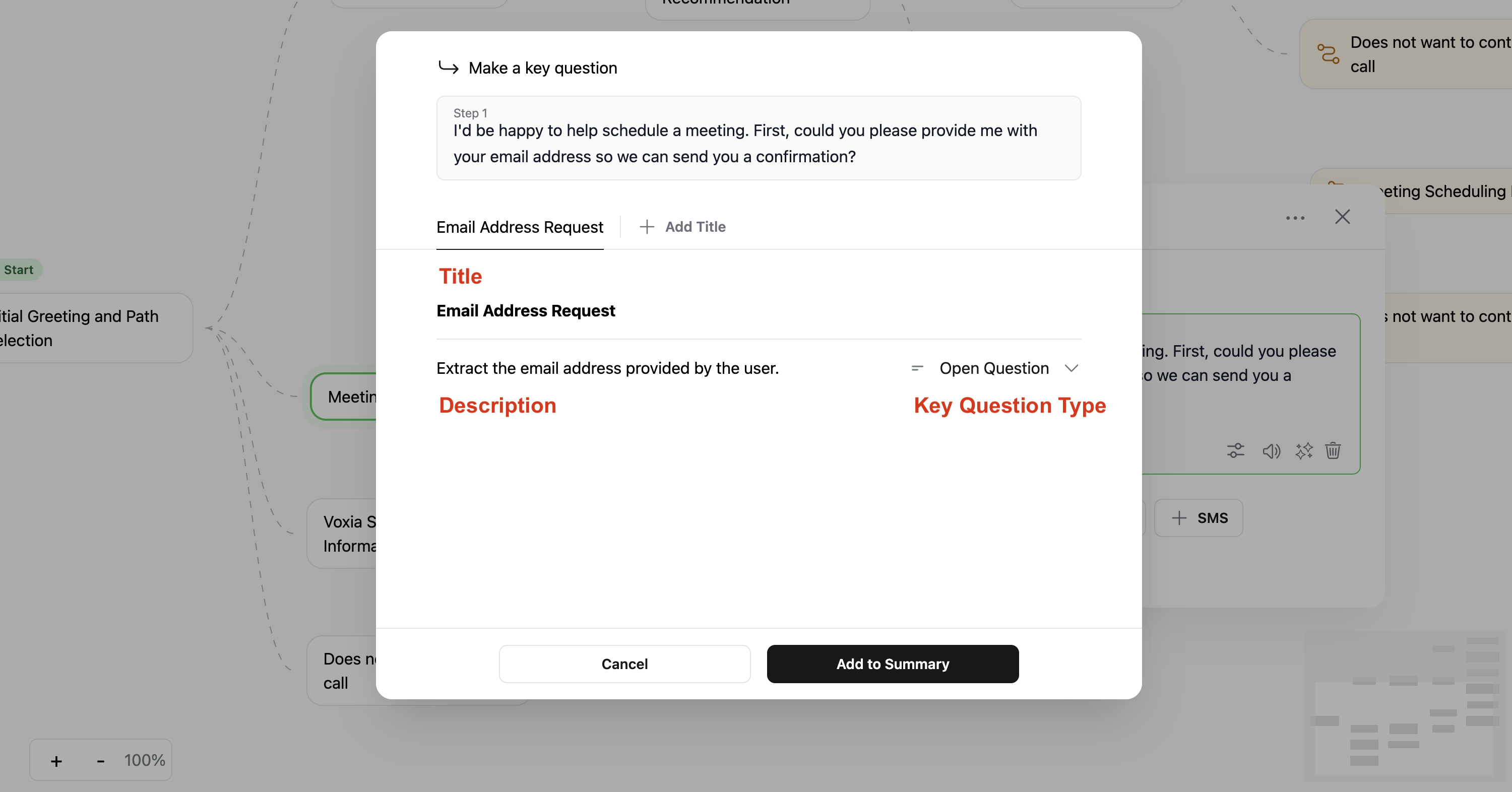
- Title, Description and Key Type will be automatically created for your Key Question according to the step description. This is data that can be changed.
- There are several types of question to select according to the desired output needed:
- Open question
- Single choice
- Multiple choice
- Yes/No
- Number
- Date
- Time
Global Key Questions
- In the Workflow window, scroll down to the Post-call Analysis section.
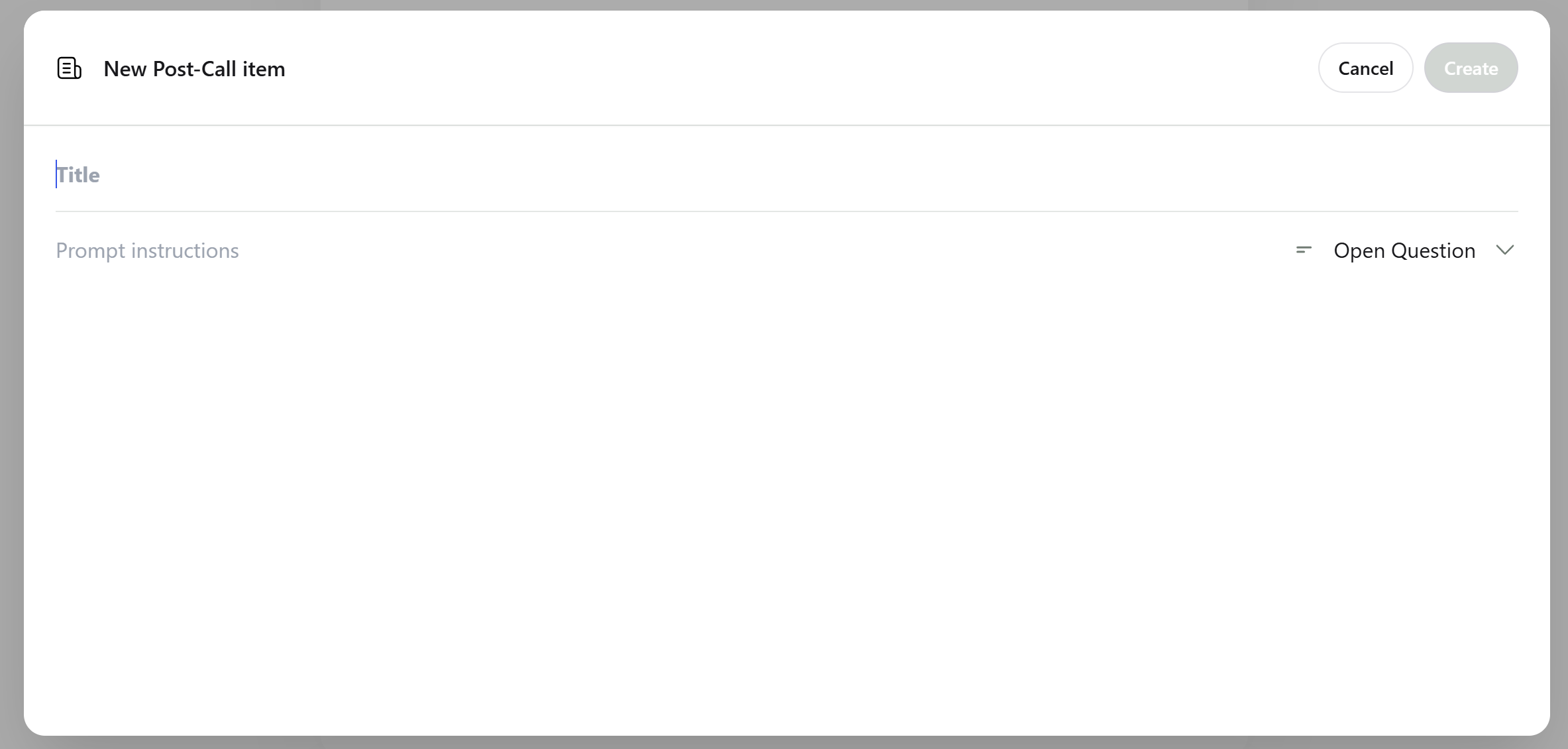
- Click on the ”+ Add” button to create a new Key Question.
- Complete the required fields:
- Title: Displayed in the summary.
- Description: Instruction to the AI on what information to extract.
- Key Type: Desired output response.
Removing Key Question Titles
To delete a title, hover over the title and click on the remove icon that appears on the right side of it.
Key Questions in Summaries
- Once added, these titles will be displayed in the ‘Interested’ contact summary section.
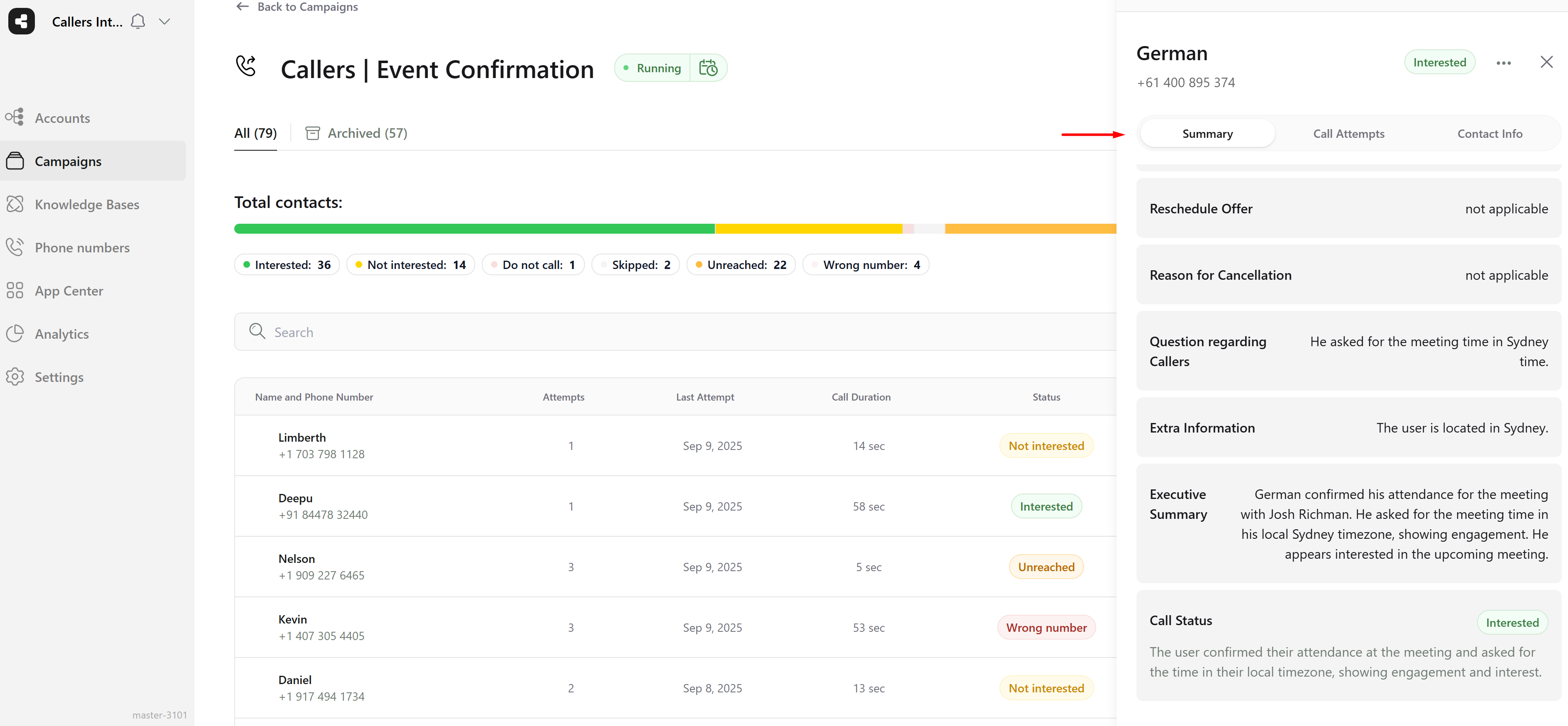
- For Webhooks, the summary will be structured as follows:
webhook.json