

How it works
- You add data sources (files, web pages, or text) to a knowledge base. Callers processes each one and splits it into searchable passages.
- You connect the knowledge base to one or more agents.
- During a conversation, Callers searches the connected knowledge bases for passages relevant to what the contact said and gives the best matches to the agent, which uses them to answer.
Create a knowledge base
1
Open Knowledge
In the sidebar, click Knowledge, then Create New.
2
Name it
Enter a name in Add Name, for example
Product FAQ or Returns policy (ES).3
Add data sources
Choose File, URL, or Text and fill in the details (below). Click Add to add more sources.
4
Connect it to agents
Open the Connected agents tab and pick agents under Add agents, or connect it from the agent editor (see Connect a knowledge base to an agent).
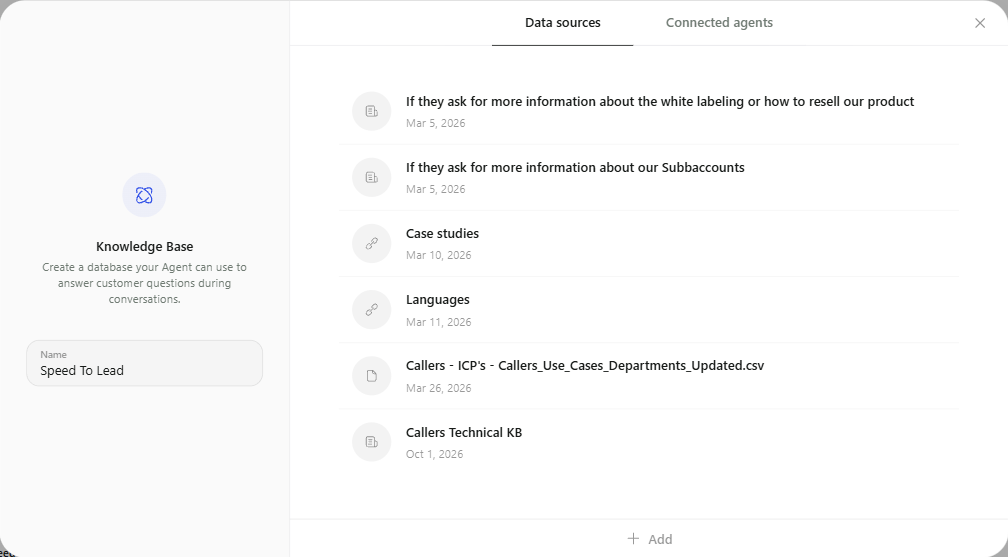
A knowledge base with its Data sources tab open and the Add button at the bottom.
Data source types
- File
- URL
- Text
Drag files onto Add a file to the knowledge base or browse to select them.
Files over 5 MB or of other types are rejected with an error.
Processing status
Each data source shows a status icon while Callers processes it:
To remove a source, click its delete icon and confirm Yes, Delete.
Connect a knowledge base to an agent
You can connect from either side:- From the knowledge base: open it, go to Connected agents, and choose agents under Add agents. Each connected agent has Open in new window, Edit versions, and Disconnect.
- From the agent: open the agent editor, go to the Scenarios tab, and click Connect Knowledge Base (it reads Knowledge Base Connected once linked). Select one or more knowledge bases, or click Create New. Email agents also have Connect Knowledge Base on their email steps.
Manage knowledge bases
The Knowledge Bases list shows each knowledge base with its number of Data Sources and Date of Creation. Open one to rename it, add or remove sources, or change connected agents. Deleting a knowledge base removes all its sources permanently and can’t be undone.Best practices
Write for retrieval
Write for retrieval
Use clear headings and one topic per section. A passage that starts with “Return policy for opened items” is easier to find than a paragraph buried on page 40. Prefer clean text or Markdown over heavily formatted PDFs.
Keep sources focused
Keep sources focused
Several small, topical sources (pricing, shipping, returns) retrieve more precisely than one large document. Split long manuals by chapter.
Don't duplicate facts
Don't duplicate facts
If the same fact appears in two sources with different wording or values, the agent may use either. Keep one source of truth and remove outdated files.
One knowledge base per language
One knowledge base per language
For multilingual agents, keep a separate knowledge base per language and connect the one that matches the agent.
Write answers the way they should be said
Write answers the way they should be said
For voice agents, phrase key answers in short, speakable sentences. Avoid tables of numbers the agent would have to read out; summarize them instead.
Tell the agent how to use it
Tell the agent how to use it
Add a line to Agent Instructions, for example: “Answer product questions only from the knowledge base. If you can’t find the answer, offer to have someone follow up.” See Instructions and guardrails.
Use scenarios for actions, the knowledge base for facts
Use scenarios for actions, the knowledge base for facts
If a question needs the agent to do something (transfer, book, send a link), use a scenario. If it just needs an answer, put it in the knowledge base.
Troubleshooting
The agent doesn't use the knowledge base
The agent doesn't use the knowledge base
Check that the knowledge base is connected to the agent (and to the published version, if you use versions), and that its sources show as ready. Place a test call and look for Knowledge Base Results in the transcript.
The agent gives an outdated answer
The agent gives an outdated answer
Update or remove the old source. For web pages, turn on Auto Refresh Weekly or re-add the URL after the page changes.
A URL source failed
A URL source failed
The page may block automated access, require a login, or load its content only with JavaScript. Paste the content as a Text source instead.
My file was rejected
My file was rejected
Files must be 5 MB or smaller and one of the supported types. Split large documents or export them as PDF, DOCX, or TXT.
Related
Scenarios
Prepared responses for specific situations.
Instructions and guardrails
Tell the agent how to use what it finds.
Test your agent
Check answers before going live.
Versions and split traffic
Connect knowledge bases per version.