Add a Scenario
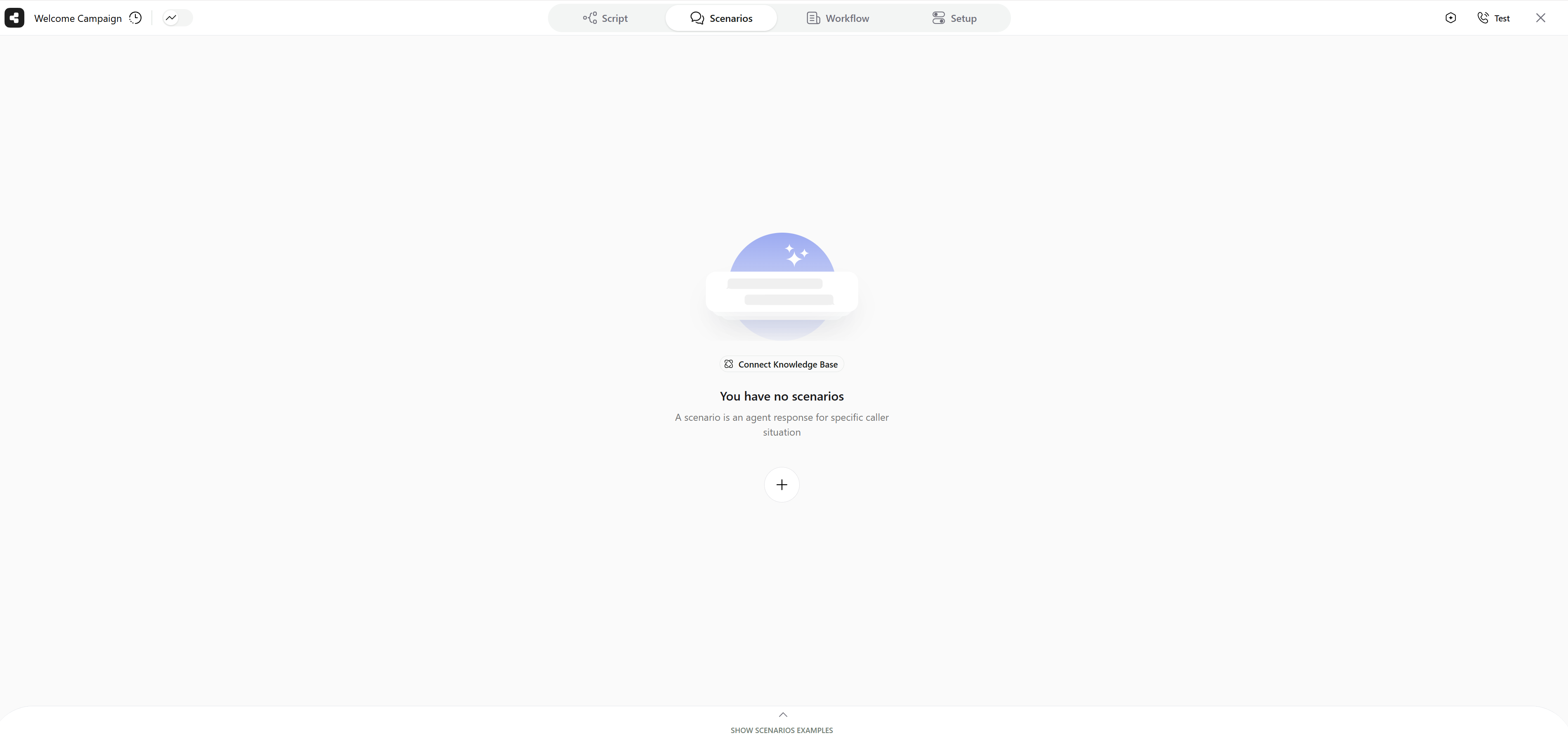
- Open the Scenarios tab at the top of the agent editor.
- Click
+under the list of scenarios. - In the title field (Type question here), describe the question or situation, for example How much does it cost? What is the pricing? You can list several ways a contact might put it, as in this example.
- Add the steps the agent follows in this situation.

The Scenarios tab
Add Steps
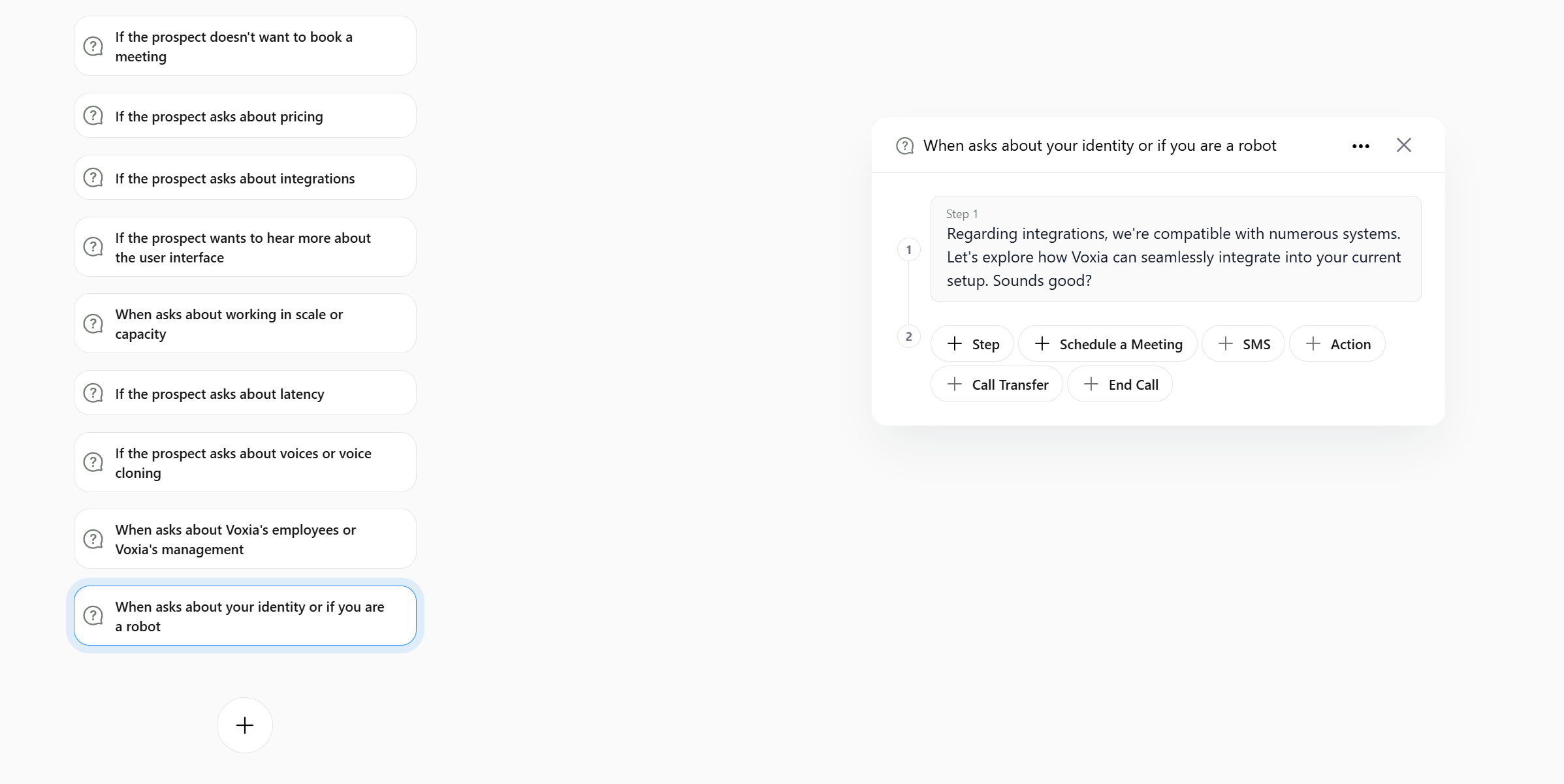
Scenario steps work the same way as steps in script nodes. The buttons under the steps add aStep, Schedule a Meeting, Action, Call Transfer or End Call - see Agent Steps for each of them. Steps can include variables, such as the contact’s name.
Scenarios with more than one step show a list icon in the list.

A scenario with two steps
Use Scenario Examples
- Click Show Scenarios examples at the bottom of the tab.
- Click an example to add it as a new scenario. It comes with a ready-made step that you can edit.

Scenario examples
Edit or Delete a Scenario
Click a scenario in the list to open it. Change the title or the steps right in the panel, or click··· next to the title:
- Edit Title: Jump to the title field.
- Delete: Remove the scenario.
Knowledge Base and A2A
The buttons above the list connect extra sources of answers:- Connect Knowledge Base: Pick the knowledge bases the agent can draw on during the call, or click Create New. See Knowledge Base.
- Connect A2A: Connect external agents that give your agent live guidance during the conversation, if your account has A2A connections.