

Pre-Call Chat is enabled per account. Email to turn it on.
Requirements
- A Voice agent with the Outgoing direction.
- A messaging number selected on the agent’s Text Channels tab: SMS through Twilio or Telnyx, or WhatsApp.
Set up Pre-Call Chat
1
Open the Workflow tab
In the agent editor, click Workflow and click the Pre-Call Chat node (between Pre-Call Actions and the script). The Pre-Conversation settings open.
2
Write the first message
Edit the message (default: “Hi, are you ready for a quick call?”). Keep it short and say who you are. You can insert variables and use the AI rephrase button.
3
Choose what happens next
Configure the three outcome cards: Agreed to receive a voice call, No response after, and Refused a voice call (see below).
4
Save
Close the panel and click Save. The pre-call chat runs for every contact once you start the agent.
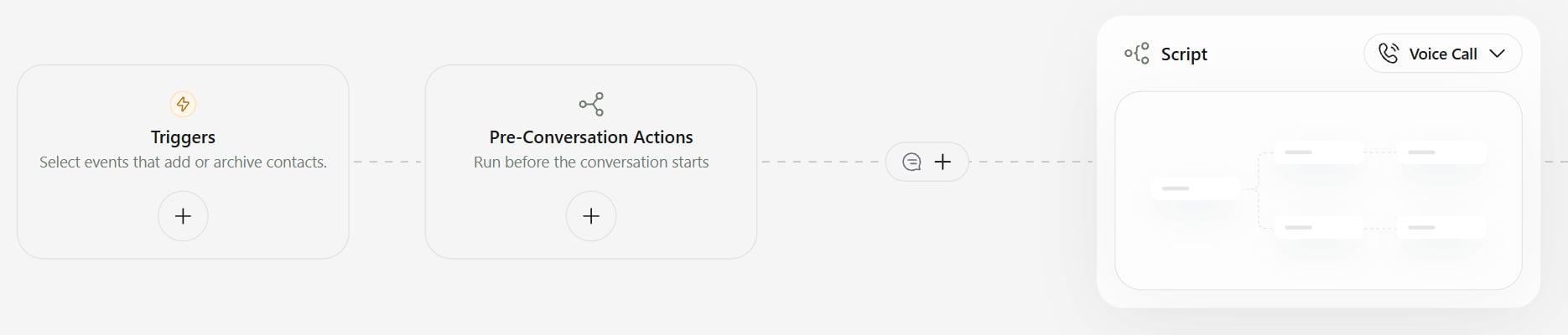
Pre-Call Chat is added on the connector between Pre-Conversation Actions and the Script on the Workflow tab.
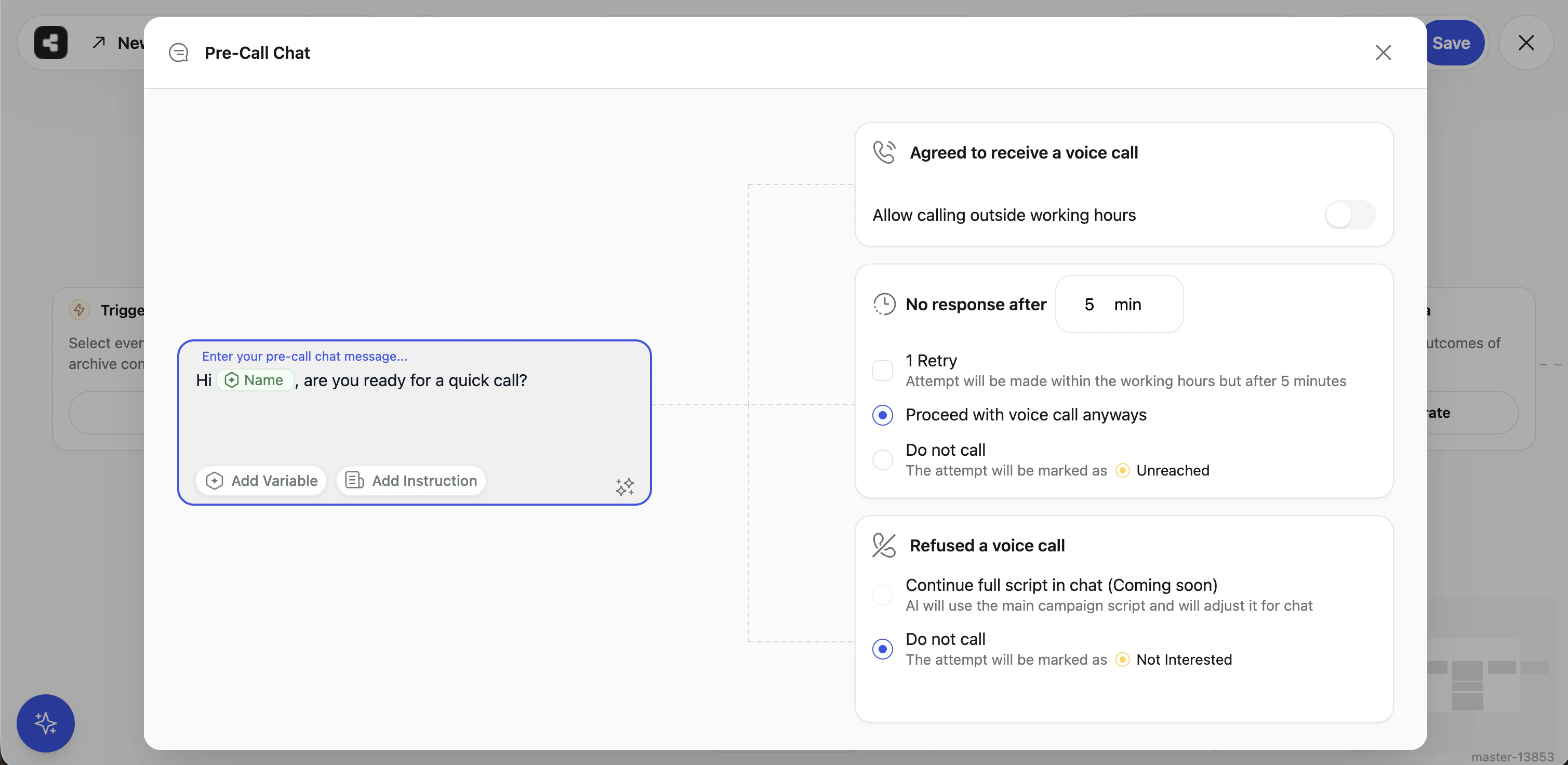
Pre-Call Chat settings
Settings
Agreed to receive a voice call
No response after
Refused a voice call
Contact statuses
The contact’s timeline shows the pre-call chat followed by the call.
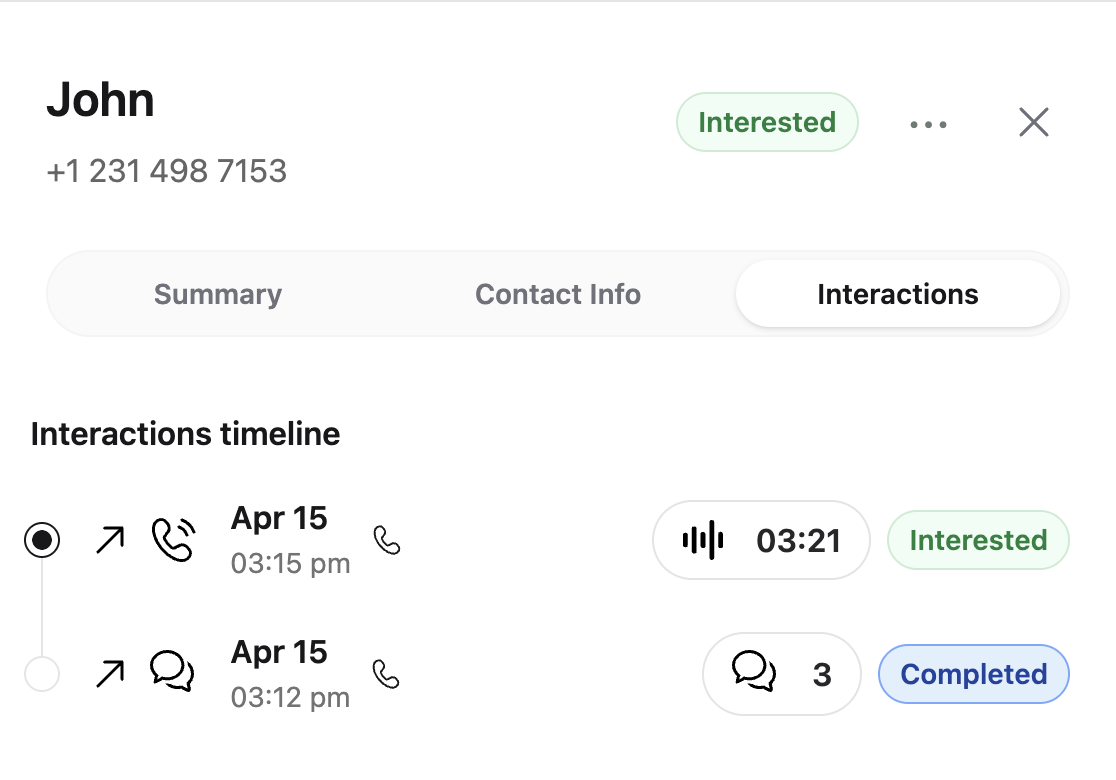
A contact's interactions: the pre-call chat, then the voice call.
Tips
- Identify yourself.
Hi {{name}}, this is Maya from Bright Smile Dental. Do you have two minutes for a quick call about your appointment?gets more replies than a generic message. - Ask a yes/no question. It makes the reply easy to answer and to classify.
- Match the timeout to your audience. Short timeouts suit warm leads who expect contact; longer ones suit cold lists.
- Respect messaging rules. SMS and WhatsApp have their own consent and template requirements. WhatsApp business-initiated messages need an approved template.
FAQ
Does Pre-Call Chat replace the script?
Does Pre-Call Chat replace the script?
No. It only controls the message before the call. The script runs as usual once the call connects.
Which channels can send the pre-call message?
Which channels can send the pre-call message?
SMS through Twilio or Telnyx, and WhatsApp. Select the number on the agent’s Text Channels tab.
How does Callers interpret the reply?
How does Callers interpret the reply?
After the chat ends, AI analyzes the conversation and decides whether the contact agreed, declined, or didn’t respond, then applies your settings.
Can I use variables in the message?
Can I use variables in the message?
Yes. Any variable the agent uses is available. Remember that variables become required contact fields.
I don't see the Pre-Call Chat node
I don't see the Pre-Call Chat node
It appears only on Voice agents when the feature is enabled for your account. Contact support to turn it on.
Related
Scheduling and retries
Calling hours and retry rules.
Text agent setup
Connect SMS and WhatsApp numbers.
Statuses and outcomes
What each contact status means.
Actions
Run requests before the call too.