

Turn it on
1
Open the agent settings
Open the agent, click Edit, and open General Settings → Technical Settings.
2
Enable detection
In the Sensitive Data section, turn on Sensitive data detection.
3
Choose what counts as sensitive
Under What counts as sensitive, select one or more categories. See Categories.
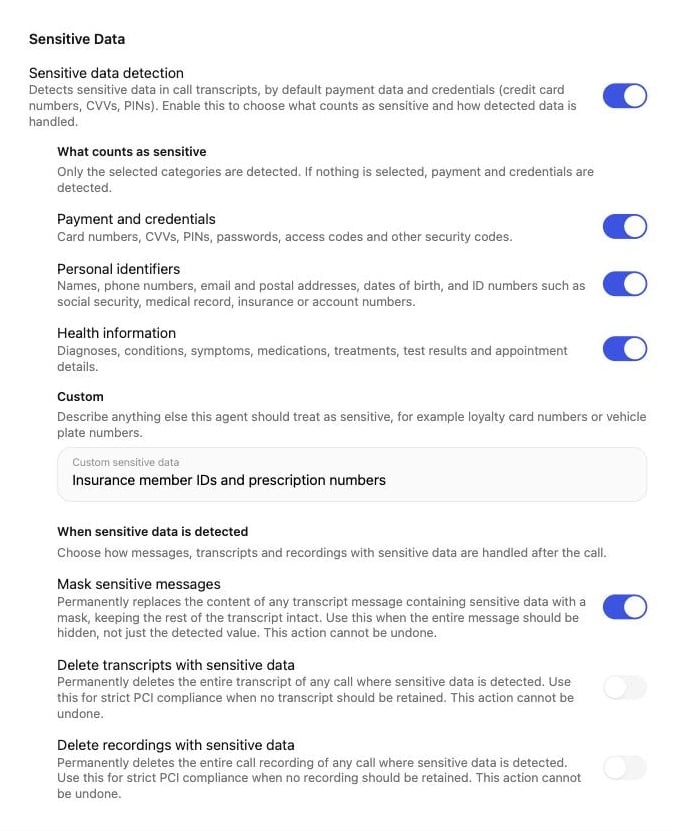
Sensitive Data settings with categories and actions
Categories
Select every category that applies to the conversations this agent has.Categories apply to voice call agents. Chat and email agents always detect payment data and credentials only: card numbers, CVVs, PINs, passwords, and access codes.
For Custom, describe the information in one free-text box (up to 1,000 characters), plainly and with an example of what it looks like. Keep each description to one kind of information so it’s clear what was flagged.
Actions
These actions apply to anything flagged by the categories you selected.Contact memory
On a voice call agent, personal identifiers and health information are also kept out of contact memories when detection is on, Personal identifiers or Health information is selected, and Mask sensitive messages or a delete option is on. The agent then doesn’t carry those values into later conversations.Account-wide restriction
Callers can also turn on a Sensitive content restriction for a whole account, so every agent hides conversations with sensitive data. With this restriction, conversations that haven’t been analyzed yet are also hidden until analysis is done. Agencies can set this per subaccount in the subaccount’s Permissions. See Managing subaccounts. To turn it on for your main account, email .Related
Data access and retention
Who can see conversations, and how long they’re kept.
Dial-only phone numbers
Call contacts without storing their phone numbers.
Call recording
Turn recording on or off for an agent.
Keypad input
Collect numbers by keypad instead of speech.