

Prerequisites
Before you begin: You’ll need a custom domain purchased through a web
hosting service or domain registrar (e.g., GoDaddy, Namecheap, Google
Domains). Make sure you have access to your domain’s DNS settings to complete
the setup.
How to Set Up White Labeling
Step 1: Access Account Settings
Navigate to Settings from the left sidebar and open the Account section.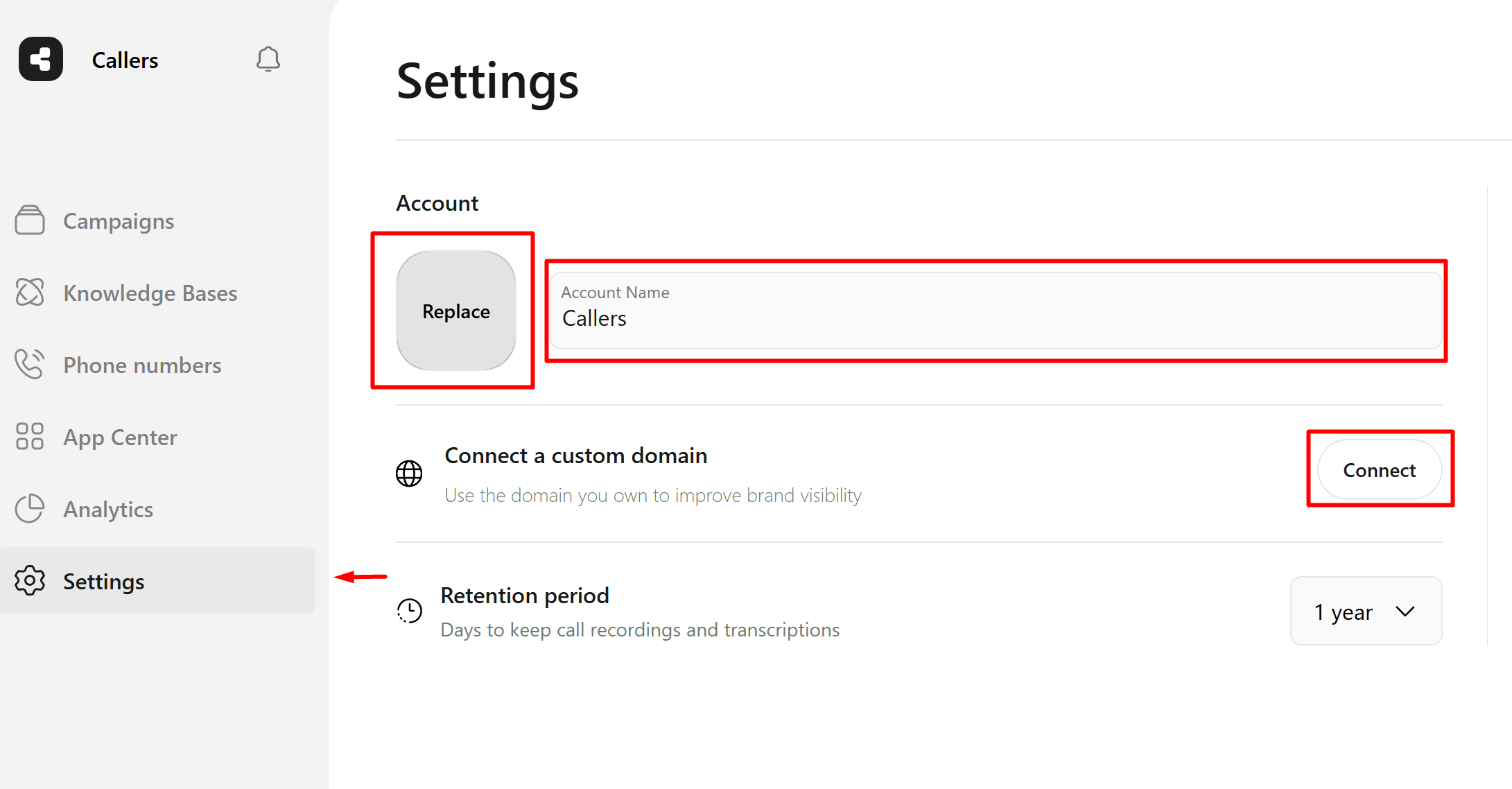
Settings → Account
Step 2: Customize Your Branding
In the Account section, you can customize:- Logo — Click the logo placeholder (labeled “Replace”) to upload your company logo
- Account Name — Update the account name field with your company name
- Custom Domain — Click the Connect button in the “Connect a custom domain” section
Step 3: Connect Your Domain
After clicking Connect, enter the domain you own in the provided field.
Enter your domain
Step 4: Configure DNS Records
Once you submit your domain, the system will provide DNS configuration details. You need to add an A record to your domain’s DNS settings.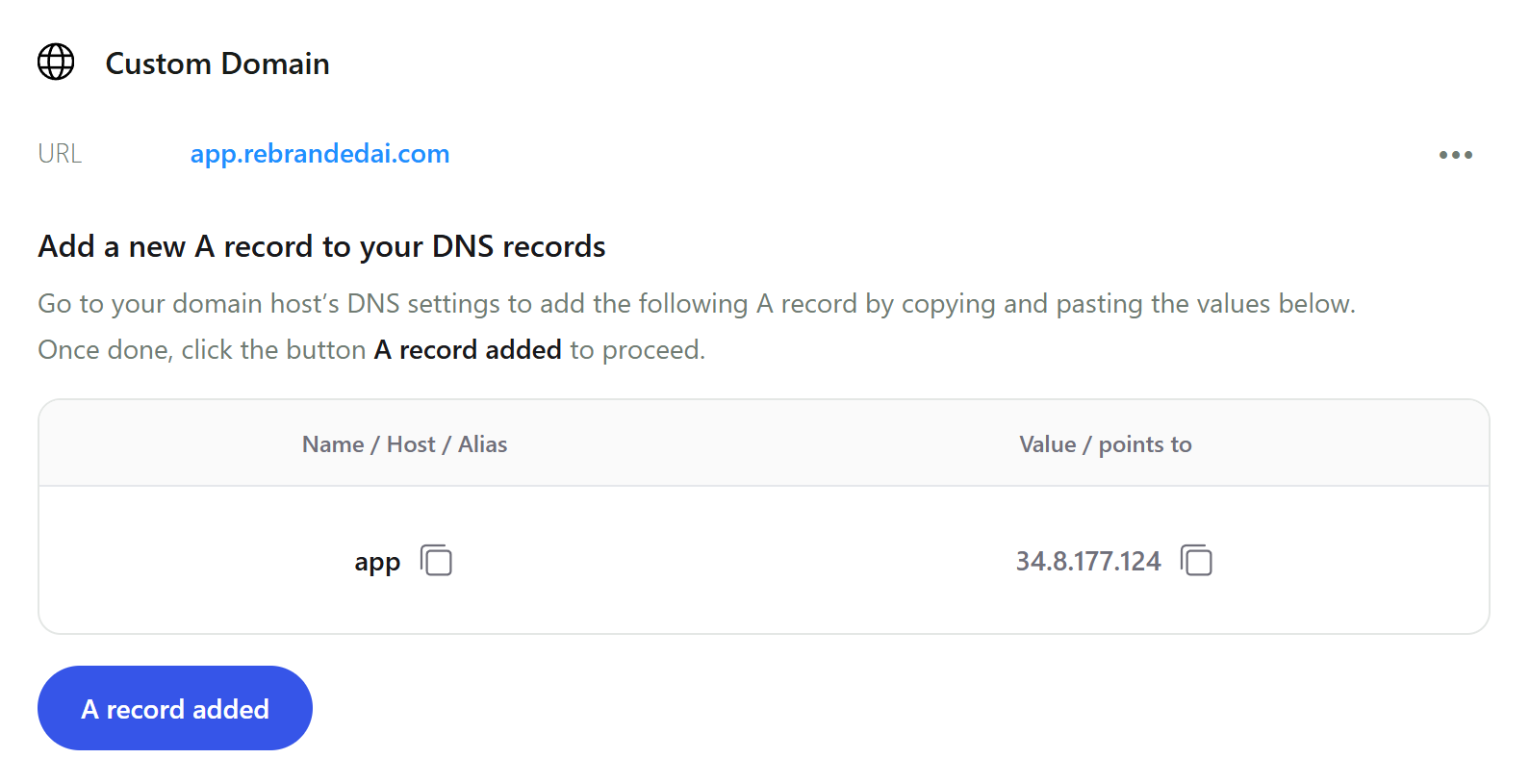
Add A record to your DNS
- Go to your domain registrar’s DNS settings (e.g., GoDaddy, Namecheap, Cloudflare)
- Add a new A record with the provided values:
- Name/Host/Alias: The subdomain (e.g.,
app) - Value/Points to: The IP address provided by Callers
- Name/Host/Alias: The subdomain (e.g.,
- Copy and paste the exact values shown in the platform
- Click A record added to proceed
Step 5: Wait for Verification
After adding the DNS record, your domain will enter a verification process.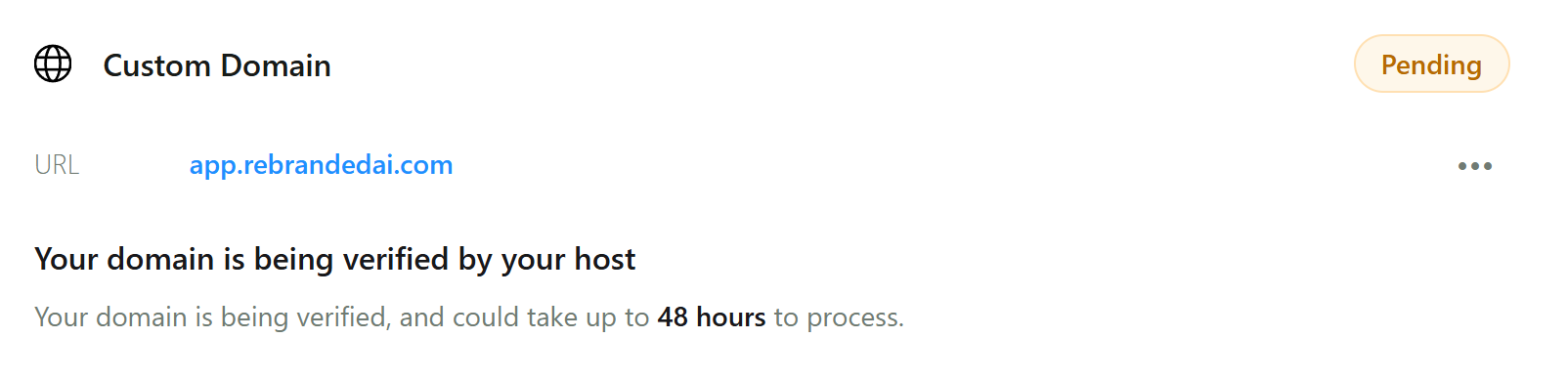
Domain verification pending
Results
Once your white-label settings are configured, your custom branding will appear throughout the platform:Login Page
Your login page will display your custom logo and company name (e.g., “Welcome to Demo”).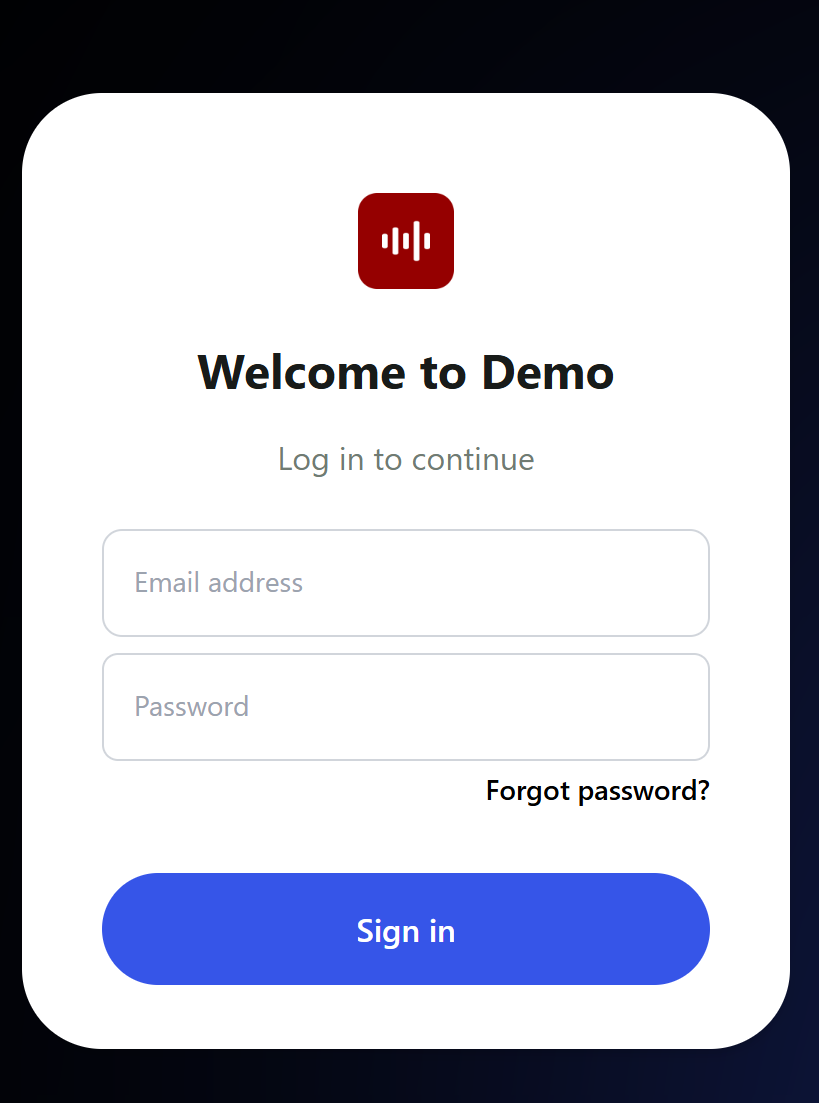
Branded login page
Platform Dashboard
Your logo and company name will appear in the top-left corner of the dashboard and throughout the interface. The custom domain will be shown as “Connected” in your account settings.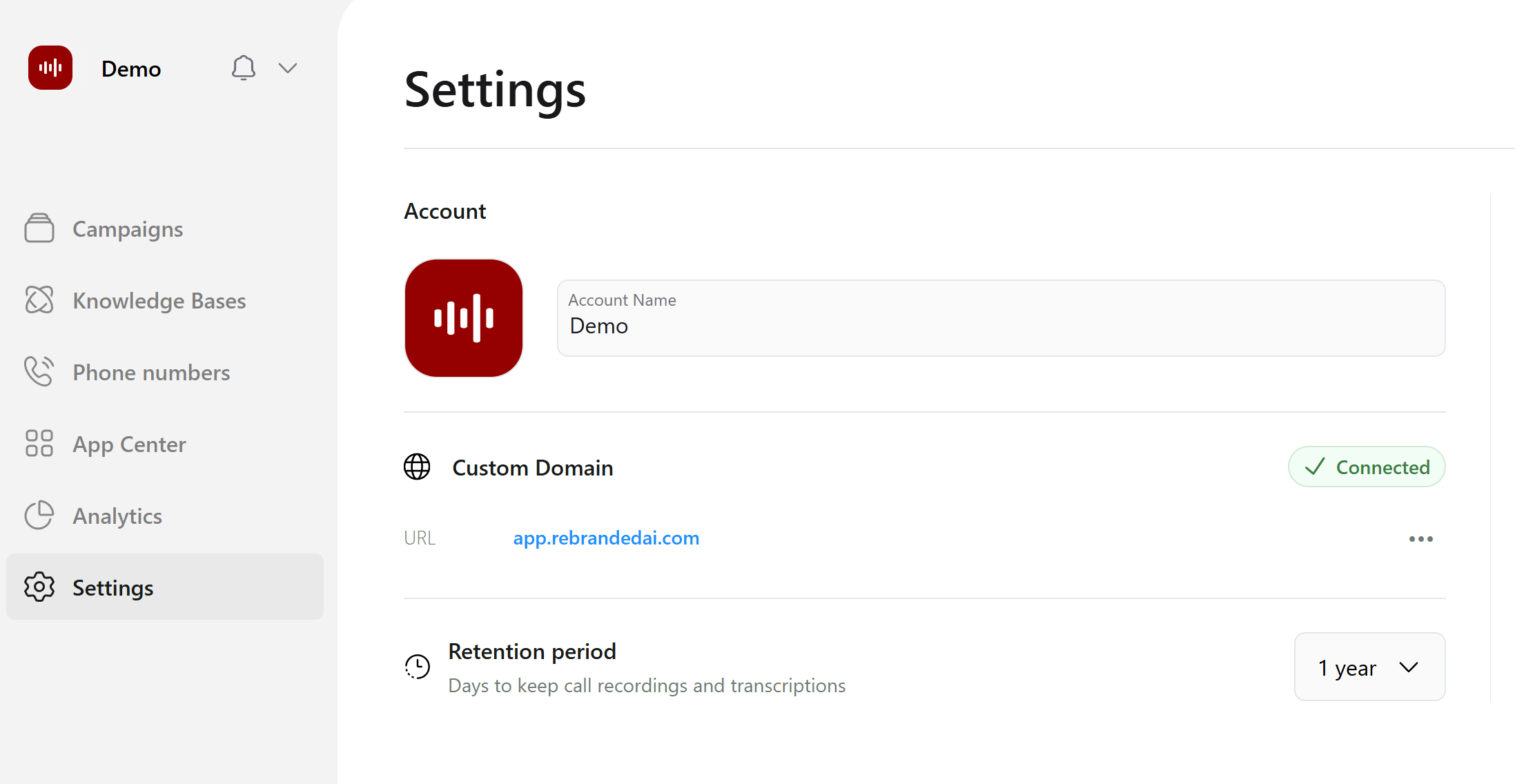
Branded platform interface
API Access with Your Custom Domain
After successfully adding your custom domain, all API calls can be made using your new domain instead of the default Callers domain.API Endpoint
Once your custom domain is connected, you can access the API documentation and make API calls using your custom domain:[your-custom-domain] with your actual custom domain (e.g., if your domain is app.example.com, the API documentation would be available at https://app.example.com/api/openapi).
All API endpoints will work with your custom domain, allowing you to maintain a consistent branded experience across both the web interface and API integrations.