

Studio Chat is enabled per account. If you don’t see the Overview page or the assistant, contact support@callers.ai.
Ask about your results
Open Overview from the sidebar and type a question in Assign a task or ask anything (up to 5,000 characters). Or start with a quick action:
More example questions:
- “What’s the best time of day to call?”
- “Find questions our AI couldn’t answer.”
- “Compare the success rate of my two outbound agents this month.”
- “Show me contacts who asked to be called back but haven’t been reached.”
Chat history
Click All Chats to see earlier conversations, start a New Chat, or delete one (Delete Chat?). Each chat keeps its most recent 100 messages.Build and edit an agent
In the agent editor, open the AI Assistant (the sparkle button). Choose: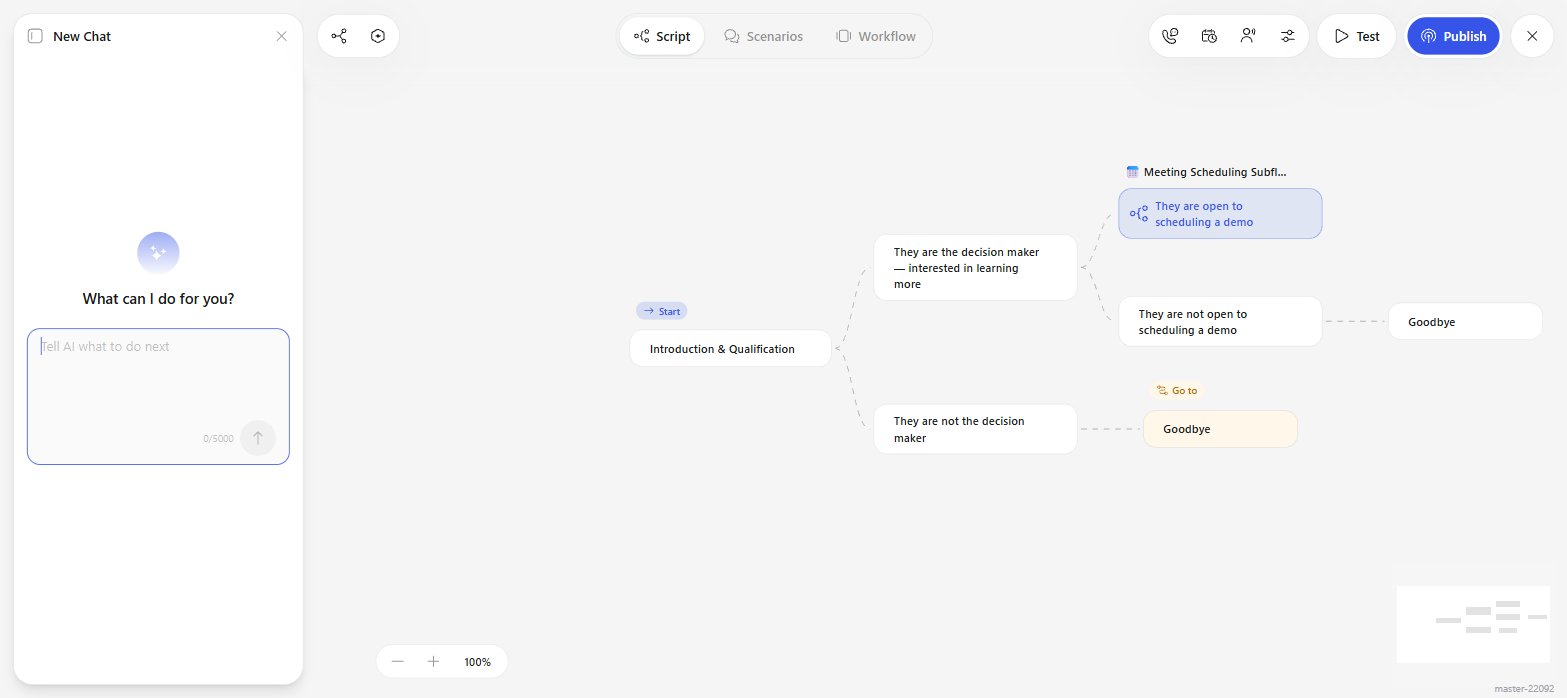
The AI Assistant panel in the agent editor, next to the script canvas.
- Create or edit scenario: “Describe what you need and AI will build or update your agent.”
- Get help: “Ask how Callers works. Answers come from our help docs, and nothing in your agent is changed.”
- write or rewrite the script, blocks, and steps,
- add and edit scenarios,
- add actions, variables, and pre-call or post-call workflow items,
- adjust settings such as availability and channels,
- translate the agent into another language,
- create custom code steps (with your approval).
Add a branch after the intro for contacts who say they already have a provider. Ask what they use and whether they’d consider switching at renewal.
Make the opening shorter and friendlier, and ask for permission to continue before pitching.
Translate this agent to Spanish (Mexico).
Review and apply changes
The assistant applies its changes to the editor as unsaved edits, so you can see them on the canvas right away.- Review the changes in the script and settings.
- Click Revert changes to undo them, or keep editing (in the chat or by hand).
- Click Save to keep them (and Publish, if your account uses versions).

After a change, the chat shows what was edited and offers Revert changes.
- Custom code: “This change includes a custom code step. Review it, then confirm to apply.” Click Review code to inspect the code, dependencies, and inputs, then Confirm and apply or Dismiss.
- Approvals: the assistant may ask Approve changes? with Preview, Apply, and Reject.
- Connections: if an action needs an app you haven’t connected, you’ll see Connection Required with a Create Connection button.
- Clarifying questions: when your request is ambiguous, the assistant asks and waits for you to Submit an answer.
AI suggestions
When an agent has enough calls, Callers can suggest fixes in a Suggestions panel in the editor. Each suggestion points at a specific problem:
Click Preview Fix to see the proposed change, Add Answer to fill a knowledge gap, or Dismiss. Click Refresh to check for new suggestions.
Agent Ideas
On the Agents page, Agent Ideas analyzes your contacts, call history, knowledge bases, and connected integrations and proposes new agents. See Create an agent.Permissions and privacy
- Studio Chat answers with the data your account can access. Sensitive fields are shown only to admins.
FAQ
Can Studio Chat place calls or message contacts?
Can Studio Chat place calls or message contacts?
No. It reads your data and edits agents. Starting agents, uploading contacts, and contacting people stay in your hands.
Are the assistant's edits live immediately?
Are the assistant's edits live immediately?
No. They’re unsaved edits in the editor until you click Save, and with versions they also need to be published.
Can I attach files or use voice input?
Can I attach files or use voice input?
Not yet. Paste the text you want the assistant to use into the message.
Related
Create an agent
Start a new agent and generate its script.
Agent results and insights
Insights Mode and per-step statistics.
Analytics
Dashboards and reports.
Script editor
Edit what the assistant built.