An Action is a request your agent sends while it talks to a contact: it looks up an order in your CRM, checks free slots, or creates a ticket. The agent waits for the answer and uses it in the rest of the conversation.
Callers sends all HTTP requests from the following IP addresses:
If your API endpoints are behind a firewall, whitelist these IP addresses to ensure action requests are delivered.

Before You Start

  • A publicly accessible endpoint: Your API must be reachable from the internet and respond to HTTP requests.
  • Credentials: If the API requires authentication, have the API key or token ready.
  • A fast response: By default, the agent waits up to 30 seconds for an answer. Responses can be up to 1 MB.

Add an Action Step

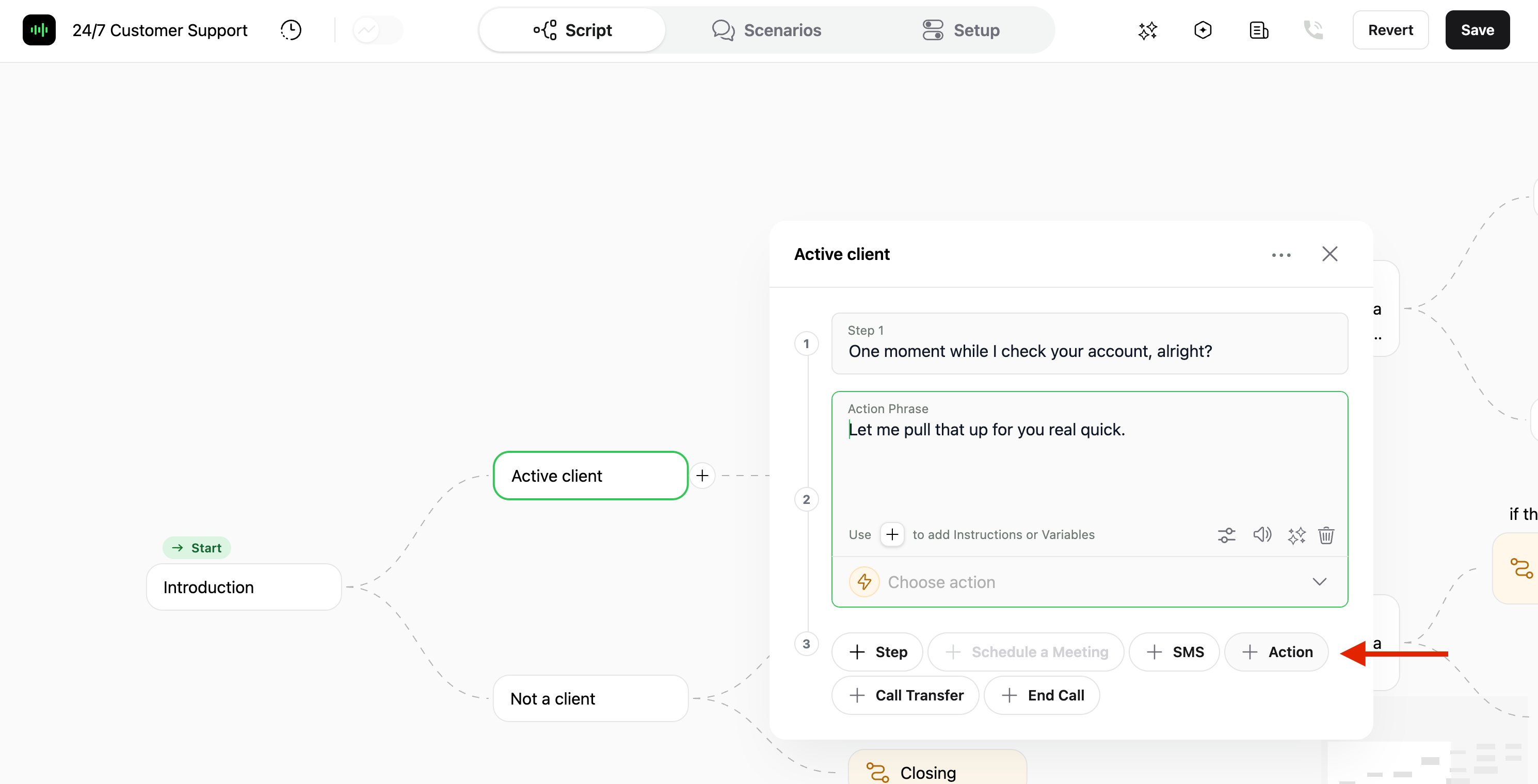
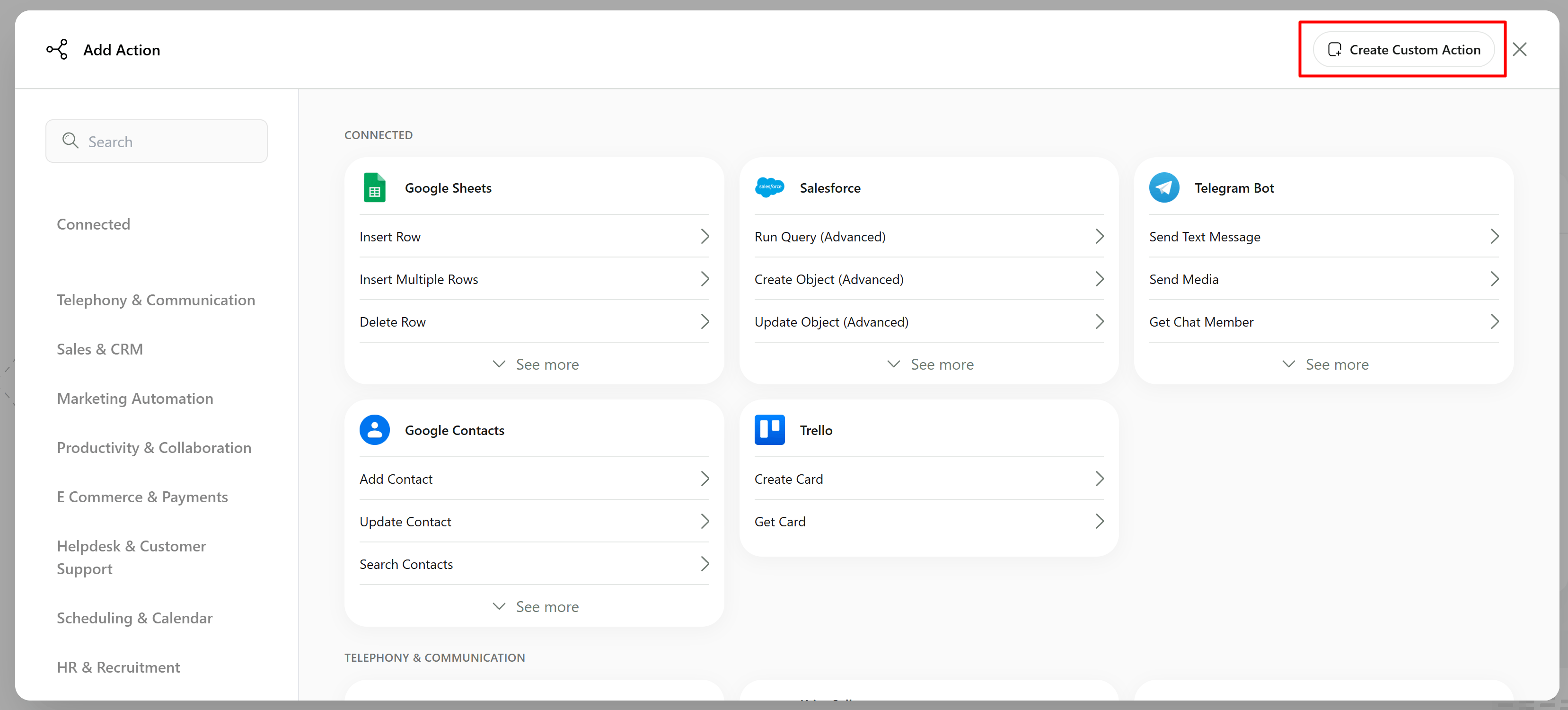
  • Open a node on the script canvas and click Action at the bottom of it. If your account has the App Center, the Add Action window opens.
  • Choose what the action does:
    • An App Center integration: Integrations are grouped by category; use Search Apps to find one. See the App Center for what’s available. Integrations marked Turned off aren’t enabled for your account - contact support to turn them on.
    • Create Custom Action: Send an HTTP request to your own API. See Create a Custom Action.
    • Create Custom Code: Run your own TypeScript or JavaScript code, if your account has it.
The Add Action window with integrations by category and the Create Custom Action and Create Custom Code buttons

The Add Action window

Once you add the action, the step appears in the node. Its Action Phrase is what the agent says while the request runs, so the contact isn’t left in silence. A new step starts with Let me pull that up for you real quick. - change it to fit your script. You can insert variables into the phrase.
An Action step with its action phrase and a custom HTTP action, and the Action button in the node footer

An Action step in a node

The Actions button in the agent editor header, next to Variables, opens the same window. Actions created there are saved to the agent without being added to a step.

Create a Custom Action

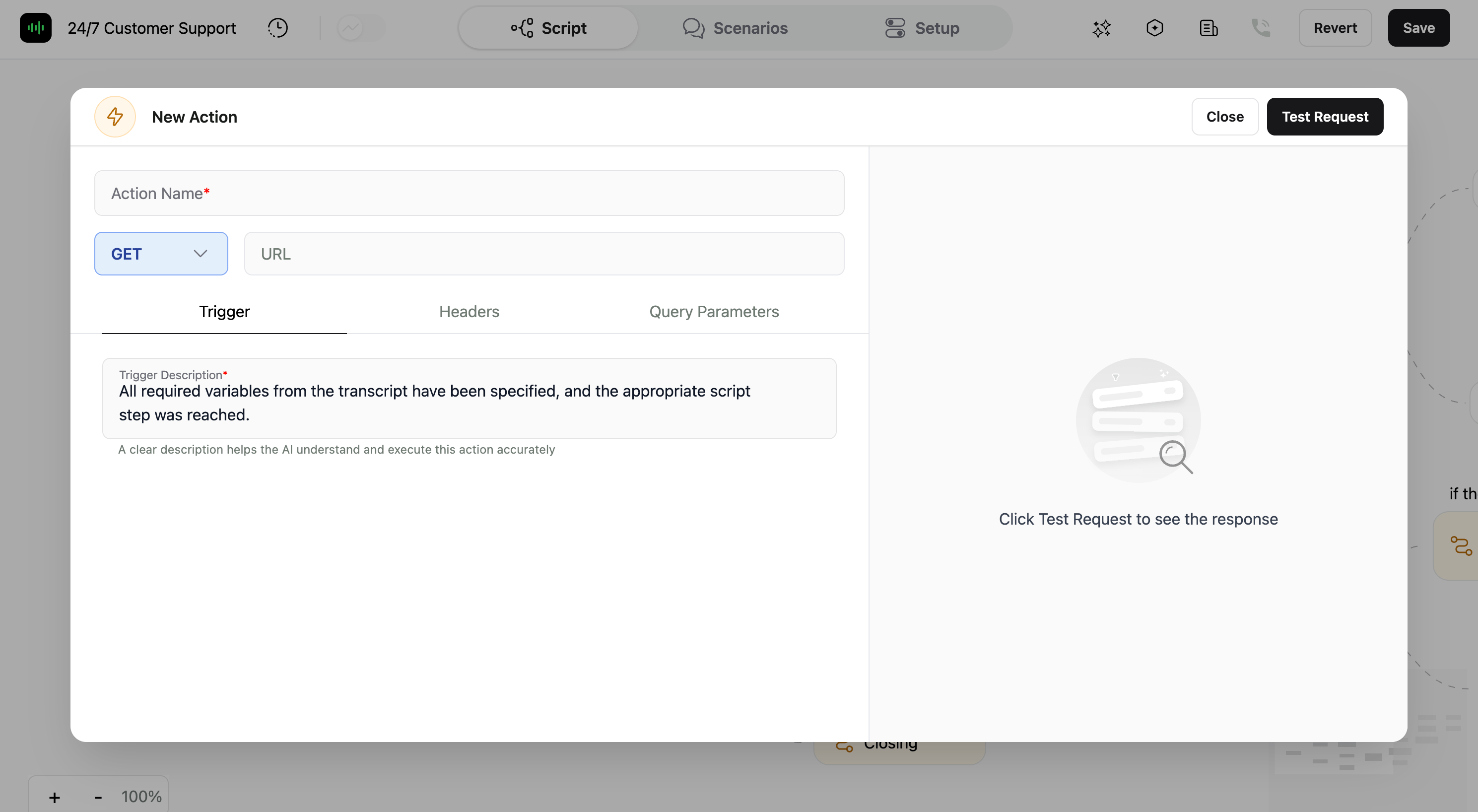
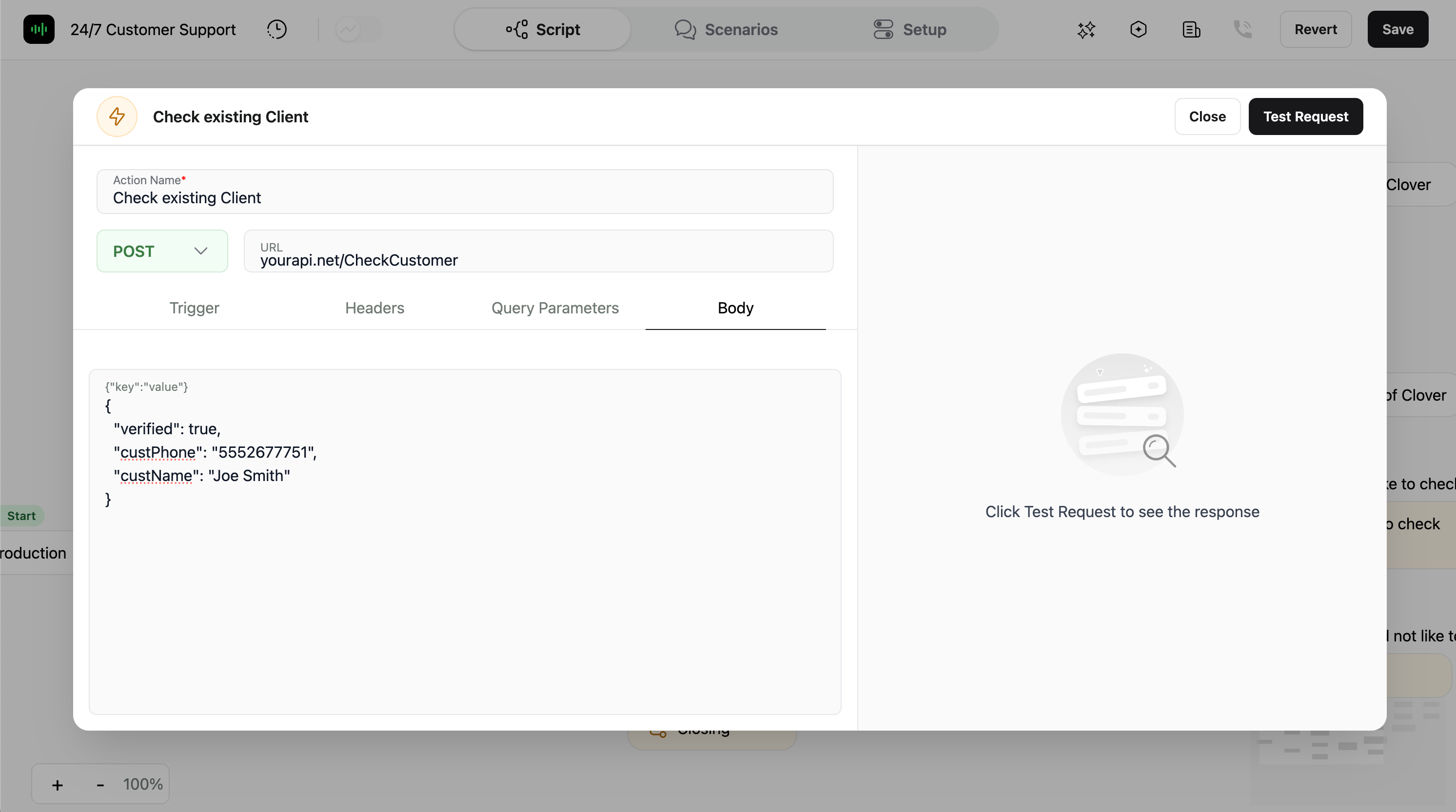
In the Add Action window, click Create Custom Action and fill in the request:
  • Action Name: A short name for the action. Names use lowercase letters, digits, underscores and hyphens, up to 64 characters, so Look up customer becomes look_up_customer. Each name must be unique within the agent.
  • When should the custom action take place?: Describe the situation in which the agent should run the action, for example The contact has confirmed they are an existing customer. The clearer the description, the more reliably the agent runs the action at the right moment.
  • Variables Extracted with Prompt: Details the agent picks up from the conversation and sends with the request, such as an order number. See Transcript Variables.
  • Method: GET, POST, PATCH, PUT, DELETE or HEAD.
  • URL: The full address of your endpoint.
  • Headers: For example an API key header such as X-API-Key.
  • Query params: Values added to the URL, for example an order ID.
  • Authentication: None, Basic Auth or Bearer Token.
  • Body Type: None, Form Data, JSON or Raw. For JSON, open JSON Body to write the request body.
The URL, headers, query parameters and body can include contact details and values from the conversation. See Variables in Actions.
The HTTP (Send HTTP request) form with the action name, the trigger description, method and URL

Creating a custom action

Already have the request as a cURL command? Click Import in the cURL panel on the right and paste it to fill in the method, URL, headers and body. The panel also shows the current request as a cURL command you can copy.

Request Settings

Further down the form you can fine-tune how the request behaves:
  • Response is Binary: Turn on when the response is a file, such as a PDF or an image.
  • Use Proxy: Send the request through your own proxy server.
  • Timeout(in seconds): A time limit for the HTTP request itself.
  • Follow redirects: Follow redirect responses to the new address.
  • On Failure: What happens when the request fails. You can retry on all errors (4xx, 5xx) or only on internal errors (5xx), not retry, continue on all errors or only on 4xx errors, or stop. The default is Do not continue (stop the flow).
  • Ignore Response: The request still runs, but the agent doesn’t see the response. Use it for requests that only send data, such as logging a lead.
  • Response Timeout: How long the agent waits for the response. The default is 30 seconds.
Timeout, Follow redirects, On Failure, Ignore Response and Response Timeout settings

Request settings

Each custom action request carries an X-Signature header (with X-Signature-Type), so your server can check that it came from Callers. The signature uses your organization’s HMAC secret, which you can find in Settings on the General tab, under Webhook Signature. See Validating Webhook Signatures.

Test the Action

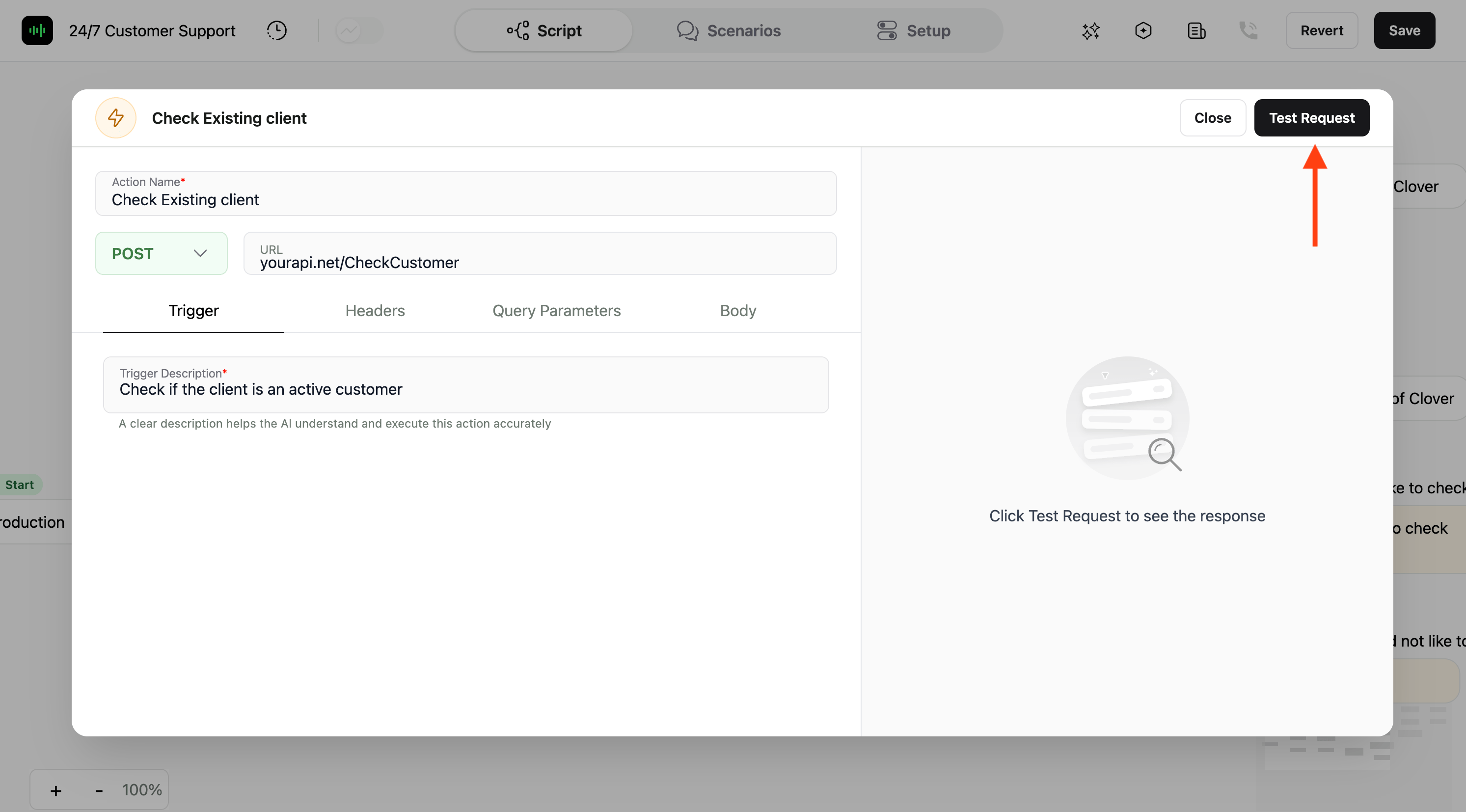
  • Click Send Test Request to send the request to your endpoint for real.
  • If the request uses variables, you’re asked for sample values first.
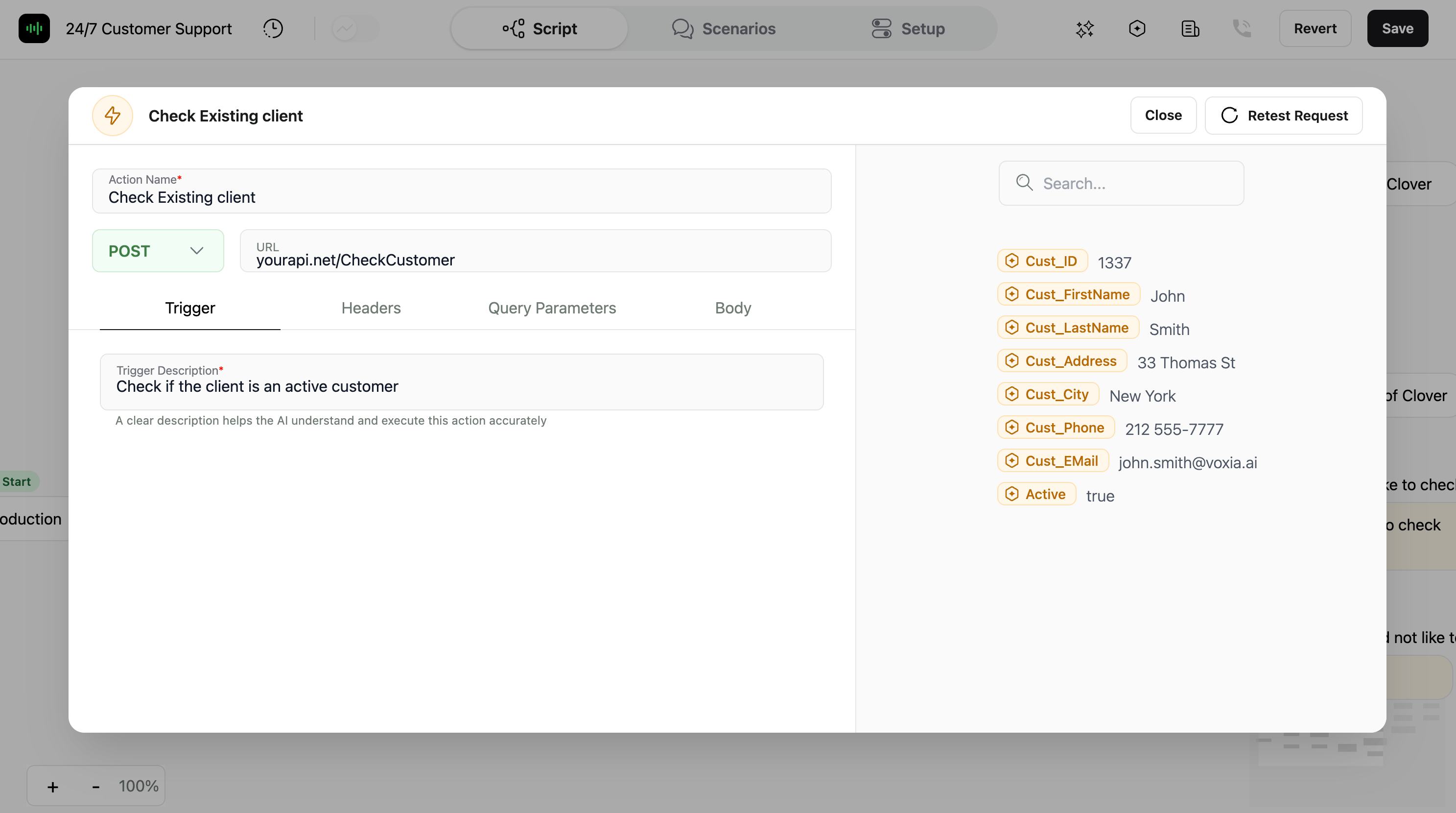
  • The response appears on the right. After the first test, the button reads Resend Request.
  • Click Add to add the action to the step.
A successful test does more than confirm the setup: the fields of the response become response variables that you can use later in the script.
The response panel with the headers and body returned by a test request

Action test response

Use the Response in the Conversation

The agent receives the response as soon as it arrives and uses it to decide what to say and which way the conversation goes next. For example:
  • Check availability: Ask your system for open slots, stock or service hours.
  • Look up customer records: Fetch the contact’s details or order status from your CRM or database.
  • Schedule appointments: Create bookings through an external scheduling API.
  • Send confirmations: Trigger emails or SMS messages after a specific step.
  • Verify identity: Check details the contact gives against your records.
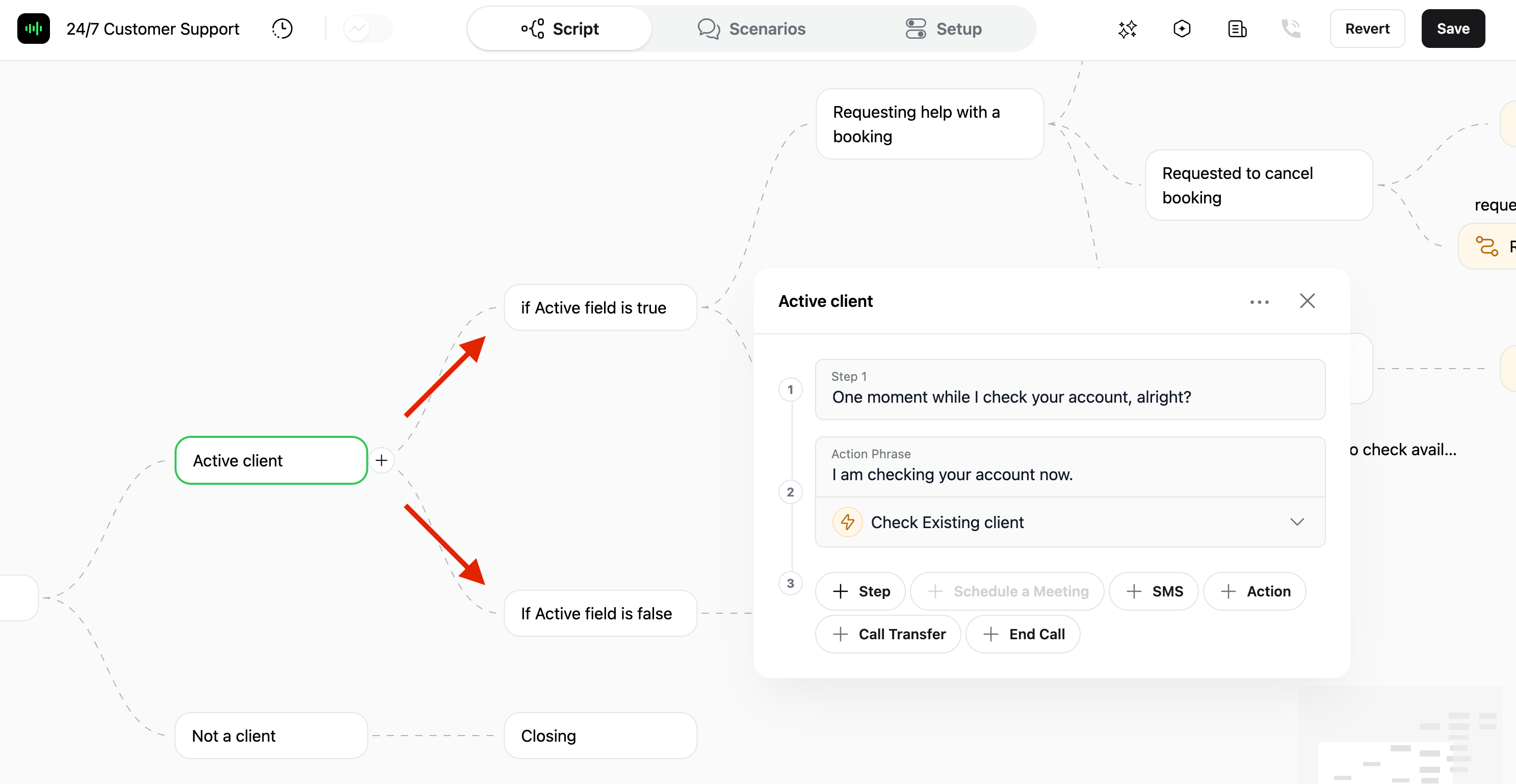
  • Route the conversation: Branch the script on a value in the response, for example whether an active field is true.
To say a response value word for word, insert it into a later step from the Actions tab of the variable picker.
A step after the action with the Actions tab of the variable picker showing the response body fields

Using a response value in a later step

If you want to send data after the call ends, you can configure a special webhook. Learn more in our Advanced Webhooks Guide.
Manage Actions

Hover over an Action step and click ··· next to the action to change how it runs:
  • Replace: Choose a different action for the step.
  • Run in background without pausing the conversation: The agent keeps talking while the request runs, and the response can arrive later in the conversation. Available if your account has it.
  • Allow action without phrase: Run the action without saying anything first.
  • Remove: Take the action out of the step.
The Action step menu with Replace, Run in background, Allow action without phrase and Remove

Options of an Action step

Every action you create is saved to the agent and listed under My Actions in the Add Action window, so you can reuse it in other steps. Click ··· next to an action there to Choose it, Edit it, or Delete Action. An action can’t be deleted while a step uses it.
My Actions with the Choose, Edit and Delete Action menu of a saved HTTP action

Saved actions under My Actions

For using contact details and conversation values in actions, see the Agent Variables guide.