Edit agents safely with draft and published versions, restore earlier versions, and A/B test two versions by splitting traffic between them.
Versions let you change a live agent without affecting the conversations it’s already having. You edit a draft, test it, and publish it when it’s ready. With Split Traffic, you can run two published versions side by side and compare their results before choosing a winner. For how versions fit into a safe rollout, see Path to production.
Versions and Split Traffic are enabled per account. Contact support@callers.ai to turn them on.
When you save changes to a published version, Callers creates a new Draft with the next number (V1 → V2, v1.2 → v1.3). The published version keeps running unchanged.
Live conversations always use the Published version. Drafts are only used by test calls you point at them.
Each version stores its own script and scenarios, which workflow items it uses, and which knowledge bases are connected.
Many settings belong to the agent as a whole, not to a version: General Settings, Availability, Channels, the voice and conversation parameters, and the workflow catalog (triggers, pre-call actions, in-call actions, and webhooks). Each version chooses which catalog items it uses. To compare two voices or patience levels, run the versions as separate agents instead.When you change a shared setting, Callers shows “These changes will be applied to all versions:” with an Undo option per category. Click Apply to all versions to confirm.
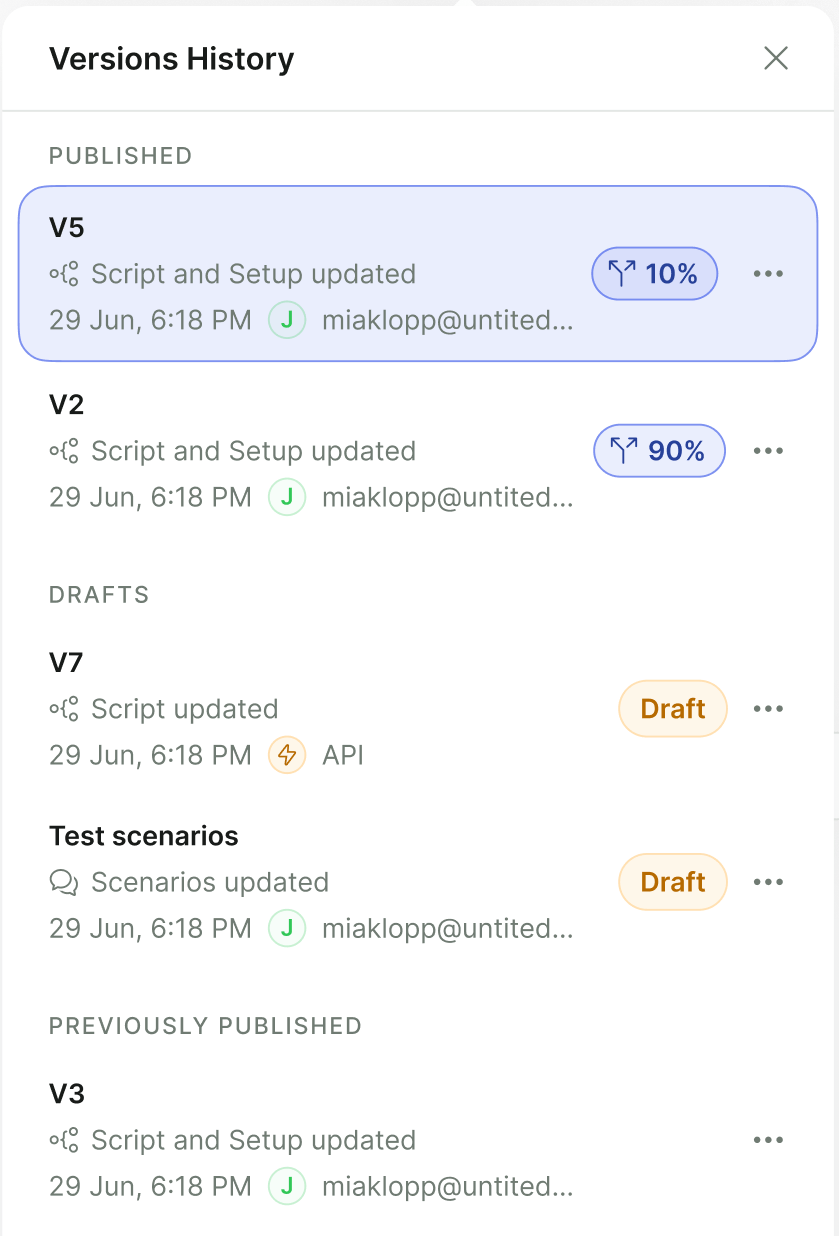
Click Versions in the editor header. Versions are grouped into Published, Drafts, and Previously Published. The header shows a Draft or Published badge for the version you’re editing.
Action
What it does
Publish
Makes a draft the live version. Also available as the Publish button in the header once your changes are saved.
Unpublish
Takes a version out of service.
Split Traffic / Change traffic %
Runs this version alongside another. See Split Traffic.
Edit Name
Renames the version.
Duplicate
Copies the version as name (copy).
Delete Version
Deletes a draft or previously published version. Published versions can’t be deleted, and deleted versions can’t be restored.
The Versions History drawer, grouped into Published, Drafts, and Previously Published, with traffic shares on the published versions.
Make your changes and click Save. The Publish button appears when there are no unsaved changes.
2
Test the draft
Click Test and pick the draft in the version dropdown. See Test your agent.
3
Publish
Click Publish. If the agent is running, Callers warns that publishing stops the running version and applies all settings from the new one.
4
Restart
After publishing, choose Start Campaign to start the agent again, or Not Now.
Publishing is blocked if a required integration isn’t connected (“Cannot publish version”) or if the agent has no phone number (“Please assign a phone number before publishing this version.”).
Name versions after what changed, such as V3 – shorter intro or V4 – new pricing objection. It makes comparisons and rollbacks much easier.
To return to an earlier version, open Versions, find it under Previously Published, and Publish it again. Or Duplicate it to start a new draft from that point.
Accounts that don’t use draft and published versions have Versions History instead. It lists saved snapshots of the agent, with the newest marked Latest.
Click a snapshot to view it (“You’re now viewing one of your old versions”). Click Back to latest to return.
Choose Restore to replace the agent with that snapshot. “Restoring will replace all current Agent data with the selected version.”
Split Traffic sends a share of contacts to each of two published versions so you can A/B test a script change: a new opening, a different pitch, a shorter flow.
1
Prepare two versions
Have one published version and a second version (draft or published) to test against it.
2
Open Split Traffic
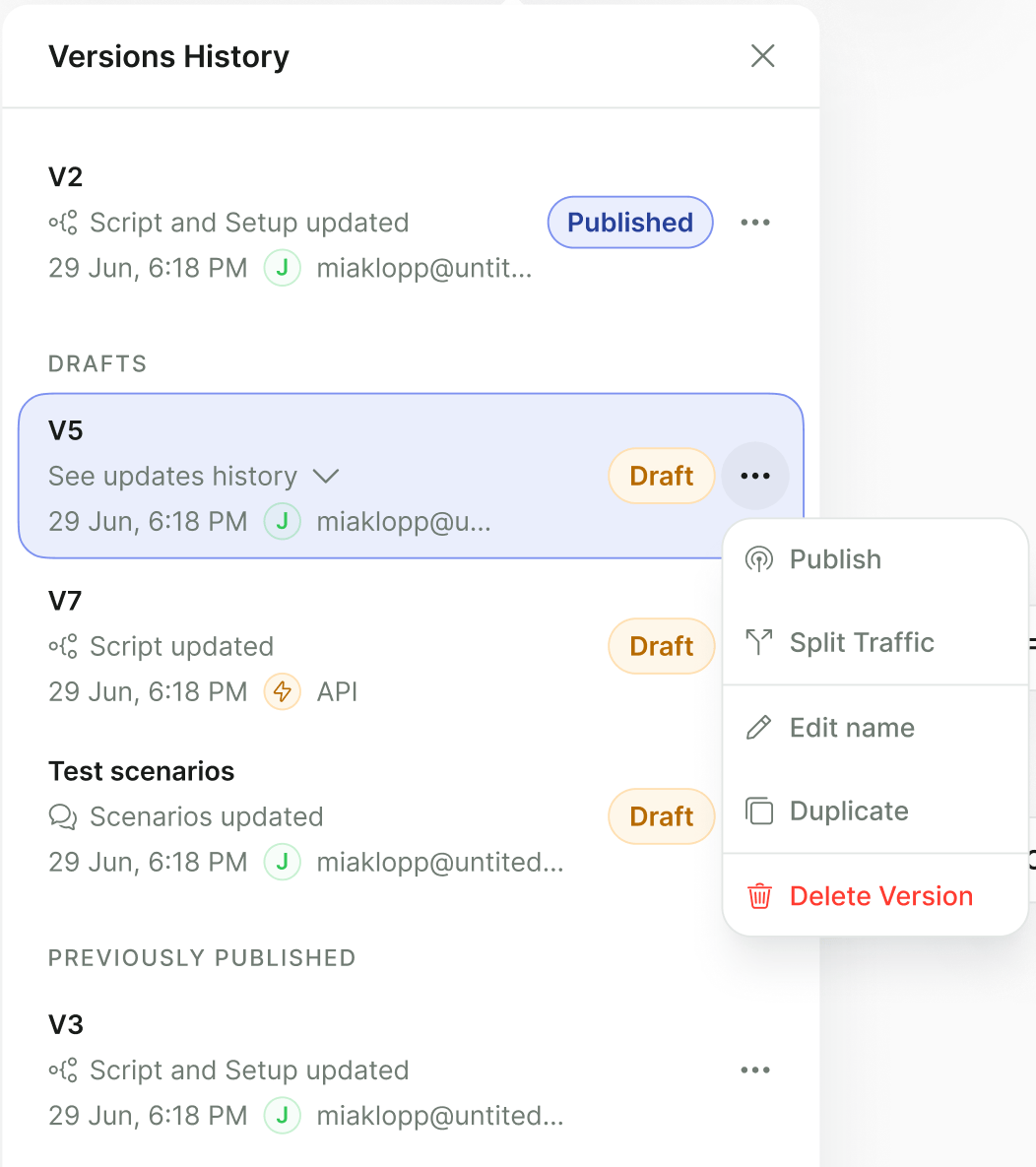
In Versions, open the second version’s menu and choose Split Traffic. The Split your campaign traffic dialog opens.
A draft version's menu: Publish, Split Traffic, Edit name, Duplicate, and Delete Version.
3
Set percentages
Enter a whole-number percentage for each version. They must add up to exactly 100. A new split defaults to 50/50.
4
Approve
Click Approve and Publish. If the agent is running, Callers asks you to confirm because publishing stops it. Start the agent again to run the test.
Turn on Insights Mode and open the Analytics tab. For each published version you’ll see Total Contacts, Connect Rate, Success Rate, Call Volume Hourly, Calls Duration, Failed Call Reason, and Failed vs successful call trend.
Change one thing per test and let each version reach a meaningful number of connected calls before deciding. Timing matters too: compare versions over the same days and hours.
{"docsConfig":{"theme":"aspen","$schema":"https://mintlify.com/docs.json","name":"Callers","description":"Build AI agents that call, text, email, and talk to customers on your website. Guides, Web SDK, and API reference for the Callers platform.","colors":{"primary":"#3655E8","light":"#8EA0FF","dark":"#2A44C4"},"logo":{"light":"https://mintcdn.com/voxiaai/UdPum2goP7yfaYcC/logo/light.svg?fit=max\u0026auto=format\u0026n=UdPum2goP7yfaYcC\u0026q=85\u0026s=b1de758075c8bd929495ea22505d14b8","dark":"https://mintcdn.com/voxiaai/UdPum2goP7yfaYcC/logo/dark.svg?fit=max\u0026auto=format\u0026n=UdPum2goP7yfaYcC\u0026q=85\u0026s=cdb6dcbc265e95b7f15e77b15797cce6","href":"https://docs.callers.ai"},"favicon":"https://mintcdn.com/voxiaai/UdPum2goP7yfaYcC/logo/favicon.svg?fit=max\u0026auto=format\u0026n=UdPum2goP7yfaYcC\u0026q=85\u0026s=4a33273363fdf14d219145aa644b0ff7","appearance":{"default":"light","strict":false},"background":{"color":{"light":"#FFFFFF","dark":"#0A0D18"}},"navbar":{"links":[{"href":"https://www.callers.ai/book-a-meeting","label":"Book a demo"},{"href":"mailto:support@callers.ai","label":"Support"}],"primary":{"type":"button","label":"Open dashboard","href":"https://app.callers.ai"}},"footer":{"socials":{"linkedin":"https://www.linkedin.com/company/callersai","website":"https://www.callers.ai"},"links":[{"header":"Product","items":[{"label":"Website","href":"https://www.callers.ai"},{"label":"Dashboard","href":"https://app.callers.ai"},{"label":"Book a demo","href":"https://www.callers.ai/book-a-meeting"}]},{"header":"Developers","items":[{"label":"API Reference","href":"/api-reference/introduction"},{"label":"Web SDK","href":"/sdk/overview"},{"label":"SDK Playground","href":"https://sdk-playground.callers.dev"}]},{"header":"Company","items":[{"label":"Status","href":"https://status.callers.ai"},{"label":"Trust Center","href":"https://trust.callers.ai"},{"label":"Contact support","href":"mailto:support@callers.ai"}]}]},"search":{"prompt":"Search docs or ask a question…"},"seo":{"metatags":{"og:site_name":"Callers Docs"},"indexing":"navigable"},"fonts":{"family":"Inter"},"icons":{"library":"fontawesome"},"styling":{"codeblocks":"dark","latex":false},"errors":{"404":{"redirect":false}},"contextual":{"options":["copy","view","chatgpt","claude","perplexity","mcp","cursor","vscode"],"display":"header"},"navigation":{"global":{"anchors":[{"anchor":"Dashboard","icon":"browser","href":"https://app.callers.ai"},{"anchor":"Status","icon":"signal","href":"https://status.callers.ai"}]},"pages":[]}},"deployment":{"deploymentMetadataValue":{"subdomain":"voxiaai","hasAudioNarration":false,"actualSubdomain":"voxiaai","customDomains":["docs.callers.ai"],"gitSource":{"type":"github","owner":"amy-io","repo":"docs","deployBranch":"master","contentDirectory":"","isPrivate":true,"mountPath":"","label":""},"chroma":{"liveDeploymentHistoryId":"6adfa9943e86de84f663e8c9","collectionId":"41dd06f6-9239-41ff-8948-77c45e15c50c","schemaVersion":"v3","latestBuiltDeploymentHistoryId":"6adfa9943e86de84f663e8c9"},"entitlements":{},"buildId":"6adfa9943e86de84f663e8c9","clientVersion":"0.0.3971","searchFilterCounts":[{"language":"default","tag":"Guides","count":77},{"language":"default","tag":"API Reference","count":72},{"language":"default","tag":"Endpoints","count":59},{"language":"default","tag":"Integrations","count":19},{"language":"default","tag":"Web SDK","count":14},{"language":"default","tag":"Get started","count":11},{"language":"default","tag":"Build your agent","count":11},{"language":"default","tag":"Channels","count":11},{"language":"default","tag":"Agents","count":10},{"language":"default","tag":"Contacts","count":10}]},"assistantConfig":{},"basePath":"","hasChatPermissions":false,"hasWebMcpPermissions":false,"toggles":[{"name":"kill-isr","enabled":true,"variant":{"name":"disabled","enabled":false,"feature_enabled":true},"impressionData":false},{"name":"agent-mintlify-slack","enabled":true,"variant":{"name":"disabled","enabled":false,"feature_enabled":true},"impressionData":false},{"name":"editor-v7-file-tree","enabled":true,"variant":{"name":"disabled","enabled":false,"feature_enabled":true},"impressionData":false},{"name":"agent-integrations-settings","enabled":true,"variant":{"name":"disabled","enabled":false,"feature_enabled":true},"impressionData":false},{"name":"automations-pr-grouping","enabled":true,"variant":{"name":"disabled","enabled":false,"feature_enabled":true},"impressionData":false},{"name":"custom-prefix","enabled":true,"variant":{"name":"disabled","enabled":false,"feature_enabled":true},"impressionData":false},{"name":"analytics-v7","enabled":true,"variant":{"name":"disabled","enabled":false,"feature_enabled":true},"impressionData":false},{"name":"user-flows-analytics","enabled":true,"variant":{"name":"disabled","enabled":false,"feature_enabled":true},"impressionData":false},{"name":"no-publish-flow","enabled":true,"variant":{"name":"disabled","enabled":false,"feature_enabled":true},"impressionData":false},{"name":"workos-onboarding","enabled":true,"variant":{"name":"disabled","enabled":false,"feature_enabled":true},"impressionData":false},{"name":"llms-txt-v2","enabled":true,"variant":{"name":"disabled","enabled":false,"feature_enabled":true},"impressionData":false},{"name":"pause-universal-search-reconcile","enabled":true,"variant":{"name":"disabled","enabled":false,"feature_enabled":true},"impressionData":false},{"name":"snapshot-serving-live","enabled":true,"variant":{"name":"disabled","enabled":false,"feature_enabled":true},"impressionData":false},{"name":"stripTemperatureMiddleware","enabled":true,"variant":{"name":"disabled","enabled":false,"feature_enabled":true},"impressionData":false},{"name":"per-site-search-delta","enabled":true,"variant":{"name":"disabled","enabled":false,"feature_enabled":true},"impressionData":false},{"name":"support-platform-pylon-zendesk","enabled":true,"variant":{"name":"disabled","enabled":false,"feature_enabled":true},"impressionData":false},{"name":"snapshot-serving","enabled":true,"variant":{"name":"disabled","enabled":false,"feature_enabled":true},"impressionData":false},{"name":"instant-rollback","enabled":true,"variant":{"name":"disabled","enabled":false,"feature_enabled":true},"impressionData":false},{"name":"granular-notifications-server","enabled":true,"variant":{"name":"disabled","enabled":false,"feature_enabled":true},"impressionData":false},{"name":"granular-notifications","enabled":true,"variant":{"name":"disabled","enabled":false,"feature_enabled":true},"impressionData":false},{"name":"editor-private-page-search","enabled":true,"variant":{"name":"disabled","enabled":false,"feature_enabled":true},"impressionData":false},{"name":"automations-fable","enabled":true,"variant":{"name":"disabled","enabled":false,"feature_enabled":true},"impressionData":false},{"name":"fixed-ai-action-pricing","enabled":true,"variant":{"name":"disabled","enabled":false,"feature_enabled":true},"impressionData":false},{"name":"automation-resolve-merge-conflict","enabled":true,"variant":{"name":"disabled","enabled":false,"feature_enabled":true},"impressionData":false},{"name":"scoped-publishing","enabled":true,"variant":{"name":"disabled","enabled":false,"feature_enabled":true},"impressionData":false},{"name":"mintql","enabled":true,"variant":{"name":"disabled","enabled":false,"feature_enabled":true},"impressionData":false},{"name":"page-level-analytics","enabled":true,"variant":{"name":"disabled","enabled":false,"feature_enabled":true},"impressionData":false},{"name":"editor-version-history-v2","enabled":true,"variant":{"name":"disabled","enabled":false,"feature_enabled":true},"impressionData":false},{"name":"editor-nav-generations","enabled":true,"variant":{"name":"disabled","enabled":false,"feature_enabled":true},"impressionData":false},{"name":"billing-page-v2","enabled":true,"variant":{"name":"disabled","enabled":false,"feature_enabled":true},"impressionData":false},{"name":"workspace-projects","enabled":true,"variant":{"name":"disabled","enabled":false,"feature_enabled":true},"impressionData":false},{"name":"assistant-v5","enabled":true,"variant":{"name":"disabled","enabled":false,"feature_enabled":true},"impressionData":false},{"name":"byok-sep-25","enabled":true,"variant":{"name":"disabled","enabled":false,"feature_enabled":true},"impressionData":false},{"name":"fork-pr-previews","enabled":true,"variant":{"name":"disabled","enabled":false,"feature_enabled":true},"impressionData":false},{"name":"revalidation-jwt","enabled":true,"variant":{"name":"disabled","enabled":false,"feature_enabled":true},"impressionData":false},{"name":"vite-origin","enabled":true,"variant":{"name":"disabled","enabled":false,"feature_enabled":true},"impressionData":false},{"name":"editor-agent-model-picker","enabled":true,"variant":{"name":"disabled","enabled":false,"feature_enabled":true},"impressionData":false},{"name":"billing-updated-9-15","enabled":true,"variant":{"name":"disabled","enabled":false,"feature_enabled":true},"impressionData":false},{"name":"workos-sso-scim","enabled":true,"variant":{"name":"disabled","enabled":false,"feature_enabled":true},"impressionData":false},{"name":"hobby-abuse-scan","enabled":true,"variant":{"name":"disabled","enabled":false,"feature_enabled":true},"impressionData":false},{"name":"dashboard-inbox","enabled":true,"variant":{"name":"disabled","enabled":false,"feature_enabled":true},"impressionData":false},{"name":"workos-signup","enabled":true,"variant":{"name":"disabled","enabled":false,"feature_enabled":true},"impressionData":false},{"name":"workos-enabled","enabled":true,"variant":{"name":"disabled","enabled":false,"feature_enabled":true},"impressionData":false}],"isAtlas":false,"googleFontsInlined":false},"customCss":[{"filePath":"styles.css","href":"/_mintlify/custom/voxiaai/21a11cfc72d9362f/styles.css"}],"page":{"pagePath":"documentation/build-your-agent/versions-and-split-traffic","slug":"/documentation/build-your-agent/versions-and-split-traffic","pageMetadata":{"title":"Versions and Split Traffic","sidebarTitle":"Versions \u0026 split traffic","description":"Edit agents safely with draft and published versions, restore earlier versions, and A/B test two versions by splitting traffic between them.","icon":"code-branch","href":"/documentation/build-your-agent/versions-and-split-traffic"},"description":{"compiledSource":"\"use strict\";\nconst {jsx: _jsx} = arguments[0];\nconst {useMDXComponents: _provideComponents} = arguments[0];\nfunction _createMdxContent(props) {\n const _components = {\n p: \"p\",\n ..._provideComponents(),\n ...props.components\n };\n return _jsx(_components.p, {\n children: \"Edit agents safely with draft and published versions, restore earlier versions, and A/B test two versions by splitting traffic between them.\"\n });\n}\nfunction MDXContent(props = {}) {\n const {wrapper: MDXLayout} = {\n ..._provideComponents(),\n ...props.components\n };\n return MDXLayout ? _jsx(MDXLayout, {\n ...props,\n children: _jsx(_createMdxContent, {\n ...props\n })\n }) : _createMdxContent(props);\n}\nreturn {\n default: MDXContent\n};\n","frontmatter":{},"scope":{}},"pageType":"default","mdx":{"mdxSource":{"compiledSource":"\"use strict\";const{Fragment:_Fragment,jsx:_jsx,jsxs:_jsxs}=arguments[0];const{useMDXComponents:_provideComponents}=arguments[0];const Flow=({steps=[],caption})=>_jsxs(`figure`,{className:steps.length>4?`cx-flow-wrap is-long not-prose`:`cx-flow-wrap not-prose`,style:{\"--cx-steps\":steps.length},children:[_jsxs(`div`,{className:`cx-flow-panel`,children:[_jsx(`div`,{className:`cx-flow-track`,\"aria-hidden\":`true`,children:_jsx(`span`,{className:`cx-flow-pulse`})}),_jsx(`ol`,{className:`cx-flow`,children:steps.map((step,index)=>_jsxs(`li`,{className:step.highlight?`cx-flow-step is-core`:`cx-flow-step`,style:{\"--i\":index},children:[_jsx(`span`,{className:`cx-flow-marker`,\"aria-hidden\":`true`,children:step.highlight?_jsxs(_Fragment,{children:[_jsx(`span`,{className:`cx-flow-ring`}),_jsx(`span`,{className:`cx-flow-ring cx-flow-ring-2`}),_jsx(`img`,{src:`/images/brand/rings-core.svg`,alt:``,className:`cx-flow-core`})]}):_jsx(`span`,{className:`cx-flow-dot`})}),_jsx(`span`,{className:`cx-flow-index`,children:String(index+1).padStart(2,`0`)}),_jsx(`span`,{className:`cx-flow-title`,children:step.title}),step.description?_jsx(`span`,{className:`cx-flow-desc`,children:step.description}):null,step.tags?_jsx(`span`,{className:`cx-flow-tags`,children:step.tags.map(tag=>_jsx(`span`,{className:`cx-flow-tag`,children:tag},tag))}):null]},index))})]}),caption?_jsx(`figcaption`,{className:`cx-flow-caption`,children:caption}):null]});function _createMdxContent(props){const _components={a:`a`,code:`code`,li:`li`,p:`p`,strong:`strong`,tbody:`tbody`,td:`td`,th:`th`,thead:`thead`,tr:`tr`,ul:`ul`,..._provideComponents(),...props.components},{Accordion,AccordionGroup,Card,CardGroup,Frame,Heading,Note,OptimizedImage,Step,Steps,Table,Tip,_MdxComponentBoundary}=_components;if(!Accordion)_missingMdxReference(`Accordion`,true);if(!AccordionGroup)_missingMdxReference(`AccordionGroup`,true);if(!Card)_missingMdxReference(`Card`,true);if(!CardGroup)_missingMdxReference(`CardGroup`,true);if(!Frame)_missingMdxReference(`Frame`,true);if(!Heading)_missingMdxReference(`Heading`,true);if(!Note)_missingMdxReference(`Note`,true);if(!OptimizedImage)_missingMdxReference(`OptimizedImage`,true);if(!Step)_missingMdxReference(`Step`,true);if(!Steps)_missingMdxReference(`Steps`,true);if(!Table)_missingMdxReference(`Table`,true);if(!Tip)_missingMdxReference(`Tip`,true);if(!_MdxComponentBoundary)_missingMdxReference(`_MdxComponentBoundary`,true);return _jsxs(_Fragment,{children:[_jsxs(_components.p,{children:[`Versions let you change a live agent without affecting the conversations it’s already having. You edit a `,_jsx(_components.strong,{children:`draft`}),`, test it, and `,_jsx(_components.strong,{children:`publish`}),` it when it’s ready. With `,_jsx(_components.strong,{children:`Split Traffic`}),`, you can run two published versions side by side and compare their results before choosing a winner. For how versions fit into a safe rollout, see `,_jsx(_components.a,{href:`/documentation/best-practices/path-to-production#start-small-then-scale`,children:`Path to production`}),`.`]}),`\n`,_jsx(Note,{children:_jsxs(_components.p,{children:[`Versions and Split Traffic are enabled per account. Contact `,_jsx(_components.a,{href:`mailto:support@callers.ai`,children:`support@callers.ai`}),` to turn them on.`]})}),`\n`,_jsx(_MdxComponentBoundary,{name:`Flow`,children:_jsx(Flow,{steps:[{title:`Draft`,description:`Edit and save changes`},{title:`Test`,description:`Test calls on the draft`},{title:`Publish`,description:`Live conversations use it`},{title:`Compare`,description:`Optional split traffic`}]})}),`\n`,_jsx(Heading,{level:`2`,id:`how-versions-work`,children:`How versions work`}),`\n`,_jsxs(_components.ul,{children:[`\n`,_jsxs(_components.li,{children:[`Every agent starts with version `,_jsx(_components.strong,{children:`V1`}),`.`]}),`\n`,_jsxs(_components.li,{children:[`When you save changes to a published version, Callers creates a new `,_jsx(_components.strong,{children:`Draft`}),` with the next number (V1 → V2, v1.2 → v1.3). The published version keeps running unchanged.`]}),`\n`,_jsxs(_components.li,{children:[`Live conversations always use the `,_jsx(_components.strong,{children:`Published`}),` version. Drafts are only used by test calls you point at them.`]}),`\n`,_jsx(_components.li,{children:`Each version stores its own script and scenarios, which workflow items it uses, and which knowledge bases are connected.`}),`\n`]}),`\n`,_jsx(Heading,{level:`3`,id:`what’s-shared-by-all-versions`,children:`What’s shared by all versions`}),`\n`,_jsxs(_components.p,{children:[`Many settings belong to the agent as a whole, not to a version: `,_jsx(_components.strong,{children:`General Settings`}),`, `,_jsx(_components.strong,{children:`Availability`}),`, `,_jsx(_components.strong,{children:`Channels`}),`, the voice and conversation parameters, and the workflow catalog (triggers, pre-call actions, in-call actions, and webhooks). Each version chooses which catalog items it uses. To compare two voices or patience levels, run the versions as separate agents instead.`]}),`\n`,_jsxs(_components.p,{children:[`When you change a shared setting, Callers shows “These changes will be applied to all versions:” with an `,_jsx(_components.strong,{children:`Undo`}),` option per category. Click `,_jsx(_components.strong,{children:`Apply to all versions`}),` to confirm.`]}),`\n`,_jsx(Heading,{level:`2`,id:`manage-versions`,children:`Manage versions`}),`\n`,_jsxs(_components.p,{children:[`Click `,_jsx(_components.strong,{children:`Versions`}),` in the editor header. Versions are grouped into `,_jsx(_components.strong,{children:`Published`}),`, `,_jsx(_components.strong,{children:`Drafts`}),`, and `,_jsx(_components.strong,{children:`Previously Published`}),`. The header shows a `,_jsx(_components.strong,{children:`Draft`}),` or `,_jsx(_components.strong,{children:`Published`}),` badge for the version you’re editing.`]}),`\n`,_jsxs(Table,{children:[_jsx(_components.thead,{children:_jsxs(_components.tr,{children:[_jsx(_components.th,{children:`Action`}),_jsx(_components.th,{children:`What it does`})]})}),_jsxs(_components.tbody,{children:[_jsxs(_components.tr,{children:[_jsx(_components.td,{children:_jsx(_components.strong,{children:`Publish`})}),_jsxs(_components.td,{children:[`Makes a draft the live version. Also available as the `,_jsx(_components.strong,{children:`Publish`}),` button in the header once your changes are saved.`]})]}),_jsxs(_components.tr,{children:[_jsx(_components.td,{children:_jsx(_components.strong,{children:`Unpublish`})}),_jsx(_components.td,{children:`Takes a version out of service.`})]}),_jsxs(_components.tr,{children:[_jsxs(_components.td,{children:[_jsx(_components.strong,{children:`Split Traffic`}),` / `,_jsx(_components.strong,{children:`Change traffic %`})]}),_jsxs(_components.td,{children:[`Runs this version alongside another. See `,_jsx(_components.a,{href:`#split-traffic`,children:`Split Traffic`}),`.`]})]}),_jsxs(_components.tr,{children:[_jsx(_components.td,{children:_jsx(_components.strong,{children:`Edit Name`})}),_jsx(_components.td,{children:`Renames the version.`})]}),_jsxs(_components.tr,{children:[_jsx(_components.td,{children:_jsx(_components.strong,{children:`Duplicate`})}),_jsxs(_components.td,{children:[`Copies the version as `,_jsx(_components.strong,{children:`name (copy)`}),`.`]})]}),_jsxs(_components.tr,{children:[_jsx(_components.td,{children:_jsx(_components.strong,{children:`Delete Version`})}),_jsx(_components.td,{children:`Deletes a draft or previously published version. Published versions can’t be deleted, and deleted versions can’t be restored.`})]})]})]}),`\n`,_jsx(Frame,{caption:`The Versions History drawer, grouped into Published, Drafts, and Previously Published, with traffic shares on the published versions.`,children:_jsx(OptimizedImage,{src:`https://mintcdn.com/voxiaai/UGuY0UNIphM-6pUX/images/documentation/build-your-agent/versions-history-drawer.png?fit=max\u0026auto=format\u0026n=UGuY0UNIphM-6pUX\u0026q=85\u0026s=1f95b209b57afd64bfeb028033aed751`,alt:`Versions History drawer listing V5 and V2 under Published with 10% and 90% traffic badges, V7 and Test scenarios under Drafts with Draft badges, and V3 under Previously Published, each with a date, author, and a menu button`,style:{width:`55%`,margin:`0 auto`,display:`block`},\"data-og-width\":`839`,width:`839`,\"data-og-height\":`1236`,height:`1236`,\"data-path\":`images/documentation/build-your-agent/versions-history-drawer.png`,\"data-optimize\":`true`,\"data-opv\":`3`,srcset:`https://mintcdn.com/voxiaai/UGuY0UNIphM-6pUX/images/documentation/build-your-agent/versions-history-drawer.png?w=280\u0026fit=max\u0026auto=format\u0026n=UGuY0UNIphM-6pUX\u0026q=85\u0026s=2ccaeb99dd8a692512ecf2b75483aa8e 280w, https://mintcdn.com/voxiaai/UGuY0UNIphM-6pUX/images/documentation/build-your-agent/versions-history-drawer.png?w=560\u0026fit=max\u0026auto=format\u0026n=UGuY0UNIphM-6pUX\u0026q=85\u0026s=f01c7e81a7fb014a31d8343a223ef935 560w, https://mintcdn.com/voxiaai/UGuY0UNIphM-6pUX/images/documentation/build-your-agent/versions-history-drawer.png?w=840\u0026fit=max\u0026auto=format\u0026n=UGuY0UNIphM-6pUX\u0026q=85\u0026s=099ae1c5842716fba71ff5af5a12adc4 840w, https://mintcdn.com/voxiaai/UGuY0UNIphM-6pUX/images/documentation/build-your-agent/versions-history-drawer.png?w=1100\u0026fit=max\u0026auto=format\u0026n=UGuY0UNIphM-6pUX\u0026q=85\u0026s=bb2d2ac809336d71d8e991283fc386b9 1100w, https://mintcdn.com/voxiaai/UGuY0UNIphM-6pUX/images/documentation/build-your-agent/versions-history-drawer.png?w=1650\u0026fit=max\u0026auto=format\u0026n=UGuY0UNIphM-6pUX\u0026q=85\u0026s=545703ff2c67e8ddf121cd6e2b698489 1650w, https://mintcdn.com/voxiaai/UGuY0UNIphM-6pUX/images/documentation/build-your-agent/versions-history-drawer.png?w=2500\u0026fit=max\u0026auto=format\u0026n=UGuY0UNIphM-6pUX\u0026q=85\u0026s=03f75e7deb618e9d139d008251613bbd 2500w`})}),`\n`,_jsx(Heading,{level:`3`,id:`publish-a-version`,children:`Publish a version`}),`\n`,_jsxs(Steps,{children:[_jsx(Step,{title:`Save your draft`,children:_jsxs(_components.p,{children:[`Make your changes and click `,_jsx(_components.strong,{children:`Save`}),`. The `,_jsx(_components.strong,{children:`Publish`}),` button appears when there are no unsaved changes.`]})}),_jsx(Step,{title:`Test the draft`,children:_jsxs(_components.p,{children:[`Click `,_jsx(_components.strong,{children:`Test`}),` and pick the draft in the version dropdown. See `,_jsx(_components.a,{href:`/documentation/build-your-agent/testing-your-agent`,children:`Test your agent`}),`.`]})}),_jsx(Step,{title:`Publish`,children:_jsxs(_components.p,{children:[`Click `,_jsx(_components.strong,{children:`Publish`}),`. If the agent is running, Callers warns that publishing stops the running version and applies all settings from the new one.`]})}),_jsx(Step,{title:`Restart`,children:_jsxs(_components.p,{children:[`After publishing, choose `,_jsx(_components.strong,{children:`Start Campaign`}),` to start the agent again, or `,_jsx(_components.strong,{children:`Not Now`}),`.`]})})]}),`\n`,_jsx(_components.p,{children:`Publishing is blocked if a required integration isn’t connected (“Cannot publish version”) or if the agent has no phone number (“Please assign a phone number before publishing this version.”).`}),`\n`,_jsx(Tip,{children:_jsxs(_components.p,{children:[`Name versions after what changed, such as `,_jsx(_components.code,{children:`V3 – shorter intro`}),` or `,_jsx(_components.code,{children:`V4 – new pricing objection`}),`. It makes comparisons and rollbacks much easier.`]})}),`\n`,_jsx(Heading,{level:`3`,id:`roll-back`,children:`Roll back`}),`\n`,_jsxs(_components.p,{children:[`To return to an earlier version, open `,_jsx(_components.strong,{children:`Versions`}),`, find it under `,_jsx(_components.strong,{children:`Previously Published`}),`, and `,_jsx(_components.strong,{children:`Publish`}),` it again. Or `,_jsx(_components.strong,{children:`Duplicate`}),` it to start a new draft from that point.`]}),`\n`,_jsx(Heading,{level:`2`,id:`version-history`,children:`Version history`}),`\n`,_jsxs(_components.p,{children:[`Accounts that don’t use draft and published versions have `,_jsx(_components.strong,{children:`Versions History`}),` instead. It lists saved snapshots of the agent, with the newest marked `,_jsx(_components.strong,{children:`Latest`}),`.`]}),`\n`,_jsxs(_components.ul,{children:[`\n`,_jsxs(_components.li,{children:[`Click a snapshot to view it (“You’re now viewing one of your old versions”). Click `,_jsx(_components.strong,{children:`Back to latest`}),` to return.`]}),`\n`,_jsxs(_components.li,{children:[`Choose `,_jsx(_components.strong,{children:`Restore`}),` to replace the agent with that snapshot. “Restoring will replace all current Agent data with the selected version.”`]}),`\n`]}),`\n`,_jsx(Heading,{level:`2`,id:`split-traffic`,children:`Split Traffic`}),`\n`,_jsx(_components.p,{children:`Split Traffic sends a share of contacts to each of two published versions so you can A/B test a script change: a new opening, a different pitch, a shorter flow.`}),`\n`,_jsxs(Steps,{children:[_jsx(Step,{title:`Prepare two versions`,children:_jsx(_components.p,{children:`Have one published version and a second version (draft or published) to test against it.`})}),_jsxs(Step,{title:`Open Split Traffic`,children:[_jsxs(_components.p,{children:[`In `,_jsx(_components.strong,{children:`Versions`}),`, open the second version’s menu and choose `,_jsx(_components.strong,{children:`Split Traffic`}),`. The `,_jsx(_components.strong,{children:`Split your campaign traffic`}),` dialog opens.`]}),_jsx(Frame,{caption:`A draft version's menu: Publish, Split Traffic, Edit name, Duplicate, and Delete Version.`,children:_jsx(OptimizedImage,{src:`https://mintcdn.com/voxiaai/UGuY0UNIphM-6pUX/images/documentation/build-your-agent/versions-draft-menu-split-traffic.png?fit=max\u0026auto=format\u0026n=UGuY0UNIphM-6pUX\u0026q=85\u0026s=85772453fa642941be25bb48f0748e76`,alt:`Versions History drawer with the draft V5 selected and its menu open, offering Publish, Split Traffic, Edit name, Duplicate, and Delete Version`,style:{width:`60%`,margin:`0 auto`,display:`block`},\"data-og-width\":`1052`,width:`1052`,\"data-og-height\":`1185`,height:`1185`,\"data-path\":`images/documentation/build-your-agent/versions-draft-menu-split-traffic.png`,\"data-optimize\":`true`,\"data-opv\":`3`,srcset:`https://mintcdn.com/voxiaai/UGuY0UNIphM-6pUX/images/documentation/build-your-agent/versions-draft-menu-split-traffic.png?w=280\u0026fit=max\u0026auto=format\u0026n=UGuY0UNIphM-6pUX\u0026q=85\u0026s=1d466f5375276fe32f0c2c0112c83481 280w, https://mintcdn.com/voxiaai/UGuY0UNIphM-6pUX/images/documentation/build-your-agent/versions-draft-menu-split-traffic.png?w=560\u0026fit=max\u0026auto=format\u0026n=UGuY0UNIphM-6pUX\u0026q=85\u0026s=30dd1bbd40f94ca4b48eed85d9a6e164 560w, https://mintcdn.com/voxiaai/UGuY0UNIphM-6pUX/images/documentation/build-your-agent/versions-draft-menu-split-traffic.png?w=840\u0026fit=max\u0026auto=format\u0026n=UGuY0UNIphM-6pUX\u0026q=85\u0026s=28df6dfe790e10012945c412396ada9c 840w, https://mintcdn.com/voxiaai/UGuY0UNIphM-6pUX/images/documentation/build-your-agent/versions-draft-menu-split-traffic.png?w=1100\u0026fit=max\u0026auto=format\u0026n=UGuY0UNIphM-6pUX\u0026q=85\u0026s=e85ca848e698626ca060a49b5666672e 1100w, https://mintcdn.com/voxiaai/UGuY0UNIphM-6pUX/images/documentation/build-your-agent/versions-draft-menu-split-traffic.png?w=1650\u0026fit=max\u0026auto=format\u0026n=UGuY0UNIphM-6pUX\u0026q=85\u0026s=ddce57854a00fc85b3c61e89665d71a4 1650w, https://mintcdn.com/voxiaai/UGuY0UNIphM-6pUX/images/documentation/build-your-agent/versions-draft-menu-split-traffic.png?w=2500\u0026fit=max\u0026auto=format\u0026n=UGuY0UNIphM-6pUX\u0026q=85\u0026s=c82fa3dfec7038e3bdc1f100dd0c6f21 2500w`})})]}),_jsx(Step,{title:`Set percentages`,children:_jsx(_components.p,{children:`Enter a whole-number percentage for each version. They must add up to exactly 100. A new split defaults to 50/50.`})}),_jsx(Step,{title:`Approve`,children:_jsxs(_components.p,{children:[`Click `,_jsx(_components.strong,{children:`Approve and Publish`}),`. If the agent is running, Callers asks you to confirm because publishing stops it. Start the agent again to run the test.`]})})]}),`\n`,_jsx(Heading,{level:`3`,id:`rules`,children:`Rules`}),`\n`,_jsxs(_components.ul,{children:[`\n`,_jsxs(_components.li,{children:[`Up to `,_jsx(_components.strong,{children:`2 versions`}),` can receive traffic (1% or more) at the same time. To publish a third, set one of the two to 0% first.`]}),`\n`,_jsx(_components.li,{children:`Each new contact is assigned to a version at random, weighted by the percentages.`}),`\n`,_jsx(_components.li,{children:`A contact stays on its assigned version for all retries, as long as that version keeps at least 1% of traffic.`}),`\n`,_jsxs(_components.li,{children:[`To end a test, set the losing version to 0% (or `,_jsx(_components.strong,{children:`Unpublish`}),` it with `,_jsx(_components.strong,{children:`Approve and Unpublish`}),`).`]}),`\n`]}),`\n`,_jsx(Heading,{level:`3`,id:`compare-results`,children:`Compare results`}),`\n`,_jsxs(_components.p,{children:[`Turn on `,_jsx(_components.strong,{children:`Insights Mode`}),` and open the `,_jsx(_components.strong,{children:`Analytics`}),` tab. For each published version you’ll see `,_jsx(_components.strong,{children:`Total Contacts`}),`, `,_jsx(_components.strong,{children:`Connect Rate`}),`, `,_jsx(_components.strong,{children:`Success Rate`}),`, `,_jsx(_components.strong,{children:`Call Volume Hourly`}),`, `,_jsx(_components.strong,{children:`Calls Duration`}),`, `,_jsx(_components.strong,{children:`Failed Call Reason`}),`, and `,_jsx(_components.strong,{children:`Failed vs successful call trend`}),`.`]}),`\n`,_jsx(Tip,{children:_jsx(_components.p,{children:`Change one thing per test and let each version reach a meaningful number of connected calls before deciding. Timing matters too: compare versions over the same days and hours.`})}),`\n`,_jsx(Heading,{level:`2`,id:`faq`,children:`FAQ`}),`\n`,_jsxs(AccordionGroup,{children:[_jsx(Accordion,{title:`Do contacts or results belong to a version?`,id:`do-contacts-or-results-belong-to-a-version`,children:_jsx(_components.p,{children:`Contacts belong to the agent. Each call records which version handled it, so results and insights can be broken down by version.`})}),_jsx(Accordion,{title:`Does editing a draft affect live calls?`,id:`does-editing-a-draft-affect-live-calls`,children:_jsx(_components.p,{children:`No. Live calls use the published version until you publish the draft.`})}),_jsx(Accordion,{title:`Why did my agent stop when I published?`,id:`why-did-my-agent-stop-when-i-published`,children:_jsx(_components.p,{children:`Publishing a new version stops the running agent so all its settings apply cleanly. Start it again from the publish confirmation or the status menu.`})}),_jsx(Accordion,{title:`Which variables do contacts need when versions differ?`,id:`which-variables-do-contacts-need-when-versions-differ`,children:_jsx(_components.p,{children:`Uploads are checked against the variables of every published version combined.`})})]}),`\n`,_jsx(Heading,{level:`2`,id:`related`,children:`Related`}),`\n`,_jsxs(CardGroup,{cols:2,children:[_jsx(Card,{title:`Test your agent`,icon:`flask`,href:`/documentation/build-your-agent/testing-your-agent`,children:_jsx(_components.p,{children:`Test drafts before publishing.`})}),_jsx(Card,{title:`Agent results and insights`,icon:`chart-line`,href:`/documentation/using-callers/agent-insights`,children:_jsx(_components.p,{children:`Insights Mode and per-step statistics.`})}),_jsx(Card,{title:`Knowledge base`,icon:`book`,href:`/documentation/using-callers/knowledge-base`,children:_jsx(_components.p,{children:`Connect knowledge bases per version.`})}),_jsx(Card,{title:`Agent settings`,icon:`sliders`,href:`/documentation/build-your-agent/agent-setup`,children:_jsx(_components.p,{children:`Which settings are shared across versions.`})})]})]})}function MDXContent(props={}){const{wrapper:MDXLayout}={..._provideComponents(),...props.components};return MDXLayout?_jsx(MDXLayout,{...props,children:_jsx(_createMdxContent,{...props})}):_createMdxContent(props)}return{Flow,default:MDXContent};function _missingMdxReference(id,component){throw new Error(`Expected `+(component?`component`:`object`)+\" `\"+id+\"` to be defined: you likely forgot to import, pass, or provide it.\")}","frontmatter":{},"scope":{"codeStyling":"dark","config":{},"pageMetadata":{"title":"Versions and Split Traffic","sidebarTitle":"Versions \u0026 split traffic","description":"Edit agents safely with draft and published versions, restore earlier versions, and A/B test two versions by splitting traffic between them.","icon":"code-branch","href":"/documentation/build-your-agent/versions-and-split-traffic"}}},"mdxSourceWithNoJs":null,"noJsSplices":[[140,1445,")=>null;function _cr"]]},"mdxExtracts":{"tableOfContents":[{"title":"How versions work","slug":"how-versions-work","depth":2,"children":[{"title":"What’s shared by all versions","slug":"what’s-shared-by-all-versions","depth":3,"children":[]}]},{"title":"Manage versions","slug":"manage-versions","depth":2,"children":[{"title":"Publish a version","slug":"publish-a-version","depth":3,"children":[]},{"title":"Roll back","slug":"roll-back","depth":3,"children":[]}]},{"title":"Version history","slug":"version-history","depth":2,"children":[]},{"title":"Split Traffic","slug":"split-traffic","depth":2,"children":[{"title":"Rules","slug":"rules","depth":3,"children":[]},{"title":"Compare results","slug":"compare-results","depth":3,"children":[]}]},{"title":"FAQ","slug":"faq","depth":2,"children":[]},{"title":"Related","slug":"related","depth":2,"children":[]}],"codeExamples":{}},"jsLinks":[],"subdomain":"voxiaai","siteName":"Callers","title":"Versions and Split Traffic - Callers","navMaps":{"firstHrefInVersion":{},"firstHrefInLanguage":{}},"lastModified":"2026-10-26T16:29:14.808Z","originalFileLocation":"documentation/build-your-agent/versions-and-split-traffic.mdx"},"headHtml":"\u003cscript data-mint-head>(function(){var d=document.documentElement,p=null;if(!p){try{p=localStorage.getItem(\"isDarkMode\")}catch(e){}if(p==='true')p='dark';else if(p==='false')p='light';if(p!=='light'\u0026\u0026p!=='dark'\u0026\u0026p!=='system')p=\"light\"}var r=p==='system'?(matchMedia(\"(prefers-color-scheme: dark)\").matches?'dark':'light'):p;d.classList.remove(r==='dark'?'light':'dark');d.classList.add(r);d.setAttribute(\"data-theme-preference\",p)})();\u003c/script>\u003cmeta data-mint-head name=\"description\" content=\"Edit agents safely with draft and published versions, restore earlier versions, and A/B test two versions by splitting traffic between them.\">\u003cmeta data-mint-head name=\"application-name\" content=\"Callers\">\u003cmeta data-mint-head name=\"generator\" content=\"Mintlify\">\u003clink data-mint-head rel=\"icon\" type=\"image/png\" sizes=\"192x192\" href=\"/mintlify-assets/_mintlify/favicons/voxiaai/QQLjIdxYdrMgCmrs/_generated/favicon/android-chrome-192x192.png\" media=\"(prefers-color-scheme: light)\">\u003clink data-mint-head rel=\"apple-touch-icon\" type=\"image/png\" sizes=\"180x180\" href=\"/mintlify-assets/_mintlify/favicons/voxiaai/QQLjIdxYdrMgCmrs/_generated/favicon/apple-touch-icon.png\">\u003clink data-mint-head rel=\"icon\" type=\"image/png\" sizes=\"16x16\" href=\"/mintlify-assets/_mintlify/favicons/voxiaai/QQLjIdxYdrMgCmrs/_generated/favicon/favicon-16x16.png\" media=\"(prefers-color-scheme: light)\">\u003clink data-mint-head rel=\"icon\" type=\"image/png\" sizes=\"32x32\" href=\"/mintlify-assets/_mintlify/favicons/voxiaai/QQLjIdxYdrMgCmrs/_generated/favicon/favicon-32x32.png\" media=\"(prefers-color-scheme: light)\">\u003clink data-mint-head rel=\"shortcut icon\" type=\"image/x-icon\" href=\"/mintlify-assets/_mintlify/favicons/voxiaai/QQLjIdxYdrMgCmrs/_generated/favicon/favicon.ico\" media=\"(prefers-color-scheme: light)\">\u003clink data-mint-head rel=\"icon\" type=\"image/png\" sizes=\"192x192\" href=\"/mintlify-assets/_mintlify/favicons/voxiaai/QQLjIdxYdrMgCmrs/_generated/favicon-dark/android-chrome-192x192.png\" media=\"(prefers-color-scheme: dark)\">\u003clink data-mint-head rel=\"icon\" type=\"image/png\" sizes=\"16x16\" href=\"/mintlify-assets/_mintlify/favicons/voxiaai/QQLjIdxYdrMgCmrs/_generated/favicon-dark/favicon-16x16.png\" media=\"(prefers-color-scheme: dark)\">\u003clink data-mint-head rel=\"icon\" type=\"image/png\" sizes=\"32x32\" href=\"/mintlify-assets/_mintlify/favicons/voxiaai/QQLjIdxYdrMgCmrs/_generated/favicon-dark/favicon-32x32.png\" media=\"(prefers-color-scheme: dark)\">\u003clink data-mint-head rel=\"shortcut icon\" type=\"image/x-icon\" href=\"/mintlify-assets/_mintlify/favicons/voxiaai/QQLjIdxYdrMgCmrs/_generated/favicon-dark/favicon.ico\" media=\"(prefers-color-scheme: dark)\">\u003cmeta data-mint-head property=\"og:title\" content=\"Versions and Split Traffic - Callers\">\u003cmeta data-mint-head property=\"og:description\" content=\"Edit agents safely with draft and published versions, restore earlier versions, and A/B test two versions by splitting traffic between them.\">\u003cmeta data-mint-head property=\"og:site_name\" content=\"Callers Docs\">\u003cmeta data-mint-head property=\"og:url\" content=\"https://docs.callers.ai/documentation/build-your-agent/versions-and-split-traffic\">\u003cmeta data-mint-head property=\"og:type\" content=\"website\">\u003cmeta data-mint-head property=\"og:image\" content=\"https://voxiaai.mintlify.app/_mintlify/api/og/v2?division=Test+and+deploy\u0026amp;title=Versions+and+Split+Traffic\u0026amp;description=Edit+agents+safely+with+draft+and+published+versions%2C+restore+earlier+versions%2C+and+A%2FB+test+two+versions+by+splitting+traffic+between+them.\u0026amp;theme=e7b044c42271a380df08b2cb\u0026amp;signature=3d9d2b8b37381ec02025ab6bcab2747a9d299d09236dc0cb382d93ab78e993e7\">\u003cmeta data-mint-head property=\"og:image:width\" content=\"1200\">\u003cmeta data-mint-head property=\"og:image:height\" content=\"630\">\u003cmeta data-mint-head name=\"twitter:card\" content=\"summary_large_image\">\u003cmeta data-mint-head name=\"twitter:title\" content=\"Versions and Split Traffic - Callers\">\u003cmeta data-mint-head name=\"twitter:description\" content=\"Edit agents safely with draft and published versions, restore earlier versions, and A/B test two versions by splitting traffic between them.\">\u003cmeta data-mint-head name=\"twitter:image\" content=\"https://voxiaai.mintlify.app/_mintlify/api/og/v2?division=Test+and+deploy\u0026amp;title=Versions+and+Split+Traffic\u0026amp;description=Edit+agents+safely+with+draft+and+published+versions%2C+restore+earlier+versions%2C+and+A%2FB+test+two+versions+by+splitting+traffic+between+them.\u0026amp;theme=e7b044c42271a380df08b2cb\u0026amp;signature=3d9d2b8b37381ec02025ab6bcab2747a9d299d09236dc0cb382d93ab78e993e7\">\u003cmeta data-mint-head name=\"twitter:image:width\" content=\"1200\">\u003cmeta data-mint-head name=\"twitter:image:height\" content=\"630\">\u003cmeta data-mint-head name=\"msapplication-config\" content=\"/mintlify-assets/_mintlify/favicons/voxiaai/QQLjIdxYdrMgCmrs/_generated/favicon/browserconfig.xml\">\u003cmeta data-mint-head name=\"apple-mobile-web-app-title\" content=\"Callers\">\u003cmeta data-mint-head name=\"msapplication-TileColor\" content=\"#3655E8\">\u003clink data-mint-head rel=\"canonical\" href=\"https://docs.callers.ai/documentation/build-your-agent/versions-and-split-traffic\">\u003clink data-mint-head rel=\"alternate\" type=\"application/xml\" href=\"/sitemap.xml\">\u003clink data-mint-head rel=\"alternate\" type=\"text/markdown\" href=\"/documentation/build-your-agent/versions-and-split-traffic.md\">\u003cscript data-mint-head type=\"application/ld+json\">{\"@context\":\"https://schema.org\",\"@graph\":[{\"@type\":\"Organization\",\"@id\":\"https://docs.callers.ai/#organization\",\"name\":\"Callers\",\"url\":\"https://docs.callers.ai\",\"logo\":{\"@type\":\"ImageObject\",\"url\":\"https://mintcdn.com/voxiaai/UdPum2goP7yfaYcC/logo/light.svg?fit=max\u0026auto=format\u0026n=UdPum2goP7yfaYcC\u0026q=85\u0026s=b1de758075c8bd929495ea22505d14b8\"}},{\"@type\":\"WebSite\",\"@id\":\"https://docs.callers.ai#website\",\"name\":\"Callers\",\"url\":\"https://docs.callers.ai\",\"publisher\":{\"@id\":\"https://docs.callers.ai/#organization\"}},{\"@type\":\"WebPage\",\"@id\":\"https://docs.callers.ai/documentation/build-your-agent/versions-and-split-traffic#webpage\",\"url\":\"https://docs.callers.ai/documentation/build-your-agent/versions-and-split-traffic\",\"name\":\"Versions and Split Traffic\",\"description\":\"Edit agents safely with draft and published versions, restore earlier versions, and A/B test two versions by splitting traffic between them.\",\"dateModified\":\"2026-10-26T16:29:14.808Z\",\"isPartOf\":{\"@id\":\"https://docs.callers.ai#website\"},\"breadcrumb\":{\"@id\":\"https://docs.callers.ai/documentation/build-your-agent/versions-and-split-traffic#breadcrumb\"}},{\"@type\":\"BreadcrumbList\",\"@id\":\"https://docs.callers.ai/documentation/build-your-agent/versions-and-split-traffic#breadcrumb\",\"itemListElement\":[{\"@type\":\"ListItem\",\"position\":1,\"name\":\"Test and deploy\",\"item\":\"https://docs.callers.ai/documentation/build-your-agent/testing-your-agent\"},{\"@type\":\"ListItem\",\"position\":2,\"name\":\"Versions and Split Traffic\",\"item\":\"https://docs.callers.ai/documentation/build-your-agent/versions-and-split-traffic\"}]},{\"@type\":[\"Article\",\"TechArticle\"],\"@id\":\"https://docs.callers.ai/documentation/build-your-agent/versions-and-split-traffic#article\",\"headline\":\"Versions and Split Traffic\",\"name\":\"Versions and Split Traffic\",\"description\":\"Edit agents safely with draft and published versions, restore earlier versions, and A/B test two versions by splitting traffic between them.\",\"url\":\"https://docs.callers.ai/documentation/build-your-agent/versions-and-split-traffic\",\"mainEntityOfPage\":{\"@id\":\"https://docs.callers.ai/documentation/build-your-agent/versions-and-split-traffic#webpage\"},\"dateModified\":\"2026-10-26T16:29:14.808Z\",\"publisher\":{\"@id\":\"https://docs.callers.ai/#organization\"},\"isPartOf\":{\"@id\":\"https://docs.callers.ai#website\"}}]}\u003c/script>\u003cscript data-mint-head type=\"application/ld+json\">{\"@context\":\"https://schema.org\",\"@type\":\"WebSite\",\"name\":\"Callers\",\"creator\":{\"@type\":\"Organization\",\"name\":\"Mintlify\",\"url\":\"https://mintlify.com\"}}\u003c/script>","siteName":"Callers","nav":{"global":{"anchors":[{"anchor":"Dashboard","icon":"browser","href":"https://app.callers.ai"},{"anchor":"Status","icon":"signal","href":"https://status.callers.ai"}]},"tabs":[{"tab":"Guides","icon":"book-open","groups":[{"group":"Get started","pages":[{"title":"Introduction","sidebarTitle":"Introduction","icon":"house","mode":"wide","href":"/documentation/get-started/getting-started-with-callers"},{"title":"Build your first agent in 10 minutes","sidebarTitle":"Quickstart","icon":"rocket","href":"/documentation/get-started/quickstart"},{"title":"Core concepts","icon":"diagram-project","href":"/documentation/get-started/core-concepts"},{"title":"One agent, every channel","sidebarTitle":"Multichannel agents","icon":"layer-group","href":"/documentation/get-started/multichannel"},{"title":"Use cases","icon":"lightbulb","href":"/documentation/get-started/use-cases"}]},{"group":"Build your agent","pages":[{"title":"Create an Agent","sidebarTitle":"Create an agent","icon":"rocket","href":"/documentation/build-your-agent/starting-a-new-agent"},{"title":"Script editor","sidebarTitle":"Script editor","icon":"diagram-project","href":"/documentation/build-your-agent/agent-script"},{"title":"Steps","icon":"shoe-prints","href":"/documentation/build-your-agent/customizing-steps"},{"title":"Variables","icon":"brackets-curly","href":"/documentation/build-your-agent/agent-variables"},{"title":"Scenarios","icon":"comments","href":"/documentation/build-your-agent/agent-scenarios"},{"title":"Actions","icon":"bolt","href":"/documentation/build-your-agent/agent-actions"},{"title":"Instructions and guardrails","sidebarTitle":"Instructions \u0026 guardrails","icon":"shield-check","href":"/documentation/build-your-agent/instructions-and-guardrails"},{"title":"Knowledge base","sidebarTitle":"Knowledge base","icon":"book","href":"/documentation/using-callers/knowledge-base"},{"title":"Agent settings","sidebarTitle":"Agent settings","icon":"sliders","href":"/documentation/build-your-agent/agent-setup"},{"title":"Pre-Call Chat","sidebarTitle":"Pre-call chat","icon":"message-question","href":"/documentation/build-your-agent/pre-call-chat"},{"title":"Studio Chat","icon":"sparkles","href":"/documentation/build-your-agent/studio-chat"}]},{"group":"Test and deploy","pages":[{"title":"Test Your Agent","sidebarTitle":"Test your agent","description":"Place test calls, web calls, chats, and emails with sample contact data, then review transcripts, recordings, and action logs before going live.","icon":"flask","href":"/documentation/build-your-agent/testing-your-agent"},{"title":"Versions and Split Traffic","sidebarTitle":"Versions \u0026 split traffic","icon":"code-branch","href":"/documentation/build-your-agent/versions-and-split-traffic"},{"title":"Path to production","sidebarTitle":"Go-live checklist","description":"A go-live checklist for Callers agents: numbers, testing, voicemail, compliance, scheduling, integrations, publishing, and monitoring.","icon":"rocket","href":"/documentation/best-practices/path-to-production"}]},{"group":"Voice","pages":[{"title":"Voices and sounds","sidebarTitle":"Voices \u0026 sounds","icon":"waveform-lines","href":"/documentation/voice/voices-and-sounds"},{"title":"Conversation dynamics","sidebarTitle":"Conversation dynamics","icon":"comments","href":"/documentation/voice/conversation-dynamics"},{"title":"Supported languages","sidebarTitle":"Supported languages","icon":"language","href":"/documentation/using-callers/supported-languages"},{"title":"Pronunciation dictionary","sidebarTitle":"Pronunciation dictionary","icon":"spell-check","href":"/documentation/voice/pronunciation-dictionary"},{"title":"Speech recognition vocabulary","sidebarTitle":"Recognition vocabulary","icon":"ear-listen","href":"/documentation/voice/speech-recognition-vocabulary"},{"title":"Call transfers","sidebarTitle":"Call transfers","icon":"phone-arrow-up-right","href":"/documentation/voice/call-transfers"},{"title":"Voicemail and call screening","sidebarTitle":"Voicemail \u0026 screening","icon":"voicemail","href":"/documentation/voice/voicemail-and-screening"},{"title":"Keypad input (DTMF)","sidebarTitle":"Keypad input","icon":"table-cells","href":"/documentation/voice/keypad-input"},{"title":"Call recording and limits","sidebarTitle":"Recording \u0026 limits","icon":"stopwatch","href":"/documentation/voice/call-recording-and-limits"}]},{"group":"Channels","pages":[{"group":"Text","icon":"comment-dots","pages":[{"title":"Text agents","sidebarTitle":"Overview","icon":"messages","href":"/documentation/text-agents/overview"},{"title":"Text agent settings","sidebarTitle":"Setup","icon":"sliders","href":"/documentation/text-agents/text-agent-setup"},{"title":"Twilio SMS","icon":"comment-sms","href":"/documentation/text-agents/twilio-sms"},{"title":"Telnyx SMS","icon":"comment-sms","href":"/documentation/text-agents/telnyx-sms"},{"title":"WhatsApp","icon":"whatsapp","href":"/documentation/text-agents/whatsapp"}]},{"group":"Email","icon":"envelope","pages":[{"title":"Email agents","sidebarTitle":"Overview","icon":"envelope","href":"/documentation/email-agents/overview"},{"title":"Email setup","sidebarTitle":"Setup","icon":"sliders","href":"/documentation/email-agents/email-setup"},{"title":"Email approval","sidebarTitle":"Human approval","icon":"user-check","href":"/documentation/email-agents/email-approval"}]},{"group":"Website widget","icon":"window-restore","pages":[{"title":"Installing the widget","icon":"code","href":"/documentation/widget-agents/installing-the-widget"},{"title":"Styling the widget","icon":"palette","href":"/documentation/widget-agents/styling-the-widget"},{"title":"In-call forms","icon":"list-check","href":"/documentation/widget-agents/in-call-forms"}]}]},{"group":"Contacts and outreach","pages":[{"title":"Add and manage contacts","sidebarTitle":"Add contacts","icon":"address-book","href":"/documentation/using-callers/uploading-contacts"},{"title":"Scheduling and retries","sidebarTitle":"Scheduling and retries","icon":"calendar-clock","href":"/documentation/contacts/scheduling-and-retries"},{"title":"Phone numbers and caller ID","sidebarTitle":"Phone numbers","icon":"phone","href":"/documentation/contacts/phone-numbers-and-caller-id"},{"title":"Do Not Call list","sidebarTitle":"Do Not Call list","icon":"phone-slash","href":"/documentation/contacts/do-not-call"},{"title":"Contact memory","sidebarTitle":"Contact memory","icon":"brain","href":"/documentation/contacts/contact-memory"},{"title":"Global Search","icon":"magnifying-glass","iconType":"regular","href":"/documentation/using-callers/global-search"}]},{"group":"Results and analytics","pages":[{"title":"Statuses and outcomes","sidebarTitle":"Statuses and outcomes","icon":"signal","href":"/documentation/using-callers/call-statuses"},{"title":"Success criteria","sidebarTitle":"Success criteria","icon":"bullseye","href":"/documentation/results/success-criteria"},{"title":"Post-call analysis","sidebarTitle":"Post-call analysis","icon":"clipboard-list","href":"/documentation/using-callers/key-questions"},{"title":"Agent results and insights","sidebarTitle":"Results and insights","icon":"chart-line","href":"/documentation/using-callers/agent-insights"},{"title":"Analytics","icon":"chart-mixed","href":"/documentation/using-callers/analytics"},{"title":"Reporting call issues","sidebarTitle":"Report a call issue","icon":"flag","href":"/documentation/using-callers/reporting-call-issues"}]},{"group":"Human operators","pages":[{"title":"Human Operators","sidebarTitle":"Human operators","icon":"headset","href":"/documentation/human-operators/overview"}]},{"group":"Best practices","pages":[{"title":"Prompting voice agents","sidebarTitle":"Prompting for voice","icon":"pen-nib","href":"/documentation/best-practices/prompting-voice-agents"},{"title":"Latency and conversation quality","sidebarTitle":"Latency and quality","icon":"gauge-high","href":"/documentation/best-practices/latency-and-conversation-quality"},{"title":"Improve answer rates","sidebarTitle":"Improve answer rates","icon":"phone-volume","href":"/documentation/best-practices/improve-answer-rates"},{"title":"Calling and messaging compliance","sidebarTitle":"Compliance","icon":"scale-balanced","href":"/documentation/best-practices/compliance"}]},{"group":"Account and administration","pages":[{"title":"Team and permissions","sidebarTitle":"Team \u0026 permissions","icon":"users","href":"/documentation/account/team-and-permissions"},{"title":"API Keys","sidebarTitle":"API keys","icon":"key","href":"/documentation/using-callers/generate-api-key"},{"title":"Security and Privacy","sidebarTitle":"Security \u0026 privacy","icon":"shield-check","href":"/documentation/account/security-and-privacy"},{"title":"Notifications","icon":"bell","href":"/documentation/account/notifications"},{"title":"Single sign-on (SSO)","sidebarTitle":"Single sign-on (SSO)","icon":"right-to-bracket","href":"/documentation/using-callers/sso-login"},{"title":"Managing subaccounts","sidebarTitle":"Subaccounts","icon":"sitemap","href":"/documentation/agencies/managing-subaccounts"},{"title":"White label","sidebarTitle":"White label","icon":"paintbrush","href":"/documentation/agencies/white-label"}]},{"group":"Enterprise","pages":[{"title":"Callers for Enterprise","sidebarTitle":"Overview","icon":"building","href":"/documentation/enterprise/overview"},{"title":"Bring Your Own LLM","sidebarTitle":"Bring your own LLM","icon":"microchip","href":"/documentation/enterprise/bring-your-own-llm"}]},{"group":"Resources","pages":[{"title":"Frequently asked questions","sidebarTitle":"FAQ","icon":"circle-question","href":"/documentation/resources/faq"},{"title":"Troubleshooting","icon":"screwdriver-wrench","href":"/documentation/resources/troubleshooting"},{"title":"Glossary","icon":"book","href":"/documentation/resources/glossary"},{"group":"Legal","icon":"scale-balanced","pages":[{"title":"Terms of Service","icon":"file-contract","url":"https://www.callers.ai/terms-of-use/","href":"/documentation/legal/terms-of-service"},{"title":"Privacy Policy","icon":"user-shield","mode":"wide","href":"/documentation/legal/privacy-policy"},{"title":"Open Source Attribution","icon":"code-branch","mode":"wide","href":"/documentation/legal/open-source-attribution"}]}]}]},{"tab":"Integrations","icon":"grid-2","pages":[{"title":"Integrations","href":"/documentation/integrations/catalog"}]},{"tab":"Web SDK","icon":"code","pages":[{"title":"Web SDK","href":"/sdk/overview"}]},{"tab":"API Reference","icon":"brackets-curly","pages":[{"title":"API Reference","href":"/api-reference/introduction"}]},{"tab":"Changelog","icon":"sparkles","pages":[{"title":"Changelog","href":"/documentation/resources/changelog"}]}]},"title":"Versions and Split Traffic - Callers","buildId":"dpl_DFJrtvUi8HS5F9nkooKuDJsuD5BM","deploymentId":"dpl_DFJrtvUi8HS5F9nkooKuDJsuD5BM","dynamics":["07c022d89b","a74be98ba7"],"chunks":["Frame-COGkNuA6.js","DynamicMarkdown-85clUA0i.js","zoom-image-lightbox-BZxD9MAj.js","lightbox-handle-r17bVUz3.js"]}