Define what counts as a successful conversation so Callers can classify every call, chat, and email and measure your success rate.
Success criteria are the possible outcomes of a conversation, written in plain language. After each conversation, Callers reads the transcript and picks the criterion that matches. The result becomes the contact’s status, drives your Success Rate, triggers webhooks and post-call actions, and tells you who to follow up with.Criteria come in two groups:
Goal Reached: the conversation did what the agent was built for, for example “Meeting booked” or “Payment promised”. These contacts count as Interested.
Goal Not Reached: the conversation ended without that, for example “Already has a provider” or “Not the decision maker”. These contacts count as Not interested.
Success criteria were previously called “interest criteria”. You’ll still see that name in the API (interestCriteriaV2) and in the legacy interested webhook field.
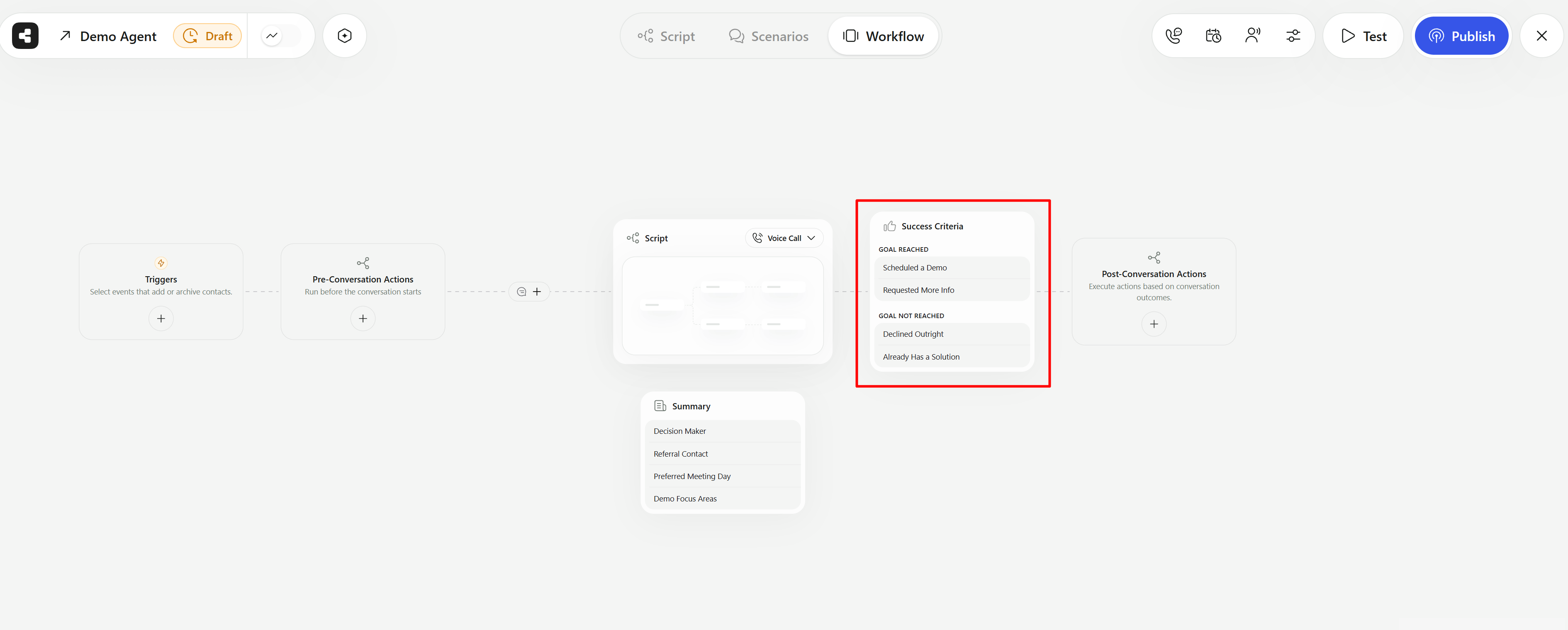
Open the agent, click Edit, and choose Success Criteria in the settings sidebar. You can also open it from the Success Criteria node on the workflow canvas.
The Success Criteria node on the Workflow tab lists the Goal Reached and Goal Not Reached outcomes.
2
Generate a starting set
Click Generate to have AI suggest criteria based on your script. Click Regenerate to get a new set.
3
Add or edit criteria
Click Add, or click a criterion to edit it. Fill in:
Title: the status shown on the contact, for example Follow-Up Scheduled. Titles must be unique within the agent.
Description: when this outcome applies, written for the AI, for example “The contact agreed to a follow-up call and gave a day and time.”
Status Group:Goal reached or Goal not reached.
Click Create or Update to save.
4
Choose the default
In the Goal Not Reached group, hover over a criterion and click Set as Default. The default is used when no other criterion matches. Out of the box it’s Not interested.
5
Mark as reviewed
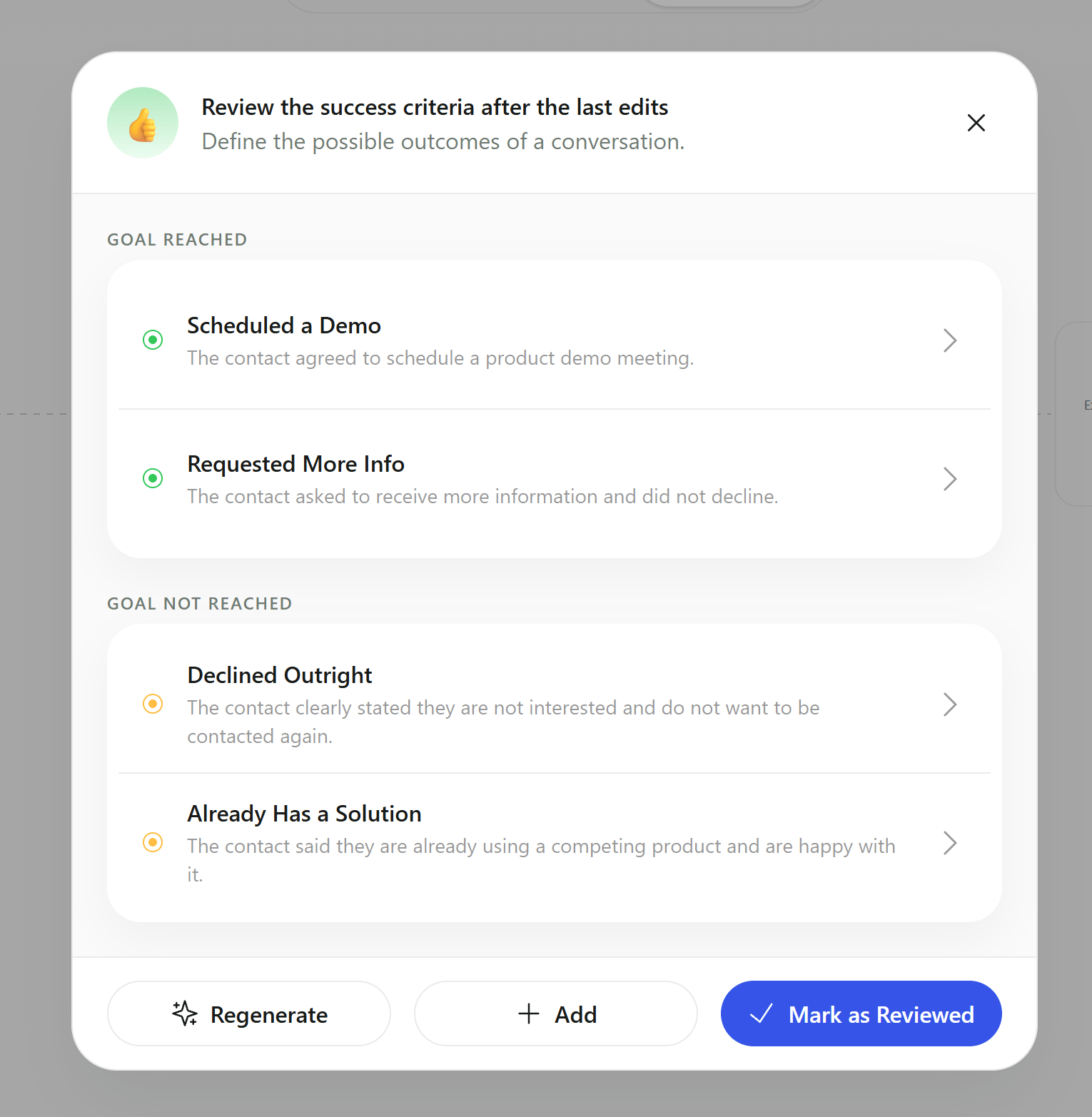
After you edit the script, the page shows “Review the success criteria after the last edits”. Check that your criteria still fit and click Mark as Reviewed.
The Success Criteria dialog asking for a review, with Regenerate, Add, and Mark as Reviewed.
Every voice agent includes built-in Goal Not Reached criteria. You can’t delete them:
Criterion
When it applies
Not interested
None of the other criteria matched. This is the initial default.
Wrong Number
The contact says you’ve reached the wrong person or number.
Do Not Call
The contact asks not to be contacted again.
Call Later
The contact is busy, asks for a callback, or is temporarily unavailable. Shown, with an editable description, only when Continue Dialing Attempts after “Call Later” is off. When it’s on, call-later contacts are retried instead.
Email agents include Unsubscribed and Invalid Email in place of the call-specific ones.
Don’t create custom criteria that mean the same thing as a built-in outcome, such as “Callback requested” or “Remove from list”. Callers warns you when a name is similar to a built-in status, because a custom criterion doesn’t trigger the same behavior (retries, Do Not Call handling) as the built-in one.
Criteria are checked against real conversations only. Unanswered calls, voicemail, and silent or very short calls are handled before classification and retried. See Statuses and outcomes.
Each criterion is checked against the conversation. If both a Goal Reached and a Goal Not Reached criterion match, the Goal Reached one wins. Among several matches in the same group, the strongest match wins.
If nothing matches, the conversation gets your default Goal Not Reached criterion.
The criterion’s name is shown as the contact’s and call’s status, so a contact can show “Follow-Up Scheduled” instead of “Interested”.
Success Rate counts every Goal Reached outcome, whatever its name.
Describe what happened in the conversation, not what you hope the contact feels. “The contact confirmed a demo date and time” is easier to classify than “The contact is excited about the product”.
Make goals verifiable. Name the action that proves success: booked, confirmed, agreed to pay, gave an email address.
Keep criteria distinct. If two descriptions could both match the same call, merge them or add a detail that separates them.
Use Goal Not Reached criteria to learn why. “Price too high”, “Using a competitor”, and “Not the decision maker” turn a single Not interested bucket into reasons you can act on.
Keep the list short. Three to six criteria per group is usually enough.
Each criterion creates its own webhook event, POST_PROCESSING_FINISHED:<criterion name>, which you can subscribe to in webhooks. See Webhook events for the full list. Renaming or deleting a criterion updates webhooks that use it.The webhook payload’s successCriteria object tells you the result:
"successCriteria": { "goalReached": true, "name": "Follow-Up Scheduled", "description": "The contact agreed to a follow-up call and gave a day and time.", "reason": "The contact asked to talk again on Thursday at 3 pm.", "type": "INTERESTED"}
Post-call actions can also run only for specific criteria, for example creating a CRM task only for “Follow-Up Scheduled”. Deleting a criterion asks you to confirm, and lists the post-call actions that use it.
POST /agents/{agentId}/update/interestcriteria replaces the agent’s whole set of criteria.
Request body
{ "successCriteria": { "interested": [ { "name": "Follow-Up Scheduled", "description": "The contact agreed to a follow-up call and gave a day and time.", "type": "INTERESTED", "order": 0 } ], "notInterested": [ { "name": "Using a competitor", "description": "The contact says they already use another provider and won't switch.", "type": "NOT_INTERESTED", "order": 0 } ] }}
Because the request replaces everything, read the agent first, change the criteria, and send back the full object.
Capture answers and details from each conversation.
Actions
Run follow-ups based on the outcome.
Agent results and insights
Track your success rate.
{"docsConfig":{"theme":"aspen","$schema":"https://mintlify.com/docs.json","name":"Callers","description":"Build AI agents that call, text, email, and talk to customers on your website. Guides, Web SDK, and API reference for the Callers platform.","colors":{"primary":"#3655E8","light":"#8EA0FF","dark":"#2A44C4"},"logo":{"light":"https://mintcdn.com/voxiaai/UdPum2goP7yfaYcC/logo/light.svg?fit=max\u0026auto=format\u0026n=UdPum2goP7yfaYcC\u0026q=85\u0026s=b1de758075c8bd929495ea22505d14b8","dark":"https://mintcdn.com/voxiaai/UdPum2goP7yfaYcC/logo/dark.svg?fit=max\u0026auto=format\u0026n=UdPum2goP7yfaYcC\u0026q=85\u0026s=cdb6dcbc265e95b7f15e77b15797cce6","href":"https://docs.callers.ai"},"favicon":"https://mintcdn.com/voxiaai/UdPum2goP7yfaYcC/logo/favicon.svg?fit=max\u0026auto=format\u0026n=UdPum2goP7yfaYcC\u0026q=85\u0026s=4a33273363fdf14d219145aa644b0ff7","appearance":{"default":"light","strict":false},"background":{"color":{"light":"#FFFFFF","dark":"#0A0D18"}},"navbar":{"links":[{"href":"https://www.callers.ai/book-a-meeting","label":"Book a demo"},{"href":"mailto:support@callers.ai","label":"Support"}],"primary":{"type":"button","label":"Open dashboard","href":"https://app.callers.ai"}},"footer":{"socials":{"linkedin":"https://www.linkedin.com/company/callersai","website":"https://www.callers.ai"},"links":[{"header":"Product","items":[{"label":"Website","href":"https://www.callers.ai"},{"label":"Dashboard","href":"https://app.callers.ai"},{"label":"Book a demo","href":"https://www.callers.ai/book-a-meeting"}]},{"header":"Developers","items":[{"label":"API Reference","href":"/api-reference/introduction"},{"label":"Web SDK","href":"/sdk/overview"},{"label":"SDK Playground","href":"https://sdk-playground.callers.dev"}]},{"header":"Company","items":[{"label":"Status","href":"https://status.callers.ai"},{"label":"Trust Center","href":"https://trust.callers.ai"},{"label":"Contact support","href":"mailto:support@callers.ai"}]}]},"search":{"prompt":"Search docs or ask a question…"},"seo":{"metatags":{"og:site_name":"Callers Docs"},"indexing":"navigable"},"fonts":{"family":"Inter"},"icons":{"library":"fontawesome"},"styling":{"codeblocks":"dark","latex":false},"errors":{"404":{"redirect":false}},"contextual":{"options":["copy","view","chatgpt","claude","perplexity","mcp","cursor","vscode"],"display":"header"},"navigation":{"global":{"anchors":[{"anchor":"Dashboard","icon":"browser","href":"https://app.callers.ai"},{"anchor":"Status","icon":"signal","href":"https://status.callers.ai"}]},"pages":[]}},"deployment":{"deploymentMetadataValue":{"subdomain":"voxiaai","hasAudioNarration":false,"actualSubdomain":"voxiaai","customDomains":["docs.callers.ai"],"gitSource":{"type":"github","owner":"amy-io","repo":"docs","deployBranch":"master","contentDirectory":"","isPrivate":true,"mountPath":"","label":""},"chroma":{"liveDeploymentHistoryId":"6adfa9943e86de84f663e8c9","collectionId":"41dd06f6-9239-41ff-8948-77c45e15c50c","schemaVersion":"v3","latestBuiltDeploymentHistoryId":"6adfa9943e86de84f663e8c9"},"entitlements":{},"buildId":"6adfa9943e86de84f663e8c9","clientVersion":"0.0.3971","searchFilterCounts":[{"language":"default","tag":"Guides","count":77},{"language":"default","tag":"API Reference","count":72},{"language":"default","tag":"Endpoints","count":59},{"language":"default","tag":"Integrations","count":19},{"language":"default","tag":"Web SDK","count":14},{"language":"default","tag":"Get started","count":11},{"language":"default","tag":"Build your agent","count":11},{"language":"default","tag":"Channels","count":11},{"language":"default","tag":"Agents","count":10},{"language":"default","tag":"Contacts","count":10}]},"assistantConfig":{},"basePath":"","hasChatPermissions":false,"hasWebMcpPermissions":false,"toggles":[{"name":"kill-isr","enabled":true,"variant":{"name":"disabled","enabled":false,"feature_enabled":true},"impressionData":false},{"name":"agent-mintlify-slack","enabled":true,"variant":{"name":"disabled","enabled":false,"feature_enabled":true},"impressionData":false},{"name":"editor-v7-file-tree","enabled":true,"variant":{"name":"disabled","enabled":false,"feature_enabled":true},"impressionData":false},{"name":"agent-integrations-settings","enabled":true,"variant":{"name":"disabled","enabled":false,"feature_enabled":true},"impressionData":false},{"name":"automations-pr-grouping","enabled":true,"variant":{"name":"disabled","enabled":false,"feature_enabled":true},"impressionData":false},{"name":"custom-prefix","enabled":true,"variant":{"name":"disabled","enabled":false,"feature_enabled":true},"impressionData":false},{"name":"analytics-v7","enabled":true,"variant":{"name":"disabled","enabled":false,"feature_enabled":true},"impressionData":false},{"name":"user-flows-analytics","enabled":true,"variant":{"name":"disabled","enabled":false,"feature_enabled":true},"impressionData":false},{"name":"no-publish-flow","enabled":true,"variant":{"name":"disabled","enabled":false,"feature_enabled":true},"impressionData":false},{"name":"workos-onboarding","enabled":true,"variant":{"name":"disabled","enabled":false,"feature_enabled":true},"impressionData":false},{"name":"llms-txt-v2","enabled":true,"variant":{"name":"disabled","enabled":false,"feature_enabled":true},"impressionData":false},{"name":"pause-universal-search-reconcile","enabled":true,"variant":{"name":"disabled","enabled":false,"feature_enabled":true},"impressionData":false},{"name":"snapshot-serving-live","enabled":true,"variant":{"name":"disabled","enabled":false,"feature_enabled":true},"impressionData":false},{"name":"stripTemperatureMiddleware","enabled":true,"variant":{"name":"disabled","enabled":false,"feature_enabled":true},"impressionData":false},{"name":"per-site-search-delta","enabled":true,"variant":{"name":"disabled","enabled":false,"feature_enabled":true},"impressionData":false},{"name":"support-platform-pylon-zendesk","enabled":true,"variant":{"name":"disabled","enabled":false,"feature_enabled":true},"impressionData":false},{"name":"snapshot-serving","enabled":true,"variant":{"name":"disabled","enabled":false,"feature_enabled":true},"impressionData":false},{"name":"instant-rollback","enabled":true,"variant":{"name":"disabled","enabled":false,"feature_enabled":true},"impressionData":false},{"name":"granular-notifications-server","enabled":true,"variant":{"name":"disabled","enabled":false,"feature_enabled":true},"impressionData":false},{"name":"granular-notifications","enabled":true,"variant":{"name":"disabled","enabled":false,"feature_enabled":true},"impressionData":false},{"name":"editor-private-page-search","enabled":true,"variant":{"name":"disabled","enabled":false,"feature_enabled":true},"impressionData":false},{"name":"automations-fable","enabled":true,"variant":{"name":"disabled","enabled":false,"feature_enabled":true},"impressionData":false},{"name":"fixed-ai-action-pricing","enabled":true,"variant":{"name":"disabled","enabled":false,"feature_enabled":true},"impressionData":false},{"name":"automation-resolve-merge-conflict","enabled":true,"variant":{"name":"disabled","enabled":false,"feature_enabled":true},"impressionData":false},{"name":"scoped-publishing","enabled":true,"variant":{"name":"disabled","enabled":false,"feature_enabled":true},"impressionData":false},{"name":"mintql","enabled":true,"variant":{"name":"disabled","enabled":false,"feature_enabled":true},"impressionData":false},{"name":"page-level-analytics","enabled":true,"variant":{"name":"disabled","enabled":false,"feature_enabled":true},"impressionData":false},{"name":"editor-version-history-v2","enabled":true,"variant":{"name":"disabled","enabled":false,"feature_enabled":true},"impressionData":false},{"name":"editor-nav-generations","enabled":true,"variant":{"name":"disabled","enabled":false,"feature_enabled":true},"impressionData":false},{"name":"billing-page-v2","enabled":true,"variant":{"name":"disabled","enabled":false,"feature_enabled":true},"impressionData":false},{"name":"workspace-projects","enabled":true,"variant":{"name":"disabled","enabled":false,"feature_enabled":true},"impressionData":false},{"name":"assistant-v5","enabled":true,"variant":{"name":"disabled","enabled":false,"feature_enabled":true},"impressionData":false},{"name":"byok-sep-25","enabled":true,"variant":{"name":"disabled","enabled":false,"feature_enabled":true},"impressionData":false},{"name":"fork-pr-previews","enabled":true,"variant":{"name":"disabled","enabled":false,"feature_enabled":true},"impressionData":false},{"name":"revalidation-jwt","enabled":true,"variant":{"name":"disabled","enabled":false,"feature_enabled":true},"impressionData":false},{"name":"vite-origin","enabled":true,"variant":{"name":"disabled","enabled":false,"feature_enabled":true},"impressionData":false},{"name":"editor-agent-model-picker","enabled":true,"variant":{"name":"disabled","enabled":false,"feature_enabled":true},"impressionData":false},{"name":"billing-updated-9-15","enabled":true,"variant":{"name":"disabled","enabled":false,"feature_enabled":true},"impressionData":false},{"name":"workos-sso-scim","enabled":true,"variant":{"name":"disabled","enabled":false,"feature_enabled":true},"impressionData":false},{"name":"hobby-abuse-scan","enabled":true,"variant":{"name":"disabled","enabled":false,"feature_enabled":true},"impressionData":false},{"name":"dashboard-inbox","enabled":true,"variant":{"name":"disabled","enabled":false,"feature_enabled":true},"impressionData":false},{"name":"workos-signup","enabled":true,"variant":{"name":"disabled","enabled":false,"feature_enabled":true},"impressionData":false},{"name":"workos-enabled","enabled":true,"variant":{"name":"disabled","enabled":false,"feature_enabled":true},"impressionData":false}],"isAtlas":false,"googleFontsInlined":false},"customCss":[{"filePath":"styles.css","href":"/_mintlify/custom/voxiaai/21a11cfc72d9362f/styles.css"}],"page":{"pagePath":"documentation/results/success-criteria","slug":"/documentation/results/success-criteria","pageMetadata":{"title":"Success criteria","sidebarTitle":"Success criteria","description":"Define what counts as a successful conversation so Callers can classify every call, chat, and email and measure your success rate.","icon":"bullseye","href":"/documentation/results/success-criteria"},"description":{"compiledSource":"\"use strict\";\nconst {jsx: _jsx} = arguments[0];\nconst {useMDXComponents: _provideComponents} = arguments[0];\nfunction _createMdxContent(props) {\n const _components = {\n p: \"p\",\n ..._provideComponents(),\n ...props.components\n };\n return _jsx(_components.p, {\n children: \"Define what counts as a successful conversation so Callers can classify every call, chat, and email and measure your success rate.\"\n });\n}\nfunction MDXContent(props = {}) {\n const {wrapper: MDXLayout} = {\n ..._provideComponents(),\n ...props.components\n };\n return MDXLayout ? _jsx(MDXLayout, {\n ...props,\n children: _jsx(_createMdxContent, {\n ...props\n })\n }) : _createMdxContent(props);\n}\nreturn {\n default: MDXContent\n};\n","frontmatter":{},"scope":{}},"pageType":"default","mdx":{"mdxSource":{"compiledSource":"\"use strict\";const{Fragment:_Fragment,jsx:_jsx,jsxs:_jsxs}=arguments[0];const{useMDXComponents:_provideComponents}=arguments[0];function _createMdxContent(props){const _components={a:`a`,code:`code`,li:`li`,p:`p`,pre:`pre`,span:`span`,strong:`strong`,tbody:`tbody`,td:`td`,th:`th`,thead:`thead`,tr:`tr`,ul:`ul`,..._provideComponents(),...props.components},{Card,CardGroup,CodeBlock,Frame,Heading,Info,OptimizedImage,Step,Steps,Table,Tip,Warning}=_components;if(!Card)_missingMdxReference(`Card`,true);if(!CardGroup)_missingMdxReference(`CardGroup`,true);if(!CodeBlock)_missingMdxReference(`CodeBlock`,true);if(!Frame)_missingMdxReference(`Frame`,true);if(!Heading)_missingMdxReference(`Heading`,true);if(!Info)_missingMdxReference(`Info`,true);if(!OptimizedImage)_missingMdxReference(`OptimizedImage`,true);if(!Step)_missingMdxReference(`Step`,true);if(!Steps)_missingMdxReference(`Steps`,true);if(!Table)_missingMdxReference(`Table`,true);if(!Tip)_missingMdxReference(`Tip`,true);if(!Warning)_missingMdxReference(`Warning`,true);return _jsxs(_Fragment,{children:[_jsxs(_components.p,{children:[`Success criteria are the possible outcomes of a conversation, written in plain language. After each conversation, Callers reads the transcript and picks the criterion that matches. The result becomes the contact’s status, drives your `,_jsx(_components.strong,{children:`Success Rate`}),`, triggers webhooks and post-call actions, and tells you who to follow up with.`]}),`\n`,_jsx(_components.p,{children:`Criteria come in two groups:`}),`\n`,_jsxs(_components.ul,{children:[`\n`,_jsxs(_components.li,{children:[_jsx(_components.strong,{children:`Goal Reached:`}),` the conversation did what the agent was built for, for example “Meeting booked” or “Payment promised”. These contacts count as `,_jsx(_components.strong,{children:`Interested`}),`.`]}),`\n`,_jsxs(_components.li,{children:[_jsx(_components.strong,{children:`Goal Not Reached:`}),` the conversation ended without that, for example “Already has a provider” or “Not the decision maker”. These contacts count as `,_jsx(_components.strong,{children:`Not interested`}),`.`]}),`\n`]}),`\n`,_jsx(Info,{children:_jsxs(_components.p,{children:[`Success criteria were previously called “interest criteria”. You’ll still see that name in the API (`,_jsx(_components.code,{children:`interestCriteriaV2`}),`) and in the legacy `,_jsx(_components.code,{children:`interested`}),` webhook field.`]})}),`\n`,_jsx(Heading,{level:`2`,id:`set-up-success-criteria`,children:`Set up success criteria`}),`\n`,_jsxs(Steps,{children:[_jsxs(Step,{title:`Open Success Criteria`,children:[_jsxs(_components.p,{children:[`Open the agent, click `,_jsx(_components.strong,{children:`Edit`}),`, and choose `,_jsx(_components.strong,{children:`Success Criteria`}),` in the settings sidebar. You can also open it from the `,_jsx(_components.strong,{children:`Success Criteria`}),` node on the workflow canvas.`]}),_jsx(Frame,{caption:`The Success Criteria node on the Workflow tab lists the Goal Reached and Goal Not Reached outcomes.`,children:_jsx(OptimizedImage,{src:`https://mintcdn.com/voxiaai/ELyrb3NxuHh0ILKS/images/documentation/build-your-agent/workflow-tab.png?fit=max\u0026auto=format\u0026n=ELyrb3NxuHh0ILKS\u0026q=85\u0026s=512189e7bb7ba5e9c77c8c33293c16d3`,alt:`Workflow tab of the agent editor with the Success Criteria node highlighted, showing Scheduled a Demo and Requested More Info under Goal Reached and Declined Outright and Already Has a Solution under Goal Not Reached, between the Script and Post-Conversation Actions nodes`,\"data-og-width\":`3780`,width:`3780`,\"data-og-height\":`1519`,height:`1519`,\"data-path\":`images/documentation/build-your-agent/workflow-tab.png`,\"data-optimize\":`true`,\"data-opv\":`3`,srcset:`https://mintcdn.com/voxiaai/ELyrb3NxuHh0ILKS/images/documentation/build-your-agent/workflow-tab.png?w=280\u0026fit=max\u0026auto=format\u0026n=ELyrb3NxuHh0ILKS\u0026q=85\u0026s=e405b0205dd46b98adea5ce5e4b587ca 280w, https://mintcdn.com/voxiaai/ELyrb3NxuHh0ILKS/images/documentation/build-your-agent/workflow-tab.png?w=560\u0026fit=max\u0026auto=format\u0026n=ELyrb3NxuHh0ILKS\u0026q=85\u0026s=50175d793506865c1626c3979c6bb249 560w, https://mintcdn.com/voxiaai/ELyrb3NxuHh0ILKS/images/documentation/build-your-agent/workflow-tab.png?w=840\u0026fit=max\u0026auto=format\u0026n=ELyrb3NxuHh0ILKS\u0026q=85\u0026s=e957eb87093b02a7765864c78ebec6b5 840w, https://mintcdn.com/voxiaai/ELyrb3NxuHh0ILKS/images/documentation/build-your-agent/workflow-tab.png?w=1100\u0026fit=max\u0026auto=format\u0026n=ELyrb3NxuHh0ILKS\u0026q=85\u0026s=0f07c893d8d12eb17c944ccf3c285dd8 1100w, https://mintcdn.com/voxiaai/ELyrb3NxuHh0ILKS/images/documentation/build-your-agent/workflow-tab.png?w=1650\u0026fit=max\u0026auto=format\u0026n=ELyrb3NxuHh0ILKS\u0026q=85\u0026s=0e838df79702132bbc0dae6813e55928 1650w, https://mintcdn.com/voxiaai/ELyrb3NxuHh0ILKS/images/documentation/build-your-agent/workflow-tab.png?w=2500\u0026fit=max\u0026auto=format\u0026n=ELyrb3NxuHh0ILKS\u0026q=85\u0026s=6c1b970d276ec063d1f382d423f56222 2500w`})})]}),_jsx(Step,{title:`Generate a starting set`,children:_jsxs(_components.p,{children:[`Click `,_jsx(_components.strong,{children:`Generate`}),` to have AI suggest criteria based on your script. Click `,_jsx(_components.strong,{children:`Regenerate`}),` to get a new set.`]})}),_jsxs(Step,{title:`Add or edit criteria`,children:[_jsxs(_components.p,{children:[`Click `,_jsx(_components.strong,{children:`Add`}),`, or click a criterion to edit it. Fill in:`]}),_jsxs(_components.ul,{children:[`\n`,_jsxs(_components.li,{children:[_jsx(_components.strong,{children:`Title:`}),` the status shown on the contact, for example `,_jsx(_components.code,{children:`Follow-Up Scheduled`}),`. Titles must be unique within the agent.`]}),`\n`,_jsxs(_components.li,{children:[_jsx(_components.strong,{children:`Description:`}),` when this outcome applies, written for the AI, for example “The contact agreed to a follow-up call and gave a day and time.”`]}),`\n`,_jsxs(_components.li,{children:[_jsx(_components.strong,{children:`Status Group:`}),` `,_jsx(_components.strong,{children:`Goal reached`}),` or `,_jsx(_components.strong,{children:`Goal not reached`}),`.`]}),`\n`]}),_jsxs(_components.p,{children:[`Click `,_jsx(_components.strong,{children:`Create`}),` or `,_jsx(_components.strong,{children:`Update`}),` to save.`]})]}),_jsx(Step,{title:`Choose the default`,children:_jsxs(_components.p,{children:[`In the `,_jsx(_components.strong,{children:`Goal Not Reached`}),` group, hover over a criterion and click `,_jsx(_components.strong,{children:`Set as Default`}),`. The default is used when no other criterion matches. Out of the box it’s `,_jsx(_components.strong,{children:`Not interested`}),`.`]})}),_jsxs(Step,{title:`Mark as reviewed`,children:[_jsxs(_components.p,{children:[`After you edit the script, the page shows “Review the success criteria after the last edits”. Check that your criteria still fit and click `,_jsx(_components.strong,{children:`Mark as Reviewed`}),`.`]}),_jsx(Frame,{caption:`The Success Criteria dialog asking for a review, with Regenerate, Add, and Mark as Reviewed.`,children:_jsx(OptimizedImage,{src:`https://mintcdn.com/voxiaai/ELyrb3NxuHh0ILKS/images/documentation/build-your-agent/success-criteria.png?fit=max\u0026auto=format\u0026n=ELyrb3NxuHh0ILKS\u0026q=85\u0026s=0bd081ce9949156b03642bf27a37a672`,alt:`Success Criteria dialog titled Review the success criteria after the last edits, listing Scheduled a Demo and Requested More Info under Goal Reached and Declined Outright and Already Has a Solution under Goal Not Reached, each with a description, and Regenerate, Add, and Mark as Reviewed buttons at the bottom`,style:{width:`70%`,margin:`0 auto`,display:`block`},\"data-og-width\":`1530`,width:`1530`,\"data-og-height\":`1565`,height:`1565`,\"data-path\":`images/documentation/build-your-agent/success-criteria.png`,\"data-optimize\":`true`,\"data-opv\":`3`,srcset:`https://mintcdn.com/voxiaai/ELyrb3NxuHh0ILKS/images/documentation/build-your-agent/success-criteria.png?w=280\u0026fit=max\u0026auto=format\u0026n=ELyrb3NxuHh0ILKS\u0026q=85\u0026s=af7622d6ffd4a35e93eff89e01593e18 280w, https://mintcdn.com/voxiaai/ELyrb3NxuHh0ILKS/images/documentation/build-your-agent/success-criteria.png?w=560\u0026fit=max\u0026auto=format\u0026n=ELyrb3NxuHh0ILKS\u0026q=85\u0026s=64c75f67b1dcdb28f68ac6030be2f5ce 560w, https://mintcdn.com/voxiaai/ELyrb3NxuHh0ILKS/images/documentation/build-your-agent/success-criteria.png?w=840\u0026fit=max\u0026auto=format\u0026n=ELyrb3NxuHh0ILKS\u0026q=85\u0026s=20d539297a48886e1374d1b95f4732ff 840w, https://mintcdn.com/voxiaai/ELyrb3NxuHh0ILKS/images/documentation/build-your-agent/success-criteria.png?w=1100\u0026fit=max\u0026auto=format\u0026n=ELyrb3NxuHh0ILKS\u0026q=85\u0026s=017ac306064fc1598c8ed0ec3f9ce094 1100w, https://mintcdn.com/voxiaai/ELyrb3NxuHh0ILKS/images/documentation/build-your-agent/success-criteria.png?w=1650\u0026fit=max\u0026auto=format\u0026n=ELyrb3NxuHh0ILKS\u0026q=85\u0026s=a234a2c334067daa2d7a6ed644e74d83 1650w, https://mintcdn.com/voxiaai/ELyrb3NxuHh0ILKS/images/documentation/build-your-agent/success-criteria.png?w=2500\u0026fit=max\u0026auto=format\u0026n=ELyrb3NxuHh0ILKS\u0026q=85\u0026s=44bc0103d2dc937dc9f02c446028a345 2500w`})})]})]}),`\n`,_jsx(Heading,{level:`2`,id:`built-in-criteria`,children:`Built-in criteria`}),`\n`,_jsxs(_components.p,{children:[`Every voice agent includes built-in `,_jsx(_components.strong,{children:`Goal Not Reached`}),` criteria. You can’t delete them:`]}),`\n`,_jsxs(Table,{children:[_jsx(_components.thead,{children:_jsxs(_components.tr,{children:[_jsx(_components.th,{style:{textAlign:`left`},children:`Criterion`}),_jsx(_components.th,{style:{textAlign:`left`},children:`When it applies`})]})}),_jsxs(_components.tbody,{children:[_jsxs(_components.tr,{children:[_jsx(_components.td,{style:{textAlign:`left`},children:_jsx(_components.strong,{children:`Not interested`})}),_jsx(_components.td,{style:{textAlign:`left`},children:`None of the other criteria matched. This is the initial default.`})]}),_jsxs(_components.tr,{children:[_jsx(_components.td,{style:{textAlign:`left`},children:_jsx(_components.strong,{children:`Wrong Number`})}),_jsx(_components.td,{style:{textAlign:`left`},children:`The contact says you’ve reached the wrong person or number.`})]}),_jsxs(_components.tr,{children:[_jsx(_components.td,{style:{textAlign:`left`},children:_jsx(_components.strong,{children:`Do Not Call`})}),_jsx(_components.td,{style:{textAlign:`left`},children:`The contact asks not to be contacted again.`})]}),_jsxs(_components.tr,{children:[_jsx(_components.td,{style:{textAlign:`left`},children:_jsx(_components.strong,{children:`Call Later`})}),_jsxs(_components.td,{style:{textAlign:`left`},children:[`The contact is busy, asks for a callback, or is temporarily unavailable. Shown, with an editable description, only when `,_jsx(_components.strong,{children:`Continue Dialing Attempts after “Call Later”`}),` is off. When it’s on, call-later contacts are retried instead.`]})]})]})]}),`\n`,_jsxs(_components.p,{children:[`Email agents include `,_jsx(_components.strong,{children:`Unsubscribed`}),` and `,_jsx(_components.strong,{children:`Invalid Email`}),` in place of the call-specific ones.`]}),`\n`,_jsx(Warning,{children:_jsx(_components.p,{children:`Don’t create custom criteria that mean the same thing as a built-in outcome, such as “Callback requested” or “Remove from list”. Callers warns you when a name is similar to a built-in status, because a custom criterion doesn’t trigger the same behavior (retries, Do Not Call handling) as the built-in one.`})}),`\n`,_jsx(Heading,{level:`2`,id:`how-criteria-are-applied`,children:`How criteria are applied`}),`\n`,_jsxs(_components.ul,{children:[`\n`,_jsxs(_components.li,{children:[`Criteria are checked against real conversations only. Unanswered calls, voicemail, and silent or very short calls are handled before classification and retried. See `,_jsx(_components.a,{href:`/documentation/using-callers/call-statuses`,children:`Statuses and outcomes`}),`.`]}),`\n`,_jsxs(_components.li,{children:[`Each criterion is checked against the conversation. If both a `,_jsx(_components.strong,{children:`Goal Reached`}),` and a `,_jsx(_components.strong,{children:`Goal Not Reached`}),` criterion match, the `,_jsx(_components.strong,{children:`Goal Reached`}),` one wins. Among several matches in the same group, the strongest match wins.`]}),`\n`,_jsxs(_components.li,{children:[`If nothing matches, the conversation gets your default `,_jsx(_components.strong,{children:`Goal Not Reached`}),` criterion.`]}),`\n`,_jsx(_components.li,{children:`The criterion’s name is shown as the contact’s and call’s status, so a contact can show “Follow-Up Scheduled” instead of “Interested”.`}),`\n`,_jsxs(_components.li,{children:[_jsx(_components.strong,{children:`Success Rate`}),` counts every `,_jsx(_components.strong,{children:`Goal Reached`}),` outcome, whatever its name.`]}),`\n`]}),`\n`,_jsx(Heading,{level:`2`,id:`writing-good-criteria`,children:`Writing good criteria`}),`\n`,_jsx(Tip,{children:_jsx(_components.p,{children:`Describe what happened in the conversation, not what you hope the contact feels. “The contact confirmed a demo date and time” is easier to classify than “The contact is excited about the product”.`})}),`\n`,_jsxs(_components.ul,{children:[`\n`,_jsxs(_components.li,{children:[_jsx(_components.strong,{children:`Make goals verifiable.`}),` Name the action that proves success: booked, confirmed, agreed to pay, gave an email address.`]}),`\n`,_jsxs(_components.li,{children:[_jsx(_components.strong,{children:`Keep criteria distinct.`}),` If two descriptions could both match the same call, merge them or add a detail that separates them.`]}),`\n`,_jsxs(_components.li,{children:[_jsx(_components.strong,{children:`Use Goal Not Reached criteria to learn why.`}),` “Price too high”, “Using a competitor”, and “Not the decision maker” turn a single Not interested bucket into reasons you can act on.`]}),`\n`,_jsxs(_components.li,{children:[_jsx(_components.strong,{children:`Keep the list short.`}),` Three to six criteria per group is usually enough.`]}),`\n`]}),`\n`,_jsx(Heading,{level:`2`,id:`use-criteria-in-automations`,children:`Use criteria in automations`}),`\n`,_jsxs(_components.p,{children:[`Each criterion creates its own webhook event, `,_jsx(_components.code,{children:`POST_PROCESSING_FINISHED:\u003ccriterion name>`}),`, which you can subscribe to in `,_jsx(_components.a,{href:`/documentation/webhook/webhook-overview`,children:`webhooks`}),`. See `,_jsx(_components.a,{href:`/documentation/webhook/webhook-events#outcome-events-and-success-criteria`,children:`Webhook events`}),` for the full list. Renaming or deleting a criterion updates webhooks that use it.`]}),`\n`,_jsxs(_components.p,{children:[`The `,_jsx(_components.a,{href:`/documentation/webhook/webhook-payload#status-and-outcome`,children:`webhook payload`}),`’s `,_jsx(_components.code,{children:`successCriteria`}),` object tells you the result:`]}),`\n`,_jsx(CodeBlock,{filename:``,numberOfLines:`7`,language:`json`,children:_jsx(_components.pre,{className:`shiki shiki-themes dark-plus dark-plus`,style:{backgroundColor:`#0B0C0E`,\"--shiki-dark-bg\":`#0B0C0E`,color:`#D4D4D4`,\"--shiki-dark\":`#D4D4D4`},language:`json`,children:_jsxs(_components.code,{language:`json`,numberOfLines:`7`,children:[_jsxs(_components.span,{className:`line`,children:[_jsx(_components.span,{style:{color:`#CE9178`,\"--shiki-dark\":`#CE9178`},children:`\"successCriteria\"`}),_jsx(_components.span,{style:{color:`#D4D4D4`,\"--shiki-dark\":`#D4D4D4`},children:`: {`})]}),`\n`,_jsxs(_components.span,{className:`line`,children:[_jsx(_components.span,{style:{color:`#9CDCFE`,\"--shiki-dark\":`#9CDCFE`},children:` \"goalReached\"`}),_jsx(_components.span,{style:{color:`#D4D4D4`,\"--shiki-dark\":`#D4D4D4`},children:`: `}),_jsx(_components.span,{style:{color:`#569CD6`,\"--shiki-dark\":`#569CD6`},children:`true`}),_jsx(_components.span,{style:{color:`#D4D4D4`,\"--shiki-dark\":`#D4D4D4`},children:`,`})]}),`\n`,_jsxs(_components.span,{className:`line`,children:[_jsx(_components.span,{style:{color:`#9CDCFE`,\"--shiki-dark\":`#9CDCFE`},children:` \"name\"`}),_jsx(_components.span,{style:{color:`#D4D4D4`,\"--shiki-dark\":`#D4D4D4`},children:`: `}),_jsx(_components.span,{style:{color:`#CE9178`,\"--shiki-dark\":`#CE9178`},children:`\"Follow-Up Scheduled\"`}),_jsx(_components.span,{style:{color:`#D4D4D4`,\"--shiki-dark\":`#D4D4D4`},children:`,`})]}),`\n`,_jsxs(_components.span,{className:`line`,children:[_jsx(_components.span,{style:{color:`#9CDCFE`,\"--shiki-dark\":`#9CDCFE`},children:` \"description\"`}),_jsx(_components.span,{style:{color:`#D4D4D4`,\"--shiki-dark\":`#D4D4D4`},children:`: `}),_jsx(_components.span,{style:{color:`#CE9178`,\"--shiki-dark\":`#CE9178`},children:`\"The contact agreed to a follow-up call and gave a day and time.\"`}),_jsx(_components.span,{style:{color:`#D4D4D4`,\"--shiki-dark\":`#D4D4D4`},children:`,`})]}),`\n`,_jsxs(_components.span,{className:`line`,children:[_jsx(_components.span,{style:{color:`#9CDCFE`,\"--shiki-dark\":`#9CDCFE`},children:` \"reason\"`}),_jsx(_components.span,{style:{color:`#D4D4D4`,\"--shiki-dark\":`#D4D4D4`},children:`: `}),_jsx(_components.span,{style:{color:`#CE9178`,\"--shiki-dark\":`#CE9178`},children:`\"The contact asked to talk again on Thursday at 3 pm.\"`}),_jsx(_components.span,{style:{color:`#D4D4D4`,\"--shiki-dark\":`#D4D4D4`},children:`,`})]}),`\n`,_jsxs(_components.span,{className:`line`,children:[_jsx(_components.span,{style:{color:`#9CDCFE`,\"--shiki-dark\":`#9CDCFE`},children:` \"type\"`}),_jsx(_components.span,{style:{color:`#D4D4D4`,\"--shiki-dark\":`#D4D4D4`},children:`: `}),_jsx(_components.span,{style:{color:`#CE9178`,\"--shiki-dark\":`#CE9178`},children:`\"INTERESTED\"`})]}),`\n`,_jsx(_components.span,{className:`line`,children:_jsx(_components.span,{style:{color:`#D4D4D4`,\"--shiki-dark\":`#D4D4D4`},children:`}`})}),`\n`]})})}),`\n`,_jsxs(_components.p,{children:[_jsx(_components.a,{href:`/documentation/build-your-agent/agent-actions`,children:`Post-call actions`}),` can also run only for specific criteria, for example creating a CRM task only for “Follow-Up Scheduled”. Deleting a criterion asks you to confirm, and lists the post-call actions that use it.`]}),`\n`,_jsx(Heading,{level:`2`,id:`set-criteria-with-the-api`,children:`Set criteria with the API`}),`\n`,_jsxs(_components.p,{children:[_jsx(_components.code,{children:`POST /agents/{agentId}/update/interestcriteria`}),` replaces the agent’s whole set of criteria.`]}),`\n`,_jsx(CodeBlock,{filename:`Request body`,numberOfLines:`20`,language:`json`,children:_jsx(_components.pre,{className:`shiki shiki-themes dark-plus dark-plus`,style:{backgroundColor:`#0B0C0E`,\"--shiki-dark-bg\":`#0B0C0E`,color:`#D4D4D4`,\"--shiki-dark\":`#D4D4D4`},language:`json`,children:_jsxs(_components.code,{language:`json`,numberOfLines:`20`,children:[_jsx(_components.span,{className:`line`,children:_jsx(_components.span,{style:{color:`#D4D4D4`,\"--shiki-dark\":`#D4D4D4`},children:`{`})}),`\n`,_jsxs(_components.span,{className:`line`,children:[_jsx(_components.span,{style:{color:`#9CDCFE`,\"--shiki-dark\":`#9CDCFE`},children:` \"successCriteria\"`}),_jsx(_components.span,{style:{color:`#D4D4D4`,\"--shiki-dark\":`#D4D4D4`},children:`: {`})]}),`\n`,_jsxs(_components.span,{className:`line`,children:[_jsx(_components.span,{style:{color:`#9CDCFE`,\"--shiki-dark\":`#9CDCFE`},children:` \"interested\"`}),_jsx(_components.span,{style:{color:`#D4D4D4`,\"--shiki-dark\":`#D4D4D4`},children:`: [`})]}),`\n`,_jsx(_components.span,{className:`line`,children:_jsx(_components.span,{style:{color:`#D4D4D4`,\"--shiki-dark\":`#D4D4D4`},children:` {`})}),`\n`,_jsxs(_components.span,{className:`line`,children:[_jsx(_components.span,{style:{color:`#9CDCFE`,\"--shiki-dark\":`#9CDCFE`},children:` \"name\"`}),_jsx(_components.span,{style:{color:`#D4D4D4`,\"--shiki-dark\":`#D4D4D4`},children:`: `}),_jsx(_components.span,{style:{color:`#CE9178`,\"--shiki-dark\":`#CE9178`},children:`\"Follow-Up Scheduled\"`}),_jsx(_components.span,{style:{color:`#D4D4D4`,\"--shiki-dark\":`#D4D4D4`},children:`,`})]}),`\n`,_jsxs(_components.span,{className:`line`,children:[_jsx(_components.span,{style:{color:`#9CDCFE`,\"--shiki-dark\":`#9CDCFE`},children:` \"description\"`}),_jsx(_components.span,{style:{color:`#D4D4D4`,\"--shiki-dark\":`#D4D4D4`},children:`: `}),_jsx(_components.span,{style:{color:`#CE9178`,\"--shiki-dark\":`#CE9178`},children:`\"The contact agreed to a follow-up call and gave a day and time.\"`}),_jsx(_components.span,{style:{color:`#D4D4D4`,\"--shiki-dark\":`#D4D4D4`},children:`,`})]}),`\n`,_jsxs(_components.span,{className:`line`,children:[_jsx(_components.span,{style:{color:`#9CDCFE`,\"--shiki-dark\":`#9CDCFE`},children:` \"type\"`}),_jsx(_components.span,{style:{color:`#D4D4D4`,\"--shiki-dark\":`#D4D4D4`},children:`: `}),_jsx(_components.span,{style:{color:`#CE9178`,\"--shiki-dark\":`#CE9178`},children:`\"INTERESTED\"`}),_jsx(_components.span,{style:{color:`#D4D4D4`,\"--shiki-dark\":`#D4D4D4`},children:`,`})]}),`\n`,_jsxs(_components.span,{className:`line`,children:[_jsx(_components.span,{style:{color:`#9CDCFE`,\"--shiki-dark\":`#9CDCFE`},children:` \"order\"`}),_jsx(_components.span,{style:{color:`#D4D4D4`,\"--shiki-dark\":`#D4D4D4`},children:`: `}),_jsx(_components.span,{style:{color:`#B5CEA8`,\"--shiki-dark\":`#B5CEA8`},children:`0`})]}),`\n`,_jsx(_components.span,{className:`line`,children:_jsx(_components.span,{style:{color:`#D4D4D4`,\"--shiki-dark\":`#D4D4D4`},children:` }`})}),`\n`,_jsx(_components.span,{className:`line`,children:_jsx(_components.span,{style:{color:`#D4D4D4`,\"--shiki-dark\":`#D4D4D4`},children:` ],`})}),`\n`,_jsxs(_components.span,{className:`line`,children:[_jsx(_components.span,{style:{color:`#9CDCFE`,\"--shiki-dark\":`#9CDCFE`},children:` \"notInterested\"`}),_jsx(_components.span,{style:{color:`#D4D4D4`,\"--shiki-dark\":`#D4D4D4`},children:`: [`})]}),`\n`,_jsx(_components.span,{className:`line`,children:_jsx(_components.span,{style:{color:`#D4D4D4`,\"--shiki-dark\":`#D4D4D4`},children:` {`})}),`\n`,_jsxs(_components.span,{className:`line`,children:[_jsx(_components.span,{style:{color:`#9CDCFE`,\"--shiki-dark\":`#9CDCFE`},children:` \"name\"`}),_jsx(_components.span,{style:{color:`#D4D4D4`,\"--shiki-dark\":`#D4D4D4`},children:`: `}),_jsx(_components.span,{style:{color:`#CE9178`,\"--shiki-dark\":`#CE9178`},children:`\"Using a competitor\"`}),_jsx(_components.span,{style:{color:`#D4D4D4`,\"--shiki-dark\":`#D4D4D4`},children:`,`})]}),`\n`,_jsxs(_components.span,{className:`line`,children:[_jsx(_components.span,{style:{color:`#9CDCFE`,\"--shiki-dark\":`#9CDCFE`},children:` \"description\"`}),_jsx(_components.span,{style:{color:`#D4D4D4`,\"--shiki-dark\":`#D4D4D4`},children:`: `}),_jsx(_components.span,{style:{color:`#CE9178`,\"--shiki-dark\":`#CE9178`},children:`\"The contact says they already use another provider and won't switch.\"`}),_jsx(_components.span,{style:{color:`#D4D4D4`,\"--shiki-dark\":`#D4D4D4`},children:`,`})]}),`\n`,_jsxs(_components.span,{className:`line`,children:[_jsx(_components.span,{style:{color:`#9CDCFE`,\"--shiki-dark\":`#9CDCFE`},children:` \"type\"`}),_jsx(_components.span,{style:{color:`#D4D4D4`,\"--shiki-dark\":`#D4D4D4`},children:`: `}),_jsx(_components.span,{style:{color:`#CE9178`,\"--shiki-dark\":`#CE9178`},children:`\"NOT_INTERESTED\"`}),_jsx(_components.span,{style:{color:`#D4D4D4`,\"--shiki-dark\":`#D4D4D4`},children:`,`})]}),`\n`,_jsxs(_components.span,{className:`line`,children:[_jsx(_components.span,{style:{color:`#9CDCFE`,\"--shiki-dark\":`#9CDCFE`},children:` \"order\"`}),_jsx(_components.span,{style:{color:`#D4D4D4`,\"--shiki-dark\":`#D4D4D4`},children:`: `}),_jsx(_components.span,{style:{color:`#B5CEA8`,\"--shiki-dark\":`#B5CEA8`},children:`0`})]}),`\n`,_jsx(_components.span,{className:`line`,children:_jsx(_components.span,{style:{color:`#D4D4D4`,\"--shiki-dark\":`#D4D4D4`},children:` }`})}),`\n`,_jsx(_components.span,{className:`line`,children:_jsx(_components.span,{style:{color:`#D4D4D4`,\"--shiki-dark\":`#D4D4D4`},children:` ]`})}),`\n`,_jsx(_components.span,{className:`line`,children:_jsx(_components.span,{style:{color:`#D4D4D4`,\"--shiki-dark\":`#D4D4D4`},children:` }`})}),`\n`,_jsx(_components.span,{className:`line`,children:_jsx(_components.span,{style:{color:`#D4D4D4`,\"--shiki-dark\":`#D4D4D4`},children:`}`})}),`\n`]})})}),`\n`,_jsx(_components.p,{children:`Because the request replaces everything, read the agent first, change the criteria, and send back the full object.`}),`\n`,_jsx(Heading,{level:`2`,id:`related`,children:`Related`}),`\n`,_jsxs(CardGroup,{cols:2,children:[_jsx(Card,{title:`Statuses and outcomes`,icon:`signal`,href:`/documentation/using-callers/call-statuses`,children:_jsx(_components.p,{children:`How each outcome is decided.`})}),_jsx(Card,{title:`Post-call analysis`,icon:`clipboard-list`,href:`/documentation/using-callers/key-questions`,children:_jsx(_components.p,{children:`Capture answers and details from each conversation.`})}),_jsx(Card,{title:`Actions`,icon:`bolt`,href:`/documentation/build-your-agent/agent-actions`,children:_jsx(_components.p,{children:`Run follow-ups based on the outcome.`})}),_jsx(Card,{title:`Agent results and insights`,icon:`chart-line`,href:`/documentation/using-callers/agent-insights`,children:_jsx(_components.p,{children:`Track your success rate.`})})]})]})}function MDXContent(props={}){const{wrapper:MDXLayout}={..._provideComponents(),...props.components};return MDXLayout?_jsx(MDXLayout,{...props,children:_jsx(_createMdxContent,{...props})}):_createMdxContent(props)}return{default:MDXContent};function _missingMdxReference(id,component){throw new Error(`Expected `+(component?`component`:`object`)+\" `\"+id+\"` to be defined: you likely forgot to import, pass, or provide it.\")}","frontmatter":{},"scope":{"codeStyling":"dark","config":{},"pageMetadata":{"title":"Success criteria","sidebarTitle":"Success criteria","description":"Define what counts as a successful conversation so Callers can classify every call, chat, and email and measure your success rate.","icon":"bullseye","href":"/documentation/results/success-criteria"}}},"mdxSourceWithNoJs":null},"mdxExtracts":{"tableOfContents":[{"title":"Set up success criteria","slug":"set-up-success-criteria","depth":2,"children":[]},{"title":"Built-in criteria","slug":"built-in-criteria","depth":2,"children":[]},{"title":"How criteria are applied","slug":"how-criteria-are-applied","depth":2,"children":[]},{"title":"Writing good criteria","slug":"writing-good-criteria","depth":2,"children":[]},{"title":"Use criteria in automations","slug":"use-criteria-in-automations","depth":2,"children":[]},{"title":"Set criteria with the API","slug":"set-criteria-with-the-api","depth":2,"children":[]},{"title":"Related","slug":"related","depth":2,"children":[]}],"codeExamples":{}},"jsLinks":[],"subdomain":"voxiaai","siteName":"Callers","title":"Success criteria - Callers","navMaps":{"firstHrefInVersion":{},"firstHrefInLanguage":{}},"lastModified":"2026-10-26T17:06:14.492Z","originalFileLocation":"documentation/results/success-criteria.mdx"},"headHtml":"\u003cscript data-mint-head>(function(){var d=document.documentElement,p=null;if(!p){try{p=localStorage.getItem(\"isDarkMode\")}catch(e){}if(p==='true')p='dark';else if(p==='false')p='light';if(p!=='light'\u0026\u0026p!=='dark'\u0026\u0026p!=='system')p=\"light\"}var r=p==='system'?(matchMedia(\"(prefers-color-scheme: dark)\").matches?'dark':'light'):p;d.classList.remove(r==='dark'?'light':'dark');d.classList.add(r);d.setAttribute(\"data-theme-preference\",p)})();\u003c/script>\u003cmeta data-mint-head name=\"description\" content=\"Define what counts as a successful conversation so Callers can classify every call, chat, and email and measure your success rate.\">\u003cmeta data-mint-head name=\"application-name\" content=\"Callers\">\u003cmeta data-mint-head name=\"generator\" content=\"Mintlify\">\u003clink data-mint-head rel=\"icon\" type=\"image/png\" sizes=\"192x192\" href=\"/mintlify-assets/_mintlify/favicons/voxiaai/QQLjIdxYdrMgCmrs/_generated/favicon/android-chrome-192x192.png\" media=\"(prefers-color-scheme: light)\">\u003clink data-mint-head rel=\"apple-touch-icon\" type=\"image/png\" sizes=\"180x180\" href=\"/mintlify-assets/_mintlify/favicons/voxiaai/QQLjIdxYdrMgCmrs/_generated/favicon/apple-touch-icon.png\">\u003clink data-mint-head rel=\"icon\" type=\"image/png\" sizes=\"16x16\" href=\"/mintlify-assets/_mintlify/favicons/voxiaai/QQLjIdxYdrMgCmrs/_generated/favicon/favicon-16x16.png\" media=\"(prefers-color-scheme: light)\">\u003clink data-mint-head rel=\"icon\" type=\"image/png\" sizes=\"32x32\" href=\"/mintlify-assets/_mintlify/favicons/voxiaai/QQLjIdxYdrMgCmrs/_generated/favicon/favicon-32x32.png\" media=\"(prefers-color-scheme: light)\">\u003clink data-mint-head rel=\"shortcut icon\" type=\"image/x-icon\" href=\"/mintlify-assets/_mintlify/favicons/voxiaai/QQLjIdxYdrMgCmrs/_generated/favicon/favicon.ico\" media=\"(prefers-color-scheme: light)\">\u003clink data-mint-head rel=\"icon\" type=\"image/png\" sizes=\"192x192\" href=\"/mintlify-assets/_mintlify/favicons/voxiaai/QQLjIdxYdrMgCmrs/_generated/favicon-dark/android-chrome-192x192.png\" media=\"(prefers-color-scheme: dark)\">\u003clink data-mint-head rel=\"icon\" type=\"image/png\" sizes=\"16x16\" href=\"/mintlify-assets/_mintlify/favicons/voxiaai/QQLjIdxYdrMgCmrs/_generated/favicon-dark/favicon-16x16.png\" media=\"(prefers-color-scheme: dark)\">\u003clink data-mint-head rel=\"icon\" type=\"image/png\" sizes=\"32x32\" href=\"/mintlify-assets/_mintlify/favicons/voxiaai/QQLjIdxYdrMgCmrs/_generated/favicon-dark/favicon-32x32.png\" media=\"(prefers-color-scheme: dark)\">\u003clink data-mint-head rel=\"shortcut icon\" type=\"image/x-icon\" href=\"/mintlify-assets/_mintlify/favicons/voxiaai/QQLjIdxYdrMgCmrs/_generated/favicon-dark/favicon.ico\" media=\"(prefers-color-scheme: dark)\">\u003cmeta data-mint-head property=\"og:title\" content=\"Success criteria - Callers\">\u003cmeta data-mint-head property=\"og:description\" content=\"Define what counts as a successful conversation so Callers can classify every call, chat, and email and measure your success rate.\">\u003cmeta data-mint-head property=\"og:site_name\" content=\"Callers Docs\">\u003cmeta data-mint-head property=\"og:url\" content=\"https://docs.callers.ai/documentation/results/success-criteria\">\u003cmeta data-mint-head property=\"og:type\" content=\"website\">\u003cmeta data-mint-head property=\"og:image\" content=\"https://voxiaai.mintlify.app/_mintlify/api/og/v2?division=Results+and+analytics\u0026amp;title=Success+criteria\u0026amp;description=Define+what+counts+as+a+successful+conversation+so+Callers+can+classify+every+call%2C+chat%2C+and+email+and+measure+your+success+rate.\u0026amp;theme=e7b044c42271a380df08b2cb\u0026amp;signature=062d292c329d4bdee4148f3a1d332b8551d893bc3774d286fa5dbe5ee58e2854\">\u003cmeta data-mint-head property=\"og:image:width\" content=\"1200\">\u003cmeta data-mint-head property=\"og:image:height\" content=\"630\">\u003cmeta data-mint-head name=\"twitter:card\" content=\"summary_large_image\">\u003cmeta data-mint-head name=\"twitter:title\" content=\"Success criteria - Callers\">\u003cmeta data-mint-head name=\"twitter:description\" content=\"Define what counts as a successful conversation so Callers can classify every call, chat, and email and measure your success rate.\">\u003cmeta data-mint-head name=\"twitter:image\" content=\"https://voxiaai.mintlify.app/_mintlify/api/og/v2?division=Results+and+analytics\u0026amp;title=Success+criteria\u0026amp;description=Define+what+counts+as+a+successful+conversation+so+Callers+can+classify+every+call%2C+chat%2C+and+email+and+measure+your+success+rate.\u0026amp;theme=e7b044c42271a380df08b2cb\u0026amp;signature=062d292c329d4bdee4148f3a1d332b8551d893bc3774d286fa5dbe5ee58e2854\">\u003cmeta data-mint-head name=\"twitter:image:width\" content=\"1200\">\u003cmeta data-mint-head name=\"twitter:image:height\" content=\"630\">\u003cmeta data-mint-head name=\"msapplication-config\" content=\"/mintlify-assets/_mintlify/favicons/voxiaai/QQLjIdxYdrMgCmrs/_generated/favicon/browserconfig.xml\">\u003cmeta data-mint-head name=\"apple-mobile-web-app-title\" content=\"Callers\">\u003cmeta data-mint-head name=\"msapplication-TileColor\" content=\"#3655E8\">\u003clink data-mint-head rel=\"canonical\" href=\"https://docs.callers.ai/documentation/results/success-criteria\">\u003clink data-mint-head rel=\"alternate\" type=\"application/xml\" href=\"/sitemap.xml\">\u003clink data-mint-head rel=\"alternate\" type=\"text/markdown\" href=\"/documentation/results/success-criteria.md\">\u003cscript data-mint-head type=\"application/ld+json\">{\"@context\":\"https://schema.org\",\"@graph\":[{\"@type\":\"Organization\",\"@id\":\"https://docs.callers.ai/#organization\",\"name\":\"Callers\",\"url\":\"https://docs.callers.ai\",\"logo\":{\"@type\":\"ImageObject\",\"url\":\"https://mintcdn.com/voxiaai/UdPum2goP7yfaYcC/logo/light.svg?fit=max\u0026auto=format\u0026n=UdPum2goP7yfaYcC\u0026q=85\u0026s=b1de758075c8bd929495ea22505d14b8\"}},{\"@type\":\"WebSite\",\"@id\":\"https://docs.callers.ai#website\",\"name\":\"Callers\",\"url\":\"https://docs.callers.ai\",\"publisher\":{\"@id\":\"https://docs.callers.ai/#organization\"}},{\"@type\":\"WebPage\",\"@id\":\"https://docs.callers.ai/documentation/results/success-criteria#webpage\",\"url\":\"https://docs.callers.ai/documentation/results/success-criteria\",\"name\":\"Success criteria\",\"description\":\"Define what counts as a successful conversation so Callers can classify every call, chat, and email and measure your success rate.\",\"dateModified\":\"2026-10-26T17:06:14.492Z\",\"isPartOf\":{\"@id\":\"https://docs.callers.ai#website\"},\"breadcrumb\":{\"@id\":\"https://docs.callers.ai/documentation/results/success-criteria#breadcrumb\"}},{\"@type\":\"BreadcrumbList\",\"@id\":\"https://docs.callers.ai/documentation/results/success-criteria#breadcrumb\",\"itemListElement\":[{\"@type\":\"ListItem\",\"position\":1,\"name\":\"Results and analytics\",\"item\":\"https://docs.callers.ai/documentation/using-callers/call-statuses\"},{\"@type\":\"ListItem\",\"position\":2,\"name\":\"Success criteria\",\"item\":\"https://docs.callers.ai/documentation/results/success-criteria\"}]},{\"@type\":[\"Article\",\"TechArticle\"],\"@id\":\"https://docs.callers.ai/documentation/results/success-criteria#article\",\"headline\":\"Success criteria\",\"name\":\"Success criteria\",\"description\":\"Define what counts as a successful conversation so Callers can classify every call, chat, and email and measure your success rate.\",\"url\":\"https://docs.callers.ai/documentation/results/success-criteria\",\"mainEntityOfPage\":{\"@id\":\"https://docs.callers.ai/documentation/results/success-criteria#webpage\"},\"dateModified\":\"2026-10-26T17:06:14.492Z\",\"publisher\":{\"@id\":\"https://docs.callers.ai/#organization\"},\"isPartOf\":{\"@id\":\"https://docs.callers.ai#website\"}}]}\u003c/script>\u003cscript data-mint-head type=\"application/ld+json\">{\"@context\":\"https://schema.org\",\"@type\":\"WebSite\",\"name\":\"Callers\",\"creator\":{\"@type\":\"Organization\",\"name\":\"Mintlify\",\"url\":\"https://mintlify.com\"}}\u003c/script>","siteName":"Callers","nav":{"global":{"anchors":[{"anchor":"Dashboard","icon":"browser","href":"https://app.callers.ai"},{"anchor":"Status","icon":"signal","href":"https://status.callers.ai"}]},"tabs":[{"tab":"Guides","icon":"book-open","groups":[{"group":"Get started","pages":[{"title":"Introduction","sidebarTitle":"Introduction","icon":"house","mode":"wide","href":"/documentation/get-started/getting-started-with-callers"},{"title":"Build your first agent in 10 minutes","sidebarTitle":"Quickstart","icon":"rocket","href":"/documentation/get-started/quickstart"},{"title":"Core concepts","icon":"diagram-project","href":"/documentation/get-started/core-concepts"},{"title":"One agent, every channel","sidebarTitle":"Multichannel agents","icon":"layer-group","href":"/documentation/get-started/multichannel"},{"title":"Use cases","icon":"lightbulb","href":"/documentation/get-started/use-cases"}]},{"group":"Build your agent","pages":[{"title":"Create an Agent","sidebarTitle":"Create an agent","icon":"rocket","href":"/documentation/build-your-agent/starting-a-new-agent"},{"title":"Script editor","sidebarTitle":"Script editor","icon":"diagram-project","href":"/documentation/build-your-agent/agent-script"},{"title":"Steps","icon":"shoe-prints","href":"/documentation/build-your-agent/customizing-steps"},{"title":"Variables","icon":"brackets-curly","href":"/documentation/build-your-agent/agent-variables"},{"title":"Scenarios","icon":"comments","href":"/documentation/build-your-agent/agent-scenarios"},{"title":"Actions","icon":"bolt","href":"/documentation/build-your-agent/agent-actions"},{"title":"Instructions and guardrails","sidebarTitle":"Instructions \u0026 guardrails","icon":"shield-check","href":"/documentation/build-your-agent/instructions-and-guardrails"},{"title":"Knowledge base","sidebarTitle":"Knowledge base","icon":"book","href":"/documentation/using-callers/knowledge-base"},{"title":"Agent settings","sidebarTitle":"Agent settings","icon":"sliders","href":"/documentation/build-your-agent/agent-setup"},{"title":"Pre-Call Chat","sidebarTitle":"Pre-call chat","icon":"message-question","href":"/documentation/build-your-agent/pre-call-chat"},{"title":"Studio Chat","icon":"sparkles","href":"/documentation/build-your-agent/studio-chat"}]},{"group":"Test and deploy","pages":[{"title":"Test Your Agent","sidebarTitle":"Test your agent","icon":"flask","href":"/documentation/build-your-agent/testing-your-agent"},{"title":"Versions and Split Traffic","sidebarTitle":"Versions \u0026 split traffic","icon":"code-branch","href":"/documentation/build-your-agent/versions-and-split-traffic"},{"title":"Path to production","sidebarTitle":"Go-live checklist","icon":"rocket","href":"/documentation/best-practices/path-to-production"}]},{"group":"Voice","pages":[{"title":"Voices and sounds","sidebarTitle":"Voices \u0026 sounds","icon":"waveform-lines","href":"/documentation/voice/voices-and-sounds"},{"title":"Conversation dynamics","sidebarTitle":"Conversation dynamics","icon":"comments","href":"/documentation/voice/conversation-dynamics"},{"title":"Supported languages","sidebarTitle":"Supported languages","icon":"language","href":"/documentation/using-callers/supported-languages"},{"title":"Pronunciation dictionary","sidebarTitle":"Pronunciation dictionary","icon":"spell-check","href":"/documentation/voice/pronunciation-dictionary"},{"title":"Speech recognition vocabulary","sidebarTitle":"Recognition vocabulary","icon":"ear-listen","href":"/documentation/voice/speech-recognition-vocabulary"},{"title":"Call transfers","sidebarTitle":"Call transfers","icon":"phone-arrow-up-right","href":"/documentation/voice/call-transfers"},{"title":"Voicemail and call screening","sidebarTitle":"Voicemail \u0026 screening","icon":"voicemail","href":"/documentation/voice/voicemail-and-screening"},{"title":"Keypad input (DTMF)","sidebarTitle":"Keypad input","icon":"table-cells","href":"/documentation/voice/keypad-input"},{"title":"Call recording and limits","sidebarTitle":"Recording \u0026 limits","icon":"stopwatch","href":"/documentation/voice/call-recording-and-limits"}]},{"group":"Channels","pages":[{"group":"Text","icon":"comment-dots","pages":[{"title":"Text agents","sidebarTitle":"Overview","icon":"messages","href":"/documentation/text-agents/overview"},{"title":"Text agent settings","sidebarTitle":"Setup","icon":"sliders","href":"/documentation/text-agents/text-agent-setup"},{"title":"Twilio SMS","icon":"comment-sms","href":"/documentation/text-agents/twilio-sms"},{"title":"Telnyx SMS","icon":"comment-sms","href":"/documentation/text-agents/telnyx-sms"},{"title":"WhatsApp","icon":"whatsapp","href":"/documentation/text-agents/whatsapp"}]},{"group":"Email","icon":"envelope","pages":[{"title":"Email agents","sidebarTitle":"Overview","icon":"envelope","href":"/documentation/email-agents/overview"},{"title":"Email setup","sidebarTitle":"Setup","icon":"sliders","href":"/documentation/email-agents/email-setup"},{"title":"Email approval","sidebarTitle":"Human approval","icon":"user-check","href":"/documentation/email-agents/email-approval"}]},{"group":"Website widget","icon":"window-restore","pages":[{"title":"Installing the widget","icon":"code","href":"/documentation/widget-agents/installing-the-widget"},{"title":"Styling the widget","icon":"palette","href":"/documentation/widget-agents/styling-the-widget"},{"title":"In-call forms","icon":"list-check","href":"/documentation/widget-agents/in-call-forms"}]}]},{"group":"Contacts and outreach","pages":[{"title":"Add and manage contacts","sidebarTitle":"Add contacts","icon":"address-book","href":"/documentation/using-callers/uploading-contacts"},{"title":"Scheduling and retries","sidebarTitle":"Scheduling and retries","icon":"calendar-clock","href":"/documentation/contacts/scheduling-and-retries"},{"title":"Phone numbers and caller ID","sidebarTitle":"Phone numbers","icon":"phone","href":"/documentation/contacts/phone-numbers-and-caller-id"},{"title":"Do Not Call list","sidebarTitle":"Do Not Call list","icon":"phone-slash","href":"/documentation/contacts/do-not-call"},{"title":"Contact memory","sidebarTitle":"Contact memory","icon":"brain","href":"/documentation/contacts/contact-memory"},{"title":"Global Search","icon":"magnifying-glass","iconType":"regular","href":"/documentation/using-callers/global-search"}]},{"group":"Results and analytics","pages":[{"title":"Statuses and outcomes","sidebarTitle":"Statuses and outcomes","description":"What each call, contact, chat, and email status means, and how Callers decides the outcome of every conversation.","icon":"signal","href":"/documentation/using-callers/call-statuses"},{"title":"Success criteria","sidebarTitle":"Success criteria","icon":"bullseye","href":"/documentation/results/success-criteria"},{"title":"Post-call analysis","sidebarTitle":"Post-call analysis","description":"Turn every conversation into structured data with key questions, summaries, unanswered questions, promised actions, and extracted variables.","icon":"clipboard-list","href":"/documentation/using-callers/key-questions"},{"title":"Agent results and insights","sidebarTitle":"Results and insights","icon":"chart-line","href":"/documentation/using-callers/agent-insights"},{"title":"Analytics","icon":"chart-mixed","href":"/documentation/using-callers/analytics"},{"title":"Reporting call issues","sidebarTitle":"Report a call issue","icon":"flag","href":"/documentation/using-callers/reporting-call-issues"}]},{"group":"Human operators","pages":[{"title":"Human Operators","sidebarTitle":"Human operators","icon":"headset","href":"/documentation/human-operators/overview"}]},{"group":"Best practices","pages":[{"title":"Prompting voice agents","sidebarTitle":"Prompting for voice","icon":"pen-nib","href":"/documentation/best-practices/prompting-voice-agents"},{"title":"Latency and conversation quality","sidebarTitle":"Latency and quality","icon":"gauge-high","href":"/documentation/best-practices/latency-and-conversation-quality"},{"title":"Improve answer rates","sidebarTitle":"Improve answer rates","icon":"phone-volume","href":"/documentation/best-practices/improve-answer-rates"},{"title":"Calling and messaging compliance","sidebarTitle":"Compliance","icon":"scale-balanced","href":"/documentation/best-practices/compliance"}]},{"group":"Account and administration","pages":[{"title":"Team and permissions","sidebarTitle":"Team \u0026 permissions","icon":"users","href":"/documentation/account/team-and-permissions"},{"title":"API Keys","sidebarTitle":"API keys","icon":"key","href":"/documentation/using-callers/generate-api-key"},{"title":"Security and Privacy","sidebarTitle":"Security \u0026 privacy","icon":"shield-check","href":"/documentation/account/security-and-privacy"},{"title":"Notifications","icon":"bell","href":"/documentation/account/notifications"},{"title":"Single sign-on (SSO)","sidebarTitle":"Single sign-on (SSO)","icon":"right-to-bracket","href":"/documentation/using-callers/sso-login"},{"title":"Managing subaccounts","sidebarTitle":"Subaccounts","icon":"sitemap","href":"/documentation/agencies/managing-subaccounts"},{"title":"White label","sidebarTitle":"White label","icon":"paintbrush","href":"/documentation/agencies/white-label"}]},{"group":"Enterprise","pages":[{"title":"Callers for Enterprise","sidebarTitle":"Overview","icon":"building","href":"/documentation/enterprise/overview"},{"title":"Bring Your Own LLM","sidebarTitle":"Bring your own LLM","icon":"microchip","href":"/documentation/enterprise/bring-your-own-llm"}]},{"group":"Resources","pages":[{"title":"Frequently asked questions","sidebarTitle":"FAQ","icon":"circle-question","href":"/documentation/resources/faq"},{"title":"Troubleshooting","icon":"screwdriver-wrench","href":"/documentation/resources/troubleshooting"},{"title":"Glossary","icon":"book","href":"/documentation/resources/glossary"},{"group":"Legal","icon":"scale-balanced","pages":[{"title":"Terms of Service","icon":"file-contract","url":"https://www.callers.ai/terms-of-use/","href":"/documentation/legal/terms-of-service"},{"title":"Privacy Policy","icon":"user-shield","mode":"wide","href":"/documentation/legal/privacy-policy"},{"title":"Open Source Attribution","icon":"code-branch","mode":"wide","href":"/documentation/legal/open-source-attribution"}]}]}]},{"tab":"Integrations","icon":"grid-2","pages":[{"title":"Integrations","href":"/documentation/integrations/catalog"}]},{"tab":"Web SDK","icon":"code","pages":[{"title":"Web SDK","href":"/sdk/overview"}]},{"tab":"API Reference","icon":"brackets-curly","pages":[{"title":"API Reference","href":"/api-reference/introduction"}]},{"tab":"Changelog","icon":"sparkles","pages":[{"title":"Changelog","href":"/documentation/resources/changelog"}]}]},"title":"Success criteria - Callers","buildId":"dpl_DFJrtvUi8HS5F9nkooKuDJsuD5BM","deploymentId":"dpl_DFJrtvUi8HS5F9nkooKuDJsuD5BM","dynamics":["07c022d89b","a74be98ba7"],"chunks":["Frame-COGkNuA6.js","DynamicMarkdown-85clUA0i.js","zoom-image-lightbox-BZxD9MAj.js","lightbox-handle-r17bVUz3.js"]}