

<script> tag on your site for a ready-made call widget, or drive the same engine from your own code and UI.
Web calls (the widget) are enabled per account. Contact support@callers.ai to turn them on.
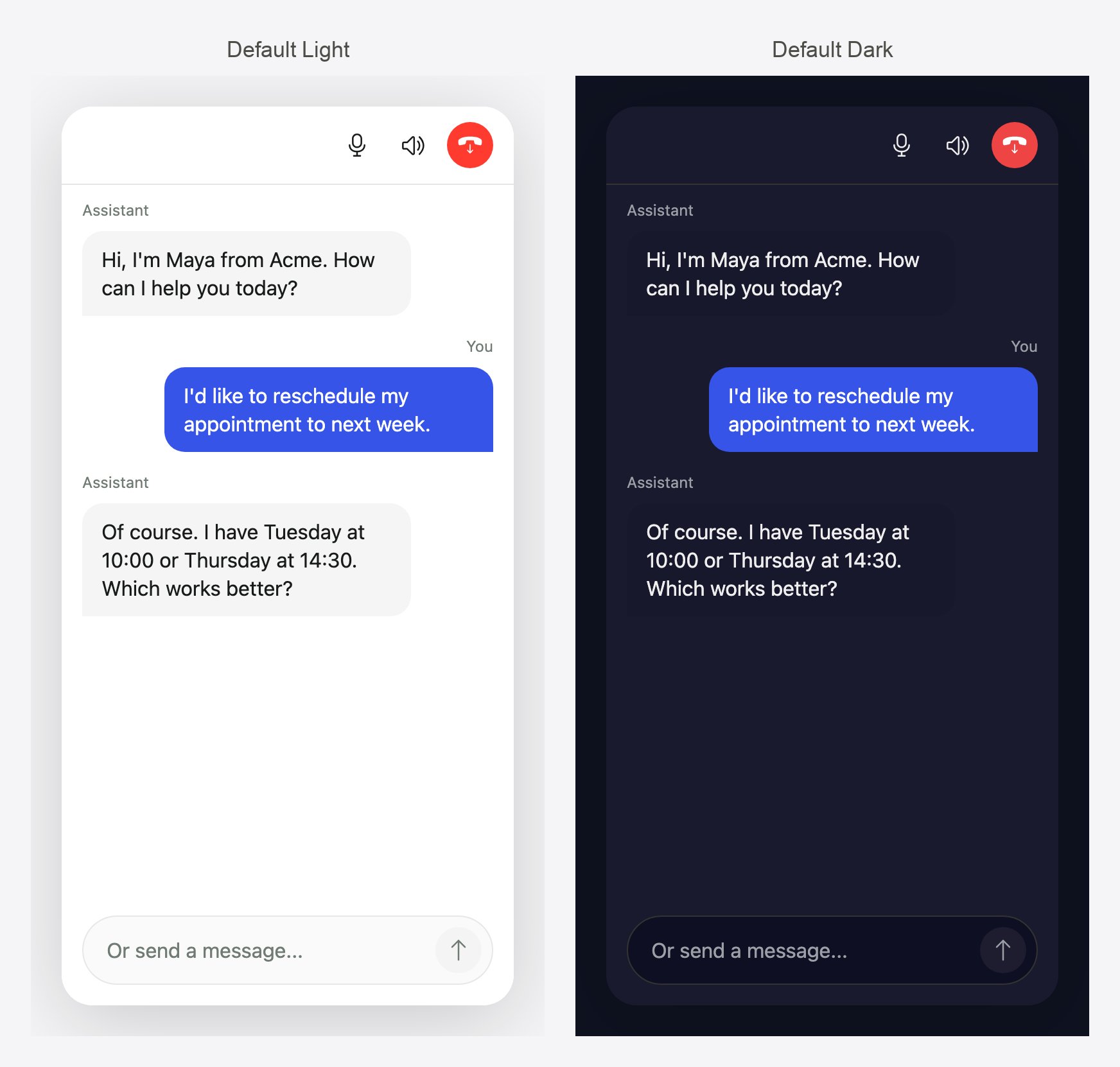
The call window during a voice call, in the Default Light and Default Dark themes. The visitor can keep typing while they talk.
Quickstart
A working widget in two minutes, a programmatic integration in five.
Open the playground
Try every option against your own agent, then copy the code.
What you can build
Voice and text calls
One widget handles both. A text conversation can switch to voice mid-call when the visitor turns on their microphone.
Live transcript
Stream every message as it happens, to the built-in window or your own UI.
In-call forms
The agent can show forms, step-by-step questions and generated UI that the visitor fills in during the call.
Theming
Match your brand with a JSON theme, set in the dashboard or in code.
Talking avatars
Give the agent a live, lip-synced face that runs in the visitor’s browser.
Page Guide
Let the agent see the page and highlight or scroll to what it is talking about.
Bot protection
Require a Cloudflare Turnstile check before a call can start.
Noise suppression
AI noise suppression cleans up the visitor’s microphone in the browser, on by default.
Two ways to integrate
Both paths use the same file,
https://cdn.callers.ai/sdk.js. When the script tag carries data-agent (or data-token), it creates the widget automatically and exposes it as window.Callers.widget. Without those attributes, it only exposes the CallersWebSdk global for you to use.
How it works
- The SDK asks the Callers API to start a web call for your agent. The API checks that the page’s domain is allowed, or that the request carries a valid token, and that bot protection passed if it is enabled.
- The API returns one-time call credentials, and the SDK connects the visitor’s microphone over WebRTC.
- The transcript streams back to the browser while the call runs. Typed messages and form answers go back to the agent through the API.
Requirements
Browser support
Browser support
Any current version of Chrome, Edge, Firefox or Safari, on desktop or mobile. The SDK uses WebRTC, the Web Audio API and
EventSource, which all of these support.HTTPS
HTTPS
Serve your page over
https://. Browsers only allow microphone access on secure pages (http://localhost is the exception for development). A page opened from a local file:// path sends no origin and is rejected.Microphone permission
Microphone permission
The browser asks the visitor for microphone access when a call starts. If they decline, the call cannot connect. Inside an
<iframe>, the frame needs allow="microphone".WebGPU for avatars (optional)
WebGPU for avatars (optional)
Talking avatars render in the browser. They use WebGPU when it is available and fall back to WebAssembly on the CPU. If the avatar cannot run at all, the call continues without it. See Avatars.
Content Security Policy
Content Security Policy
If your site sends a CSP header, allow:
script-src https://cdn.callers.aifor the SDK, plushttps://challenges.cloudflare.comif bot protection is on.connect-src https://api.callers.aiandwss:for the call connection.frame-src https://challenges.cloudflare.comif bot protection is on.- For avatars:
https://cdn.callers.ai(avatar files),https://cdn.jsdelivr.net(in-browser runtime) andhttps://storage.googleapis.com(only for avatar backgrounds other than the photo).
Related
Install the widget from the dashboard
Turn on the widget for an agent, add your domains and copy the snippet.
Style the widget
Build a theme visually in the dashboard.