

Setting Up a Trigger
To get started, go to your campaign settings and open the Workflow tab. The trigger block appears as the first element in your workflow.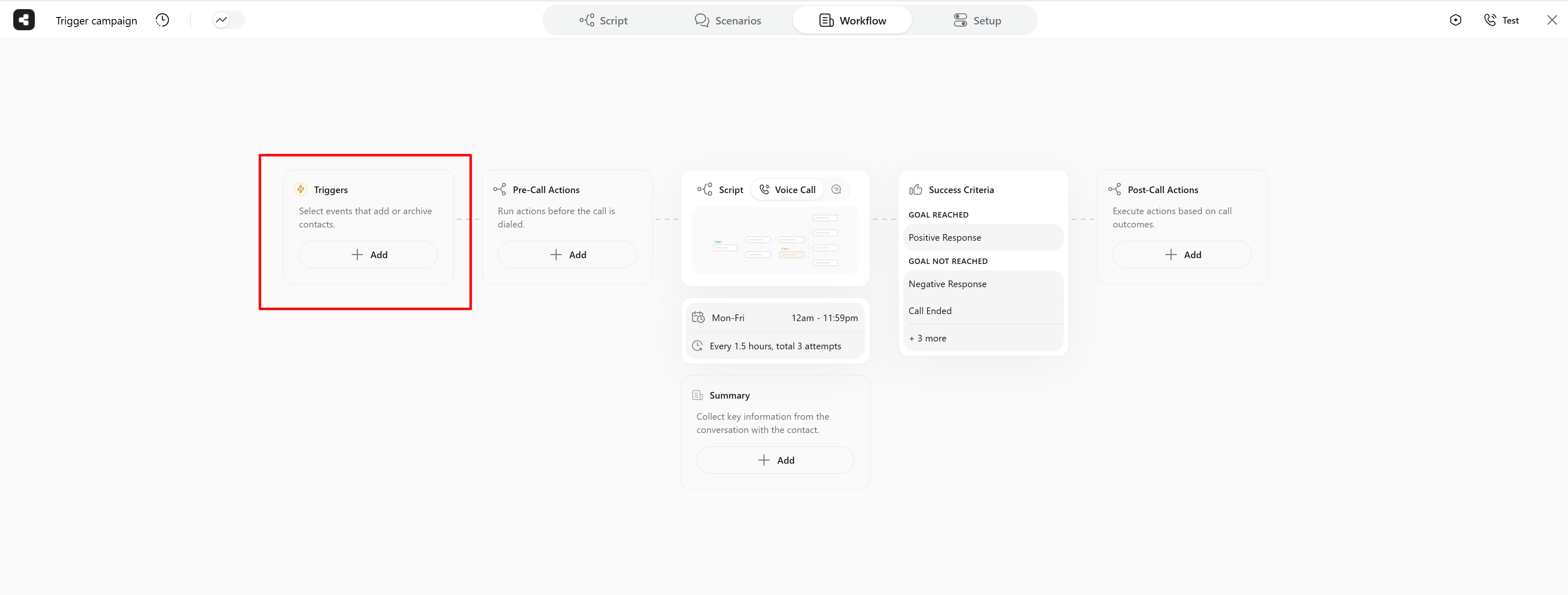
Trigger block in the workflow
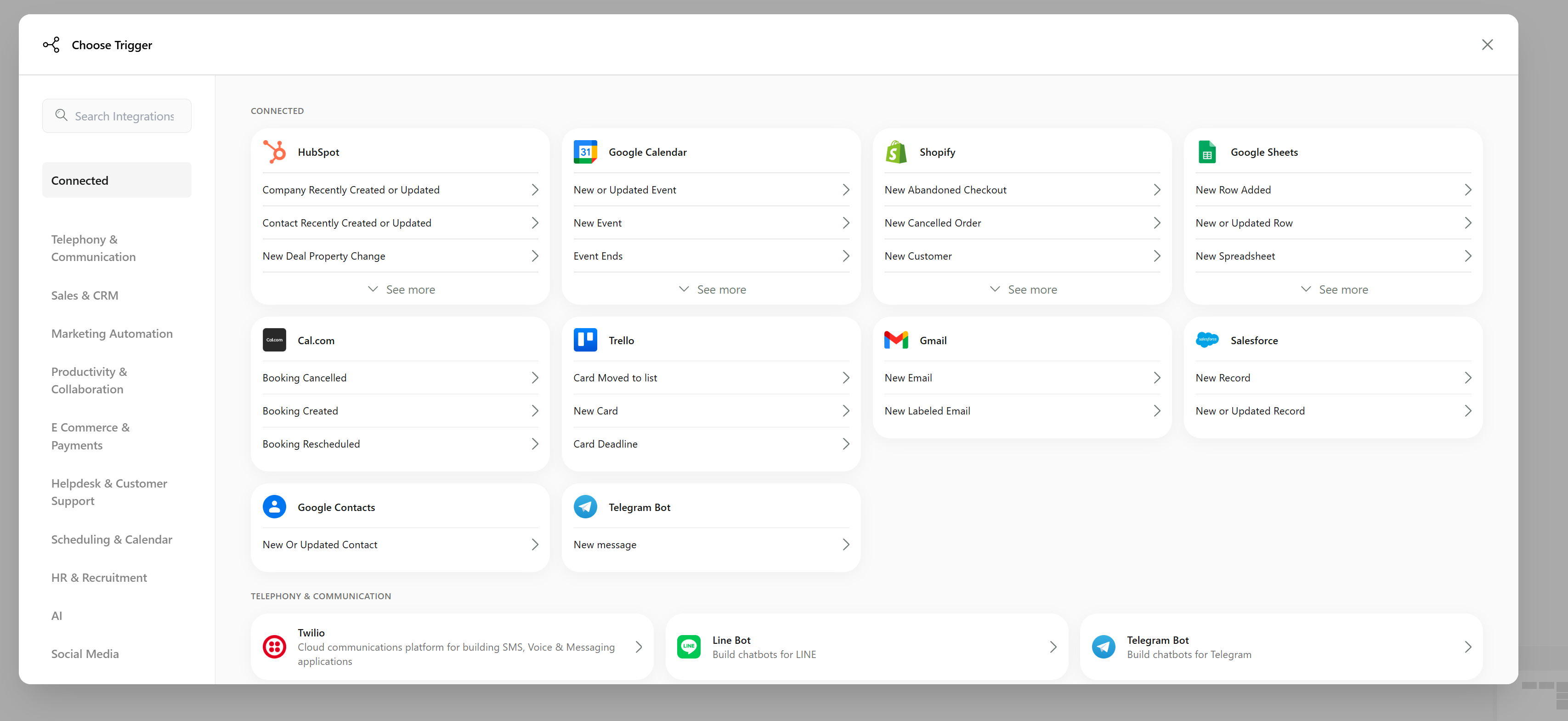
Selecting a trigger from connected apps
Trigger Types
Triggers come in two types: instant and scheduled. Instant triggers add contacts as soon as the action fires, while scheduled triggers check for new data at regular intervals (typically every 5 minutes). Both types are configured the same way. Each trigger has a label indicating its type — look for the Instant label with a lightning bolt icon or the Scheduled label with a clock icon next to each trigger name.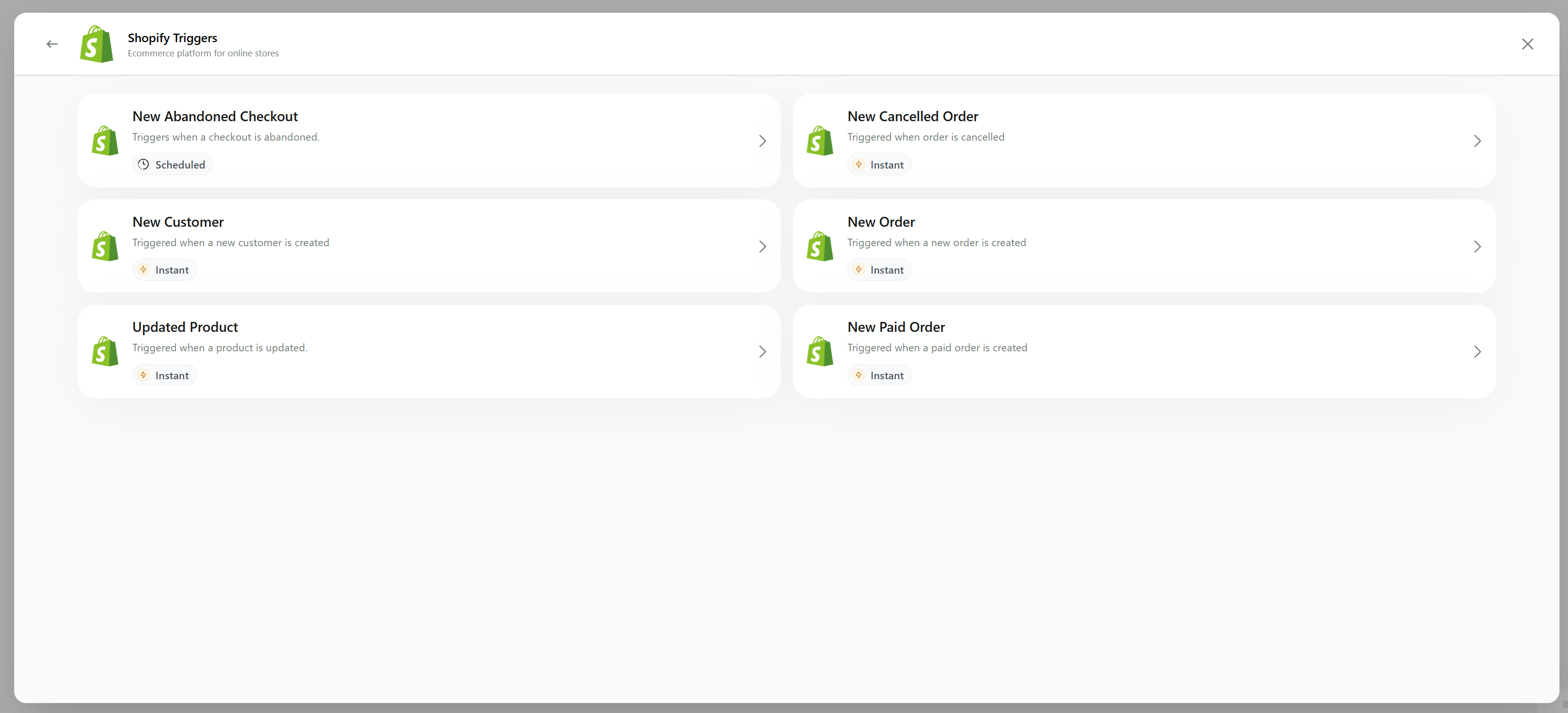
Trigger types
Example: Setting Up a HubSpot Trigger
Let’s set up a HubSpot trigger as an example. HubSpot uses scheduled triggers, so we’ll configure the New Contact trigger to automatically add contacts whenever they’re created in HubSpot.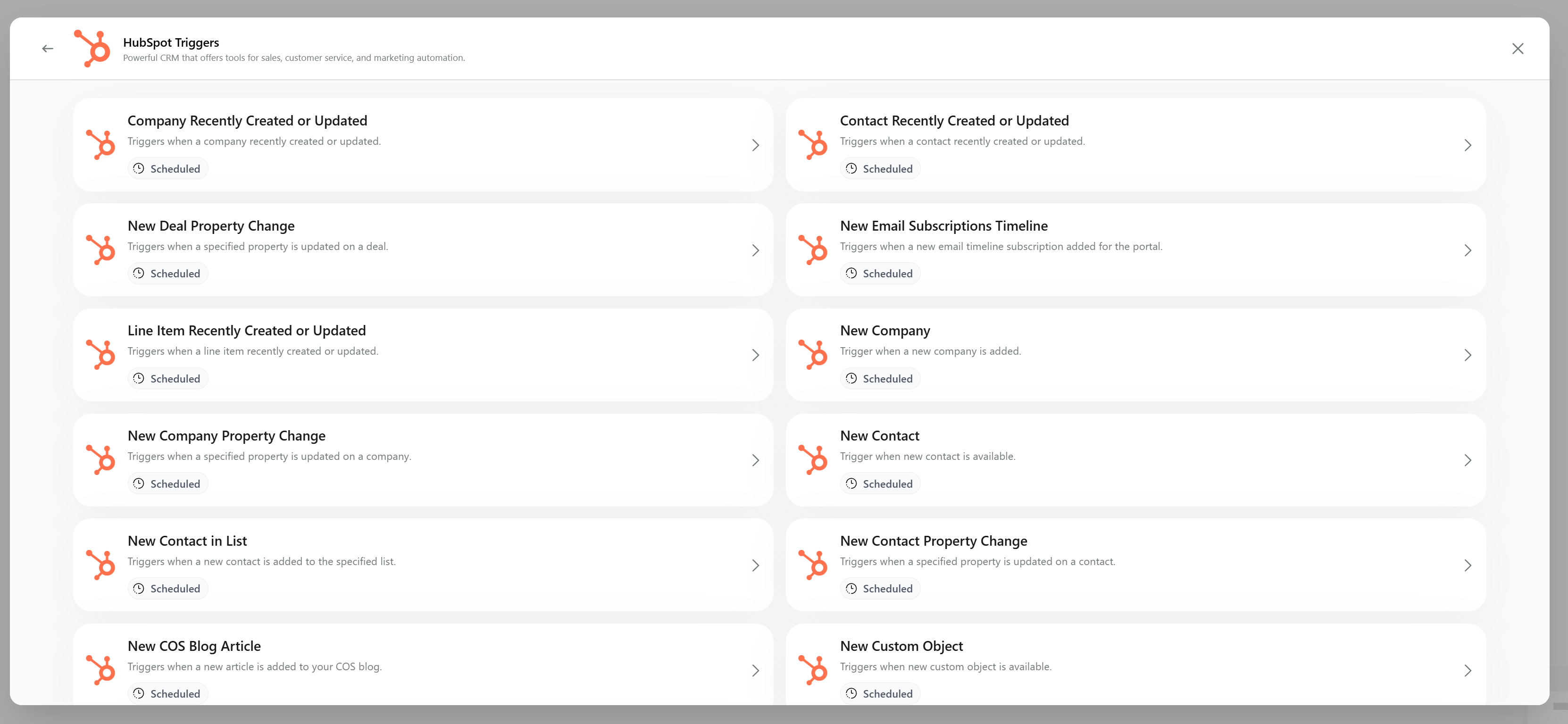
HubSpot triggers
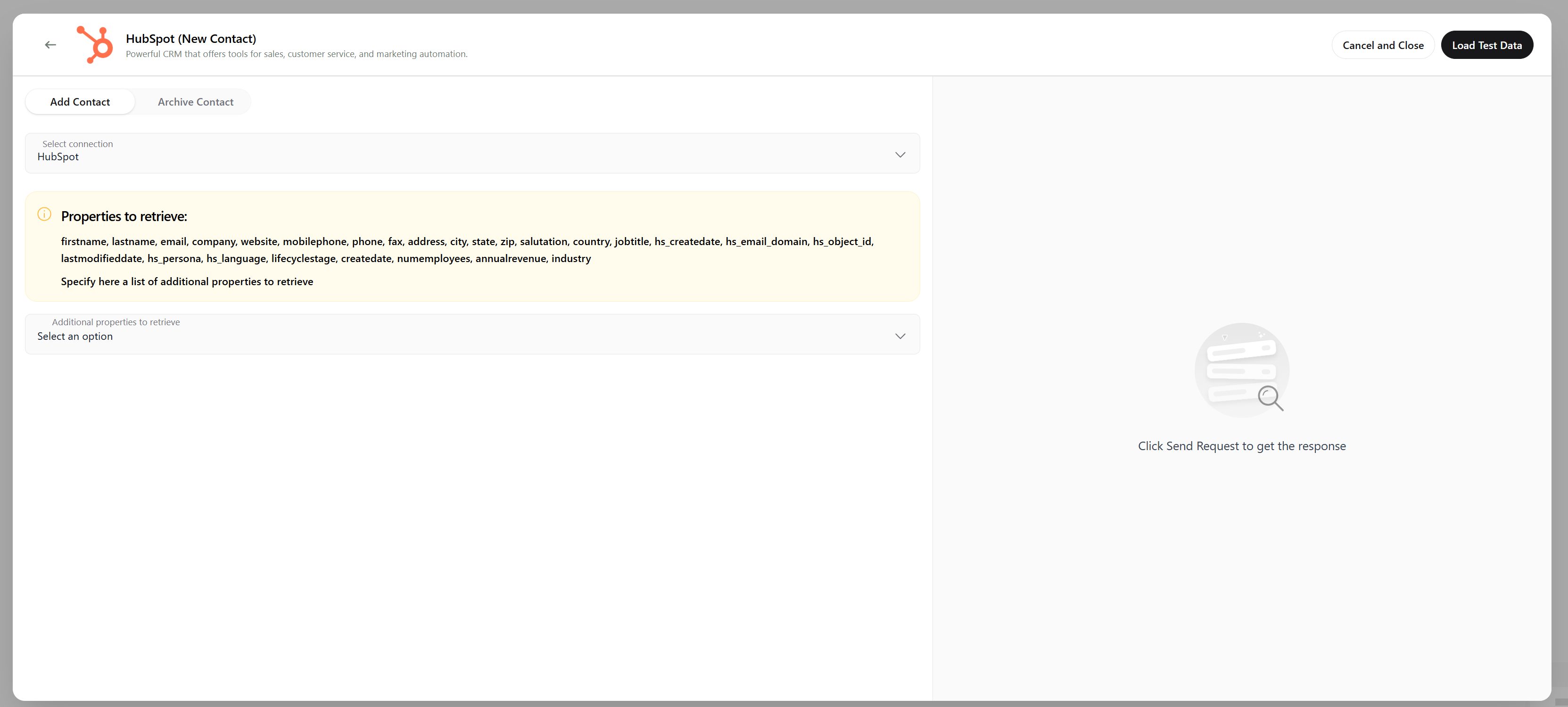
Loading test data for the trigger
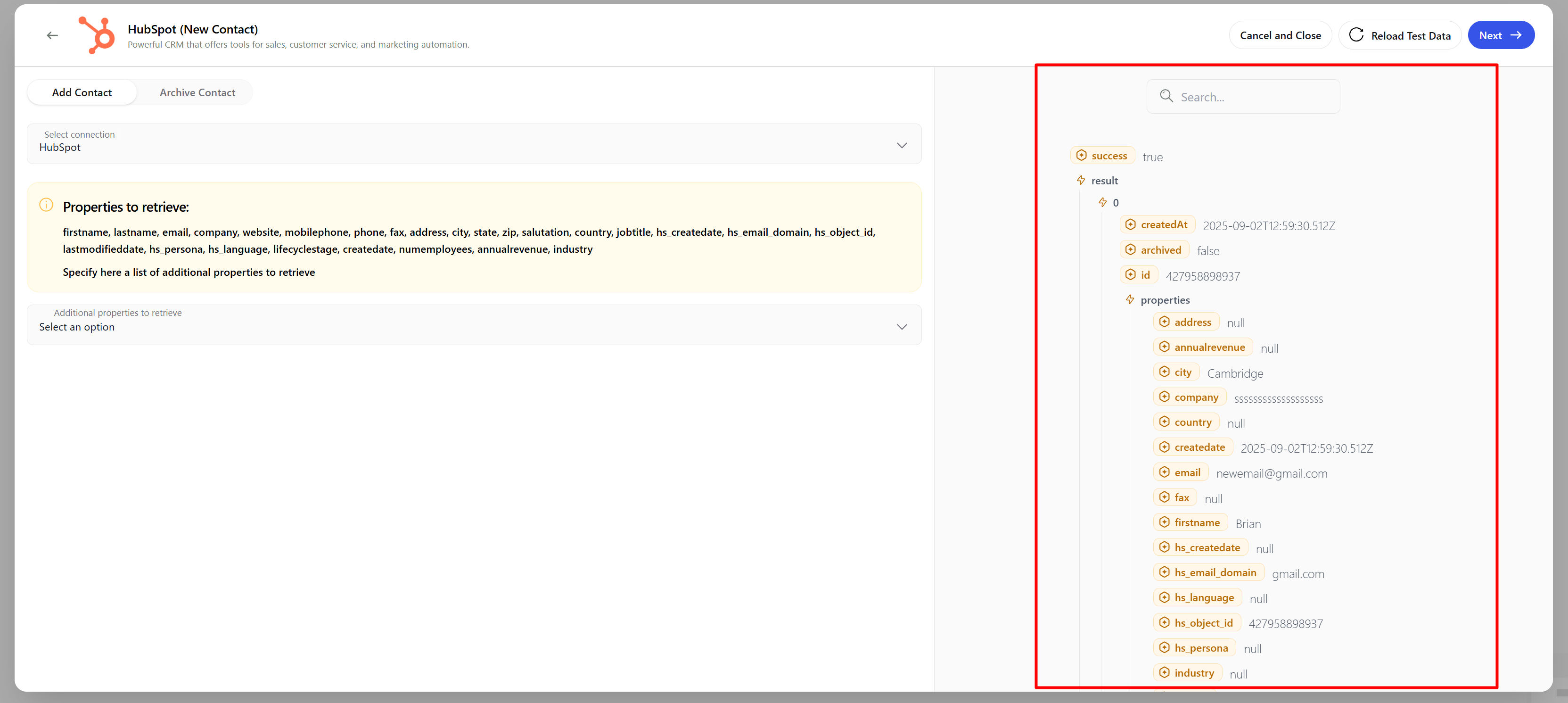
Test contact loaded successfully
Mapping Contact Variables
In the next window, map your AI script’s contact variables to the fields coming from the trigger. Click Choose next to each variable and select the matching field from the trigger data.Important: Make sure phone numbers are in E.164 format — they must start with a plus sign and include the country code (for example,
+14155552671).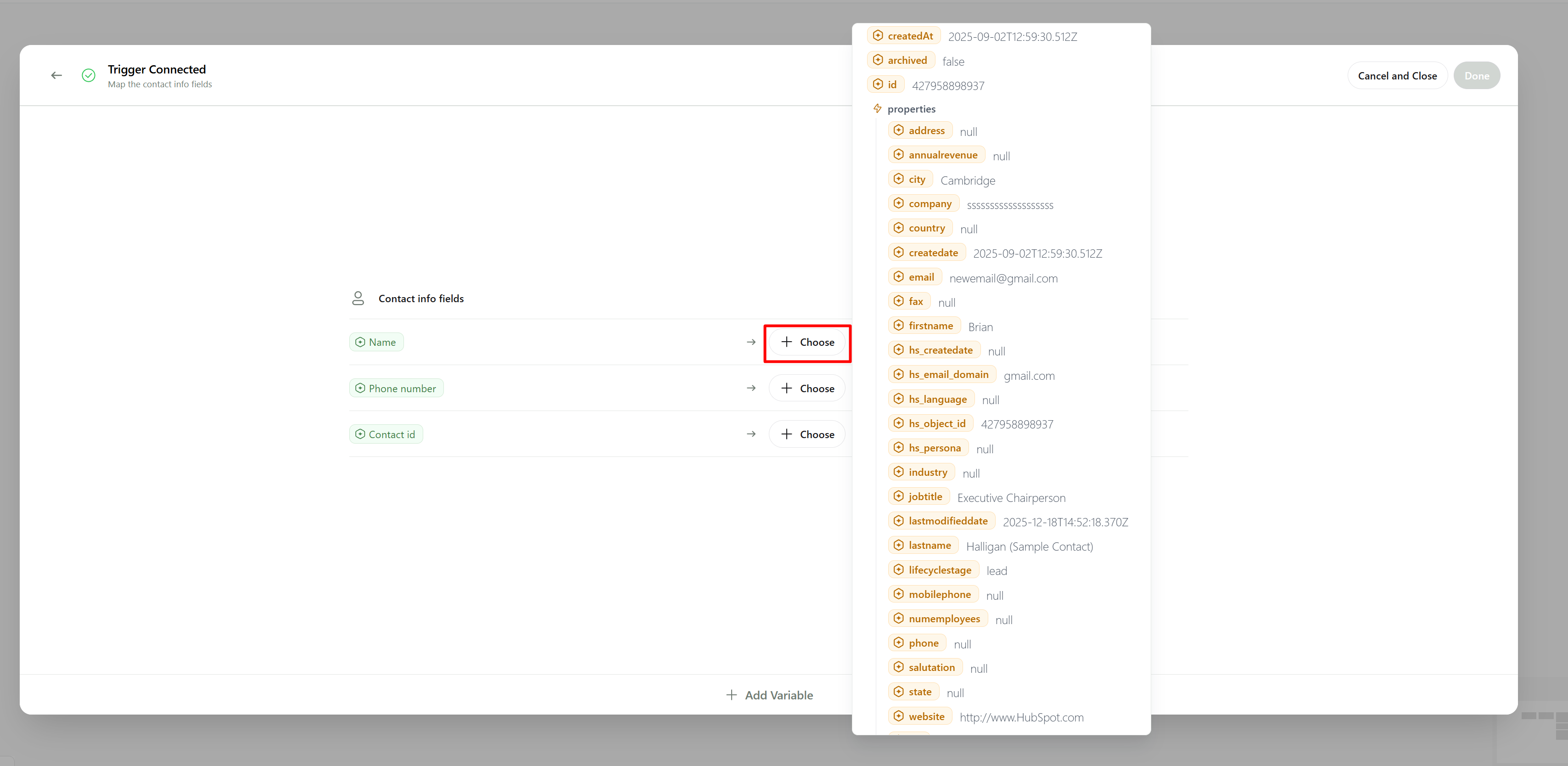
Mapping contact variables
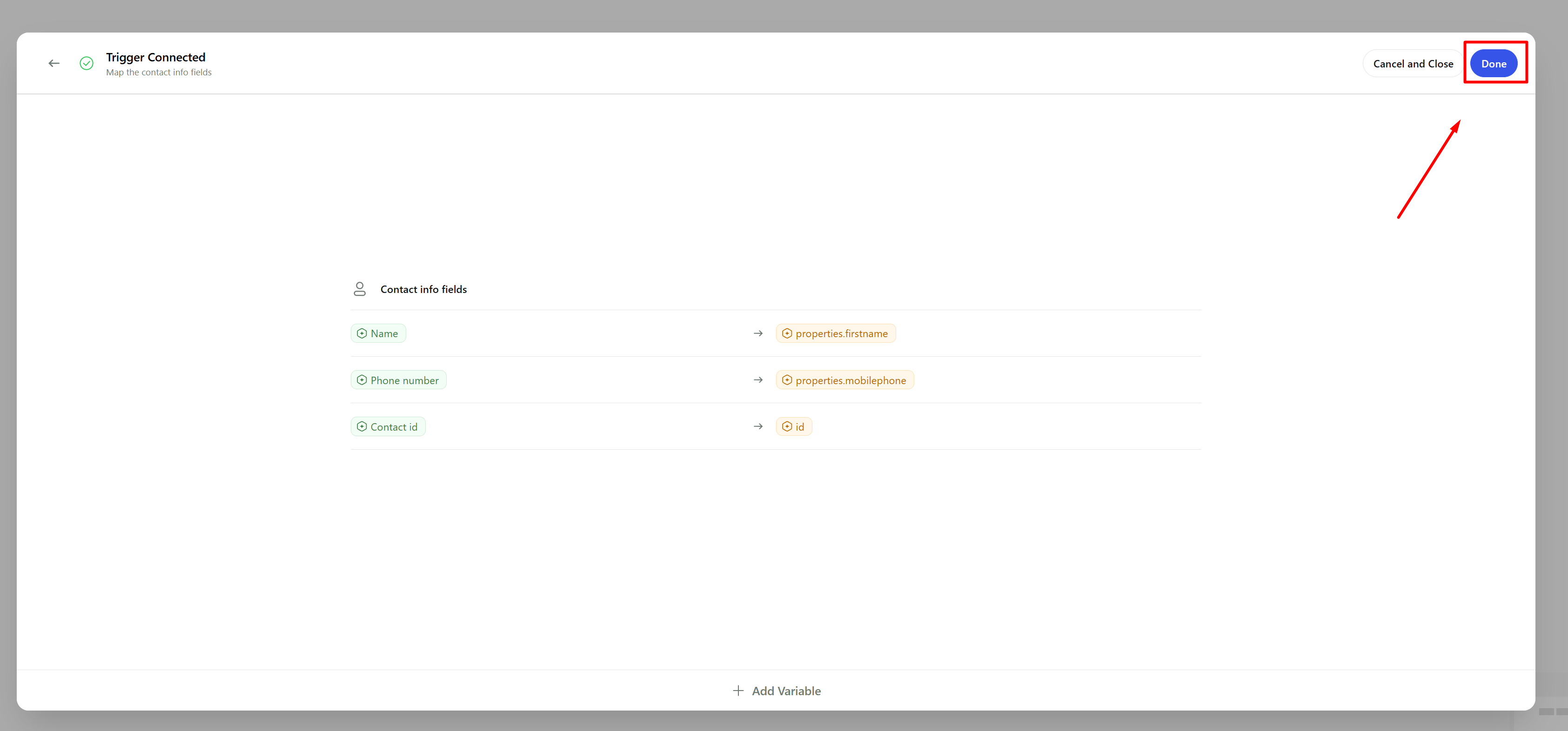
Trigger configuration complete