

Set approval conditions
1
Open Human Approval
In an Email agent, click Human Approval in the agent header. The Require Human Approval window opens.
2
Add conditions
Type a condition and press Enter. Each condition becomes a tag. Add as many as you need, or click a suggested condition below the box. Suggestions are generated from your agent’s script and knowledge base.
3
Save the agent
Conditions apply to emails drafted after you save. To turn approval off, remove all conditions. Click x on a tag, or press Backspace in an empty box to remove the last one.
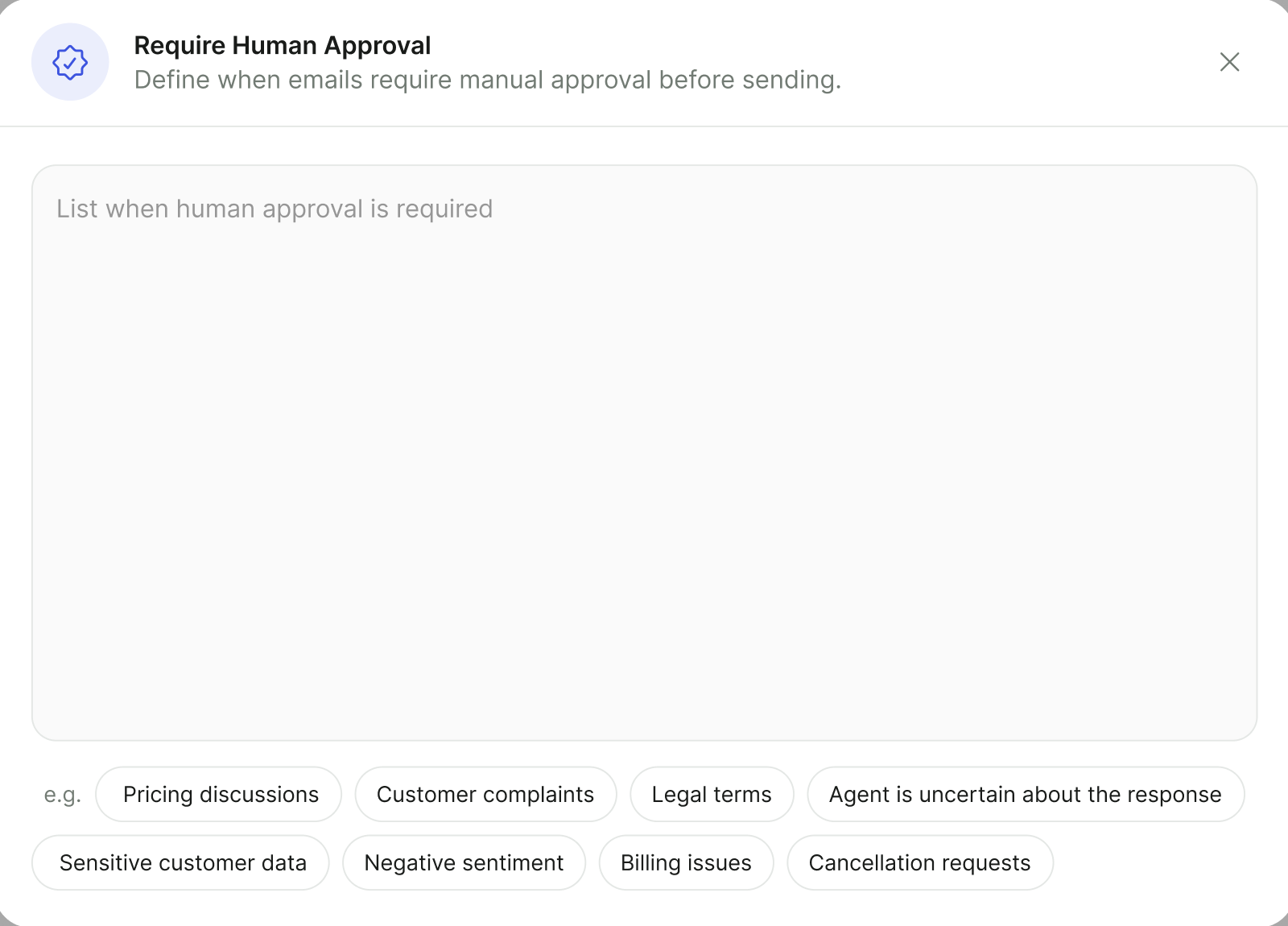
The Require Human Approval window with suggested conditions under the box.
Writing good conditions
Conditions are read by AI together with the draft and the conversation so far. They work best when each one names a single, recognizable situation.How drafts are checked
- Every email the agent is about to send is checked: first emails, replies, and follow-ups.
- If the draft matches any condition, it is held. The contact’s status shows Requires Approval, and nothing is sent.
- If the check itself fails for any reason, the draft is held for review rather than sent.
- Actions attached to a held email step wait too. They run only when the draft is approved.
- Drafts that don’t match any condition are sent right away, as usual.
Review held drafts
1
Find held emails
Open the agent’s results. Contacts with a held draft show a Requires Approval status.
2
Open the draft
Click the contact. The contact panel opens on the email conversation and scrolls to the pending draft, with the sender’s name and address.
3
Edit if needed
Change the subject or body directly in the draft.
4
Send or reject
Click Send to approve. The email is sent with your edits, and any held actions run. Click Reject to discard the draft. The contact is marked Skipped, and no email is sent.
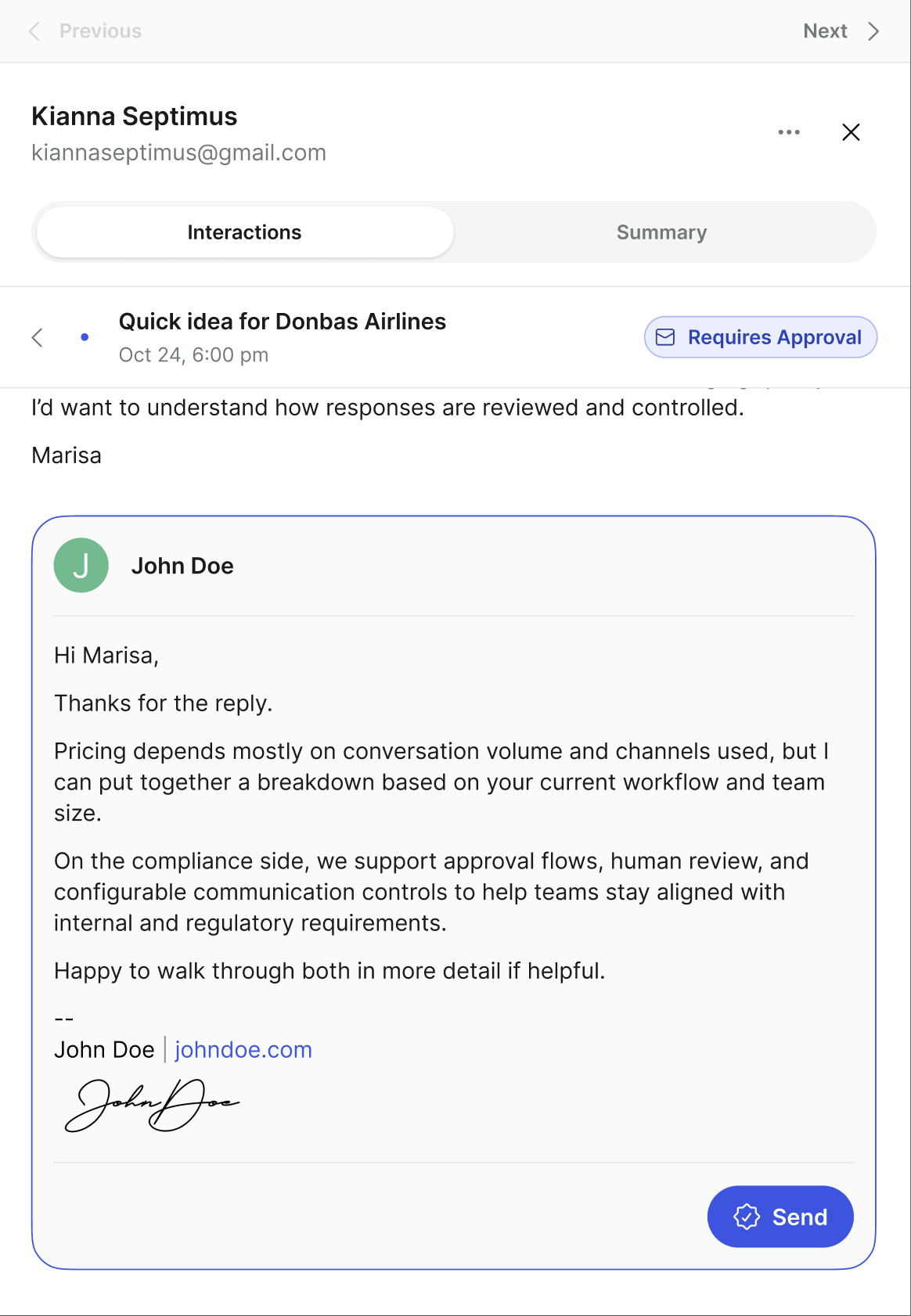
A held draft in the contact panel, marked Requires Approval, with the Send button.
If the contact replies while a draft is waiting, the draft is out of date. Approving it discards the draft instead of sending it, and the agent responds to the new reply.
Contacts in Requires Approval aren’t counted in the agent’s report totals until a decision is made.
FAQ
Can I require approval for every email?
Can I require approval for every email?
Yes. Add a condition that always applies, such as
Any outgoing email. Every draft is then held for review.Who can approve drafts?
Who can approve drafts?
Team members who can open the agent’s results and the contact’s email conversation. The approval records who decided.
Does approval work for Template mode emails?
Does approval work for Template mode emails?
Yes. The check runs on the final email, whatever mode produced it.
Will I be notified when a draft is held?
Will I be notified when a draft is held?
There’s no separate notification for held drafts. Check the agent’s results regularly for contacts in Requires Approval, especially soon after you add new conditions.
Related
Email setup
Mailboxes, content, follow-ups, testing.
Instructions & guardrails
Rules the agent follows in every message.
Statuses & outcomes
What Requires Approval and Skipped mean.
Team & permissions
Control who can view conversations.