

Setting Up a Campaign
- Name Your Campaign: In the window that appears, enter a name for your campaign.
- Select Campaign Type: Choose whether the campaign is
OutgoingorIncoming. - Campaign Instructions: Provide general AI instructions for the campaign. These guidelines will be applied to all calls (optional).
- Toggle Recording: Activate this option if you wish to record calls.
- Toggle Do Not Call Registry: Activate this option to prevent calls to numbers listed on the US Federal Do Not Call registry.
- Continue Dialing Attempts after “Call Me Later”: For calls classified as Call Me Later there will be additional dialing attempts.
- Allow Duplicate Phone Numbers: Allow contacts to share the same phone number (Please note this setting cannot be turned off once enabled).
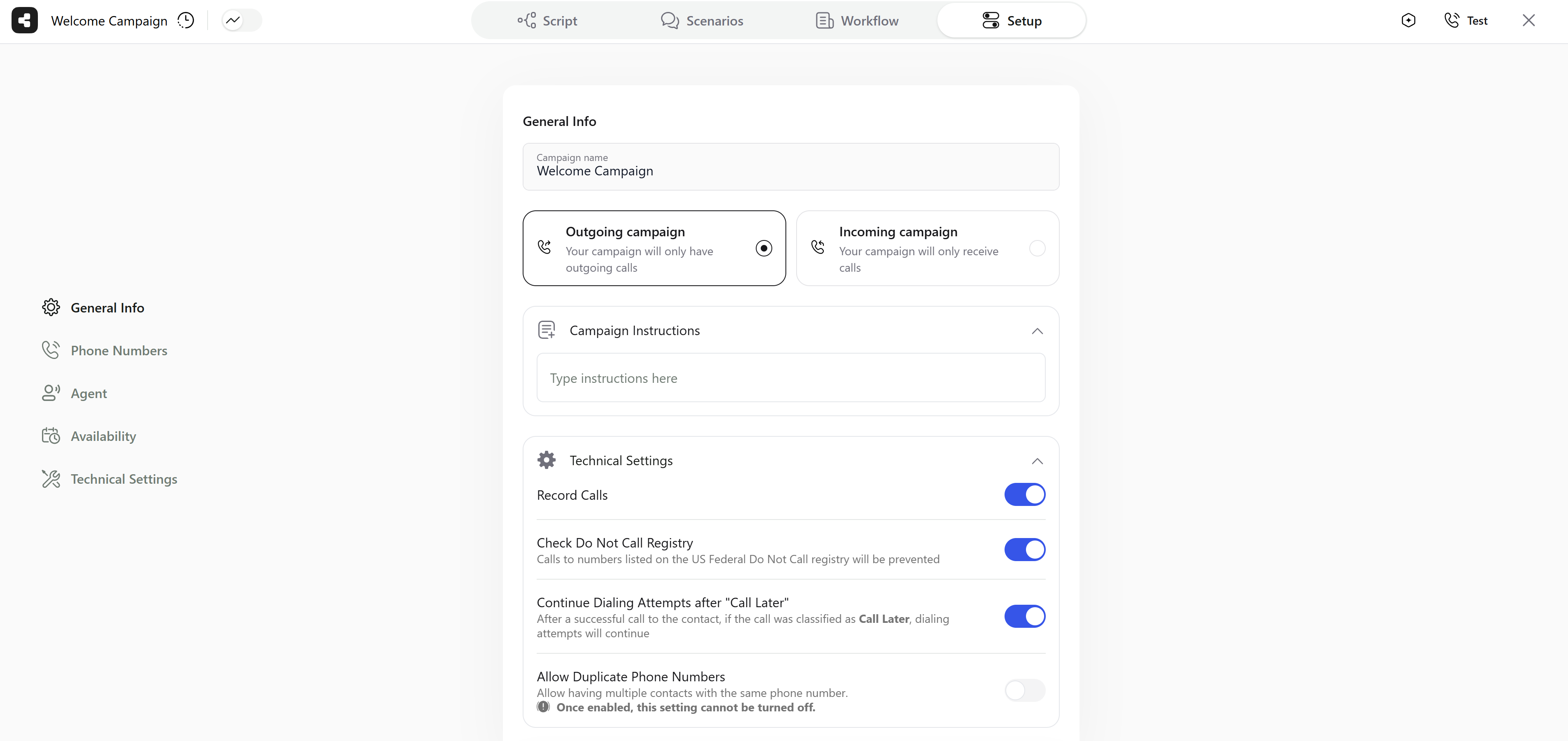
Campaign setup screen, general settings
Selecting Phone Numbers
If your Twilio account is not connected, follow these steps:- If your Twilio account is not connected, click the
Connect Twiliobutton. - Enter your Twilio Account SID Token and Auth Token.
- Phone numbers should appear in the list. If not visible, click the
Refreshbutton.
Outgoing Campaigns:
Select phone numbers from your connected Twilio account. Each call attempt will rotate through the chosen numbers in sequence until all are used, and then the cycle restarts from the first number.Incoming Campaigns:
Choose a phone number for contacts to call into.Voice Selection
- Choose a Voice: Select a voice from the provided list for your campaign.
- Test Voice: Click the play icon next to the sample text to hear the voice. You may enter a preferred sentence for testing.
- Languages: Select the desired language that will be used for the campaign.
- Dialects: Depending on the language, dialects may be available to ensure a more natural and localized interaction.
- Patience Level: Controls the agent’s response timing and conversation pacing.
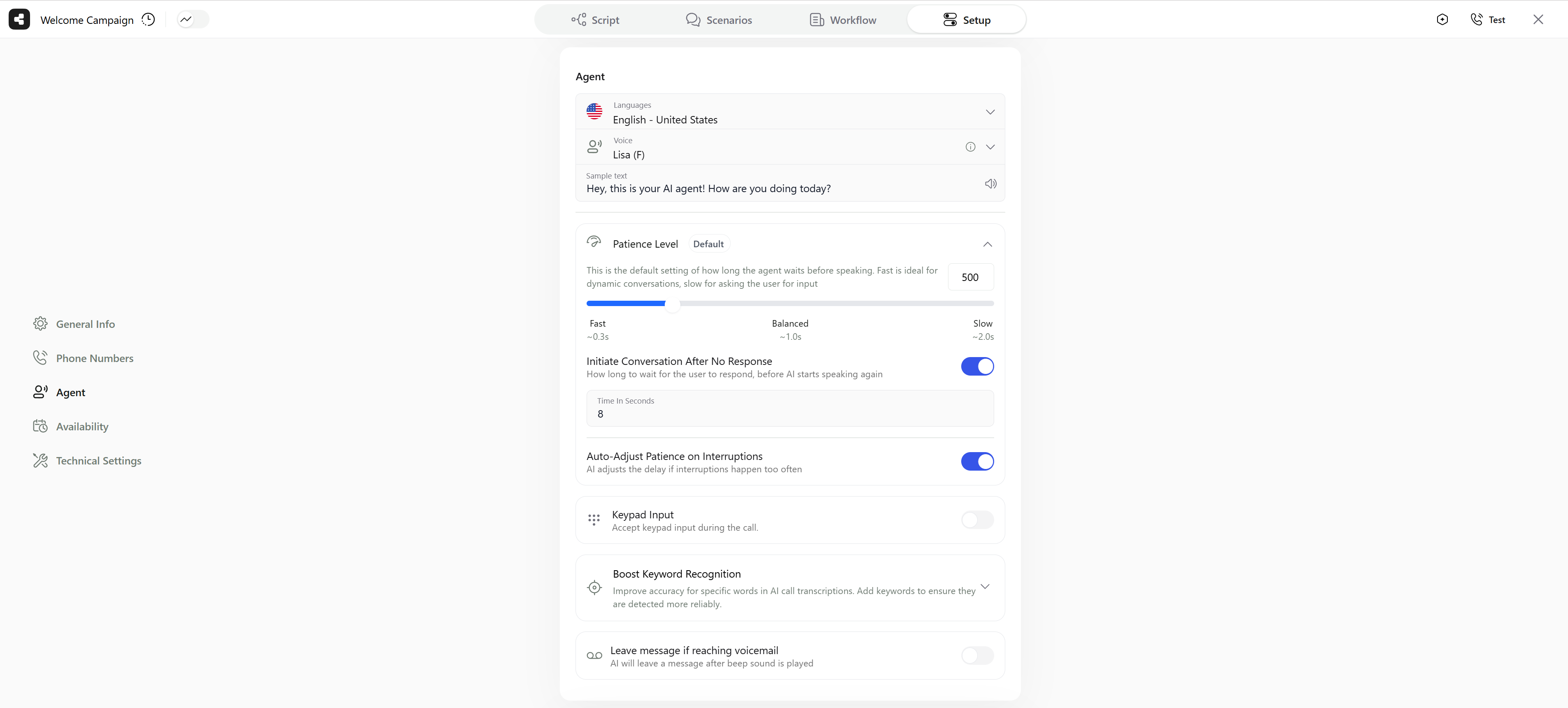
Campaign setup screen, agent settings
Availability Settings
Outgoing Campaigns
- Time Zone: Select your preferred time zone for making calls.
- Calling Days and Hours: Choose your preferred days and the time window for calling.
- Dial Attempts:
- Maximum Daily Attempts: Set the maximum number of calls to be made to a contact per day.
- Total Dial Attempts: Specify the total number of attempts before stopping. The system will continue calling until this limit is reached.
- Wait Time Between Attempts: Choose the minimum wait time between attempts, with options to switch between hours and minutes.
Incoming Campaigns
- Time Zone: Only the time zone selection is required, specifically useful for scheduling meetings.
- Limit Concurrent Calls: Controls the number of AI calls running in parallel, Disable to allow calls to proceed as fast as possible.
- Speech to Text Keywords: Type words or expressions that are common to the script to help the assistant understand them during calls.
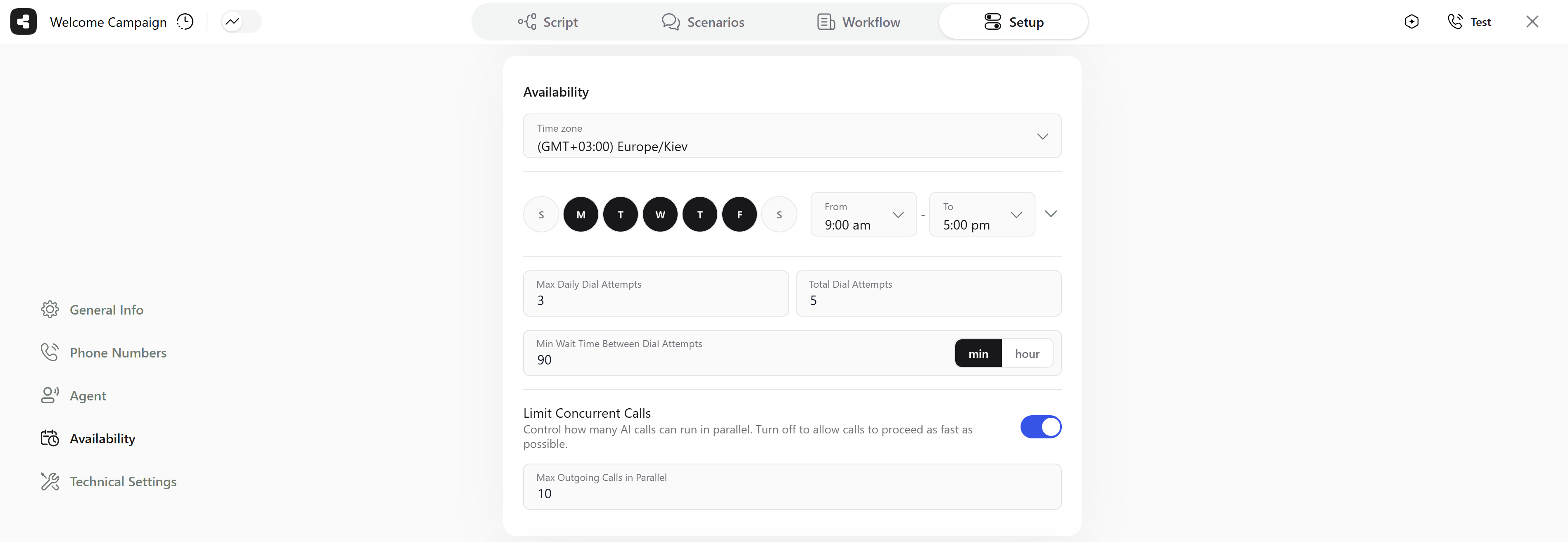
Campaign setup screen, availability settings
Saving Your Campaign
Click onSave changes located at the top right of the window to finalize your campaign settings. After saving, you will see the new campaign appear in your dashboard.
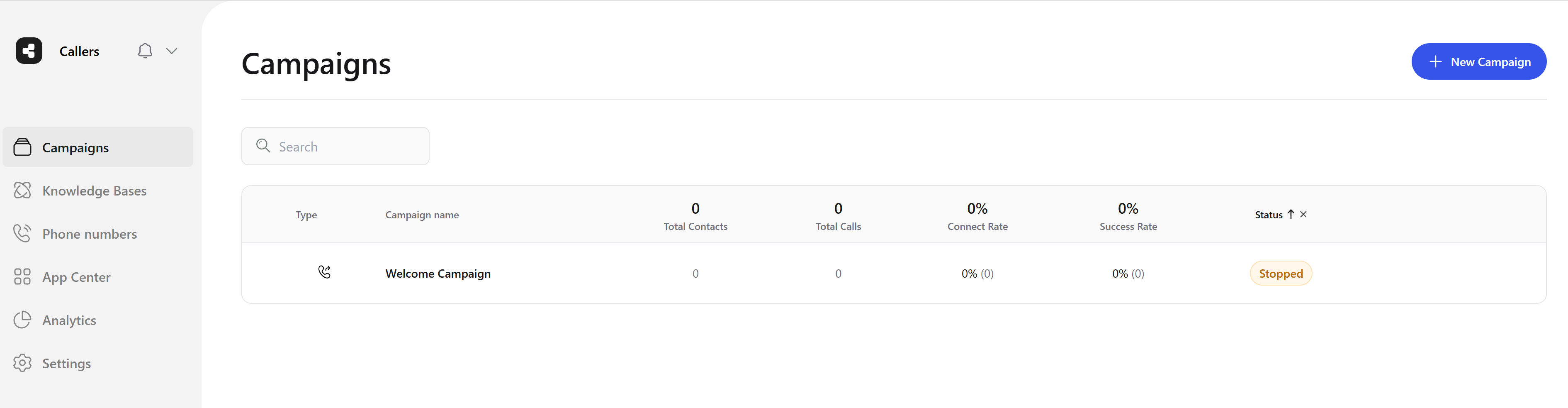
Campaign list