

Open the Chat
Click the AI button in the bottom-left corner of the canvas. It’s there both on a new agent and on one you’re editing.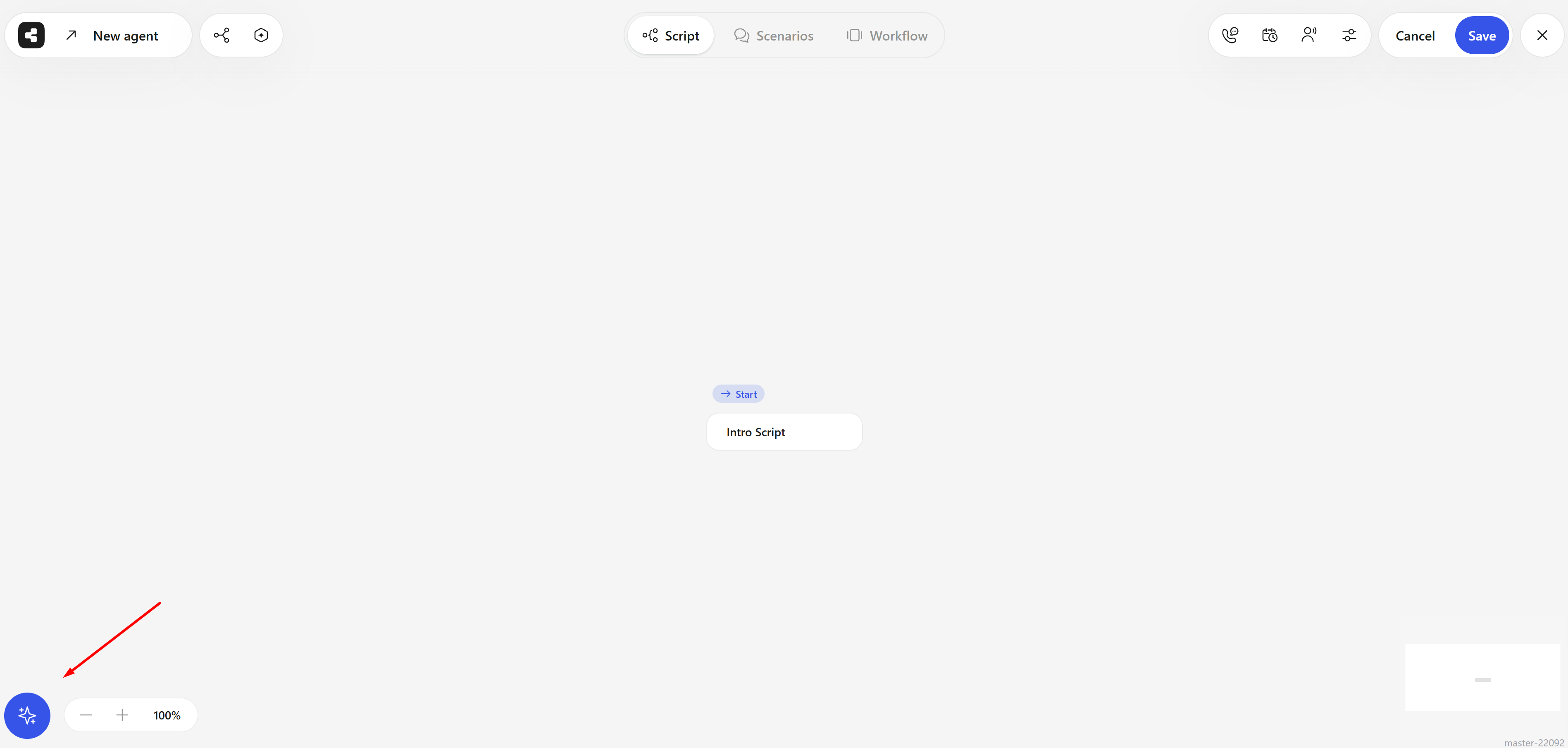
The AI button in the bottom-left corner of the canvas
X to close it.
Type your request into Tell AI what to do next - up to 5,000 characters - and press Enter to send it. Press Shift+Enter for a new line.
What You Can Ask
- Script: Add, change or remove steps and nodes, and change how they connect.
- Scenarios and Variables: Create or edit them.
- Actions: Add actions the agent uses during calls.
- Workflow: Success criteria, summary questions, triggers, pre-conversation actions and webhooks.
- Settings: The agent’s name, use case and direction, voice and language, calling hours and dial attempts, voicemail, recording, Do Not Call options and phone numbers.
- Translation: Translate all the text in the agent into another supported language.
- Find and replace: Replace a word or phrase everywhere in the script. The chat shows what it found and asks you to confirm first.
- “Add a step that asks whether now is a good time to talk.”
- “Call contacts Monday to Friday from 10 am to 6 pm.”
- “Replace ‘demo’ with ‘consultation’ everywhere in the script.”
- “Translate the agent into Spanish.”
Review and Undo Changes
The chat applies its changes to the editor right away, and the header switches to Cancel and Save. Nothing is saved to your agent until you click Save. Under each reply, the chat lists the areas it changed - such as Script, Scenarios or Agent. Expand one to see what was added, edited or removed, and click a script change to jump to that node on the canvas.
A change made by the AI chat
- Change cards: Every reply that changes the agent ends with a card describing the change. The Base version card at the top shows the agent as it was when the chat started.
- View changes: Click the eye icon on an earlier card to preview that state on the canvas. Click it again to go back.
- Apply changes: Click the arrow icon on an earlier card to return the agent to that state.
- Revert changes: Click it at the bottom of the chat to undo everything the chat changed and return to the Base version.
Chat History
Click the icon in the top-left corner of the chat to see All Chats for this agent. Chats are saved automatically, and you see only your own.- Click New Chat to start over.
- Hover over a chat and open its
⋯menu to Edit its name or Delete it.
The AI chat is part of the agent editor, so it’s available to admins. Read Only members can’t open the agent editor.