

How visitors start a conversation
- The visitor clicks the launcher. It expands into the pre-call card; nothing is dialed yet.
- They either:
- click Voice Call (your
precallPromptlabel) to start a voice call, or - type into Or send a message… to start a text conversation.
- click Voice Call (your
A text conversation runs on the same connection as a voice call, with the microphone muted and agent audio off. The browser may still ask for microphone permission when it starts.
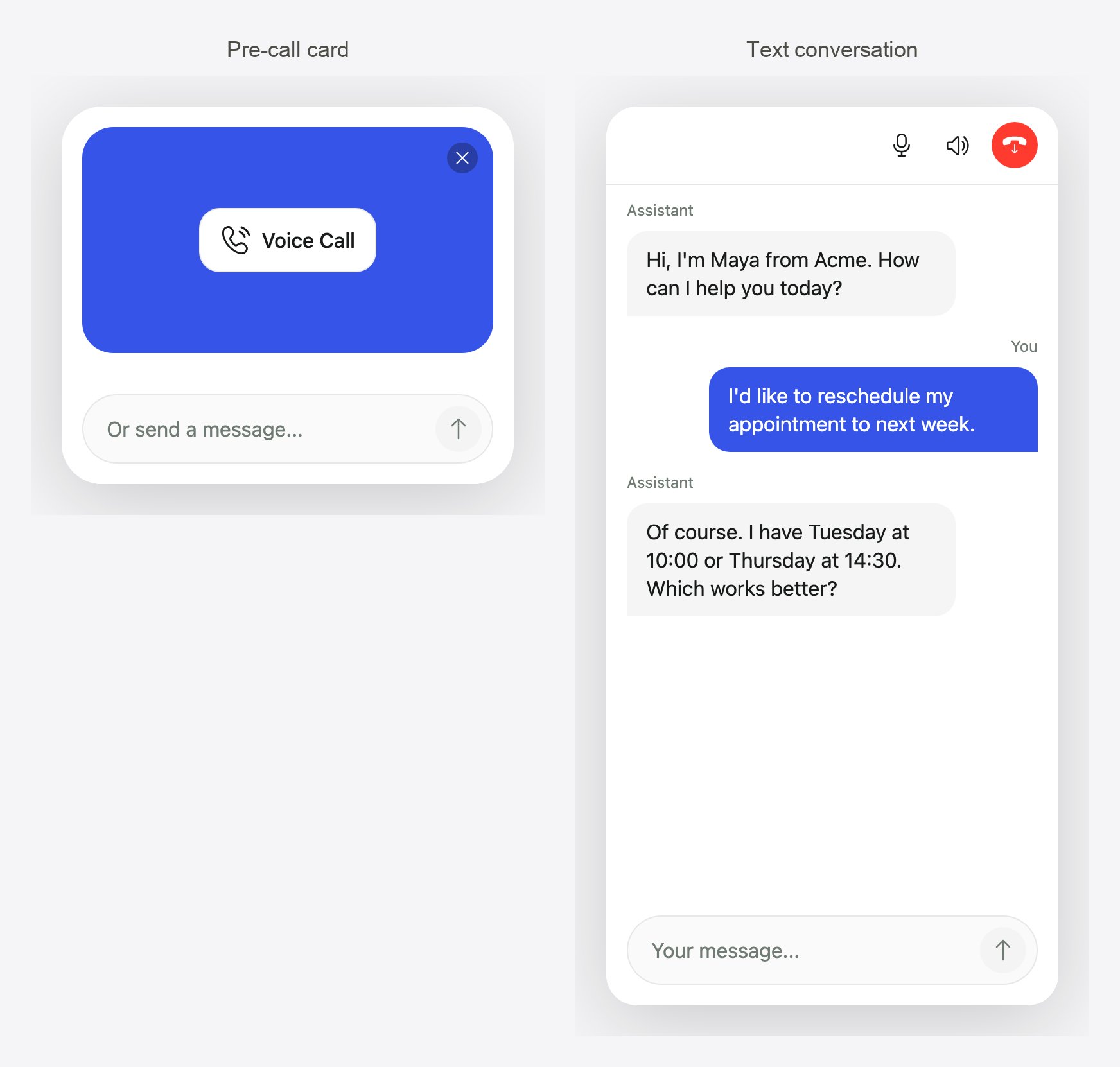
Left: the pre-call card with the Voice Call button and the composer. Right: a text conversation, with the microphone and speaker off in the header.
Switch from text to voice
During a text conversation, the visitor can turn on the microphone or the speaker from the call controls. The conversation becomes a voice call: the call timer and voice header appear, and the agent continues with full context. There is no way back to text mode in the same call, but visitors can keep typing during a voice call.Typing during a voice call
The composer stays available during voice calls. Typed messages reach the agent as the visitor’s turn, which helps with things that are hard to say aloud, such as email addresses or order numbers.Control it from code
Start a voice call
Send a typed message during a call
sendInput() needs a connected call (voice or text) and accepts up to 2,000 characters. Starting a text conversation is done by the visitor through the built-in composer; there is no separate method for it.
Hide the composer
SetshowInput: false to offer voice only. The composer disappears, so visitors can’t start text conversations, but in-call forms still appear when the agent shows one.
Know which mode the visitor used
onWidgetInputSent fires with the first typed message when a text conversation starts, and with each later message:
After the call
When the call ends, the window shows a read-only review of the transcript with Start a New Voice Call, and the composer can start a new text conversation. If bot protection is on, the visitor must close and reopen the widget instead, so each conversation gets a fresh check.Related
In-call forms
Collect structured answers during the conversation.
Events and transcript
Follow both modes from your code.