

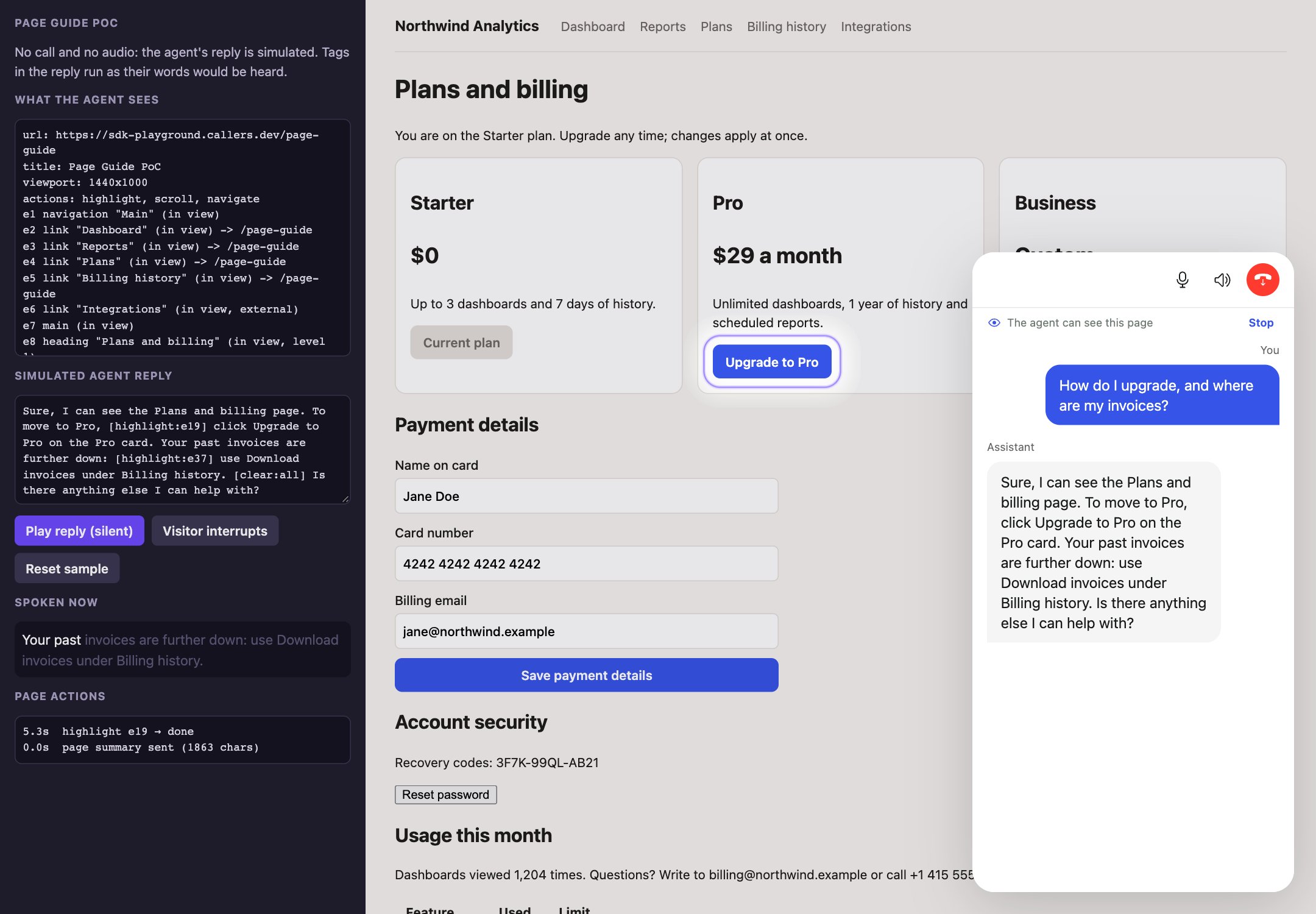
While the agent says “click Upgrade to Pro”, a thin ring and a soft glow mark the button, and the rest of the page is shaded very lightly. The call window stays open beside it.
Try it with your agent
Watch the demo without a call
What the agent can do
How it works
What the summary contains
The summary is built from the DOM in the visitor’s browser, never from a screenshot. It is a plain-text list in the style of an accessibility tree: one line per element that matters, each with a short stable ref the agent can point at.filled or empty, checked or not checked, required, and disabled. Same-site links show the path they open; links to other sites are marked external without their address. Iframes are listed as (contents not shared).
What is not captured:
- Anything
hidden,inert,aria-hidden="true",display: noneorvisibility: hidden. - The insides of interactive elements (a button is one line, whatever it contains).
- Closed shadow roots (open ones are walked), the contents of iframes, canvas, video and images without
alt. - The widget itself and the spotlight overlay.
- Everything excluded by the privacy rules below.
Limits and ordering
When summaries are sent
- A summary is sent when the call connects, and again after the page changes (content updates, scrolling, resizing, in-app navigation, hash changes) and has been quiet for about 1.2 seconds. A page that never settles, such as one with a ticker, is still reported 5 seconds after its first unsent change.
- Sends are at least 3 seconds apart, and an unchanged summary isn’t resent. Scrolling alone changes which elements are “in view”, so only a scroll that changes what the visitor sees produces a new summary.
- A failed send is retried up to 3 times. Failures are reported to
onError. - Sends cost the agent nothing: the summary reaches the agent only on turns where the visitor asks about the page, and only the latest one. Ordinary conversation isn’t slowed down or made longer.
POST https://api.callers.ai/campaigns/{agentId}/web-call/page-context with the same token or domain check as the rest of the call. The endpoint accepts at most 16,000 characters, twice the widget’s cap, so a summary is never rejected for size. You don’t call it yourself.
How the agent points
The agent writes short tags inside its reply, before the words they belong to:To upgrade, [highlight:e19] click Upgrade to Pro. Callers strips the tags before text-to-speech and before the transcript, so visitors never hear or read them, and publishes each sentence to the widget as its audio starts, with the actions and their position in the sentence.
The widget then runs each action when its words are heard:
- A sentence starts playing about 250 ms after it arrives, or when the previous sentence ends, whichever is later.
- Within a sentence, the action fires at the character timings of the agent’s voice when the provider returns them (within about one word), or at 15 characters per second otherwise (within about half a second).
- A new reply drops the previous reply’s pending actions. When the visitor interrupts the agent, the rest of the reply’s actions are canceled.
e12 through later summaries, so a tag the agent wrote against a slightly older summary still points at the same element.
The spotlight
The highlight is drawn in its own shadow root on<body>, so your page’s styles can’t restyle it and it can’t restyle your page. It never takes pointer events: the visitor can click the highlighted element straight away. It follows the element through scrolling, resizing and layout changes, and disappears if the element is removed from the page. Its accent color and font come from the widget’s theme (the primary color and font) unless you set color, and it sits one layer under the widget so the call window is never shaded.
By default it is gentle: a thin ring with a soft glow, one short glow when it arrives, and a very light shade over the rest of the page that fades out around the element instead of cutting a hard hole. A small light label shows the element’s name, but only when the element doesn’t already show that name itself, so a button that reads “Upgrade to Pro” isn’t labeled twice. Elements that fill most of the screen get the ring without the shade.
Scrolling is smooth unless the visitor prefers reduced motion; then the page jumps to the element and the arrival glow is off. Visitors who ask for more contrast get a stronger ring and shade, and in forced-colors mode (such as Windows High Contrast) the ring is drawn as a system-colored outline.
Highlight styles
dim, color and label (see the configuration reference). dim sets how dark the shade is for soft and spotlight; the other styles have no shade.
Making sure the visitor can see it
Before drawing, the SDK checks that the element is really visible at that spot on the screen:- Fixed or sticky bars, such as a site header, a cookie banner or a chat bubble: the page is scrolled so the element lands in the clear part of the screen, not underneath them.
- Hidden elements, such as a carousel slide that isn’t showing or the contents of a closed accordion, aren’t drawn. The action reports
hidden. - Covered elements, under something floating over the page wherever it scrolls (an open popup, for example), are scrolled to but not drawn. The action reports
covered. - If content loading above the element pushes it off screen after the scroll, the SDK scrolls once more. If a popup opens over the element while it is highlighted, the highlight is removed.
Navigation
navigate is off by default. When you allow it, the agent can open a link from the summary, never a free-form URL, and only when the link stays on the same origin over http or https. Only real links (<a href> and image-map <area> elements) can be opened. Buttons, links with a download attribute, javascript: links, bare # anchors and other sites are refused with the outcome not-allowed, so opening something never submits a form or starts a download.
When navigate isn’t allowed but highlight is, a request to open a link highlights the link instead, so the visitor still sees where to go.
On a multi-page site, the browser loads the new page, which ends the call: the SDK is reloaded with the page. On a single-page app, pass onNavigate and route in place so the call survives (see the React example). Keep navigate off on multi-page sites unless a dropped call is acceptable.
The visitor notice
While Page Guide is on, the call window shows a one-line notice before and during the call: The agent can see this page by default, with a tooltip explaining that what the visitor types in forms is never shared. During the call the line has a Stop button. Stopping cancels pending actions, removes any highlight, stops sending summaries and tells the agent it can no longer see the page; the line then reads Page sharing is off with a Share button to turn it back on. Change the text withnotice. Keep it honest and short; the tooltip is fixed.
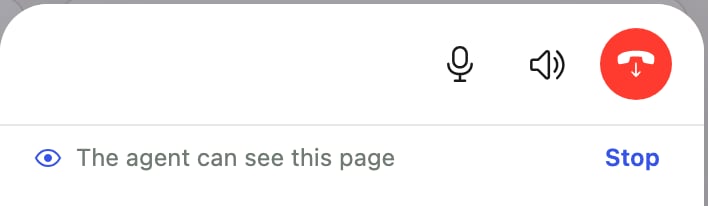
The notice under the call controls tells the visitor the agent can see the page. Stop turns page sharing off for the rest of the call.
Turn it on
pageGuide: true (or data-page-guide="true" alone) uses the defaults: highlight and scroll, 150 elements, the standard notice and privacy rules. The script tag can set actions, hideSelectors and the highlight options (highlight, dim, color, label); the other options need the programmatic form.
Configuration reference
true turns Page Guide on with the defaults. An object sets the options below. Script tag: data-page-guide="true".PageGuideConfig
highlight, scroll and navigate. clear is always allowed. Script tag: data-page-guide-actions, comma-separated; unknown names are dropped.[data-callers-private] is always hidden. An invalid selector is ignored rather than breaking the capture. Script tag: data-page-guide-hide, comma-separated.soft, glow, outline, spotlight or none. See Highlight styles. Script tag: data-page-guide-highlight; unknown values fall back to soft.0 (none) to 0.5. Values outside the range are clamped. Applies to soft (default 0.1) and spotlight (default 0.28); the other styles have no shade. Script tag: data-page-guide-dim.data-page-guide-color.false never shows the name label next to the element. Even when true, the label appears only when the element doesn’t already show its name. Script tag: data-page-guide-label="false".Types
Runtime API
webCall.getPageContext()
Returns the exact summary the agent would receive right now, as text, or null when Page Guide is off. Call it on any page to audit what is shared, write tests for your hideSelectors, or debug why the agent can’t find a button.
Transcript messages
Transcript messages fromonTranscriptChanged and onTranscriptMessage carry the agent’s sentences with their actions, after the tags were stripped from the text:
Privacy and security
Every rule below is enforced in the visitor’s browser, before anything leaves it. The summary is plain text you can read withgetPageContext().
What never leaves the browser
- Form values. Fields are described by their label and state (
filled,empty,checked), never by what is in them. The capture never reads a field’s value into the summary. - Sensitive fields are additionally marked
private field: password and hidden inputs, fields withautocompleteofcc-*,one-time-code,new-passwordorcurrent-password, and fields whose name, id,aria-labelor placeholder mentions a password, card, CVV/CVC, SSN, IBAN, account or routing number, secret, token or PIN. - Emails and long numbers in page text, headings, titles and element names are replaced with
(email hidden)and(number hidden)before anything is cut short, so a truncated email can’t slip through. Dates and prices have too few digits to match. - Private areas. Anything inside
[data-callers-private]or yourhideSelectorsis never walked. If an element’s own name would be read from text that contains a private area, that element is left out too, while its other children are still listed. - Hidden content, the widget, the spotlight overlay, query strings and hashes in the URL, and the addresses of external links.
What the agent can’t do
- It can only point at elements that appeared in a summary this widget sent, so it can’t reach into hidden areas even by guessing a ref.
- It can’t click, type, submit, or open a URL it made up.
navigatereaches only a same-site link from the summary, and only when you allow navigation. - Page text reaches the agent as untrusted content. Instructions written on the page can’t give the agent new abilities: the worst an injected instruction can do is highlight an element or open a same-site link, if you allowed it.
Server side
Summaries are accepted only for calls that opted in (the SDK marks the call when Page Guide is on), so a page can’t push context into a call that didn’t ask for it. The agent reads the latest summary on turns about the page; summaries are not streamed back to the browser in the transcript.data-callers-private, even sections with no form fields, and review getPageContext() on pages that show account data.Single-page apps
In a SPA, in-app navigation changes the DOM without a page load. The SDK watches DOM changes,popstate and hashchange, so a new route produces a new summary without any extra code. Two things need your attention:
onNavigate. If you allownavigate, route in place so the call survives. Without it,location.assignloads the page and the call ends.- Stable
WebCall. Create theWebCallonce, outside the component tree that re-renders on route changes, so the call and the page refs survive navigation.
React with react-router
CallersWidget once at the app root, inside the router so useNavigate works. For Next.js, Vue Router or Angular, pass the equivalent of router.push(path) to onNavigate.
Tips for pages that guide well
- Give buttons and links clear, visible text or
aria-labels. The agent can only point at what it can name, and the spotlight label shows that name to the visitor. - Use real
<button>and<a href>elements, orrole="button"/role="link". A clickable<div>without a role is listed as text at best. - Label landmarks (
<nav aria-label="Account">,<section aria-label="Pro plan">). Landmarks are named by their label only, so an unlabeled section contributes nothing. - Keep the key controls of a page within the first 150 elements, or raise
maxElements(up to 300) on dense pages. - Hide account details, admin panels and anything personal with
data-callers-private, even when they contain no form fields. - Check
getPageContext()on every template once. If a button is missing, it’s hidden, inside an iframe or a closed shadow root, or has no name.
Try it in the playground
Play the demo without a call
private field markers on the card fields, redacted contact details, and nothing from the data-callers-private section.Play a reply
Interrupt and stop sharing
Try it on a real call
pageGuide=true is kept in Share demo links.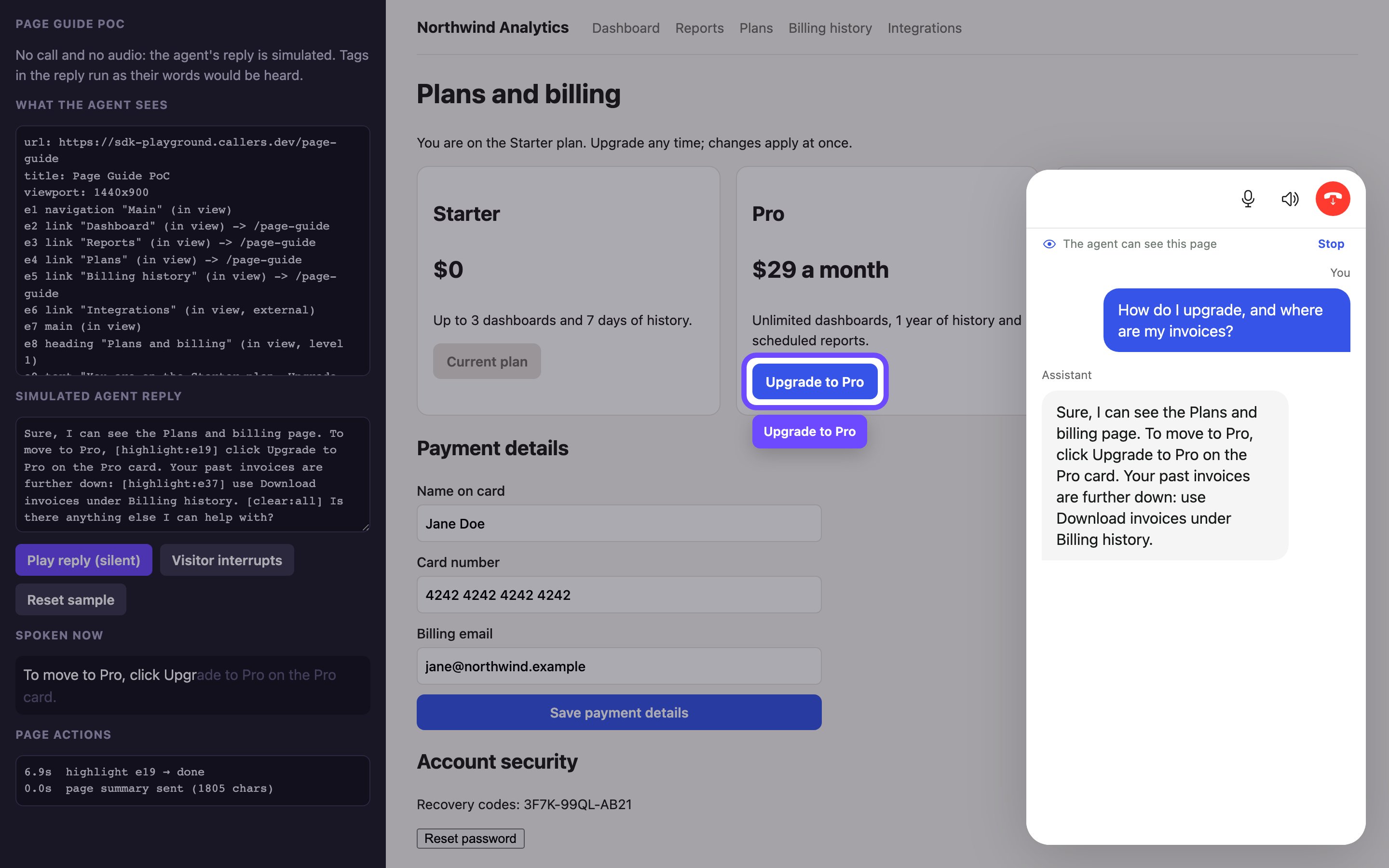
The Page Guide demo: what the agent sees (left), the simulated reply with its action tags, and the highlight running on the sample page.
In the dashboard
Page Guide has no settings in the dashboard yet: it is turned on per embed, in the script tag or the SDK config, by whoever installs the widget. The embed snippet under Channels > Widget contains onlydata-agent and your variables; add data-page-guide="true" and the other attributes yourself. Dashboard test calls don’t use Page Guide; use the playground to test it against your agent.
Troubleshooting
FAQ
Can the agent fill in forms or click for the visitor?
Can the agent fill in forms or click for the visitor?
Does Page Guide see what the visitor typed?
Does Page Guide see what the visitor typed?
filled or empty, never with its contents, and emails and long numbers in page text are redacted. Use getPageContext() to see the exact text.Does it slow down the conversation or cost more?
Does it slow down the conversation or cost more?
Does it work with avatars?
Does it work with avatars?
Does it work on text conversations?
Does it work on text conversations?
Can I change the look of the spotlight?
Can I change the look of the spotlight?
highlight style (soft, glow, outline, spotlight or none), and adjust the shade with dim, the color with color, and the name label with label. The font comes from the widget theme. Try the styles with the playground’s Highlight option, available when Page guide is on.Can the agent see other tabs or pages?
Can the agent see other tabs or pages?
Does the agent need a different script?
Does the agent need a different script?