

Preview Maya, expanded
The playground with a stock avatar in the expanded layout.
Preview John on a preset scene
A stock avatar cut out over the AI office background.
How it works
The avatar is driven by the same audio the visitor hears. Every animation frame, the SDK listens to the agent’s voice, decides what the face should do, renders a new face with a small per-avatar model, and blends it into the avatar’s photo.What drives the face
- Lip sync from the audio. The SDK reads the spectrum of the agent’s voice each frame: loudness sets how far the mouth opens, the low formant bands pick the vowel shape (open, spread or rounded) and the high band catches sibilants and fricatives. This works with any voice and needs no training.
- Lip shapes from the text. On avatar calls the SDK asks Callers for the character timings of each sentence the agent speaks (the
X-Speech-Timingscall header). Audio alone can’t tell a closed-lip “m” from a quiet moment, so the timings close the lips on m/b/p, bring the lip to the teeth on f/v and shape the vowels, while the audio still decides how far the mouth opens. Voices from providers that don’t return timings fall back to audio-only lip sync. - Behavior. A behavior controller adds everything the face does besides talking: blinks, small gaze shifts, head motion that follows the energy of the phrase, breathing, and a listening pose when the visitor speaks. When the visitor talks over the agent (barge-in), the face reacts and pending lip timings are dropped.
- Emotions. Each sentence in your script carries an emotion tag (for example
[cheerful]). The SDK maps the tags to a few customer-facing looks and applies them when the words are heard, after the voice delay described below.
How the face is rendered
Each avatar is a packaged folder: a photo, a manifest (avatar.json) and a model trained on that one photo. The model takes ten controls (mouth opening and shape, smile, blink, gaze, brow and cheek raise, and head pitch, yaw and roll) and returns a face crop. The SDK runs it with onnxruntime-web on WebGPU when the browser offers a GPU adapter and on WebAssembly otherwise, draws the crop over the photo on a 2D canvas with a feathered edge, and cross-fades each new face into the previous one so motion looks continuous at the display’s refresh rate. The canvas follows the size of its container at the device pixel ratio (up to 2x).
New faces arrive every 15–40 ms on a GPU path. Inference runs asynchronously, so a slow device drops face updates rather than blocking the page.
Keeping lips and voice together
The face always trails the sound a little: the audio has to be analyzed, the controls smoothed, the model run and a frame displayed. To hide that, the SDK plays the agent’s voice through a short delay line that matches the measured face latency:- The engine lag is measured live during the call by comparing the voice envelope with the rendered mouth opening (75 ms is used until enough speech has been heard).
- Inference time, one face interval and one display frame are added; the audio device’s own output latency is subtracted, because it already delays what the visitor hears.
- The delay is capped at 300 ms and changes glide slowly, because fast changes to a delay line audibly warp the voice.
webCall.avatarStats exposes the numbers (see Performance).
While the avatar plays the voice, the call’s own audio output is silenced so the visitor doesn’t hear the voice twice. If the browser suspends audio (an app switch or a Siri interruption on iOS, a route change), playback hands back to the call automatically and returns when the avatar can play again.
When the avatar appears
- Voice calls only. The avatar starts when the visitor clicks to call and stays for the whole call. Text conversations never show it.
- It lives in the call window’s avatar area, or in your own element with
avatarContainer. - A misconfigured avatar (a typo in the name, a blocked download, no WebGL) logs a console warning starting with
Avatarand the call continues without it. The avatar can never stop the widget from loading or a call from connecting.
Choose an avatar
Stock avatars
Pick one whose gender matches your agent’s voice. The dashboard’s test call and the playground list the matching avatars first and warn about a mismatch. The list is exported as
STOCK_AVATARS, each entry { id, name, description, gender }.
Custom avatars
Callers can train an avatar for your brand from a portrait: a member of your team, a model, or a generated face. The avatar is added to the library under its own name (lowercase letters, digits and hyphens, 1–63 characters, for exampleclinic-host-v2) and you use it exactly like a stock one:
Hosting a package yourself
avatarUrl (or data-avatar-url) points at a packaged avatar folder instead of a library name. The folder holds:
The SDK fetches
<avatarUrl>/avatar.json and then the photo and model it names, so the host must allow cross-origin requests from your site (Access-Control-Allow-Origin). Packages are produced by Callers; use avatarUrl only with a package Callers gives you. When both avatar and avatarUrl are set, avatarUrl wins.
Layouts
avatarLayout (or data-avatar-layout) sets the avatar’s starting size in the call window.
Visitors change the size during the call with the Expand avatar / Shrink avatar and Minimize avatar buttons on the tile, and bring it back with Show avatar on the thumbnail. An unknown value logs a warning and uses
compact.
Framing
avatarFraming (or data-avatar-framing) controls how much of the photo is shown.
The framing never shows past the photo’s edges: the visible region is centered on the face and shrunk or shifted to stay inside the photo. Set it only to override the default, for example
photo in a compact tile when the portrait is tightly cropped already.
Backgrounds
avatarBackground (or data-avatar-background) controls what shows behind the person.
Preset scenes
Each scene is an empty, softly out-of-focus photo with a calm center for the head and shoulders. They are hosted with the avatar library and exported asSTOCK_BACKGROUNDS ({ id, name }).
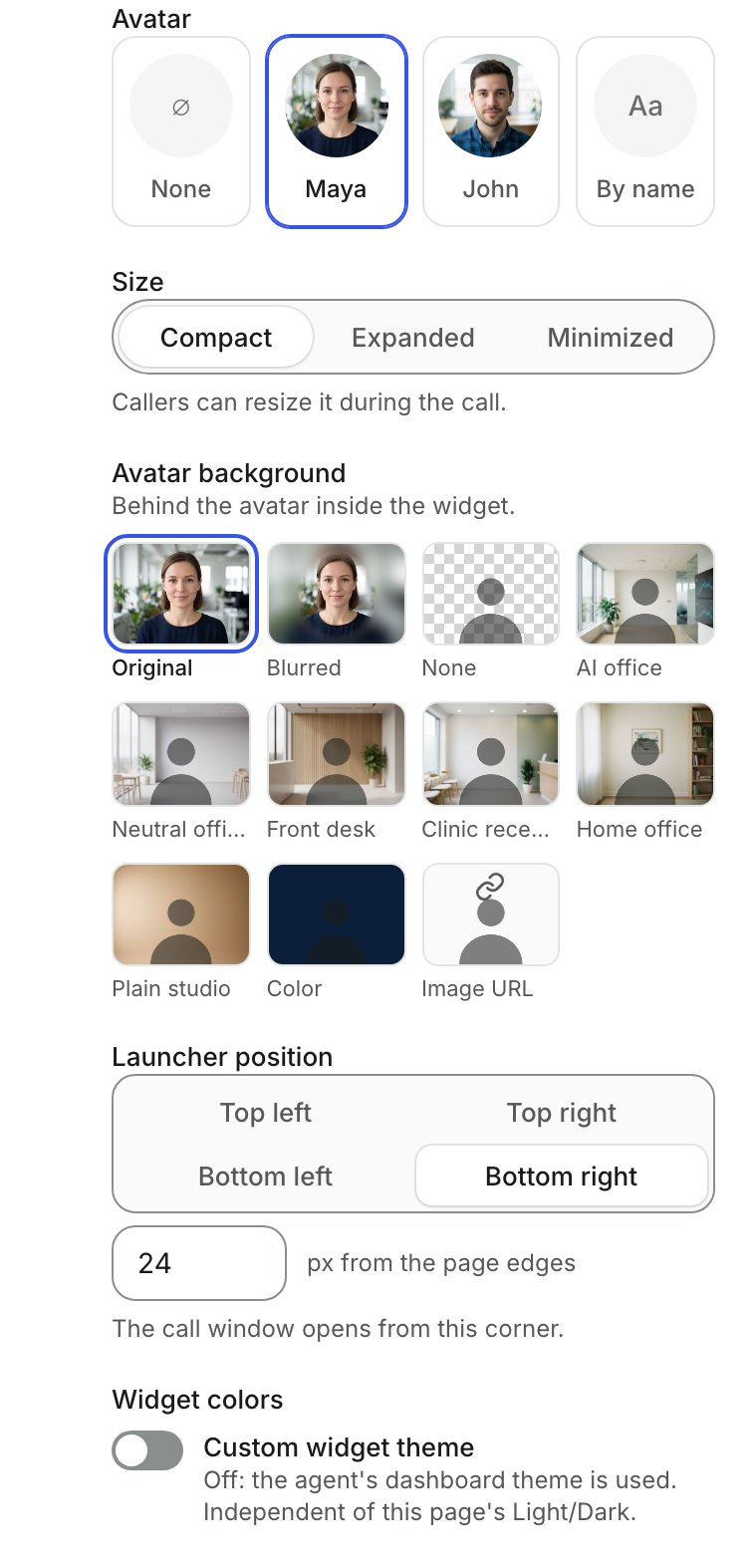
The Look panel in the playground: stock avatars, layout, the background options including the six preset scenes, and the launcher position.
How backgrounds work
Any value other thanphoto cuts the person out of every frame. When the call starts, the SDK downloads MediaPipe’s selfie segmenter (a model of about 250 KB plus its runtime) and runs it on the GPU through WebGL, falling back to the CPU if the GPU delegate can’t start. A new mask is computed at most every 50 ms and reused for the display frames in between, which keeps up with the avatar’s calm head motion without taking over the main thread. The mask is smoothed over time and thresholded so the photo’s original background never shows as a halo.
If the segmenter can’t load or fails mid-call, the avatar keeps its photo background and logs a warning. The call is never affected.
In the call window, a transparent avatar shows the widget’s own surface through the tile, so it follows your widget theme. To put the avatar on a background of your own design, render it in your own element.
Render the avatar in your own element
SetavatarContainer (or data-avatar-container) to an element or a CSS selector, and the avatar renders there instead of in the call window. It fills the element, so size and shape the element with your own CSS. The default framing becomes photo. If the selector is invalid or matches nothing, the SDK logs a warning and shows the avatar in the call window instead.
Combine it with transparent to put the agent’s face directly on your page design, or with a preset or color for a self-contained card.
Configuration reference
Every option below is aWebCall constructor option with its script-tag equivalent. Options that aren’t set fall back to the defaults shown. Unknown values for avatarLayout and avatarFraming warn and use the default; unknown background values warn and use photo.
string
A library avatar by name:
maya, john, or a custom name Callers trained for you. Lowercase letters, digits and hyphens only. Ignored when avatarUrl is set. Script tag: data-avatar.string
URL of a packaged avatar folder (
avatar.json, the model and the photo). Wins over avatar. Script tag: data-avatar-url.'compact' | 'expanded' | 'minimized'
default:"compact"
The avatar’s starting size in the call window. Visitors can change it during the call. Script tag:
data-avatar-layout.'face' | 'photo'
face zooms in on head and shoulders; photo shows as much of the photo as fits. Defaults to face for compact and minimized, photo for expanded and for avatarContainer. Script tag: data-avatar-framing.string
default:"photo"
photo, transparent, blur, preset:<id>, a CSS color, or url(<image>). Anything but photo downloads the segmentation model when the call starts. Script tag: data-avatar-background.HTMLElement | string
An element, or a CSS selector for one, to render the avatar in instead of the call window. Falls back to the call window when the selector matches nothing. Script tag:
data-avatar-container (selector only).string
default:"https://cdn.callers.ai/avatars"
Where library avatars and
preset: backgrounds are hosted. Leave unset unless Callers tells you otherwise. Script tag: data-avatar-library.launcherPosition / data-launcher-position and launcherOffset / data-launcher-offset place the launcher and the call window that grows from it (see Theming). The complete option list is in Configuration.
Runtime API
webCall.avatarStats
During a call with an avatar, avatarStats returns live numbers; without an avatar, or before the model has loaded, it returns null.
wasm backend with inferenceMs well above the display frame interval means the device is struggling and a smaller layout, or no avatar on that device class, is the better choice.
AvatarSession
The SDK also exports AvatarSession, the avatar engine on its own, for showing an avatar outside the call widget. Callers uses it for the dashboard’s test call. Most integrations should set avatar on WebCall and let the SDK manage the session; contact support@callers.ai before building on AvatarSession directly, because it needs the agent’s audio stream, speech timings and emotions wired in by hand.
AvatarSessionOptions, AvatarStats, AvatarBackground, StockAvatar and StockBackground are exported as types. Only one AvatarSession can run at a time in a page, because the model runtime is shared.
Events and callbacks
There are no avatar-specific callbacks. The avatar follows the call:onCallStarted/onCallEndedbracket the avatar’s lifetime. The model starts loading on the dial click and the avatar is removed when the call ends.onTranscriptChangedmessages carryllmResponseSentences, each with the sentence’semotionsand, on avatar calls,timings. These are the same data the avatar uses, so you can mirror its state in your own UI.onErroris not called for avatar problems. They are logged as console warnings starting withAvatar, and the call continues.onDeafenChangereflects the speaker toggle; the avatar honors it too, so muting the speaker also silences the avatar’s playback.
Privacy and security
- The avatar is rendered from the agent’s audio in the visitor’s browser. No camera, microphone or screen access is involved beyond the call’s own microphone permission, and no video leaves the device.
- Library models are sealed: the files on the CDN can’t be opened or run as models outside the SDK.
- Tell visitors they’re talking to an AI. An avatar makes the agent feel more human, which makes disclosure more important, not less.
Performance and browser support
What gets downloaded
The SDK bundle itself doesn’t grow for sites that don’t use avatars. If your site sets a Content Security Policy, allow
script-src and connect-src for the hosts above (and img-src for cdn.callers.ai and any background image hosts).
WebGPU and the fallback
The SDK asks the browser for a WebGPU adapter and runs the face model there when it gets one; otherwise it runs on WebAssembly on the CPU. Both paths produce the same faces; the CPU path renders fewer faces per second and uses more battery on phones.webCall.avatarStats.backend tells you which path a device took.
At the time of writing, WebGPU is available in current Chrome and Edge on desktop and Android, in Safari from version 26 on macOS, iOS and iPadOS, and in Firefox on Windows. Check caniuse.com/webgpu for your audience. Background separation uses WebGL, which is available everywhere the SDK runs.
Guidance
- Desktop with WebGPU: any layout and background works well.
- Recent phones: use
compactorminimized; preferphotoor a preset overblur, which costs the most per frame. - Older or low-end phones: consider leaving the avatar off for that device class, or starting
minimizedso the visitor opts in. CheckinferenceMsagainstdisplayFrameMsinavatarStats. - The audio delay that keeps lips and voice together never exceeds 300 ms, so even a slow device doesn’t make the conversation feel laggy; the face just updates less often.
Try it in the playground
The playground runs the real widget against your agent and shows a live, silent preview of the avatar before you call.1
Open the playground with an avatar preloaded
Start from a link, for example
?avatar=maya&layout=expanded, and enter your Agent ID and secret. Add &agent=YOUR_AGENT_ID to any link below to skip typing it.2
Pick the look
Under Avatar, choose None, Maya, John or By name (a custom avatar name, or a full
https:// package URL). Set the Size and the Avatar background: Original, Blurred, None (transparent), one of the six scenes, Color or Image URL. The preview updates as you click.3
Start a test call
Click Start test call, allow the microphone and talk. Open Developer to watch the avatar stats while the call runs.
4
Copy the code
Get code shows the script tag and the npm code for exactly this setup. Share demo copies a link that reproduces it (without your secret).
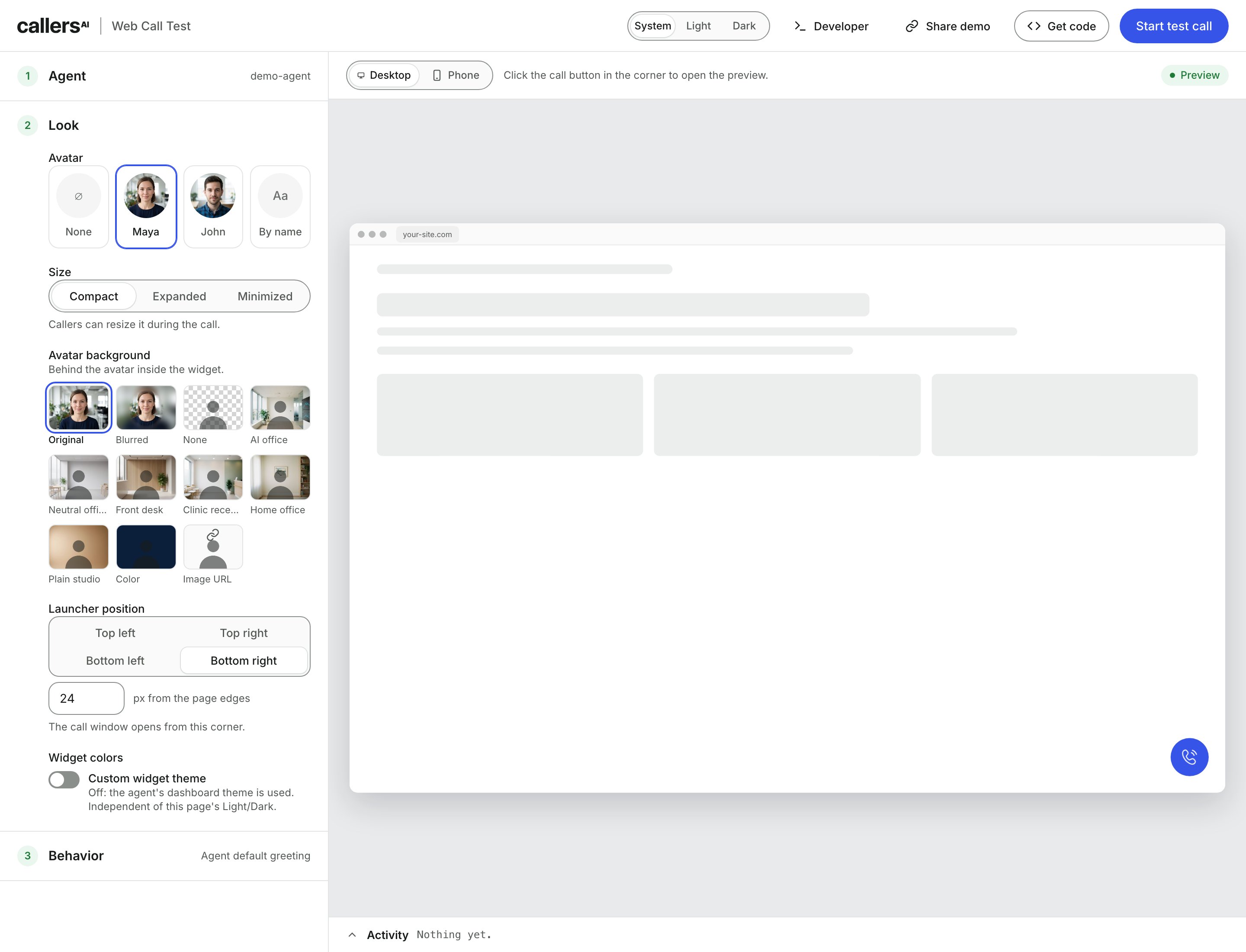
Pick an avatar and a background on the left; the preview on the right shows the widget on a sample page.
In the dashboard
You don’t need a website to see an avatar. Open the agent, click Test in the header and choose the Web Call tab. Pick an Avatar (“Shows a live talking avatar of the agent during the call”) and an Avatar background (Original photo, Blurred, one of the preset scenes, or Image URL…), then start the call. Avatars that match the agent’s voice are listed first; picking a mismatched one shows a warning. The avatar is not part of the agent’s widget settings: the embed snippet under Channels > Widget contains onlydata-agent and your variables. Add data-avatar and the other attributes on this page to the snippet yourself.
Complete examples
Troubleshooting
FAQ
Does the avatar add latency to the conversation?
Does the avatar add latency to the conversation?
No. Nothing about the avatar runs on a server. The only timing change is in the visitor’s browser: the agent’s voice is delayed by the measured face latency, at most 300 ms, so that lips and sound land together. Turn-taking and the agent’s response time are unchanged.
Can the avatar show on text conversations too?
Can the avatar show on text conversations too?
No. The avatar is driven by the agent’s voice, so it appears on voice calls only. It starts on the dial click of a voice call; a conversation that starts as text and is promoted to voice mid-call (the visitor turns on the microphone) continues without it.
Can I use my own video or a 3D character?
Can I use my own video or a 3D character?
Not through this feature. Avatars are trained from a single portrait and rendered by the SDK. Contact support@callers.ai to discuss a custom avatar.
Does the visitor need a GPU?
Does the visitor need a GPU?
No. Without WebGPU the model runs on WebAssembly. It still works; it renders fewer faces per second and uses more battery on phones.
Does the avatar work in headless mode or React Native?
Does the avatar work in headless mode or React Native?
The avatar renders into a DOM element, so it needs a browser page: the call window or your own
avatarContainer. With the call window hidden (hidden: true), point avatarContainer at an element of your own; the avatar is appended to that element directly. See Headless and React Native for the rest of the headless setup.Can visitors turn the avatar off?
Can visitors turn the avatar off?
They can minimize it to a header thumbnail during the call. To offer a full opt-out, create the
WebCall with or without avatar based on a setting on your page.Which voices get the best lip sync?
Which voices get the best lip sync?
Any voice works from the audio alone. Voices whose provider returns character timings also close the lips on m/b/p and shape f/v and the vowels from the text.
avatarStats.timedLips shows whether timings are in use on a call.Related
Page Guide
Let the agent see the page and point at elements while the avatar talks.
Configuration
Every option and script-tag attribute.
Playground
Try every avatar, size and background with your agent.
Installing the widget
The no-code setup in the dashboard.