> ## Documentation Index
> Fetch the complete documentation index at: https://docs.callers.ai/llms.txt
> Use this file to discover all available pages before exploring further.
# Key Questions
By adding Key Questions to your script steps, you create a handy reference for quick analysis and data retrieval. This section takes place under the campaign summary:
 ### Summary and Post-Processing
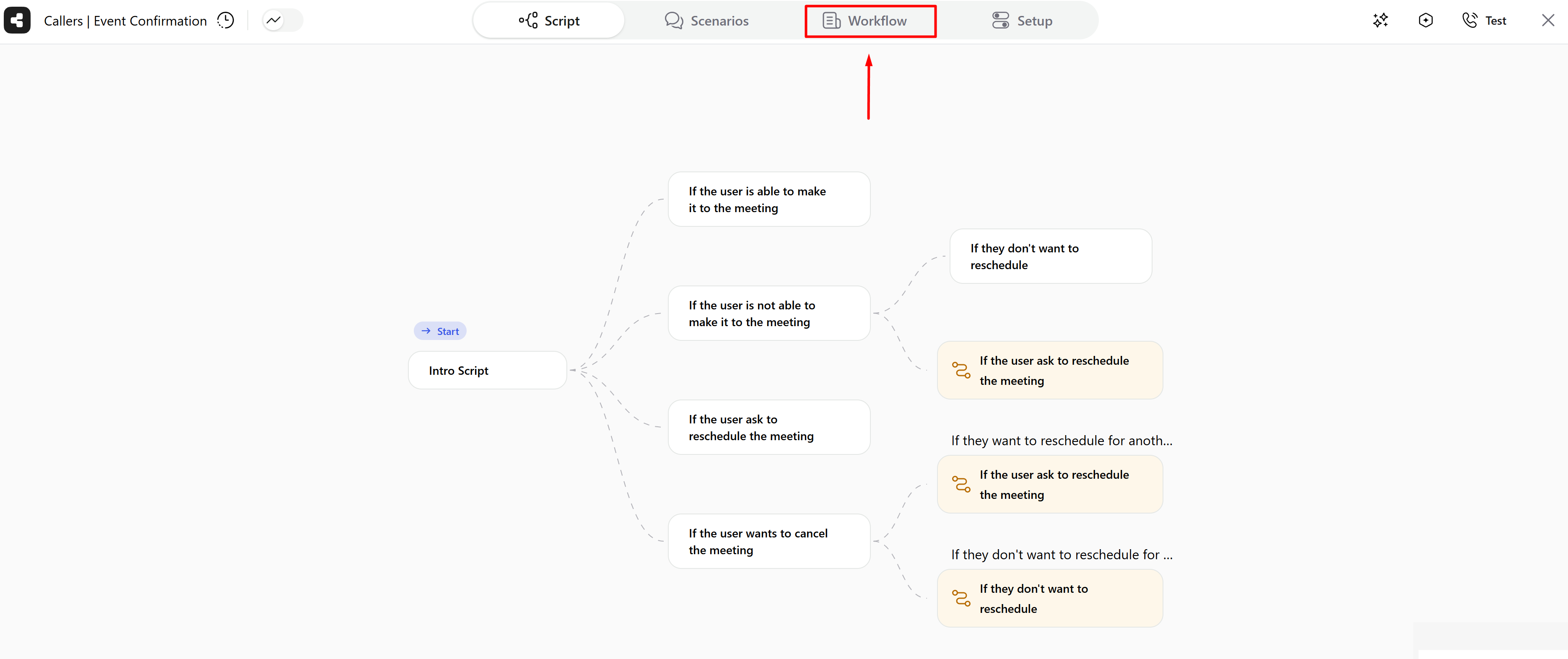
In the **Workflow** window, you can configure:
* [**Webhooks**](/documentation/webhook/webhook-overview), which are triggered after a call is processed.
* **Interest Criteria**, which define the conditions under which a call is marked as **Interested**.
* **Key Questions**, which are used to capture important and relevant information from the conversation.
There are two types of Key Questions:
* **Step keys:** the analysis will be made related to a specific step or question.
* **Global keys:** the analysis will be made along the whole conversation.
### Summary and Post-Processing
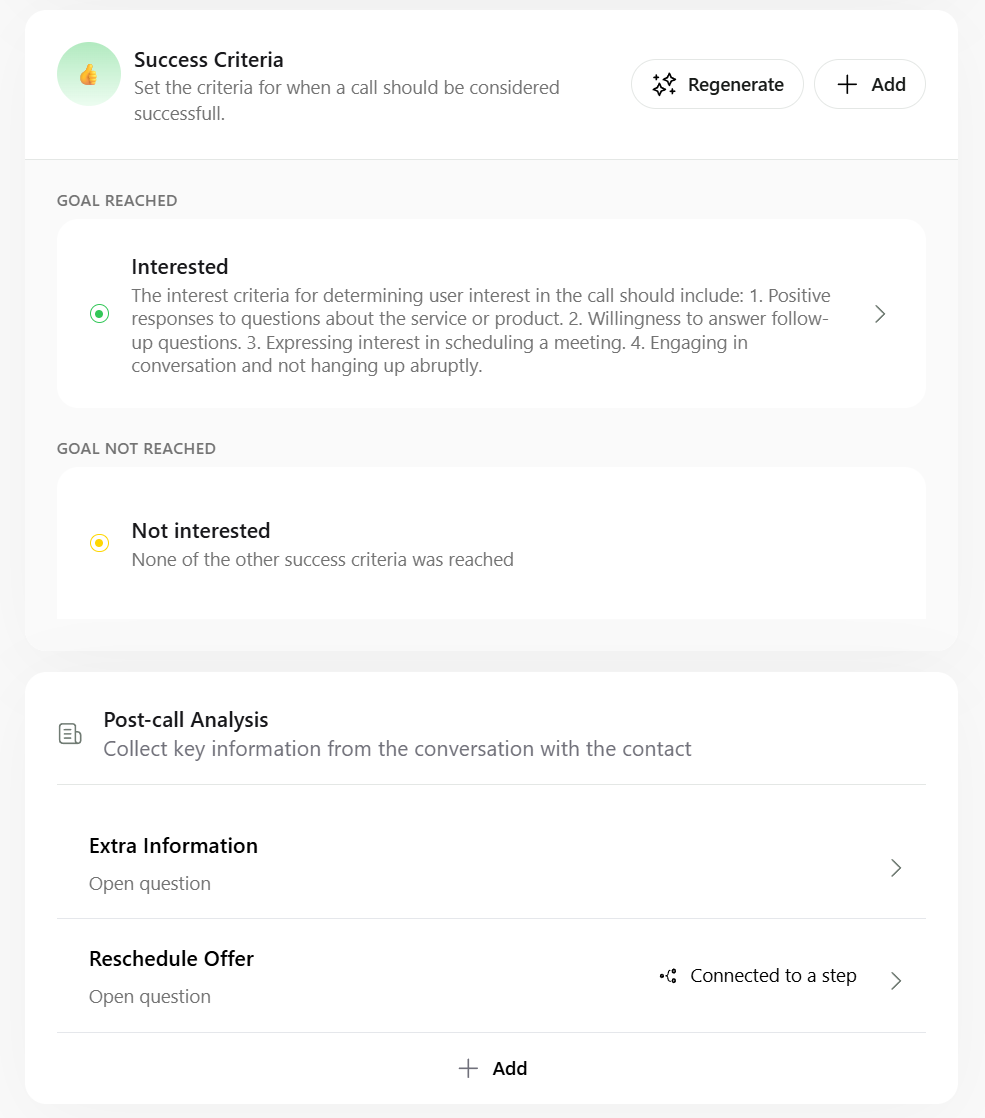
In the **Workflow** window, you can configure:
* [**Webhooks**](/documentation/webhook/webhook-overview), which are triggered after a call is processed.
* **Interest Criteria**, which define the conditions under which a call is marked as **Interested**.
* **Key Questions**, which are used to capture important and relevant information from the conversation.
There are two types of Key Questions:
* **Step keys:** the analysis will be made related to a specific step or question.
* **Global keys:** the analysis will be made along the whole conversation.
 ### Adding Key Questions
#### Step Key Questions
* Navigate to the script where you want to add the Key Questions.
* Find the step number located on the left side of the step you want to summarize.
* Click on the step number. This action will open a window to set the Key for the step.
### Adding Key Questions
#### Step Key Questions
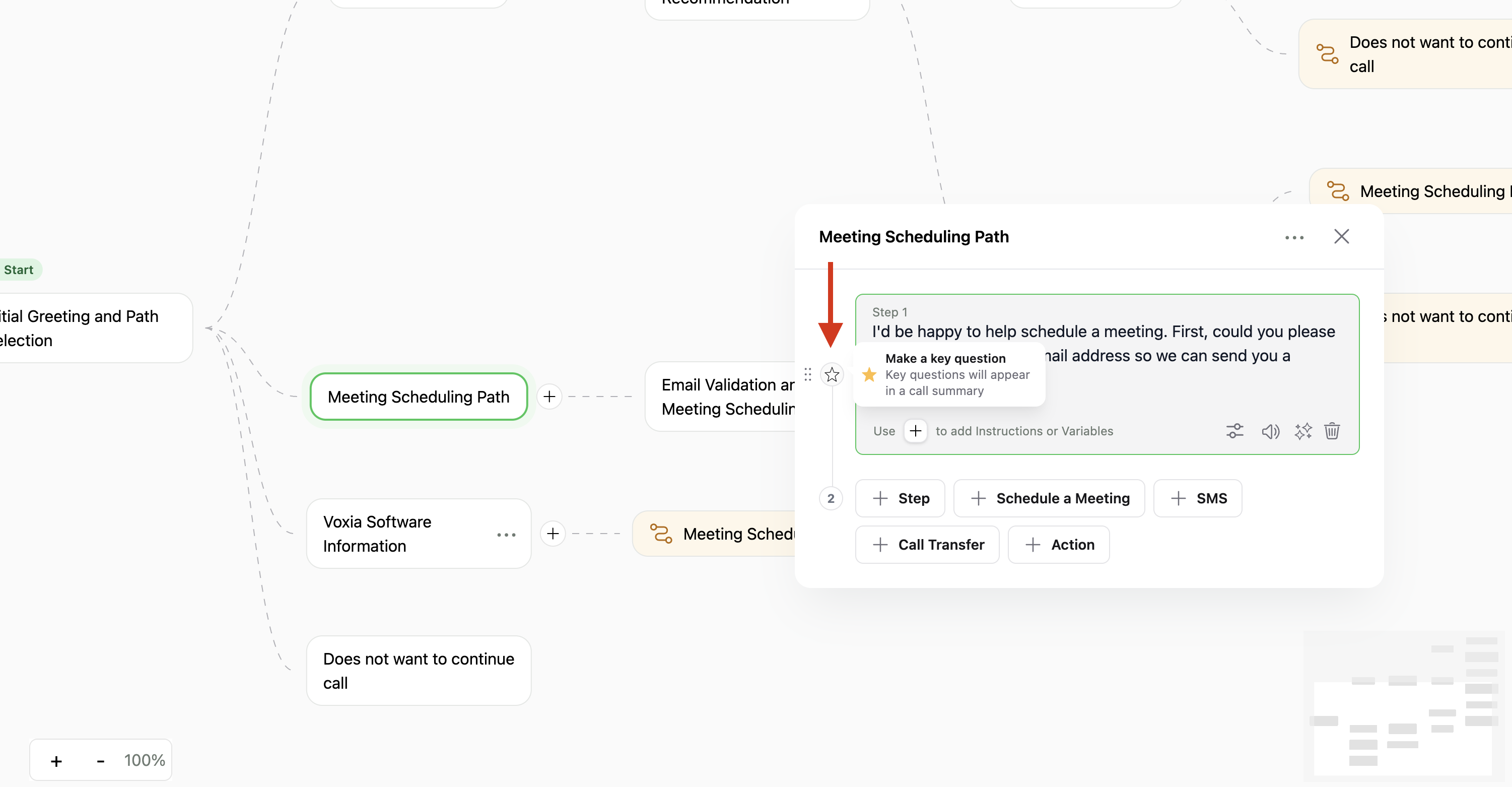
* Navigate to the script where you want to add the Key Questions.
* Find the step number located on the left side of the step you want to summarize.
* Click on the step number. This action will open a window to set the Key for the step.
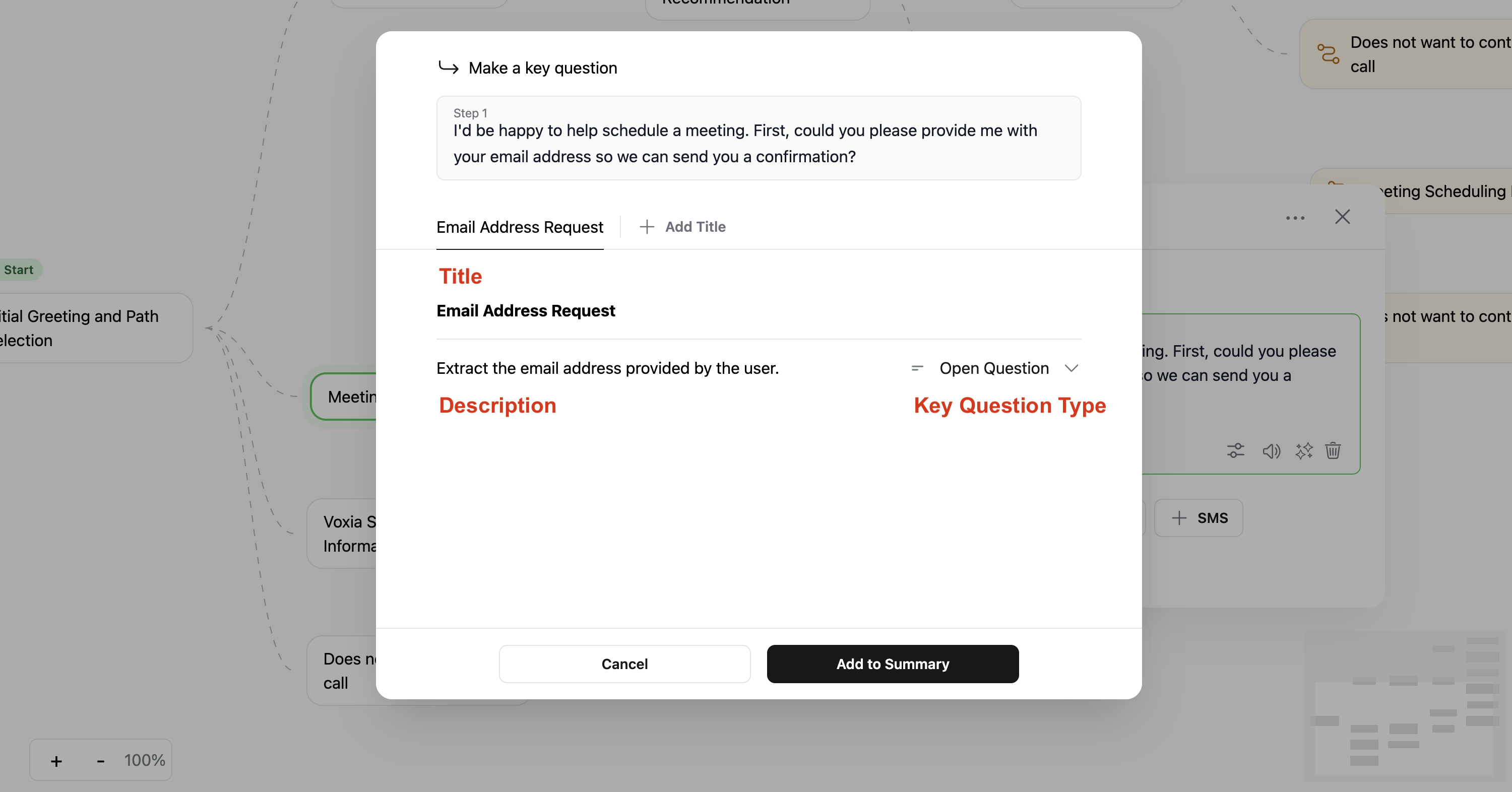 * Title, Description and Key Type will be automatically created for your Key Question according to the step description. This is data that can be changed.
* There are several types of question to select according to the desired output needed:
* Open question
* Single choice
* Multiple choice
* Yes/No
* Number
* Date
* Time
You can add multiple titles to each step by repeating the above process, generating multiple outputs for the summary.
#### Global Key Questions
* In the Workflow window, scroll down to the Post-call Analysis section.
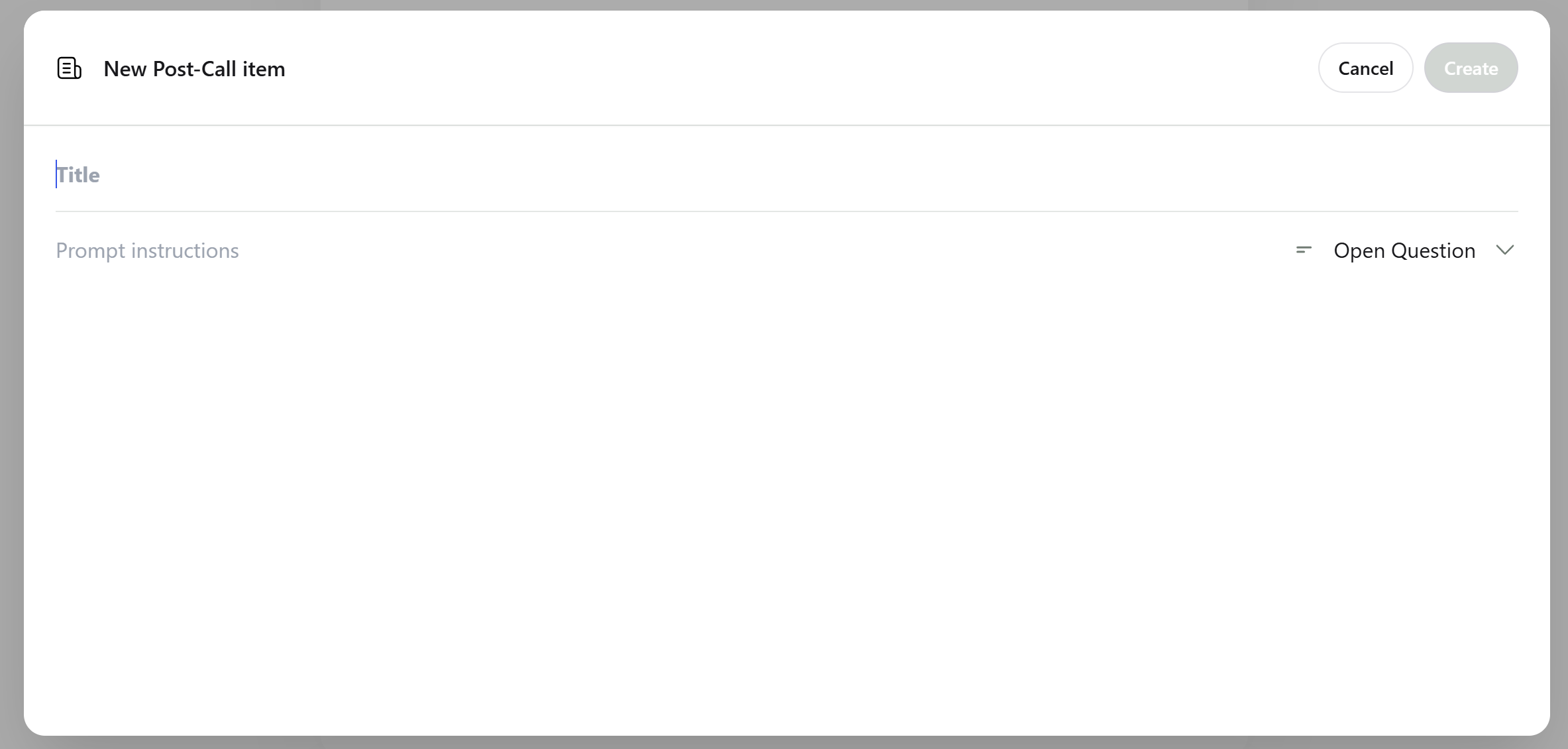
* Click on the "+ Add" button to create a new Key Question.
* Complete the required fields:
* **Title:** Displayed in the summary.
* **Description:** Instruction to the AI on what information to extract.
* **Key Type:** Desired output response.
* Title, Description and Key Type will be automatically created for your Key Question according to the step description. This is data that can be changed.
* There are several types of question to select according to the desired output needed:
* Open question
* Single choice
* Multiple choice
* Yes/No
* Number
* Date
* Time
You can add multiple titles to each step by repeating the above process, generating multiple outputs for the summary.
#### Global Key Questions
* In the Workflow window, scroll down to the Post-call Analysis section.
* Click on the "+ Add" button to create a new Key Question.
* Complete the required fields:
* **Title:** Displayed in the summary.
* **Description:** Instruction to the AI on what information to extract.
* **Key Type:** Desired output response.
 > #### Removing Key Question Titles
>
> To delete a title, hover over the title and click on the remove icon that appears on the right side of it.
### Key Questions in Summaries
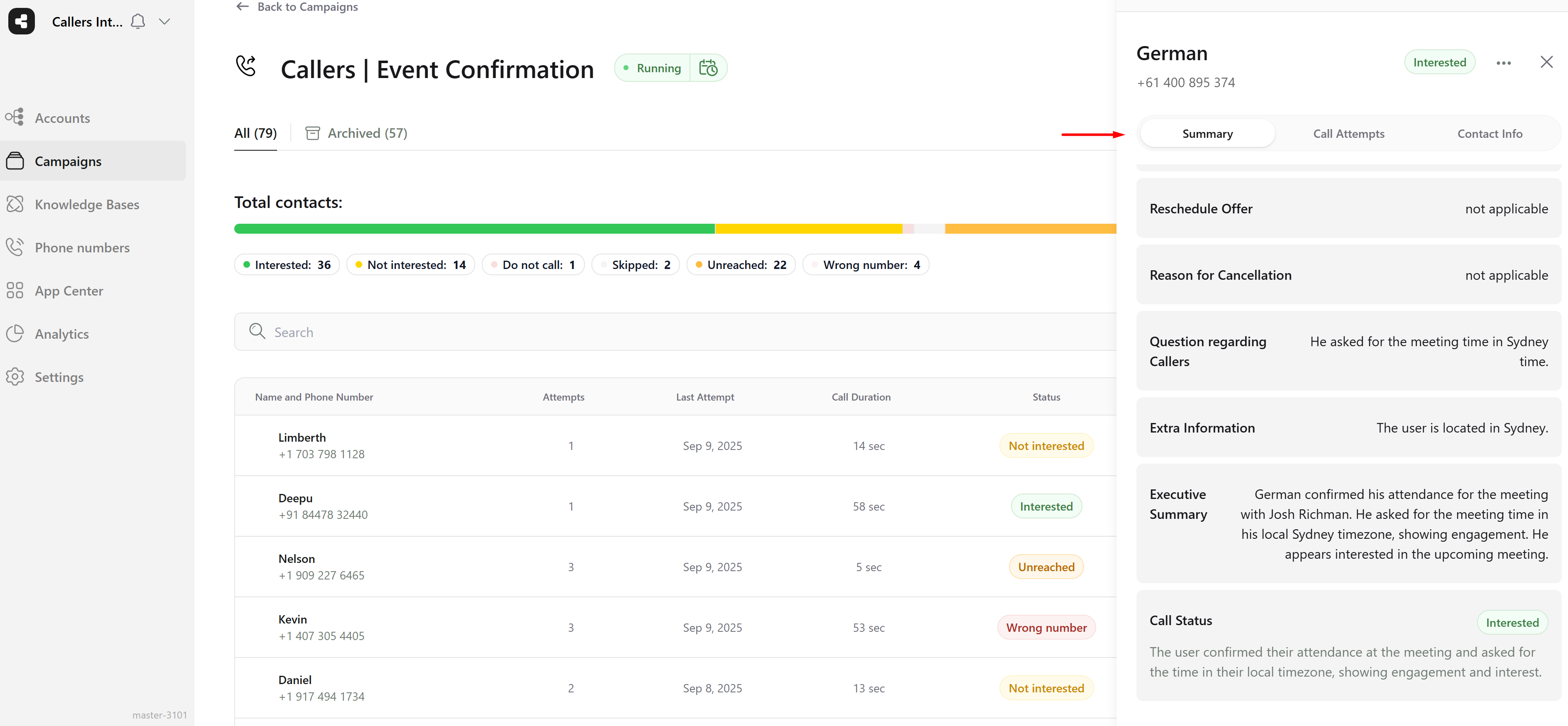
* Once added, these titles will be displayed in the 'Interested' contact summary section.
> #### Removing Key Question Titles
>
> To delete a title, hover over the title and click on the remove icon that appears on the right side of it.
### Key Questions in Summaries
* Once added, these titles will be displayed in the 'Interested' contact summary section.
 * For Webhooks, the summary will be structured as follows:
```json webhook.json theme={null}
"summary": {
"Contact willingness": {
"description": "Tell if the contact was willing to tell personal information",
"options": [],
"order": 3,
"type": "YES_NO",
"value": true
},
"Residency Inquiry": {
"description": "Provide a yes or no response indicating whether you reside in the specified country.",
"options": [],
"order": 2,
"type": "YES_NO",
"value": true
},
"Schedule Call": {
"description": "Extract the preferred day and time for the follow-up call.",
"options": [],
"order": 1,
"type": "OPEN_QUESTION",
"value": "today at five pm"
}
}
```
* For Webhooks, the summary will be structured as follows:
```json webhook.json theme={null}
"summary": {
"Contact willingness": {
"description": "Tell if the contact was willing to tell personal information",
"options": [],
"order": 3,
"type": "YES_NO",
"value": true
},
"Residency Inquiry": {
"description": "Provide a yes or no response indicating whether you reside in the specified country.",
"options": [],
"order": 2,
"type": "YES_NO",
"value": true
},
"Schedule Call": {
"description": "Extract the preferred day and time for the follow-up call.",
"options": [],
"order": 1,
"type": "OPEN_QUESTION",
"value": "today at five pm"
}
}
```