> ## Documentation Index
> Fetch the complete documentation index at: https://docs.callers.ai/llms.txt
> Use this file to discover all available pages before exploring further.
# Squaretalk Integration
> Guide for integrating Squaretalk with Callers via SIP.
## Prerequisites
* An active Squaretalk account
* Your Callers account credentials
## Step 1: Get Connection Details from Squaretalk
Contact your Squaretalk account manager and request the following:
* **SIP URL**: Your Squaretalk SIP endpoint (typically `lb-sbc.squaretalk.com`)
* **Tech Prefix**: A prefix used by Squaretalk to identify and route your outgoing calls
* **Phone Numbers**: The numbers assigned to your account that you will connect in Callers
For inbound calls to Callers, ask Squaretalk to whitelist our IP address:
```copy theme={null}
35.245.182.192
```
Alternatively, you can use DNS: `sip.callers.ai`
**Important:** This IP/DNS can only be used for inbound calls to Callers. It cannot be added to your allowed IPs list for receiving outbound calls from us.
## Step 2: Configure SIP in Callers
1. Go to the ***App Center*** tab on your Callers dashboard
2. Find SIP under the `TELEPHONY & COMMUNICATION` section
3. Click on the `plus` button in the SIP Integration block
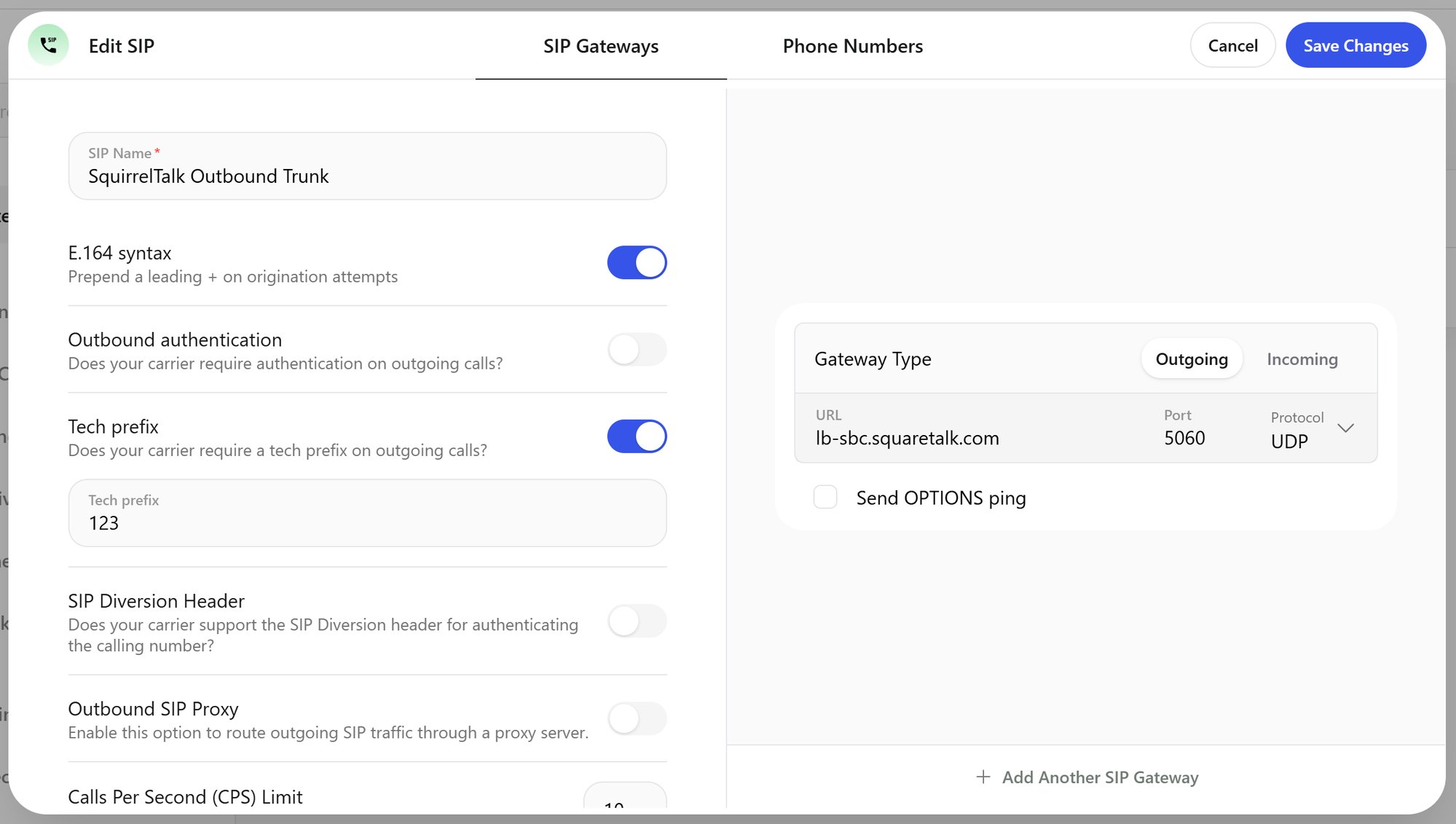
4. Configure your SIP with the following settings:
* **SIP Name**: Enter a descriptive name (e.g., "Squaretalk Outbound Trunk")
* **E.164 syntax**: Enable to prepend a leading + on origination attempts
* **Outbound authentication**: Leave disabled — Squaretalk uses IP-based routing with a tech prefix, no username/password is required
* **Tech prefix**: Enable and enter the prefix provided by Squaretalk
* **SIP Diversion Header**: Leave disabled
5. In the **SIP Gateways** section, configure the gateway:
* **Gateway Type**: Outgoing, Incoming, or both — depending on how you plan to use the trunk
* **URL**: `lb-sbc.squaretalk.com` (or the endpoint provided by Squaretalk)
* **Port**: 5060
* **Protocol**: UDP
6. Click `Save Changes`
 To use the same gateway for both directions, add it with both types or enable **Gateway Configuration**. For incoming calls, make sure Squaretalk has whitelisted the Callers IP address (see Step 1).
## Step 3: Add Phone Numbers in Callers
1. Go to the **Phone Numbers** tab of your SIP configuration
2. For each number provided by Squaretalk:
* Enter the full E.164 format (e.g., +12025550123)
* Enable "Use for outbound calls" if needed
## Important Notes
* **Authentication**: Squaretalk uses IP-based routing with a tech prefix — no username/password is required
* **E.164 Format**: All phone numbers must use the format \[+] \[country code] \[area code] \[number]
* **Inbound Calls**: Callers' IP (`35.245.182.192`) must be whitelisted on the Squaretalk side for inbound calls to work
* **Account-Specific Settings**: The tech prefix is unique to your Squaretalk account — always confirm it with your account manager
For optimal performance:
* Test both inbound and outbound calling before going live
* Contact Squaretalk support if calls fail to connect — routing may need to be adjusted on their side
To use the same gateway for both directions, add it with both types or enable **Gateway Configuration**. For incoming calls, make sure Squaretalk has whitelisted the Callers IP address (see Step 1).
## Step 3: Add Phone Numbers in Callers
1. Go to the **Phone Numbers** tab of your SIP configuration
2. For each number provided by Squaretalk:
* Enter the full E.164 format (e.g., +12025550123)
* Enable "Use for outbound calls" if needed
## Important Notes
* **Authentication**: Squaretalk uses IP-based routing with a tech prefix — no username/password is required
* **E.164 Format**: All phone numbers must use the format \[+] \[country code] \[area code] \[number]
* **Inbound Calls**: Callers' IP (`35.245.182.192`) must be whitelisted on the Squaretalk side for inbound calls to work
* **Account-Specific Settings**: The tech prefix is unique to your Squaretalk account — always confirm it with your account manager
For optimal performance:
* Test both inbound and outbound calling before going live
* Contact Squaretalk support if calls fail to connect — routing may need to be adjusted on their side