> ## Documentation Index
> Fetch the complete documentation index at: https://docs.callers.ai/llms.txt
> Use this file to discover all available pages before exploring further.
# Overview & Setup
> Learn about SIP integration and how to set it up in Callers.
# SIP Integration Overview
SIP (Session Initiation Protocol) integration allows you to connect your existing telephony infrastructure with Callers. You can use SIP for both incoming and outgoing calls:
* **Incoming Calls**: Receive calls from your SIP provider to Callers
* **Outgoing Calls**: Make calls from Callers through your SIP provider
* **Bidirectional**: Use the same numbers for both incoming and outgoing calls
Your SIP provider will need to whitelist our IP address:
```copy theme={null}
35.245.182.192
```
Alternatively, you can use DNS: `sip.callers.ai`
**Important:** This IP/DNS can only be used for inbound calls to Callers. It cannot be added to your allowed IPs list for receiving outbound calls from us.
## Setting Up SIP Integration
### Step 1: Access SIP Integration
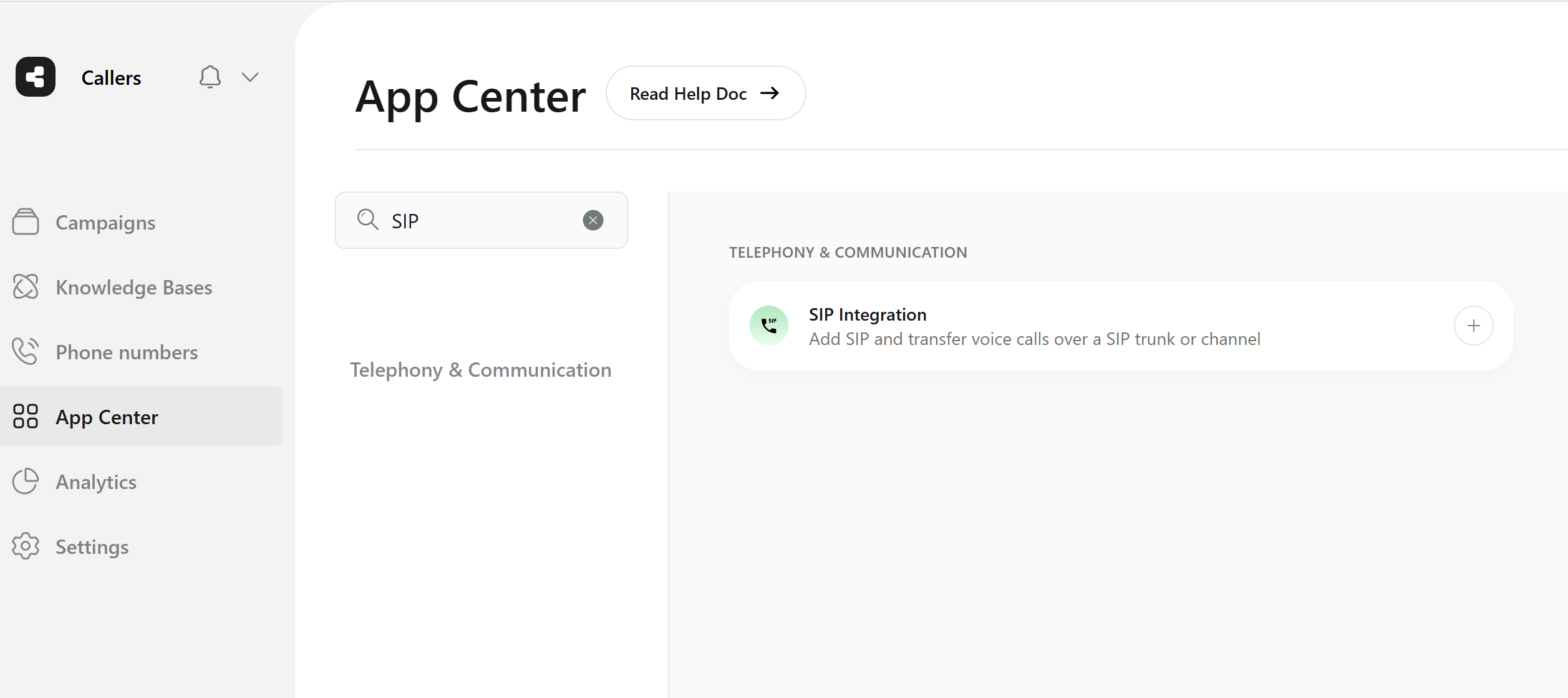
* Go to the ***App Center*** tab on your Callers dashboard
* Find SIP under the `TELEPHONY & COMMUNICATION` section
* Click on the `plus` button in the SIP Integration block
{/*  */}
*/}
 ### Step 2: Configure SIP Details
* **SIP Name**: Enter a descriptive name for this SIP connection
* **E.164 syntax:** All phone numbers must use the format: \[+] \[country code] \[area code] \[number]
* **Outbound Authentication Settings:**
* Enable if your SIP provider requires authentication
* **Username**: Your SIP authentication username
* **Password**: Your SIP authentication password
* **Advanced Settings:**
* **Tech Prefix:** Enable if required by your provider
* **SIP Diversion Header:** Enable for authenticated outgoing calls
* **URL**: Your SIP provider's endpoint URL
* **Port**: Default is 5060 (or as specified by your provider)
* **Gateway Configuration:** Enable to use the same numbers for both incoming and outgoing calls
### Step 2: Configure SIP Details
* **SIP Name**: Enter a descriptive name for this SIP connection
* **E.164 syntax:** All phone numbers must use the format: \[+] \[country code] \[area code] \[number]
* **Outbound Authentication Settings:**
* Enable if your SIP provider requires authentication
* **Username**: Your SIP authentication username
* **Password**: Your SIP authentication password
* **Advanced Settings:**
* **Tech Prefix:** Enable if required by your provider
* **SIP Diversion Header:** Enable for authenticated outgoing calls
* **URL**: Your SIP provider's endpoint URL
* **Port**: Default is 5060 (or as specified by your provider)
* **Gateway Configuration:** Enable to use the same numbers for both incoming and outgoing calls
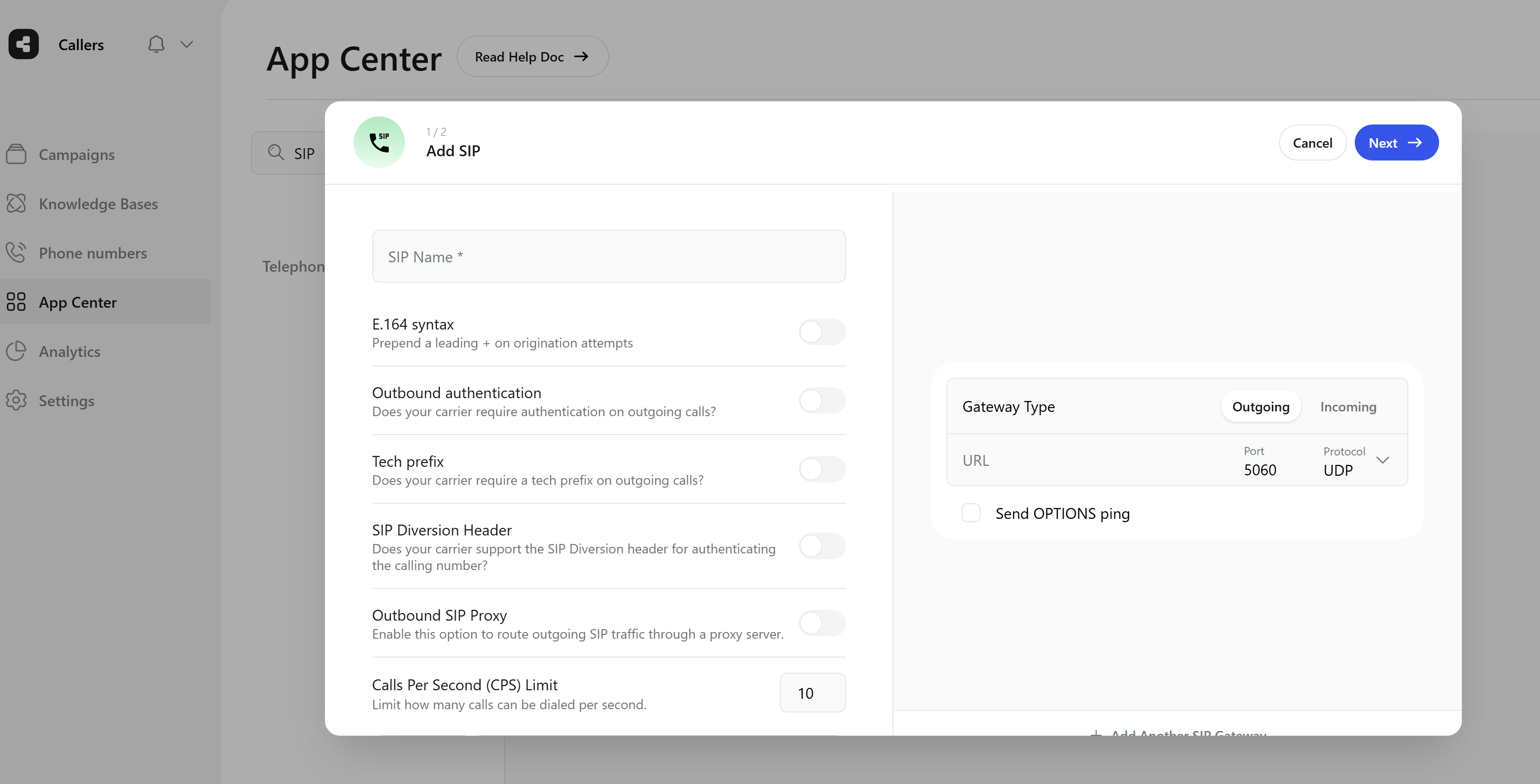 Click `Next` to proceed.
### Step 3: Add Phone Numbers
After the initial setup:
1. You'll be prompted to enter your SIP phone numbers
2. Alternatively, access the `Phone numbers` tab and click `Add SIP Numbers` anytime
## Multiple SIP Connections
You can set up multiple SIP connections to:
* Work with different providers
* Set up redundancy
* Route calls through different providers based on regions or cost
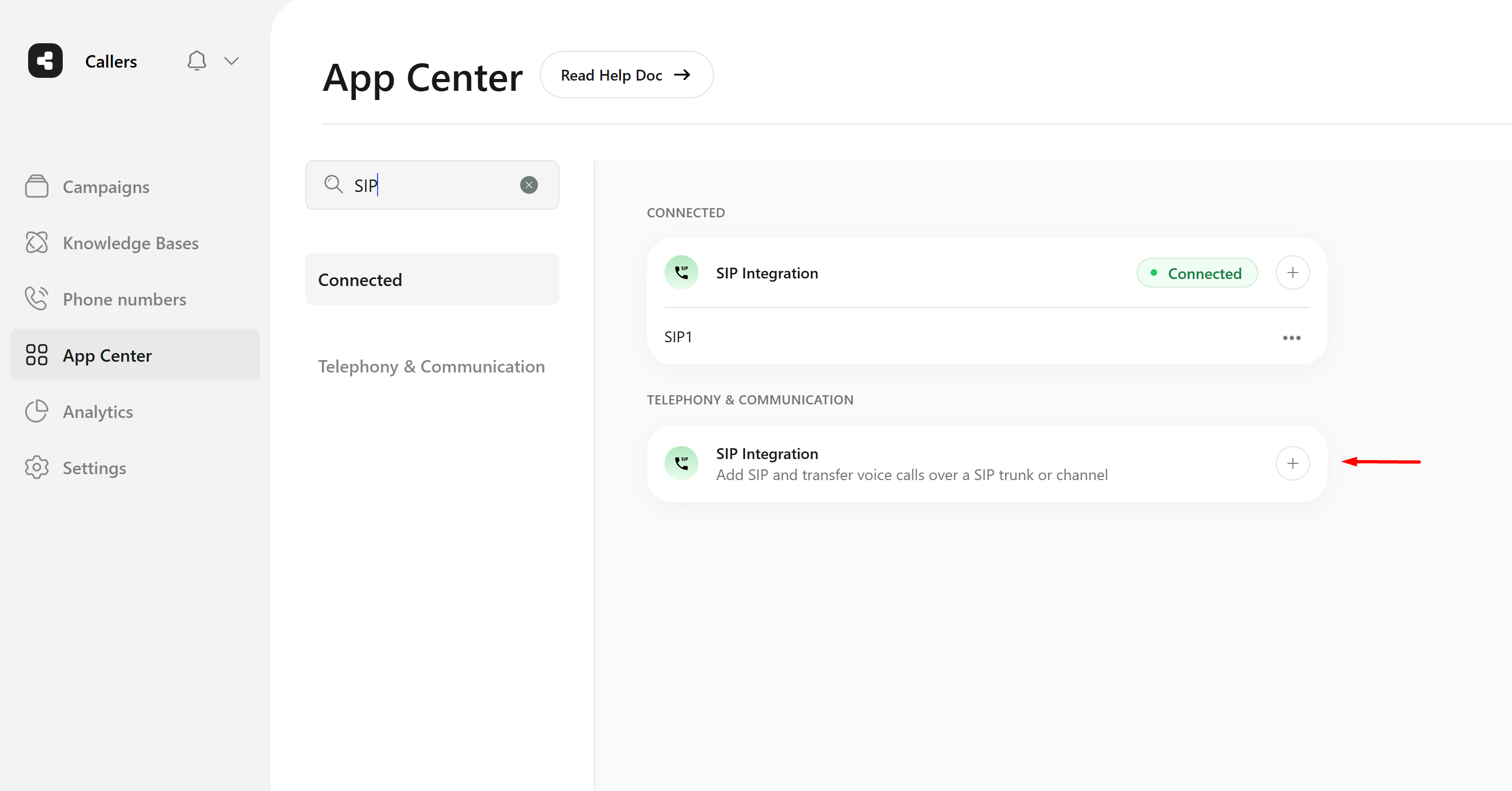
To add another SIP connection:
* Go to the ***Integrations*** tab
* Click `Connect` in the SIP Integration section
* Configure the new connection's details
Click `Next` to proceed.
### Step 3: Add Phone Numbers
After the initial setup:
1. You'll be prompted to enter your SIP phone numbers
2. Alternatively, access the `Phone numbers` tab and click `Add SIP Numbers` anytime
## Multiple SIP Connections
You can set up multiple SIP connections to:
* Work with different providers
* Set up redundancy
* Route calls through different providers based on regions or cost
To add another SIP connection:
* Go to the ***Integrations*** tab
* Click `Connect` in the SIP Integration section
* Configure the new connection's details
 ## Contact Fields in SIP Headers
All contact fields are included in the SIP headers to ensure comprehensive integration and communication. This allows for:
* Seamless data transfer
* Complete call handling information
* Proper call routing
* Support for advanced features like call forwarding
For more details on call forwarding capabilities, see the [Call Forwarding section](../build-your-campaign/customizing-steps#call-forwarding).
## Provider-Specific Guides
For detailed instructions on setting up specific SIP providers, please refer to our integration guides in the sidebar.
## Contact Fields in SIP Headers
All contact fields are included in the SIP headers to ensure comprehensive integration and communication. This allows for:
* Seamless data transfer
* Complete call handling information
* Proper call routing
* Support for advanced features like call forwarding
For more details on call forwarding capabilities, see the [Call Forwarding section](../build-your-campaign/customizing-steps#call-forwarding).
## Provider-Specific Guides
For detailed instructions on setting up specific SIP providers, please refer to our integration guides in the sidebar.