> ## Documentation Index
> Fetch the complete documentation index at: https://docs.callers.ai/llms.txt
> Use this file to discover all available pages before exploring further.
# HubSpot
> Connect HubSpot with Callers to sync contacts, log activities, and automate follow‑ups in your CRM.
All HubSpot integration actions are sent from the following IP addresses:
```copy theme={null}
35.245.204.86
35.221.61.75
```
If your systems are behind a firewall, whitelist these IP addresses to ensure action requests are delivered.
### Connecting HubSpot to Callers
* Click **Connect**
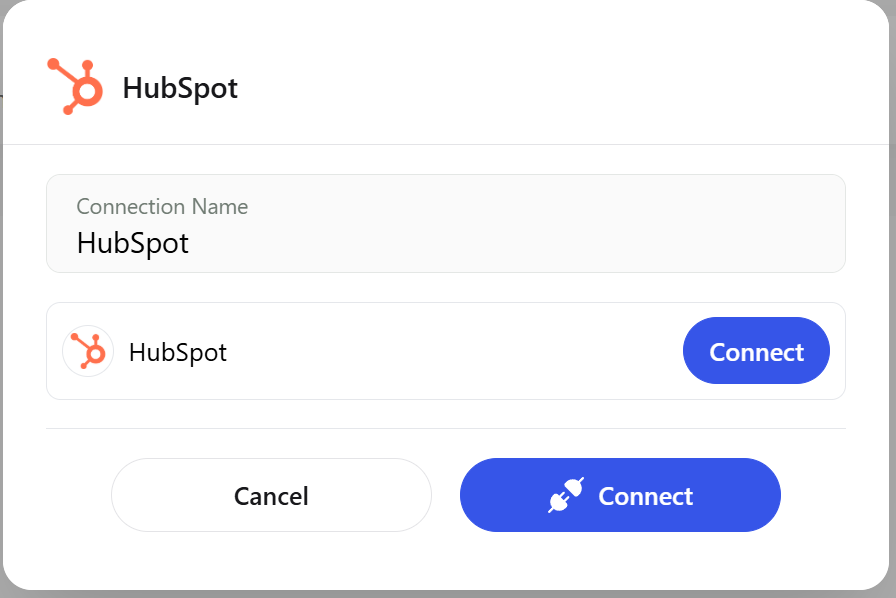 * Sign in to your HubSpot account and grant access
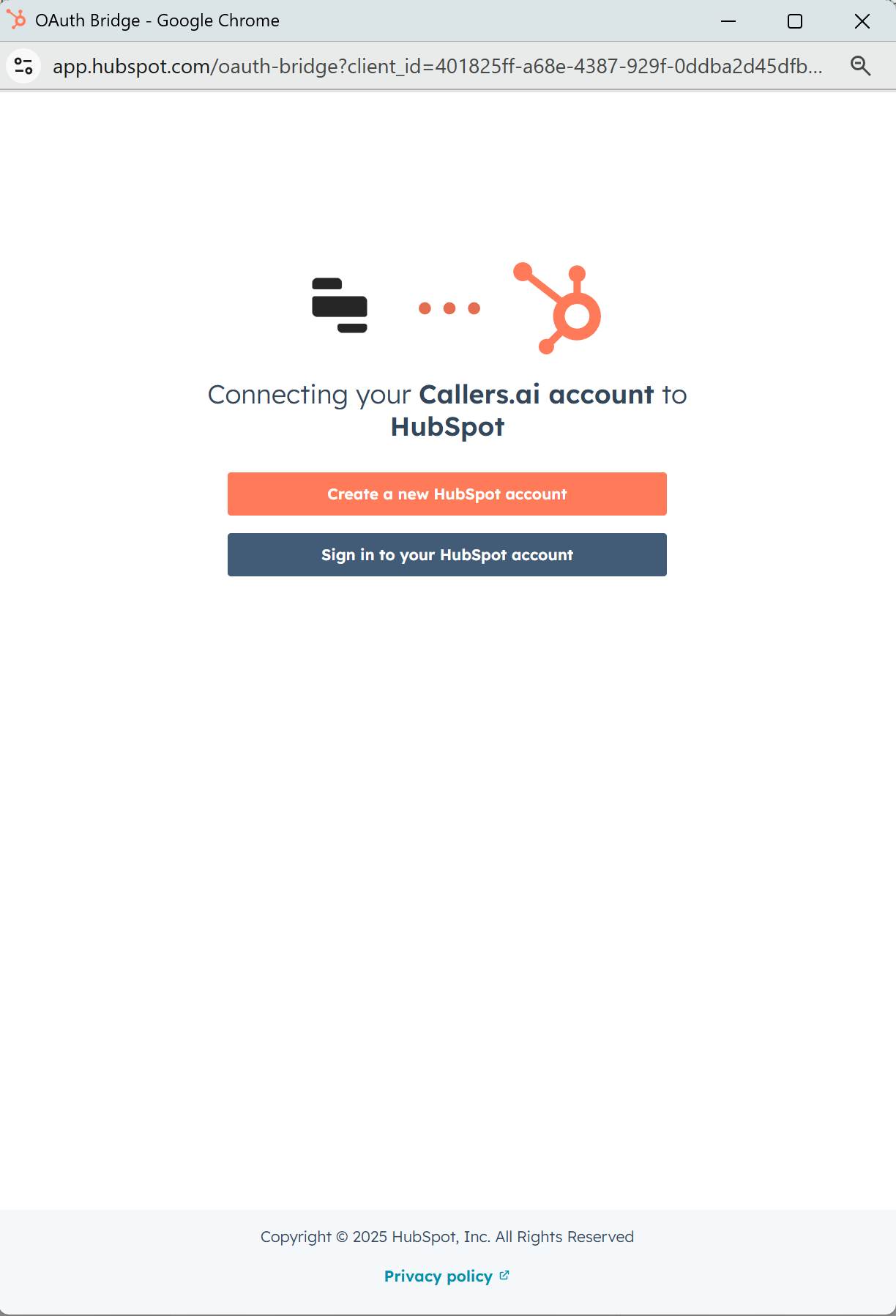 * Choose the account to connect
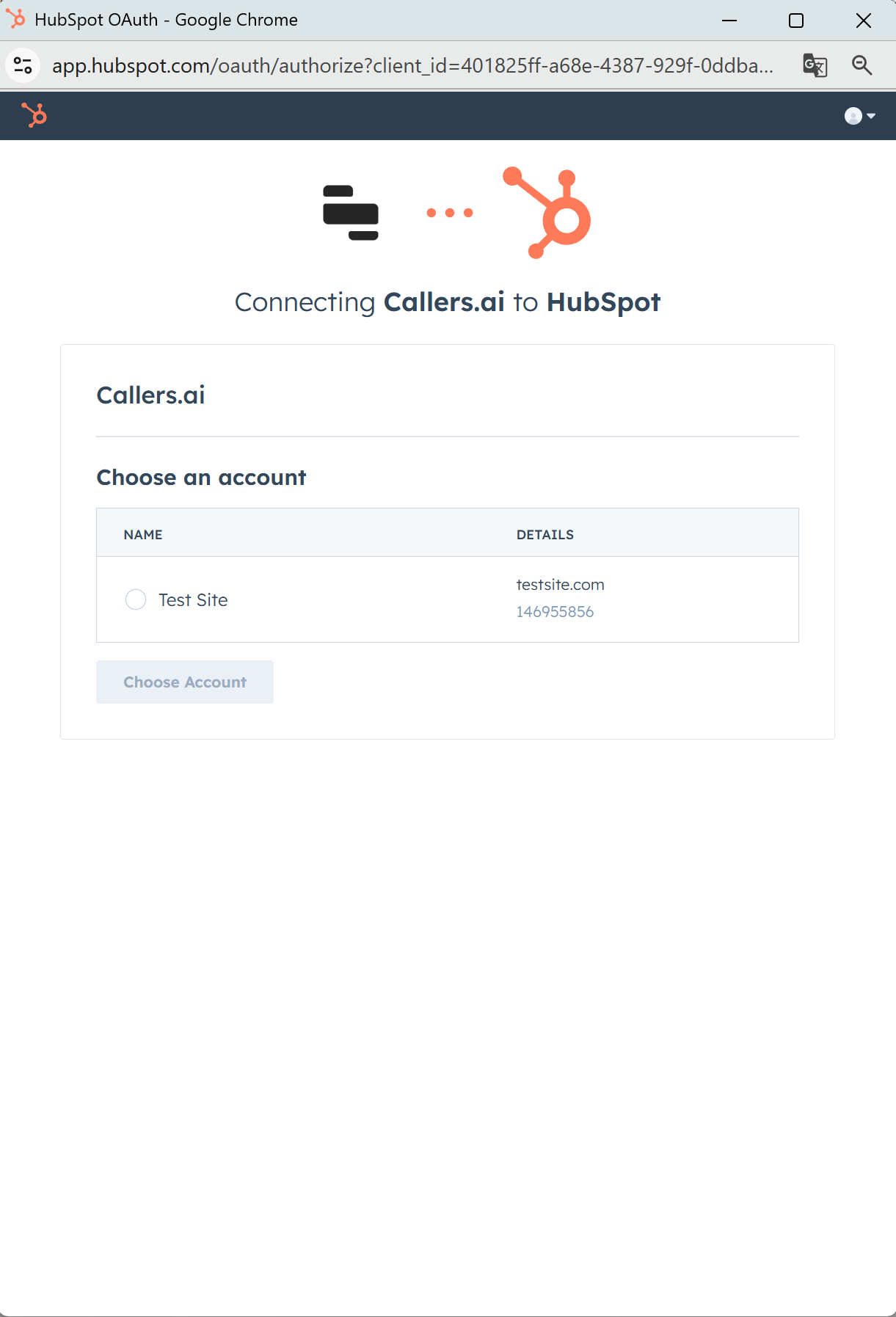 * Return to Callers and ensure the connection shows as **Connected**
***
## Available Actions
* Return to Callers and ensure the connection shows as **Connected**
***
## Available Actions
* Create Contact
* Update Contact
* Create or Update Contact (Upsert)
* Get Contact
* Find Contact
* Create Company
* Update Company
* Get Company
* Find Company
* Create Deal
* Update Deal
* Get Deal
* Find Deal
* Create Line Item
* Update Line Item
* Get Line Item
* Find Line Item
* Create Product
* Update Product
* Get Product
* Find Product
* Create Ticket
* Update Ticket
* Get Ticket
* Find Ticket
* Add Contact to List
* Remove Contact from List
* Remove Email Subscription
* Add Contact to Workflow
* Create Associations
* Remove Associations
* Find Associations
* Create Custom Object
* Update Custom Object
* Get Custom Object
* Find Custom Object
* Create COS Blog Post
* Create Page
* Get Page
* Delete Page
* Get Owner by ID
* Get Owner by Email
* Get Pipeline Stage Details
* Upload File
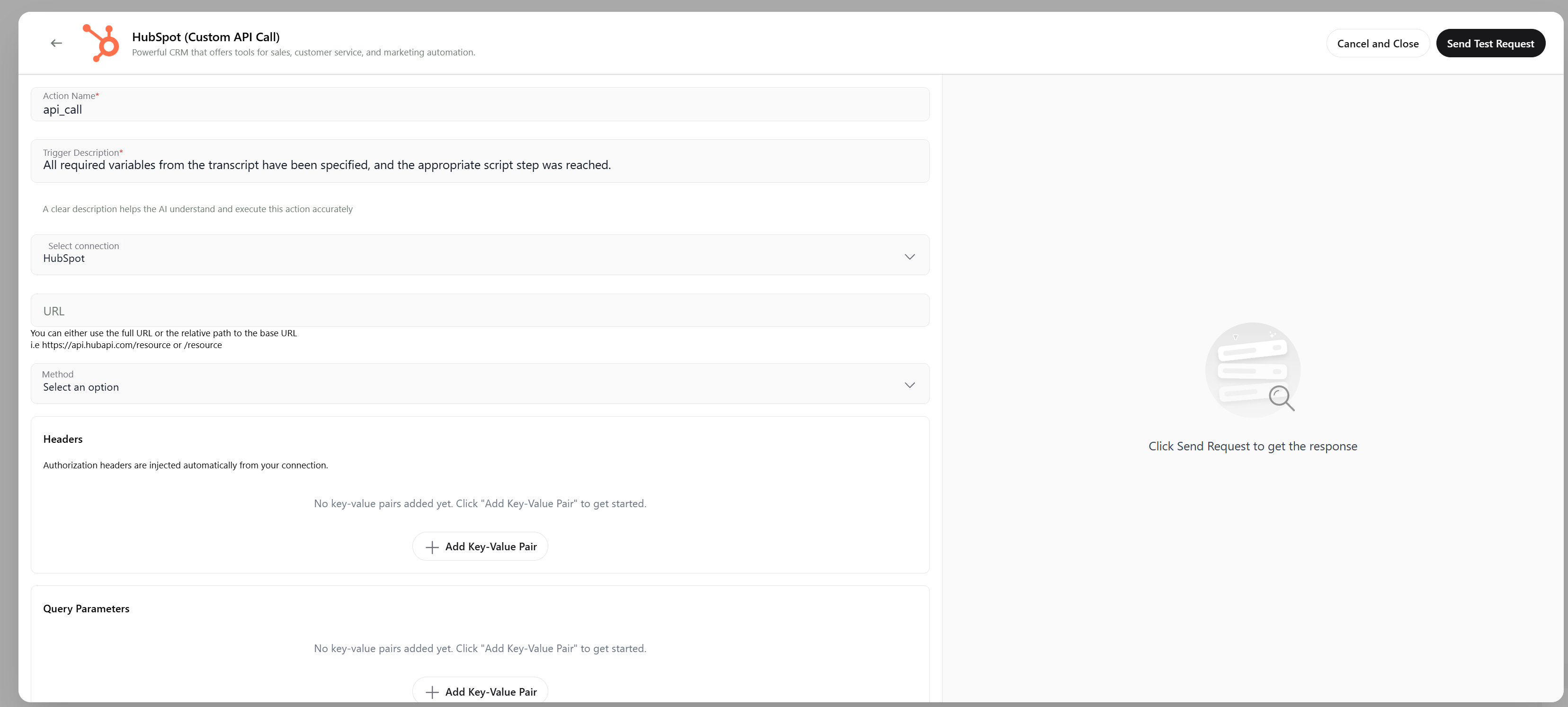
Use this when a specific HubSpot REST endpoint isn’t listed above. Provide Method, Endpoint, Headers, and Body (JSON).
This catalog groups all available actions. Detailed examples below focus on key operations (Create/Upsert Contact and Custom API). For any other action, follow the same field‑mapping approach or use "Custom API Call".
***
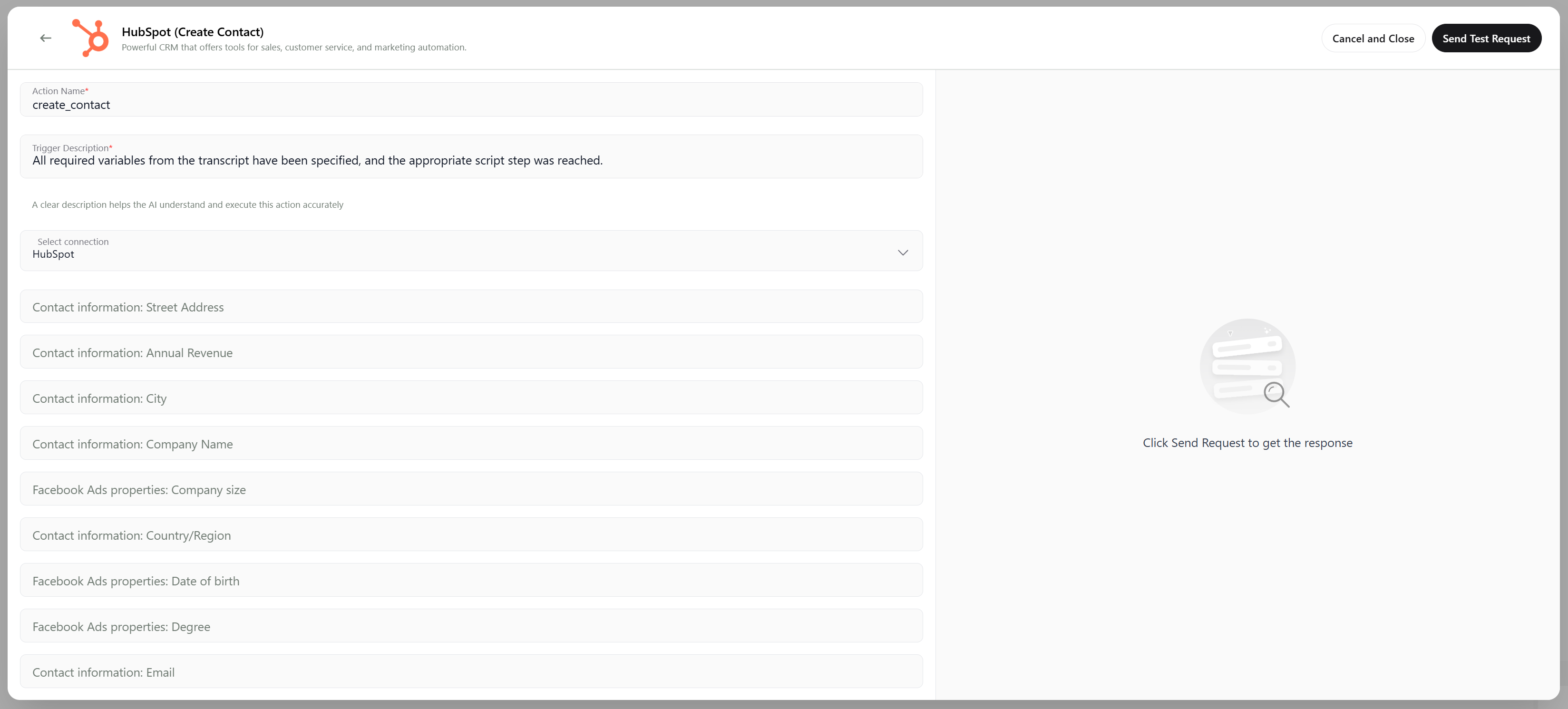
### Create Contact
* **When to use**: creating a new contact in HubSpot.
* **Required fields**: map HubSpot properties directly in the form.
* **Field mapping example**:
* First name → `{{ firstName }}`
* Last name → `{{ lastName }}`
* Email → `{{ email }}`
* Phone → `{{ phone }}`
* Company → `{{ company }}`
* City → `{{ city }}` (optional)
* Street address → `{{ streetAddress }}` (optional)
* Country/Region → `{{ country }}` (optional)
 ***
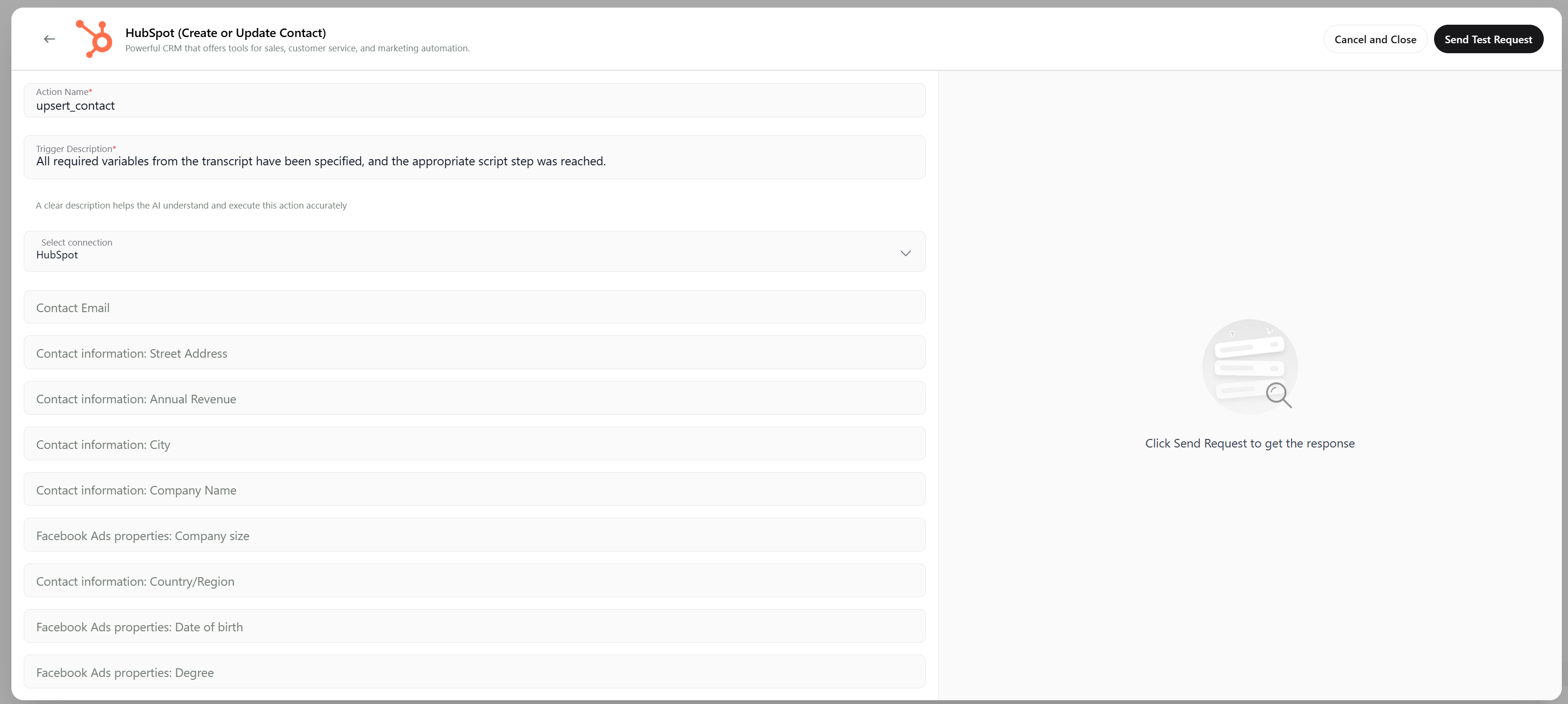
### Upsert Contact
* **When to use**: idempotent create/update by a unique key (commonly email).
* **Required fields**:
* Unique Key — select `email` (or another unique property)
* Contact properties — map fields like in Create Contact
* **Field mapping example**:
* Unique key → Email
* Email → `{{ email }}`
* First name → `{{ firstName }}`
* Last name → `{{ lastName }}`
* Phone → `{{ phone }}`
***
### Upsert Contact
* **When to use**: idempotent create/update by a unique key (commonly email).
* **Required fields**:
* Unique Key — select `email` (or another unique property)
* Contact properties — map fields like in Create Contact
* **Field mapping example**:
* Unique key → Email
* Email → `{{ email }}`
* First name → `{{ firstName }}`
* Last name → `{{ lastName }}`
* Phone → `{{ phone }}`
 ***
### Custom API Call
* **When to use**: you need an endpoint not covered by built‑in actions.
* **Parameters**: Method, Endpoint, Headers, Body (JSON)
* **Sample Body (JSON)**: set properties or payload required by the endpoint.
***
### Custom API Call
* **When to use**: you need an endpoint not covered by built‑in actions.
* **Parameters**: Method, Endpoint, Headers, Body (JSON)
* **Sample Body (JSON)**: set properties or payload required by the endpoint.
 ***
## Using Variables
You can inject scenario/transcript variables into action fields. Make sure:
* Variables are defined in previous steps
* Value types match HubSpot properties (Email, Phone, Date/Time, etc.)
* Numeric/boolean fields receive properly typed values
***
***
## Using Variables
You can inject scenario/transcript variables into action fields. Make sure:
* Variables are defined in previous steps
* Value types match HubSpot properties (Email, Phone, Date/Time, etc.)
* Numeric/boolean fields receive properly typed values
***