> ## Documentation Index
> Fetch the complete documentation index at: https://docs.callers.ai/llms.txt
> Use this file to discover all available pages before exploring further.
# Google Sheets
> Connect Google Sheets with Callers to read and write rows, create worksheets, and automate spreadsheet operations.
All Google Sheets integration actions are sent from the following IP addresses:
```copy theme={null}
35.245.204.86
35.221.61.75
```
If your systems are behind a firewall, whitelist these IP addresses to ensure action requests are delivered.
### Connecting Google Sheets to Callers
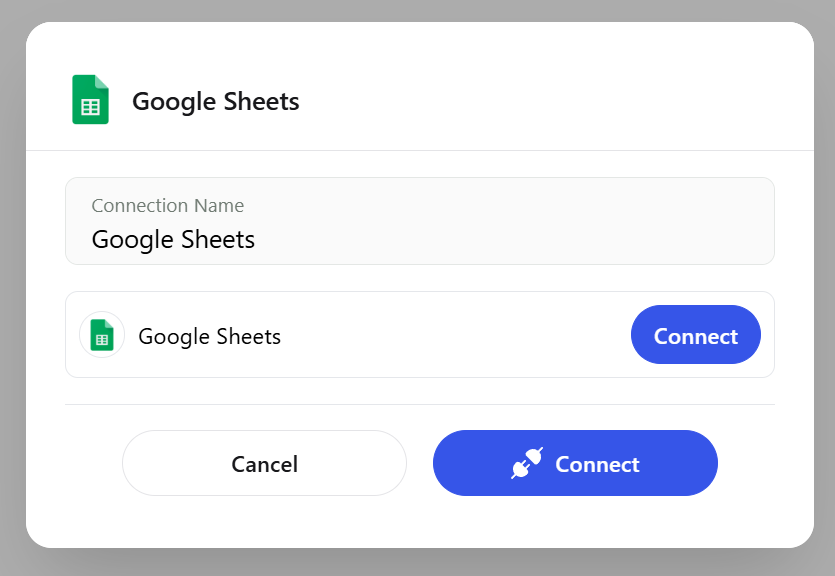
* Click **Connect**
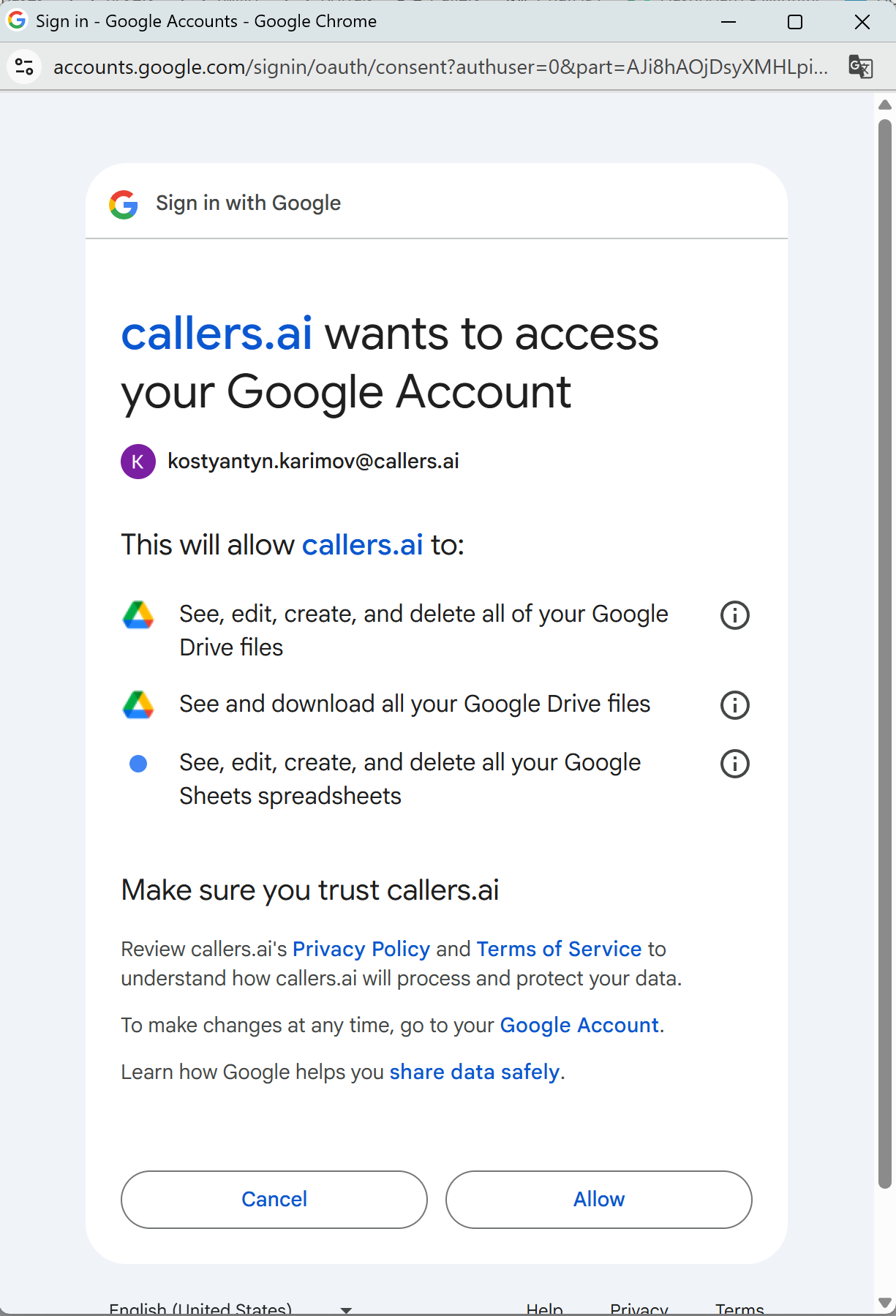
 * Sign in to your Google account and grant access
 * Return to Callers and ensure the connection shows as **Connected**
***
## Available Actions
* Return to Callers and ensure the connection shows as **Connected**
***
## Available Actions
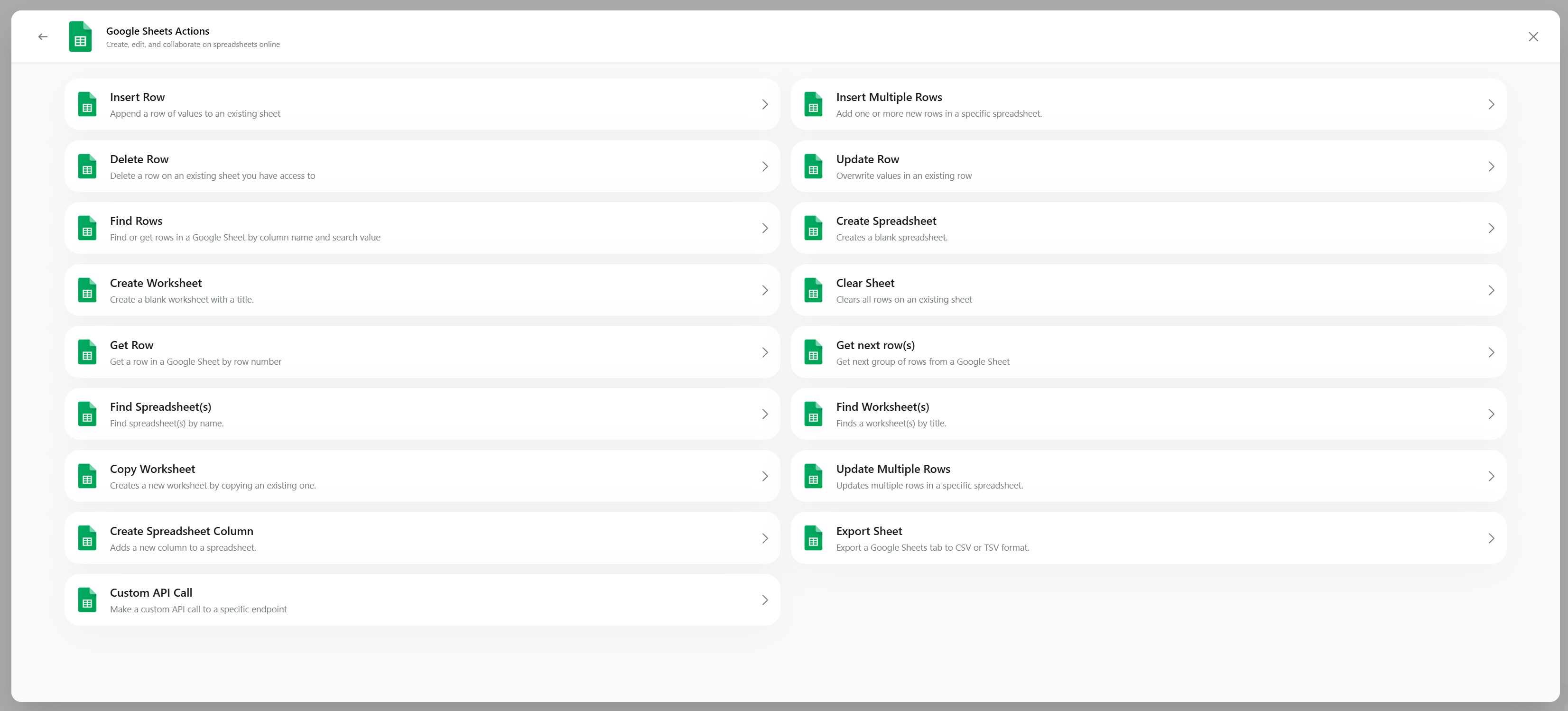 Append one or more rows into an existing worksheet.
Overwrite values in a row by row number, or update many at once.
Search by column and value, or iterate through rows in pages.
Fetch a specific row by its number.
Create a spreadsheet or tabs, or duplicate an existing worksheet.
Add a new column to a worksheet.
Clear all rows or export a sheet to CSV/TSV.
Locate spreadsheets and worksheets by name.
Call a specific Google Sheets API endpoint when a built‑in action is not available.
***
### Insert Row
* **When to use**: append a single row of values to a worksheet.
* **Required fields**:
* Spreadsheet — pick by name or ID
* Worksheet — tab name
* Values — array/object mapping columns to values
Use variables like `{{ firstName }}` and `{{ phone }}` inside values to pass data from earlier steps.
***
### Find Rows
* **When to use**: find row(s) where a column equals a value.
* **Required fields**:
* Spreadsheet, Worksheet
* Column Name, Search Value
***
### Custom API Call
* **When to use**: you need an endpoint not covered by built‑in actions.
* **Parameters**: Method, Endpoint, Headers, Body (JSON)
***
## Using Variables
You can inject scenario/transcript variables into fields. Make sure:
* Variables are defined in previous steps
* Value types match the expected column formats (Text, Number, Date/Time)
* Arrays/objects are structured as the action expects
***
Append one or more rows into an existing worksheet.
Overwrite values in a row by row number, or update many at once.
Search by column and value, or iterate through rows in pages.
Fetch a specific row by its number.
Create a spreadsheet or tabs, or duplicate an existing worksheet.
Add a new column to a worksheet.
Clear all rows or export a sheet to CSV/TSV.
Locate spreadsheets and worksheets by name.
Call a specific Google Sheets API endpoint when a built‑in action is not available.
***
### Insert Row
* **When to use**: append a single row of values to a worksheet.
* **Required fields**:
* Spreadsheet — pick by name or ID
* Worksheet — tab name
* Values — array/object mapping columns to values
Use variables like `{{ firstName }}` and `{{ phone }}` inside values to pass data from earlier steps.
***
### Find Rows
* **When to use**: find row(s) where a column equals a value.
* **Required fields**:
* Spreadsheet, Worksheet
* Column Name, Search Value
***
### Custom API Call
* **When to use**: you need an endpoint not covered by built‑in actions.
* **Parameters**: Method, Endpoint, Headers, Body (JSON)
***
## Using Variables
You can inject scenario/transcript variables into fields. Make sure:
* Variables are defined in previous steps
* Value types match the expected column formats (Text, Number, Date/Time)
* Arrays/objects are structured as the action expects
***