> ## Documentation Index
> Fetch the complete documentation index at: https://docs.callers.ai/llms.txt
> Use this file to discover all available pages before exploring further.
# Campaign Variables
> This page provides intructions on how to create reusable contact data fields that can be applied across your script as dynamic placeholders. Enabling personalized and context-aware conversations that improve engagement and response rates.
### Adding or Editing Variables
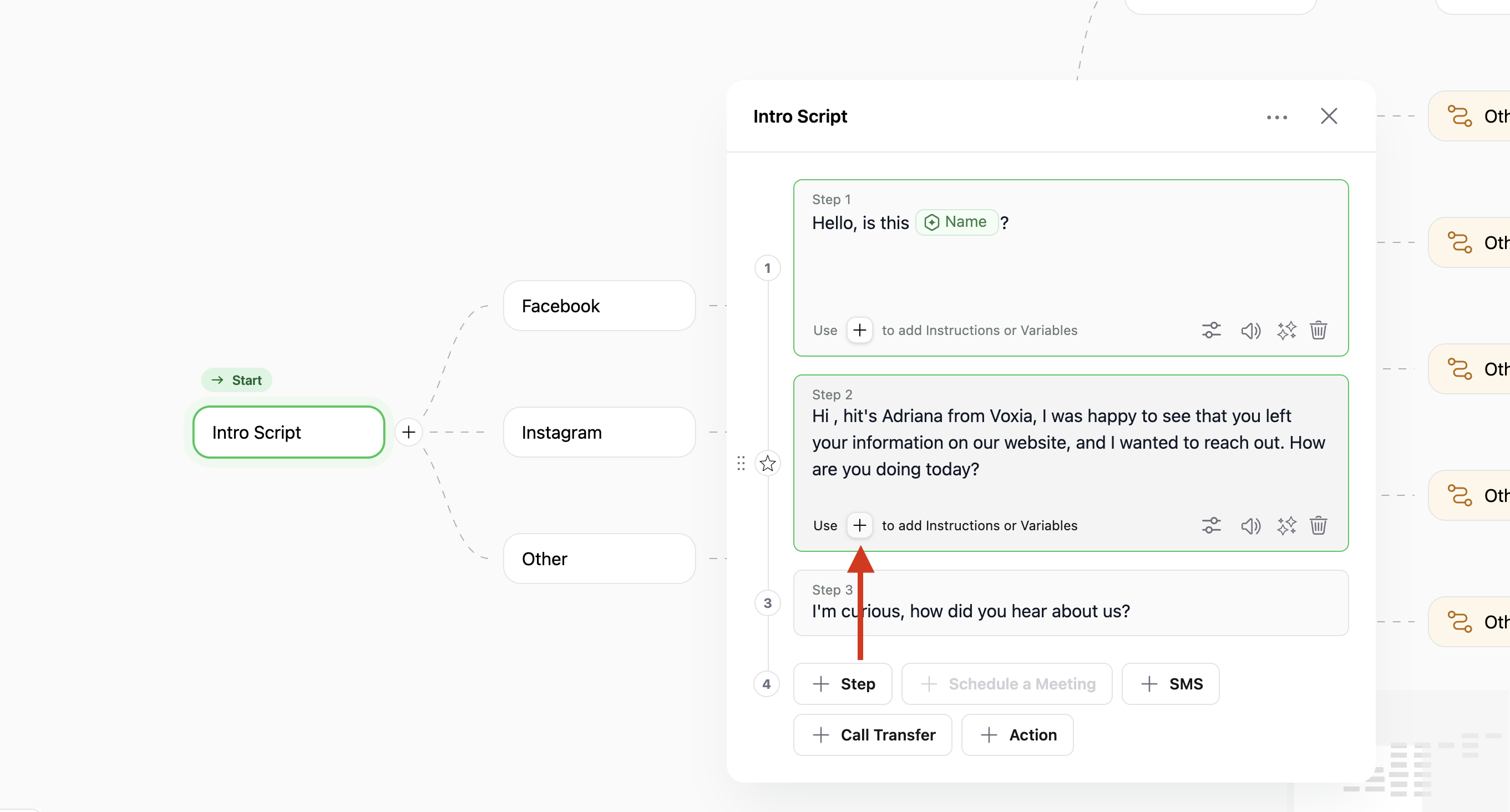
* **Adding a new Variable**: There are two ways of adding a Variables within script steps:
* Clicking the `+` icon under any script step to open the Variable input window, type the Variable name. Once finished, Press `Return` to confirm.
* Pressing `Shift` + `+` on your keyboard within a script step. After entering the Variable name press `return`.
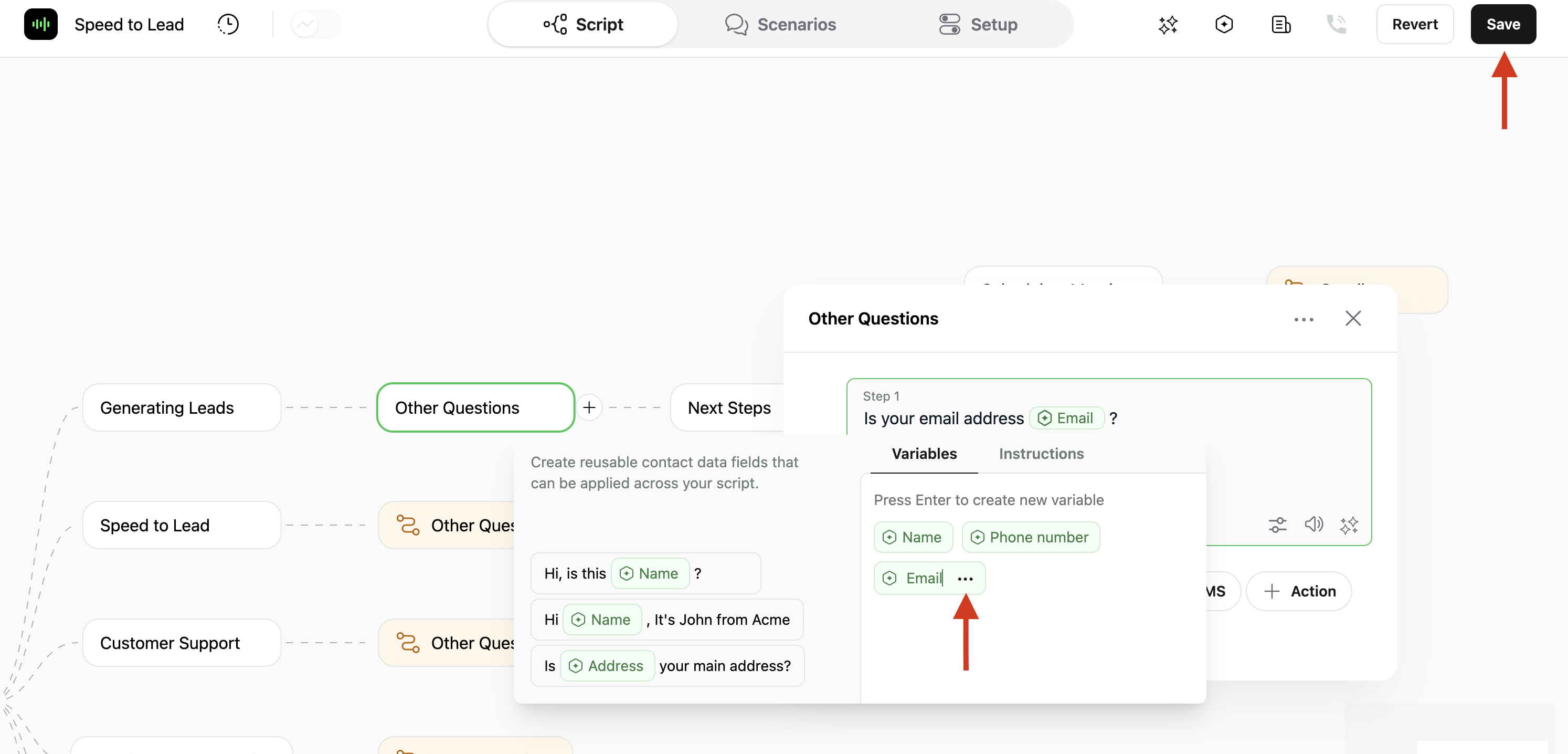
 * **Editing Variables**: Press the Variable you want to edit. In the Variable input window, Press the `···` button next to it. You will be given the option to modify the Variable name or delete it.
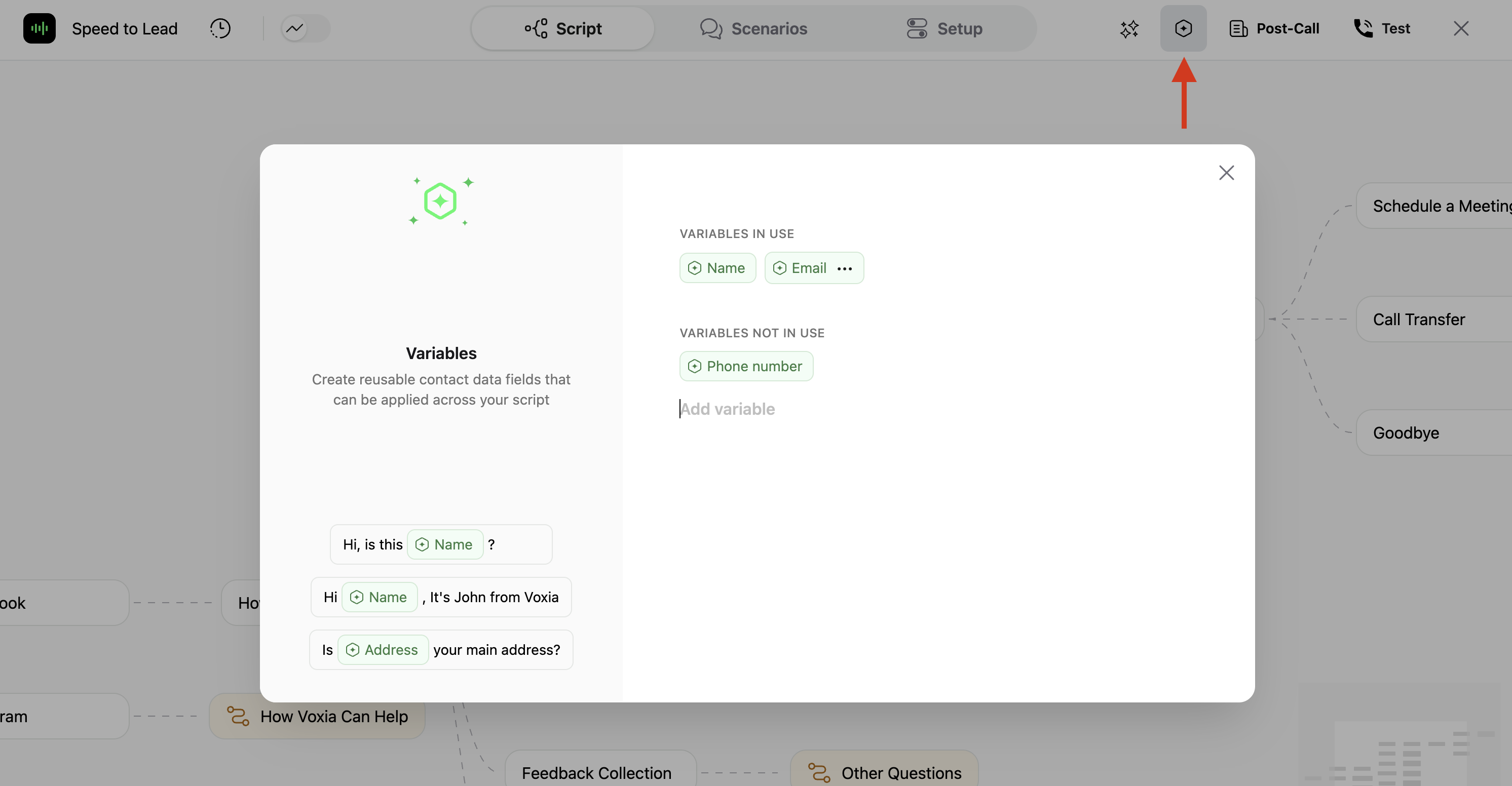
 * **The Variables Panel**: When editing campaign scripts, the Variables Panel is accessible by clicking the hexagon icon, located in the top-right corner. The panel allows adding new Variables, and deleting them. This panel displays:
* All Variables currently referenced in the script under "Variables in Use".
* Any defined but unused Variables under "Variables Not in Use".
* **The Variables Panel**: When editing campaign scripts, the Variables Panel is accessible by clicking the hexagon icon, located in the top-right corner. The panel allows adding new Variables, and deleting them. This panel displays:
* All Variables currently referenced in the script under "Variables in Use".
* Any defined but unused Variables under "Variables Not in Use".
 ### Working with Variables
* **Populating Variable values**: Variable values need to be populated When Uploading Contacts.
* **Via CSV**: The file to upload must include column headers that match the Variable names used in your script. For example, if your script includes the variable `company`, the CSV should have a `company` column.
* **via API**: When uploading contacts programmatically, include Variable values in the `data` object. Refer to [API documentation](/api-reference) and [uploading contacts](/documentation/using-callers/uploading-contacts) pages for more details.
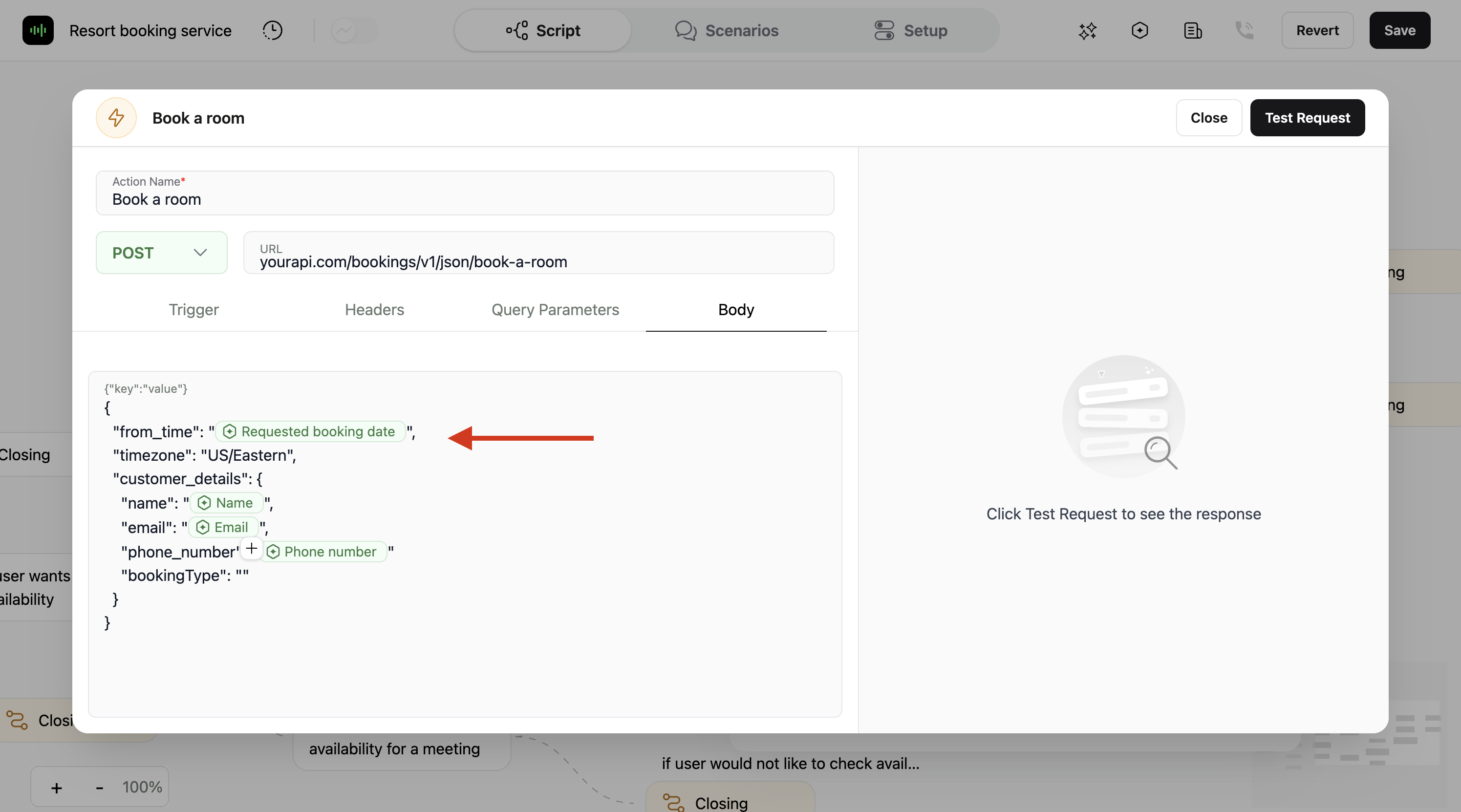
* **Variables within Actions**: Variables can be added on a campaign action steps in API endpoint URLs, as values in request headers and in request bodies.
### Working with Variables
* **Populating Variable values**: Variable values need to be populated When Uploading Contacts.
* **Via CSV**: The file to upload must include column headers that match the Variable names used in your script. For example, if your script includes the variable `company`, the CSV should have a `company` column.
* **via API**: When uploading contacts programmatically, include Variable values in the `data` object. Refer to [API documentation](/api-reference) and [uploading contacts](/documentation/using-callers/uploading-contacts) pages for more details.
* **Variables within Actions**: Variables can be added on a campaign action steps in API endpoint URLs, as values in request headers and in request bodies.
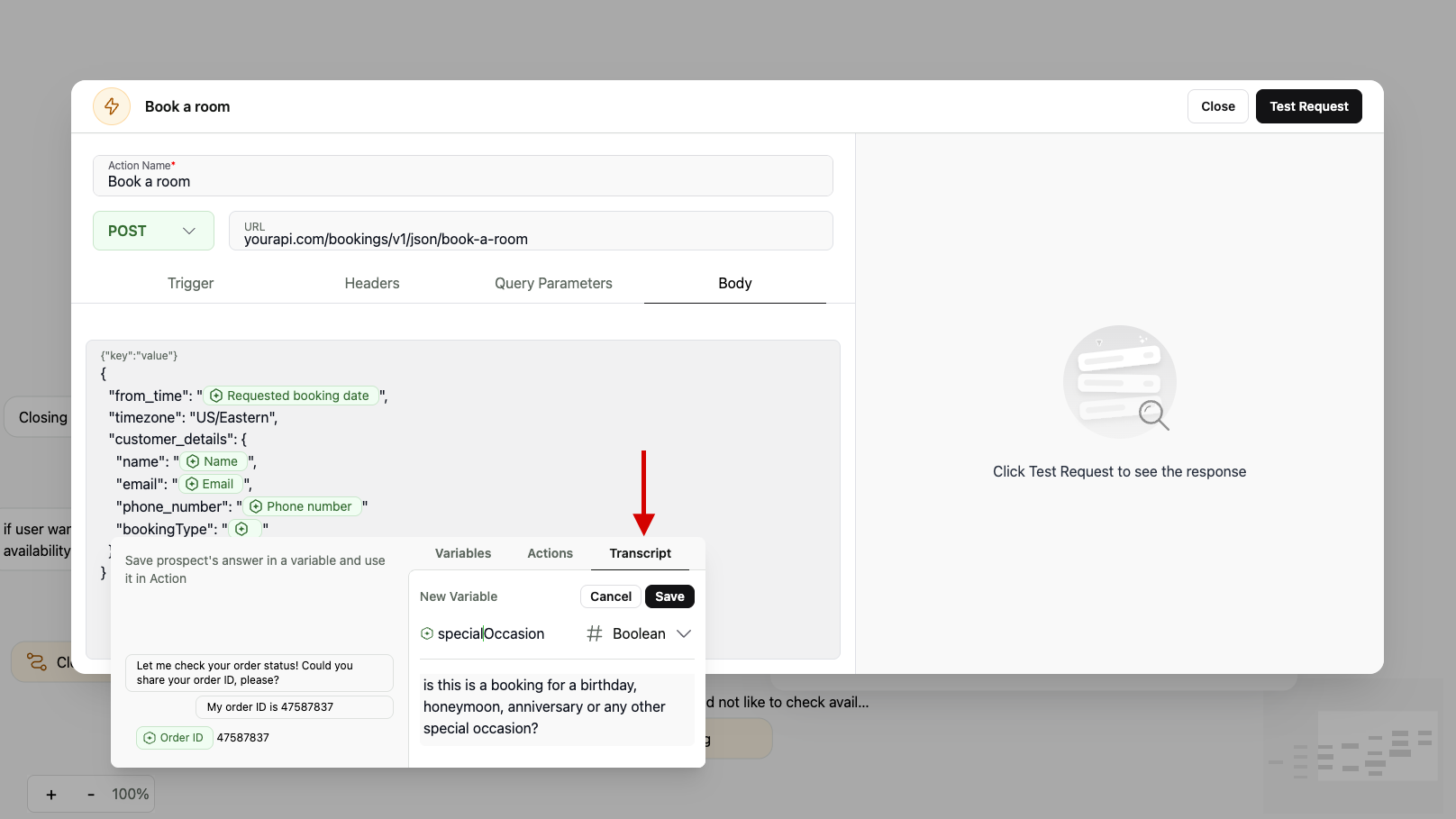
 * **Transcript Variables**: When adding variables within Actions, an additional Transcript option is available. This allows you to dynamically populate a variable based on the content of the conversation and a descriptive instruction:
* **Text**: captures freeform responses.
* **Number**: captures a numeric input.
* **Boolean**: captures yes/no or true/false responses.
* **Transcript Variables**: When adding variables within Actions, an additional Transcript option is available. This allows you to dynamically populate a variable based on the content of the conversation and a descriptive instruction:
* **Text**: captures freeform responses.
* **Number**: captures a numeric input.
* **Boolean**: captures yes/no or true/false responses.
 For more detailed instructions on making use of Actions on your campaigns, please refer to our [Campaign Action Guide](/documentation/build-your-campaign/campaign-actions).