> ## Documentation Index
> Fetch the complete documentation index at: https://docs.callers.ai/llms.txt
> Use this file to discover all available pages before exploring further.
# Campaign Actions
> Trigger API calls in real time during a call to provide agents with instant information or dynamically execute custom requests..
Callers sends all HTTP requests from the following IP addresses:
```copy theme={null}
35.245.204.86
35.221.61.75
```
If your API endpoints are behind a firewall, whitelist these IP addresses to ensure action requests are delivered.
### Set up an Action
* **Prerequisites**: To use this feature, make sure the following requirements are met:
* **Accessible API Endpoint**: The API must be publicly accessible and able to receive and respond to HTTP requests.
* **Authorization**: If the API requires authentication, ensure valid authorization credentials are provided.
* **Defined Triggers**: Identify the script step or condition within the call that should initiate the API call.
* **Adding an Action Step**: To add an Action step, press the `+ Action` button at the bottom of the subflow. You’ll need to define the **Action Phrase**, which is the spoken message during the execution of the action.
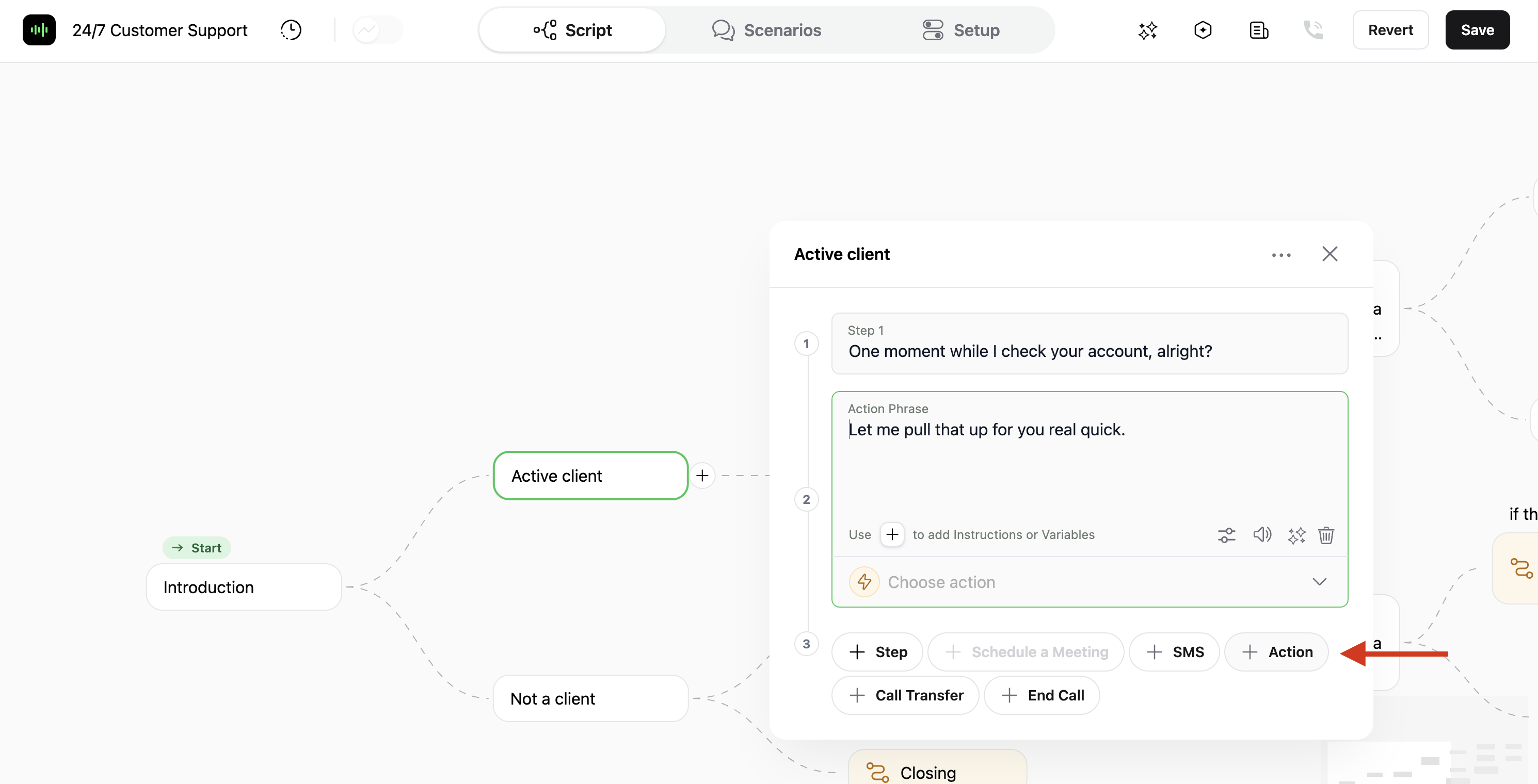 * **Create an Action**: Click the *Choose Action* button at the bottom of the action block.
A window will appear with a list of applications connected through the App Center. These are the integrations you have added and can use to perform an action (learn more about the App Center \[here]).
* **Create an Action**: Click the *Choose Action* button at the bottom of the action block.
A window will appear with a list of applications connected through the App Center. These are the integrations you have added and can use to perform an action (learn more about the App Center \[here]).
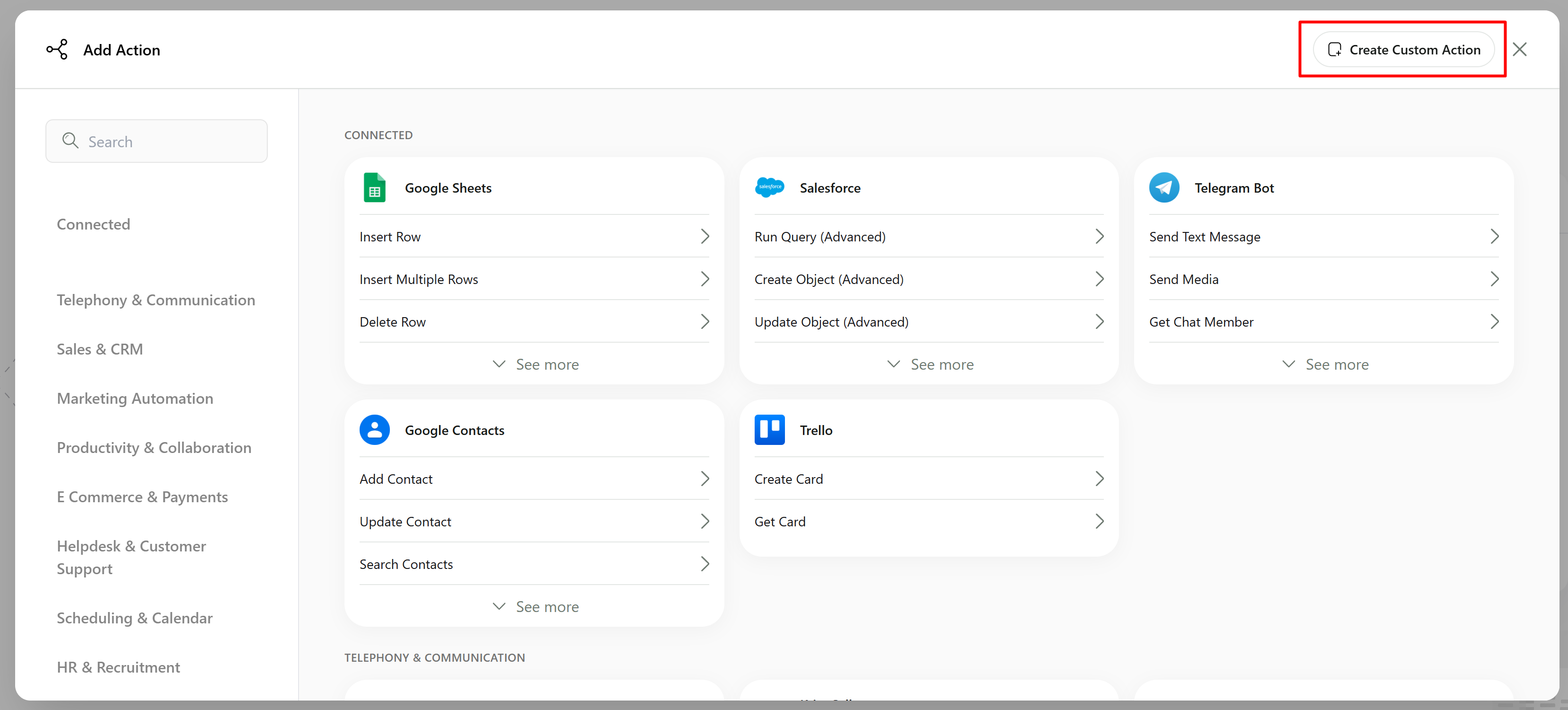 * In this example, we will look at creating a standard HTTP request to an external endpoint.
To do this, click **Create Custom Action** in the top-right corner and start configuring the request details.
* In this example, we will look at creating a standard HTTP request to an external endpoint.
To do this, click **Create Custom Action** in the top-right corner and start configuring the request details.
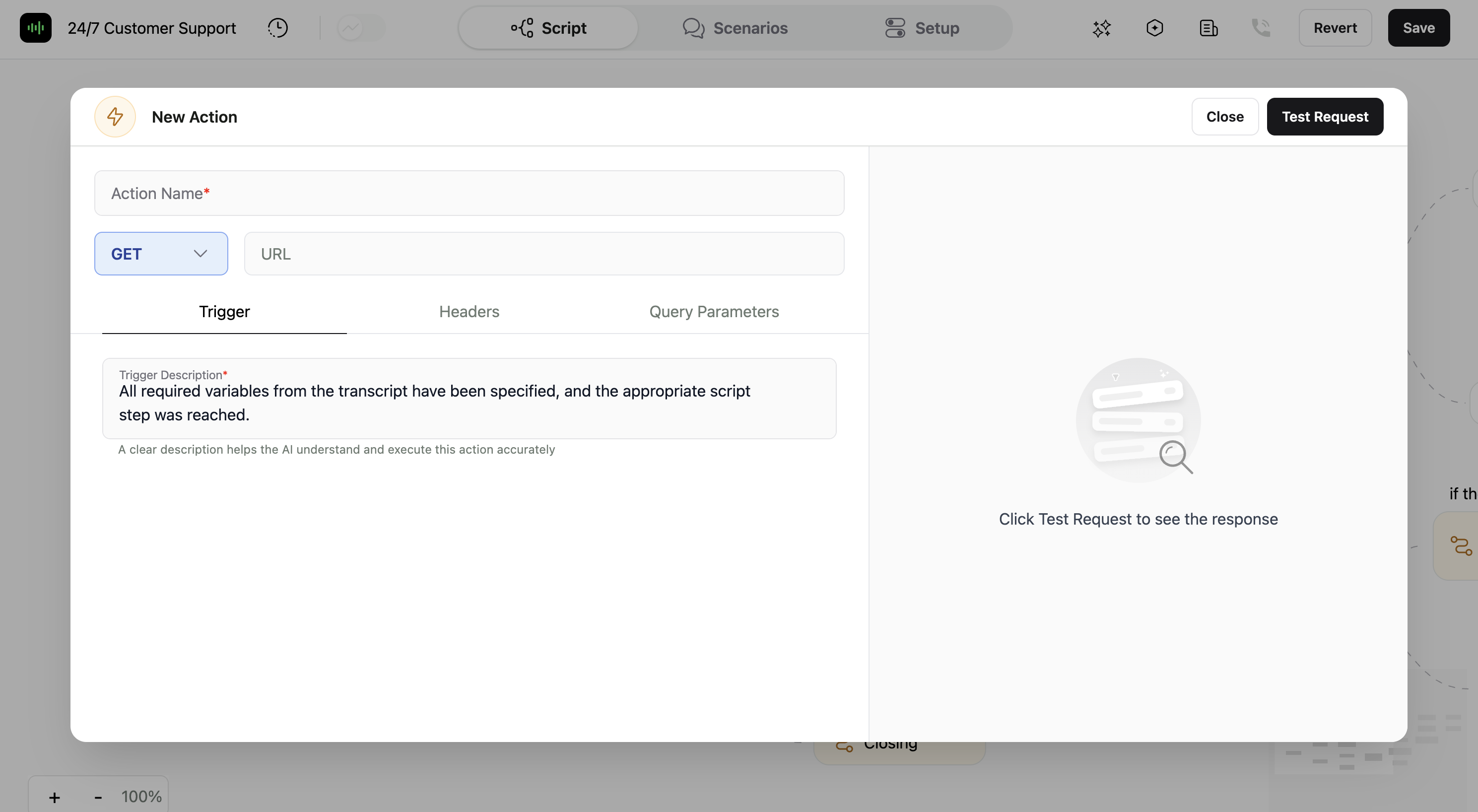 * **Configure API Endpoints**: For each trigger, specify:
* **Action Name**: A descriptive name for the Action.
* **HTTP Method**: Select the appropriate HTTP method (GET, POST, etc.).
* **Endpoint URL**: Enter the full API URL.
* **Trigger**: Describe when the action should be executed.
* **Headers**: Define any required headers, such as authorization tokens.
* **Parameters**: If needed, add query parameters and a request body.
* **Configure API Endpoints**: For each trigger, specify:
* **Action Name**: A descriptive name for the Action.
* **HTTP Method**: Select the appropriate HTTP method (GET, POST, etc.).
* **Endpoint URL**: Enter the full API URL.
* **Trigger**: Describe when the action should be executed.
* **Headers**: Define any required headers, such as authorization tokens.
* **Parameters**: If needed, add query parameters and a request body.
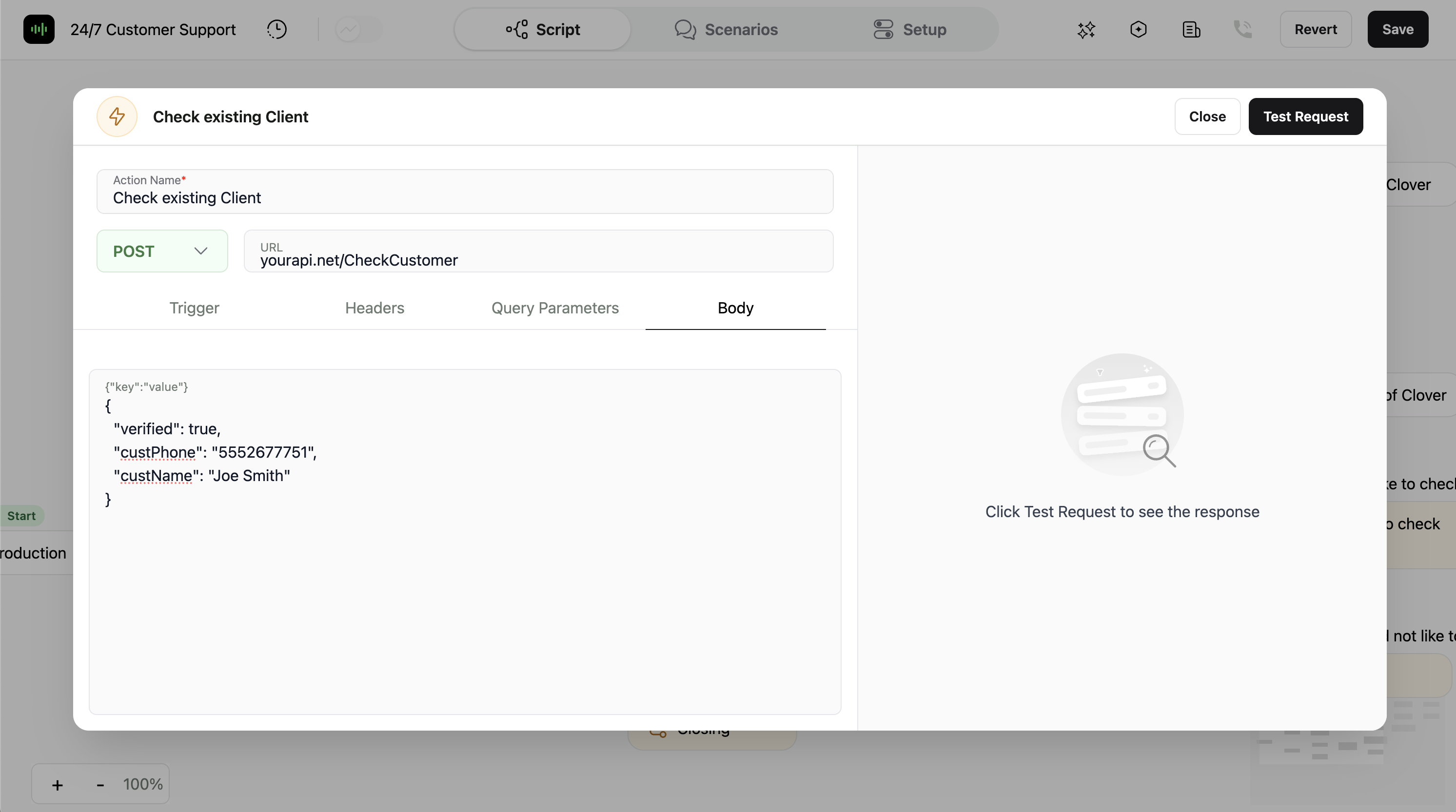 For information about using Variables on Actions, please refer to our [Campaign Variables Guide](/documentation/build-your-campaign/campaign-variables).
### Testing an Action
* Once you have completed the Action setup, use the `Test Trigger` button to simulate the API call.
For information about using Variables on Actions, please refer to our [Campaign Variables Guide](/documentation/build-your-campaign/campaign-variables).
### Testing an Action
* Once you have completed the Action setup, use the `Test Trigger` button to simulate the API call.
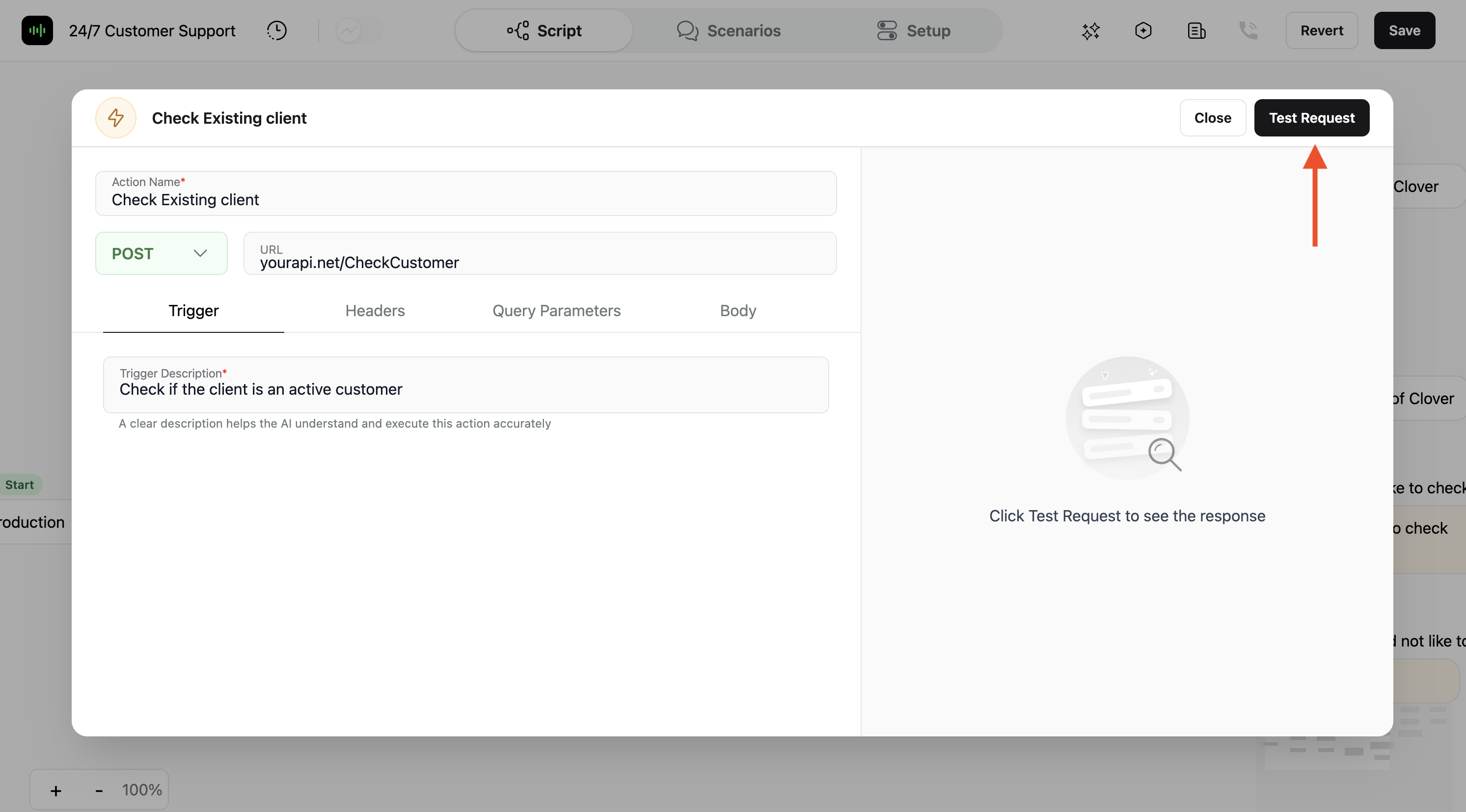 * Confirm the request is correctly structured and that responses are handled properly.
* Monitor test calls to ensure the Action integrates smoothly with the conversation flow.
* Confirm the request is correctly structured and that responses are handled properly.
* Monitor test calls to ensure the Action integrates smoothly with the conversation flow.
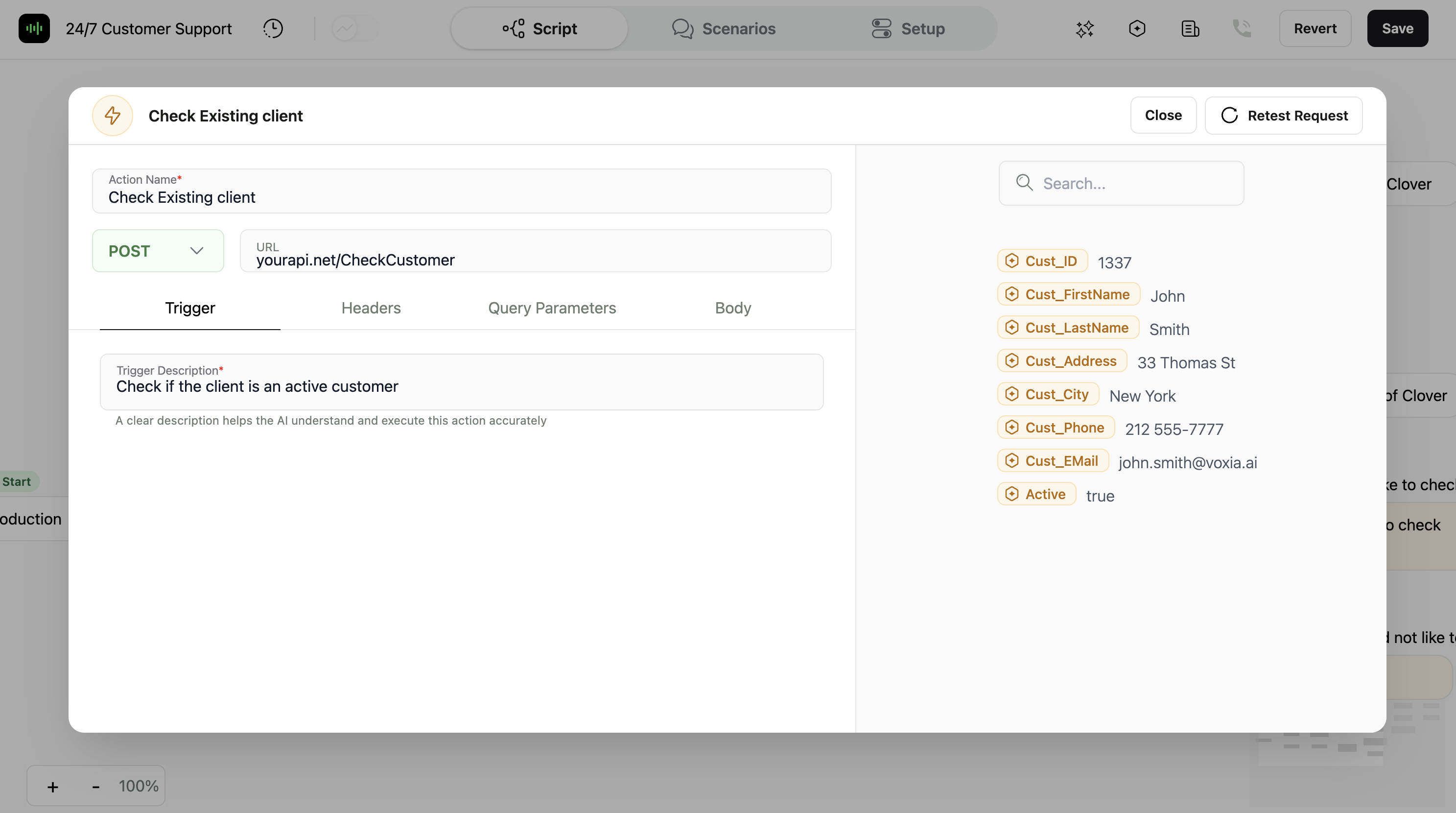 ### Action Responses
* You can use API responses to enhance call flows:
* **Check Availability**: Query stock, service hours, or agent availability mid-call.
* **Inform Callers**: Use returned data to share real-time information with the caller.
* **Lookup Customer Records**: Fetch user details from your CRM or database.
* **Schedule Appointments**: Trigger bookings through external scheduling APIs.
* **Send Confirmations**: Trigger emails or SMS messages after specific call steps.
* **Verify Identity**: Validate caller-provided information via a secure API.
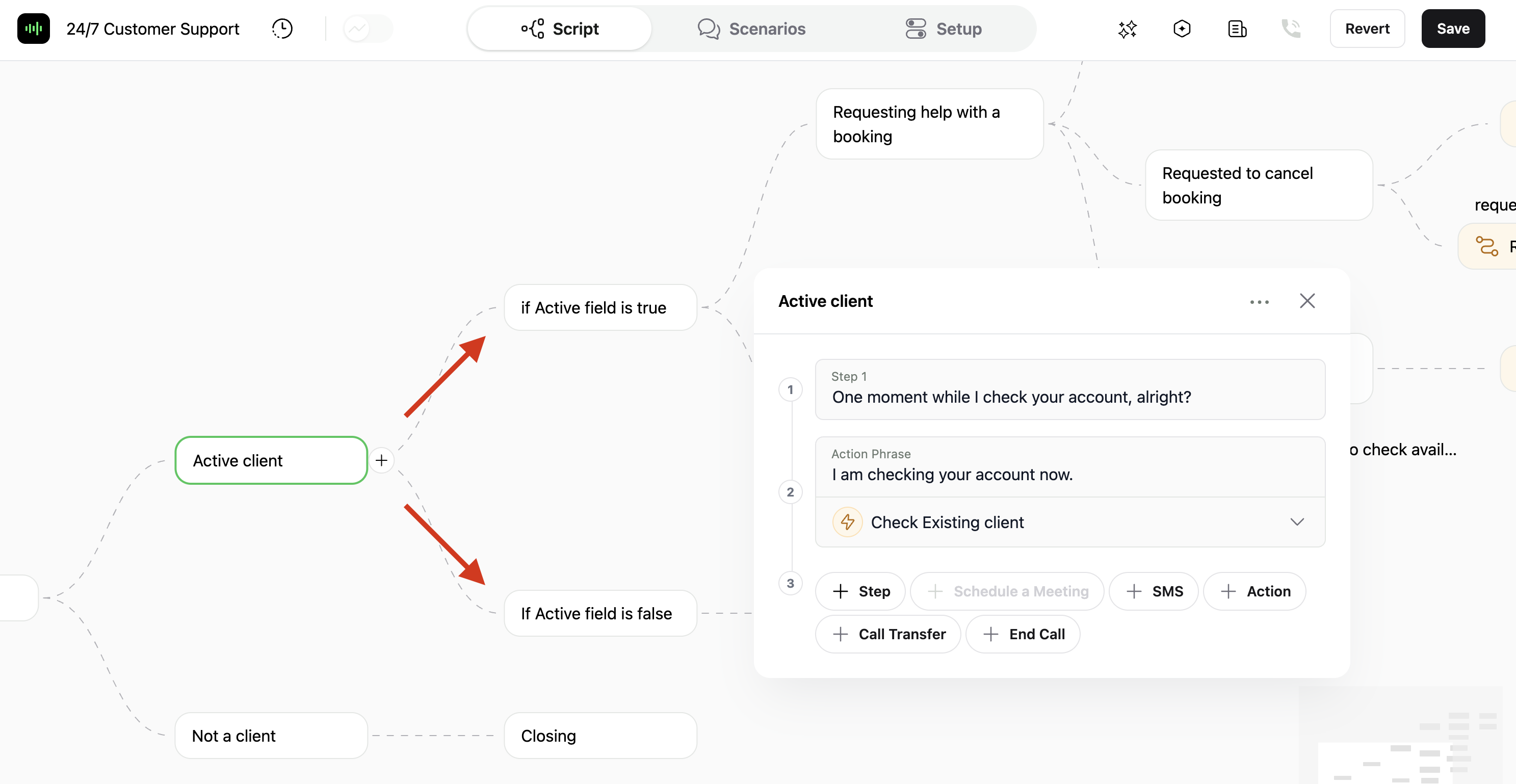
* **Route Conversations**: Automatically guide the call flow based on API response values.
*(e.g., route the conversation based on the value of the **active** field returned by the API)*.
If you want to send data **after the call ends**, you can configure a special webhook.
Learn more in our [Advanced Webhooks Guide](/documentation/webhook/advanced-webhook).
### Action Responses
* You can use API responses to enhance call flows:
* **Check Availability**: Query stock, service hours, or agent availability mid-call.
* **Inform Callers**: Use returned data to share real-time information with the caller.
* **Lookup Customer Records**: Fetch user details from your CRM or database.
* **Schedule Appointments**: Trigger bookings through external scheduling APIs.
* **Send Confirmations**: Trigger emails or SMS messages after specific call steps.
* **Verify Identity**: Validate caller-provided information via a secure API.
* **Route Conversations**: Automatically guide the call flow based on API response values.
*(e.g., route the conversation based on the value of the **active** field returned by the API)*.
If you want to send data **after the call ends**, you can configure a special webhook.
Learn more in our [Advanced Webhooks Guide](/documentation/webhook/advanced-webhook).