> ## Documentation Index
> Fetch the complete documentation index at: https://docs.callers.ai/llms.txt
> Use this file to discover all available pages before exploring further.
# Agent Steps
> This guide provides detailed instructions on how to personalize the dialogue and questions in each node of your agent script within the Callers platform.
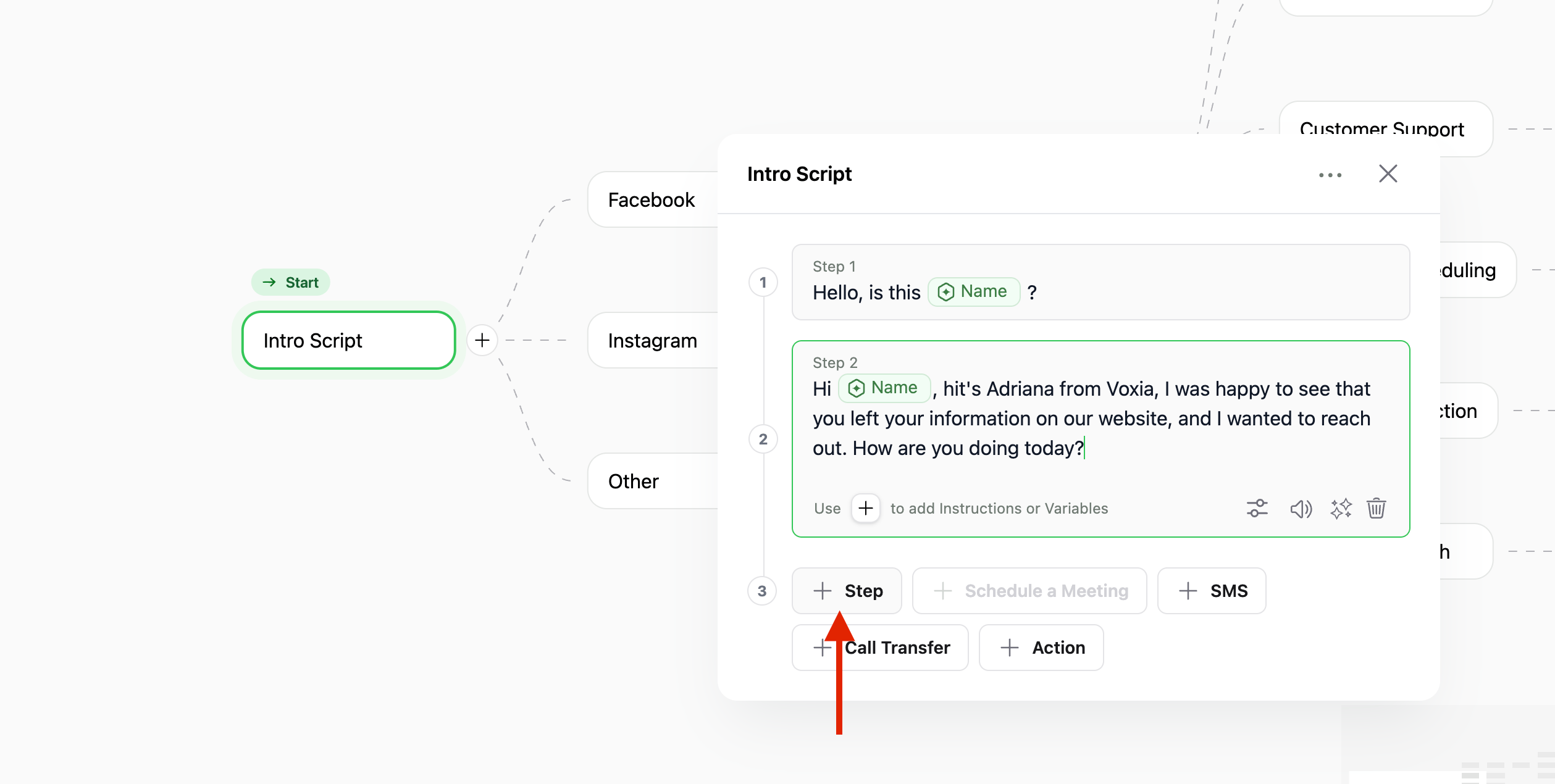
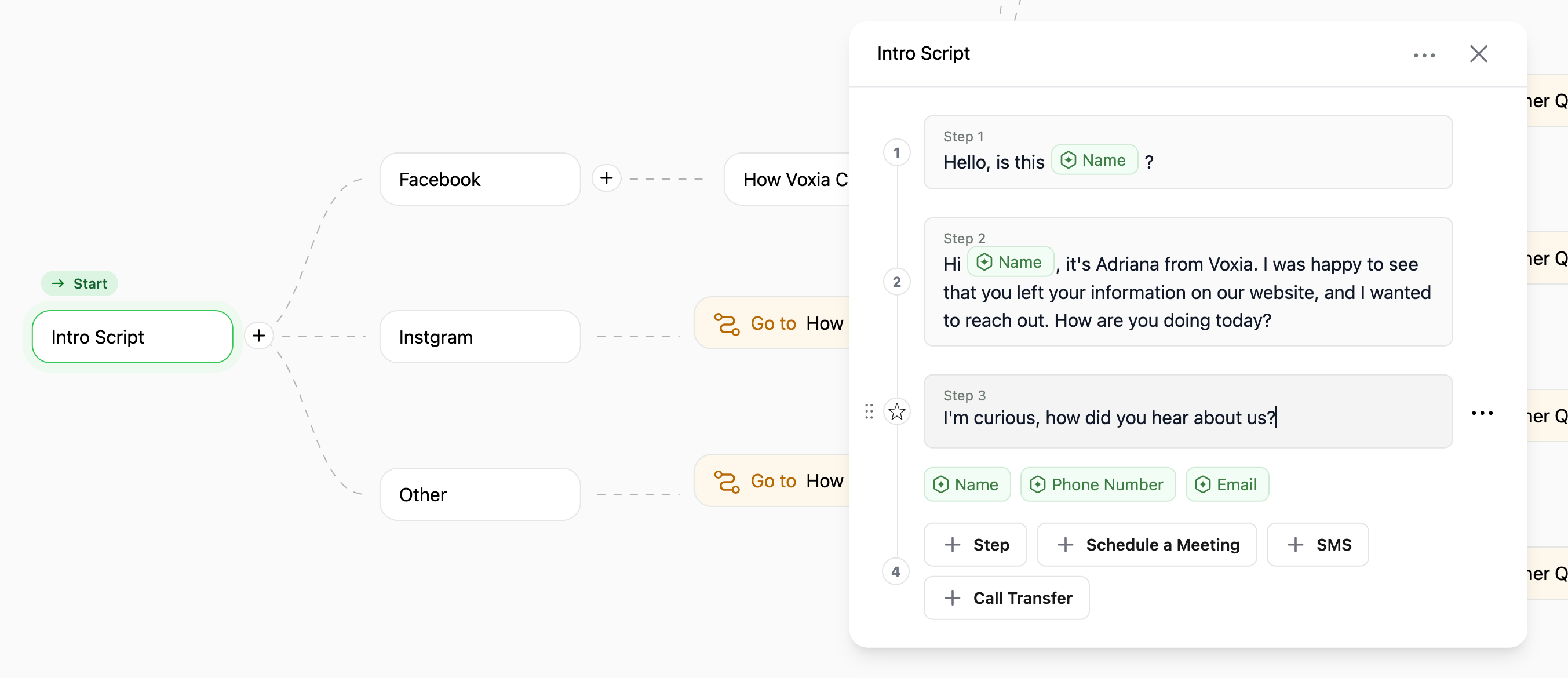
### **Add Call Steps**
* Click the `New Step` button to begin adding steps that the assistant will follow during the call.
 ### **Schedule Meetings**
* Press the `Schedule a Meeting` button.
* For scheduling, connect to Cal.com through the integrations tab.
* Before offering time slots from your account, decide on the content for the assistant to say.
* Choose the relevant event from the dropdown.
* Define how many days in advance clients can schedule meetings by setting the *Schedule days ahead* field. We recommend not to use more than 14 days in advance.
* For scenarios when no time slots are available, configure how the assistant should react:
* **Avoid Calling**: Select this option to prevent the assistant from making calls when no slots are available.
* **Use Fallback Phrase**: Choose this option to have the assistant use a fallback phrase. Upon selection, a text field will open where you can insert the specific sentence the assistant should say.
### **Schedule Meetings**
* Press the `Schedule a Meeting` button.
* For scheduling, connect to Cal.com through the integrations tab.
* Before offering time slots from your account, decide on the content for the assistant to say.
* Choose the relevant event from the dropdown.
* Define how many days in advance clients can schedule meetings by setting the *Schedule days ahead* field. We recommend not to use more than 14 days in advance.
* For scenarios when no time slots are available, configure how the assistant should react:
* **Avoid Calling**: Select this option to prevent the assistant from making calls when no slots are available.
* **Use Fallback Phrase**: Choose this option to have the assistant use a fallback phrase. Upon selection, a text field will open where you can insert the specific sentence the assistant should say.
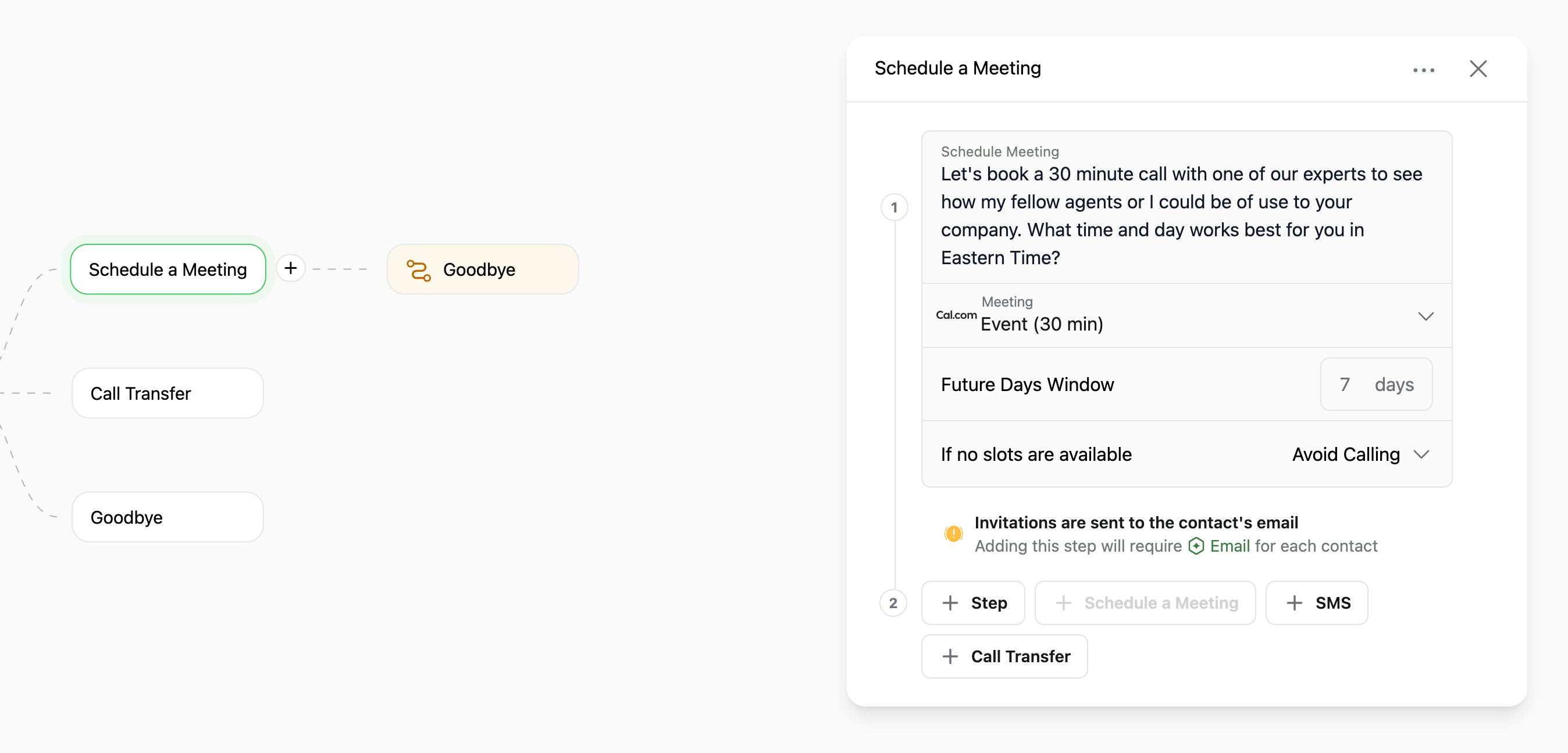 **Note**: that to add this step, you need to have an **`Email`** for each contact.
### **Call Forwarding**
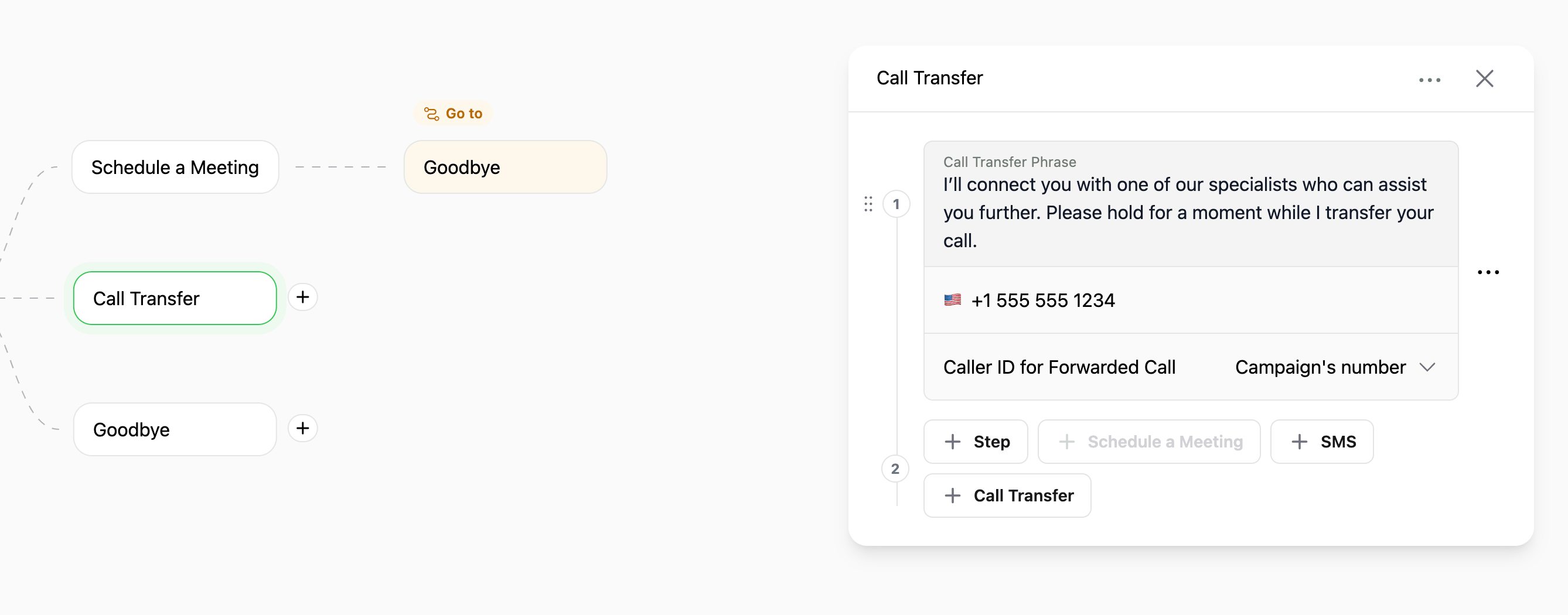
* Press the `Call Transfer` button.
* Enter a *Call Transfer Phrase* in the provided text field. This phrase will be spoken by the assistant before the call is transferred.
* Specify the phone number to which the call will be transferred. **Ensure to include the country code.**
* Choose whether the Caller ID for the forwarded call will be the agent's number or the contact's number.
### **Warm Transfer**
* Use this option to play a **summary message** before transferring a call to another agent.
This helps the next agent be prepared for the conversation (warm transfer).
* API Endpoint:
[`POST /call/{sessionId}/warm-transfer-summary`](https://api.callers.ai/docs#/call/play-warm-transfer-summary)
* Required:
* `Authorization` header with your API key.
* `sessionId` of the call to play the summary for.
* Optional:
* `x-sub-organization-id`: If using sub-organization accounts.
* `agentOnly` (boolean): If set to `true`, only the agent will hear the summary.
The **Warm Transfer Summary** is designed to improve customer experience by giving the receiving agent context before connecting them with the caller.
**Note**: that to add this step, you need to have an **`Email`** for each contact.
### **Call Forwarding**
* Press the `Call Transfer` button.
* Enter a *Call Transfer Phrase* in the provided text field. This phrase will be spoken by the assistant before the call is transferred.
* Specify the phone number to which the call will be transferred. **Ensure to include the country code.**
* Choose whether the Caller ID for the forwarded call will be the agent's number or the contact's number.
### **Warm Transfer**
* Use this option to play a **summary message** before transferring a call to another agent.
This helps the next agent be prepared for the conversation (warm transfer).
* API Endpoint:
[`POST /call/{sessionId}/warm-transfer-summary`](https://api.callers.ai/docs#/call/play-warm-transfer-summary)
* Required:
* `Authorization` header with your API key.
* `sessionId` of the call to play the summary for.
* Optional:
* `x-sub-organization-id`: If using sub-organization accounts.
* `agentOnly` (boolean): If set to `true`, only the agent will hear the summary.
The **Warm Transfer Summary** is designed to improve customer experience by giving the receiving agent context before connecting them with the caller.
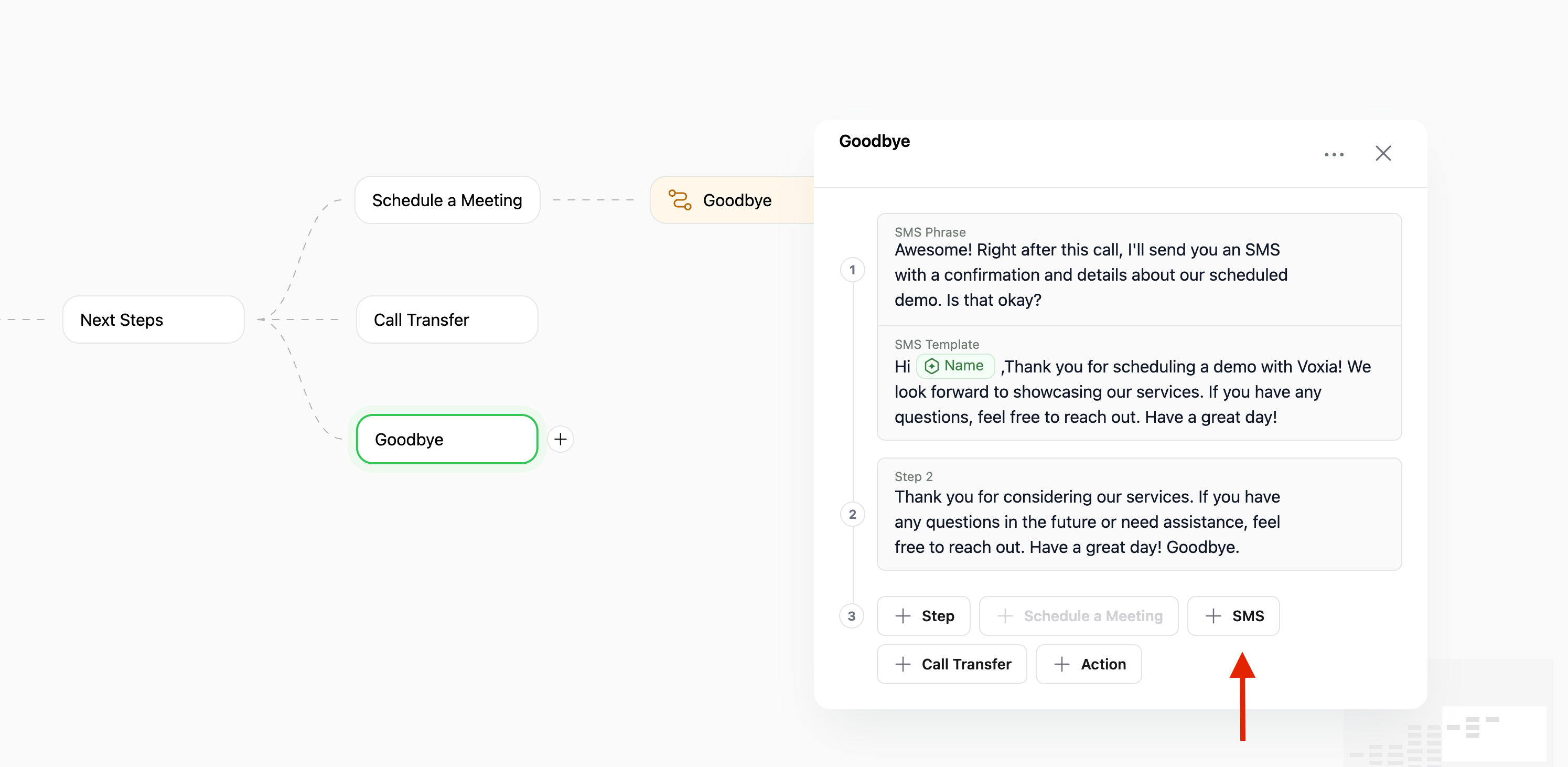
 ### **Setup SMS**
* Press the `SMS` button.
* Add a phrase for the assistant to say before sending an SMS and set the content of the SMS in the SMS Template.
### **Setup SMS**
* Press the `SMS` button.
* Add a phrase for the assistant to say before sending an SMS and set the content of the SMS in the SMS Template.
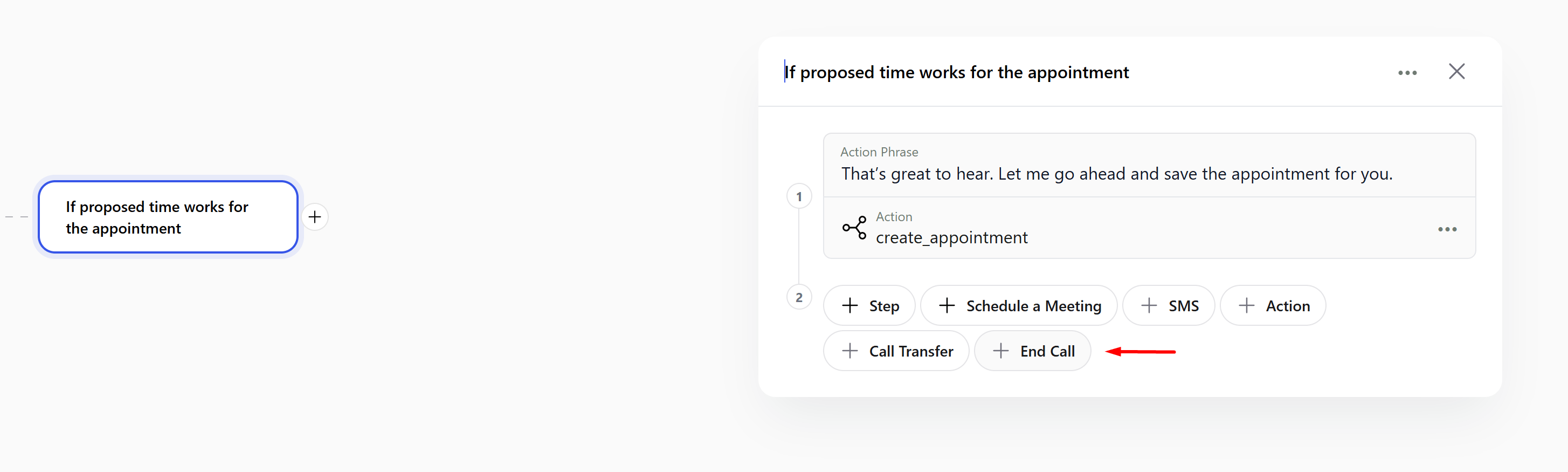
 ### **End Call**
* Press the `End Сall` button.
* Add a phrase for the assistant to say before ending the call.
### **End Call**
* Press the `End Сall` button.
* Add a phrase for the assistant to say before ending the call.
 ### **Editing Steps**
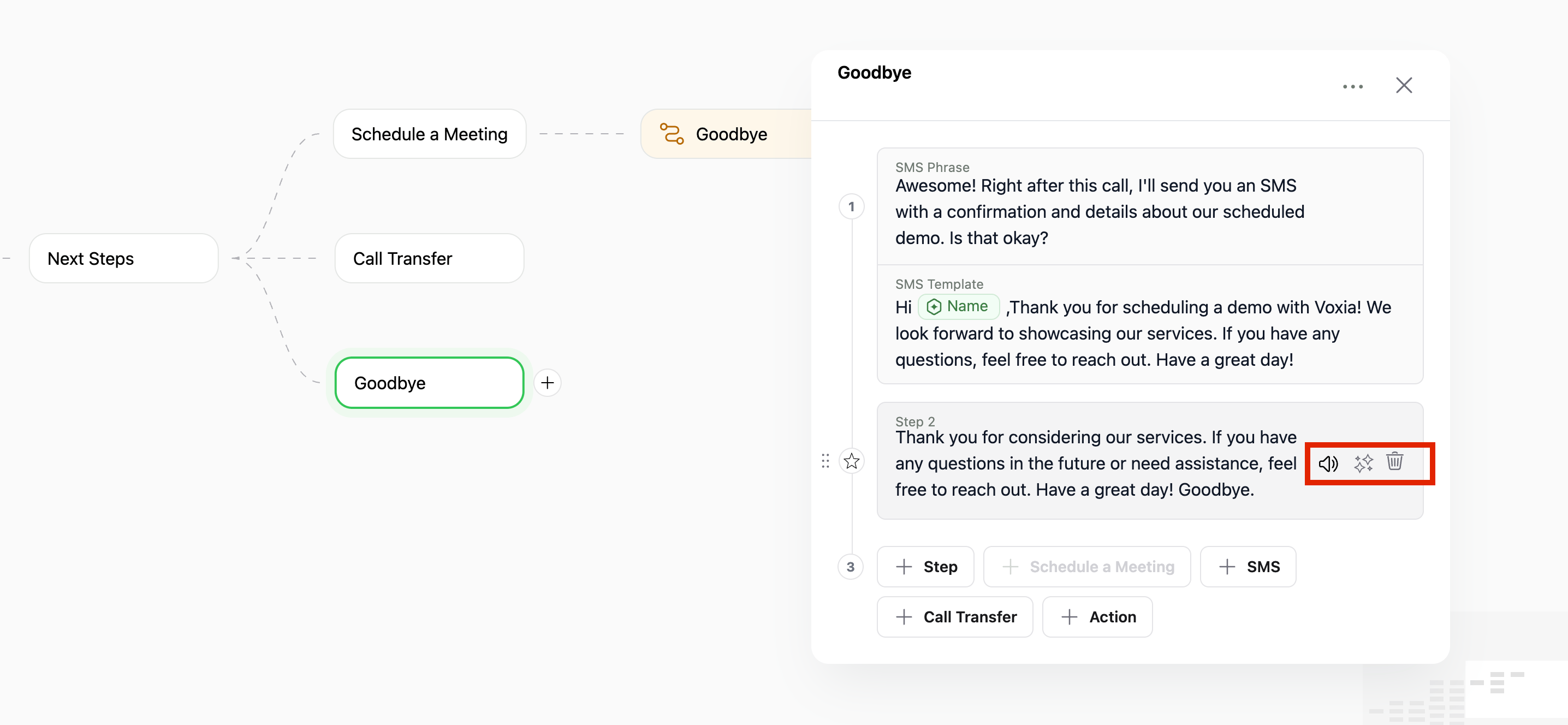
* **Reorder Steps**: Long press and drag a step number to change the order.
* **Step Options**: To manage the content of a step, click the buttons on the right. You can:
* **Play**: Hear how the sentence will be said.
* **Rephrase**: Generate a new version of the sentence.
* **Delete Step**: Remove the step from the script.
### **Editing Steps**
* **Reorder Steps**: Long press and drag a step number to change the order.
* **Step Options**: To manage the content of a step, click the buttons on the right. You can:
* **Play**: Hear how the sentence will be said.
* **Rephrase**: Generate a new version of the sentence.
* **Delete Step**: Remove the step from the script.
 Variables can be added to the script for dynamic customization. See [Agent Variables](/documentation/build-your-agent/agent-variables) page for more details.