> ## Documentation Index
> Fetch the complete documentation index at: https://docs.callers.ai/llms.txt
> Use this file to discover all available pages before exploring further.
# AI Chat
> Describe what you need and let the AI chat build or change your agent for you.
The AI chat in the agent editor builds and changes your agent from plain-language requests. Ask it to add steps to the script, write scenarios, set up variables, change the agent's settings or translate the whole agent - it makes the changes in the editor for you to review.
## Open the Chat
Click the AI button in the bottom-left corner of the canvas. It's there both on a new agent and on one you're editing.
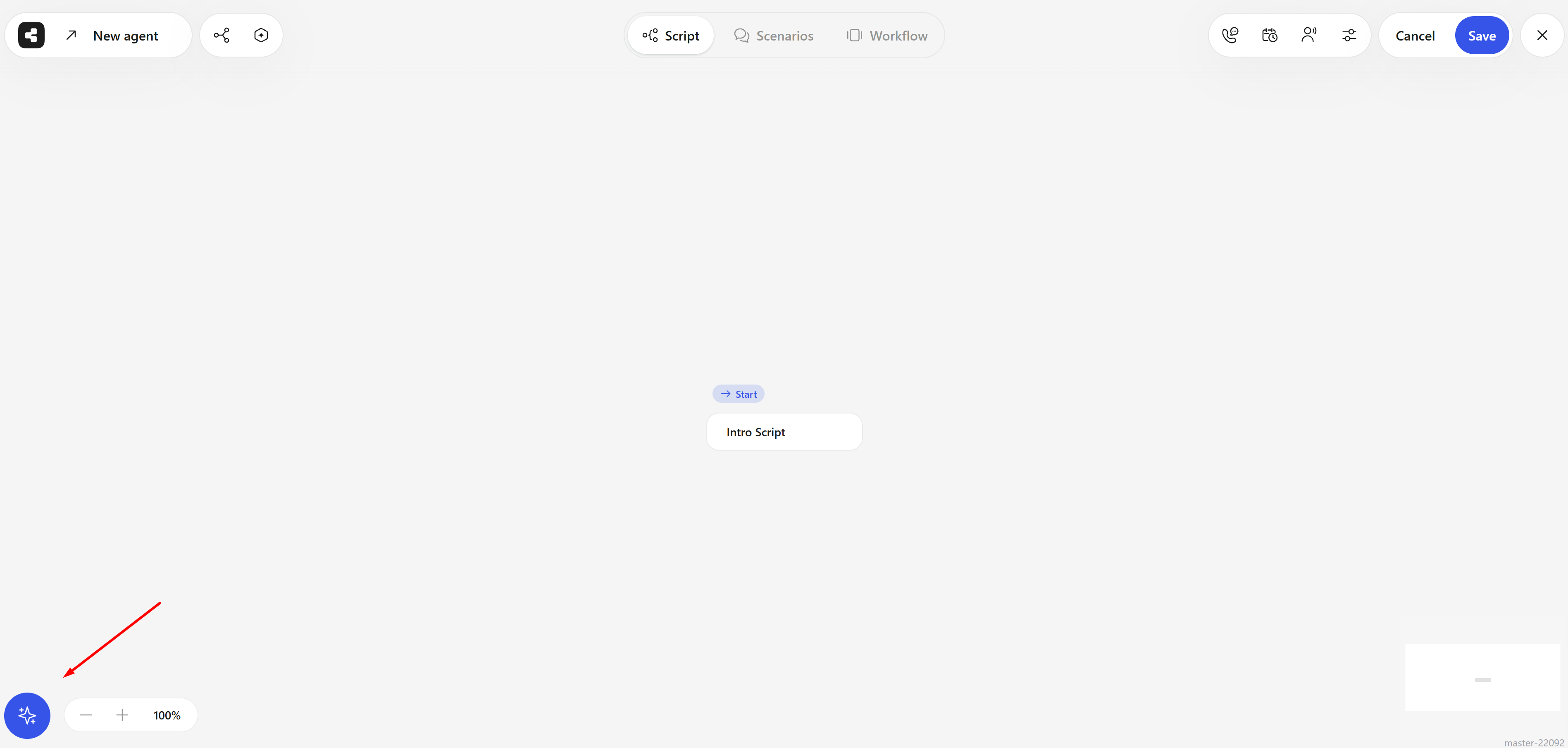 The chat opens on the left side of the editor. Drag its right edge to make it wider, and click `X` to close it.
Type your request into **Tell AI what to do next** - up to 5,000 characters - and press Enter to send it. Press Shift+Enter for a new line.
## What You Can Ask
* **Script**: Add, change or remove steps and nodes, and change how they connect.
* **Scenarios** and **Variables**: Create or edit them.
* **Actions**: Add actions the agent uses during calls.
* **Workflow**: Success criteria, summary questions, triggers, pre-conversation actions and webhooks.
* **Settings**: The agent's name, use case and direction, voice and language, calling hours and dial attempts, voicemail, recording, Do Not Call options and phone numbers.
* **Translation**: Translate all the text in the agent into another supported language.
* **Find and replace**: Replace a word or phrase everywhere in the script. The chat shows what it found and asks you to confirm first.
For example:
* "Add a step that asks whether now is a good time to talk."
* "Call contacts Monday to Friday from 10 am to 6 pm."
* "Replace 'demo' with 'consultation' everywhere in the script."
* "Translate the agent into Spanish."
When a request needs more details, the chat asks clarifying questions one at a time. Answer each and click **Next**, then **Submit**. For questions with options, you can also type your own answer under **Other** or pick **I'll choose later**.
The chat doesn't save or publish your agent, start or stop it, upload contacts or place test calls - you do that yourself.
## Review and Undo Changes
The chat applies its changes to the editor right away, and the header switches to **Cancel** and **Save**. Nothing is saved to your agent until you click **Save**.
Under each reply, the chat lists the areas it changed - such as **Script**, **Scenarios** or **Agent**. Expand one to see what was added, edited or removed, and click a script change to jump to that node on the canvas.
The chat opens on the left side of the editor. Drag its right edge to make it wider, and click `X` to close it.
Type your request into **Tell AI what to do next** - up to 5,000 characters - and press Enter to send it. Press Shift+Enter for a new line.
## What You Can Ask
* **Script**: Add, change or remove steps and nodes, and change how they connect.
* **Scenarios** and **Variables**: Create or edit them.
* **Actions**: Add actions the agent uses during calls.
* **Workflow**: Success criteria, summary questions, triggers, pre-conversation actions and webhooks.
* **Settings**: The agent's name, use case and direction, voice and language, calling hours and dial attempts, voicemail, recording, Do Not Call options and phone numbers.
* **Translation**: Translate all the text in the agent into another supported language.
* **Find and replace**: Replace a word or phrase everywhere in the script. The chat shows what it found and asks you to confirm first.
For example:
* "Add a step that asks whether now is a good time to talk."
* "Call contacts Monday to Friday from 10 am to 6 pm."
* "Replace 'demo' with 'consultation' everywhere in the script."
* "Translate the agent into Spanish."
When a request needs more details, the chat asks clarifying questions one at a time. Answer each and click **Next**, then **Submit**. For questions with options, you can also type your own answer under **Other** or pick **I'll choose later**.
The chat doesn't save or publish your agent, start or stop it, upload contacts or place test calls - you do that yourself.
## Review and Undo Changes
The chat applies its changes to the editor right away, and the header switches to **Cancel** and **Save**. Nothing is saved to your agent until you click **Save**.
Under each reply, the chat lists the areas it changed - such as **Script**, **Scenarios** or **Agent**. Expand one to see what was added, edited or removed, and click a script change to jump to that node on the canvas.
 * **Change cards**: Every reply that changes the agent ends with a card describing the change. The **Base version** card at the top shows the agent as it was when the chat started.
* **View changes**: Click the eye icon on an earlier card to preview that state on the canvas. Click it again to go back.
* **Apply changes**: Click the arrow icon on an earlier card to return the agent to that state.
* **Revert changes**: Click it at the bottom of the chat to undo everything the chat changed and return to the **Base version**.
When you're happy with the result, click **Save**. Click **Cancel** to discard all unsaved changes, including the chat's.
If you edit the agent by hand between requests, the chat takes your edits into account. Very large requests can time out - if that happens, ask for one part at a time, for example one node of the script.
## Chat History
Click the icon in the top-left corner of the chat to see **All Chats** for this agent. Chats are saved automatically, and you see only your own.
* Click **New Chat** to start over.
* Hover over a chat and open its `⋯` menu to **Edit** its name or **Delete** it.
The AI chat is part of the agent editor, so it's available to admins. Read Only members can't open the agent editor.
This documentation is built and hosted on [Mintlify](https://mintlify.com), a developer documentation platform.
* **Change cards**: Every reply that changes the agent ends with a card describing the change. The **Base version** card at the top shows the agent as it was when the chat started.
* **View changes**: Click the eye icon on an earlier card to preview that state on the canvas. Click it again to go back.
* **Apply changes**: Click the arrow icon on an earlier card to return the agent to that state.
* **Revert changes**: Click it at the bottom of the chat to undo everything the chat changed and return to the **Base version**.
When you're happy with the result, click **Save**. Click **Cancel** to discard all unsaved changes, including the chat's.
If you edit the agent by hand between requests, the chat takes your edits into account. Very large requests can time out - if that happens, ask for one part at a time, for example one node of the script.
## Chat History
Click the icon in the top-left corner of the chat to see **All Chats** for this agent. Chats are saved automatically, and you see only your own.
* Click **New Chat** to start over.
* Hover over a chat and open its `⋯` menu to **Edit** its name or **Delete** it.
The AI chat is part of the agent editor, so it's available to admins. Read Only members can't open the agent editor.
This documentation is built and hosted on [Mintlify](https://mintlify.com), a developer documentation platform.