> ## Documentation Index
> Fetch the complete documentation index at: https://docs.callers.ai/llms.txt
> Use this file to discover all available pages before exploring further.
# Agent Scenarios
> This page helps you manage specific questions or situations that might come up during a call, ensuring that the agent can handle them effectively.
### **Add a New Scenario**
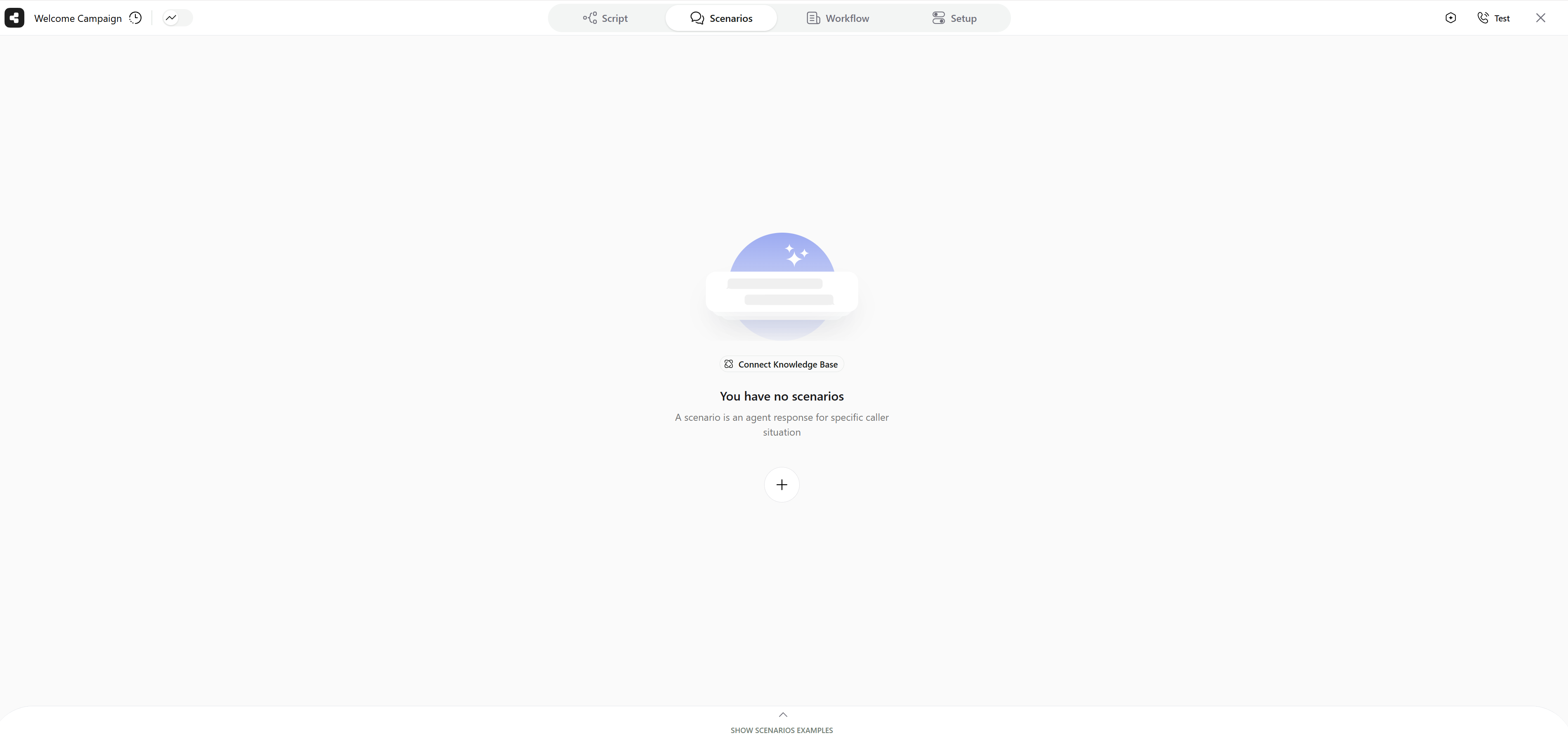
* Press the `Scenarios` button in the top navigation bar.
* Press the `+` button to create a new scenario.
* Choose a title for the scenario which represents a question or situation that might arise during the call.
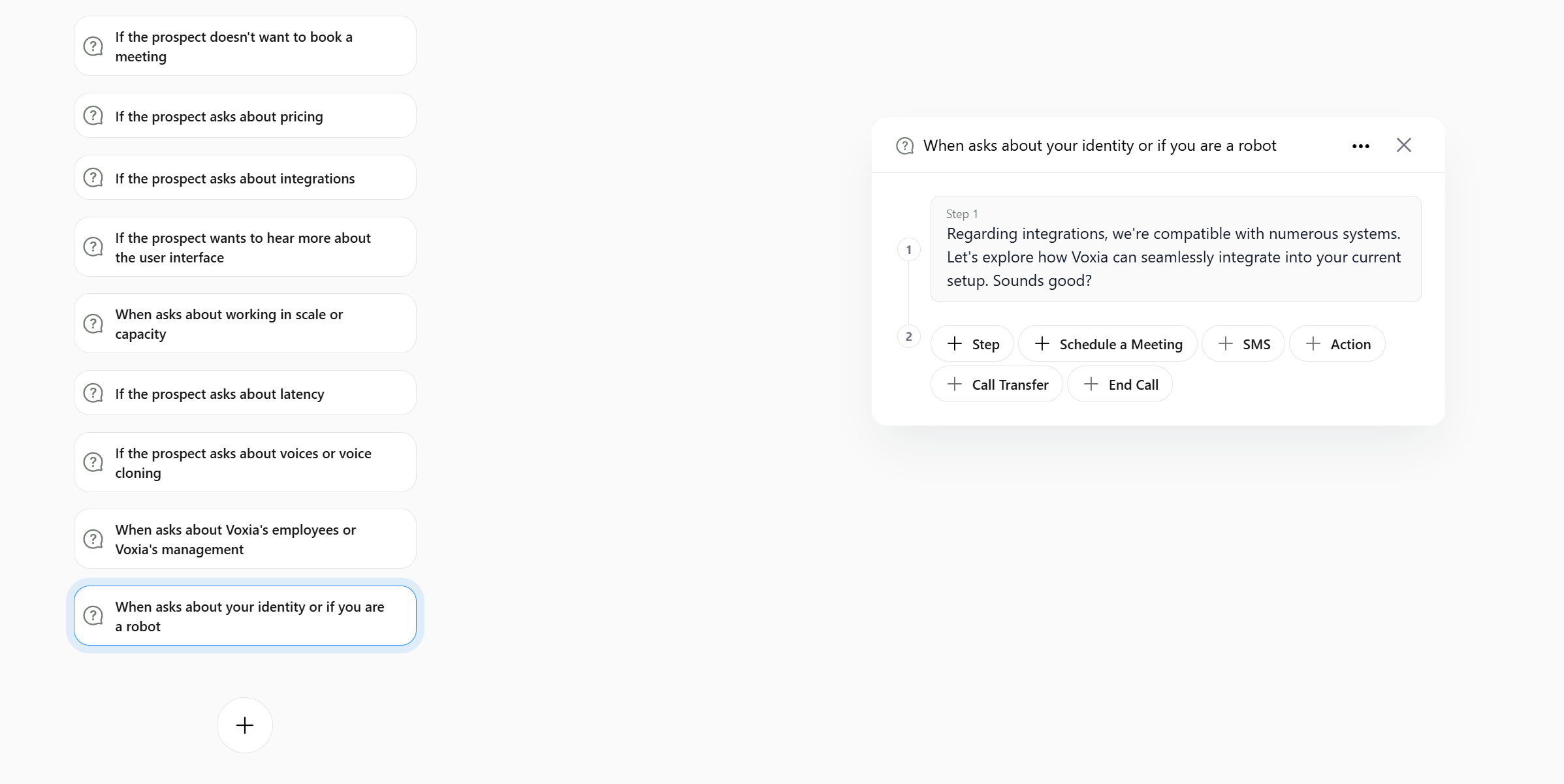
 Scenario examples are available at the bottom of the screen. These examples can be added and edited to better suit the agent needs.
#### **Add Steps**
* Add steps that the agent will follow when handling the scenario. The nodes of the scenarios are similar to the nodes in the script. You can:
* Add steps for the agent to follow
* Schedule a meeting
* Transfer the call
* Send an SMS
* Add key questions
Scenario examples are available at the bottom of the screen. These examples can be added and edited to better suit the agent needs.
#### **Add Steps**
* Add steps that the agent will follow when handling the scenario. The nodes of the scenarios are similar to the nodes in the script. You can:
* Add steps for the agent to follow
* Schedule a meeting
* Transfer the call
* Send an SMS
* Add key questions