> ## Documentation Index
> Fetch the complete documentation index at: https://docs.callers.ai/llms.txt
> Use this file to discover all available pages before exploring further.
# Managing Subaccounts
> Subaccounts allow organizations to manage multiple accounts under one main account, streamlining administration and ensuring centralized control.
### Creating a Subaccount
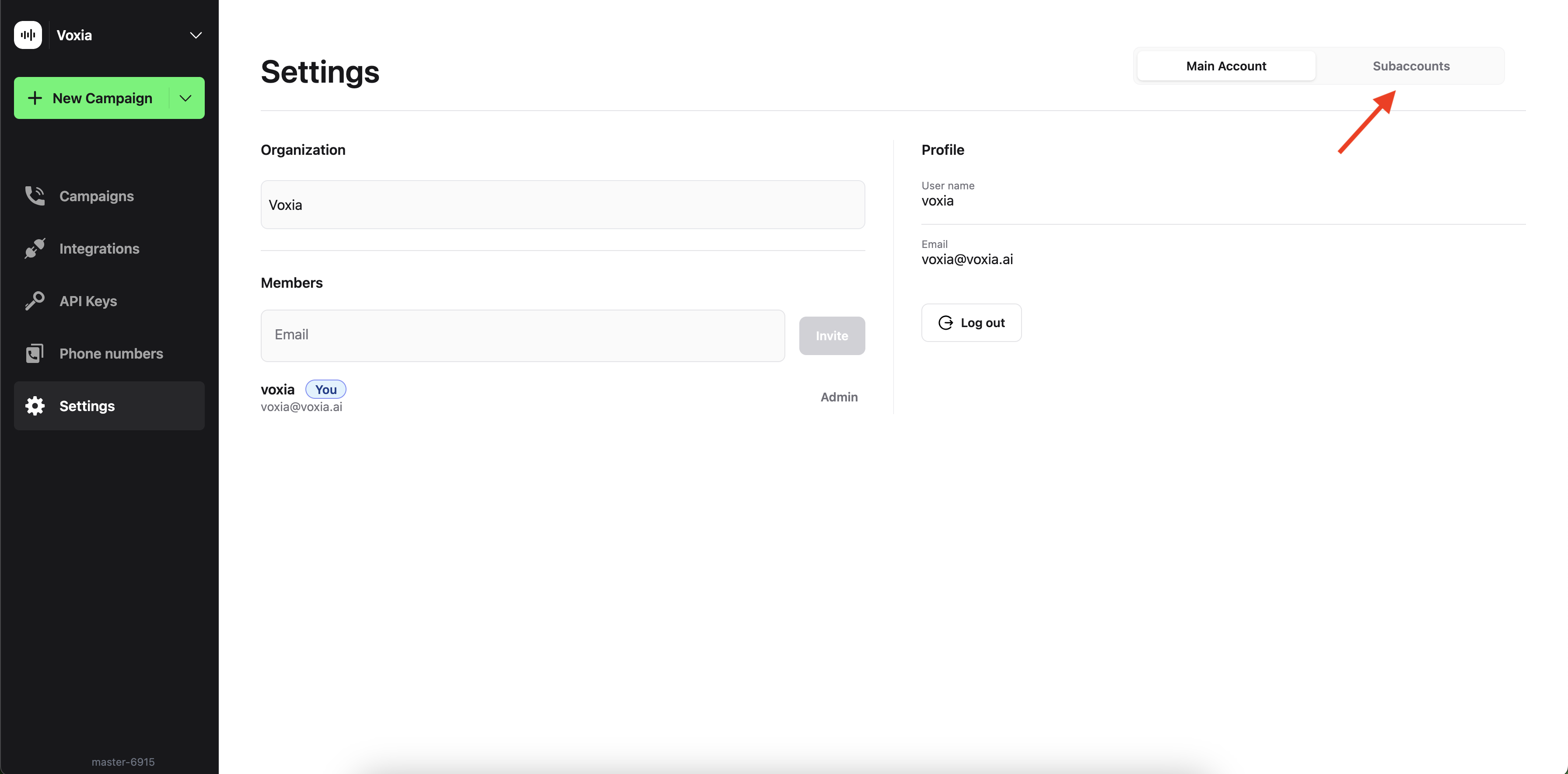
1. **Access Settings**: Navigate to the left sidebar and click on *Settings*.
2. **Enable Subaccounts**: At the top right, press on the `Subaccounts` option.
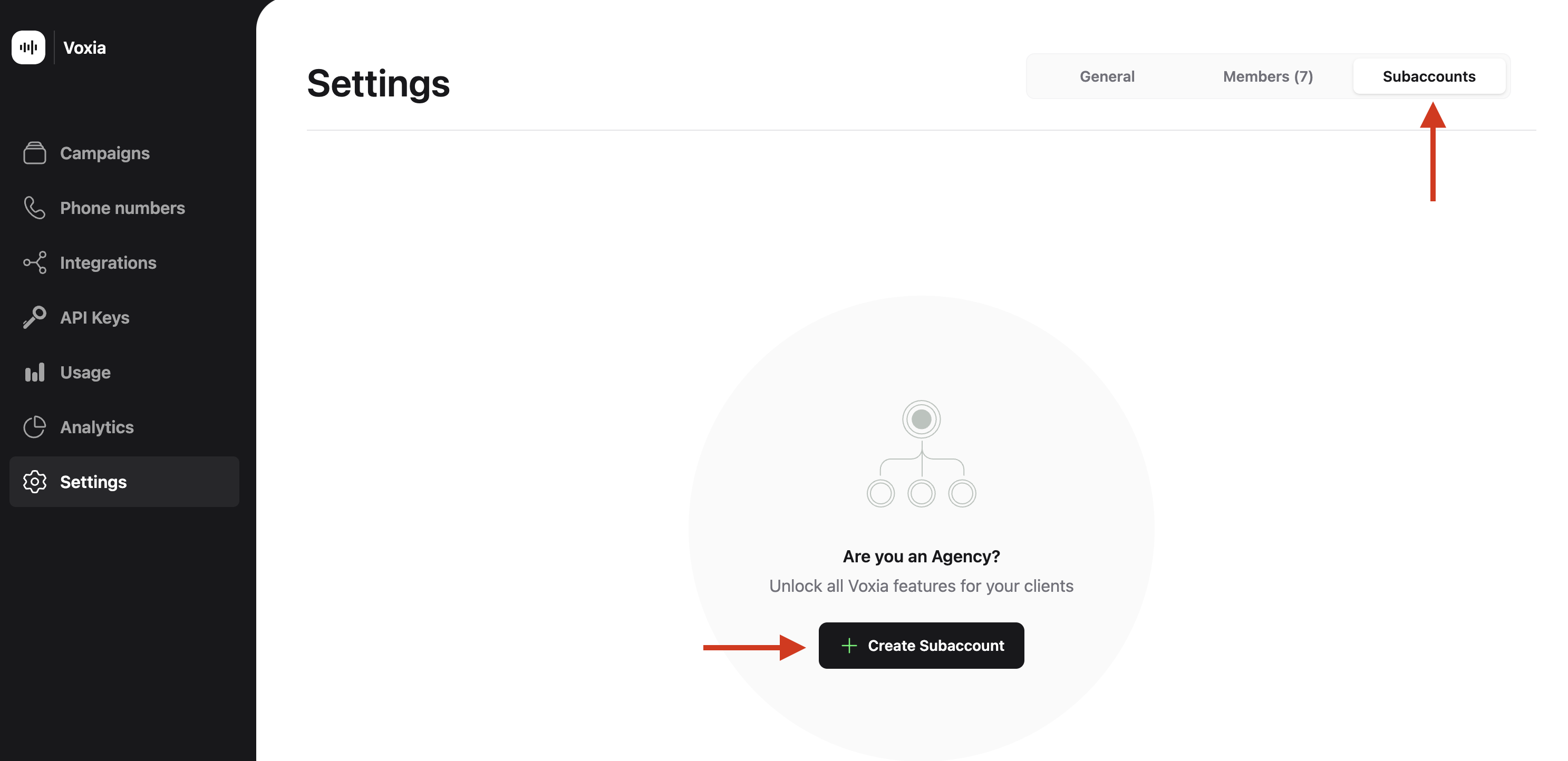
3. **Create Subaccount**: Click on `Create subaccount`, and enter a name for the subaccount and click on `Create`.
 ### Switching Between Subaccounts
Once you have created your subaccount, you can switch between your main account and any subaccount easily:
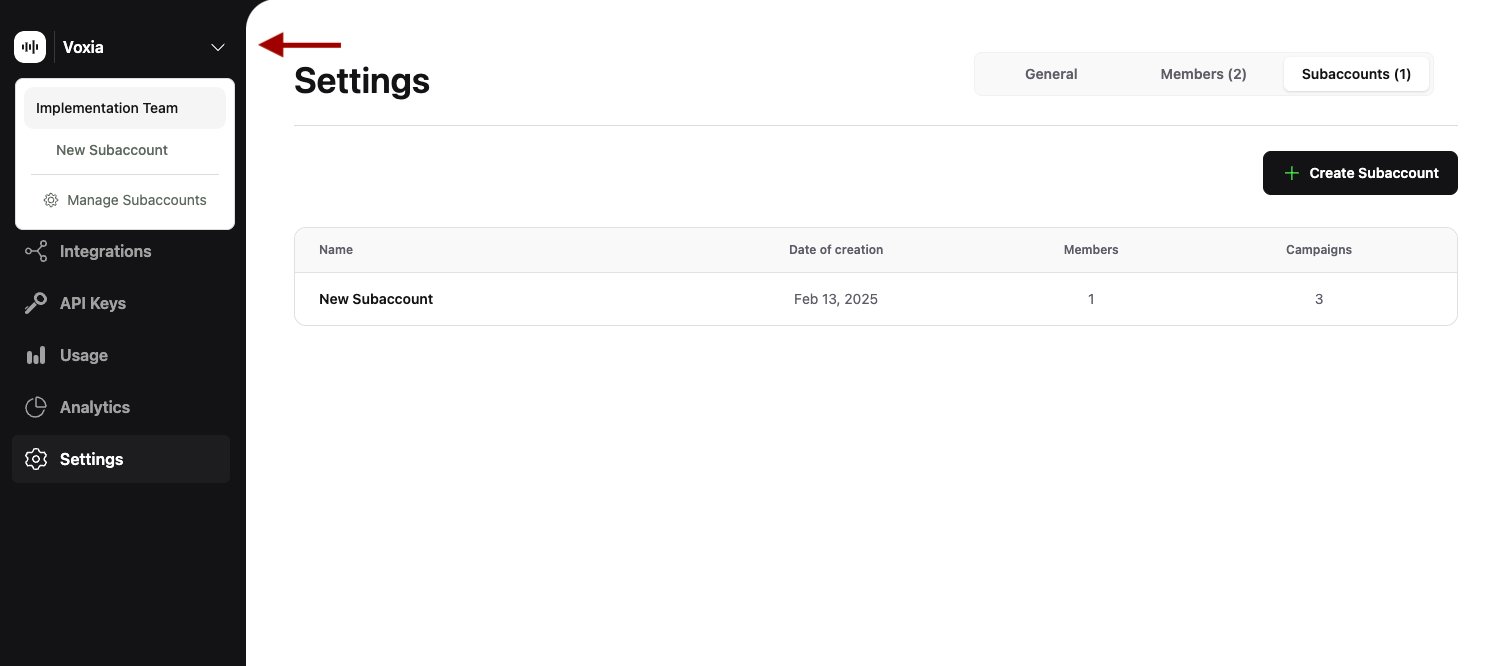
* **Through Settings**: Go to *Settings* and press the `Subaccounts` option.
* **Using the Organization Dropdown**:
* Click the arrow down next to your organization's name at the top left.
* Select the subaccount you wish to access from the dropdown menu.
### Switching Between Subaccounts
Once you have created your subaccount, you can switch between your main account and any subaccount easily:
* **Through Settings**: Go to *Settings* and press the `Subaccounts` option.
* **Using the Organization Dropdown**:
* Click the arrow down next to your organization's name at the top left.
* Select the subaccount you wish to access from the dropdown menu.
 ### Inviting Members to a Subaccount
After entering your subaccount:
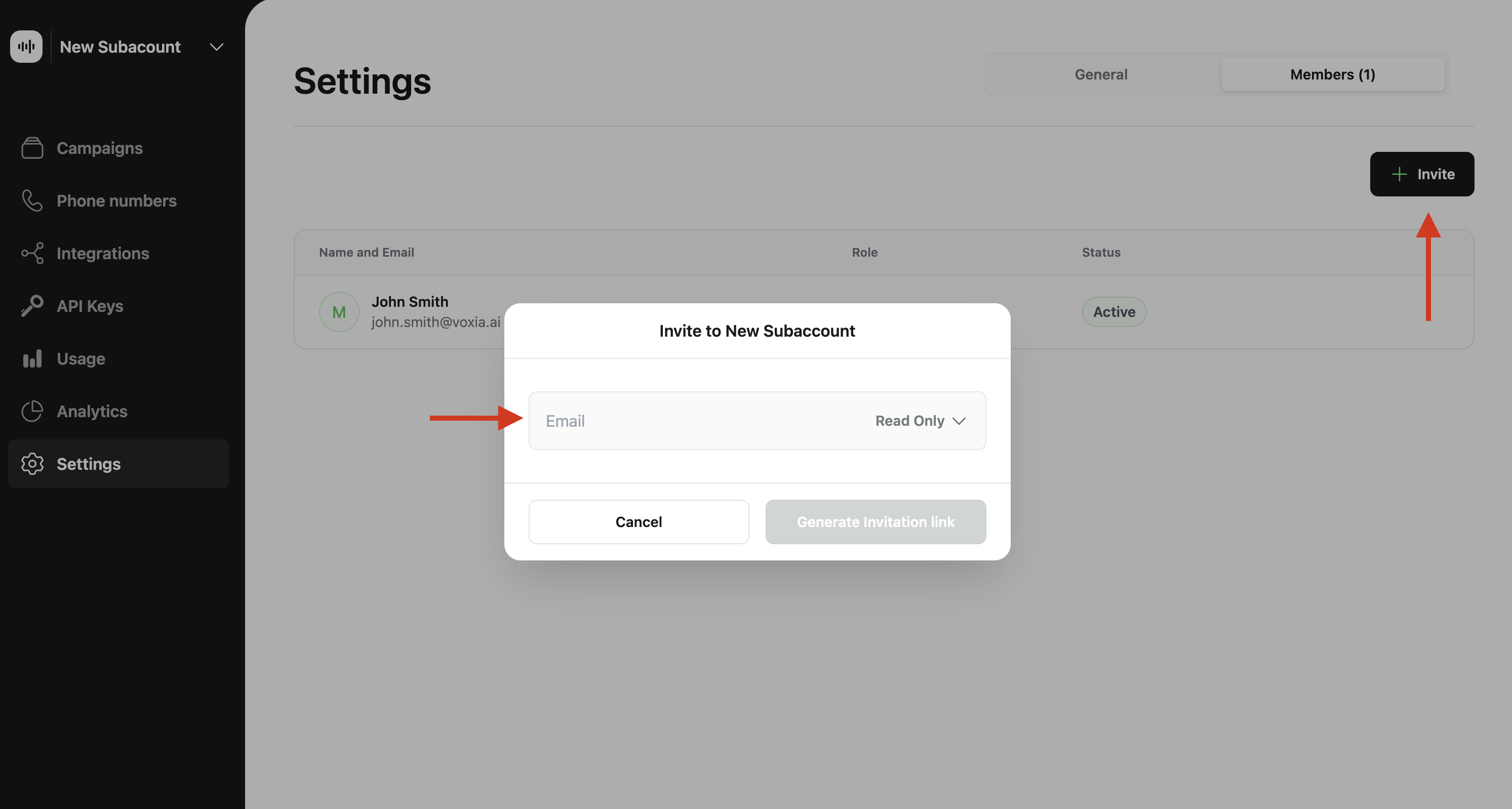
1. **Navigate to Members**: Go to *Settings* and locate the *Members* section.
2. **Send Invitations**:
* Enter the email addresses of the individuals you want to invite.
* Click on `Invite`. An invitation will be sent to them to join the new subaccount.
* Select the desired permission level for the member.
### Inviting Members to a Subaccount
After entering your subaccount:
1. **Navigate to Members**: Go to *Settings* and locate the *Members* section.
2. **Send Invitations**:
* Enter the email addresses of the individuals you want to invite.
* Click on `Invite`. An invitation will be sent to them to join the new subaccount.
* Select the desired permission level for the member.
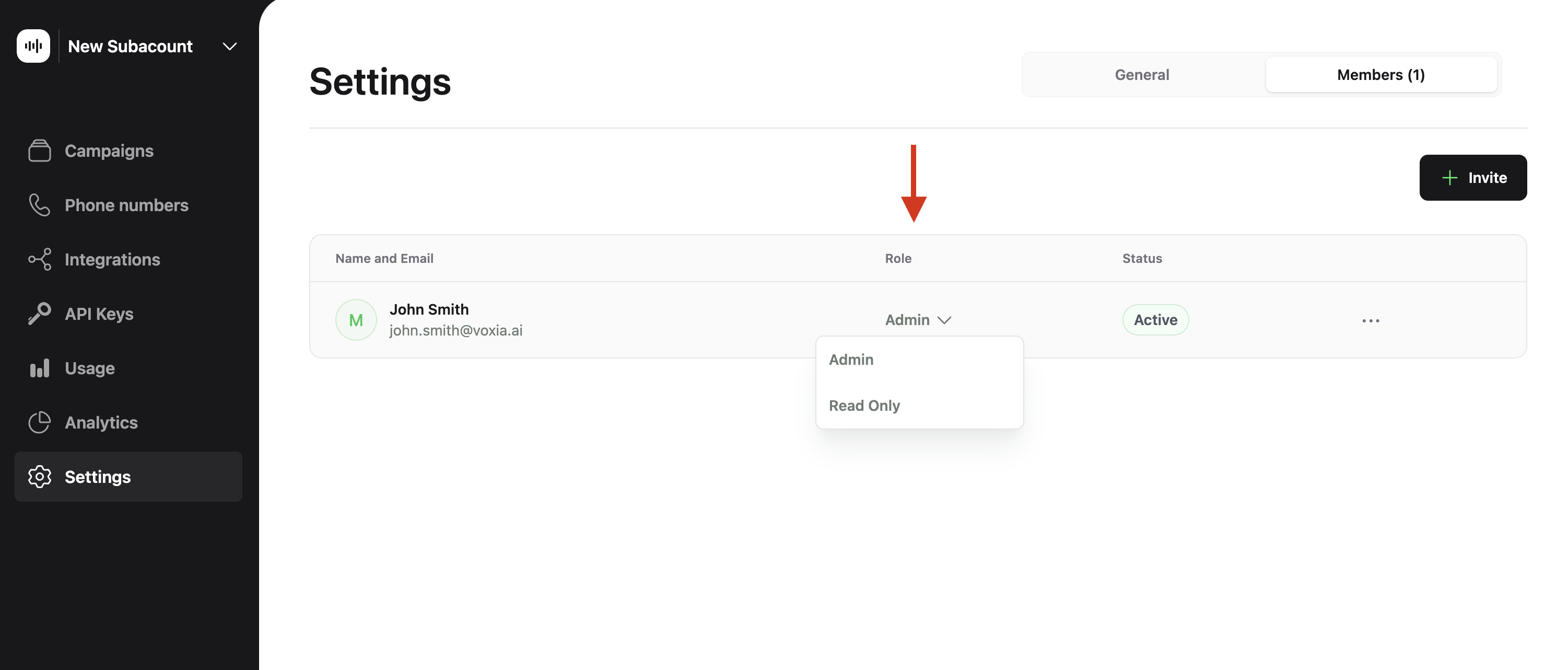 #### Managing Member Permissions
To adjust permissions for any member within the subaccount:
* Click on the arrow down next to the member’s email in the *Members* section.
* Select the desired permission level: `Admin` or `ReadOnly`.
#### Managing Member Permissions
To adjust permissions for any member within the subaccount:
* Click on the arrow down next to the member’s email in the *Members* section.
* Select the desired permission level: `Admin` or `ReadOnly`.